Right Sidebar Icons
unlistedby Feitong
Moves right sidebar icons to a persistent vertical bar and allows reordering.
★ 5 starsUpdated 6mo agoMIT
Right Sidebar Icons
English
An Obsidian plugin that moves right sidebar icons to a persistent vertical bar and allows reordering via drag-and-drop.
Features
- Persistent Vertical Dock: The right sidebar icons (plugins, core features) are permanently displayed in a clean vertical column, even when the right sidebar panels are collapsed.
- Drag & Drop Reordering: Easily rearrange the order of the icons by dragging and dropping them up and down the column.
- Togglable Mode: Use the ribbon icon or a hotkey to instantly switch between the default Obsidian view and the custom Right Sidebar Icons mode.
- State Persistence: Your custom icon order and sidebar state are automatically saved and restored when you open Obsidian.
Preview
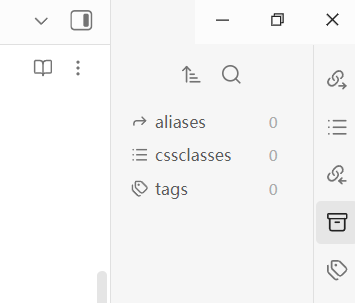
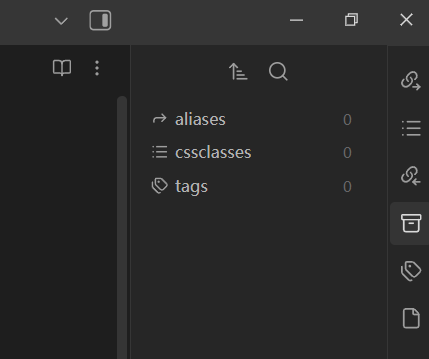
Installation
Via BRAT
- Install the BRAT plugin from the Obsidian community plugins store.
- Open BRAT settings:
Community Plugins>BRAT>Plugins List. - Click
Add Beta plugin. - Copy and paste the repository URL:
https://github.com/Pumatlarge/obsidian-right-sidebar-icons. - Click
Add Plugin.
Manual Installation
- Go to your Obsidian vault's
.obsidian/plugins/directory. - Create a new folder named
right-sidebar-icons. - Download the
main.js,manifest.json, andstyles.cssfiles from the latest release. - Place those three files inside the new folder.
- In Obsidian, go to Settings > Community Plugins, disable Safe Mode, and enable "Right Sidebar Icons".
Usage
- Reordering: Click and drag any icon in the vertical column to move it up or down.
- Toggle Mode: Click the plugin icon in the left ribbon or use the assigned hotkey (assignable in Settings > Hotkeys) to toggle the vertical column mode.
- Open Panes: Click on an icon in the column, and it will expand the right sidebar with its respective pane, just like the default Obsidian behavior.
Development
To build the plugin from source:
- Clone this repository.
- Run
npm installto install dependencies. - Run
npm run devto compile the plugin and watch for changes. - Run
npm run buildto create a production bundle.
License
MIT License
中文
一个 Obsidian 插件,将右侧边栏图标移至持久的垂直栏,并允许通过拖放进行重新排序。
功能特性
- 持久垂直停靠栏:即便在右侧面板折叠时,右侧边栏图标(插件、核心功能)也会以整洁的垂直列持久显示。
- 拖拽排序:通过在列中上下拖放图标,轻松重新排列图标顺序。
- 模式切换:通过功能栏图标或快捷键,在默认 Obsidian 视图和自定义“右侧边栏图标”模式之间即时切换。
- 状态持久化:自定义的图标顺序和侧边栏状态会在打开 Obsidian 时自动保存并恢复。
预览
安装方法
通过 BRAT 安装
- 在 Obsidian 社区插件市场中安装 BRAT 插件。
- 打开 BRAT 设置:
第三方插件>BRAT>Plugins List。 - 点击
Add Beta plugin。 - 复制并粘贴本仓库地址:
https://github.com/Pumatlarge/obsidian-right-sidebar-icons。 - 点击
Add Plugin。
手动安装
- 进入你的 Obsidian 库的
.obsidian/plugins/目录。 - 创建一个名为
right-sidebar-icons的新文件夹。 - 从最新发布版本中下载
main.js、manifest.json和styles.css文件。 - 将这三个文件放入该文件夹中。
- 在 Obsidian 中,前往“设置” > “第三方插件”,关闭安全模式,并启用 "Right Sidebar Icons"。
使用说明
- 重新排序:点击并拖动垂直栏中的任何图标即可上下移动。
- 切换模式:点击左侧功能栏中的插件图标,或使用分配的快捷键(可在“设置” > “快捷键”中设置)来切换垂直栏模式。
- 打开面板:点击垂直栏中的图标,将像默认行为一样展开对应的右侧边栏面板。
开发
若要从源码构建插件:
- 克隆此仓库。
- 运行
npm install安装依赖。 - 运行
npm run dev编译插件并监听更改。 - 运行
npm run build创建正式版本。
许可
MIT License
For plugin developers
Search results and similarity scores are powered by semantic analysis of your plugin's README. If your plugin isn't appearing for searches you'd expect, try updating your README to clearly describe your plugin's purpose, features, and use cases.