Concept Map
unlistedby Remy Honig
Turn simple statements into visual concept maps directly in your notes.
Obsidian Concept Map
Capture ideas as simple statements, see them as a connected diagram.
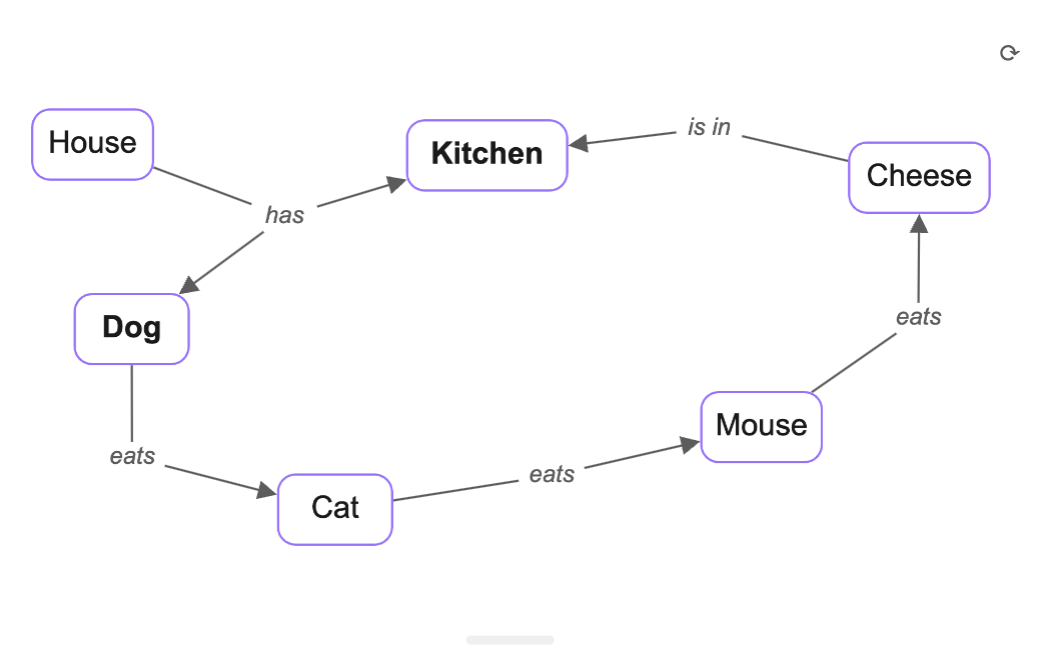
The Problem
You're in a meeting, a lecture, or exploring a new codebase. Ideas and relationships are flying by. You need to capture them quickly—not fiddle with diagram tools.
Existing options in Obsidian don't quite fit:
- ExcaliBrain requires creating a separate note for every concept. Too much friction when you just want to jot down "Service A calls Service B".
- Mermaid is powerful but verbose. Concept maps aren't its strength.
- Mind maps force a hierarchy. Real knowledge is a network, not a tree.
This Plugin
Write plain statements. Get a visual map.
User sends Request
Request hits API
API queries Database
Database returns Results
That's it. No node IDs, no arrow syntax, no separate files. Just write what you're learning and watch the mental model form.
Use cases:
- Meetings — Quickly map out discussions, decisions, and dependencies
- Software engineering — Capture domain knowledge, system relationships, data flows
- Studying — Build understanding during lectures or while reading
Background
Concept maps were developed by Joseph Novak in the 1970s based on David Ausubel's theory of meaningful learning. The idea is simple: knowledge is built from propositions—statements that connect two concepts with a named relationship.
Concept → relationship → Concept
This structure makes knowledge explicit and visual. CmapTools by IHMC is the classic software for this. This plugin brings the same idea into Obsidian with a text-first approach.
Features
- Write statements like
Cat loves Mouseand see them as a graph - Wiki-links become clickable nodes that open your notes
- Resize and shuffle layouts
- Aggregate scattered statements into one diagram
- Adapts to light/dark themes
Syntax
Write statements in the format: Subject verb Object
Cat loves Mouse
Dog chases Cat
[[Bird]] flies over [[Tree]]
- Capitalize the first letter of subjects and objects
- Use
[[wiki-links]]for clickable nodes - Lines starting with
//are ignored
Usage
There are two ways to create concept maps: code blocks and transclusions.
Code Block
Use a fenced code block with the concept-map language:
```concept-map
Cat loves Mouse
Dog chases Cat
```
Code blocks are self-contained and render inline. They're quick to write but don't support clickable wiki-links.
Transclusion
Write statements anywhere in your note with a block ID starting with cm-:
Cat loves Mouse
Dog chases Cat ^cm-animals
Then transclude it in any note (including the same one):
![[MyNote#^cm-animals]]
Transclusion advantages:
- Wiki-links like
[[Cat]]become clickable and navigate to that note - Reuse the same diagram across multiple notes
- Edit in one place, updates everywhere
Aggregating Multiple Blocks
Multiple paragraphs can share the same block ID to combine into one diagram. This lets you capture knowledge as you go—in meetings, interviews, or while reading—and see everything connected.
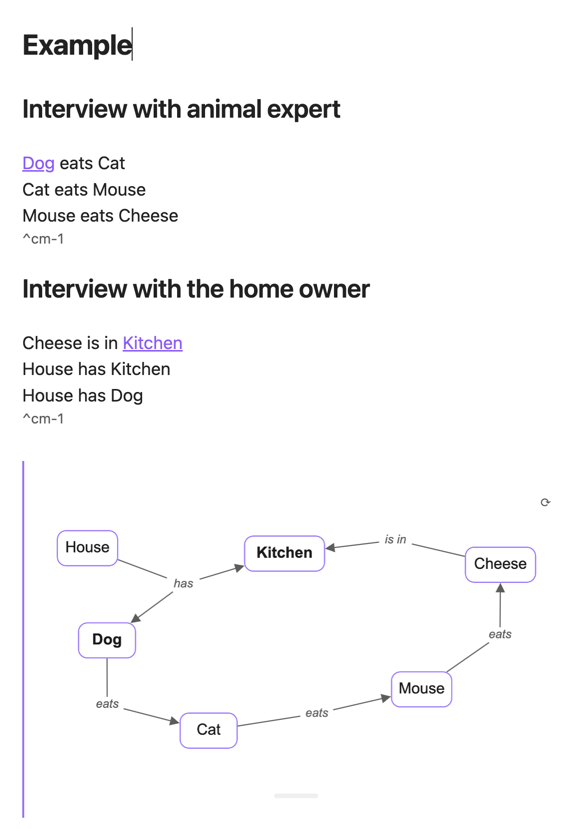
The source that created this diagram:
## Interview with animal expert

[[Dog]] eats Cat
Cat eats Mouse
Mouse eats Cheese ^cm-1

## Interview with home owner

Cheese is in [[Kitchen]]
House has Kitchen
House has Dog ^cm-1

![[Example#^cm-1]]
What's happening here:
- Two separate blocks share the same
^cm-1block ID—one from each interview - Six statements define the relationships:
[[Dog]] eats Cat— Dog is a wiki-link (bold in diagram, clickable)Cat eats MouseMouse eats CheeseCheese is in [[Kitchen]]— Kitchen is a wiki-linkHouse has KitchenHouse has Dog
- The transclusion
![[Example#^cm-1]]pulls in all blocks with that ID - The diagram shows all six concepts connected, with shared nodes merged (Dog appears once, connected to both House and Cat)
Wiki-links appear in bold in the diagram and navigate to that note when clicked. The ⟳ button shuffles the layout if nodes overlap.
Installation
Using BRAT (recommended)
- Install the BRAT plugin from Community Plugins
- Open Settings → BRAT → Add Beta plugin
- Enter:
remyhonig/obsidian-concept-map - Enable the plugin in Settings → Community plugins
BRAT will keep the plugin updated automatically.
Manual Installation
- Download
main.js,manifest.json, andstyles.cssfrom the latest release - Create folder:
<vault>/.obsidian/plugins/obsidian-concept-map/ - Copy the files into that folder
- Reload Obsidian and enable the plugin in Settings → Community plugins
Settings
- Default height: Initial height of concept maps (resizable per map)
- Block ID prefix: Prefix for transclusion block IDs (default:
cm-)
Development
npm install          # Install dependencies
npm run dev          # Build with watch mode
npm run build        # Production build
npm test             # Run tests
npm run lint         # Run ESLint
License
MIT
For plugin developers
Search results and similarity scores are powered by semantic analysis of your plugin's README. If your plugin isn't appearing for searches you'd expect, try updating your README to clearly describe your plugin's purpose, features, and use cases.