Drift
unlistedby Ryan Brown
Detects external file changes and shows side-by-side diffs with per-chunk accept/reject.
Drift
A VS Code-style side-by-side diff viewer that lives inside Obsidian. Automatically detects external file changes (including AI coding agents) and shows you a before/after view with per-chunk accept/reject, accept all/reject all, and collapsible unchanged regions.
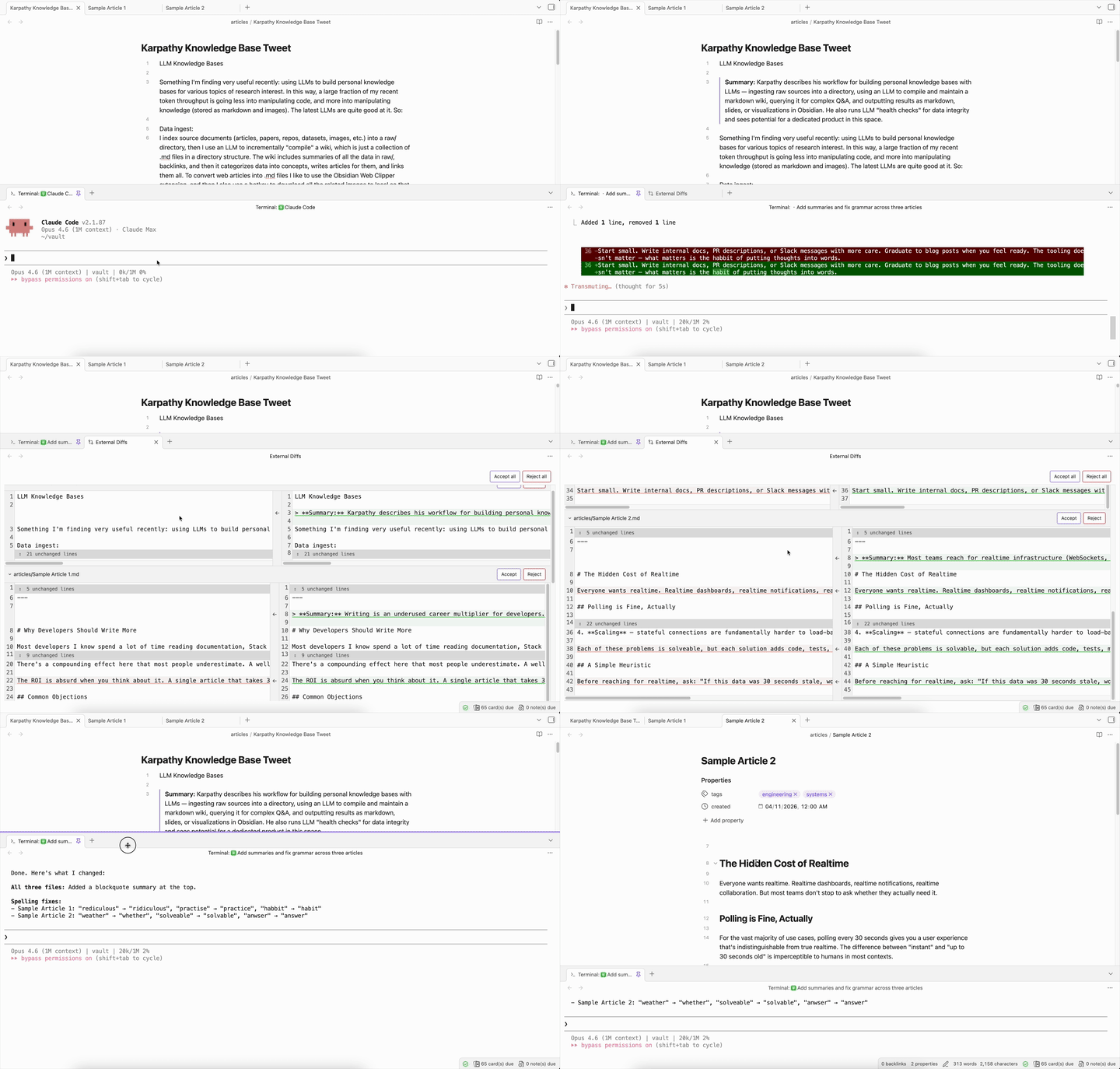
Features
- Instant detection — No polling or delays. Uses CodeMirror 6 transaction monitoring to detect external changes the moment they happen.
- Per-chunk accept/reject — Cherry-pick individual changes, not just all-or-nothing. Revert buttons on each diff chunk let you keep what you want and undo what you don't.
- Accept all / Reject all — Bulk actions when you have multiple files with pending diffs.
- Persistence — Pending diffs survive Obsidian restarts. Stale diffs (file deleted or reverted) are automatically discarded on reload.
- Edit protection — Editing a file with pending diffs shows a warning modal, preventing accidental data loss.
- Tool-agnostic — Works with any tool that modifies vault files: AI coding agents, sync services, scripts, other plugins.
Installation
This plugin is currently awaiting approval in the Obsidian community plugin store. In the meantime, you can install it using one of these methods:
Using BRAT (recommended)
- Install BRAT from the community plugin store
- Open command palette → BRAT: Add a beta plugin for testing
- Enter
ryanbbrown/obsidian-drift
Manual
- Download
main.js,manifest.json, andstyles.cssfrom the latest release - Create a folder
VaultFolder/.obsidian/plugins/drift/ - Copy the downloaded files into that folder
- Restart Obsidian and enable the plugin in Settings → Community plugins
Usage
Once enabled, the plugin runs automatically. When an external tool modifies a markdown file in your vault:
- A Drift tab opens in the background showing the side-by-side diff
- Use Accept All to keep the new content, or Reject All to revert to the original
- Use the revert button on individual chunks to selectively undo specific changes
- Use the Open diff viewer command to reopen the tab if you close it
Commands
| Command | Description |
|---|---|
| Open diff viewer | Open or focus the diff viewer tab |
| Toggle external change detection | Enable/disable external change detection |
For plugin developers
Search results and similarity scores are powered by semantic analysis of your plugin's README. If your plugin isn't appearing for searches you'd expect, try updating your README to clearly describe your plugin's purpose, features, and use cases.