Time Machine
approvedby Sébastien Dubois
Browse, compare, and restore previous versions of your notes using built-in file-recovery snapshots. - This plugin has not been manually reviewed by Obsidian staff.
Time Machine for Obsidian
Ever accidentally deleted a paragraph, overwrote a section, or wished you could see what your note looked like an hour ago? Time Machine gives you instant access to every snapshot Obsidian has silently saved for you -- plus your git history if your vault is in a repository.
What it does
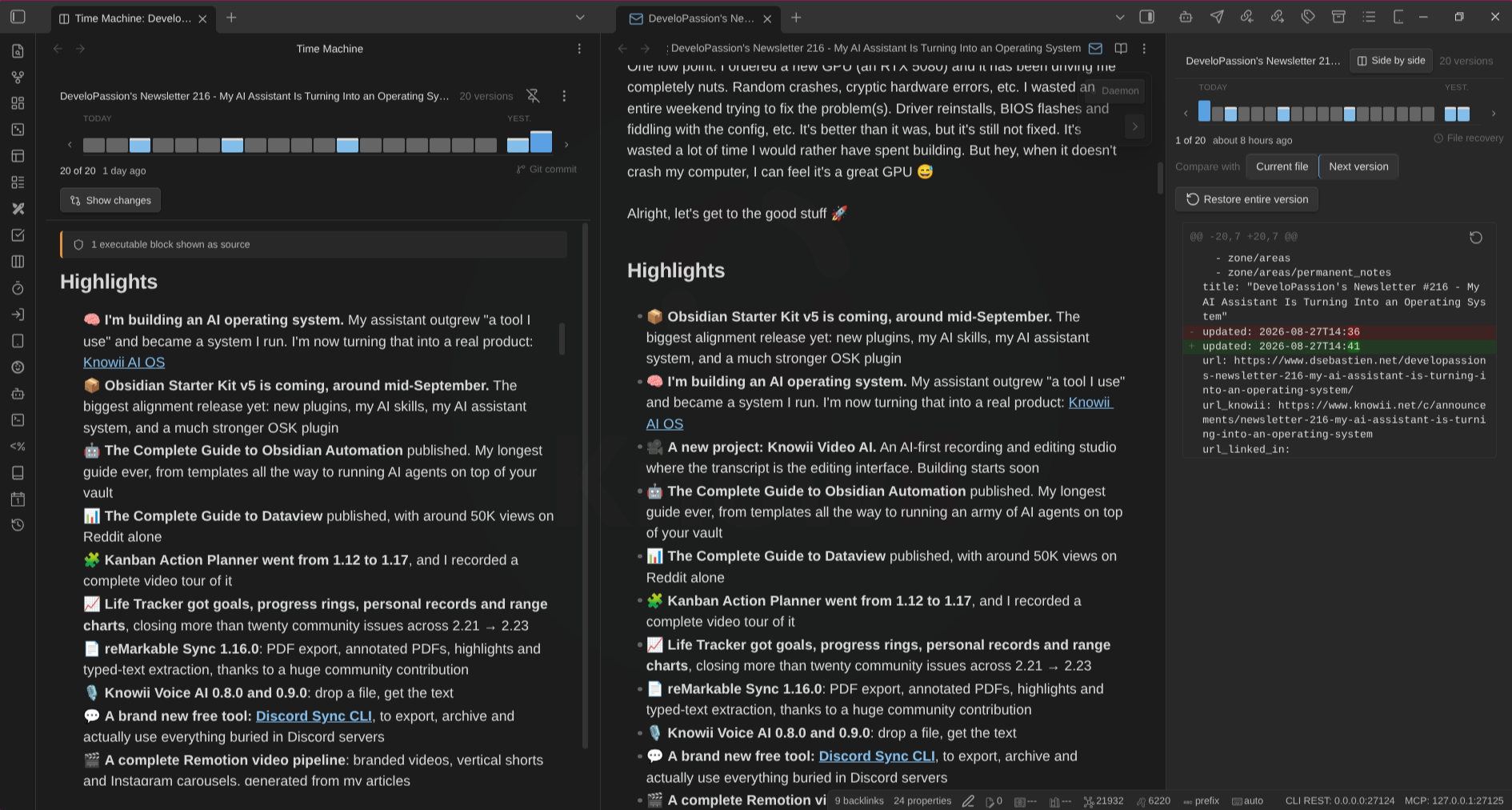
Time Machine turns Obsidian's built-in File Recovery snapshots and git commits into a visual version rail. Step through your note's history, see exactly what changed, and restore anything -- an entire version or just a single paragraph.
Features
- Side-by-side view -- open a note as it was, beside your live editor. Step through versions on the left while you keep editing on the right.
- Version rail -- step through your note's history to see how it evolved over time
- Colored diff view -- additions in green, deletions in red, so you can instantly spot what changed
- Comparison modes -- diff the selected version against the current file (cumulative) or against the next version (step by step, like core File Recovery)
- Full version restore -- roll back your entire note to any previous snapshot
- Selective restore -- restore just the specific changes you want, leaving the rest untouched
- Git integration -- automatically shows git commits alongside File Recovery snapshots on the same timeline (desktop only)
- External Git repositories -- supports vault-root
.gitpointers to sibling bare repositories, plus linked worktrees and nested vaults - Source indicators -- each snapshot shows whether it comes from File Recovery or a git commit
- On-demand snapshots -- force-create a File Recovery snapshot whenever you want, without waiting for the timer
- Markdown history export -- save recorded history as a separate note, with diffs or full versions and source metadata
- Frozen history -- insert a durable history section into the current note after confirmation; refresh it without duplicating the section
- Auto-sync -- the view updates automatically when you switch between files
- Smart filtering -- only shows snapshots that actually differ from your current content, with duplicates removed
- Desktop and mobile -- works wherever Obsidian runs (git features are desktop-only)
Installation
Requires Obsidian 1.13.0 or later. The settings pane uses the declarative settings API introduced in 1.13. On an older version the plugin will not load, and the community catalog will not offer it to you — but a manual or BRAT install can still put an incompatible build in your vault, so check Settings → About first.
Community plugins (recommended)
- In Obsidian, go to Settings → Community plugins.
- Disable Restricted mode if it's enabled.
- Select Browse, search for Time Machine, install it, then enable it.
You can also browse the catalog on the Obsidian Community website.
Manual installation
If the plugin isn't listed in the community catalog yet (or you want a specific version):
- Download
main.js,manifest.json, andstyles.cssfrom the latest release. - Copy them into
<Vault>/.obsidian/plugins/time-machine/. - Reload Obsidian and enable Time Machine in Settings → Community plugins.
BRAT (bleeding edge)
BRAT (Beta Reviewers Auto-update Tool) installs plugins straight from a GitHub repo and keeps them updated automatically. Use this if you want the latest commits — things might break.
- Install Obsidian42 - BRAT from Settings → Community plugins → Browse and enable it.
- Run BRAT: Add a beta plugin for testing from the command palette.
- Paste
https://github.com/dsebastien/obsidian-time-machine. - Select the latest version and confirm.
- Enable Time Machine in Settings → Community plugins.
Getting started
- Enable the File Recovery core plugin in Settings -> Core plugins (it's usually on by default)
- Install Time Machine (see Installation above).
- Open the command palette (
Ctrl/Cmd + P) and run Time Machine: Open view - Start browsing your note's history
If your vault is a git repository, Time Machine will automatically include git commits on the timeline -- no extra setup needed.
How it works
Time Machine reads snapshots from two sources:
- File Recovery (always) -- Obsidian's core plugin that automatically saves snapshots at regular intervals (every 2 minutes by default)
- Git (desktop, optional) -- if your vault lives in a git repository, Time Machine fetches the commit history for each file
- What's new after updates. After a plugin update, a one-time dialog shows the release notes you just received (including skipped versions) with ways to support development. Never shown on fresh installs or regular restarts.
Both sources are merged into a single chronological timeline. Snapshots with identical content are deduplicated, keeping only the most recent one.
You don't need to do anything special -- just write your notes as usual. Time Machine will always have your history ready when you need it.
Documentation
- Usage guide -- browse, compare, restore, export, and freeze history
- Configuration -- plugin settings and File Recovery configuration
- Tips and troubleshooting -- common questions and solutions
License
MIT
My other Obsidian plugins
| Plugin | What it does |
|---|---|
| Agentic Resource Discovery Server | Local-first Agentic Resource Discovery publisher and registry that serves your AI skills and tools to agents over a local HTTP and MCP server |
| Book Exporter | Export books (one manifest note + linked chapter notes) to EPUB and PDF via Pandoc |
| Bookshelf Base | Display your notes as a visual bookshelf via a custom Bases view |
| Dataview Serializer | Serialize Dataview queries to Markdown, and keep the Markdown representation up to date |
| Expander | Replace variables across your vault using HTML comment markers. Supports static values and dynamic functions |
| Ghost Publish | Publish your vault notes to a Ghost blog with configurable presets for tags, newsletters, and frontmatter conventions |
| Graph Explorer Base View | A custom Bases view that renders notes as an interactive force-directed graph with explored/unexplored tracking |
| Hidden Folders Access | Index hidden root-level folders (e.g. .claude) so they appear in the file tree, metadata cache, and Bases |
| Journal Bases | Custom Base views for journaling and periodic reviews |
| Kanban Action Planner | Render your notes as configurable Kanban boards and calendars inside Bases, with statuses, ordering, relationships, and scheduling |
| Life Tracker | Capture and visualize the data that matters in your life |
| Note Village | A 2D pixel art village where your notes become villagers you can explore and chat with using AI |
| Obsidian Starter Kit | Adds strong typing support and powerful automation support for notes |
| Remarkable Synchronizer | Connect to the reMarkable cloud, list, download, and sync notebook pages as images |
| Replicate | Use AI models with ease via the Replicate.com integration |
| REST and MCP server | Exposes CLI commands as RESTful API endpoints and an MCP server for AI tool integration |
| Transcriber | Transcribe images to markdown using Ollama vision models |
| Typefully | Publish social media posts with ease using the Typefully integration |
| Update Time | Automatically update front matter to include creation and last update times |
Everything I build is documented in my newsletter and on my YouTube channel.
News & support
To stay up to date about this plugin, Obsidian in general, Personal Knowledge Management and note-taking:
- Subscribe to my newsletter
- Subscribe to my YouTube channel
- Join the Knowii community and learn to organize your notes and put your knowledge to work, together with fellow knowledge workers
If this plugin is useful to you, here are the best ways to support my work ❤️:
- Join the Knowii community
- Become a GitHub Sponsor
- Buy me a coffee
- Subscribe to my YouTube channel
- Check out my products
Found a bug or have an idea? Open an issue.
For plugin developers
Search results and similarity scores are powered by semantic analysis of your plugin's README. If your plugin isn't appearing for searches you'd expect, try updating your README to clearly describe your plugin's purpose, features, and use cases.