draw.io
unlistedby somesanity
Create and edit diagrams with draw.io (diagrams.net), locally and offline.
🔶 Plugin draw.io for obsidian
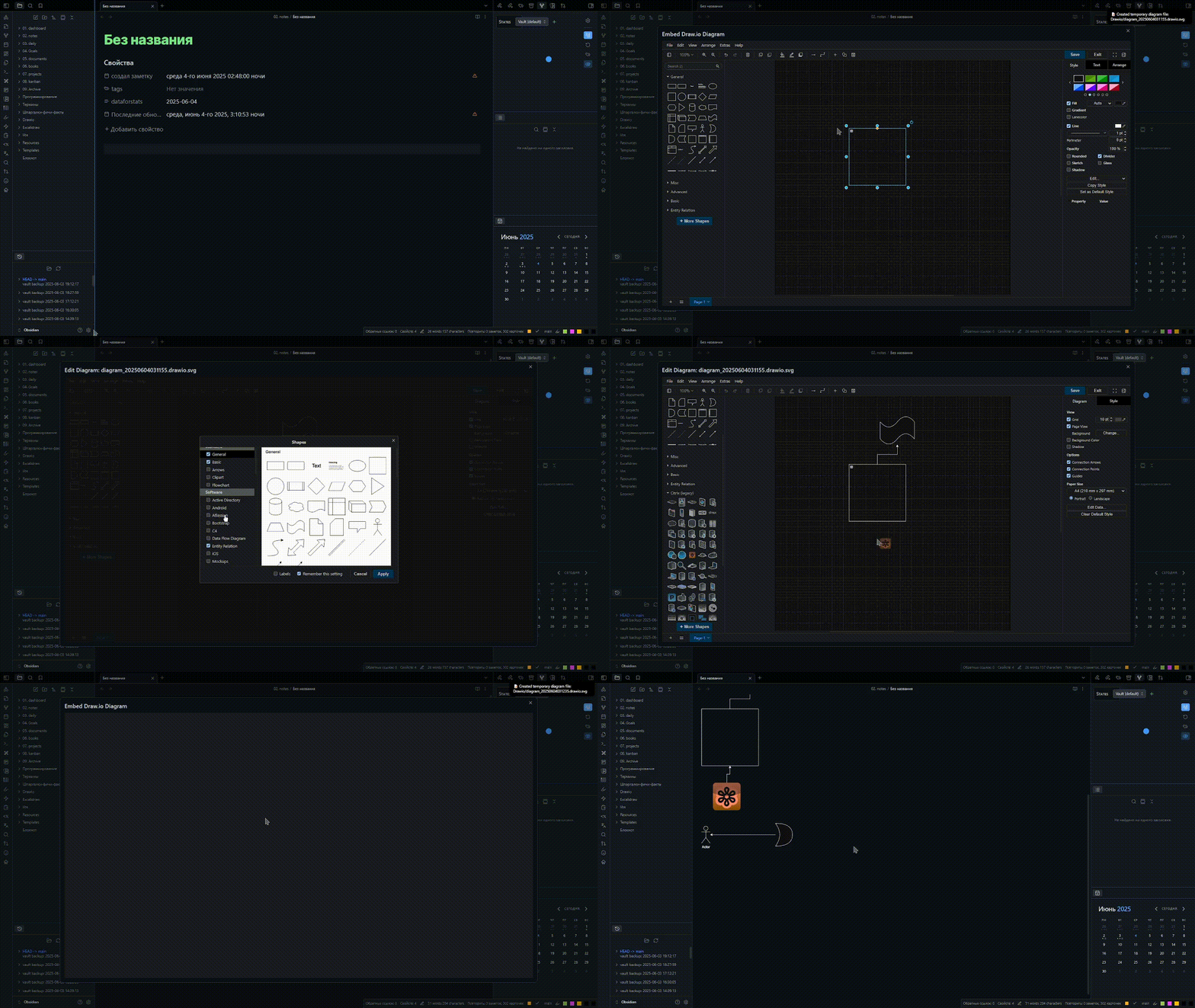
🚀 Features
- 🧩 Interactivity – bind your note links to shapes, add external links, and insert markdown fragments!
- 🛜 Works 100% offline – No internet required!
- 🔐 Privacy-first – Runs a local server on your machine.
- 📐 Mermaid & LaTeX - Support Mermaid and LaTeX, and export pdf.
- 🖼️ Support Canvas - Use diagram in Canvas, linking notes, add external links!
✨ Interactive diagrams
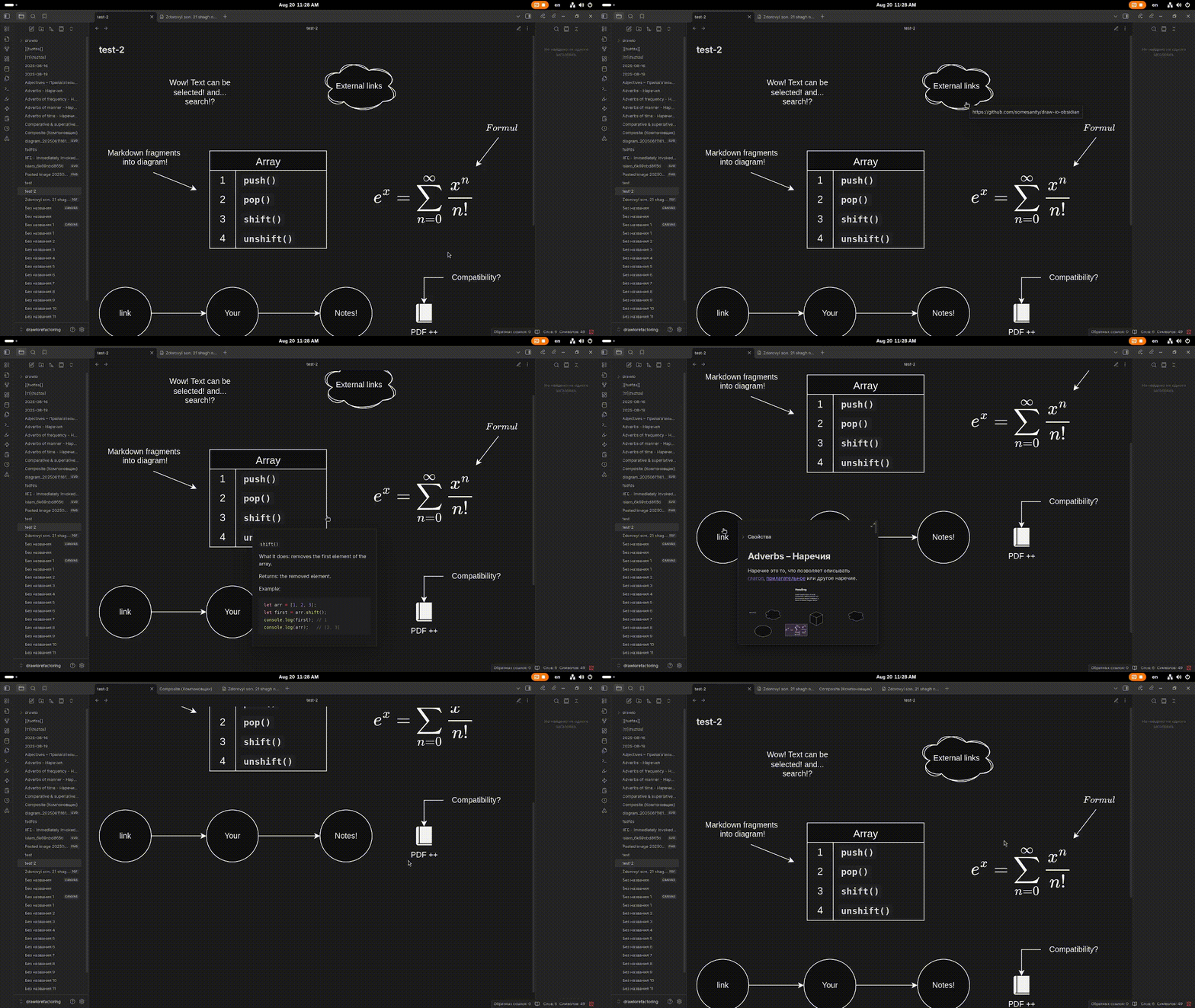
🖇️ Linking shapes with notes & external links
To link your notes or external resources to shapes, right-click on a shape in the editor and select Add link. Then, insert the link to your note or external resource.
🔗 linking notes demo:
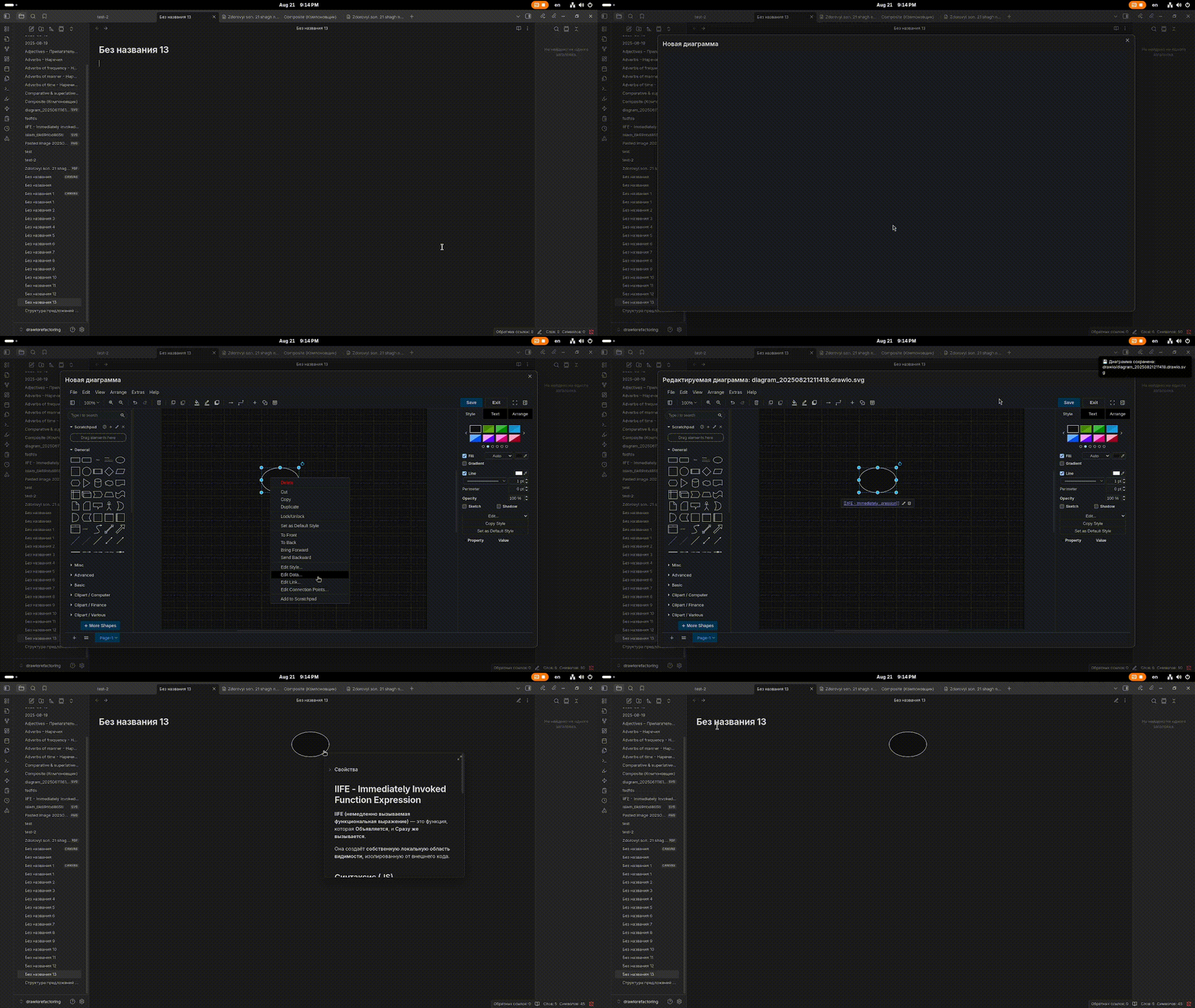
🌐 creating an external link demo:
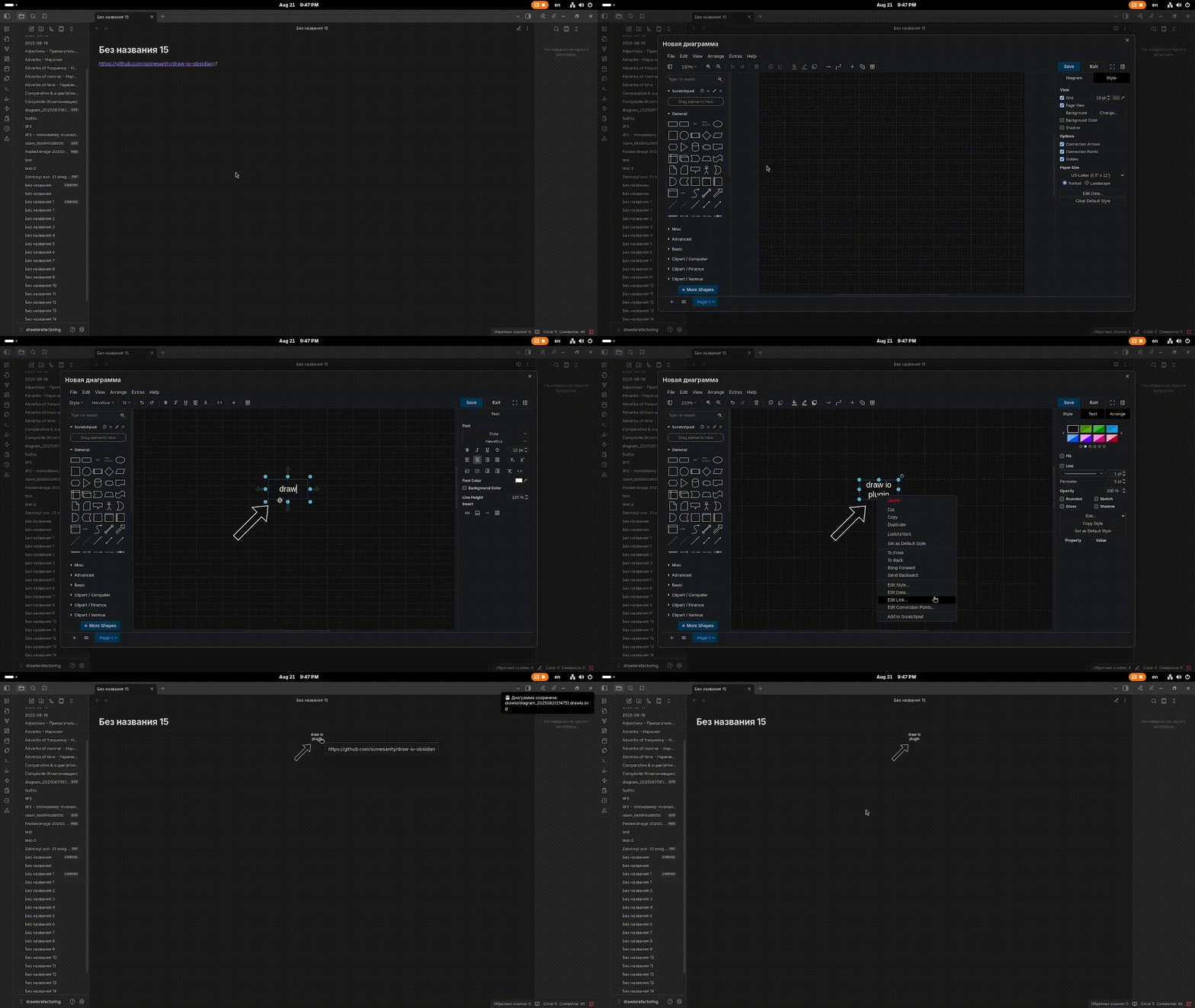
📄 Markdown fragments
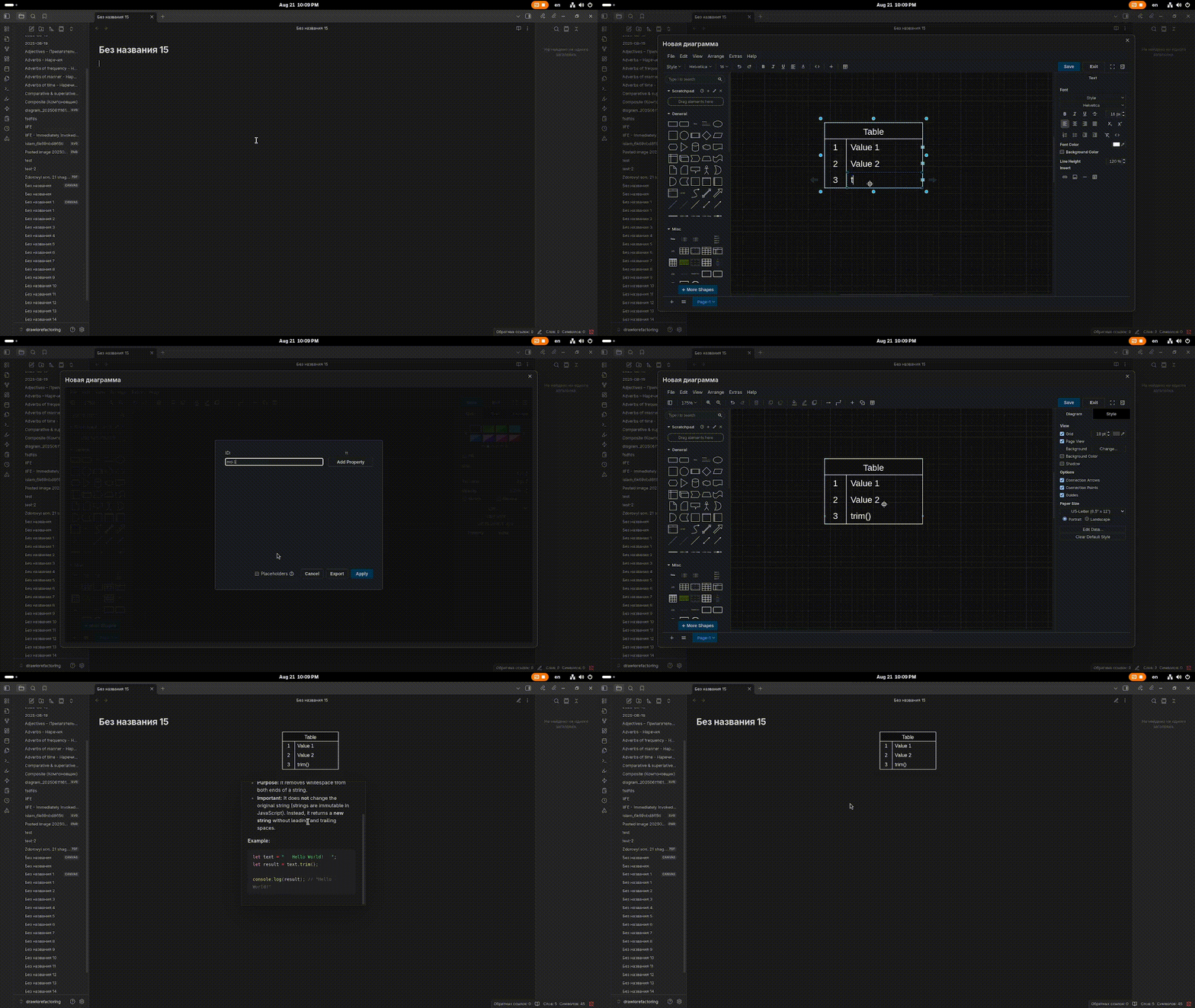
Markdown fragments are pieces of markdown that you can add to diagrams.
Right-click on the shape or element you want to bind a markdown fragment to, then select Add data....
The data name should follow the pattern md-number, for example: md-1, md-2.
Next, insert the markdown text into the property.
📜 Adding a markdown fragment demo:
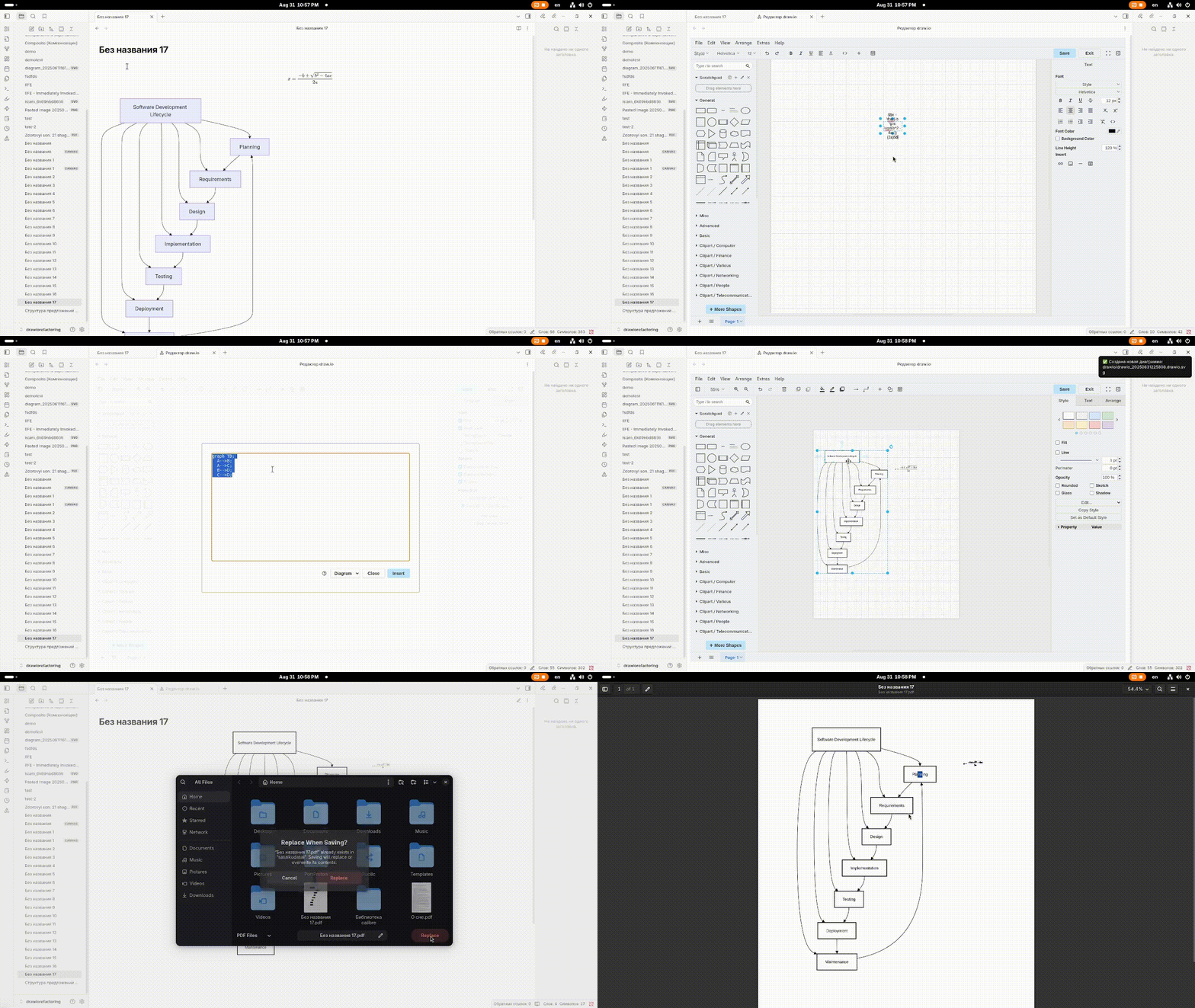
📐 Mermaid & LaTeX
You can use mermaid and LaTeX (Default support in draw.io)
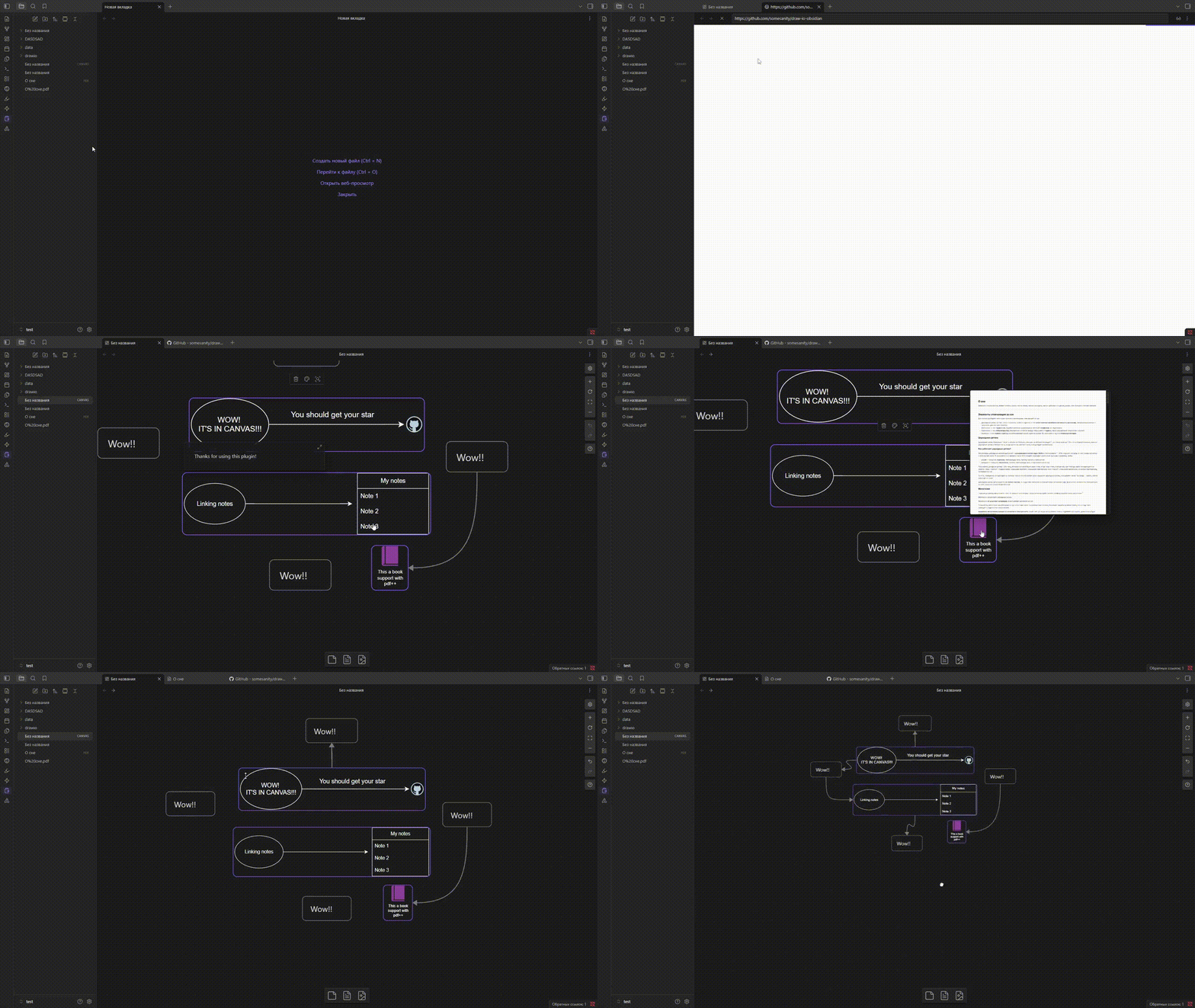
🖼️ Canvas support
Use the diagrams in canvas! Link your notes, add external/internal links and markdown-fragments!
❓ How It Works
This plugin launches a local web server that serves the Draw.io web app directly from your machine.
- When you open your Obsidian vault and enable the plugin, it spins up the server automatically.
- You can then create, edit, and save diagrams directly within Obsidian — completely offline.
📦 Installation Guide
there are 2 ways:
- using plugin for obsidian - BRAT
- manually install
📌 The
drawioclientfolder, which contains the core Draw.io application, is crucial for this plugin to function correctly. Because GitHub doesn't allow direct folder uploads and to ensure faster downloads, thedrawioclientcontent is provided as an archive. A small script (drawIoClientManager.ts) will automatically extract it for you upon installation. Please allow a brief moment for this process to complete.!
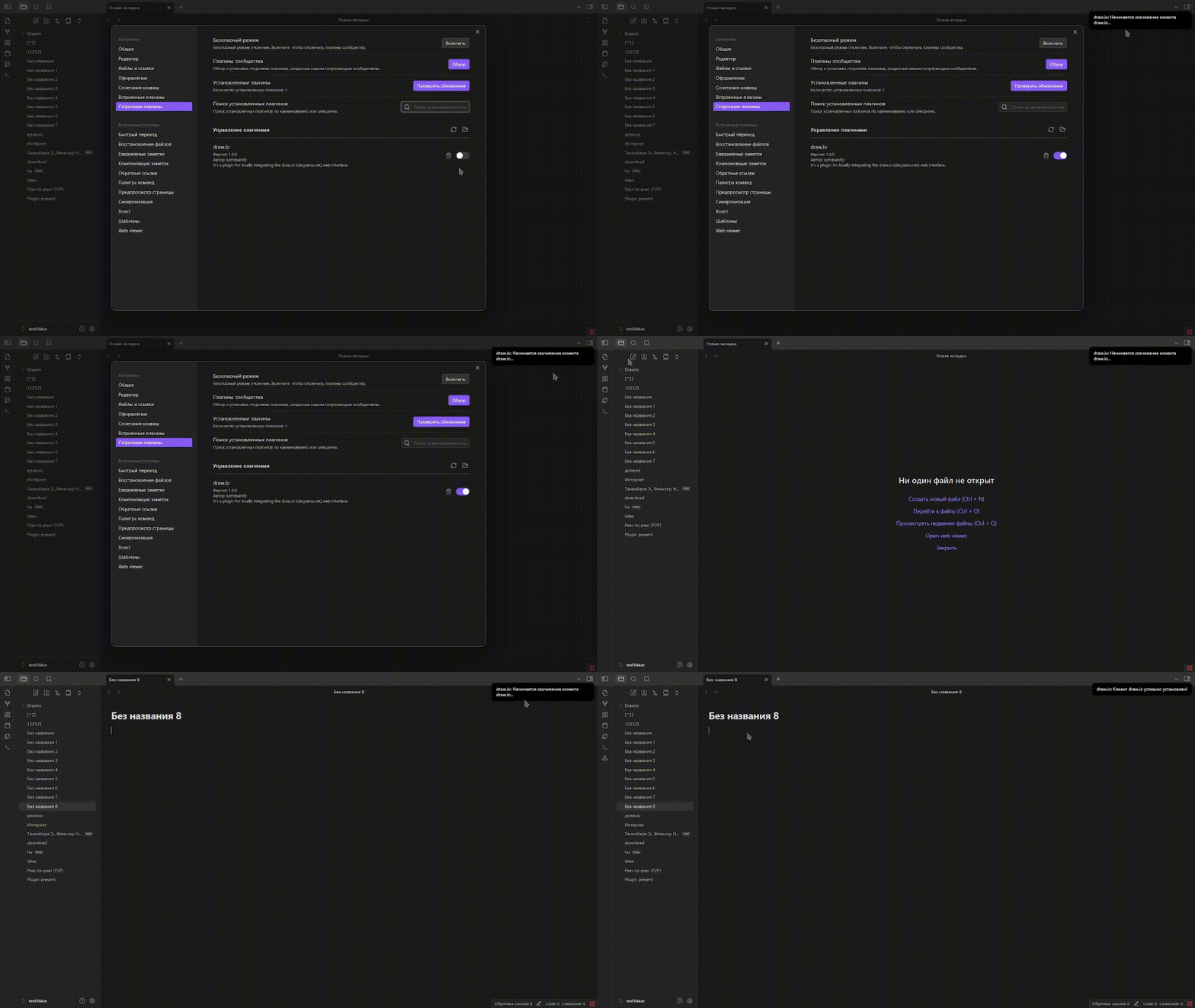
This only needs to be done once.
🕗 Install with using BRAT
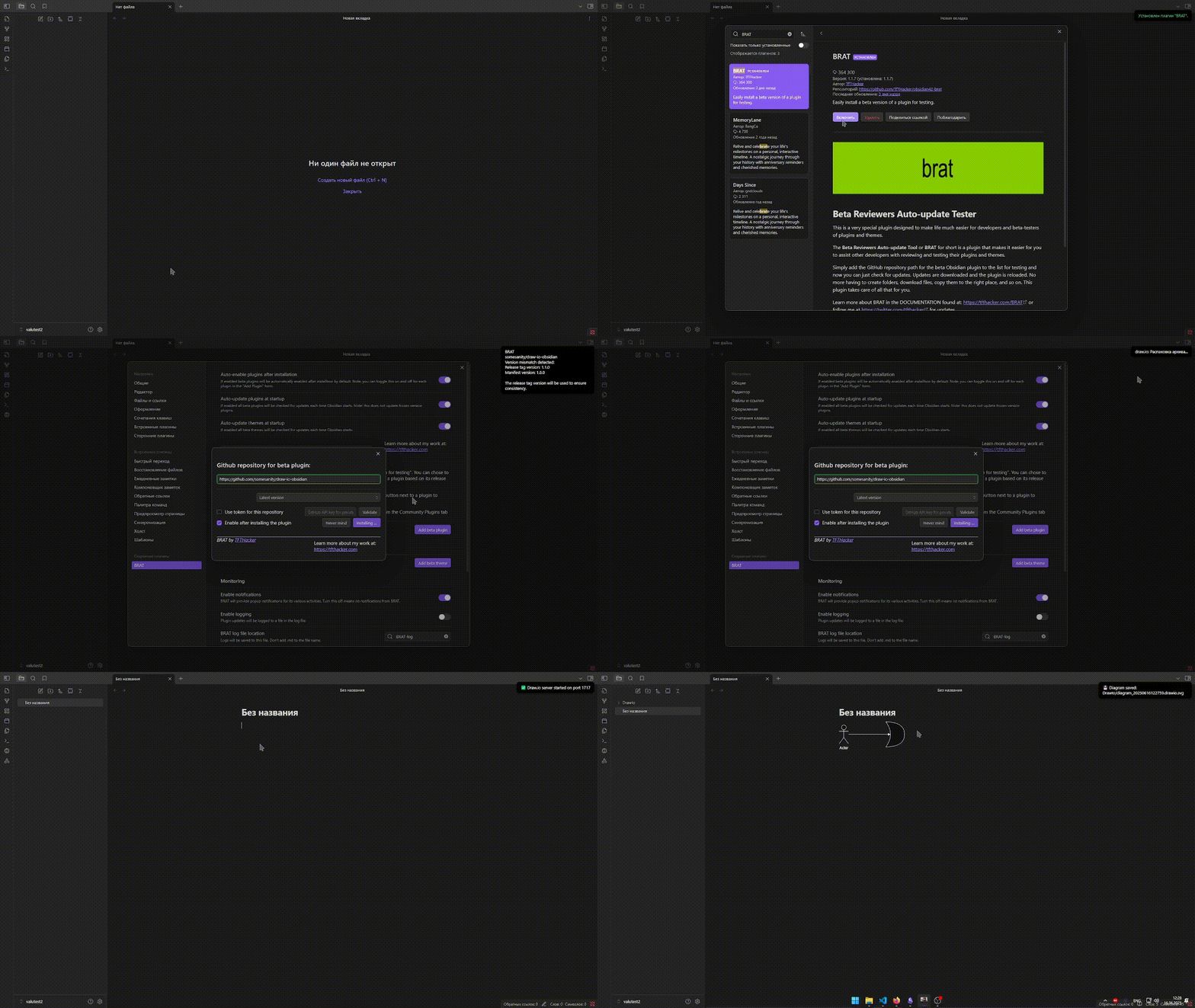
- install BRAT from repository or from obsidian plugin list
- open BRAT plugin
settings> clickAdd beta-plugin - paste in input
https://github.com/somesanity/draw-io-obsidianselect version and click toAdd plugin.
🙌 manually install
-
Clone or download this repository:
git clone https://github.com/somesanity/draw-io-obsidianOr download the ZIP and extract it.
-
Build the plugin
npm install npm run dev -
Move the plugin files to your Obsidian vault:
-
Go to your Obsidian vault:
.obsidian/plugins/ -
Create a folder, e.g.,
draw-io. -
Copy these files and folders:
manifest.json
main.js
styles.css
webapp/        (this is the draw.io web application.
                get it from the offical repository [see below]
                or from the 'Releases' section)
Your plugin directory should look like this:
.obsidian/ └── plugins/ └── draw-io/ ├── manifest.json ├── main.js ├── styles.css └── webapp <-- This folder is essential! -
-
Enable the plugin in Obsidian:
- Open Settings → Community Plugins → Enable plugin.
🛠️ How update draw.io webapp
This plugin’s main benefit is that it’s just a connector between draw.io and Obsidian. It isn't locked to any fixed version; you can manually update it by swapping the webapp folder with the one from the official repository. Even if the plugin is no longer maintained, you can keep draw.io current on your own.
For plugin developers
Search results and similarity scores are powered by semantic analysis of your plugin's README. If your plugin isn't appearing for searches you'd expect, try updating your README to clearly describe your plugin's purpose, features, and use cases.