Audio Capsule Recorder
unlistedby OpenAI Codex
Adds a voice-memos recorder to notes, with progressive transcription, AI processing, and automation-ready command flows.
Audio Capsule Recorder


中文说明 | Architecture | Release Checklist | Roadmap
Audio Capsule Recorder is an Obsidian plugin that turns native note recording into a production-oriented capture workflow:
- native in-note recorder UI inspired by iOS Voice Memos
- native Obsidian audio file insertion
- progressive manual processing actions under each recording
- speech-to-text via OpenAI-compatible backends
- transcript polishing via local or cloud text models
- split desktop/mobile runtime profiles for synced vaults
The goal of this project is not just “record in Obsidian”, but to make voice capture, transcription, and post-processing usable in a real cross-device knowledge workflow.
Use it, adapt it, and build on top of it. Secondary development is very welcome.
Visual workflow
flowchart LR
    A["Start recording in note"] --> B["Obsidian inserts native audio embed"]
    B --> C{"Choose action"}
    C -->|One-shot| D["Speech-to-text"]
    C -->|Transcript only| E["Speech-to-text"]
    D --> F["AI post-process"]
    E --> G["Transcript block"]
    F --> H["AI整理 block"]
    G --> I["Optional later AI整理"]
    I --> H
Preview
What problem this project solves
Obsidian already provides native audio recording, but the default interaction is minimal and does not cover:
- a clearer in-note recording surface
- structured post-recording actions
- speech-to-text automation
- AI note polishing
- reliable desktop/mobile configuration separation
- synced-vault recovery for damaged action blocks or failed processing states
Audio Capsule keeps Obsidian native recording as the source of truth, then adds a stable orchestration layer on top.
Core workflow
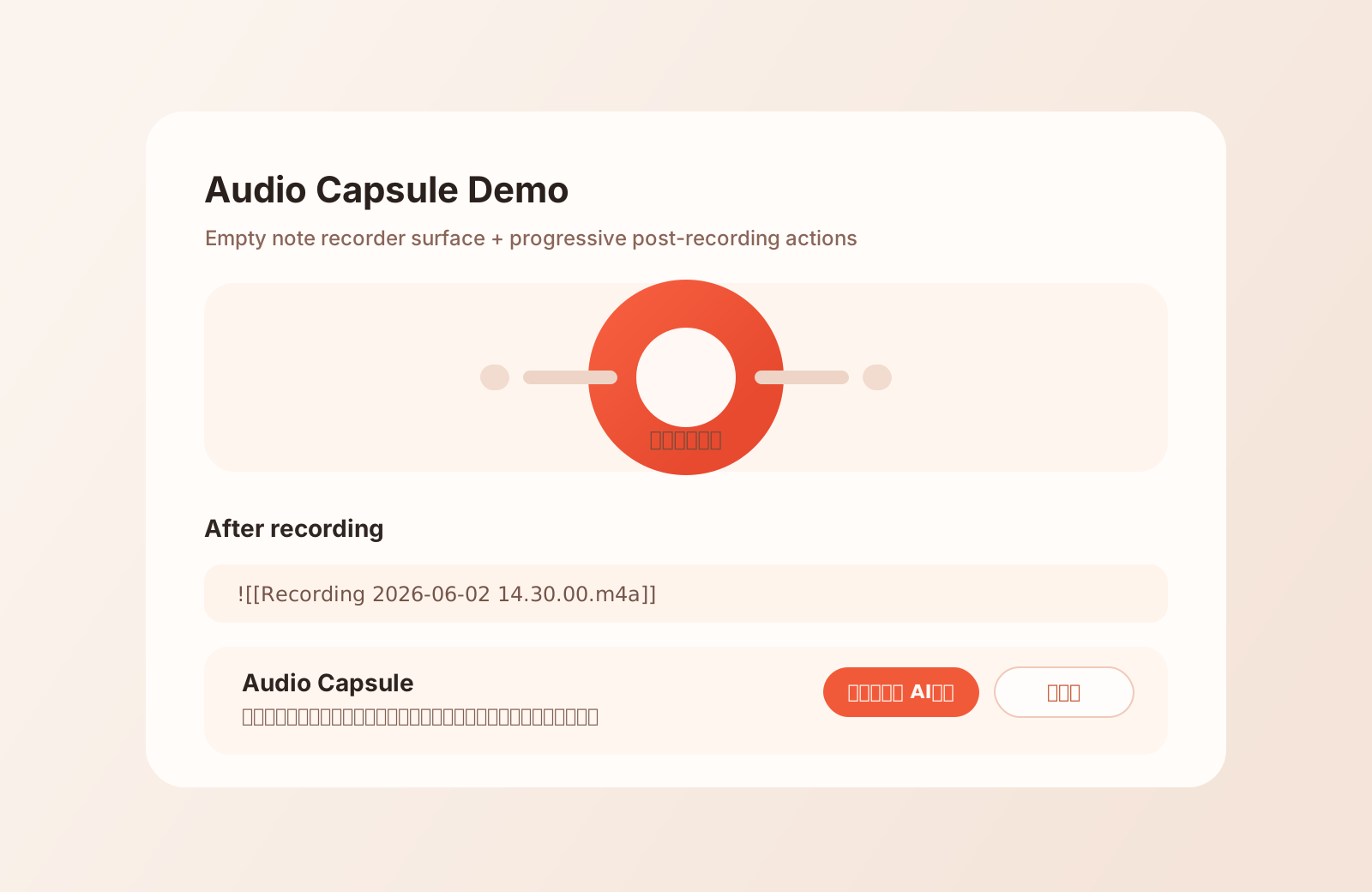
- Open an empty note and start recording from the in-note recorder surface.
- Obsidian inserts the native audio embed when recording stops.
- Audio Capsule adds a progressive action card under that audio block:
一键转写并 AI整理仅转写
- If transcript-only is chosen, a later
开始 AI整理action is added. - The plugin writes visible in-note processing states instead of hiding long cloud operations.
- Failures preserve the native audio embed and leave a recoverable action path.
Business logic and architecture
This project is built around explicit layers so future changes stay understandable and safe:
- Recording bridge:
- delegates start/stop to Obsidian core plugin
Audio recorder - never replaces native recording with a custom media pipeline
- delegates start/stop to Obsidian core plugin
- UI layer:
- empty note: large recorder surface
- non-empty note: compact floating recorder entry
- visible pending and failure states
- Transcription orchestration:
- detect the newly inserted audio
- attach action blocks
- insert/update transcript blocks
- repair historical malformed blocks
- Post-process orchestration:
- use transcript as source of truth
- generate a polished
AI整理section - keep transcript and post-process as separate stages
- Device-aware runtime resolution:
- different desktop/mobile transcription profiles
- different desktop/mobile post-process profiles
- separate mobile screen policy to avoid hidden behavior
Detailed design is documented in docs/architecture.md.
Key features
- Native-feeling recorder UI inside notes
- Progressive manual processing flow
- Separate desktop/mobile transcription configuration
- Separate desktop/mobile AI post-process configuration
- Service-level API key storage for common providers
- Local HTTP text-service support for AI polishing
- OpenAI-compatible STT backend support
- Existing-note repair command for broken historical markers
- Mobile recording screen policy:
Keep awake: best-effort wake lock while recordingSystem default: lower power use, but lock/sleep may interrupt recording
- Single-flight processing lock per recording
- Windows install and upgrade scripts for collaborator handoff
Supported runtime choices
Speech-to-text
- Groq Whisper Large V3
- Groq Whisper Turbo
- OpenAI Transcribe
- SiliconFlow SenseVoice
- localhost / custom OpenAI-compatible STT service
- Mock demo mode for flow verification
AI post-process
- local or LAN OpenAI-compatible HTTP text service
- Kimi
kimi-k2.6 - Volcengine Coding Plan
- Zhipu GLM Coding
- MiniMax
Kimi compatibility note
For Moonshot / Kimi, the plugin now targets kimi-k2.6.
This repo intentionally does not send temperature=0 to Kimi 2.6.
Current non-thinking calls use a validated compatibility mapping so the request does not fail on Moonshot's stricter parameter rules.
Dependencies
Build and development dependencies:
obsidian^1.8.10typescript^5.8.3esbuild^0.25.4tslib^2.8.1@types/node^22.15.3
Runtime networking is intentionally lightweight:
- no provider SDKs are bundled
- transcription and AI post-process both use
fetch - backends are expected to expose OpenAI-compatible HTTP endpoints
Repository layout
src/
  core-audio.ts                       Native Obsidian recording bridge
  recorder-surface.ts                 In-note recorder UI
  mobile-recording-screen-controller.ts
                                      Mobile wake/screen policy
  note-transcription-orchestrator.ts  Action/status/transcript orchestration
  transcription/                      Speech-to-text abstraction
  postprocess/                        AI polishing abstraction
  settings.ts                         Settings UI and profile management
  service-api-keys.ts                 Provider key storage and lookup
docs/
  architecture.md                     Detailed design
  v1-release-checklist.md             Regression checklist
  v1-release-report.md                Current release baseline
scripts/
  deploy-to-vault.sh                  Local vault deployment
  install-audio-capsule.bat           Windows first install
  upgrade-audio-capsule.bat           Windows incremental upgrade
Installation
For development
npm install
npm run build
Type-check:
npx tsc --noEmit
For local Obsidian use
Copy these files into:
<vault>/.obsidian/plugins/audio-capsule/
Files:
manifest.jsonmain.jsstyles.css
Then in Obsidian:
- Enable Community plugins
- Enable the core plugin
Audio recorder - Enable
Audio Capsule Recorder
For Windows teammates
This repo includes:
scripts/install-audio-capsule.batscripts/upgrade-audio-capsule.bat
Those scripts install or upgrade the plugin in a collaborator's vault without asking them to copy files manually.
For mobile devices
Because the plugin is a local plugin, mobile installation depends on syncing the vault's .obsidian directory as well as note content.
Recommended path:
- Sync the same vault to mobile
- Sync
.obsidian/plugins/audio-capsule/ - Sync
.obsidian/community-plugins.json - Disable
Restricted mode - Enable
Audio Capsule Recorder
Configuration overview
Desktop / mobile split
The plugin keeps separate profiles for:
- desktop transcription
- mobile transcription
- desktop AI post-process
- mobile AI post-process
This is important when the same vault is synchronized across devices.
Typical recommended setup
- Desktop transcription: Groq Whisper Large V3
- Mobile transcription: SiliconFlow SenseVoice
- Desktop AI post-process: local HTTP text service or a cloud model
- Mobile AI post-process: cloud model
Local HTTP text-service pattern
The plugin does not hard-code a single local model.
Any OpenAI-compatible local or LAN text service can be used if you provide:
- Base URL, for example:
http://127.0.0.1:1238/v1 - Model name, for example:
qwen3.5-9b-q8orllama3.1-8b-instruct
Commands
Audio Capsule: Toggle Audio Capsule recorderAudio Capsule: Retry latest transcriptionAudio Capsule: Process pending recordings in current noteAudio Capsule: Transcribe pending recordings in current noteAudio Capsule: Repair current note transcription actionsAudio Capsule: Open setup guide
Stability principles
This project is optimized for maintainability and production-oriented use:
- explicit state is preferred over hidden background magic
- native audio embed is never sacrificed for automation
- long-running operations always surface visible pending states
- failed processing keeps a retry path
- historical malformed note markers can be repaired
- desktop/mobile profiles are intentionally separated to avoid sync conflicts
Known boundary:
- manual lock-screen continuation on Obsidian mobile is not guaranteed by the current WebView path
Secondary development
Secondary development is welcome.
Recommended extension points:
- add more OpenAI-compatible STT backends
- add more AI post-process providers
- add richer post-process templates
- add a queue dashboard or per-job timeline
- add automated regression harnesses for desktop/mobile workflows
If you extend the project, please try to preserve:
- the modular layer boundaries
- explicit state transitions
- native-recording-first behavior
- split runtime profiles for synced vaults
License
This repository is released under the MIT License.
Community
- Security reporting: SECURITY.md
- Community expectations: CODE_OF_CONDUCT.md
- Contribution guide: CONTRIBUTING.md
- Public roadmap: ROADMAP.md
Welcome
You are welcome to use this project, adapt it to your own vault workflow, and build on top of it for your own products or internal tooling.
Issues, improvements, and secondary development are all welcome.
For plugin developers
Search results and similarity scores are powered by semantic analysis of your plugin's README. If your plugin isn't appearing for searches you'd expect, try updating your README to clearly describe your plugin's purpose, features, and use cases.