Vault Commander
approvedby Andre Hessler
A blue, dual-panel orthodox file manager for your vault — inspired by classic DOS file commanders. Browse, copy, move, rename and preview notes and attachments in two panels. - This plugin has not been manually reviewed by Obsidian staff.
Vault Commander
A blue, dual-panel orthodox file manager for Obsidian — inspired by the classic DOS file commanders of the late 80s/90s. Two panels side by side, full keyboard control, and the iconic blue screen with double-line borders.
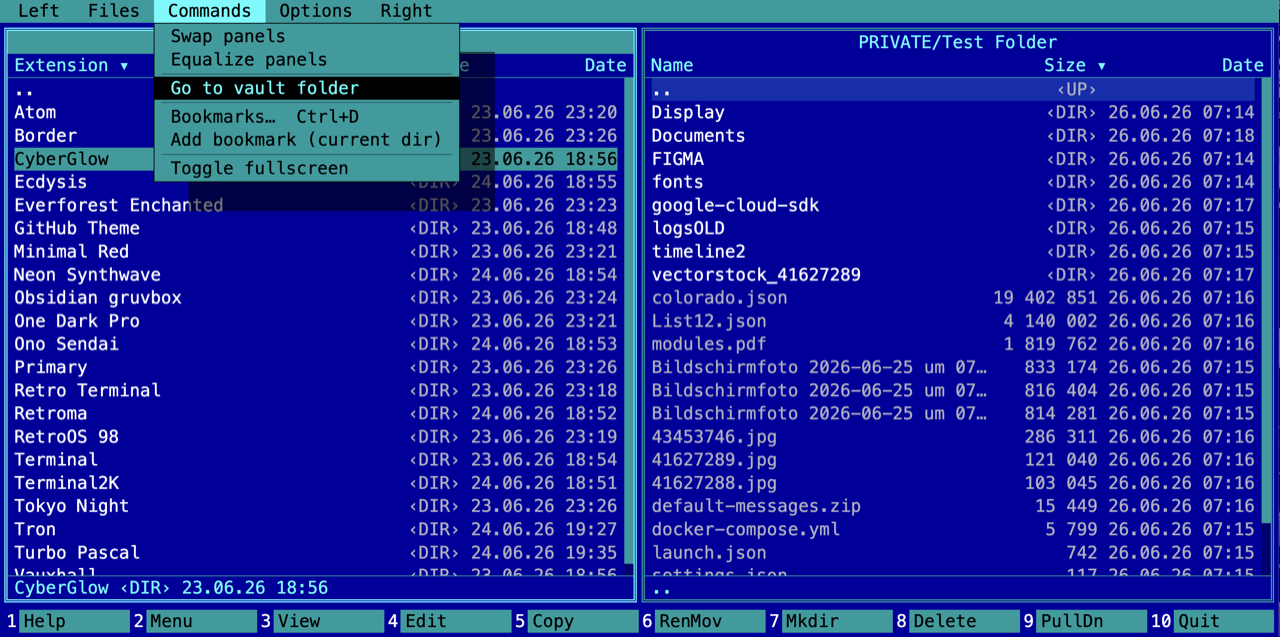
Vault Commander gives you a fast, keyboard-driven way to browse, copy, move, rename and preview the notes and attachments inside your vault — all through Obsidian's own vault API.
Scope: Vault Commander works entirely within your vault. It uses only Obsidian's vault API — it does not touch files outside the vault, run shell commands, or use Node filesystem access. Runs on desktop and mobile.
Features
- Two panels, active panel highlighted,
Tabto switch. - Panel views — each panel can be set (via the
Left/Rightpull-down menu) to Brief (the file list), Info (file/folder counts and an optionaldirinfofile for the other panel), Tree (a folder tree that drives the other panel) or Quick view (a live text/image preview of the file under the other panel's cursor). - Sorting — per panel, by Name / Extension / Time / Size / Unsorted (
Ctrl+F3…Ctrl+F7or theLeft/Rightmenu); the active column is marked with▾in the header. - Panel layouts — Full (Name / Size / Date) or Wide (names only, in multiple columns;
←→move between columns), per panel. - Quick filter — just start typing to jump to the matching entry; the same letter again jumps to the next match;
Escclears it. - Bookmarks (
Ctrl+D) — bookmark a folder and jump back any time (Enter= go,Ins= bookmark,Del= remove). - Two themes — Commander Blue and Navigator Gray, switchable in the
Optionsmenu (or in the plugin settings). - Overwrite prompts — copying / moving onto an existing file asks Overwrite / Overwrite all / Skip / Skip all / Rename / Cancel instead of silently overwriting; folders merge, prompting per conflicting file inside.
- Full keyboard control — arrows / PgUp / PgDn / Home / End,
Enterto open,Backspacefor parent. - Function keys F3–F8 for View / Edit / Copy / Move-Rename / Mkdir / Delete (with confirmations).
- F2 user menu and F9 pull-down menu (Borland-style). Turn off
Options → Hide menuto keep the menu bar permanently docked above the panels. - Built-in viewer (F3) for text, images (png/jpg/gif/webp/…) and rendered Markdown preview. Hovering over an image shows an eyedropper with the pixel colour as a hex value (e.g.
#3a421d). - Markdown / canvas open directly in Obsidian (
Enter= new tab,F4= new tab). - Folder sizes — mark a folder with
Spaceto compute and show its total content size. - Fullscreen — a configurable hotkey (default
Cmd/Ctrl+F12) opens the Commander fullscreen, brings it to front if already open;F10closes it.
Keyboard
| Key | Action |
|---|---|
| ↑ ↓ / PgUp PgDn / Home End | Move cursor |
Enter | Enter folder / open file (.md → Obsidian tab) |
Backspace | Parent folder (..) |
Tab | Switch active panel |
Space / Insert | Tag file/folder (folders get their size computed) |
F2 | User menu · F9 Pull-down menu, opens on the active panel's side (Tab/Esc to close) |
F3 / F4 | View / Edit |
F5 / F6 | Copy / Move·Rename to the other panel |
F7 / F8 | Make directory / Delete (confirmed) |
Ctrl+F3…Ctrl+F7 | Sort active panel: Name / Extension / Time / Size / Unsorted |
F10 | Close the Commander |
| Fullscreen hotkey | Open/bring-to-front fullscreen (default Cmd/Ctrl+F12, configurable) |
macOS note: function keys may be claimed by the system. The on-screen function-key bar at the bottom is always clickable.
Settings
- Show hidden (dot) files
- Confirm deletions / confirm copies
- Theme (Commander Blue / Navigator Gray)
- Fullscreen hotkey (record your own combo)
Installation
Community plugins — (once approved) search for “Vault Commander” in Settings → Community plugins → Browse.
Via BRAT — add this repo as a beta plugin.
Manually
- Download
manifest.json,main.jsandstyles.cssfrom the latest release. - Put them in
<your vault>/.obsidian/plugins/vault-commander/. - Reload Obsidian and enable the plugin under Settings → Community plugins.
Credits
Inspired by the orthodox file managers of the DOS era. “Norton Commander” is a trademark of its respective owners; this project is an independent, original implementation and is not affiliated with or endorsed by them.
License
MIT © Andre Hessler
For plugin developers
Search results and similarity scores are powered by semantic analysis of your plugin's README. If your plugin isn't appearing for searches you'd expect, try updating your README to clearly describe your plugin's purpose, features, and use cases.