Dired
approvedby gapmiss
Navigate and manage files directly, inspired by the Dired mode from Emacs. - This plugin has not been manually reviewed by Obsidian staff.
Dired
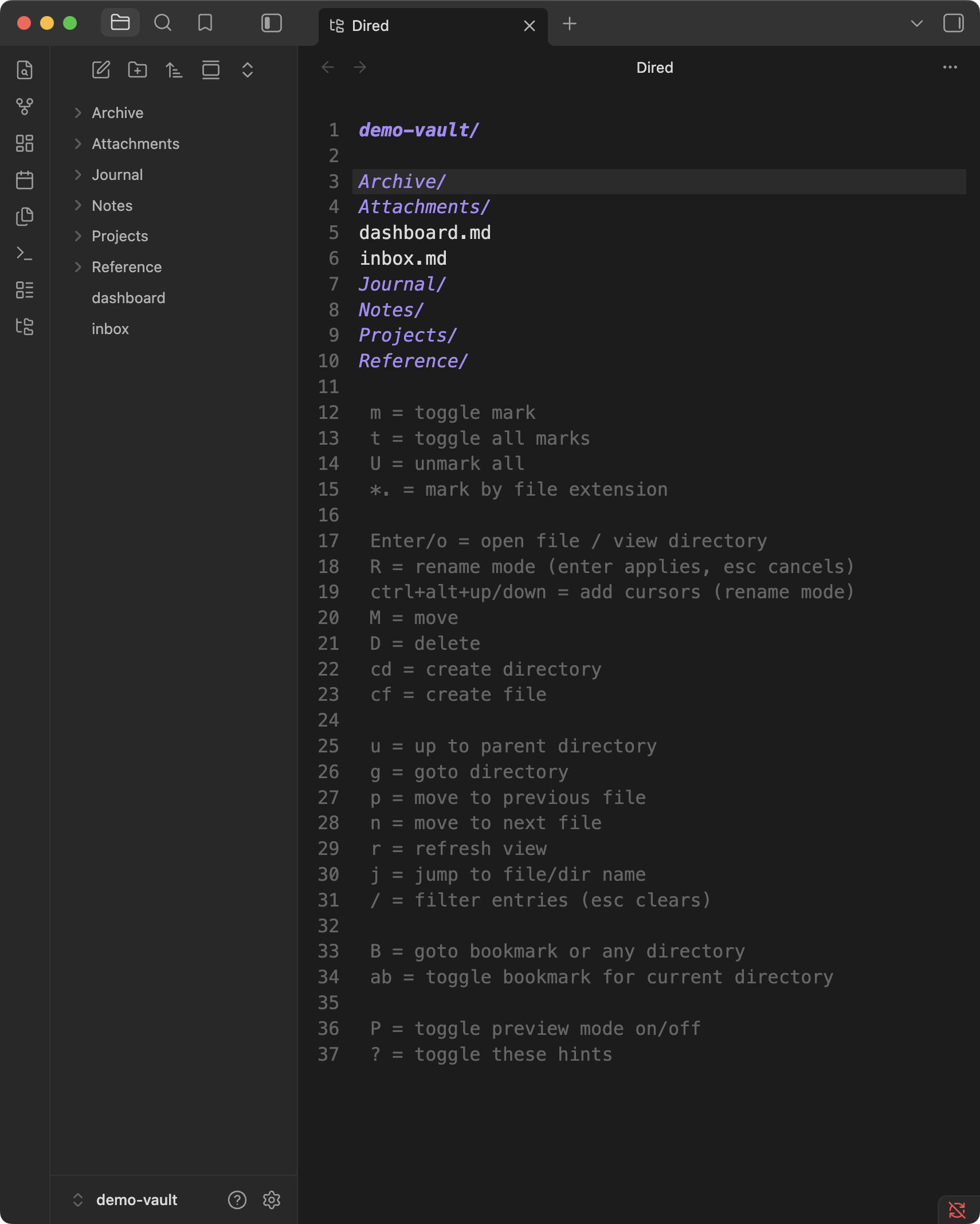
Navigate and manage vault files from a keyboard-driven text buffer, inspired by the Dired mode from Emacs.
The directory listing is a real CodeMirror buffer: the first line is the current path, folders end with /, and every operation is a single key (or two-key chord) away.
Features
- Text-buffer file manager — navigate with the cursor, no mouse required
- Marks — mark multiple files, then move or delete them in one batch
- Rename mode (wdired-style) — press
R, edit names directly in the buffer, pressEnterto apply.Ctrl+Alt+↑/↓stacks cursors on adjacent lines to edit many names at once. Renames and moves go through Obsidian'sFileManager, so wiki links and embeds are updated automatically - Safe deletes — deletions use Obsidian's native per-file confirmation (respecting your "Confirm file deletion" and "Deleted files" preferences), including the prompt to delete linked attachments
- Bookmarks — bookmark folders and fuzzy-jump to them from anywhere
- Preview mode — automatically open the file at the cursor in a split as you move
- Inline key hints — the bottom of the buffer lists every binding; toggle with
? - Auto-refresh — the listing stays in sync as the vault changes
Key bindings
| Key | Action |
|---|---|
m | Toggle mark (and advance) |
t | Toggle all marks |
U | Unmark all |
*. | Mark by file extension |
Enter / o | Open file / view directory |
R | Rename mode — edit names in the buffer, Enter applies, Esc cancels |
Ctrl+Alt+↑/↓ | Add cursors above/below for column editing (rename mode only) |
M | Move marked files (or file at cursor) |
D | Delete marked files (or file at cursor) to trash |
cd | Create directory |
cf | Create file |
u | Up to parent directory |
g | Go to directory |
B | Go to bookmark or any directory |
ab | Toggle bookmark for current directory |
p / n | Move to previous / next file |
j | Jump to file/dir name |
r | Refresh view |
P | Toggle preview mode on/off |
? | Toggle key hints |
Multi-file operations (M, D) apply to marked files, or to the file at the cursor when nothing is marked. In rename mode you can also type a relative path (for example sub/note.md) to move a file into an existing subfolder.
Usage
- Command palette: Dired: Open (starts in the active file's folder) or Dired: Open vault root
- Ribbon: the folder-tree icon
- File explorer: right-click a folder → Open in dired
Customization
The view inherits your theme's monospace font and editor font size. Everything else — fonts, colors, line numbers, spacing — can be overridden with a CSS snippet: see THEME.md for a selector reference, recipes, and a visual showcase snippet.
Notes and limitations
- Vault-scoped: the listing shows what Obsidian indexes, so hidden folders such as
.obsidiando not appear - Marks live per view and are pruned automatically when files disappear
- The buffer is read-only outside rename mode; arrow keys,
Home/End, and selection all work as in a normal editor
Installation
Install from community.obsidian.md
From Obsidian's settings or preferences:
- Community Plugins > Browse
- Search for "Dired"
Manually:
- download the latest release archive
- uncompress the downloaded archive
- move the
diredfolder to/path/to/vault/.obsidian/plugins/ - Settings > Community plugins > reload Installed plugins
- enable plugin
or:
- download
main.js,manifest.json&styles.cssfrom the latest release - create a new folder
/path/to/vault/.obsidian/plugins/dired - move all 3 files to
/path/to/vault/.obsidian/plugins/dired - Settings > Community plugins > reload Installed plugins
- enable plugin
Development
npm install
npm run dev     # esbuild watch
npm run build   # type-check + production build
npm run lint    # eslint (eslint-plugin-obsidianmd)
License
For plugin developers
Search results and similarity scores are powered by semantic analysis of your plugin's README. If your plugin isn't appearing for searches you'd expect, try updating your README to clearly describe your plugin's purpose, features, and use cases.