by notenerd
Publishes your vault as a static website, rendered by Obsidian itself, so Dataview, Bases and Mermaid output survives.
Vault Publisher
Publishes an Obsidian vault as a static website, rendered by Obsidian itself.
[!TIP] See it running, and read the documentation: https://notenerdofficial.github.io/vault-publisher-guide/
That site is an Obsidian vault published with this plugin, so reading the documentation is also seeing the output. The Start here panel, the file tree, the search field, the tag pages and the rail down the side of every page are all live on it, and the notes behind it are a worked example whose settings you can copy.
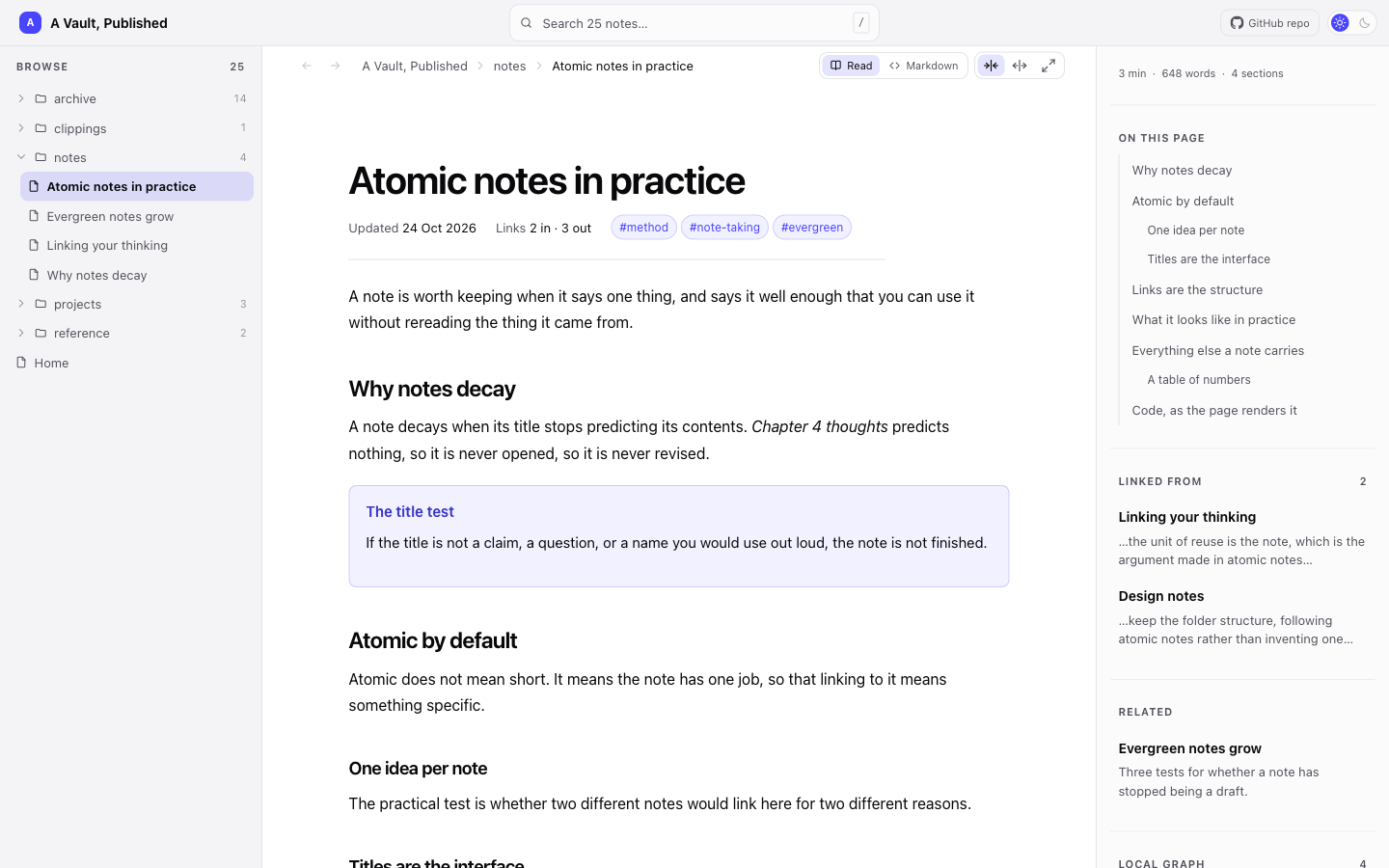
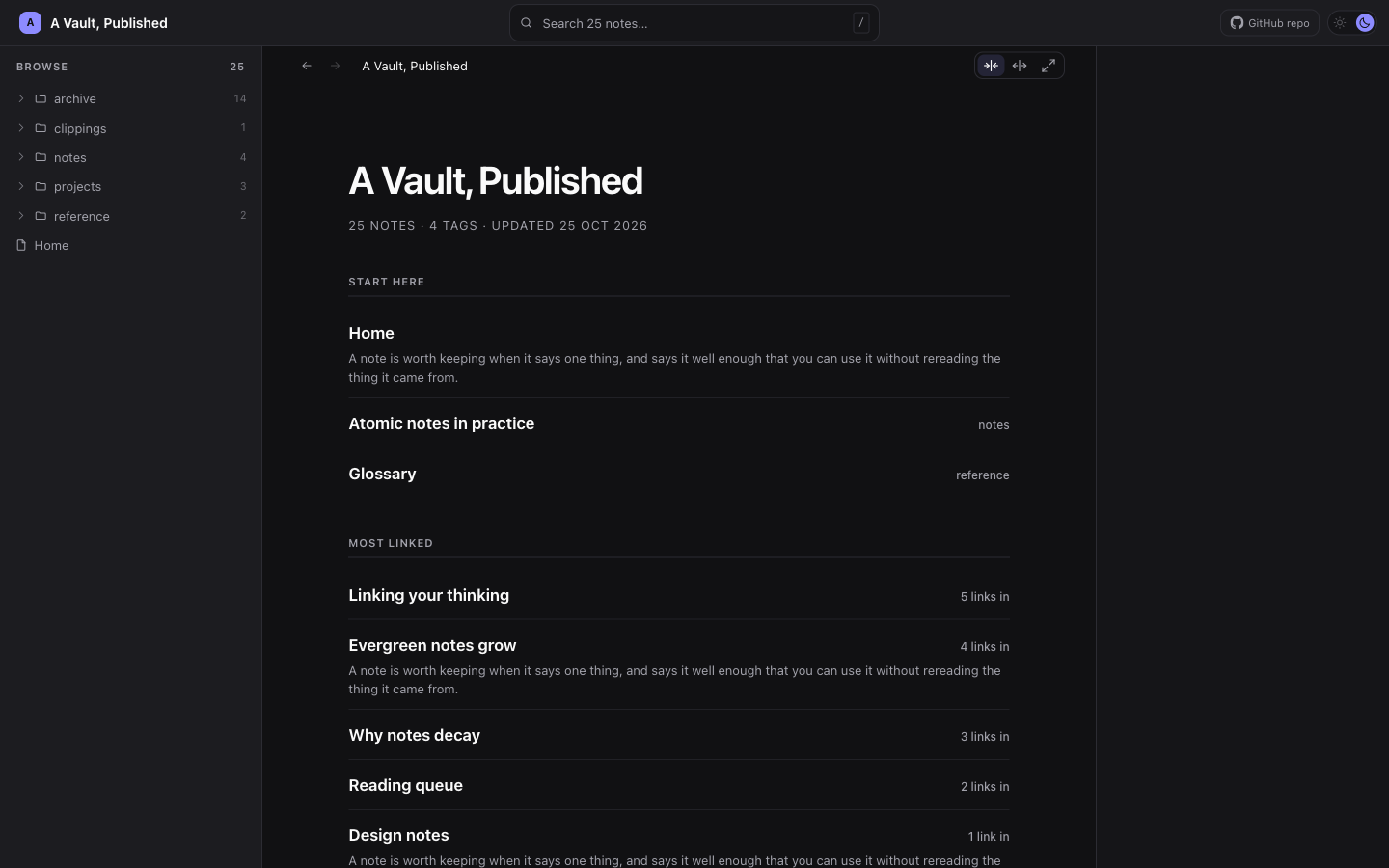
Every page is static HTML with one stylesheet and one script. Light and dark are both built, and a reader can pin either.
Status: working end to end. Render, build, incremental publish and the GitHub Pages path are all verified against a real repository, and the settings screen, the five site themes and the review overlay are built. What is still open is scale (see Known issues) and the design pass on the themes.
Install
Settings → Community plugins → Browse, search for Vault Publisher, install it, then enable it. The listing is at community.obsidian.md/plugins/vault-publisher, whose Add to Obsidian button opens the same screen in the app.
Desktop only, because it renders through a running Obsidian, and Obsidian 1.7.2 or later. Building it yourself is under Development below, and is not the route to use if you only want to publish a vault.
Why it renders in Obsidian
Dataview, Datacore, Bases and Mermaid output exists only inside a running Obsidian. Any publisher that converts Markdown outside the app has to reimplement them, which is why most alternatives either skip those features or hand you a static-site generator and leave it to you.
So the plugin renders each note through Obsidian's own renderer, waits for the asynchronous parts to finish, and serializes the result. The cost of that choice: publishing only happens from a running desktop Obsidian, and nothing can rebuild the site on a server.
Why there is no GitHub Actions workflow
Two reasons. A CI build cannot render Dataview, so it would have nothing to do. And Actions is frequently blocked on corporate networks, which is one of the places this is meant to be useful.
This is about publishing. The tests do run in CI, in .github/workflows/test.yml, because they never needed a running Obsidian: test/obsidian-stub.ts stands in for the package.
The plugin commits the built site through the Git Data API and points GitHub Pages at the branch. No git binary, no workflow file, no workflow token scope.
How Bases views are published
Bases draws only the rows of a view that fit in the window, so a view read back out of the rendered page has as many rows as the screen had room for. On Obsidian 1.10 or later the plugin does not read the page at all. It registers a view type of its own, and for a build each table, cards or list view is pointed at it, with everything else about the view carried over: filters, formulas, sort, grouping, column order and display names. Obsidian hands that view the query's full result, so every row is published, wherever the view sits in the note and however small the window is.
What each layout keeps:
- Tables keep the summary row (Sum, Average, Earliest and the rest) under their columns.
- Cards keep their cover images, which are copied into the site like any other attachment, and the view's card size, image shape and image fit.
- Lists keep their markers (bullets, numbers or none), their separator and indented properties.
- Links in property values become links to the published pages, in all three.
While the plugin is enabled, the view type appears in Bases' own view picker as Static view (Vault Publisher). Picking it by hand is harmless: it draws the same static view the site gets.
Other view types, such as one another plugin adds, and every view on an Obsidian older than 1.10, still go through the rendered page. For those the plugin scrolls each view to the top of the window before reading it, which gets as many rows as the window allows, and a view that still came out short stops the publish rather than going out incomplete. The message names each page and why. A view with no rows is published as "No results.", not as an empty frame, and a view type the site cannot show says so in its place.
What decides whether a note is published
Three settings, of three different shapes, because a vault that keeps everything in one tree and a vault that is private by default want different answers:
- Scope. One folder, or the whole vault. The coarse answer.
- Excluded folders (
excludeFolders.ts). A list of paths subtracted from whatever the scope took in: publish everything exceptJournal,PeopleandArchive. No globs: a literal path has one failure mode, a path that is not in the vault, and the build report names each entry that excluded nothing. This is the weaker guarantee of the three and the settings screen says so, because a folder added to the vault tomorrow is published. - A frontmatter flag. A whitelist: every note opts in. The one that fails safe, so it is the setting for notes that would do real harm if they went out by accident.
Four more rules apply before any of them: the build's own output folders are
not input, dot-folders Obsidian hides are skipped, installed dependencies
(node_modules and its two cousins) are skipped because a package's
README.md is not a note, and privacy.ts scans each rendered page for
content a Dataview query pulled in from a note that is not being published,
the failure mode that makes a publisher dangerous rather than merely buggy.
Where a reader starts
A vault's front door is not its newest note and not its alphabetically first one. It is whatever the author would hand someone who asked where to begin, and only the author knows that, so it is one frontmatter key:
---
pinned: true
---
Those notes become Start here: a short list held above the file tree in
the left panel, and a section on the generated front page. The key is
whatever Appearance → Start here property names, pinned by default.
Set it to a number instead of true to say where a note goes:
pinned: 1     # leads
pinned: 2     # second
pinned: 1.5   # between those two, without renumbering either
Numbered notes lead in their numbers, then everything left on true follows
in title order. pinned: 0 and anything that is not a number or true mean
not pinned. One sort runs for both places the list appears, so the panel and
the front page cannot disagree about the order. They did when the order was
whatever the file-path sort happened to return, and a note called
"Begin here" sitting in archive/ came last.
The list is capped at five on screen, not five in total: pin as many as you
like and the rest are behind a Show more that expands in place. It is a
<details>, so it opens with JavaScript off, and the block is bounded in
CSS: thirty pins scroll inside their own section rather than pushing the
tree off the panel.
Reading a published page
A few things a reader gets on every page, all added by the page's one script and absent, rather than broken, with JavaScript off:
- The tree's own tools. Beside the Browse label, as in Obsidian's file explorer: Collapse all, and Auto-reveal current file, a switch that opens the folders down to the page being read and scrolls its row into view. The tree keeps its open folders from page to page for the visit, so a collapsed tree stays collapsed with reveal off. Reveal starts on.
- Collapse all on the outline. Beside On this page in the right-hand rail, when the page has subsections: it folds every section down to its own heading, and pressed again (Expand all) unfolds them. Folding is kept for the visit.
- Back to top. A round button in the corner of the content column, shown once the top of the page is most of a screen away.
- What changed since your last visit. A small dot in the tree (and on
the prototypes page) beside each page whose content has changed or that is
new since this reader last came, and a line under the title of a page that
changed. The build writes a fingerprint of each page's content to
assets/changes.json, not of the whole file, which every new note would change through the navigation; the reader's browser remembers what it saw last time and compares. Nothing about a reader leaves their browser, and a first visit marks nothing. - Zooming diagrams. A Mermaid diagram has zoom in, zoom out, reset and full
screen controls that appear on hover (and stay visible on touch screens).
Ctrl or Cmd with the scroll wheel zooms in place, a zoomed diagram can be
dragged, and two fingers pinch. Full screen fills the window, where the
wheel zooms without a modifier,
+,-and0zoom in, out and reset, and Escape closes it.
Publishing a prototype as well as notes
A vault can hold a built web application, and publishing one is a different problem from publishing a note: nothing here renders it, and the question is only which of its files travel.
.html files publish as-is when the toggle is on, byte for byte, at
their own path, with no stylesheet or script of ours added. Off by default,
because vaults are full of HTML nobody wrote as a web page: saved articles, a
plugin's bundled help, an export somebody made once.
The one thing that can be added is the review overlay, and only if you ask
for it: with Comments and editing → Include in the published site on, a prototype gets
the same comment layer as every note, so a reviewer can pin a comment to it on
the live site. It is appended after your file between two osp-review
comments, never inserted into your markup, and it groups comments under the
page's URL rather than its vault path. With that switch off, the published
file is your file exactly.
A note can show a prototype inside it. Embed the page the way you would an image, and the note becomes the writing around a working design:
![[checkout/index.html]]          a frame 560 px tall, the column's width
![[checkout/index.html|720]]      720 px tall
![[checkout/index.html|375x700]]  starting at phone width, 700 px tall
Obsidian has no embed for HTML and shows a box with the file's name; the
published page shows the prototype itself, with its title, an Open full
page link, and Phone, Tablet, Desktop and Fit widths. A
width wider than the column is scaled down to fit rather than cut off, and
the bar says the scale (1280 px at 55%), so nobody judges type size from a
shrunken frame. Only a page this build publishes is framed: an embed of an
HTML file the scope left out stays as Obsidian drew it. A partial path such
as checkout/index.html finds Projects/checkout/index.html, as it does in
Obsidian, which matters because every prototype's entry point has the same
name.
Two versions side by side. Put two or more embeds on one line and they are shown next to each other, stacking on a narrow screen:
![[checkout-v1/index.html]] ![[checkout-v2/index.html]]
A width chosen in one frame is applied to all of them, because two versions of a design are only comparable at the same viewport.
And the site lists them in one place. A site with any page published
as-is gets prototypes.html, linked from the front page: every one of them
by its <title>, newest first, each with a live thumbnail. The thumbnail is
the page itself in a small frame, so it is never out of date and the build
captures nothing; frames load as the list is scrolled, and are sandboxed so
a prototype's script cannot navigate the index. It is the address to send a
reviewer when there is more than one thing to look at.
The files a page names travel with it. Scripts, stylesheets, images, and
the files a stylesheet names in turn (a @font-face src, a
background-image, an @import), resolved against the stylesheet rather
than the page, because that is what a browser does. A reference that resolves to
nothing is reported with the file that made it rather than silently dropped.
A folder can be published whole. Under Publish folders whole, add the
folder your build produces and every file in it is published, referenced or
not. This is for code splitting: a lazily loaded chunk is named only inside a
string in the minified JavaScript, so no scan will ever find it, and leaving
it behind is not a missing route: in React the dynamic import rejects and the
application unmounts, so one click turns the whole page blank. Point it at
dist or build, not at a project root. Excluded folders, hidden files,
node_modules and this build's own output are still left out, notes are still
published as rendered pages rather than as Markdown source, and every file
left out is reported with the reason.
The build report says when a page is missing something. A file in an
as-is page's folder that nothing published is listed under the page, with a
pointer to Publish folders whole. That is what catches the picture a
script builds a path to ("img/" + name + ".jpg"): the page's HTML never
names it, so it is not carried, and without the list the first sign was a
broken image on the live site. Files the page asks for from the server root
are left off this list, because they are reported already with the fix that
works: build with a relative base.
And it can be published somewhere other than its vault path. Each folder has a second field saying where it lands:
| Publish at | Where the application ends up |
|---|---|
| (blank) | /proto/app/dist/ (its vault path, the default) |
app | /app/ |
/ | the front page of the site |
A vault path is not an address anybody wants to send to a reviewer, which is
most of the reason. The other is that / is what makes an application the
site's front door: its index.html becomes the homepage, the overview the
build would have written is not written, and a homepage note moves to
/index-note.html, the one place a note does not win a collision, because
here it loses to an instruction rather than to another file that happened to
be there. The settings panel says which note is about to move, and the build
report says it again.
A folder can be unlisted. The eye beside a row under Publish folders whole turns it off: the folder is still published at its address, and a note can still link to it or embed it, but it is left out of the file tree, search and the prototypes page. That is the shape of a link sent to one client rather than a page put on show. It is not a lock: anyone with the address can open it, and a search engine that finds a link to it can index it. For a real lock, see Locking a site behind a password.
A destination says where a folder lands, not whether it may be published: the scope still decides that. Two folders cannot be sent to the same place, and the panel says so while it is still cheap to fix.
Two things decide whether the result works, and neither is ours:
- Build with a relative base.
vite build --base=./,ng build --base-href ./,"homepage": ".". The default is/, which resolves to the root of the domain, and a site published into a folder is not that. The build report names every reference that does this. - Publish what the build produced, not the source.
src/index.htmlis a shell with no application in it; nothing here compiles anything. A page with a framework root element and no<script>at all is reported as such.
The vault itself can be the project: the app at the root with its src, its
node_modules and a docs folder of notes beside them. Scope the site at the
whole vault, add dist as a folder published whole, and the notes publish as
pages while the application publishes wherever you point it: at /dist/ by
default, at /app/ if you say so, or at the front of the site with the notes
behind it.
Bringing your own colours and fonts
A theme here is a set of custom properties rather than a fork of the
stylesheet: every rule in theme.ts is written against the --osp-* names
themes.ts declares, so a sixth look is a palette and a type pairing instead
of a second copy of the layout to maintain.
That also makes the escape hatch cheap, for the vault that wants one of the
five with its own blue. Name a CSS file in the vault (Appearance → Custom
stylesheet) and its rules are appended to the end of assets/site.css on
every build, so redeclaring a token is the whole of it:
:root {
  --osp-link: #a8431a;
  --osp-font-body: "Iowan Old Style", Georgia, serif;
  --osp-measure: 40rem;
}
The theme's tokens are declared inside a cascade layer and an author's rules
are not, which is what makes that block hold in dark mode as well as light. A
dark value sits under a selector that outranks a bare :root, so without the
layer an override written the obvious way worked in light and quietly stopped
working when a reader's system went dark.
Two failures are reported rather than silent, because both produce a site that looks exactly like the one before it: a path that is not in the vault is flagged in the settings panel and lands in the build report's skipped list, and a path inside the plugin's own output folders is refused before it is read: appended to itself, the stylesheet would double on every build.
The file's own vault path never reaches the output. assets/site.css is
published, so a banner naming the source would hand every reader of the site a
piece of the vault's folder structure.
Which of the two a visitor lands in is Appearance → Opens in. The default
is their own system setting, which is what every site here has always done.
Either explicit choice is a real override rather than a preference: it is
written as data-theme on <html> at build time, so it holds before the
first paint and with scripting off, and the stylesheet guards its
prefers-color-scheme block against it so a site pinned to light stays light
on a dark machine. A reader who works the switch in the bar still wins, on
that page and every page after it.
Locking a site behind a password
A site on GitHub Pages is public, and a password prompt over a document that
already contains the text protects nothing: curl returns it in full. So a
password here is not a login. It encrypts the files at build time, and a
reader without it downloads ciphertext.
Each page is encrypted whole (title, navigation, search payload and all)
because publishing a navigation tree that lists Clients/Acme/Q3 Plan beside
an encrypted body would give away the thing worth keeping. Attachments are
encrypted beside their own names with .enc on the end. What stays readable
is the two stylesheets, the site and overlay scripts, the harvested fonts,
.nojekyll, CNAME, and a shell that says a password is needed.
PBKDF2-HMAC-SHA256 at 600,000 iterations (OWASP's current figure) then
AES-GCM: one salt per build, a fresh IV per file, the iteration count carried
in every payload so raising it later does not strand sites already published.
The derived key is cached in sessionStorage for the tab, so following a link
does not ask again.
A locked page is reassembled rather than merely decrypted. Its own files are encrypted too, so the markup names files that are not on the server, and the reader fetches them, decrypts them and hands them to the document as blob URLs. Anything the parser must have (scripts, stylesheets, and the files a stylesheet names) is put in place before the document is written, because a script element whose load has already failed does not try again; pictures are swapped in afterwards, so a page is readable before its images arrive.
That only repairs what is in the page when it is written, so a locked site
also publishes a service worker, osp-sw.js, at its root. Once a page has
unlocked, every request it makes for a locked file goes through the worker,
which fetches the .enc beside it, decrypts it, and answers with the plain
file: a picture a script adds later, a fetch() for data, a module's lazily
loaded chunk. While the worker is in charge the page is written exactly as
published, with no blob URLs, so a code-split application runs on a locked
site. The worker never stores the key. It asks the page that made the
request, which answers from the tab's sessionStorage, so the key still
lasts no longer than the tab. A site published without a password after
being locked replaces the worker with one that removes itself.
It remains a shared secret rather than access control: one password for everyone, no revocation short of republishing, and anyone who has it can pass it on. Two consequences worth knowing before turning it on are in Known issues.
Reviewing a built site
src/overlay/ is a comment layer over a built site: pins anchored to blocks of
a page, a panel that lists every thread, and an export the reviewer sends back.
It runs over a local preview by default and can be shipped into the published
site as well, which is a separate switch, as is letting a reader of that site
write rather than only read.
The overlay is switched on by Include comment and edit tools, next to Build a preview. The same switch brings Edit mode (see Editing a prototype from its preview below). The settings are in two sections. Comments and editing has three parts:
- Comments in your preview: the name your comments are signed with, the vault folder the review is kept in, and Import review comments. The name is never written into the published site.
- Edit mode: Open code in, the app the Code section opens a file in, and Change requests folder, where Describe saves a request as a note.
- Comments on the published site: Include in the published site,
then Let readers write comments, then How readers' comments reach
you:
- A file they send you: a reader exports their comments and sends you the file, to the address you give in Address shown when a reader exports.
- GitHub issues: the comments are shared on the site's repository (see below). This option is missing when the repository cannot carry them, and the section says why.
Issue tracker (preview builds only) files comments with GitHub, Jira or Asana. It is labelled that way because filing only works in a preview (see the end of this section).
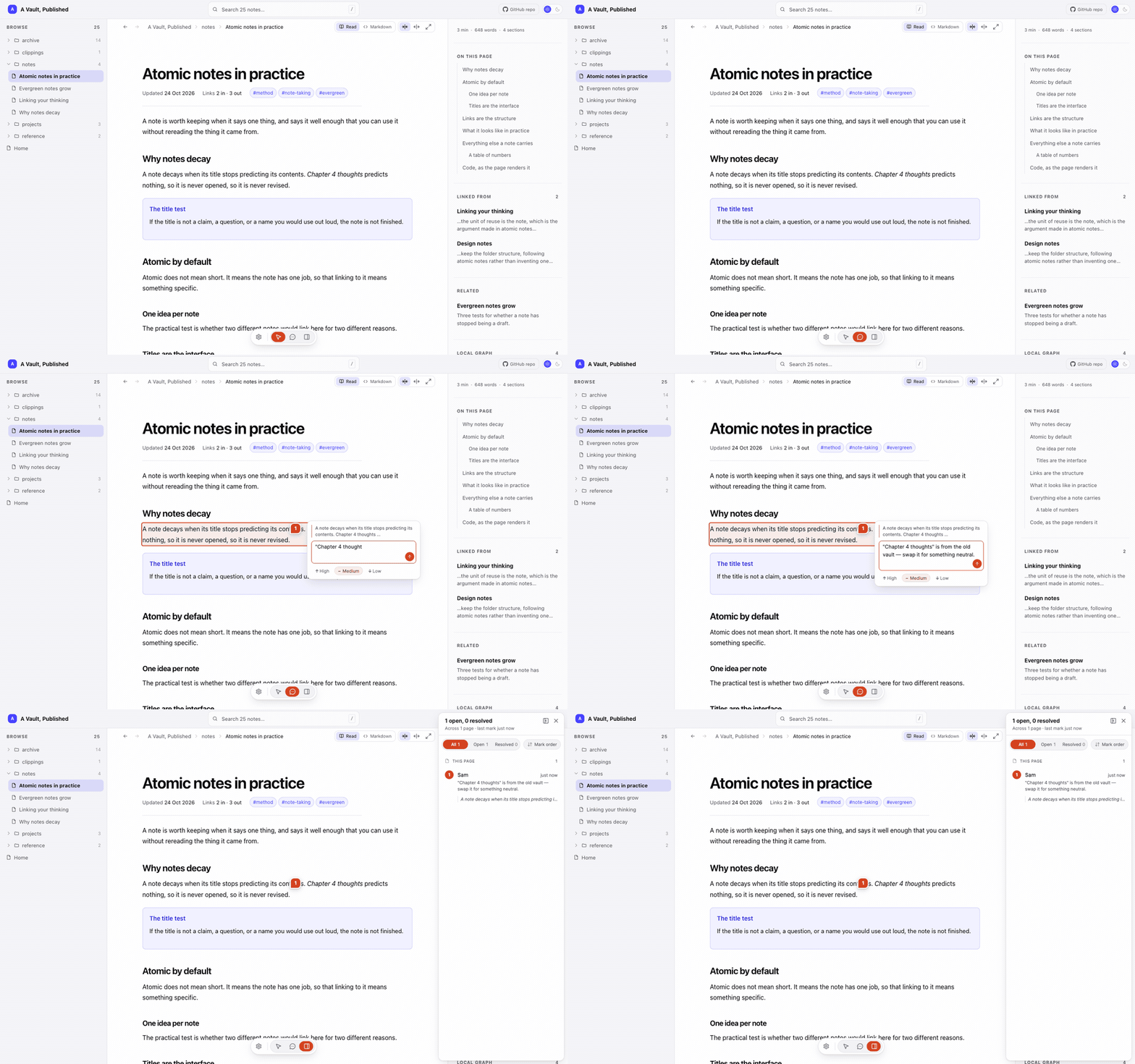
The toolbar that switches between viewing, commenting and reviewing can be dragged to any of six places: the top or bottom of the window, at the left, the centre or the right. It snaps to the nearest one and stays there across pages. The review panel keeps clear of it: with the toolbar in a left or right corner, the panel opens on the other side, and sending the panel to the toolbar's side moves the toolbar across instead. A centred toolbar stays centred.
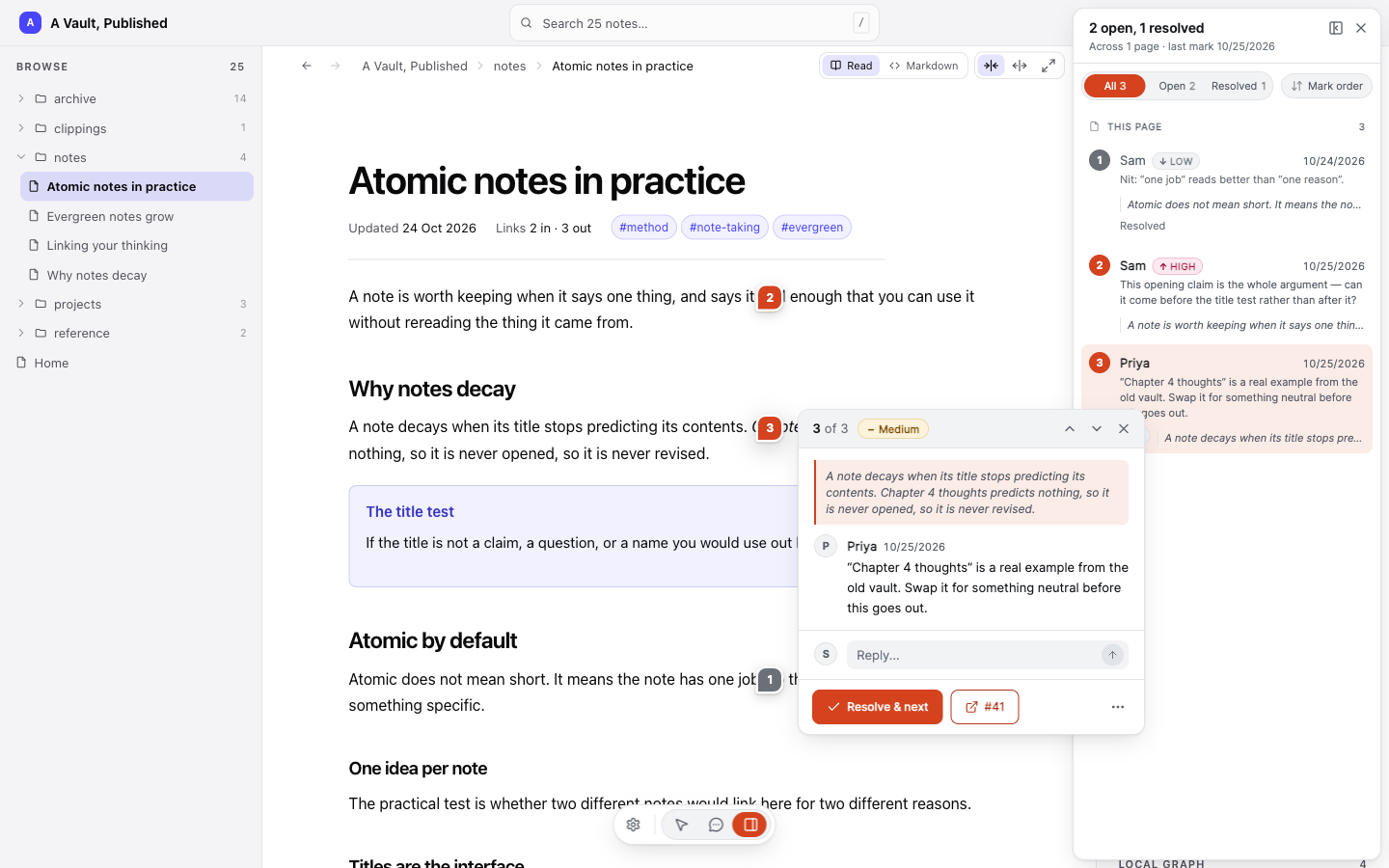
A pin remembers the point it was dropped on twice, in document coordinates and as a fraction across the block it landed on, so it survives a rebuild that reflows the page. The panel sorts by time or by priority, filters open from resolved, and steps through a review one comment at a time:
On a prototype, pins follow what the app is doing. A comment left inside a dialog, a bottom sheet, a drawer or a popup belongs to it: the pin moves with it as it slides in, and is drawn only while it is open, whether the app hides it, parks it off-screen or takes it out of the page. The panel names what a hidden comment is in, such as "sheet (closed)", so a row without a pin still says where to look. A pin on a row of a scrolling list stays on that row as the list scrolls.
Opening a comment brings back what it is about. Clicking a comment whose sheet or drawer is closed opens it again, as it was when the pin was dropped, and closing the comment closes it. A popup the prototype removed from the page cannot be opened that way, so its comment offers Reopen instead, which taps the button that opened it the first time ("Remove", say). It is a button rather than automatic because a tap runs the prototype's own code. Only comments left after this feature existed record what is needed, and a backdrop the prototype dims separately does not come back with the sheet.
A prototype drawn inside a phone or tablet frame is reviewed as one page.
When the frame is a page that shows the app in an <iframe>, the outer page
carries the only toolbar, and pins land on what is on the screen: its
buttons, its sheets, its rows. A comment remembers which screen of the app it
was left on, the panel names that screen, and clicking the comment sends the
frame back to it. This needs the screen to be published from the same site as
the frame, which is how a prototype folder is published anyway. A prototype
embedded in a note with ![[...html]] is reviewed the same way: the note
carries the toolbar, and pins in the embed follow its sheets and popups as
they would on the prototype's own page.
Shared comments through GitHub issues. With How readers' comments reach you set to GitHub issues, a published site's comments are kept as issues on the repository the site publishes to, and everyone who opens the site sees every comment as a pin. A reader leaves a comment as usual, and the overlay opens GitHub's own "New issue" form, already filled in. The reader submits it, signed in as themselves, so there is no token to store and no server. Until the issue appears, the reader's pin is shown faded as posting.
Every visitor's overlay reads the repository's issues without signing in, once per visit, and draws them where they were left. An issue closed on GitHub shows as closed. Replies are read on GitHub, from a link on the card. A sync in the plugin brings these comments into the vault's review file, so the preview and the review note show them too.
This needs a public repository, since visitors read the issues without signing in, and a GitHub account for anyone who posts. It is refused for a site locked with a password, whose review would otherwise be public.
Optional sign-in. A site owner can add their own small sign-in service, a
Cloudflare Worker and a GitHub App, both under their own accounts. Reviewers
then sign in with GitHub once and post from the page without a GitHub tab per
comment. With sign-in, the repository can also be private, including on GitHub
Enterprise Server: reviewers sign in to read the comments as well, and a
locked site can then share comments too. The Worker and its setup guide are in
examples/github-signin-worker. The
issue identifies itself with a hidden marker in its body rather than a
label, because GitHub drops labels from a prefilled form unless the poster
can triage the repository. Nothing from the vault goes into a shared issue,
and Send to GitHub from the preview also leaves the note's vault path
out of any issue it files on a public repository.
In a company setting. Where Cloudflare is not allowed, or GitHub is a company Enterprise Server, there are three ways to get readers' comments:
- Run the sign-in service yourself.
worker.jsuses only standard web APIs, so it runs on an internal host as well as on Cloudflare. Point it at the Enterprise Server withGITHUB_URL. It must be reachable by reviewers over HTTPS and must itself be able to reach GitHub. Reviewers then sign in with their company GitHub accounts, and the repository can stay private. - Use GitHub issues without sign-in. Each comment goes through GitHub's prefilled form, so there is nothing to host. Every visitor must be able to read the repository's issues without signing in, though, and most company Enterprise Servers allow nothing to be read that way. In practice, this works only for a public repository on github.com.
- Set How readers' comments reach you to A file they send you. Readers export their comments and send you the file, and you import it. Nothing leaves the reader's browser except the file they choose to send, so this works behind any firewall and needs no GitHub access at all.
A published page keys its comments on its own URL and never on the vault path
behind it, so no folder names reach a reader. pageMap.ts is the other half:
a publish records which note produced which page, in the vault beside the
review file, so an imported review links back to the writing rather than to the
HTML.
An open comment can be filed as an issue in GitHub, Jira or Asana and synced
back, which is what src/tracker/ and the Issue tracker (preview builds
only) settings are for. Filing goes through the plugin's own local server, so
the Send action exists in a preview opened in a browser and in no published
page: a static host has nothing to file through. To file a published site's
comments, bring them into the vault first, then file from a preview. Comments
shared as GitHub issues come in with a sync. Otherwise a reader exports their
comments and you import them.
Editing a prototype from its preview
An HTML page published as-is can be edited in the preview, with a panel that works like Figma's. The notch gets a fourth mode, the pencil, and what you change is written straight into the page's file in the vault. There is no separate design file to keep in step with the code.
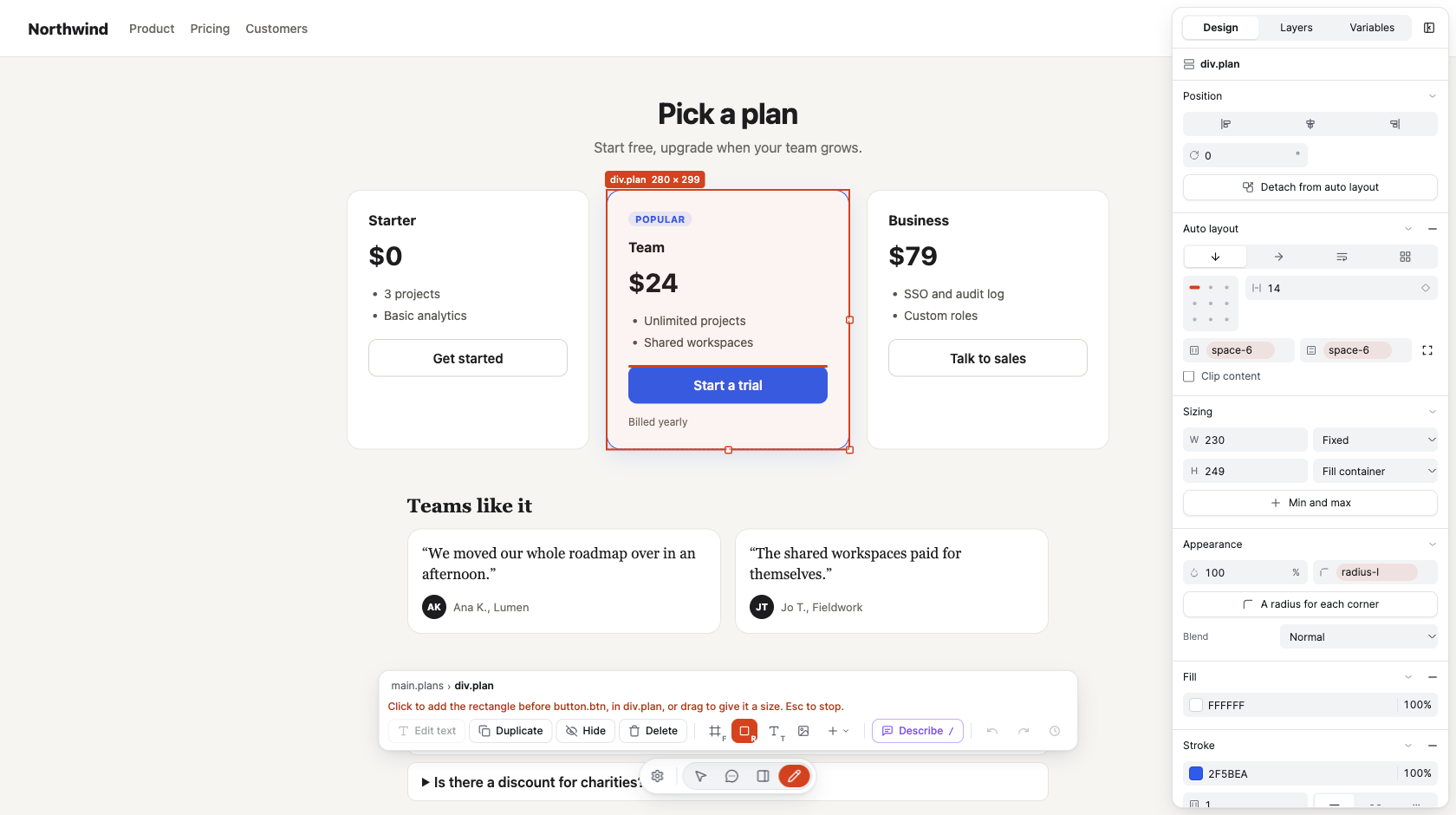
Edit mode needs Publish HTML files as-is and Include comment and edit tools. It exists only in a preview opened from the plugin, because the plugin's local server is what writes the file. A published site never carries it, even with comments switched on there.
Selecting. Click a layer to select it, double-click to go inside it, and press Esc to go back up. Shift-click adds layers to the selection. Right-click opens a menu with the same actions as the bar.
The bar under the page has Edit text, Duplicate, Hide and Delete, then the insert tools, then Undo, Redo and History. Drag a layer to move it, or to reorder it inside its parent. Hold Alt while dragging to drag a copy.
Adding layers. The tools are Frame (F), Rectangle (R), Text (T) and Image (Shift+Cmd+K), and More has a heading, button, link, input, divider and list. Pick one and the page shows where it would land: a blue line between two layers, or an outline round an empty frame. Click to add it there, drag to give a frame, rectangle or image a size, press Enter to put it by the selection instead, or Esc to put the tool down. The new layer is selected, text is ready to type, and the panel opens at the section you are likely to want next. A button, heading, link or input takes the classes of one already on the page, so a new button looks like the page's main one rather than a browser default. Images come from the page's own folder, shown as thumbnails with a search. R adds a rectangle in Edit mode, as in Figma, so Review mode is a click on the notch.
The panel docks to the left or the right and has two tabs:
- Design, for the selected layers: Position, Auto layout (direction, wrap or grid, alignment, gap, padding, clip content), Sizing (fixed, hug contents or fill container, with minimum and maximum), Appearance (opacity, corner radius, blend), Text, Fill (colours, gradients, how an image fills), Stroke, Effects (shadows and blurs), State and Code. With nothing selected, it shows the page: its background, the page at phone and tablet sizes, its colour and size variables, the edit history (also one click away from History on the bar), and the shortcuts.
- Layers, the page as a tree, with search, a toggle to show or hide each layer, and drag to reorder.
Several layers at once. With more than one layer selected, a change in the panel applies to all of them. Shift+A adds auto layout. Cmd+G frames the selection and Cmd+Shift+G ungroups it. Cmd+Alt+C and Cmd+Alt+V copy and paste properties from one layer to others.
Where a change goes. A value set on the layer's own style is changed
there. A value that comes from a stylesheet rule shared by other layers asks
first whether to change only this layer or every layer the rule styles. A
colour can be picked from the page's variables and colours, or made into a
new variable. State shows a layer as hovered, pressed or focused, so
those styles can be edited too.
Code shows where the layer starts in its file, and the CSS rules that
style it, strongest first, each with its file and line. A value that loses to
another rule is struck out, and hovering it names the rule that wins. Values
are fields: change one and press Enter to write it into that rule, or type
gap: 12px into a rule's last line to add one; the layer's own style takes
new values the same way. Click a location to copy it, or use the Open in
link to open the file at that line, in the app chosen under Comments and
editing → Open code in: VS Code by default, or Cursor, Windsurf, Zed, VS
Code Insiders, Obsidian, or any app with a link format of its own. Obsidian
opens the file but not the line.
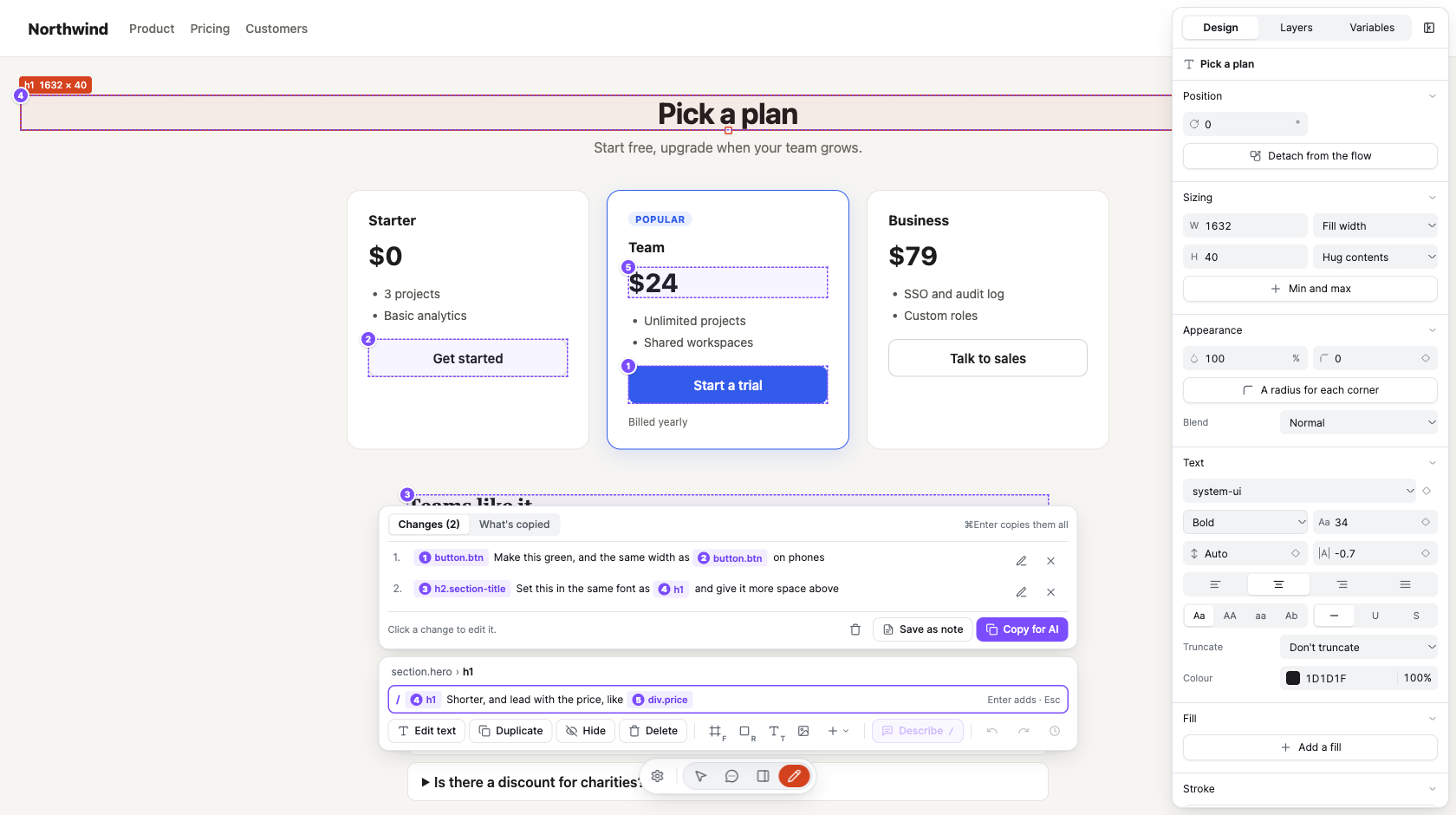
Describing a change for an AI tool. Select a layer and press / (or
Describe on the bar): the bar's message line becomes a prompt about it.
While you type, click other layers on the page to point at them; each goes
into the line as a numbered reference, and is outlined and numbered on the
page. Enter adds the change to a stack above the bar and leaves the prompt
open for the next. Click a change in the stack to load it back into the bar
and edit it; Enter saves it in place. The stack flips to What's copied,
the exact text: the changes in order, then each layer by number with its
file and line, its HTML as the file has it, and the CSS that wins for it.
Copy for AI (Cmd+Enter) puts that on the clipboard for Claude Code,
Cursor or the like, and Save as note writes it to a note in the vault,
in Change requests by default, to point an AI tool at or keep as a
record. Nothing about it reaches the page's files or its comments.
Attributes edits the layer's HTML attributes: a link's href, an image's
alt, a field's placeholder and type, id, class, aria-label, and
any it already has. Event handlers (on...) and javascript: addresses are
refused.
A layer the page's own script made is not in the file. Code looks for
its text, then its class, in the page's <script> blocks, the script files
it loads and the JSON files those scripts fetch, and shows where it probably
comes from. When its words are written out once in a string there, Edit text
changes them in that string, quotes escaped, and Undo takes it back. When
they are in several places, Code lists each one with its line, and you pick
which to change, or all of them. When they can't be found whole (fetched
from a server, or put together from pieces such as a number and the words
around it), Edit text is greyed out and says why.
Changes, under History, shows what this session did to each file as a diff, line by line, to read before committing the prototype or to copy.
Measuring and nudging. Hold Alt over another layer to see the distances between it and the selected one. The arrow keys nudge the selection by 1px, and by 10px with Shift. I picks a colour from the screen (Chromium browsers only).
Safety. An edit changes only the characters it has to, so a diff of the
file shows the change and nothing else. Before the first edit to a file in
each preview session, a copy of the file is kept in the review folder, under
edit-backups/. Every edit in a session can be undone from the bar or from
History.
Some things it does not do yet. Gap and padding fields do not offer size variables. Putting a detached layer back in the flow keeps the fixed width it was given. The panel floats over the page rather than pushing it aside.
Layout
src/main.ts     the plugin: settings, commands, and the publish sequence
src/render/     rendering a note through Obsidian and knowing when it is done
  settle.ts       waiting for async plugin output; content-aware, not just a timer
  renderNote.ts   the offscreen host and the render/serialize cycle
  probe.ts        what came out, per block: ok, empty, error or blocked
  cssProbe.ts     which stylesheets are readable, and whose they are
  dataviewRefresh.ts  holding Dataview still while we photograph it
  diagnose.ts     samples a render over time when something renders incomplete
  basesCaptureView.ts  the Bases view type that reads every row from the data
  basesCapture.ts      reading a view from the rendered page, at the top of
                       the window, where the data route is not available
src/publish/    turning rendered HTML into a site
  normalize.ts    repairs markup that a browser would rearrange on reparse
  links.ts        wikilinks to relative URLs; unpublished targets degrade safely
  urls.ts         a vault path made safe to put in an attribute
  page.ts         document shell, heading ids and the control that copies
                  one, table of contents
  shell.ts        command bar, vault panel, context rail (markup only)
  nav.ts          the navigation model every page carries
  backlinks.ts    what links to this note, and what it is near
  graph.ts        the local graph, laid out at build time and emitted as SVG
  source.ts       a note's markdown, minus what the rendering hides
  assets.ts       the files a page points at, carried and rewritten
  htmlFiles.ts    the vault's own .html pages, published untouched, and what
                  each one -- and each stylesheet it carries -- asks for
  htmlEmbed.ts    a page published as-is, framed inside the note that
                  embeds it, with widths to view it at
  wholeFolders.ts folders published entire, for a build whose chunks nothing
                  references
  sourceLink.ts   which repository the site's bar links back to, if any
  excludeFolders.ts  folders the author keeps out of whatever the scope took in
  outputFolders.ts   the folders neither selector looks at, whatever the scope
                     says: build output, hidden paths, installed dependencies
  privacy.ts      content from unpublished notes that reached a published page
  landing.ts      the pages no note wrote: homepage, browse, a page per tag
  themes.ts       the themes a site can be built with, as custom properties
  theme.ts        the site's own stylesheet, written against those names
  customCss.ts    a stylesheet of the author's own, added to the end of it
  harvestCss.ts   lifts layout-critical rules from the running app
  bases.ts        Bases views as static tables, cards and lists, and the
                  guard against a view that came out incomplete
  basesSource.ts  pointing a note's Bases views at the capture view before
                  it is rendered
  basesValues.ts  property values, links, card covers and view options, as
                  markup
  clientScript.ts the one script a published page carries
  stableIds.ts    deterministic ids in place of Obsidian's per-render random ones
  incremental.ts  hashes rendered output, so a publish uploads only what changed
  prune.ts        removing what the build no longer produces
  drift.ts        detecting a build that degrades as it runs
  encrypt.ts      PBKDF2 and AES-GCM, and the shape of a locked payload
  lockSite.ts     turning a finished build into an encrypted one
  unlockScript.ts the reader that turns an encrypted page back into a page
  serviceWorker.ts the worker that serves a locked site's files to whatever
                  asks for them after the page is written
  lockHelpers.ts  the decrypting and file typing those two scripts share
  buildSite.ts    selection, render, assemble
src/overlay/    reviewing a built site, getting the comments back, and
                editing an as-is page from its preview
  overlayScript.ts  the overlay as it runs in the browser
  overlayCss.ts     its stylesheet
  types.ts          its data model
  anchor.ts         anchoring a comment to a block of a built page
  pageLabels.ts     naming a page when four of them are called `index`
  pageMap.ts        which note produced which page, kept in the vault
  server.ts         a local server for the review preview
  importReview.ts   turning a saved review into a note in the vault
  relay.ts          turning a review comment into an issue in a tracker
  shared.ts         comments shared as GitHub issues: the marker in an
                    issue's body, and reading an issue back as a comment
  edit.ts           Edit mode's writes: each edit planned against the file
                    as it is now, touching only the characters it must
  editCss.ts        changing one declaration in a style attribute or a rule
  editScript.ts     Edit mode as it runs in the browser: selecting, the
                    bar, and sending edits
  editPanel.ts      the Design and Layers panel
  editTools.ts      multi-select, framing, inserting, states, measuring
  editorLinks.ts    links that open a file at a line in your own editor
  editDescribe.ts   Describe: changes for an AI tool, with each layer's code
  changeRequest.ts  a described change request as a note in the vault
  lineDiff.ts       the line diff behind Edit mode's Changes view
src/tracker/    the trackers a comment can be filed with
  jira.ts, asana.ts   per-provider request and response shapes
  request.ts          the one HTTP call they make, and what to say when it fails
src/github/
  client.ts       Git Data API: blobs, tree, commit, ref, Pages, and the
                  issues a shared review is kept in
src/platform/   things only a desktop Electron host can do
  secrets.ts      token encryption via the OS keychain
  migrate.ts      carrying settings across a change of plugin id
  openExternal.ts opening a URL outside Obsidian
  response.ts     reading an HTTP response that might not be from the API
  backgroundThrottling.ts
src/ui/
  settingsTab.ts  the settings screen
  whatsNew.ts     the popup after an update, and the notes it shows
examples/       folders to copy into a vault to try a feature out
media/          the screenshots and the recording in this README
scripts/        deploying a build into a vault, and generating a vault to
                measure against
Examples
Two folders in examples/ are meant to be copied into a vault and published,
each demonstrating one feature and explaining what to look for:
examples/note-header.md: the three frontmatter keys a published page's header is built from (updated,tags,pinned), what each one does, and what the header leaves out.examples/html-as-is/: a folder of hand-written HTML published byte for byte, with the stylesheet, script and images beside it carried along. Turn on Publish HTML files as-is first. Keep the folder together: the point of the feature is that a page and the files it references stay next to each other.
Read examples/html-as-is/about-this-demo.md before building that one. It is
published as an ordinary note and it is the tour.
One more is not for a vault: examples/github-signin-worker/ is the
optional sign-in service for shared comments. It is a Cloudflare Worker that
you deploy under your own accounts, with a README that walks through setting
up the GitHub App and the Worker.
Development
npm install
npm run build
echo /path/to/vault > .vault-path  # once, per clone; gitignored
npm run deploy                     # deploys to that vault
npm run deploy /path/to/vault
npm run build runs the tests, then tsc, then esbuild, so a failing test
cannot produce a bundle. npm run deploy does not build. Run
npm run build first, or you deploy a main.js older than the change you
just made.
The test vault lives outside this repo, so plugin source is never mixed up with the notes used to exercise it. Which vault is yours is local to your clone: write it to .vault-path, set VAULT_PUBLISHER_VAULT, or pass a path argument, which wins over both. There is no default: the script would be guessing at a directory to write into.
The plugin id is vault-publisher; it shipped during development as site-publisher-spike, and the first run under the new id imports the old settings and offers to delete the folder they came from.
The plugin's data.json has an autoRun key (spike, build, publish, diagnose) so a run can be triggered by deploying rather than by clicking. spike reports render timings for the publish scope, the same thing the Report render timings command does, and diagnose samples one note over time and needs a diagnosePath beside it, since the note worth sampling is whichever one is rendering wrongly. Driving a run from the deploy rather than from a click is what makes iteration measurable. Install hot-reload in the test vault and the deploy is enough on its own: the script writes the .hotreload marker the watcher looks for, and the reload fires on the change to main.js. It reports whether anything is actually watching, because a copy into an unwatched folder looks exactly like a successful deploy.
Nothing in media/ is anyone's vault. The site in those images is the
fixture one shell.preview.test.ts builds ("A Vault, Published",
twenty-five invented notes), which is also how to regenerate them:
OSP_PREVIEW=/tmp/preview npx vitest run shell.preview
That writes a browsable copy of the fixture site, rendered through the same
buildPage, shell.ts and siteCss a real build uses. Serve it and
photograph it. No real note, vault path, repository name or comment appears in
any of them, which is the point: a screenshot is published the moment it is
committed.
scripts/make-scale-vault.mjs generates a large vault for the scale work. It
deletes the directory it is given, so it has no default and refuses to run
without an explicit path.
Tests are co-located as src/**/*.test.ts. test/obsidian-stub.ts stands in
for the obsidian package, which ships types only, via an alias in
vitest.config.mts. The overlay ships to the browser as a string of
JavaScript rather than a linked module, so two rules exist twice (block
anchoring and page labelling), and both copies are run against each other
rather than trusted: anchoring in overlayScript.test.ts, labelling in
pageLabels.parity.test.ts.
Known issues
- A Vite source
index.htmlis not reported as an empty shell. The warning fires on a framework root element with no<script>anywhere, and Vite's source page does have one. It points at/src/main.tsx, which is TypeScript no browser will run. It is still reported, by the rule about references resolved from the root of the server, but the message is about the base rather than about the page being unbuildable. Angular's sourceindex.htmlhas no script tag and is caught. - An application that computes a path at runtime still breaks. Publishing
a folder whole carries every file, but
fetch('/api/' + id)is asking for a server, and a static host has none. Nothing here can fix that. - A locked site needs service workers for files a script asks for.
Pictures a script adds,
fetch()ed data and lazily loaded chunks are served by the site's service worker, which needs https (GitHub Pages has it) and a browser that allows service workers. Where one is not available (some private windows, a site opened from disk), the page falls back to blob URLs and those files fail as they did before. Tested in Chromium; not yet in Safari, where seeking in a locked video may not work. - A locked site cannot publish incrementally. Every build mints a fresh
salt and a fresh IV per file, so every encrypted file differs from the one
already published and the manifest matches nothing. A password therefore
costs a full upload on every publish, which is the opposite of what
incremental.tsexists for and matters most on exactly the large sites it was written for. - Excluded folders do not reach attachments or HTML companions. The list
is applied when notes and
.htmlpages are selected, but an image inside an excluded folder that a published note embeds is still carried, and still published under its vault path atassets/files/…. Same for a file an as-is HTML page references. For anything that must not go out, use the frontmatter flag. - Bases interactivity. Views are published as static tables, cards and lists. Sorting and view switching are gone, as with all interactivity.
- Some Bases views are limited by the window. Views of a type the plugin does not draw (from another plugin, say), and every view on Obsidian before 1.10, are read from the rendered page and get only the rows that fit in the window. A long one stops the publish rather than going out short; a taller window, or Obsidian 1.10, fixes it.
- Bases list values are plain text. A list property such as tags reads as words separated by spaces rather than as Obsidian's chips, and a summary over dates shows a time as well as the date.
- Mermaid is light-themed. Diagrams serialize with resolved colours from Mermaid's default light theme, so a dark site needs a re-render or a colour rewrite.
- Mermaid needs vault consent. Obsidian 1.14 gates diagrams per vault; the plugin detects this rather than bypassing it.
- dataviewjs is off by default in Dataview's settings, and its errors would publish verbatim.
- Interactivity is lost. Bases sorting, dataviewjs buttons and collapsed callouts are static once published.
- Scale is unproven. A clean vault builds 7 notes in 1,690ms, but 7 notes is not 500, and a long publish session may degrade its own environment. This is the next thing to test.
For plugin developers
Search results and similarity scores are powered by semantic analysis of your plugin's README. If your plugin isn't appearing for searches you'd expect, try updating your README to clearly describe your plugin's purpose, features, and use cases.