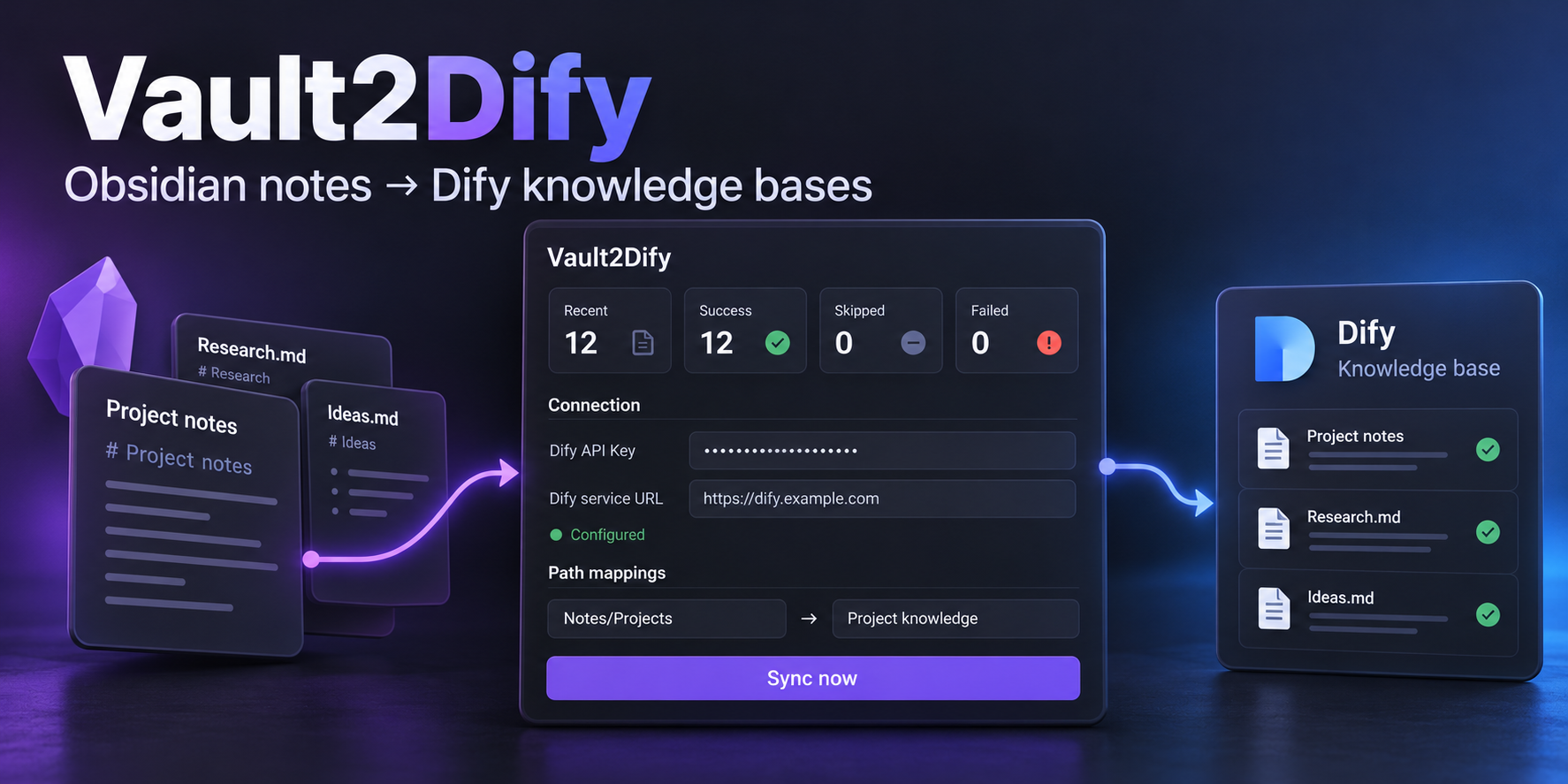
Vault2Dify


English | 中文
Sync selected Obsidian Markdown notes to one or more Dify Knowledge Bases.
Vault2Dify is a desktop-only Obsidian plugin for users who keep notes in Obsidian and use Dify for personal or team knowledge-base Q&A. It syncs only the Markdown notes that match your enabled path mappings to the Dify service URL you configure.
The plugin UI defaults to English. You can switch to Chinese from the language icon in the settings top bar.
Preview
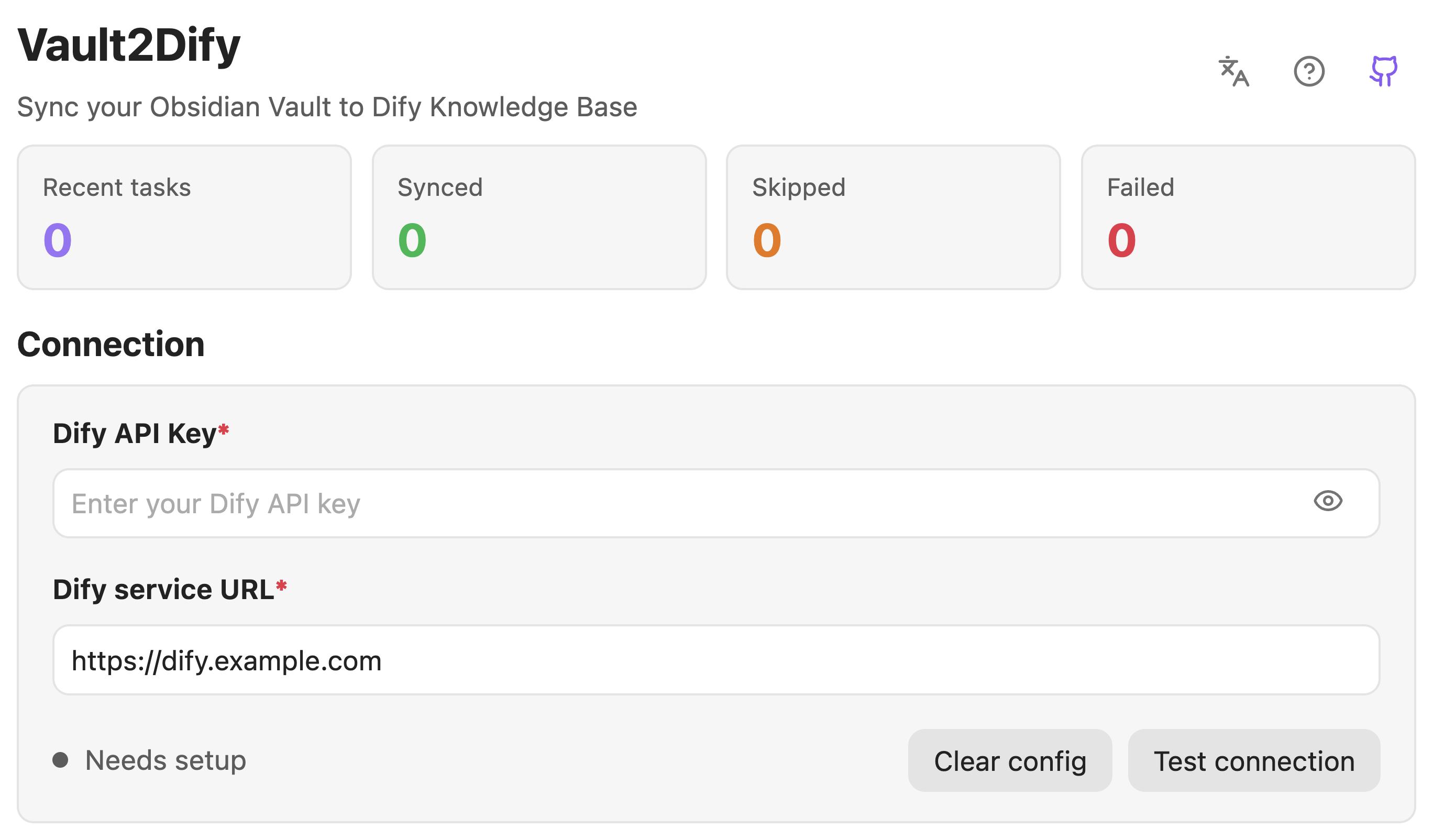
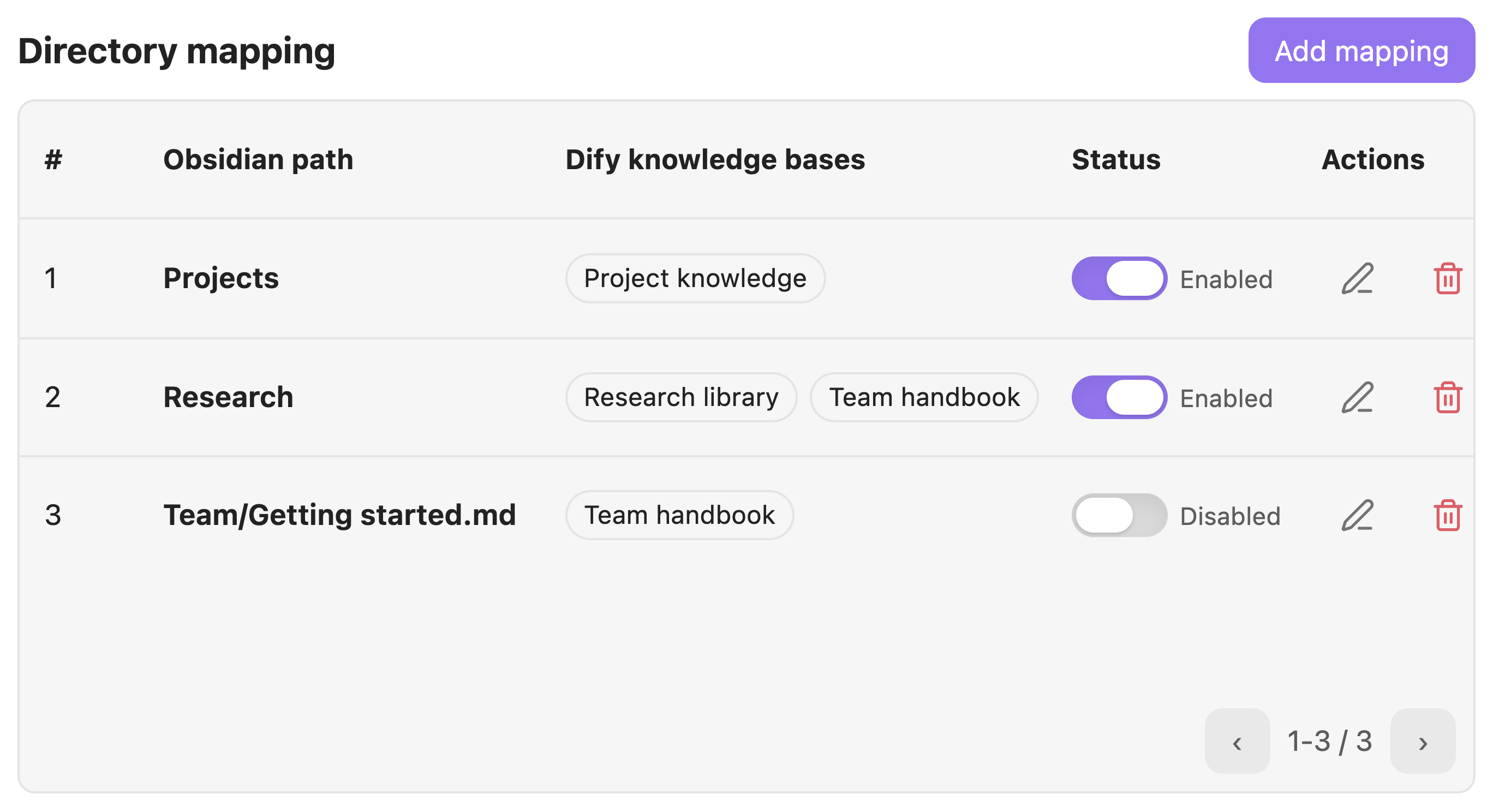
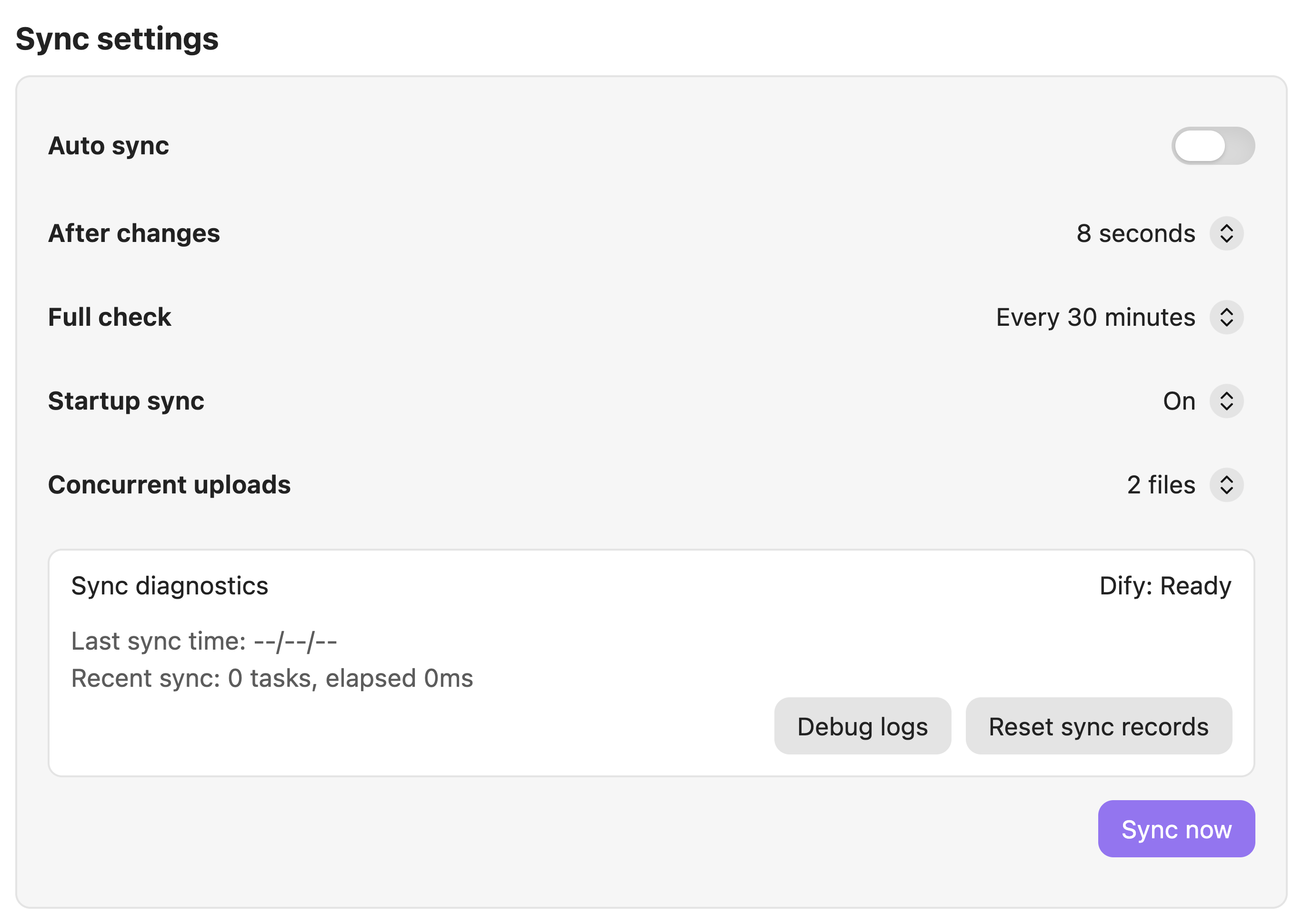
Core plugin screens in English, captured in Obsidian 1.14.4 with example configuration. These screenshots do not show a live Dify connection.
Connection settings
Path mappings
Sync settings
Features
- Map an Obsidian folder, one Markdown note, or the entire vault to one or more Dify Knowledge Bases.
- Load available knowledge bases by testing your Dify API key with
GET /v1/datasets. - Sync manually from the ribbon, command palette, or settings page.
- Optionally sync on Markdown create, modify, and rename events, with a periodic full-check fallback.
- Use one Dify service URL for local Docker, NAS/Docker, LAN, Tailscale, reverse proxy, or Dify Cloud deployments.
- Store sync records by knowledge base and Obsidian file path so same-name files in different folders remain distinct.
- Keep deletion conservative: local note deletion and mapping deletion do not automatically delete remote Dify documents.
- Support English and Chinese settings, notices, commands, and status messages.
Document updates and metadata
Markdown is uploaded as text, including YAML frontmatter. Metadata sync is off by default, including after upgrading. Enable it under Sync settings to also sync all YAML properties as Dify structured metadata. It uses your enabled path mappings and works with manual sync even when auto sync is off.
Existing same-name custom fields are reused; missing fields are created automatically. Text, numbers and ISO dates map to Dify text, number and time fields. Booleans become true/false text; lists and objects become JSON text. Existing field types are preserved. Incompatible values, invalid YAML and conflicts with built-in field names are reported in sync diagnostics; other valid properties still sync.
Only properties present with non-empty values are assigned. Remote-only fields, removed or empty local properties, and remote data after disabling the switch are preserved. Enabling or re-enabling the switch backfills metadata on the next sync without re-uploading unchanged content. Metadata failures preserve the document ID and successful content record; the next sync retries metadata only. See the user guide for conversion details.
Updates and renames reuse the recorded Dify document ID. After an update returns 404, the plugin recreates the document only when a fresh, complete document list confirms that the original ID is absent. If it still exists or its status cannot be confirmed, sync fails and keeps the association for retry. A recreated document has a new ID and does not inherit the deleted document's custom metadata.
This reduces unintended document recreation; it does not establish the cause of every metadata-loss report. Verify metadata retention on your Dify version by comparing the document ID and custom fields before an update and after indexing completes.
Quick Start
Install from Obsidian
- Open
Settings -> Community plugins -> Browsein Obsidian desktop. - Search for Vault2Dify, then install and enable it. You can also open its community plugin page.
- Open
Settings -> Vault2Difyto configure the connection and mappings.
Manual installation
Download main.js, manifest.json, and styles.css from the latest release. Place all three files in your vault:
.obsidian/plugins/vault-to-dify/
├── main.js
├── manifest.json
└── styles.css
Restart Obsidian if needed, enable Vault2Dify from Settings -> Community plugins -> Installed plugins, then open Settings -> Vault2Dify.
First-time setup
- Enter your Dify Knowledge Base API key.
- Enter the Dify service URL reachable from the device running Obsidian.
- Test the connection to load knowledge bases.
- Add a path mapping.
- Run a manual sync or enable auto sync.
New installs do not upload notes until you configure a mapping and start sync.
More details:
Dify Service URL Examples
Use the service root that Obsidian can reach. The plugin appends Dify API paths such as /v1/datasets automatically.
| Deployment | Example |
|---|---|
| Local Docker on the same computer | http://localhost:5000 |
| NAS/Docker or LAN server | http://dify-host.example.test:5000 |
| NAS through Tailscale | http://tailnet-device.example.test:5000 |
| Reverse proxy or Dify Cloud | https://dify.example.com |
Do not use localhost unless Dify and Obsidian run on the same computer.
Privacy and Network Use
- The plugin reads Markdown files in the current Obsidian vault.
- Only Markdown files matching enabled path mappings are sent to your configured Dify service URL.
- The Dify API key is stored in local Obsidian plugin data.
- The plugin does not send notes to the plugin author or to any service other than your configured Dify endpoint.
- Local note deletion does not automatically delete Dify remote documents.
- Deleting a path mapping removes local plugin configuration only.
See SECURITY.md for details.
Platform Support
This release is desktop-only. Mobile support is not enabled until it has been tested separately.
Development
npm install
npm test
npm run typecheck
npm run build
Release Files
Attach only these files to a release:
main.js
manifest.json
styles.css
Do not include node_modules, API keys, local Obsidian vault data, plugin data files, sync records, prototypes, or local archives.
License
MIT License
For plugin developers
Search results and similarity scores are powered by semantic analysis of your plugin's README. If your plugin isn't appearing for searches you'd expect, try updating your README to clearly describe your plugin's purpose, features, and use cases.