by AFOMALE David
Fill your weekly tasks and hours from a calendar: click a day, and everything is written into your Markdown task file.
Weekly Task Calendar
🇬🇧 English · 🇫🇷 Français
An Obsidian plugin to fill in your weekly to-do list from a big calendar. Click a day, type your tasks, tick them off and enter the hours when you are done. Everything is written straight into one Markdown file, in a format you can still read and edit by hand:
#### Week of 26/10/2026

Monday 26/10/2026
- [x] Unblock two platform services 6h
- [x] Polish the project report 3h

Tuesday 27/10/2026
- [x] Training notebook 2h
- [x] Data corpus 7h
- [ ] Follow up with the team
No more copying last week's template and re-typing the headings.
Features
- Monthly calendar with, for each day,
done/total ✓ · hours, and a weekly total column. - Day panel next to the calendar: checkbox, text and hours field for every task. Ticking a task with no hours moves the cursor to its hours field, so you quantify as you finish.
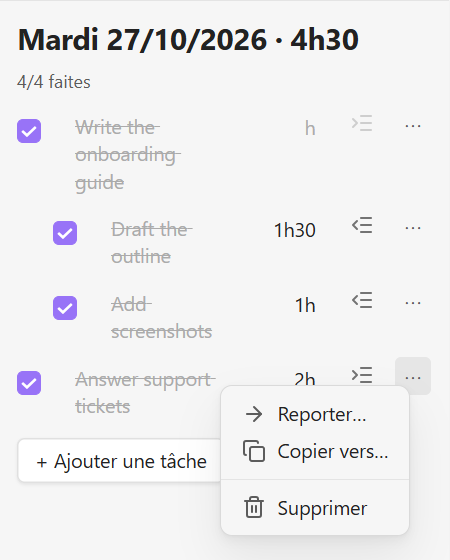
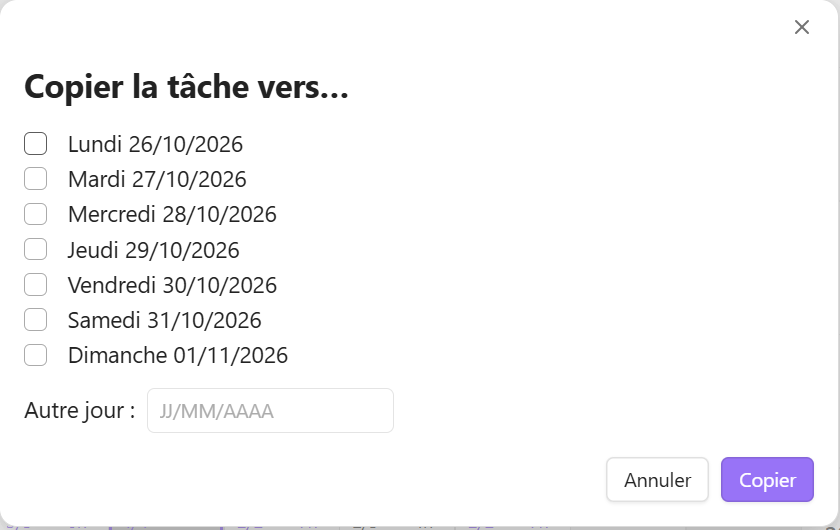
- Sub-tasks, move a task to tomorrow or any day, copy a task to several days at once.
- Two-way: edit the Markdown file by hand and the calendar follows; use the calendar and the file follows.
- English and French: the interface follows Obsidian's language, and the words written in your file ("Week of" / "Semaine du", weekday names) can be English or French. Both are always understood when reading.
- Diagnostic command listing inconsistencies in the file, without changing anything.
Screenshots
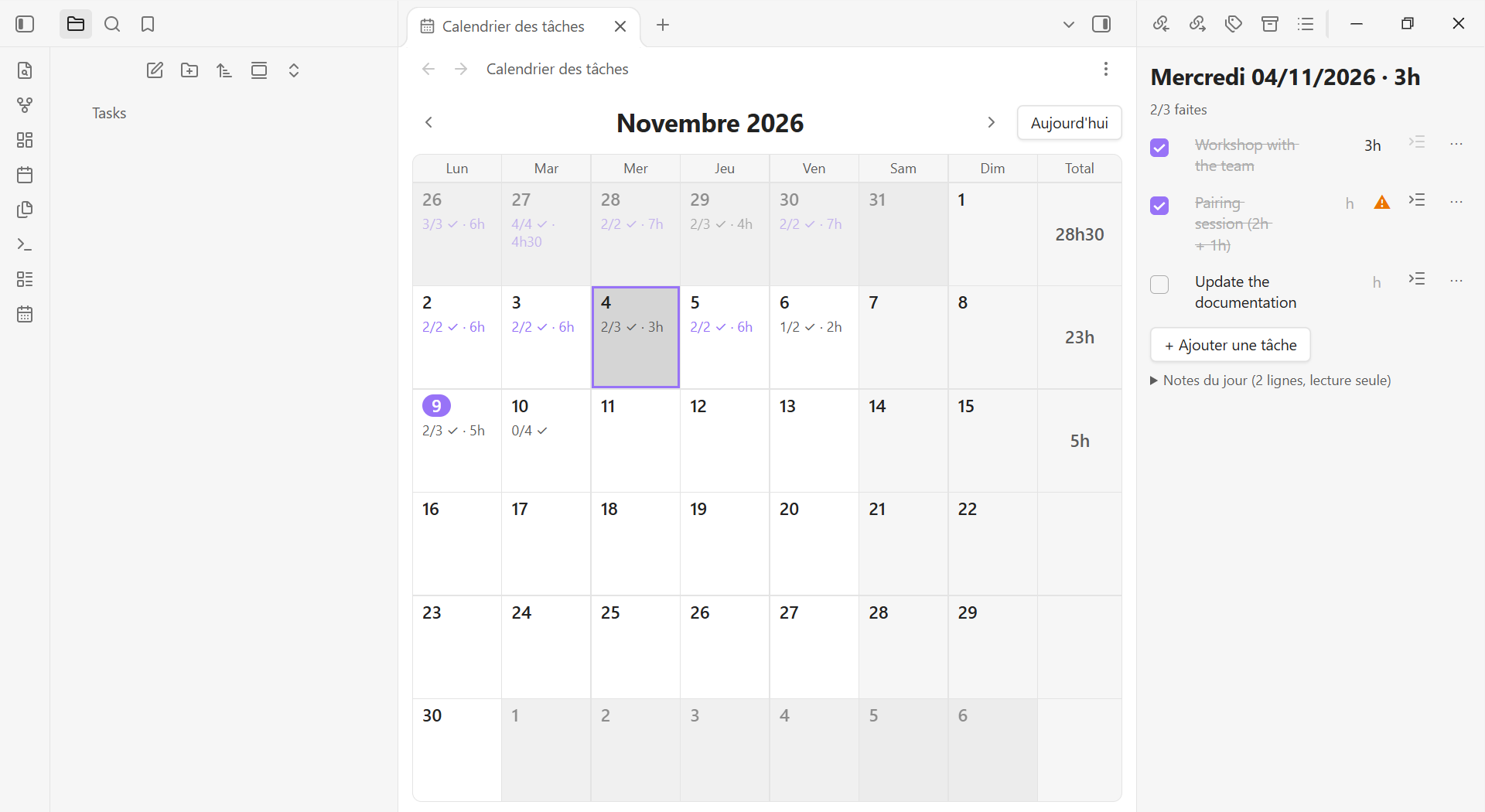 The monthly calendar shows, for each day, tasks done / total and hours, plus a weekly total column. The panel on the right is the selected day.
| Day panel | Sub-tasks |
|---|---|
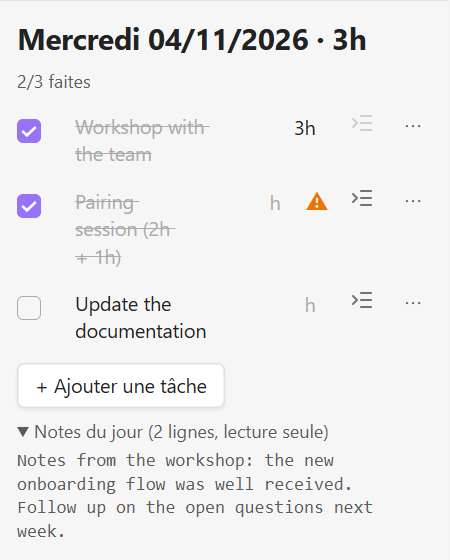 | 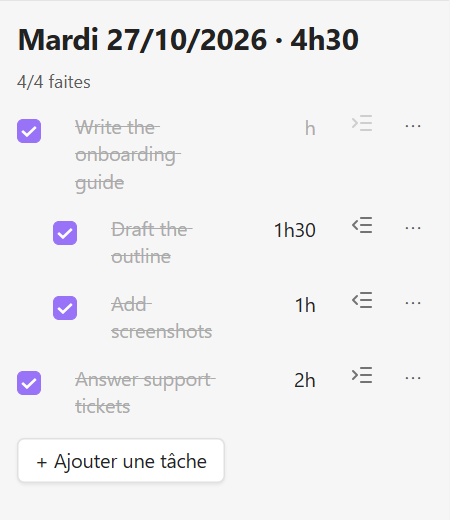 |
| Tick tasks, edit text and hours; free text of the day stays read-only. ⚠ flags hours the plugin could not read. | Sub-tasks are indented; their hours count in the totals. |
| Task menu | Copy to several days |
|---|---|
 |  |
And the same data as a plain Markdown file, in reading mode:
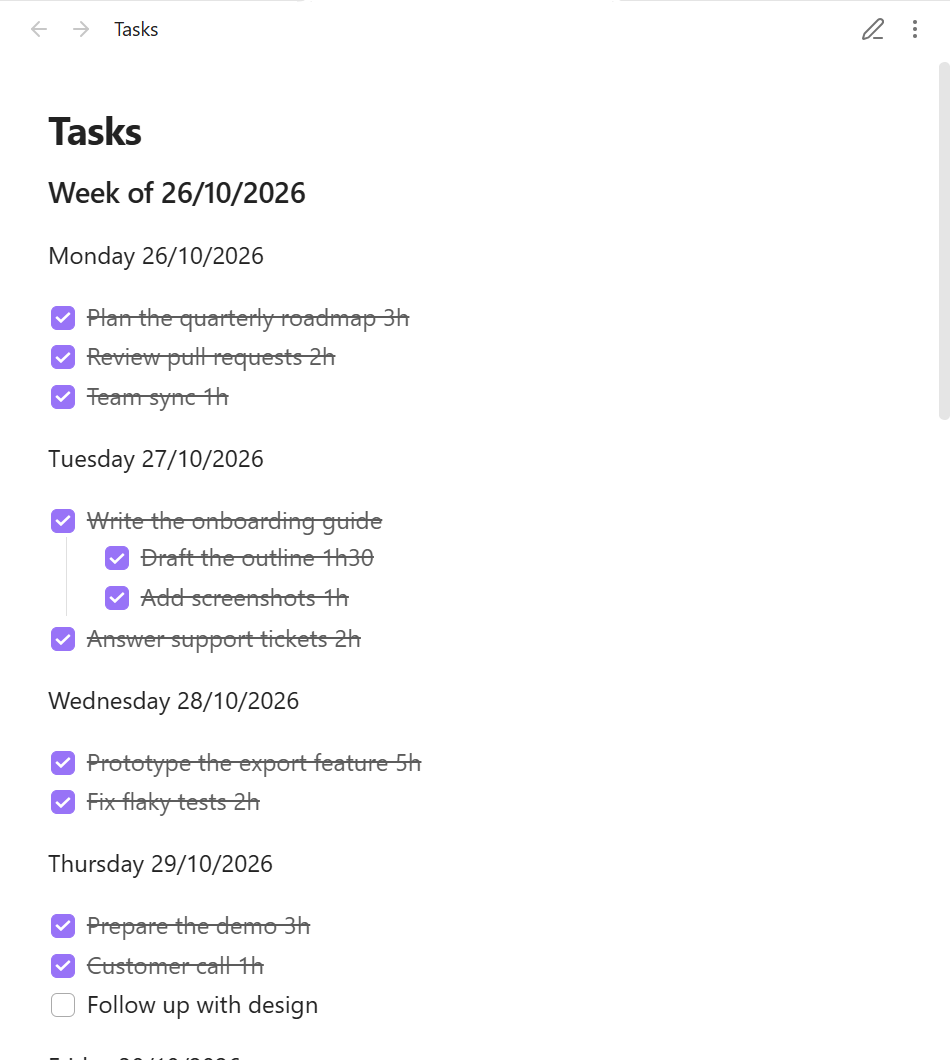
Screenshots use fictional data (docs/demo/Tasks.md) and Obsidian's French interface; the plugin follows Obsidian's language.
Install
Requires Obsidian 1.15.0 or later.
From Obsidian: open Settings → Community plugins → Browse, search for Weekly Task Calendar, then Install and Enable.
Manually:
- Download
main.js,manifest.jsonandstyles.cssfrom the latest release. - Put them in
<your vault>/.obsidian/plugins/weekly-task-calendar/. - In Obsidian: Settings → Community plugins, reload the list, enable Weekly Task Calendar.
Usage
- Click the calendar icon in the ribbon, or run the command Open task calendar.
- Click a day: the day panel opens on the right.
- Add tasks, type hours like
6h,2h30,1.5or45min, tick them off. - ⋯ on a task: Move… (tomorrow or another day), Copy to… (several days), Delete.
By default the plugin reads and writes Tasks.md at the root of your vault. Change it in
Settings → Weekly Task Calendar → Task file. If the file does not exist, the calendar offers to create it.
How your data is protected
- Only week headings, day headings and checkbox lines are read and written. Notes, links and paragraphs in the same file are kept untouched, in place.
- A task you do not edit is never rewritten. Ticking or unticking only changes the checkbox.
- Every write starts from the latest version of the file (
vault.process), so a simultaneous manual edit is not overwritten. If a line moved between what you saw and your action, the action is cancelled. - A copy of the task file is saved in the plugin folder (
backup/) the first time the plugin runs.
Reading rules
- A week is a heading like
#### Week of DD/MM/YYYY(alsoWeek …orSemaine du …). - A day is a line containing only a weekday name, with an optional date:
Monday,Tuesday 27/10/2026. A line such asMonday: call back Alex 3his a normal note, not a day. - A day's date comes from its position (week start + weekday), not from the date typed on its line, so typos in the file do not misplace tasks. If a weekday appears twice in one week, only the first one opens a day; the repeat is treated as a note and reported by the diagnostic command.
- Hours are recognised only at the end of the line:
6h,2h30,1h55,30min,2.5h,(3h),: 4h. Ambiguous cases (2 + 5h,8h-10h20, a lone4) and durations over 12 h (usually a meeting time such as17h30) stay in the text and are left out of the totals; the panel shows ⚠. - Empty tasks (
- [ ]) are kept but not counted.
Settings
| Setting | Description |
|---|---|
| Task file | Path of the Markdown file, relative to the vault root. Default Tasks.md. |
| Language of headings in the file | Auto follows the existing file, then Obsidian's language; or force English / French. |
Limitations
- Dates are written as
DD/MM/YYYYand weeks run Monday to Sunday. Other date formats are not supported yet. - The user interface code (focus handling, modals) is not covered by automated tests; the parser, edit operations and view models are.
Development
npm install
npm test            # unit tests (Vitest)
npm run typecheck
npm run build       # produces main.js
npm run install-plugin   # copies the build into your vault (set OBSIDIAN_VAULT to change it)
The round-trip test reads the author's real task file when present (set TASK_FILE to point to another one)
and skips itself otherwise. Releases are built by GitHub Actions: pushing a tag equal to the version in
manifest.json publishes main.js, manifest.json and styles.css.
License
For plugin developers
Search results and similarity scores are powered by semantic analysis of your plugin's README. If your plugin isn't appearing for searches you'd expect, try updating your README to clearly describe your plugin's purpose, features, and use cases.