by Beth Dean
A quiet, distraction-free writing mode, on desktop and mobile.
Writing Mode
A quiet, distraction-free writing mode, on desktop and mobile.
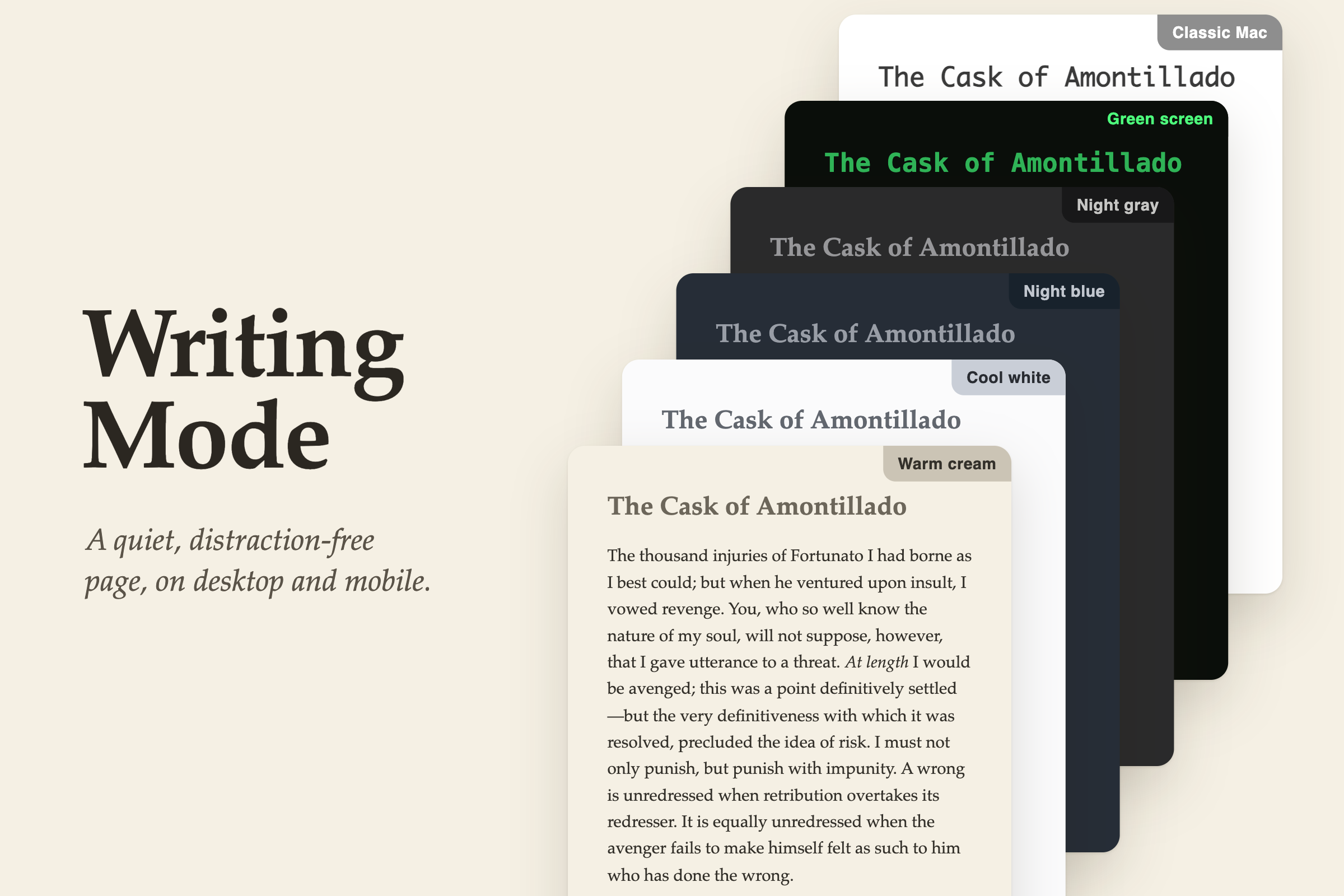
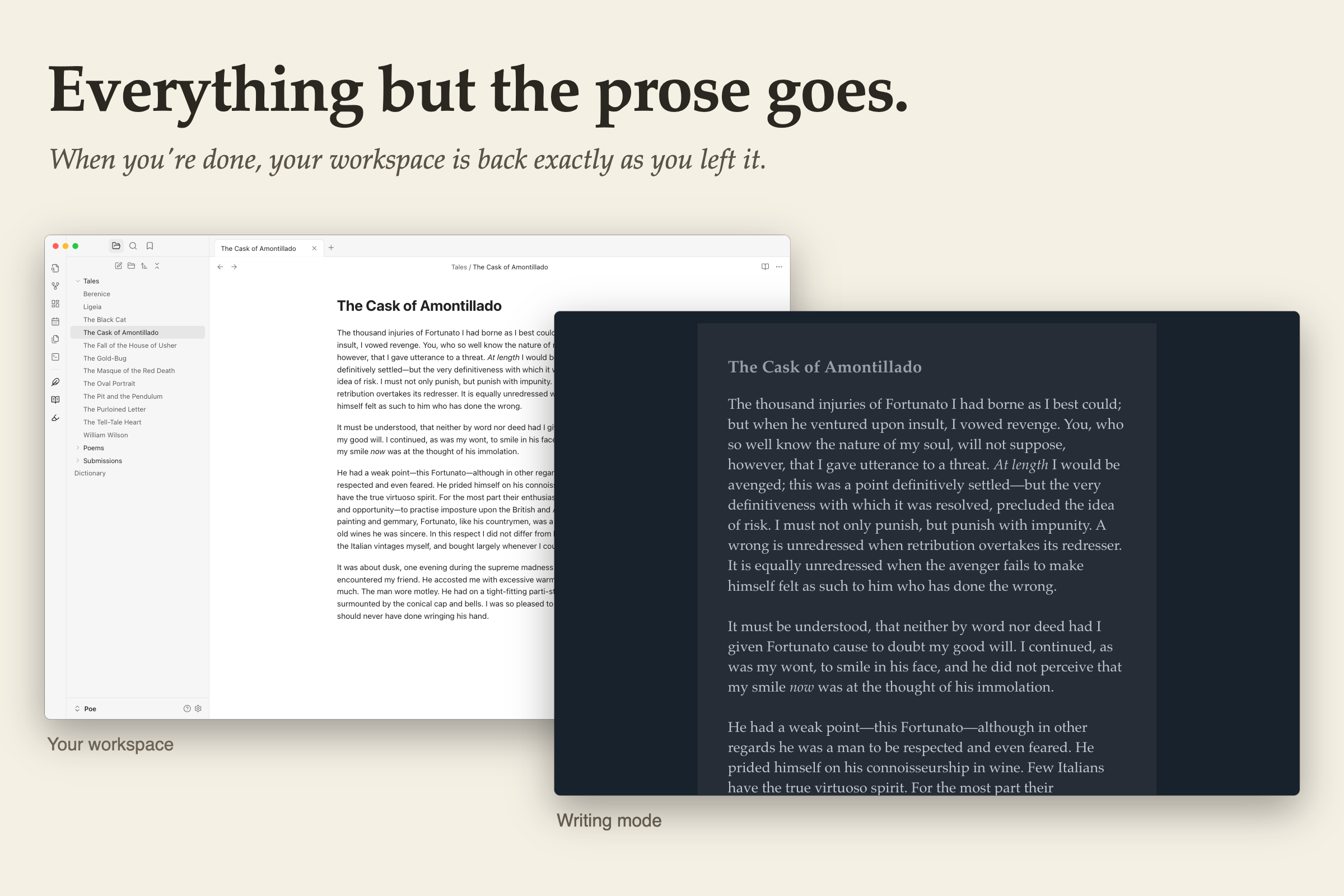
Writing mode leaves you with a page and your words, nothing else. Your prose is set large in a book typeface, on a paper you choose. Draft in it, or read a finished piece through from beginning to end. When you're done, your workspace is back exactly as you left it.
- A paper for every mood. Warm cream or cool white by day. After dark, night gray, or a deep blue familiar to Scrivener users. Two retro screens from the early days of word processing, just for fun. Or your own theme's colors.
- Made for mobile too. Writing mode works the same on mobile as on desktop. Pinch to resize the text.
- Typewriter scroll. The line you're typing stays put, everything else moves.
- Focus dimming. Everything but the sentence or paragraph you're working on fades.
- Private. Everything happens on your device. Writing Mode never connects to the internet.
Getting started
- Open a note.
- Click the open book in the ribbon, the strip of icons down the left edge of Obsidian. Or open the command palette and run Writing Mode: Toggle.
- To leave, press Escape. On mobile, tap the open book in the top corner.
To give Writing Mode a hotkey, open Settings → Hotkeys and search for Writing Mode.
The papers
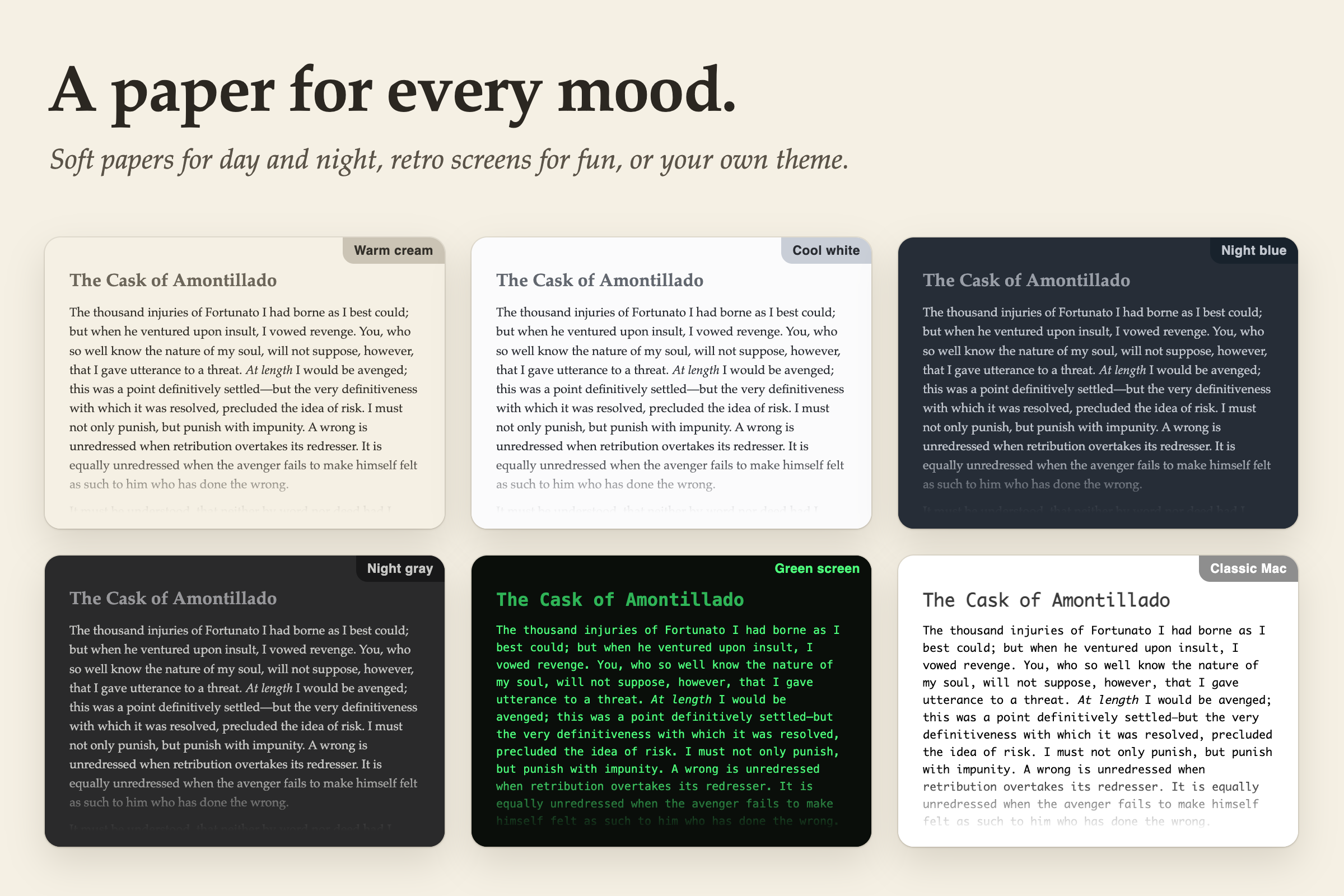
Soft papers in a book typeface: warm cream and cool white for daytime, night blue and night gray for after dark. High-contrast retro screens in a monospaced typeface. Or your own theme's colors and font. The default, Automatic, switches between cream and night blue to match Obsidian's light or dark mode.
On mobile
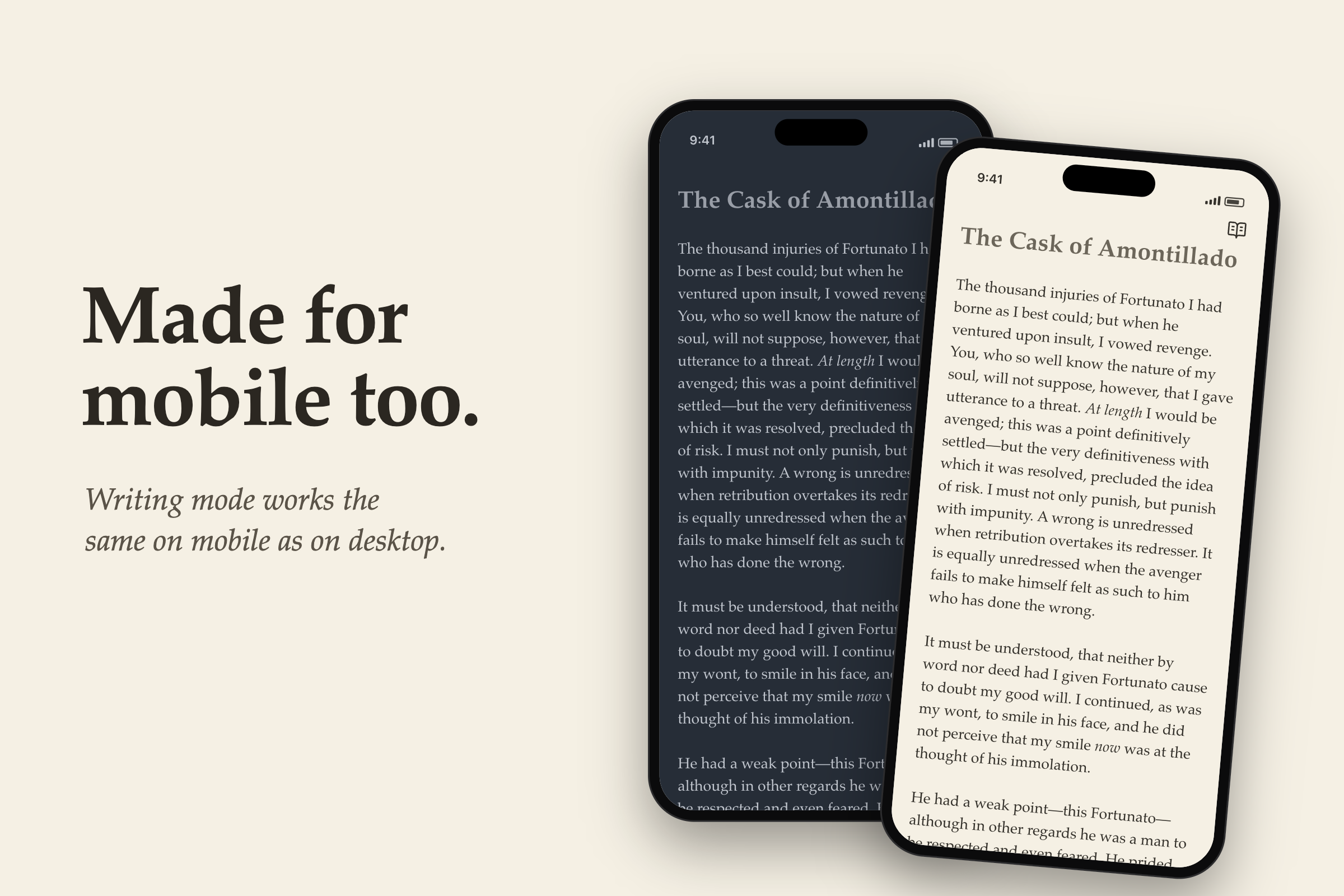
The toolbar above the keyboard shrinks to a single button that hides the keyboard, so nothing sits between you and the page.
Typewriter scroll
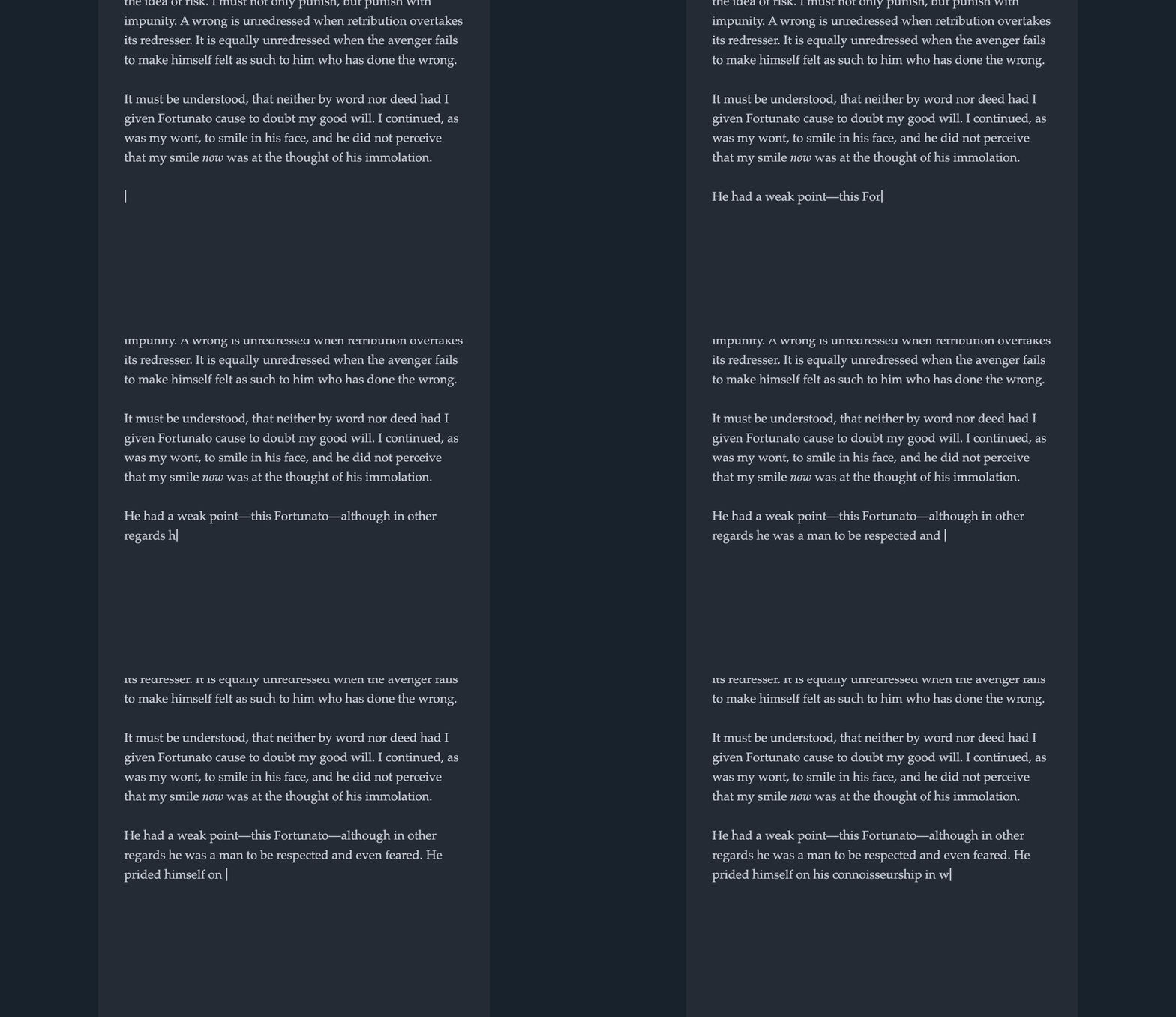
Typewriter scroll keeps the line you're writing exactly where it is on the screen. Other typewriter-scroll plugins move your current line to the middle of the screen, which makes the page jump.
Text size
Text in Writing Mode is larger than the editor. Resize with ⌘ + and ⌘ − (Ctrl on Windows and Linux), and ⌘ 0 to reset. On mobile, pinch.
Settings
All in Settings → Writing Mode.
- Typewriter scroll. Keeps the line you're writing where it is. On by default.
- Dimming. Fades everything but the sentence or paragraph you're working on. Off by default.
- Text size. The same size the shortcuts and pinch change.
- Paper. Choose a paper, or your theme's colors. Automatic by default.
- Typeface. Palatino by default. Enter any font on your device, or leave it blank to use your theme's font.
- Word count. A small count at the foot of the page, of your prose only. Off by default.
- Follow the system appearance. Automatic follows your device's light or dark mode, even if your vault is set to one theme. Off by default.
Compatibility
Every release of Writing Mode is tested against the ten most-installed Obsidian themes and plugins, popular writing plugins, in light and dark mode, and on desktop and mobile.
Themes: Minimal, Things, AnuPpuccin, Blue Topaz, Obsidian Nord, Atom, Obsidianite, Wasp, Typewriter, ITS Theme, Border.
Plugins: Excalidraw, Templater, Dataview, Tasks, Git, Advanced Tables, Calendar, Style Settings, Kanban, Copilot.
Also tested with: Notebook Navigator, Longform, Better Word Count, Novel Word Count, Highlightr, Outliner, Iconize, Commander, Hover Editor, Minimal Theme Settings, Typewriter Mode, Typewriter Scroll, Focus Mode, Hider.
If you already use a typewriter-scroll plugin, turn off typewriter scroll in Writing Mode's settings so the two don't compete.
Install
In Obsidian, open Settings → Community plugins → Browse, search for Writing Mode, then install and enable it. Requires Obsidian 1.13 or later.
To install by hand, download main.js, manifest.json and styles.css from the latest release into <your vault>/.obsidian/plugins/writing-mode/, then enable Writing Mode in Settings → Community plugins.
License
MIT.
For plugin developers
Search results and similarity scores are powered by semantic analysis of your plugin's README. If your plugin isn't appearing for searches you'd expect, try updating your README to clearly describe your plugin's purpose, features, and use cases.