Composition Mode
approvedby kazys varnelis
Distraction-free writing mode with paper container, book page sizes, point-size type controls, zoom, and adjustable background. - This plugin has not been manually reviewed by Obsidian staff.
Composition Mode
A distraction-free writing mode for Obsidian that turns the editor into a paginated, paper-like page. Designed for long-form writing where you want to see your text the way it will eventually print, without chrome, sidebars, or line-length surprises.
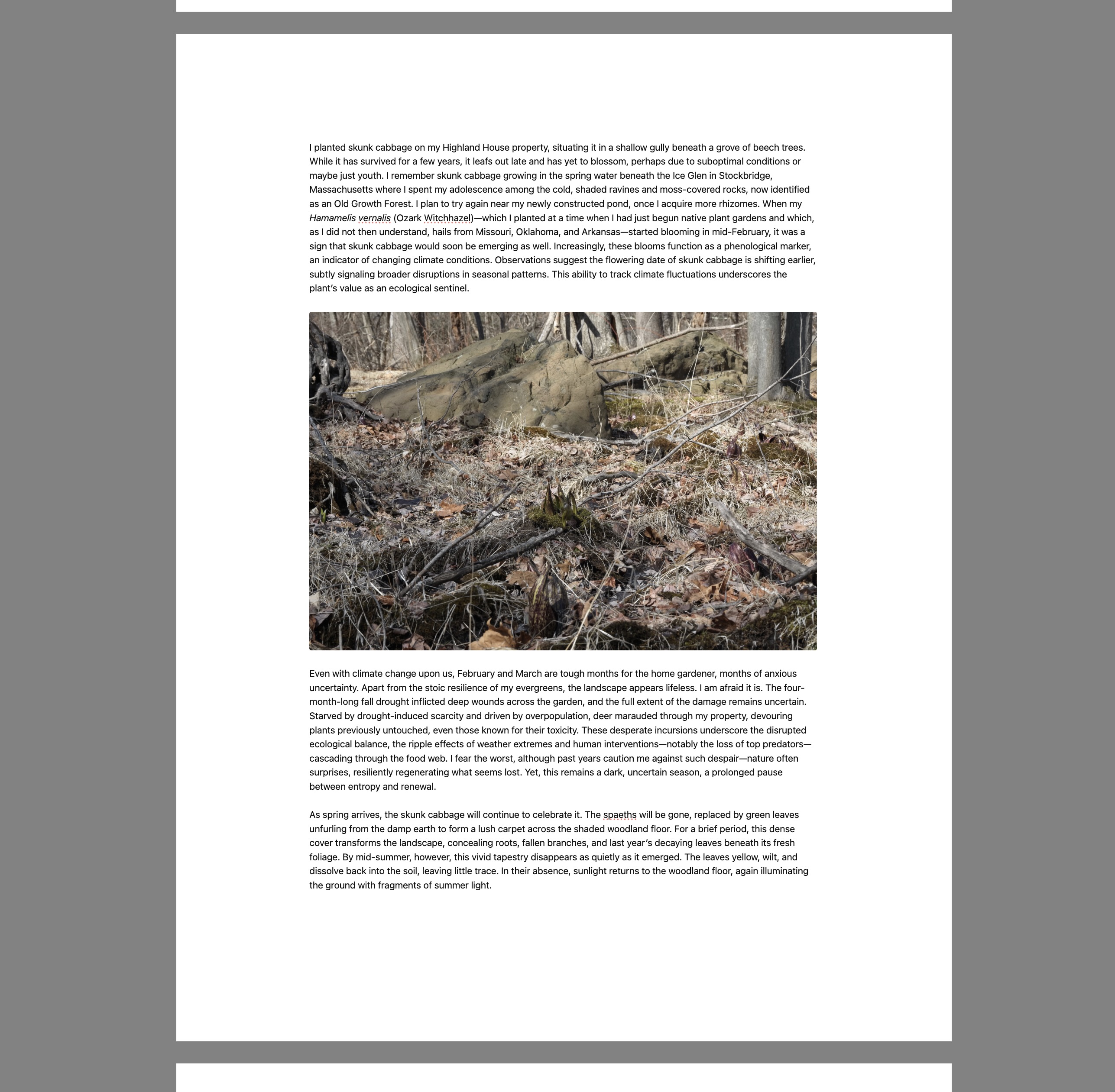
⚠️ New and experimental. This is a young plugin. It has primarily been tested with the Minimal theme on desktop. Other themes may produce visual quirks around image embeds, page-gap bars, or text column sizing. Bug reports welcome — please include your theme name and a screenshot.
What it does
- Paper-like pages: Your note renders as a stack of pages separated by visible gaps, using the selected paper trim, margins, type size, and measured text width.
- Book and manuscript page sizes ordered from smaller to larger: Trade 6 × 9, Academic 7 × 10, Letter, and A4.
- Point-size type controls: Increase or decrease body text in typographic points from the command palette or bottom control bar.
- Mid-paragraph pagination: Long prose paragraphs can split at word boundaries, so book-sized pages do not leave large blank areas just because a paragraph is too long.
- Paginated view at any zoom: Uses CSS
zoomto magnify without reflowing, so page breaks stay stable while you scale up or down. - Soft backdrop: A neutral gray behind the page, adjustable from light to near-black, to take the room out of your peripheral vision.
- No status bar, no tab headers while active. If sidebars are open, they will show. I recommend closing them first.
- Per-note zoom memory: Each note remembers its zoom level.
Limits
- Pagination is an editor layout aid, not a print/PDF typesetter. It estimates text height from the live editor font metrics and inserts CodeMirror block widgets where page gaps should appear.
- Plain prose paragraphs can split inside the paragraph at word boundaries. Headings, images, mixed image/text lines, and more complex blocks still prefer block-level breaks.
- Images and text are the primary targets. Mermaid diagrams, tables, callouts, and other complex elements may not paginate perfectly yet.
Settings
| Setting | Default | Notes |
|---|---|---|
| Paper size | Letter | Trade 6 × 9, Academic 7 × 10, Letter, or A4. Controls the page surface aspect ratio. |
| Show page breaks | On | Visible gray bar between pages; long prose paragraphs can split at word boundaries. |
| Words per page | 400 | Legacy target retained for compatibility. Current pagination is based on measured page geometry. |
| Page gap height | 60 px | Height of the gray gap between pages. |
| Default paper width | 90% | Percentage of viewport width the page occupies. |
| Max paper width | 1400 px | Absolute cap on page width. Prevents the page from ballooning on large external monitors. |
| Image width | 100% | Width of embedded images as a percentage of the text column. Centers automatically below 100%. Per-image overrides via ![[img.jpg|400]] still work. |
| Type size | 12 pt | Body text size in typographic points. Typical manuscript text is 12 pt; printed book interiors often land around 10–11 pt. |
| Side margin | 1.25 in | Left/right margin between paper edge and text column. Small book trims cap overly large margins to preserve a readable text block. |
| Top/bottom margin | 1.0 in | Vertical margin on each page. Small book trims cap overly large margins to preserve usable page depth. |
| Default background | 35% | 0 = light, 100 = near-black. |
| Enable debug mode | Off | Writes verbose pagination logs to working/composition-mode-page-break-debug.md. |
Manual page breaks
Add either marker on its own line to force a page break before the next block:
<!-- pagebreak -->
or:
%%pagebreak%%
Install
From the community directory (recommended)
- In Obsidian: Settings → Community plugins → Browse, search for Composition Mode.
- Install and enable.
Manual
- Download
main.js,manifest.json, andstyles.cssfrom the latest release. - Drop them into
<your vault>/.obsidian/plugins/composition-mode/. - Reload Obsidian, enable the plugin under Community Plugins.
Use
- Open a note and toggle Composition Mode from the command palette. No default hotkey ships; assign one under Settings → Hotkeys (
Mod+Shift+Cworks well). - A control bar appears on mouseover at the bottom edge: zoom, type size, paper size, page breaks, side/top margins, background, and word count.
- Exit via the Exit button in the control bar, or press Escape.
Commands
All commands appear under the "Composition Mode:" prefix in the palette.
- Toggle
- Reset zoom
- Zoom in / Zoom out
- Increase type size / Decrease type size
- Toggle status bar
Known limitations
- Desktop only. The isolation layer relies on DOM nodes that mobile Obsidian lays out differently.
- Theme-dependent rendering. Tested mainly with Minimal. Other themes may:
- Show visible slivers between the page-gap bar and the paper edge.
- Clip or misalign the page-gap bar's horizontal bleed.
- Render image embeds at unexpected widths.
- Override the paper background with a theme-specific color.
- No live preview toggle. The plugin operates on source/live-preview modes; switching to reading view while composition mode is active is untested.
Changelog
See CHANGELOG.md.
License
MIT — see LICENSE.
For plugin developers
Search results and similarity scores are powered by semantic analysis of your plugin's README. If your plugin isn't appearing for searches you'd expect, try updating your README to clearly describe your plugin's purpose, features, and use cases.