by Johannes Kaindl
Cast the I Ching (Yijing) in your vault: three-coin oracle with Wilhelm hexagram texts, readings saved as notes. Local-first, no cloud.
Yijing Oracle




🇬🇧 English · 🇩🇪 Deutsch
Cast the I Ching (Yijing) inside Obsidian. A three-coin oracle with the classic Richard Wilhelm hexagram texts — and every reading is saved as a vault note: searchable, linkable, part of your thinking. Local-first, no cloud, no account.
Native Obsidian re-implementation of the oracle core from the Yijing web/app project. Not a port of the whole thing — a focused plugin where the vault is the oracle journal.
Features
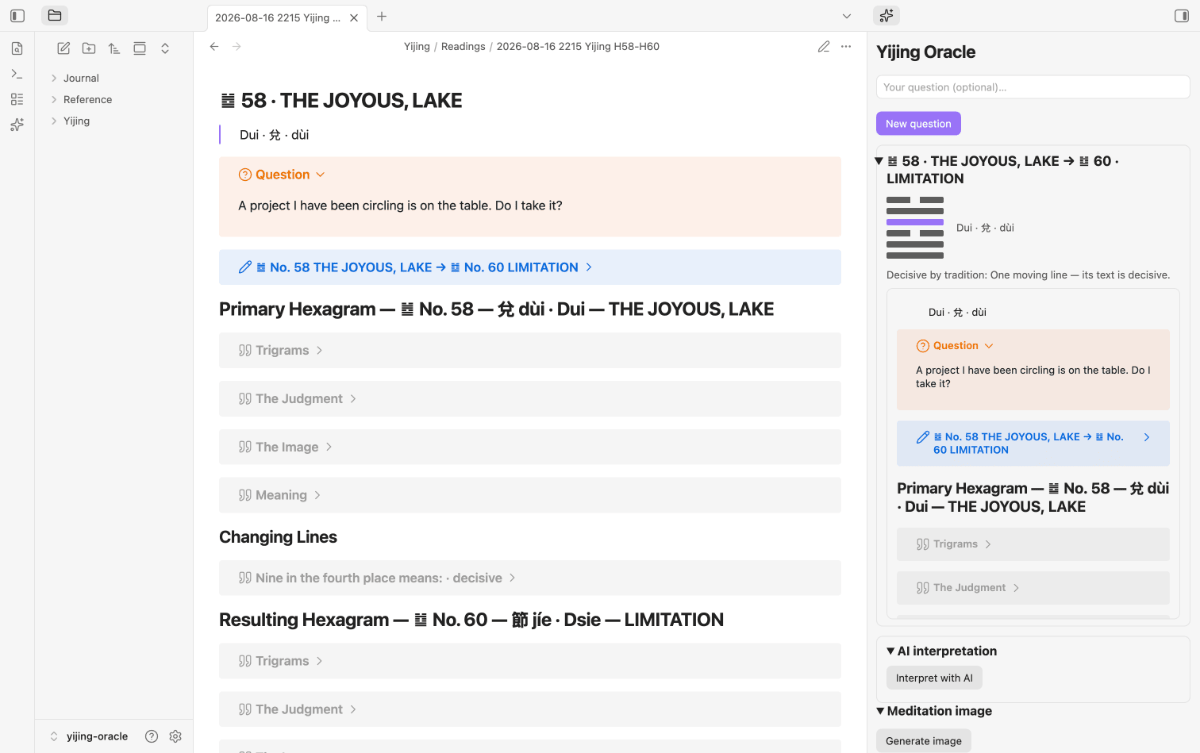
- Sidebar panel — ask a question (or don't), cast the coins, see the hexagram figure, changing lines and the resulting hexagram, then save.
- Readings as notes — each cast becomes a Markdown note with frontmatter
(
hexagram,changing_lines,resulting,question, …) in a folder of your choice, or inserted at the cursor of the current note. - Bilingual DE + EN — hexagram texts and UI in German or English; follows your Obsidian language or a fixed setting.
- Register — classic (Wilhelm) or gender-neutral phrasing.
- Two direct commands — Cast into a new note and Cast at the cursor — plus the panel.
- AI interpretation (optional, local) — stream a reading interpretation from a local OpenAI-compatible LLM server (LM Studio, Ollama, …); system prompt, endpoints and reasoning display are configurable. Off until you set an endpoint.
- Meditation image (optional, local) — generate one image per reading from the hexagram's curated motif via a local A1111-compatible image server (Draw Things, A1111, Forge, …). Panel preview + note embed. Off until you set an endpoint — see docs/image-generation.md for setup.
Requirements
- Obsidian 1.11.4+ (desktop or mobile).
- Nothing else for the oracle itself — the hexagram data is bundled, and casting works fully offline.
- Optional, for AI interpretation: an OpenAI-compatible local server (e.g.
LM Studio or Ollama). Endpoint and
model are set in the plugin settings. CORS on the server is optional: Obsidian's renderer sends
Origin: app://obsidian.md, and most local servers reject that by default. The plugin then repeats the request without streaming, so the interpretation arrives in one piece instead of word by word. To get the live stream, enable CORS (LM Studio:lms server start --cors). - Optional, for meditation images: an A1111-compatible image server (e.g. Draw Things with its API server enabled). See the setup guide.
Both optional features stay off until you configure an endpoint. Nothing ever leaves your machine.
Install
Community plugins (recommended)
Search for Yijing Oracle in Settings → Community plugins → Browse, then click Install and Enable.
Manual
Download main.js, manifest.json and styles.css from the
latest release and place them in
<vault>/.obsidian/plugins/yijing-oracle/, then enable the plugin under
Settings → Community plugins.
From source
git clone https://git.jkaindl.de/jkaindl/yijing-oracle
cd yijing-oracle
npm install
npm run build   # produces main.js
Then copy main.js, manifest.json and styles.css into
<vault>/.obsidian/plugins/yijing-oracle/ and reload Obsidian.
Usage
Open the panel via the sparkles ribbon icon or the Open oracle panel command. Type a question (optional) and hit Cast the coins — you get the hexagram figure, its changing lines and the resulting hexagram.
From there:
- Save writes the reading as a note (or inserts a link at your cursor, depending on the Default output setting).
- Interpret with AI streams an interpretation into the panel, if an LLM endpoint is configured. Generate image does the same for the meditation image. When you save, the interpretation is written into the note with remote images (including reference-style ones), Mermaid diagrams that would load remote images, and dataview/dataviewjs/js-engine blocks defused (shown as plain text), so opening the note does not load anything from the web.
- New question clears the field for the next cast.
- Past readings are listed below the panel — clicking one reconstructs the cast from its frontmatter.
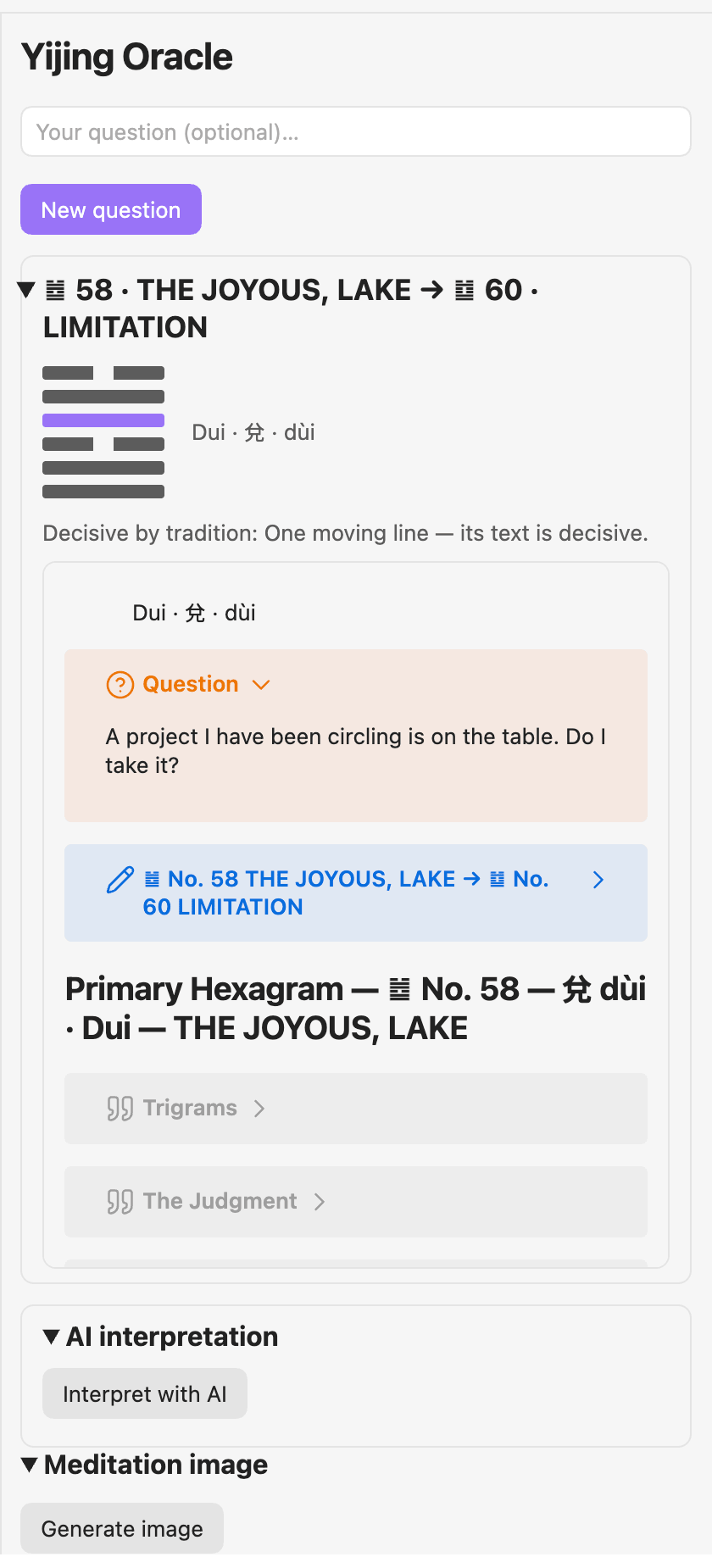
The panel after a cast — click to enlarge
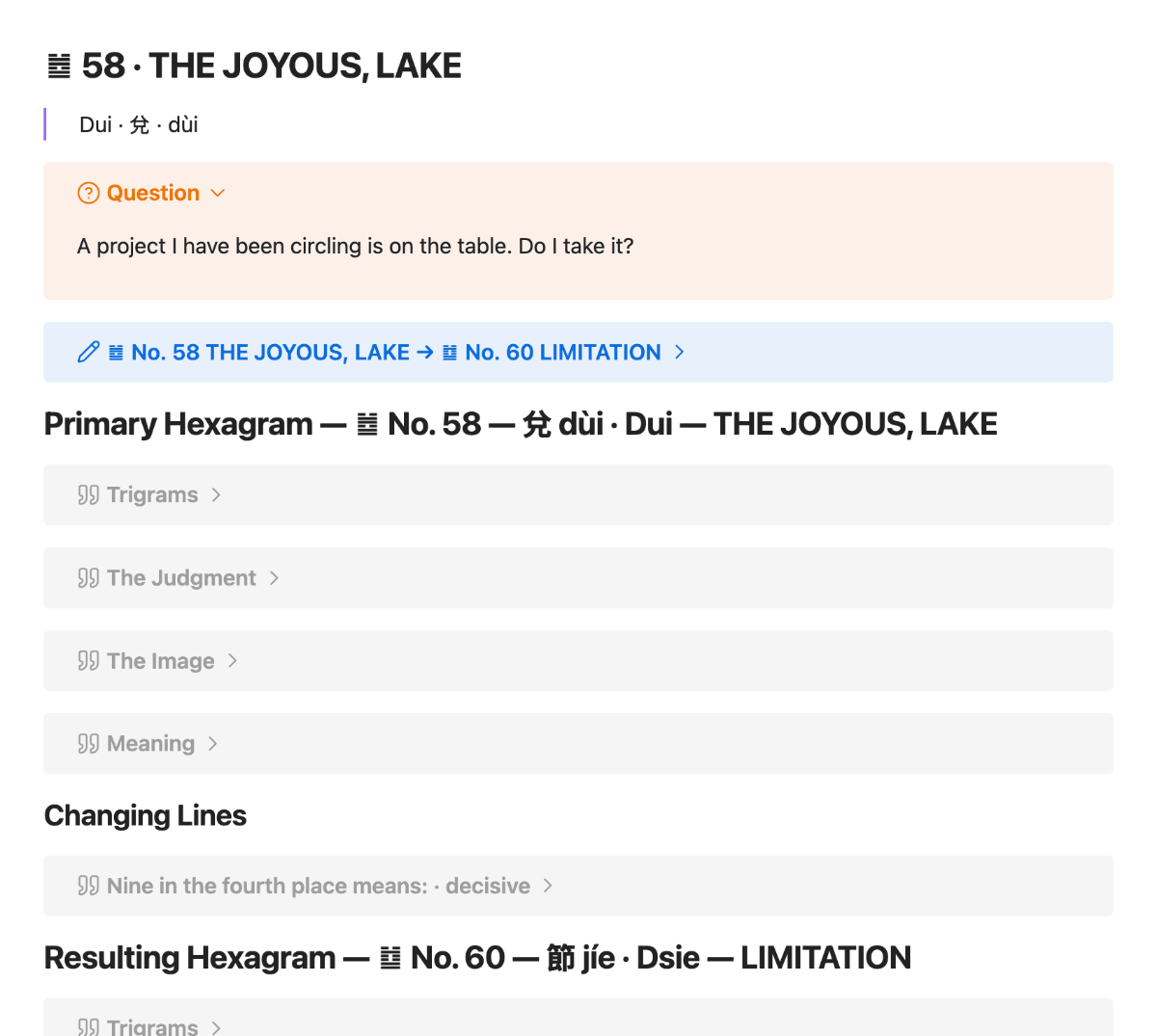
Every cast becomes a note like this — searchable, linkable, yours.
Two commands skip the panel entirely and cast straight away:
| Command | What it does |
|---|---|
| Cast a reading into a new note | Casts and writes the note, no question. |
| Cast a reading at the cursor | Casts and inserts a link in the active note. |
The two optional features
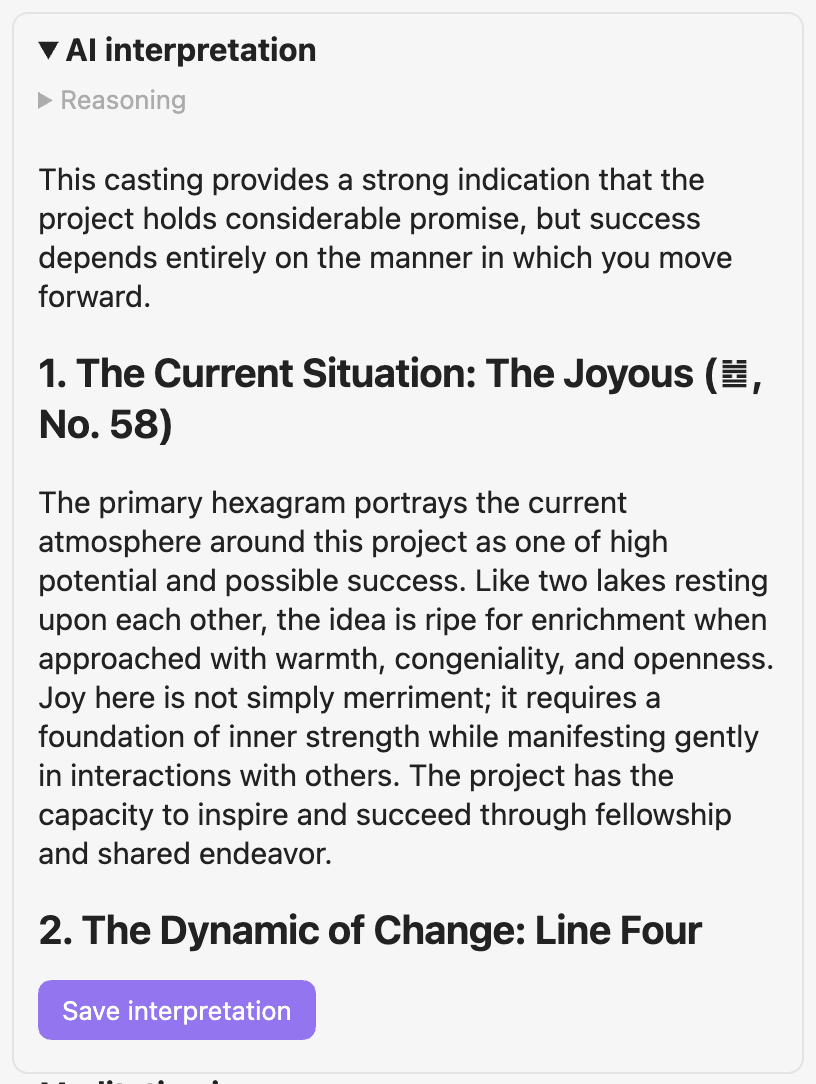 AI interpretation, streamed from a local model | 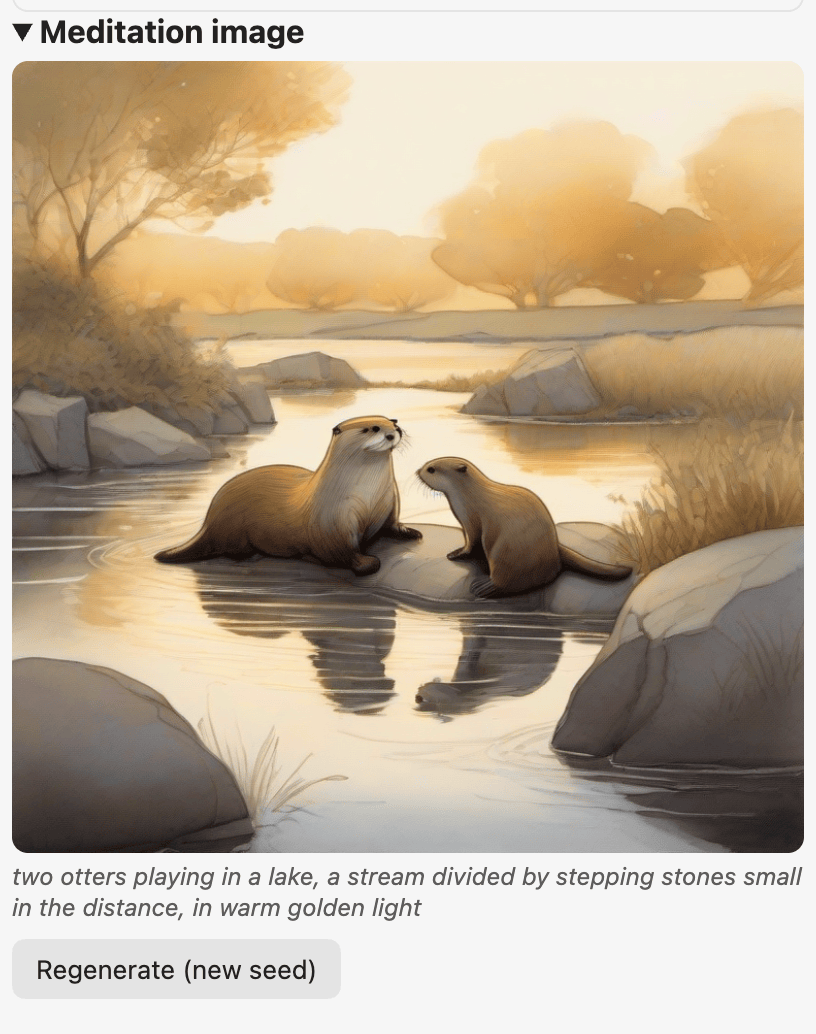 Meditation image, generated locally |
Configuration
Settings → Yijing Oracle, grouped into five sections:
| Section | What's in it |
|---|---|
| General | Reading language (or follow Obsidian), register (classic / gender-neutral), default output (new note / at cursor). |
| Note & storage | Readings folder, filename scheme ({date} {time} {hex} {resulting} {hexpair} {question}), open-after-save. |
| Note content | Frontmatter on/off plus a renameable key per field, Wilhelm's footnotes, per-section callout wrapping. |
| AI interpretation | Endpoints (each row with its own API key and optional model), model, system prompt (built-in templates or your own), the Request section (temperature and thinking level per model family). |
| Image generation | Backend (A1111/Draw Things or ComfyUI), endpoint, style suffix, negative prompt, size, steps. See the setup guide. |
On endpoints: add them one row at a time — the first reachable one wins, so the order is the priority (Try this endpoint first moves a row up). That way one config covers every network (localhost at your desk, LAN IP on the go) without switching anything. Each row has its own Test connection button with a plain-language result, and its own optional API key and model.
On API keys: each row's key is kept in Obsidian's keychain (OS-encrypted, per device), not in the vault — so it is never synced or backed up along with your notes, and you enter it once per row on each device. Leave it empty for local servers. A key you set up before 0.11 (one key for all rows) is copied into every row on the first start; the old keychain entry stays untouched. With the LLM Endpoint Manager installed, the endpoints and keys come from there instead.
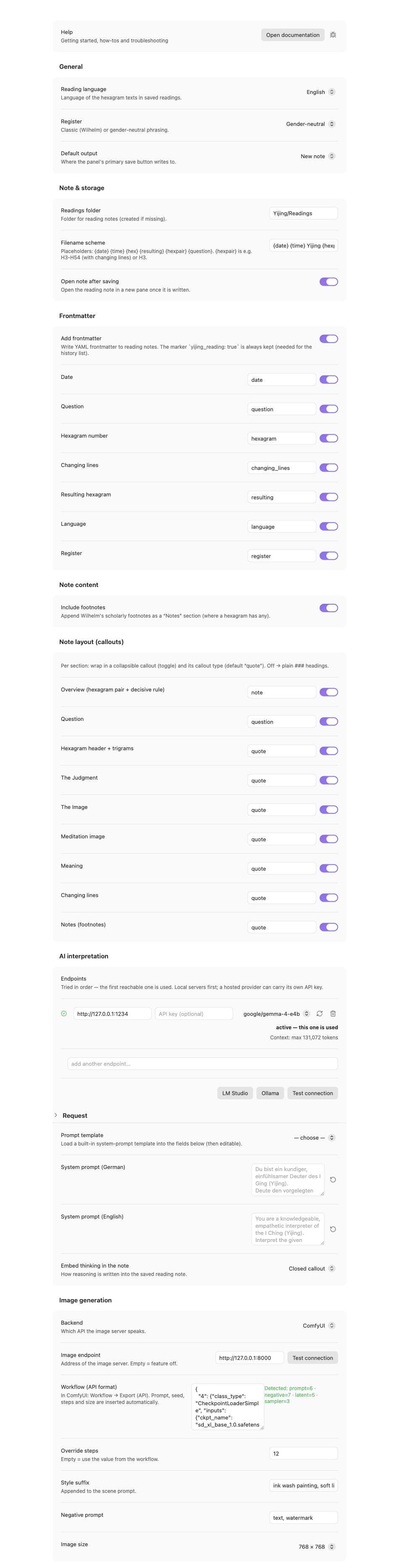
The full settings page — click to enlarge
How it works
Three coins per line (distribution 1:3:3:1), six lines built bottom-up, mapped to the
King-Wen sequence. Changing lines yield a second, resulting hexagram. All of this is
pure, tested logic (src/core/) with a parity gate proving the King-Wen table matches
the bundled data — the fourth canonical copy alongside the web app, build script and
the native OracleKit.
Development
npm install
npm run dev      # esbuild watch → main.js
npm run gate     # lint + typecheck + test + check:pure + check:bundle
The oracle core (src/core/) never imports obsidian (enforced by check:pure) and
is fully unit-tested. The src/obsidian/ layer holds the view, settings and file I/O.
Documentation
- Documentation index — all guides in one place.
- Getting started — from the install to your first saved reading.
- Troubleshooting — the exact message, its cause and the fix.
License
Source code: AGPL-3.0-or-later (see LICENSE). The Richard Wilhelm
translation in the bundled data is public domain. © 2026 Johannes Kaindl.
For plugin developers
Search results and similarity scores are powered by semantic analysis of your plugin's README. If your plugin isn't appearing for searches you'd expect, try updating your README to clearly describe your plugin's purpose, features, and use cases.