Abbreviations and Acronyms
approvedby dragonish
Implements automatic marking of abbreviations and acronyms (terminology).
Abbreviations and Acronyms
Introduction
This is a plugin for Obsidian. Implements automatic marking of abbreviations and acronyms (terminology).
This plugin supports rendering in both reading view, editing view (Live Preview) and source mode (optional). Simultaneously support listing all abbreviations in the current file, and the context menu of the abbreviation element.
Usage
Define abbreviations
You can define abbreviations in properties or using Markdown Extra syntax.
Properties
The plugin gets abbreviations by reading the specified field in the note properties(metadata). You can define abbreviations using a list of strings or a list of key-value pairs.
Strings
Use a colon (:) in the string to separate the abbreviation and the tooltip. Example:
---
abbr:
  - "HTML: HyperText Markup Language"
  - "CSS: Cascading Style Sheets"
---
[!TIP] The advantage of this format is that abbreviations can be added or removed directly in display mode.
Key-value pairs
Use the abbreviation for key and the tooltip for value. Example:
---
abbr:
  - HTML: HyperText Markup Language
  - CSS: Cascading Style Sheets
---
Markdown Extra
[!NOTE] Currently, there is no unified syntax specification, and the implementation of this plugin is similar to PHP Markdown Extra.
You need to Enable Markdown Extra syntax support in the plugin settings to activate this feature. The plugin gets abbreviations by reading the specified format in the note.
To define an abbreviation, simply declare it at the beginning of a line in your notes, for example:
*[W3C]: World Wide Web Consortium
Disable a specific abbreviation:
*[W3C]:
It is recommended to use blank lines to separate the definition area from the main content. For example:
You can use CSS to style your HTML.

*[HTML]: HyperText Markup Language
*[CSS]: Cascading Style Sheets

Using style sheets, you can keep your CSS presentation layer and HTML content layer separate.
Same abbreviations
When there are multiple same abbreviations, the scope is as follows:
---
abbr:
  - RAM: Random Access Memory
---

RAM.

*[RAM]: Reliability, Availability, Maintainability

RAM.

*[RAM]: Remote Access Management

RAM.

*[RAM]:

RAM.
Rendered as:
<abbr title="Random Access Memory">RAM</abbr>.

<abbr title="Reliability, Availability, Maintainability">RAM</abbr>.

<abbr title="Remote Access Management">RAM</abbr>.

RAM.
Command
Add abbreviation
Quickly add abbreviations to properties(metadata).
Copy and format content
Copy the note content and convert abbreviations to <abbr> tags, so that they can be displayed in other Markdown editors that do not support similar syntax.
For example, for the following note content:
---
tags:
  - test
abbr:
  - HTML: HyperText Markup Language
---
# Example

You can use CSS to style your HTML.

*[CSS]: Cascading Style Sheets

Using style sheets, you can keep your `CSS` presentation layer and `HTML` content layer separate.
This command will copy the following content to the clipboard:
# Example

You can use <abbr title="Cascading Style Sheets">CSS</abbr> to style your <abbr title="HyperText Markup Language">HTML</abbr>.

Using style sheets, you can keep your `CSS` presentation layer and `HTML` content layer separate.
Insert extra definition
This command is only allowed after enabling the Enable Markdown Extra syntax support setting.
Insert definition of Markdown Extra syntax at current cursor position in activity editor.
When no text is selected, insert the following content:
*[<cursor_position>]:
When selected text exists, insert the following content:
*[<selected_text>]: <cursor_position>
List abbreviations
List all abbreviations in the current file, then select one and jump to its definition position (for extra), or edit it directly (for metadata or global).
Manage global abbreviations
Quickly manage global abbreviations.
Settings
Metadata keyword
This plugin allows you to customize the keyword that read abbreviations from properties, default value is abbr.
Mark abbreviations in Source mode
In Source mode, mark abbreviations just like in Live Preview and Reading view.
Enable abbreviation detection for languages not separated by spaces
Detect abbreviations in languages that do not use spaces for word segmentation, such as CJK (Chinese, Japanese, Korean).
For example, for the following note content:
---
abbr:
  - "北大: 北京大学"
---

我是一名北大学子。
Only when this option is enabled will it render as:
我是一名<abbr title="北京大学">北大</abbr>学子。
Otherwise, keep it as is:
我是一名北大学子。
Markdown Extra syntax
Enable or disable Markdown Extra syntax features.
In addition, you can show a decorator for extra syntax definitions in the editing view. The content of the decorator can use two variables: ${abbr} and ${tooltip}. To introduce certain information of the current definition into the content. For example, for → ${abbr}:
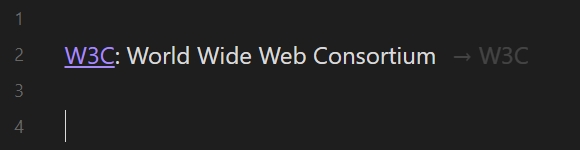
The CSS variable --abbreviations-definition-decorator-margin can be used to define the spacing of decorators, for example:
body {
  --abbreviations-definition-decorator-margin: 12px;
}
Global abbreviations
This plugin allows you to customize globally available abbreviations. Their priority is lower than abbreviations defined in the notes.
You can add global abbreviations in the settings panel, or specify a global file and add abbreviations in the file.
Suffixes
This plugin allows match supplementary suffixes for abbreviations. For example, it can make the OS match other OSes. More information can see: #3.
Suffix list is defined by the user, with values set as comma-separated string. For example: s, es, less.
Preview
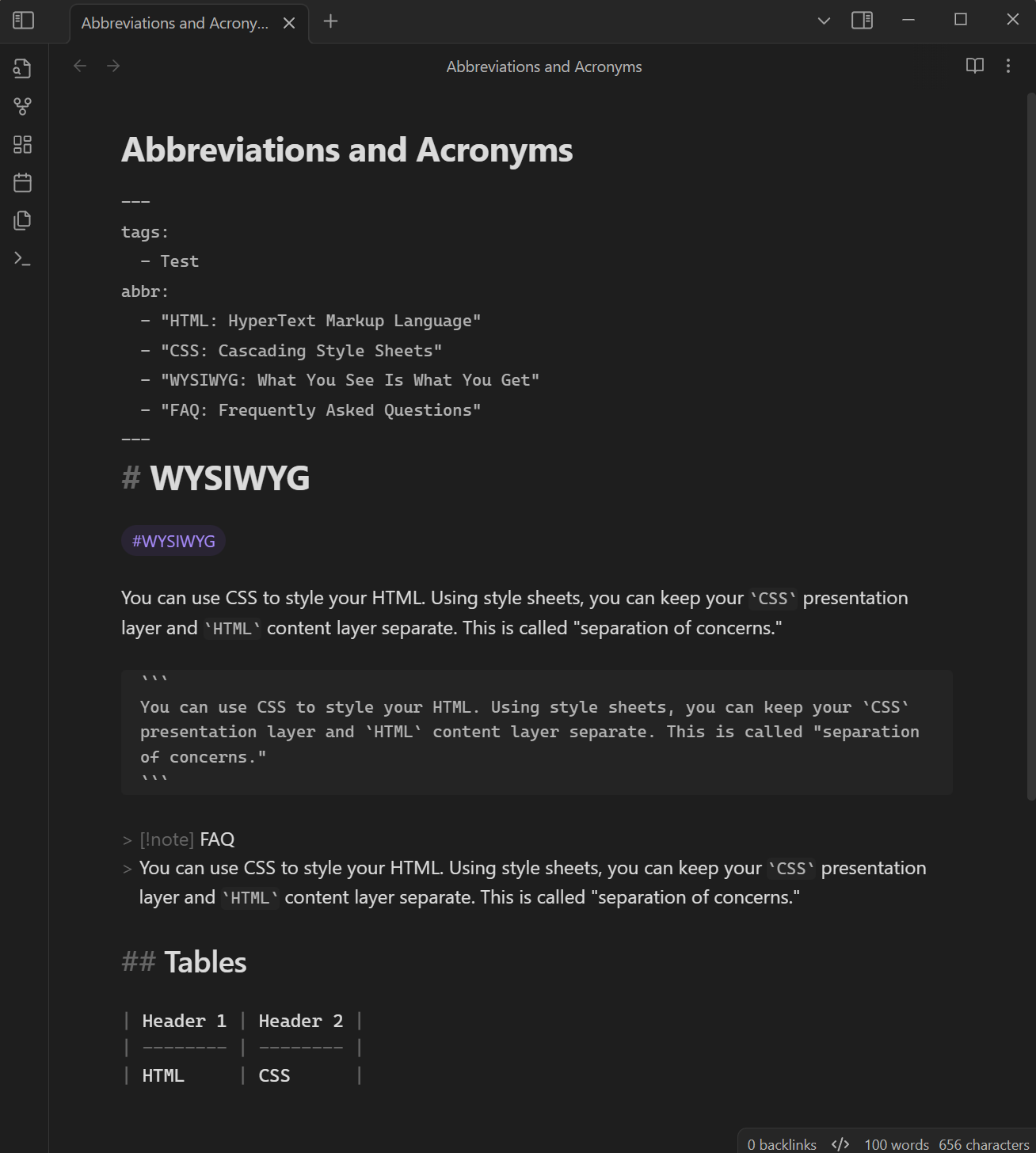
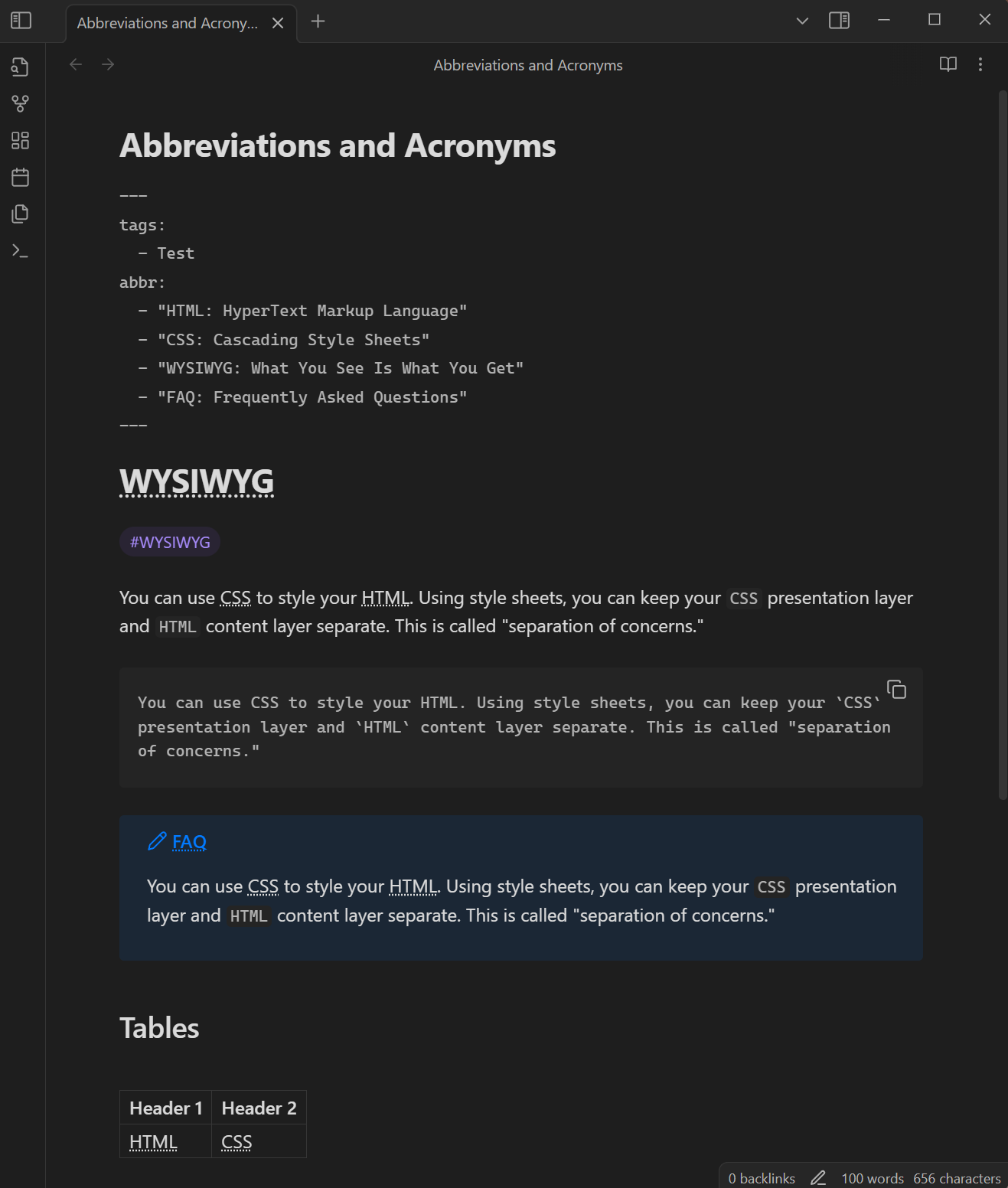
Live Preview:
| Source mode | Live Preview |
|---|---|
 |  |
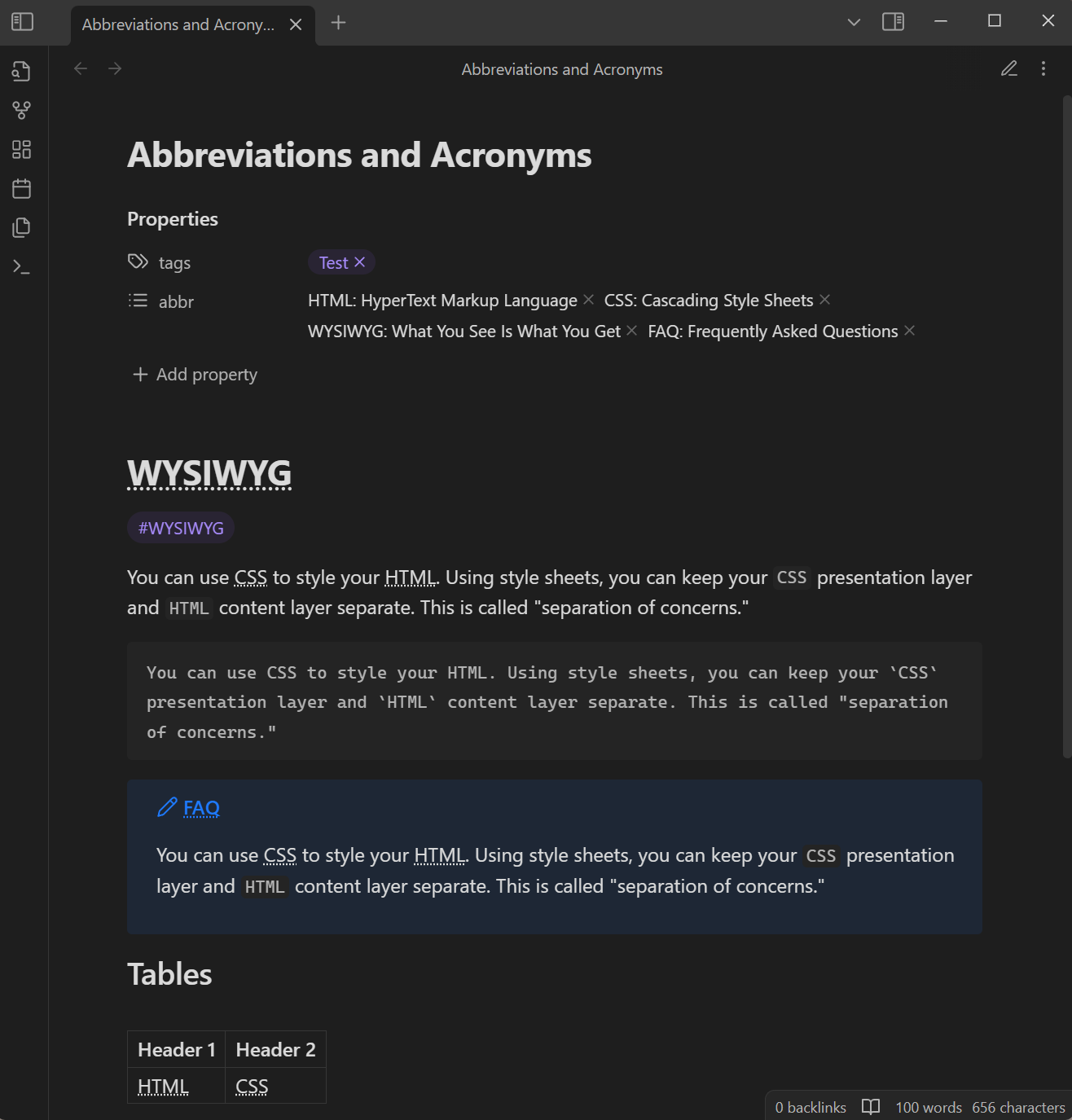
Reading:
| Source mode | Reading |
|---|---|
|  |
License
MIT license
For plugin developers
Search results and similarity scores are powered by semantic analysis of your plugin's README. If your plugin isn't appearing for searches you'd expect, try updating your README to clearly describe your plugin's purpose, features, and use cases.