by Matt Maiorana
Run Claude Code, Codex, or Antigravity in a terminal inside Obsidian. Start a session from any note, and keep every session listed, resumable, and saved. macOS only for now.
Agent Manager
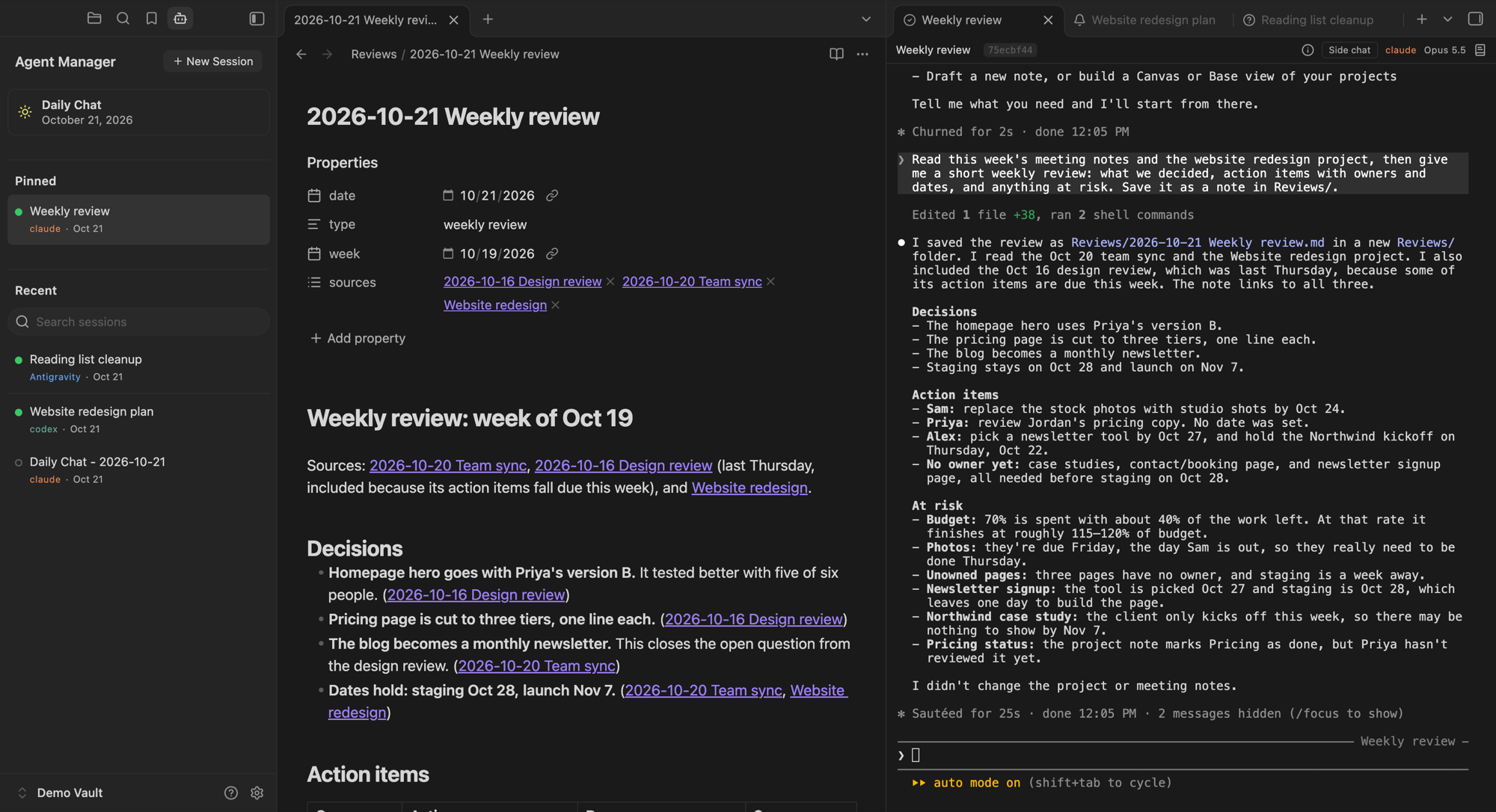
Run Claude Code, Codex, or Antigravity in a tab in Obsidian. Every session is listed in a sidebar, picks up where it left off, and is saved as a note in your vault. Any note can start a session about itself. There's no special setup or folder layout.
Desktop and macOS only, for now.
What it does
-
The terminal. Each session runs the real CLI in a tab, with the CLI's own keys and colors. Cmd+C and Cmd+V work the Mac way, and pasting a picture hands it to the agent. Drag a note or a file from Finder in to type its path; Cmd+click a path to open it. Scrolling keeps your place through resizes.
-
The session list. The sidebar has New Session and Daily Chat buttons, then Pinned and Recent. Drag pinned sessions into the order you want. Recent lists open sessions first, then every other session in the vault, newest first, and you can search it. Each session has a dot: green when it's open in a tab, an empty ring when it isn't. Click a closed session to resume it. Right-click to pin, rename, copy its resume link, close, or delete.
-
Daily Chat. One click opens today's chat: it resumes it if its tab is closed, and starts it if it hasn't run yet. It's named for the day and never started twice. Its sun is gray until the day's chat has run, yellow once it has, and green while it's open.
-
Start from a note or folder. The session is named for it and told to read it, and a note gets a link back to the session in its properties.
-
Transcripts. Each session is saved turn by turn as a Markdown note in one folder,
Agent Transcriptsby default. You can search, link, and quote it, and it outlasts the CLI's own history. -
Three CLIs. Claude Code, Codex, and Antigravity all start, list, resume, and save the same way. Pick a default, or choose per session.
-
Attaching to a ticket. In a session tab's menu, "Attach to a ticket" lists the session in a ticket. "Attach to a ticket as its main session" also makes the ticket's Resume open it. A plain attach never changes the ticket's main session.
-
Continue Session. From any session, start a new one that picks up from it, on any CLI. A session started from a note offers a side session, which leaves the note's main session alone, or a new main session, which takes its place. Then choose what the new session gets:
- On the same CLI: a copy of the whole conversation (the CLI's own fork), or a fresh start.
- On another CLI: the transcript to read, or a fresh start.
A fresh start reads the ticket or the note, or with neither, only the last message, and is told where the transcript is.
-
Closing. Closing a tab asks first when the agent is working or you have text you haven't sent. When a CLI exits, its tab keeps what it printed, and Enter resumes the session.
-
Agent profiles (optional). Most vaults don't need them: one session can do any kind of work, and overviews organize it by project. A profile keeps things apart, such as work and personal, when each needs its own instructions and reference files. You don't need one per role. Profiles aren't access control: every session can still read the same files.
To use them, turn on Use agent profiles in settings and add one: a name, a note with its instructions, and a home folder. Claude Code and Codex get the instructions when the session starts, and every CLI is told about them in its first message. A session started from a note in a profile's home folder uses that profile. For other sessions, a switch at the top of the sidebar picks the profile, and the sidebar then lists only that profile's sessions. Each profile has its own Daily Chat and transcripts folder. Every session is an agent either way: a profile only sets who it starts as, and a session with no profile can still do everything.
-
Moved sessions. When Claude's Remote Control or a compaction continues a conversation under a new id, its tab, pin, name, and transcript go with it.
Requirements
-
macOS and Obsidian 1.8.7 or later, on the desktop.
-
Python 3.8 or later. The terminal runs each session through a small Python helper. Homebrew's (
brew install python), python.org's, and the one Apple's Command Line Tools install all work. -
At least one of the CLIs, installed and signed in once in your own terminal:
- Claude Code:
curl -fsSL https://claude.ai/install.sh | bash - Codex:
curl -fsSL https://chatgpt.com/codex/install.sh | sh - Antigravity:
curl -fsSL https://antigravity.google/cli/install.sh | bash
Each CLI's own documentation has other ways to install it. If one is installed somewhere the plugin doesn't look, set its location in Settings → Agent Manager.
- Claude Code:
Install
Agent Manager isn't in Obsidian's community plugin directory yet, so it's installed by hand:
- From the latest release, download
main.js,manifest.json, andstyles.css. - In your vault, make the folder
.obsidian/plugins/agent-manager/and put the three files in it. (.obsidianis hidden in Finder; press Cmd+Shift+. to show it.) - In Obsidian, open Settings → Community plugins, turn community plugins on if they're off, and enable Agent Manager. If it isn't listed, click the refresh button there.
To update, replace the three files with the newer release's and reload Obsidian.
Your first session
- Click the robot icon in the ribbon. The sidebar opens. If Python or every CLI is missing, it says what to install.
- If your vault has no
AGENTS.md, the sidebar offers Set up this vault (below). Claude Code, Codex, and Antigravity all readAGENTS.mdfor how to work in your vault. Or dismiss it and start right away. - Click Daily Chat, or click New Session, give the session a name (or leave it blank), pick a CLI, and click Start.
- Type to the agent. It works in your vault's folder.
Close the tab when you're done. The session stays in Recent; click it to pick up where you left off.
Setting up your vault (experimental)
Set up this vault starts a session named "Vault setup" on your default CLI, to help you set the vault up for agents. It asks what the vault is for and what's off limits. Then it offers git, and explains it plainly: a hidden folder that keeps a copy each time a session saves its work, so anything saved can be rolled back, and nothing goes online. Then it asks how you'd like to work: step by step, or on its own.
It looks around, tells you what it found, and sets up what's missing: an AGENTS.md, a commit rule if you're using git, and a rule for where files go. If you'd like them, it also offers an example project that shows how projects and tickets work, suggestions for which of your own folders could be projects, tickets with a first ticket, a rule to write things down as they happen, a skills folder, the starter skills (below), agent profiles, and a folder for your conventions.
Step by step, it asks about each one in turn and changes something only when you say yes. On its own, it asks you to turn on tickets, then makes the basics, the example project with a sample ticket, a ticket for the setup itself, and the starter wrap skill, all as new files. One click makes the setup session that ticket's main session, so setup ends as a real, finished ticket you can resume. Then it reports any change it would make to files you already had, and everything it left out.
Either way, it asks before deleting, moving, or changing anything already in your vault, before installing git or making its first commit, and before bringing in anyone else's code. Settings stay yours to change. Close it whenever you like and resume it later. Run it again and it offers only what's left.
It's in the sidebar while your vault has no AGENTS.md, under Advanced & experimental in settings, and in the command palette. It stays experimental: an AI agent does the work, so results vary with the CLI and model you use. Its instructions are a file the plugin keeps in its own folder, guides/vault-setup.md, which you can also read, or paste into any session yourself.
Starter skills
The skills/ folder has two skills you can copy into your own skills folder and change however you like:
- wrap ends a session with a summary of what was done and what's open, and files it in the session's ticket.
- second-opinion has another company's CLI review a draft or a plan, as close to read-only as each CLI allows. It sends what the reviewer reads to that reviewer's company, and its
SKILL.mdsays what each CLI's reviewer can and can't be kept from.
Each runs only when you ask for it (/wrap in Claude Code and Antigravity, $wrap in Codex). Set up this vault offers to copy them. The plugin keeps the originals in its own folder (.obsidian/plugins/agent-manager/skills/) and rewrites them on each update, but never touches your copies, so a newer version won't reach a copy you've made: check here for one.
Also recommended: obsidian-skills by Steph Ango (kepano), Obsidian's CEO, which teach agents Obsidian's own formats (Bases, Canvas, Obsidian-flavored Markdown) and its command line. Install them by their own instructions.
Tips for each CLI
A few of each CLI's own commands worth knowing. They change the CLI's settings, not your vault, and they move between releases, so check each one's /help.
- All three:
/usageshows how much of your plan's limits is left (Codex's needs a ChatGPT sign-in), and/statuslinechooses what the line under the prompt shows. - Claude Code:
/configis the settings panel. "Enable Remote Control for all sessions" there lets you follow and continue any session from the Claude app (it needs a claude.ai subscription)./focusshows only your last prompt, a one-line summary of what was done, and the final answer;/focusagain turns it off. - Codex: its settings live in
~/.codex/config.toml./permissionschooses what Codex may do without asking,/themepicks a color theme, and/experimentallists features you can switch on.
Where sessions start
Sessions start in your vault's folder, unless you set AGENTS.md folder in settings to the folder holding the AGENTS.md your agents should read. Set it to a folder inside your vault to keep agents to that corner of it: a session started there isn't given the rest of the vault. This isn't a sandbox: what an agent may read or change outside the folder is up to its CLI's own permissions, which ask before going further. Sessions started in an earlier choice of folder stay listed.
Your phone
Claude Code's Remote Control lets you reach a running session from the Claude app. To make every session reachable, turn on "Enable Remote Control for all sessions" in Claude Code's /config. Agent Manager doesn't drive it, but when it moves a session to a new id, Agent Manager follows.
What that does and doesn't give you, from a phone or another computer:
- You can continue any Claude Code session that's running in Agent Manager on your computer, from the Claude app or claude.ai, with its edits made on your computer.
- You can read and edit your notes and tickets in Obsidian's mobile app, if your vault syncs there.
- You can't start a session in Agent Manager on your computer from elsewhere: Remote Control reaches sessions that are already running, and the Launch and Resume buttons on a ticket don't work in Obsidian's mobile app, where Agent Manager doesn't run.
- You can't reach a session once its computer sleeps or Obsidian closes, since the session runs inside Obsidian.
- Codex and Antigravity sessions aren't reachable this way yet: each has a remote mode of its own, not yet tried with Agent Manager.
Turn it on in one computer only
Turn Agent Manager on in just one computer, the one where your sessions should run. It isn't built for two yet:
- Sessions stay on the computer that ran them, with their CLI's files, and another computer can't resume them. Their transcript notes sync, so you can read one anywhere.
- Two copies overwrite each other's state. The plugin's
data.jsonkeeps this computer's state (pinned sessions, which session has which agent profile) beside its settings, and Obsidian Sync carries it when it carries community plugins. - Git stays on one computer. Obsidian Sync skips folders whose names start with a dot (
.obsidianaside),.gitamong them, and the skill links Set up this vault makes (.claude/skills/,.agents/skills/) too.
Keeping it off on another computer. If Obsidian Sync carries your community plugins (its Active and Installed community plugin list switches), turning Agent Manager on here turns it on there too. On the other computer, give Obsidian a config folder of its own: Settings → Files and links → Override config folder, such as .obsidian-laptop. Then leave Agent Manager off there. That folder is the whole Obsidian setup for that computer, its other plugins and workspace included. Phones and tablets need nothing: Agent Manager is desktop-only, and Obsidian doesn't load it there.
On the other computer and your phone, your notes and tickets sync as usual, but a ticket's Launch and Resume buttons don't work there. Don't edit a note there while a session on the main computer is writing to it, such as its ticket: Sync merges the two, and the merge can go wrong.
Working from another computer. Run the sessions on the one with Agent Manager, and reach them:
- Claude Code's Remote Control: start or resume a session in Agent Manager on the main computer, and continue it from the Claude app or claude.ai anywhere (see Your phone). The main computer has to stay awake with Obsidian open.
- SSH: sign in to the main computer and run Claude Code or Codex in your vault's folder there. Agent Manager there lists the session with the others (Antigravity's only when Agent Manager started it).
Remote Control only reaches a session that's already running, so start it on the main computer first. SSH can start one from elsewhere, but in a plain terminal, not in Agent Manager. There's no way yet to start a ticket's session on the main computer from somewhere else.
What it touches outside your vault
Everything Agent Manager reads, runs, or writes outside your vault:
- Reads each CLI's session files to list, resume, and save sessions:
~/.claude/projects/,~/.codex/sessions/, and~/.gemini/antigravity-cli/brain/. Antigravity doesn't record which folder a conversation ran in, so the plugin keeps a list of the ones it started in each vault, and lists only those. - Deletes a session's file there (for Antigravity, its conversation's folder) only when you choose "Delete session" and confirm.
- Runs the CLI you start, through a Python helper that reads the process table while the session runs. It also runs
ps, to see whether anything is still running in a terminal, andclaude agents --jsonbefore resuming a Claude session. Once per load it runs/sbin/mount, and your login shell to read its environment, the way a terminal app does; until the shell answers, macOS's/usr/libexec/path_helpergives a starting PATH. - Looks for Python and the CLIs in the usual places (Homebrew, python.org, pyenv, uv, conda,
~/.local/bin,~/.claude/local, npm's, Volta's, Bun's, and nvm's folders, and your PATH), running each Python it finds once with a short check, and reading the first line of a CLI that's a script to see whether it needs Node. - Reads Claude Code's settings files before starting Claude (
~/.claude/settings.json, or the one inCLAUDE_CONFIG_DIR; the managed settings in/Library/Application Support/ClaudeCode/; and the vault's.claude/settings), only to see whether you've set Claude's scroll speed or the variables below yourself, in which case the terminal leaves them alone. - Adds to every Claude start, without writing to any settings file: an inline
--settingswith hooks on each prompt, tool use, permission request, stop, and failure (each prints a short code the tab reads, so it knows whether Claude is working or waiting), the kitty notification channel, and the scroll settings above; and, unless you've set them,CLAUDE_CODE_SCROLL_SPEED,CLAUDE_CODE_FORCE_SYNC_OUTPUT,CLAUDE_CODE_FORCE_STRIKETHROUGH, andCLAUDE_CODE_FORCE_TERMINAL_IMAGES(with pictures on), for what this terminal supports. Claude's/hookslists the hooks. With pictures on, it also passes--plugin-dirto load the picture mod below, for that session only. - Gives every session the folders in "Added folders" (none by default), which the CLI can then read and write.
- Looks up file paths a session prints, to make them clickable, and shows one in Finder when you Cmd+click a path outside the vault.
- Reads a picture file a CLI asks it to show, the way the kitty terminal does, and deletes it only when it's a temporary file the CLI marked for deletion.
- Shows the pictures Claude sends you. A small Claude Code mod that ships inside the plugin draws each PNG a Claude session sends you (its SendUserFile tool) as a framed picture, with Open, Save to Downloads, and Copy path. The plugin writes the mod's few files into its own folder (
.obsidian/plugins/agent-manager/claude-mod/) and passes it to each Claude session with--plugin-dir, only while "Show pictures" is on; nothing is downloaded and nothing goes into~/.claude. Its buttons runopen,cp,cmp, andsipson the picture's file, and Save to Downloads writes into~/Downloads. Its look comes from show-your-work by Umer Ansari (MIT, credited inclaude-mod/inline-images/THIRD_PARTY_NOTICES.md). - Copies the files Claude sends you into the vault. When a Claude session sends you a file (its SendUserFile tool), the plugin reads it from where Claude says it is and copies it into the vault, where Obsidian puts attachments unless you set a folder, then shows it in the session's transcript note. It never changes or deletes the original. Turn it off in settings.
- Keeps a count of sessions waiting for you in Obsidian's local storage, for the Dock badge, only with "Waiting count on the Dock icon" on (off by default).
Network: the plugin's own code makes no network requests. The CLIs talk to their own services, as they do in any terminal. A transcript note is Markdown, so an image an agent links from the web loads from the web, as it would in any note.
Your sign-in and plan: Agent Manager starts the real CLI, so sign-in, models, and billing stay with the CLI, and a Claude or ChatGPT subscription works as it does in your terminal. It never asks for an API key. By default it keeps the API keys and provider settings in your shell's startup files (such as ANTHROPIC_API_KEY and OPENAI_API_KEY) out of agent sessions, so nothing switches you to per-token billing by accident. You can change that list in settings.
Your vault: it writes the picture mod's files, the setup guide, and the starter skills into its own plugin folder (claude-mod/, guides/, and skills/). The guide comes with a copy of this README, so the setup session can answer your questions. It also writes transcript notes into one folder, copies of files Claude sends you (above), and the main-session property into a note you start a session from, or into a ticket when you make a session its main session. It creates no AGENTS.md itself: Set up this vault's session writes one only after you've said yes, or chosen to let it set things up on its own. With tickets on, it also writes ## Session Links and ## Transcripts into tickets, and Tickets.base and a ticket template where they're missing.
Known limits
- Desktop and macOS only. It runs the CLIs on your computer, which Obsidian's mobile apps can't, and the terminal's helper reads the process table through macOS's own library.
- A session in Agent Manager can't be started from a phone or another computer, only continued there through Claude Code's Remote Control once it's running (see Your phone).
- One computer at a time: turn Agent Manager on in only one, since sessions can't be resumed on another computer and two copies overwrite each other's state (see Turn it on in one computer only).
- Antigravity has no way to take an agent profile's instructions when it starts, so it gets them only in the session's first message.
- A session keeps the agent profile it started with. Move to agent profile… files it under another, but the conversation itself doesn't change.
License
MIT. See LICENSE. The bundled xterm.js and its addons are MIT too; their notices are in THIRD_PARTY_NOTICES and at the top of the built files.
For plugin developers
Search results and similarity scores are powered by semantic analysis of your plugin's README. If your plugin isn't appearing for searches you'd expect, try updating your README to clearly describe your plugin's purpose, features, and use cases.