by tingke
Insert and preview any file type (Word, Excel, PowerPoint, HTML) in notes, with a file card fallback.
Obsidian Any Viewer


English | 中文
An Obsidian plugin to insert and preview any file type inside your notes — Word, Excel, PowerPoint, HTML, CSV and more. Unsupported formats get a neat file card that opens with the system default app.
Package name
obsidian-any-viewer, plugin IDany-viewer.

✨ What's new in v0.6
- docx outline panel: an H1–H9 outline tree (with page numbers) beside docx tabs — click to jump to a section
- In-document search:
Ctrl/Cmd+Finside tabs opens a native-style search bar with highlighting, match count and jump navigation; rebindable under Settings → Hotkeys - Reading position memory: tabs remember where you left off (and which worksheet you were on) and restore it on reopen. Fragment locate always wins; embeds never participate
- HTML source mode: flip any HTML view between rendered and syntax-highlighted source
- Single-element extraction:
![[page.html#hero]]renders just that element instead of the whole page - Edge-to-edge tabs: tab content fills the pane — no card border
- Appearance tweaks: with Style Settings installed, fine-tune density, file icon colors and shapes (zero visual change without it)

Supported file types
Inline embeds + tab view
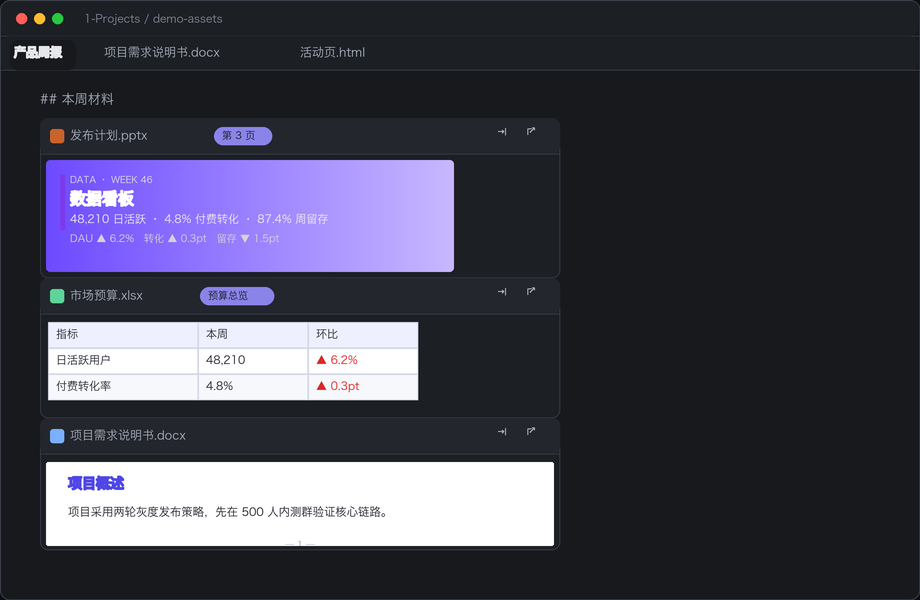
| Format | Rendering |
|---|---|
.docx | High-fidelity rendering (styles, page breaks, headers/footers) via docx-preview |
.xlsx .xlsm | Real cell styling: fills (incl. theme colors & tint), fonts, borders, alignment, merged cells, column widths, row heights, number formats via exceljs |
.xls .csv .tsv | Table rendering with sheet tabs via SheetJS |
.pptx | Slide rendering (great for image-based decks) via pptx-preview |
.html .htm | Sandboxed iframe (srcdoc with inlined stylesheets; script execution configurable) |
File card fallback
Any other type Obsidian doesn't natively render (.zip, .exe, .psd, .sketch, …) becomes a file card: type icon + filename + size.
- Click → open with the system default app
- Shift+click → reveal in the system file manager (desktop only)
Left untouched
Images, audio, video, PDF, Markdown and Canvas are rendered by Obsidian itself.
Usage
Easy insertion (any type)
- Command palette →
Any Viewer: 插入本地文件(任意类型), or click the paperclip ribbon icon - Paste a copied file with
Ctrl/Cmd+V, or drag & drop it into the editor - Files are stored in the vault (location configurable) and an
![[file]]embed is inserted at the cursor; name conflicts are auto-numbered
Embeds & sizing
Write ![[filename.ext]] in a note to preview it inline:
| Syntax | Effect |
|---|---|
![[report.xlsx]] | Default size (full width, default height from settings) |
![[report.xlsx|300]] | Card sized to 300px wide; content keeps natural size and scrolls inside |
![[doc.docx|x400]] | Height only: 400px tall |
![[doc.docx|300x400]] | 300px wide + 400px tall |
Display syntax (fragments)
Pick which part of the file to show — combines freely with the sizing syntax
(fragment before the \|, size after):
| Syntax | Effect |
|---|---|
![[deck.pptx#page=3]] | Only slide 3 (single page ≡ 3~3) |
![[deck.pptx#page=3~10]] | Slides 3–10, stacked (3~ = to the last slide) |
![[doc.docx#page=2]] | Only page 2 (same range forms as pptx) |
![[doc.docx#Conclusion]] | From the page containing that heading to the end of the document (falls back to the whole file if no heading matches) |
![[book.xlsx#Sheet2]] | Start on the named worksheet (tab bar stays) |
![[book.xlsx#A1:D10]] | Only that cell range |
![[book.xlsx#Sheet2!A1:D10]] | Named worksheet + range |
![[book.xlsx#5:20]] | Only rows 5–20 |
![[page.html#header]] | Renders only that element (v0.6: single-element extraction) |
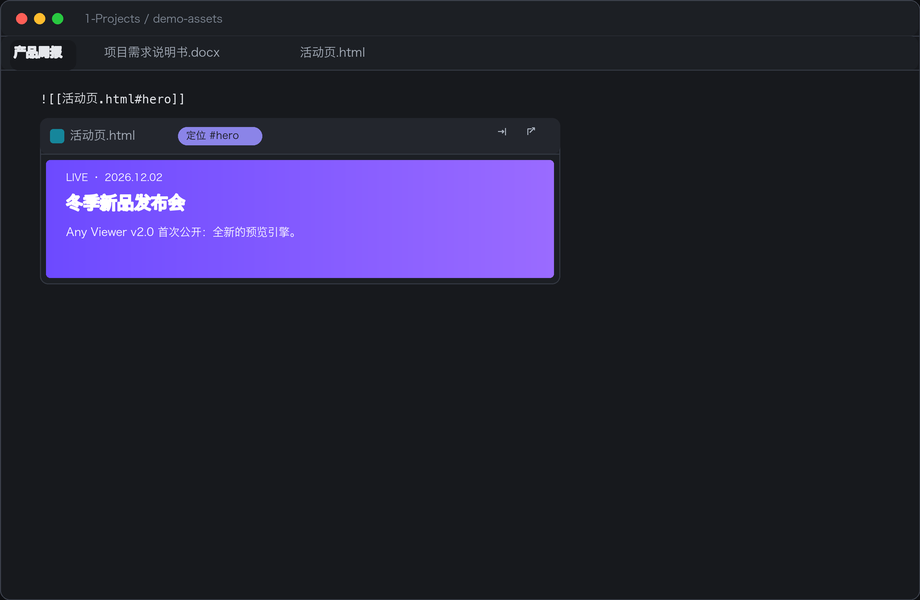
Range rules: - works like ~; reversed ranges normalize automatically
(8~3 → 3~8); the end clamps to the last page; an out-of-bounds start or an
unresolved heading falls back to the whole file. The embed header shows a badge
("Pages 3–10", "Heading …"). Fragments scope the inline embed only (a
worksheet/range fragment hides the sheet tab bar) — opening the file in a tab
shows the whole document and auto-scrolls to the fragment position (like
Obsidian's native PDF embeds). Note that #element-id means different things
per channel: embeds extract the element, tabs render the full page and scroll.
Embeds have a header bar: click the filename or double-click the content to open the file in a tab; header buttons open a tab or the system app (HTML embeds additionally get a reading/source toggle).
Tab view
Clicking .docx/.xlsx/.xls/.csv/.tsv/.pptx/.html/.htm files in the explorer opens them in a full-height preview pane — edge-to-edge, no card border:
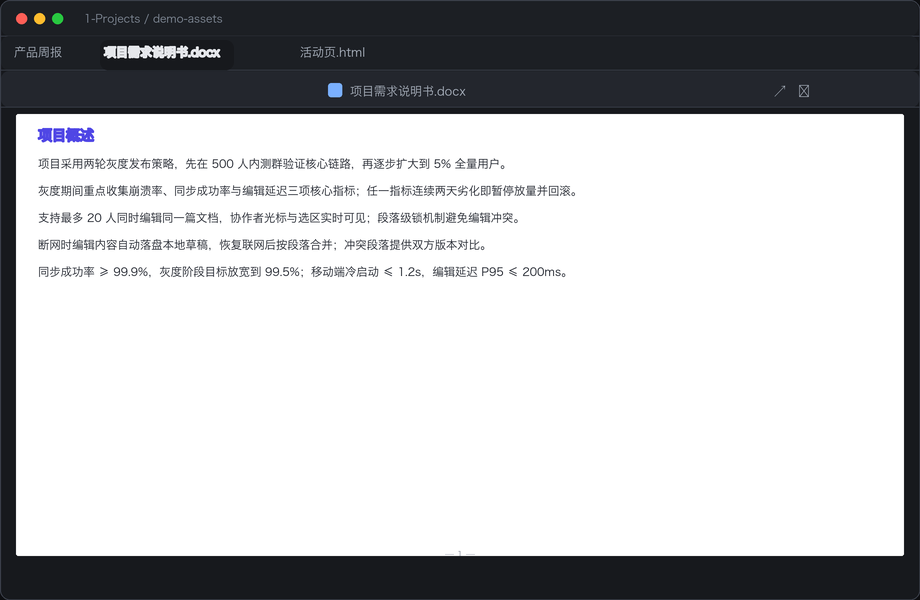
- docx outline panel: H1–H9 tree on the left, click to jump, collapsible
- In-document search:
Ctrl/Cmd+F(rebindable in Settings → Hotkeys) opens the search bar;Enter/Shift+Enterto jump between matches,Escto close; supported for docx / xlsx / pptx - Reading position memory: close and reopen — the view scrolls back to where you left off (xlsx also restores the last active worksheet)

HTML source mode
Both HTML embeds (header button) and HTML tabs (pane action bar) offer a reading/source toggle: source mode shows the raw HTML with syntax highlighting (oversized files are truncated). #element-id fragment locating only applies in reading mode.

Appearance tweaks (Style Settings)
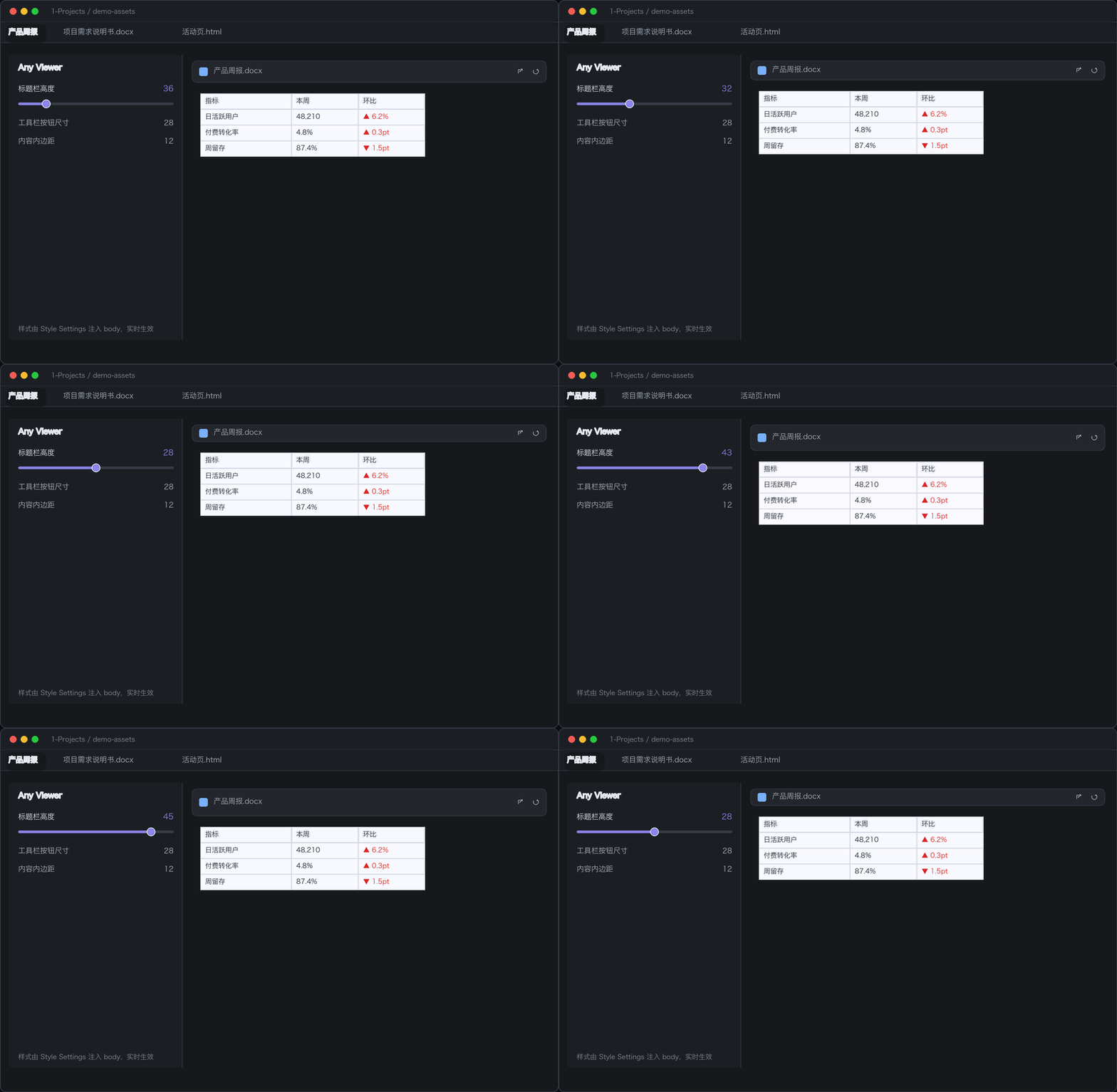
With Style Settings installed, its panel gains an Any Viewer group:
- Density & sizes: header height, toolbar buttons, content padding, table cell padding, table font size, scrollbar width, selection/hover tint strength
- File icon colors: Word / Excel / PowerPoint / HTML (off by default — icons follow the host theme palette)
- Shapes: compact mode, tighter/larger/square corners, flat embeds, no table stripes
Every option defaults to the plugin's built-in value — without Style Settings, or with everything untouched, the visuals are exactly as they've always been.
Coexisting with other plugins
- Extensions claimed by other plugins are skipped automatically (with a notice); inline embeds keep working
- Turning a format off in settings makes this plugin completely hands-off that type (view registration and embeds — restart required), leaving it to plugins like styled-ms-office-viewer or CodeSpace
Installation
Manual
- Download
main.js,styles.css,manifest.jsonfrom the latest release - Put them in
<your vault>/.obsidian/plugins/any-viewer/ - Restart Obsidian → Settings → Community plugins → enable Any Viewer
BRAT
BRAT → Add Plugin → paste this repository's Git URL.
Privacy, cost & network access
- Free, no paywall: Any Viewer is MIT-licensed freeware — no paid features, no ads, no license keys, no upsells. Nothing here requires payment, now or later.
- No network access: files are parsed and rendered entirely on your device. The plugin itself makes zero network requests — no telemetry, no analytics, no AI calls; your documents never leave your vault.
- One caveat: HTML embeds render local
.htmlfiles inside a sandboxed iframe. If such a file itself references external URLs (CDN fonts / scripts / images), those assets are loaded by the embedded page — governed by Obsidian's CSP and the "Allow scripts in HTML" setting (on by default, can be turned off).
Building from source
npm install
npm run build     # produces main.js
npm test          # fragment parser + Style Settings consistency checks
The demo GIFs in this README are generated by promo/make_demo_gifs.py (python3 promo/make_demo_gifs.py) — regenerate after visual changes.
Known limitations
- Legacy binary formats (
.doc,.ppt) can't be previewed inline (file card instead); they still open with the system app - In HTML embeds, external
<script src>may be blocked by Obsidian's CSP; inline scripts run fine - "Open with system app / reveal in file manager" is desktop-only
.pptxpreview is static — animations and media don't play- In-document search covers docx / xlsx / pptx tabs only (HTML body lives inside an iframe; embeds have no search bar)
- Reading position memory applies to the tab channel only; fragment locating always wins over memory restore
- The docx outline relies on standard built-in heading styles (canonical style ids written by Word); generators using non-standard style ids silently show no outline
- Compared to WASM-based viewers (e.g. styled-ms-office-viewer), docx/pptx fidelity is lower; both can coexist — tabs for them, inline embeds for Any Viewer
Acknowledgements
- Rendering: docx-preview, exceljs, SheetJS, pptx-preview
- HTML sandbox approach adapted from mnaoumov/obsidian-embed-html
- Research phase referenced obsidian-file-link, Styled MS Office Viewer and other community plugins
License
For plugin developers
Search results and similarity scores are powered by semantic analysis of your plugin's README. If your plugin isn't appearing for searches you'd expect, try updating your README to clearly describe your plugin's purpose, features, and use cases.