by charonwwang
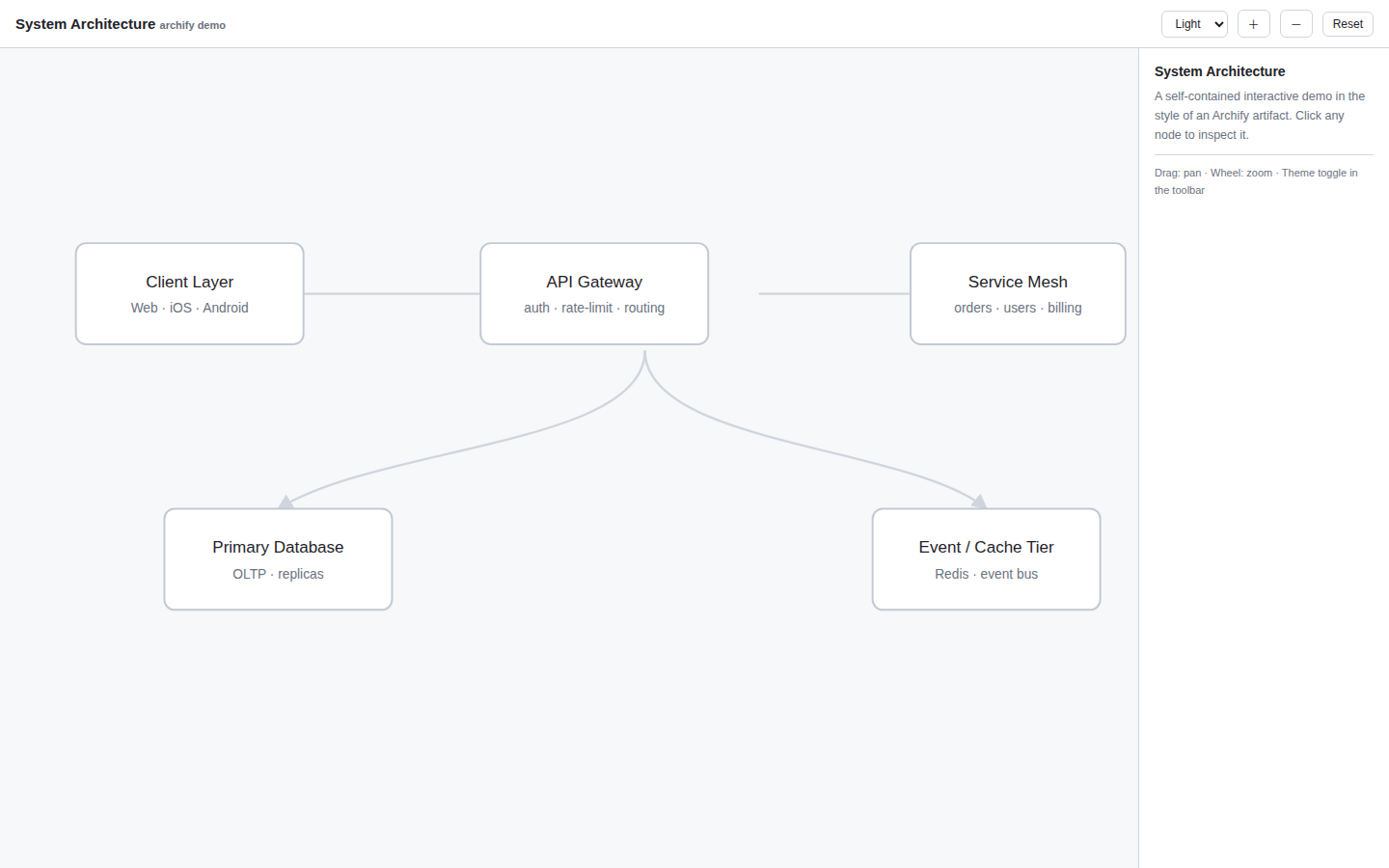
Click an Archify diagram thumbnail to preview its self-contained interactive HTML in a sandboxed frame inside the app.
Archify HTML Preview
English | 简体中文
Click an Archify diagram thumbnail in your notes and explore its self-contained interactive HTML — theme toggle, pan/zoom, search, and Story mode all work — without leaving the app.
Why this exists
Archify emits its diagrams as a set of artifacts, referenced from Markdown like this:
[](diagrams/system-architecture.html)
This "image wrapped in a link" syntax is valid CommonMark, and most Markdown previews render the thumbnail and open the linked HTML interactively. In Obsidian, however, the chain breaks in four places: relative paths resolve differently, .html files are not recognized by default, there is no built-in HTML renderer, and a plain iframe cannot load local files.
This plugin bridges exactly those gaps: it fixes up the thumbnail, detects Archify-style links, and opens the linked HTML in a sandboxed in-app preview.
Features
- Card detection — recognizes
[](x.html)links, including Archify's naming heuristic (*.visual-check.<W>x<H>.<theme>.pngwith a sibling*.archify.json), and shows an "Interactive" badge on hover. - Broken-thumbnail repair — re-resolves image paths using "relative to the note" semantics, so thumbnails render even when the Markdown uses GitHub-style relative paths.
- One-click interactive preview — open in a new tab (default), a modal, or expand inline beneath the thumbnail.
- Source definition link — the preview toolbar offers "Source definition" to open the sibling
.archify.json. - Sandboxed by default — runs in
sandbox="allow-scripts"(opaque origin), so a diagram can never touch your vault files. - Desktop and mobile — uses Blob URLs rather than
file://, so behavior is identical everywhere (isDesktopOnly: false).
Demo
See demo/demo.md for a working example of the Archify reference format, with a sample interactive diagram (demo.html) and source definition (demo.archify.json).
Usage
No changes to your notes are required. Any "thumbnail linking an .html file" (the standard Archify output format) is enhanced automatically:
[](architecture/diagrams/system-architecture.html)
Click the thumbnail to open the interactive version inside the app. There is also a command: Open active HTML file in the interactive preview.
Installation
Requires Obsidian 1.4.0 or newer.
From a release
Download main.js, manifest.json, and styles.css from the latest release into <vault>/.obsidian/plugins/archify-html-preview/, then enable the plugin in Settings → Community plugins.
From source
npm install
npm run build
Copy main.js, manifest.json, styles.css into <vault>/.obsidian/plugins/archify-html-preview/. For development, npm run dev watches and rebuilds on change — pair it with the third-party Hot-Reload plugin for auto-reload.
Settings
| Setting | Default | Description |
|---|---|---|
| Click behavior | New tab | New tab / Modal / Inline expand |
There are three surfaces, each with only the actions that make sense for it:
| Surface | Toolbar (right-aligned) | Notes |
|---|---|---|
| New tab | Refresh · Source definition · Open in browser · Open in new window | full-size view |
| Modal | Refresh · Source definition · Open in browser · Open in new window | draggable by its title, resizable from the corner, closed with the built-in button (no pop-out button — it is already a modal) |
| Inline expand | Source definition · Open in browser · Open in new window · Collapse | height adjustable by dragging the bottom grip (remembered) |
Buttons are right-aligned and use Obsidian's native control styling. Ctrl/Cmd + click always opens a new tab, whatever the mode.
| Setting | Default | Meaning |
|---|---|---|
Take over .html files | Off | When on, double-clicking an .html file also opens the interactive preview (reload the plugin after changing). Mutually exclusive with HTML Viewer / Polyglot Renderer-style plugins |
| Allow same-origin | Off | Lets previewed pages use localStorage, at the cost of the opaque-origin isolation |
| Inline height | 560px | iframe height for inline mode (drag the bottom grip to adjust; it is remembered) |
Everything an interactive artifact normally needs works in the preview:
- Export (
canvas.toBlob+<a download>) — sandbox grantsallow-downloads - Share actions — popups, modals (print / confirm) and forms are allowed
- Copy link / copy moment —
navigator.clipboarddoes not exist in an opaque origin, so the preview injects a runtime shim that forwards text to the plugin frame viapostMessage, where the clipboard really works - State persistence —
localStoragethrows in an opaque origin; the shim backs it with an in-memory store so artifacts keep working
Open in browser hands the file to a real browser. It tries, in order:
spawning a known browser executable directly (Edge / Chrome / Firefox, then the
OS opener), Obsidian's openWithDefaultApp, Electron's shell.openPath /
shell.openExternal (each raced against a 1.2 s timeout so a stalled bridge
cannot swallow the action), and finally the app:// resource URL. Success is
silent; only a total failure reports — and then it copies the absolute path so
you can paste it into the address bar.
Open in new window pops the preview into a detached OS window owned by the app, without touching the OS shell or any file association.
Custom styling
All surfaces expose stable CSS hooks for user snippets
(.obsidian/snippets/*.css): .archify-linked-html, .archify-badge,
.archify-inline-wrap, .archify-inline-grip, .archify-preview-view,
.archify-toolbar, .archify-preview-modal, .archify-frame-box,
.archify-float, .archify-float-header, .archify-float-title. All colors go
through Obsidian theme variables, so light/dark themes follow automatically.
Known limitations
- Enhanced cards (badge / inline expand) apply in Reading view and hover previews; in Live Preview, clicking relies on the "Take over
.htmlfiles" setting. - With the default opaque-origin sandbox,
localStorage/sessionStorageare unavailable inside the preview (inherent browser behavior). Archify artifacts are self-contained so this rarely matters; enable "Allow same-origin" if a diagram needs storage. - The
.archify.jsonsuffix ends injson, so it cannot be registered as its own file type (extension registration only looks at the last segment) — only the "Source definition" shortcut is provided.
Localization
The settings UI, commands, badges and notices follow the app's interface
language automatically. Currently included: English, 简体中文, 繁體中文, 日本語.
The full documentation is also available in 简体中文.
Contributions for other languages are welcome — add a dictionary in
src/i18n.ts and register it in the STRINGS map.
Project structure
├── src/
│   ├── main.ts        # plugin entry: registration, markdown enhancement, click routing
│   ├── resolve.ts     # path resolution + Archify metadata parsing
│   ├── settings.ts    # settings interface, defaults, settings tab
│   ├── view.ts        # sandboxed iframe, ItemView, Modal, inline child
│   └── i18n.ts        # localization (en / zh / zh-TW / ja)
├── demo/              # sample note + interactive HTML + source definition
├── esbuild.config.mjs
├── manifest.json
├── styles.css
└── versions.json
Releasing (community plugin submission)
- Bump
versioninmanifest.jsonand mirror it inversions.json({"<version>": "<minAppVersion>"}). - Push a tag named exactly the version (no
vprefix) — the bundled GitHub Actions workflow builds and attachesmain.js,manifest.json,styles.cssto the release. - Open a PR against obsidian-releases adding this repo to
community-plugins.json, following the Plugin guidelines.
Credits
- Archify by tt-a1i — the agent skill that produces these interactive architecture diagrams.
License
For plugin developers
Search results and similarity scores are powered by semantic analysis of your plugin's README. If your plugin isn't appearing for searches you'd expect, try updating your README to clearly describe your plugin's purpose, features, and use cases.