by haochen12
Chat with any OpenAI-compatible LLM using your notes as context. @-mention notes, streaming replies, copy, insert and regenerate.
Ask Your Notes
Read, question, and develop your notes without leaving Obsidian.
Bring a note, a selected passage, or a few references into a sidebar conversation.
简体中文 · Download · Quick start · Privacy · Report an issue
Summarize a note, explain a difficult passage, compare ideas across referenced notes, or turn rough thoughts into an outline. Choose what to attach, review the references above the input, and send your question.
The plugin connects Obsidian to an OpenAI-compatible chat API. You supply the model connection, using a provider preset or your own endpoint. It does not automatically search or index your entire vault.
This README describes the current source. Check the release notes for features available in your installed version.
Features
- Active note or selection. Include unsaved editor changes; in automatic mode, send a selected passage instead of the whole note.
- References with
@. Attach multiple Markdown notes, remove individual references, or chat without attaching notes. - Replies you can use. Render Markdown, tables, code, and math. Copy a reply, insert it at the note editor's selection or cursor, or regenerate the latest answer.
- Visible request status. See when notes are being read or a reply is generating. Stop generation or retry after a failed request.
- Fits your workspace. Colors, fonts, icons, and main control radii follow Obsidian's theme. English and Chinese interfaces are included.
- Optional local history. Resume the last conversation after restarting Obsidian.
Preview
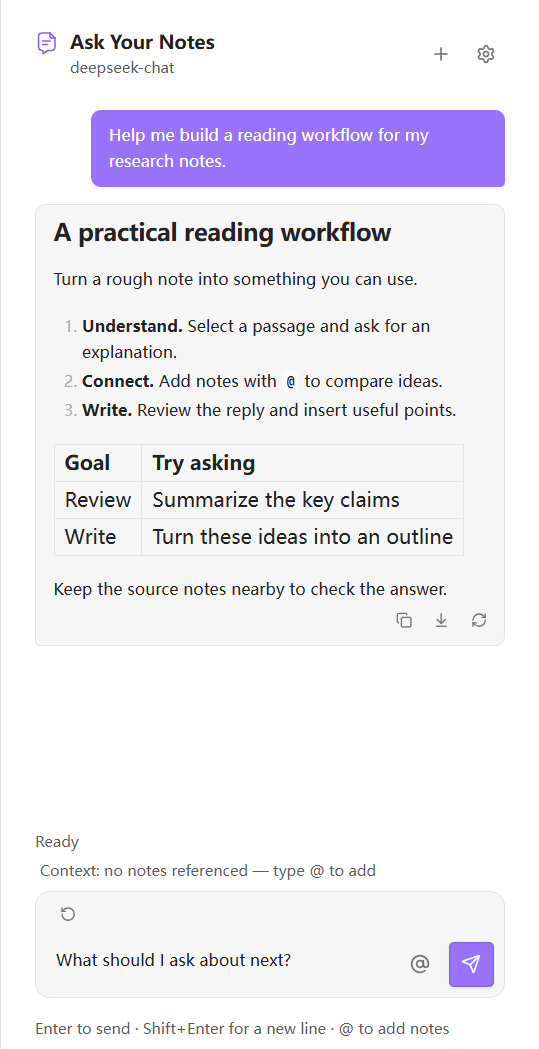
Captured in Obsidian using a demo conversation, with no private notes or API requests. The preview follows your light or dark mode; appearance varies by theme.
Installation
In Obsidian, open Settings → Community plugins → Browse, search for Ask Your Notes, then install and enable it. Existing users can check for updates under Community plugins.
Alternatively, use BRAT or install a release manually.
BRAT
- Install and enable BRAT.
- Choose Add a beta plugin and enter
Howzits/obsidian-ask-your-notes. - Enable Ask Your Notes under Settings → Community plugins if needed.
Manual installation
- Download
main.js,manifest.json, andstyles.cssfrom the latest release. - Create
<vault>/.obsidian/plugins/ask-your-notes/and place all three files there. - Reload Obsidian and enable Ask Your Notes under Settings → Community plugins.
Use the release attachments, rather than GitHub's source-code ZIP. To build from source, see Development.
Quick start
- Open Settings → Ask Your Notes and choose a provider.
- Enter its API key if required, confirm the endpoint and model, and select Test connection. The test sends a small request and may consume API quota.
- Open a Markdown note, then open Ask Your Notes from the ribbon icon or command palette.
- Check the references above the input. Ask “Summarize this note in five points,” then press
Enter.
For Ollama, start the local service and install a model first. Use a model name available on that service. localhost refers to the device running Obsidian.
Connection presets
These are the defaults in the code, rather than model recommendations. Endpoints and model IDs are editable; availability depends on your provider and account.
| Preset | Chat completions endpoint | Default model |
|---|---|---|
| DeepSeek | https://api.deepseek.com/chat/completions | deepseek-chat |
| OpenAI | https://api.openai.com/v1/chat/completions | gpt-4o-mini |
| OpenRouter | https://openrouter.ai/api/v1/chat/completions | openai/gpt-4o-mini |
| Ollama | http://localhost:11434/v1/chat/completions | llama3.1 |
| Custom | Your full OpenAI-compatible chat completions URL | Your model ID |
Use the full chat completions URL, not just the base URL. Switching provider presets clears the previous API key. Third-party services may charge for requests.
Choose the context
Context is refreshed before every send and regeneration: open editors supply the current unsaved content, and closed reference notes are read from disk again. File modifications also refresh the context indicator.
| Mode | Attached to the next question |
|---|---|
| Follow the active note | The active Markdown note, including unsaved edits. Enabled by default. |
| Selected text | In automatic mode, with Prefer selected text enabled, a nonempty selection replaces the full note. |
| Explicit references | Notes chosen through @ or the @ button. The first reference replaces automatic following; more can be added. |
| No attached notes | Remove all references, or disable automatic context and leave explicit references empty. |
Select a reference name to open its note, use its remove button to detach it, or use the reset arrow to restore automatic mode. Turning off Use the active note as context stops automatic attachment; explicit references still apply.
Each request also includes previous chat messages. Switching notes or removing references does not erase those messages. Start a New chat when changing topics or when you need a fresh conversation.
Max context characters defaults to 30,000 characters per note. Truncation is marked in the context bar. Many references or a long conversation can still exceed a model's context window.
Controls
| Action | Control |
|---|---|
| Send | Enter |
| New line | Shift+Enter |
| Add a note | Type @ or select the @ button, then choose a note |
| Stop a reply | Select the stop button while generating |
| Start fresh | Select + in the header; this clears the current conversation |
| Reuse a reply | Select copy or insert; regenerate is available for the latest reply |
| Replace the active note | Select the reply's replace-note button; Undo restores the previous note content |
| Copy everything | Select Copy entire conversation in the header; includes questions, answers, and a currently streaming partial reply as Markdown |
Each question and answer also has its own copy button. Replacing a note targets the most recently active open Markdown editor, even if the reply was based on different referenced notes; it replaces the entire note, including frontmatter.
Desktop supports streaming replies. Mobile uses non-streaming requests. Stopping a non-streaming request stops local waiting and discards the late reply; it cannot cancel the underlying request or guarantee that provider processing stops.
Privacy and data
- Sent to the configured endpoint: your question, earlier chat messages, system instructions, and attached note content or selection. If supplied, the API key is sent there as an authorization header.
- Stored locally: settings and the API key are saved as plain text in
<vault>/.obsidian/plugins/ask-your-notes/data.json. With history enabled, this file also stores the last conversation, capped at 200 saved messages. - History controls: disabling persistence clears saved history while keeping the current conversation in memory. New chat clears the conversation; there is no conversation archive.
- Sync and Git: exclude
data.jsonfrom shared backups, sync, and version control if you do not want credentials and chat history copied. The plugin does not encrypt this file. - Provider handling: your chosen service determines how requests are processed and retained. A local Ollama endpoint can keep model requests on your machine.
Answers and generated note links can be inaccurate. Check the source before relying on an answer or inserting it into your notes.
Troubleshooting
| Problem | What to check |
|---|---|
| Connection test fails | Check the full endpoint, API key, model availability, and network. Re-enter the key after switching providers. |
| Wrong note is attached | Review the references above the input. Remove them or reset automatic following. |
| Only part of a note is used | Clear the editor selection or disable selection preference. Check the per-note character limit. |
| Request fails or times out | Check the provider and retry. Generation times out after two minutes. Reduce references or start a new chat for context-limit errors. |
| An old topic affects a new question | Start a new chat; earlier messages remain when you switch notes. |
For bug reports, include the Obsidian and plugin versions, platform, provider/model, reproduction steps, and error message. Remove API keys and private note content.
Development
Built with TypeScript and esbuild, without a UI framework. The current dependencies have been tested with Node.js 22.23.4 and npm.
git clone https://github.com/Howzits/obsidian-ask-your-notes.git
cd obsidian-ask-your-notes
npm ci
npm run build
npm test
Copy main.js, manifest.json, and styles.css into a development vault's plugin folder. No separate logo files are needed at runtime. Run npm run dev to watch changes, then reload the plugin in Obsidian after rebuilding.
Run npm run build:brand after editing the vector logo master. See asset documentation for exports and CHANGELOG.md for release history.
Contributions are welcome. Keep changes focused, run npm run build and npm test, and explain the behavior changed and how it was verified in your pull request.
License
MIT.
For plugin developers
Search results and similarity scores are powered by semantic analysis of your plugin's README. If your plugin isn't appearing for searches you'd expect, try updating your README to clearly describe your plugin's purpose, features, and use cases.