by Fabian Urbanek
Forked from Zen UI
Vertical tabs for Atlas VTT: pinned tabs, folders, essentials and spaces, an Atlas pin, and a clutter-free interface.
Atlas Sidebar
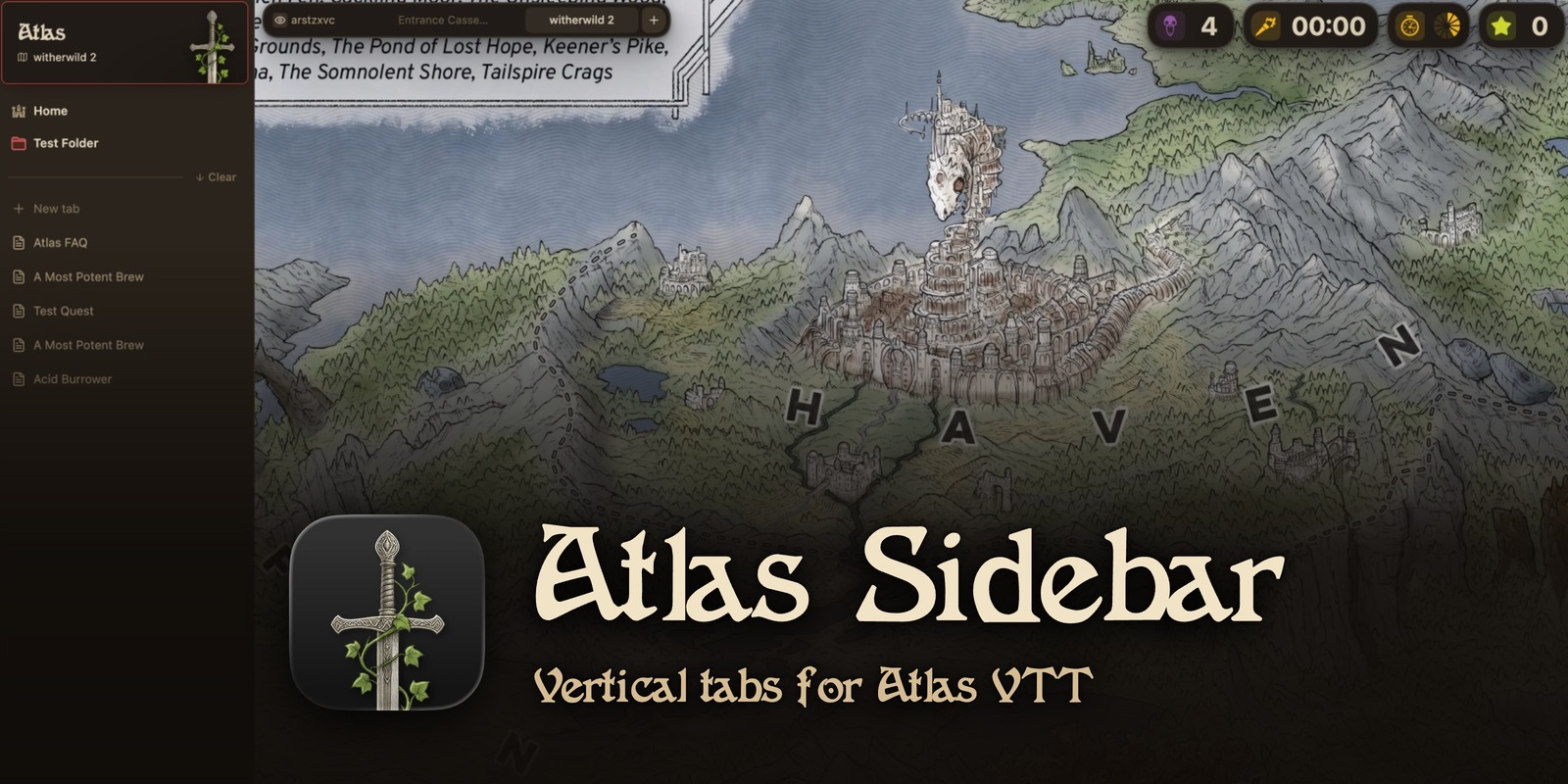
A browser-style sidebar for Atlas VTT. Your open notes live in a vertical tab list with essentials, pinned tabs and folders, and the rest of the UI gets out of the way.
Atlas Sidebar is a fork of Zen UI by Merlin Kraemer. It keeps Zen UI's interface tweaks; Zen UI's Git sync tab is not included.
Atlas VTT companion
While Atlas is enabled, an Atlas pin spans the top of the tabs sidebar: a card with the Atlas sword and the scene you have open, drawn in your theme's colours.
- Click it to go back to Atlas exactly where you left it (your scene first, then the dashboard), or to open the dashboard when Atlas isn't open yet.
- Atlas's map and dashboard tabs live inside the pin, so they never crowd your tab list.
- Right-click for the dashboard, the scene browser and the player window.
Turn it off with Atlas pin in settings.
Vertical tabs
Open the Tabs sidebar tab (or run Show tabs sidebar). From top to bottom:
- Essentials: a grid of tiles for the notes you always need. Drag a tab onto the top of the sidebar to add one.
- Pinned tabs: notes that stay in the sidebar after you close them. Click a closed pin to reopen it.
- Folders: group pinned tabs, nest folders up to five levels, and give each one a name, icon and color. A collapsed folder still shows the tab you're working in.
- Clear: hover the separator and click Clear to close every unpinned tab.
- New tab: opens the launcher (see below).
- Tabs: everything else you have open, in the order you choose.
If you click a link inside a pinned tab, the pin keeps the tab and shows a "back" button that returns it to the pinned note, just like Zen.
Spaces
Like Zen's spaces: separate sets of pinned tabs, folders and open tabs, say one per campaign or region. Essentials and the Atlas pin are shared by every space.
- Switch with a sideways swipe on the trackpad, a mouse's horizontal scroll, the space icons at the bottom of the sidebar, or the Switch to space 1–9 commands.
- Name and icon: click the space's name at the top for its menu. Icons come from the same fantasy set Atlas VTT uses for map pins.
- Move tabs by dragging them onto a space's icon (hold it there to open the space), or with Move current tab to space…. Opening a note that belongs to another space takes you to that space.
- Each space remembers the tab you were on. While Atlas is in front, switching spaces leaves it there, since every space shares it. Deleting a space keeps its open notes, as tabs of the space beside it.
Split view
Show two to four tabs side by side as one item, like Zen's split view. Ctrl/Cmd-click tabs to select them, then right-click → Split tabs (or Split tabs stacked). Or right-click any tab → Split with current tab.
Drag to split, like Zen: drag a tab from the sidebar toward an edge of the note area, and a placeholder pane opens where it will land.
Hover a pane to show its handle at the top. Drag the handle onto another pane to trade places, or click it to lay the split out side by side or stacked, swap the two panes, or unsplit.
A split shows up as a single row in the sidebar, with one segment per tab. Click another tab and it gets the whole window; click the split row and the split comes back. Close a tab in the split, or pin it, and the rest goes back to normal. Pinned tabs join a split as a copy, so the pin keeps its own tab. Panes you split yourself with Obsidian's own tools aren't affected.
New tab launcher
Ctrl/Cmd+T and New tab open a floating search bar, like Zen's address bar:
- Type to search every note, canvas, base and file in the vault. If a note is already open, Enter switches to its tab instead of opening a copy.
- Type a name that doesn't exist yet to create a note, or a canvas or base if those core plugins are enabled. Add
.canvasor.baseto pick the type, or a path likeProjects/Ideato choose the folder. - Shift+Enter opens the result in split view beside the current tab.
- Start with
>to run a command.
The launcher takes over Obsidian's own "New tab" command, so it uses whatever hotkey you've given that. Turn off Launcher on new tab in settings to get the plain empty tab back.
Working with tabs
| To | Do |
|---|---|
| Pin, add to essentials, or file into a folder | Drag the tab there, or right-click it |
| Pin a note from the file explorer | Drag it into the sidebar |
| Create a folder | Right-click a tab → New folder with tab, or right-click empty space |
| Rename, change icon or color | Right-click the folder or pin; F2 renames |
| Close a tab | Hover and click ×, middle-click, or press Delete |
| Move between tabs | ↑ ↓ in the sidebar; → ← expand and collapse folders |
| Select several tabs | Cmd/Ctrl-click tabs, or Shift-click for a range; Esc clears |
| Act on a selection | Drag any selected tab to move them all (pin, file into a folder, reorder, essentials, another space), or right-click one for Pin, Move to folder…, New folder with tabs, Move to space…, Split and Close |
Dragging a tab into a note inserts a link to it, the same as dragging from the file explorer.
Commands
Show tabs sidebar · Pin or unpin current tab · Add or remove current tab from essentials · Move current tab to folder… · New tab folder · New tab · Open in split view… · Unsplit current split view · Switch to next / previous space · Switch to space 1–9 · New space · Rename current space · Change current space's icon · Move current tab to space… · Close all unpinned tabs · Go to next / previous tab in sidebar order
Less clutter
- Less chrome: hide sidebars, toolbars, padding and other distractions with simple toggles in settings. The editor tab bar is hidden by default, since the sidebar replaces it.
- Daily notes: open today's note right from the sidebar.
- More breathing room: adjust file explorer spacing and the typewriter scroll offset.
- Zen mode: run Zenmode toggle to go fullscreen and hide everything but your note.
Install
BRAT: Add atlas-vtt/atlas-sidebar.
Manual: Download main.js, manifest.json and styles.css from the latest release into <vault>/.obsidian/plugins/atlas-sidebar/.
Atlas Sidebar uses its own plugin id, so it can't collide with Zen UI. Don't enable both at once: they style the same parts of the window.
Disclosures
- Spaces, pins and folders are stored in the plugin's
data.jsonin your vault, so they sync with it. Which tab each pin is open in, the tab order, split views and which space each open tab belongs to are kept on each device. - Split view and the launcher rely on a few undocumented Obsidian internals (moving tabs between panes, creating files the way Obsidian does). If a future Obsidian version changes them, split view switches itself off with a notice and the launcher falls back to plain file creation.
- Atlas Sidebar makes no network requests.
License
MIT. The vertical tabs are inspired by Zen Browser; no Zen Browser code is included.
Space icons are the Atlas VTT map pin set: icons by Lorc, Delapouite, Skoll, sbed, Carl Olsen and Caro Asercion from game-icons.net, under CC BY 3.0. Their backgrounds were removed.
For plugin developers
Search results and similarity scores are powered by semantic analysis of your plugin's README. If your plugin isn't appearing for searches you'd expect, try updating your README to clearly describe your plugin's purpose, features, and use cases.