by natlee
Manage attachments with flexible paths, automatic naming, and remote image downloading.
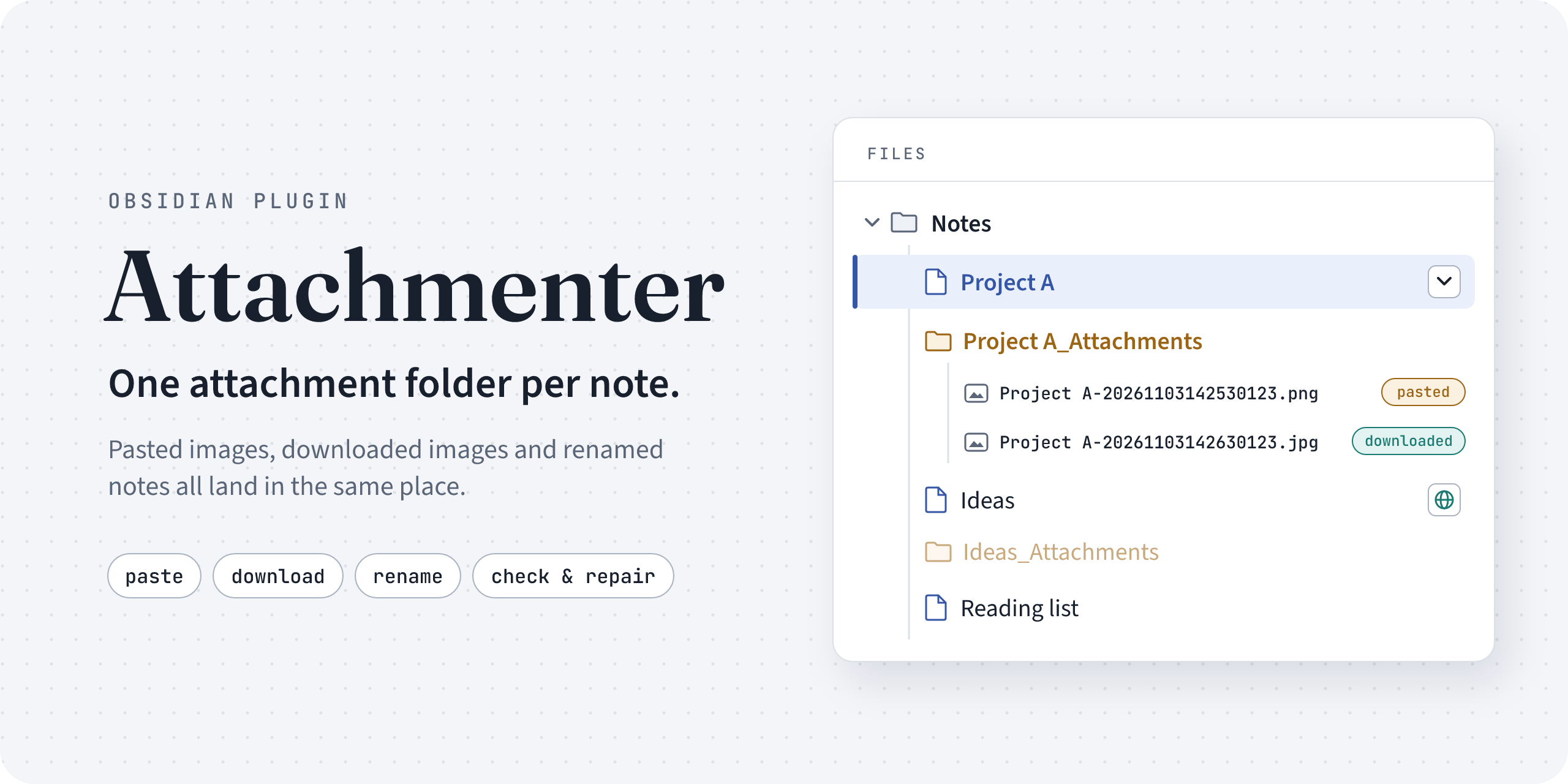
Attachmenter (Obsidian plugin)
I built Attachmenter as a “per-note first” attachment workflow for Obsidian: it creates an attachment folder per note, manages pasted images, downloads remote images (including Canvas), shows attachments inline in File Explorer, and includes tools for path check/repair and cleanup.
The UI supports multiple languages: English / 繁體中文 / 简体中文 / 日本語 (configurable in settings).
Why I built this
I wanted a single plugin that keeps attachments predictable and easy to maintain:
- I prefer one attachment folder per note, next to the note, so moving/archiving a note stays simple.
- I wanted remote images to become local files with minimal friction.
- I needed maintenance tools (scan/repair/cleanup) so an existing vault can be brought into a consistent structure.
Feature overview
- Per-note attachment folder
- Predictable folder location:
<note-folder>/<note-name><folder-suffix> - Example:
Notes/ProjectA.md→Notes/ProjectA_Attachments/
- Predictable folder location:
- Paste image management
- Detects Obsidian-generated files named like
Pasted image ... - Automatically moves them into the note’s attachment folder and updates links
- A modal lets you Keep / Delete / Change location
- Detects Obsidian-generated files named like
- Remote image download
- Supports Markdown
 - Supports Canvas (downloads remote
linknodes and converts them intofilenodes) - Replaces links with local files and preserves alt text when possible
- Supports Markdown
- File Explorer attachment tree
- Adds an expand button on the right side of each file row in File Explorer
- Quick actions: preview / rename / delete, plus “this file still has remote images” hints
- Attachment Manager view
- Centralized view of all attachments, grouped by folder
- Preview / rename / delete, and jump back to the related note
- Path Check & Repair
- Scans
.mdand.canvasto validate attachment folders and image links - Supports both Preview changes (dry-run) and Execute fixes
- Scans
- Cleanup empty attachment folders
- Finds folders that match the configured suffix and are empty, then lets you delete them (to system trash)
- Show/Hide attachment folders
- Ribbon button + command palette command + optional status bar indicator
- Optional AERO semi-transparent styling
At a glance
Everything Attachmenter does starts from something you do. The flowcharts in each section below show the details.
flowchart LR
    subgraph you["What you do"]
        P["Paste an image"]
        E["Edit a note"]
        R["Rename or move a note"]
        D["Ask to download remote images"]
        T["Run Check paths or Cleanup"]
    end
    subgraph plugin["What Attachmenter does"]
        P2["Moves it into the note's<br/>attachment folder and renames it"]
        E2["Updates the attachment tree<br/>in File Explorer"]
        R2["Renames or moves the<br/>attachment folder with it"]
        D2["Saves the images locally<br/>and rewrites the links"]
        T2["Fixes folders, moves misplaced images,<br/>removes empty folders"]
    end
    P --> P2
    E --> E2
    R --> R2
    D --> D2
    T --> T2
Installation
Requires Obsidian 1.8.7 or newer.
- Download
main.js,manifest.json,styles.cssfrom Releases - Put them into your vault at
.obsidian/plugins/obsidian-attachmenter/ - Restart Obsidian → Settings → Community plugins → enable
Attachmenter
Quick start (usage)
1) Per-note attachment folder rules
This is how Attachmenter computes the attachment folder path in the current version:
- Folder path:
<note-dir>/<sanitized-notename><sanitized-suffix>note-dir: the note’s parent foldernotename: note filename without.mdsuffix: “Folder suffix” in settings
- Cross-platform sanitization
#is replaced with a space- Windows-forbidden characters (
< > : " / \ | ? *) are replaced with spaces - Consecutive spaces are collapsed, and leading/trailing spaces/dots are trimmed
With the default settings, a PNG pasted into Notes/Project A.md on 2026-11-03 at 14:25:30.123 ends up here:
flowchart LR
    N["Notes/Project A.md"] -- "folder = note name + suffix" --> F["Notes/Project A_Attachments/"]
    F -- "file = {notename}-{date}" --> I["Project A-20261103142530123.png"]
When you rename or move a note, the attachment folder follows it (setting: Auto rename attachment folder, on by default). Files inside keep their names, and Obsidian updates the links in the note.
flowchart LR
    subgraph before["Before"]
        A["Notes/Project A.md"]
        B["Notes/Project A_Attachments/"]
    end
    subgraph after["After"]
        C["Archive/Project B.md"]
        D["Archive/Project B_Attachments/"]
    end
    A -- "you rename or move the note" --> C
    B -- "Attachmenter moves the folder" --> D
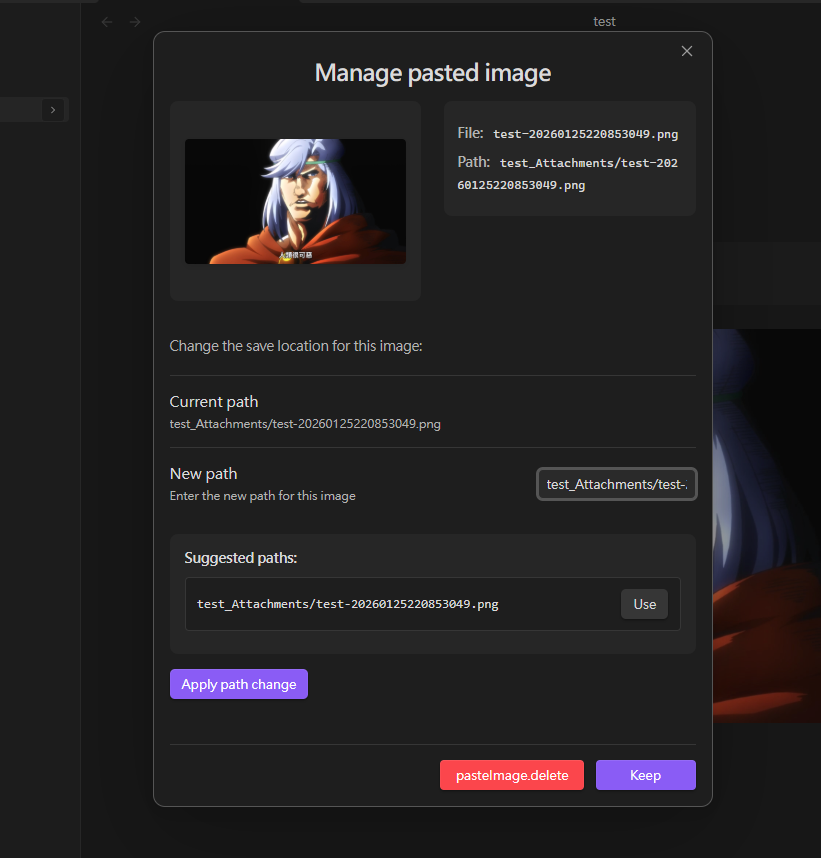
2) Paste image modal (keep / delete / change path)
When you paste an image in Markdown or Canvas, Attachmenter will:
- Move the
Pasted image ...file into the active note’s attachment folder - Update the link in the note / Canvas
- Show a management modal where you can choose:
- Keep: keep the image
- Delete: delete the image file and remove its reference from the note/Canvas
- Change location: manually edit the target path (free-form input)
flowchart TD
    A(["You paste an image"]) --> B{"Obsidian created a<br/>'Pasted image …' file?"}
    B -- No --> X(["Left alone"])
    B -- Yes --> C{"Is a Markdown or<br/>Canvas note open?"}
    C -- No --> X
    C -- Yes --> D["Create the note's attachment folder<br/>if it doesn't exist yet"]
    D --> E["Rename to {notename}-{date}.png<br/>and move it into the folder"]
    E --> F["Update the link in the note or Canvas"]
    F --> G{"Manage pasted image dialog"}
    G -- Keep --> K(["Done"])
    G -- Delete --> L["Image goes to the trash, link is removed,<br/>an empty folder is removed too"]
    G -- Change location --> M["Moved to the path you type,<br/>link updated"]
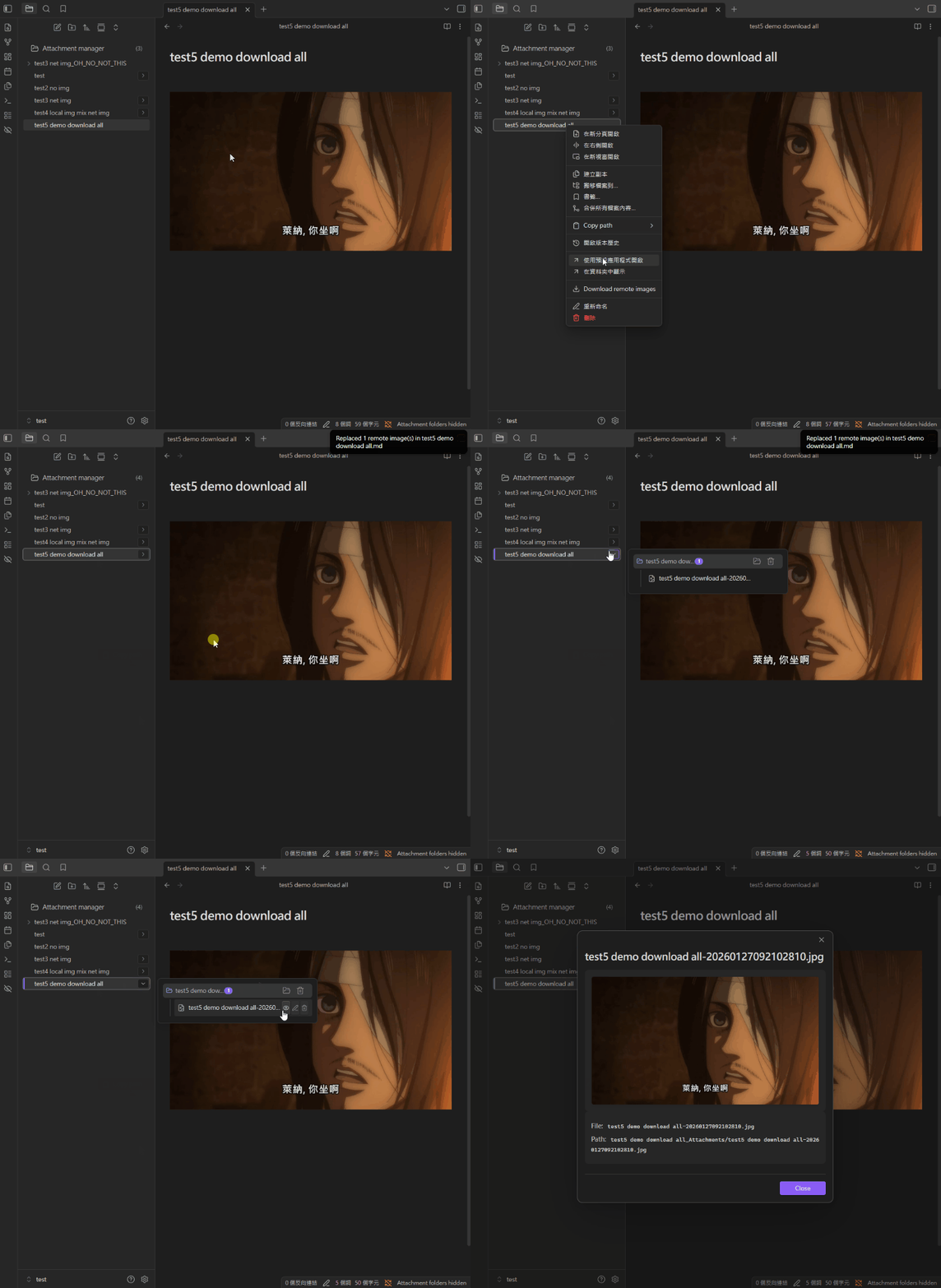
3) Download remote images (Markdown / Canvas)
In the current version, you can trigger this from:
- Command Palette
Download remote images in active file(display text depends on UI language)- Runs against the currently active file; supports
.mdand.canvas
- File Explorer context menu
- Right-click a
.mdfile →Download remote images - Note: this entry only applies to
.md(use the command palette for Canvas)
- Right-click a
- Attachment tree (see 4 below): download one image or all of them
flowchart TD
A["Command palette<br/>(Markdown or Canvas)"] --> D
B["Right-click a note<br/>(Markdown)"] --> D
C["Attachment tree<br/>(one image or Download all)"] --> D
D["Find remote images:<br/> links and Canvas link cards"] --> E["Download every image"]
E --> F{"Downloaded and<br/>recognised as an image?"}
F -- Yes --> G["Save into the note's attachment folder<br/>as {notename}-{date}.ext"]
G --> H["The link now points to the local file<br/>(alt text kept)"]
F -- No --> I["That link stays as it was;<br/>the other images still download"]
4) File Explorer attachment tree (remote hints + quick actions)
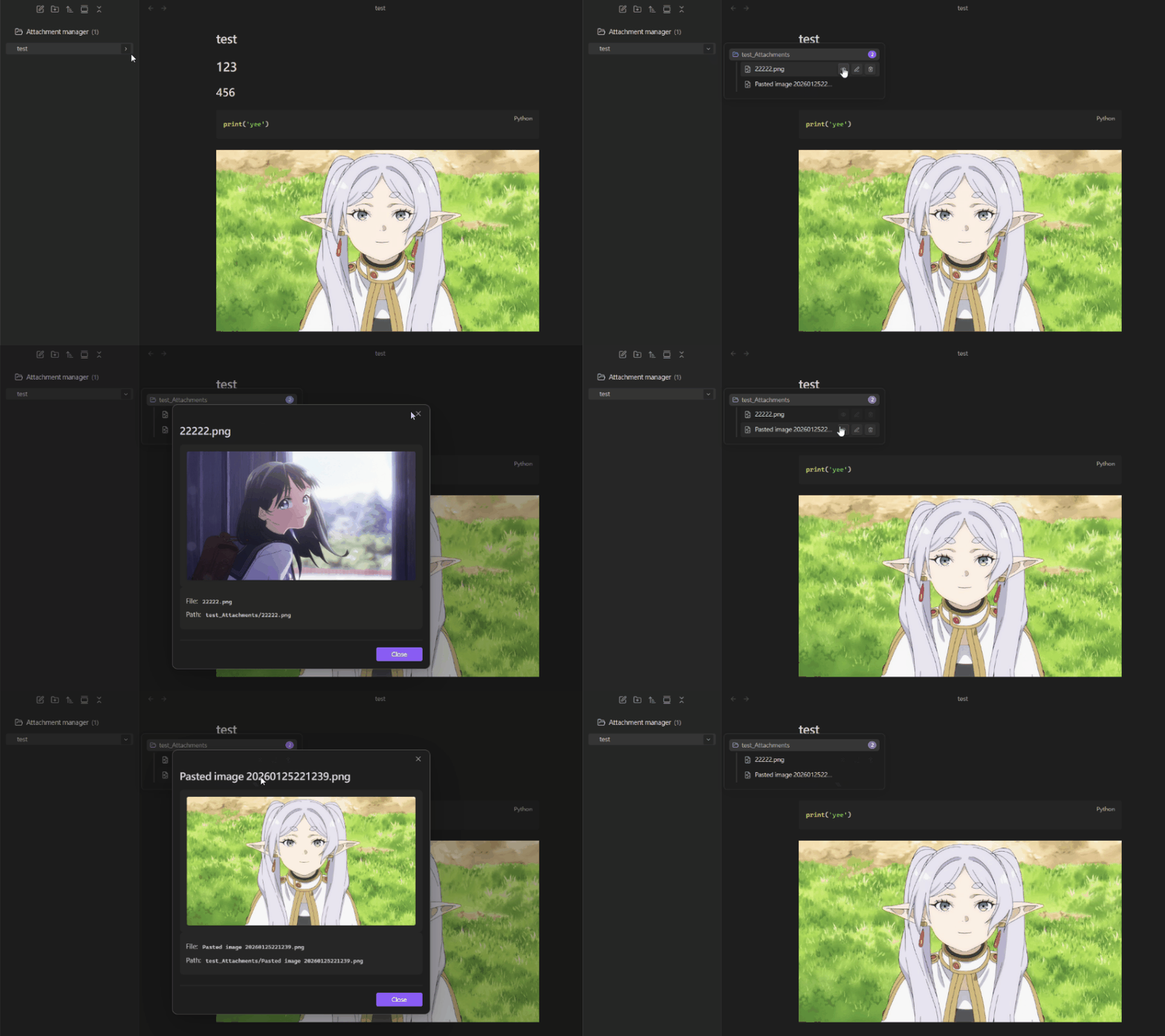
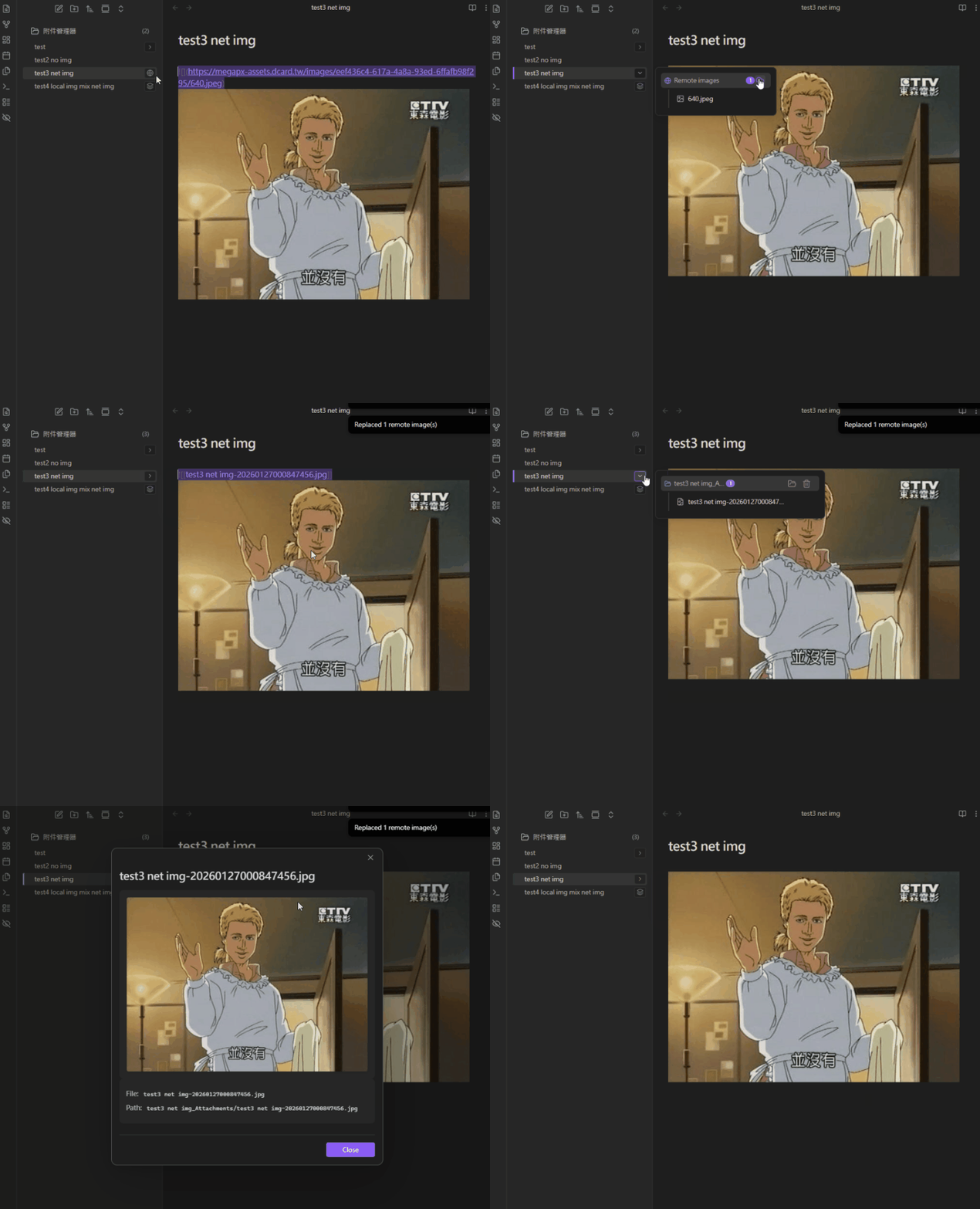
When enabled, each Markdown file row in File Explorer gets a small button:
- Local attachments exist: you can expand to see the attachment list
- Remote images exist: shown with a “globe/layers” hint; expand to download one-by-one or Download All
What you can do after expanding in the current implementation:
- Local attachments
- Preview / Rename (updates references in
.md/.canvas) / Delete (to system trash) - Open the folder in your system file explorer
- Delete the whole attachment folder (to system trash)
- Preview / Rename (updates references in
- Remote images
- Preview remote images
- Download a single image or Download All (updates links in the note)
The tree follows your edits. Add  to a note or paste an image, and the row updates about half a second after you stop typing, even before Obsidian saves the note. An open attachment list redraws as well, so there is no refresh button to press.
flowchart LR
A["You type or paste<br/> or an image"] --> B["~0.5 s after<br/>you stop typing"]
B --> C["Attachmenter re-reads the note<br/>(unsaved text included)"]
C --> D{"Local attachments or<br/>remote images?"}
D -- Yes --> E["Button appears or its icon updates;<br/>an open list redraws"]
D -- No --> F["Button is removed"]
5) Attachment Manager view
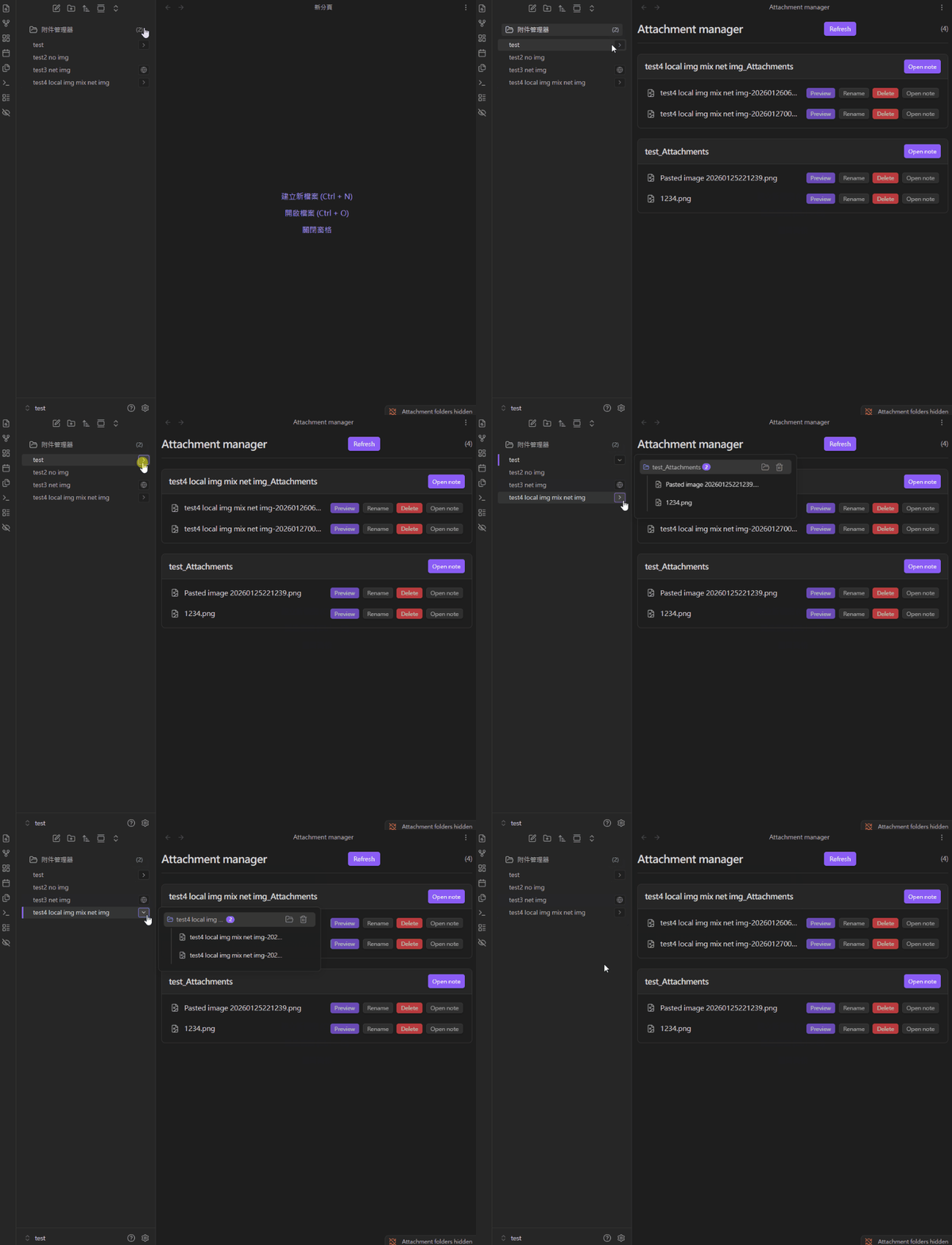
This view lists all attachments across the vault (folders matching the configured suffix) and groups items by folder.
Entry point in the current version:
- A dedicated Attachment Manager button appears at the top of File Explorer (can be disabled in settings)
- Clicking it opens the
Attachment Managerview
- Clicking it opens the
In this view you can:
- Preview / Rename / Delete attachments
- Open the related note (when it can be inferred from the folder name)
Settings (based on current code)
The table below lists the settings currently present in the UI (defaults come from DEFAULT_SETTINGS):
| Setting | Description | Default |
|---|---|---|
| Language | UI language | en |
| Folder suffix | Suffix for per-note attachment folders | _Attachments |
| Attachment name format | Filename template (supports {notename}, {date}) | {notename}-{date} |
| Date format | Moment.js format for {date} | YYYYMMDDHHmmssSSS |
| Auto rename attachment folder | Rename the attachment folder when the note is renamed | On |
| Rename confirmation behavior | Rename confirmation strategy | ask |
| Prompt to rename images | Prompt to rename images when moving them during Path Check | On |
| Show ribbon icon | Show the show/hide toggle in the left ribbon | On |
| Show status bar indicator | Show “Attachment folders hidden” in the status bar | On |
| Show attachment manager button | Show the Attachment Manager button in File Explorer | On |
| Hide attachment folders | Hide attachment folders in File Explorer | Off |
| AERO folder style | Semi-transparent styling for attachment folders | On |
| Show file attachment tree | Inline attachment tree in File Explorer | On |
| Show remote hint | Show remote-image hint + download entry in the tree | On |
| Highlight expanded file title | Highlight the file row when popover is expanded | Off |
| Border accent color | Highlight border color (empty = theme accent) | "" |
Tool: Path Check & Repair
Entry point:
- Settings → Tools & Maintenance → Check paths
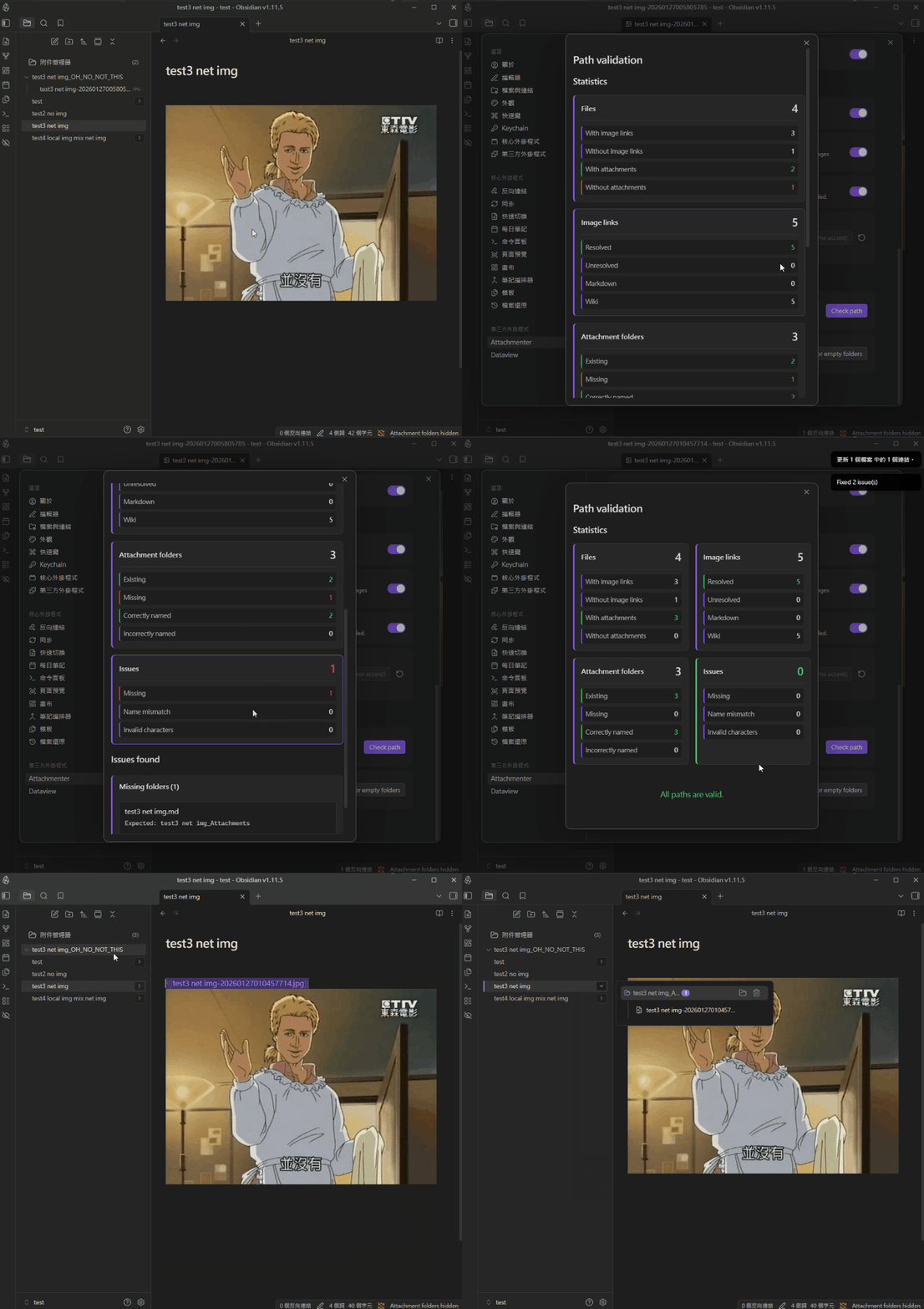
It scans .md and .canvas files and shows:
- File count / image link count / resolved vs unresolved links
- Expected vs actual attachment folders (exists/missing/name mismatch)
- “Invalid character” hints (e.g.
#or Windows forbidden characters)
Repair modes:
- Preview Changes: generates a change plan without writing anything (dry-run)
- Execute Changes: creates/renames folders, moves images, and updates links
flowchart LR
    A["Settings → Check paths"] --> B["Scan every .md and .canvas<br/>that has image links"]
    B --> C{"Problems found?"}
    C -- No --> Z(["All good"])
    C -- Yes --> D["Missing folder · Invalid characters<br/>Name mismatch · Misplaced images"]
    D --> E["Preview Changes<br/>(nothing is written)"]
    E --> F["Execute Changes:<br/>1. create folders<br/>2. rename folders<br/>3. move images and update links"]
With Prompt to rename images on, you are asked for a name for each image it moves.
Tool: Cleanup empty attachment folders
Entry point:
- Settings → Tools & Maintenance → Cleanup
Finds folders whose names end with the configured suffix and are empty, and lets you delete them (to system trash).
Commands & entry points (reference)
| Type | Entry | Description |
|---|---|---|
| Command palette | download-remote-images-active | Download remote images in the current active file (.md/.canvas) |
| Command palette | toggle-folder-visibility | Show/hide attachment folders (syncs with the ribbon toggle) |
| File Explorer context menu | Download remote images | Download remote images for the selected .md file |
Technical details
- Remote image download
- Determines extension from HTTP
content-type; if missing, falls back to URL suffix guessing - Primary support:
png,jpg/jpeg,gif,webp,svg,bmp,apng,avif,ico,tif
- Determines extension from HTTP
- Link formats
- Markdown images:
 - Wiki images (used by Path Check/repair):
![[image.png]],![[image.png|alt]]
- Markdown images:
- Filename/folder sanitization (cross-platform)
- Replaces invalid characters with spaces and collapses whitespace
- Special case:
#→ space
- Obsidian settings impact (while enabled)
- The plugin backs up and may adjust the vault
newLinkFormat; if it’s notrelativeorshortest, it temporarily sets it torelative - Restores the original value on unload
- The plugin backs up and may adjust the vault
Privacy & vault access
Attachmenter runs entirely inside your vault. There is no telemetry and no account, and nothing is uploaded anywhere.
Network. The plugin only goes online when you ask it to download remote images (command palette, right-click menu, or the attachment tree). It requests exactly the image URLs found in that note, and nothing else.
Vault-wide scans. Most features only touch the note you are working on and its attachment folder. A few need to look across the vault; they read file and folder names (and, where noted, note contents) locally:
| Feature | What it looks at | When |
|---|---|---|
| Check paths | every .md and .canvas file, including contents, to find image links | when you click Check paths |
| Cleanup empty attachment folders | every folder name | when you click Cleanup |
| Attachment Manager view | folders ending with your suffix, and the files inside | while the view is open |
| Folder count at the top of File Explorer | every folder name | when files are added or removed |
| Renaming an attachment (tree or manager) | every .md and .canvas file, to update links to it | when you rename |
FAQ
What happens when I rename a note?
If “Auto rename attachment folder” is enabled, Attachmenter will try to rename the old attachment folder to match the new note name. If links don’t update as expected, use the “Path Check” tool to repair.
Can I use this with existing attachments?
Yes. Run “Path Check” from settings, then use Preview/Execute to move images into per-note attachment folders and update references in .md / .canvas.
How do I write custom date formats?
The {date} placeholder uses Moment.js formatting. Examples:
YYYY-MM-DD→2023-10-27YYYYMMDD_HHmmss→20231027_143025
Development
# Clone
git clone https://github.com/natlee/obsidian-attachmenter.git
cd obsidian-attachmenter

# Install dependencies
npm install

# Dev (watch)
npm run dev

# Build
npm run build

# Lint (same rule set as the Obsidian plugin review)
npm run lint
Acknowledgements
This plugin is inspired by / integrates ideas from:
- Attachment Manager by chenfeicqq
- Per-note attachment folders
- Remote image downloading
- Folder visibility toggling
- Attachment Management by trganda
- Path/naming templates and a more complete attachment management approach
License
Links
- GitHub:
https://github.com/natlee/obsidian-attachmenter - Issues:
https://github.com/natlee/obsidian-attachmenter/issues
For plugin developers
Search results and similarity scores are powered by semantic analysis of your plugin's README. If your plugin isn't appearing for searches you'd expect, try updating your README to clearly describe your plugin's purpose, features, and use cases.