by CharlesChou
Organizes note attachments into a same-name folder and syncs the folder and links when notes are renamed, moved, or deleted.
Note Attachment Folder
An open-source Obsidian plugin (minAppVersion: 1.6.6) that automatically saves pasted and dropped attachments into a dedicated folder matching the note's name, and keeps that folder and all note & canvas links synchronized whenever the note is renamed, moved, or deleted.
Why This Plugin?
Obsidian's built-in Default location for new attachments setting falls short when you want one dedicated, self-contained folder per note:
- Saving to the vault root clutters your top-level directory.
- Saving to "Same folder as current file" mixes images and Markdown notes in the same directory.
- Saving to "In subfolder under current folder" forces a static name (such as
assets/), mixing attachments from different notes in the same folder. - Renaming or moving a note leaves static attachment folders behind without renaming them.
Note Attachment Folder solves this end-to-end with three configurable folder modes and automatic lifecycle synchronization.
Screenshots
Features
- Automatic Capture on Paste & Drop: Intercepts pasted images and externally dropped files (images, PDFs, audio, video, and other attachments) and saves them straight into the active note's dedicated folder.
- 3 Configurable Folder Modes:
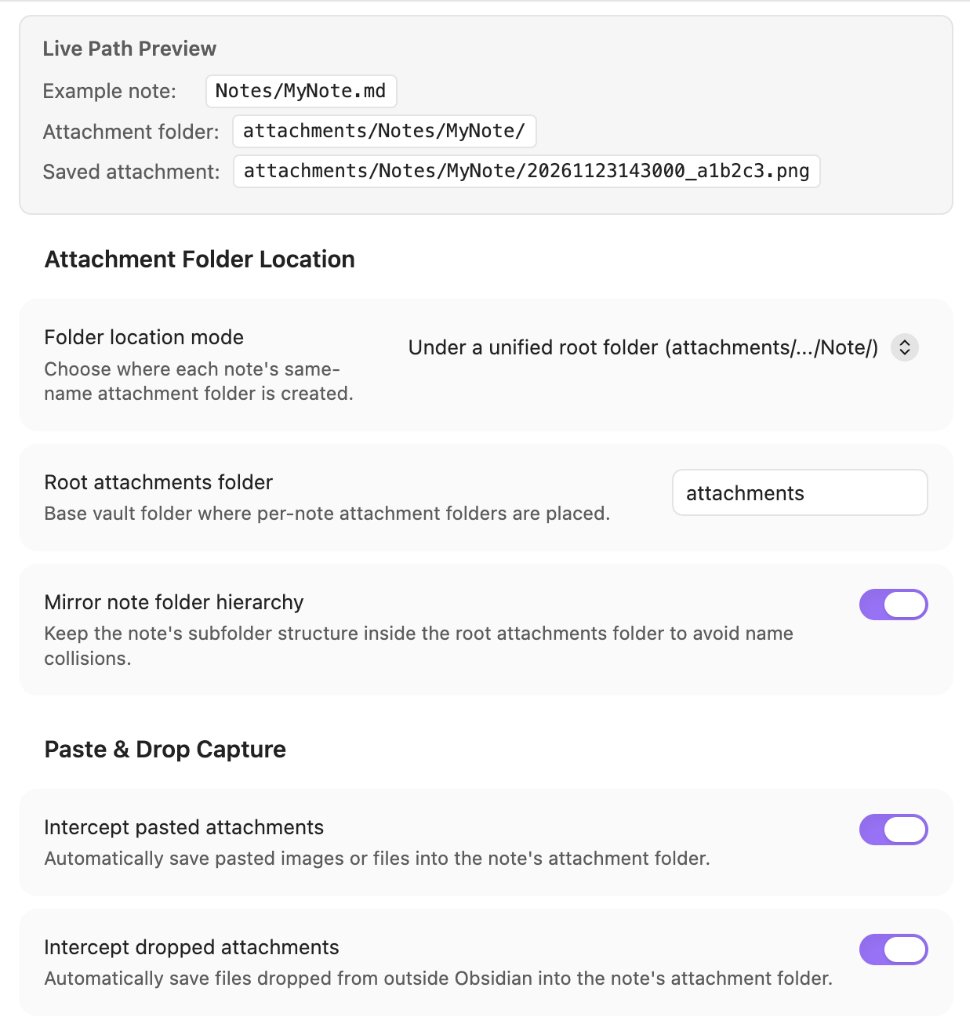
- Unified root folder (Default):
Notes/MyNote.md→attachments/Notes/MyNote/20261123143000_a1b2c3.png(or flatattachments/MyNote/...) - Same directory, same-name folder:
Notes/MyNote.md→Notes/MyNote/... - Same directory with custom suffix:
Notes/MyNote.md→Notes/MyNote.assets/...
- Unified root folder (Default):
- Automatic Rename & Move Sync: When a note is renamed or moved to another directory, its attachment folder moves/renames with it, empty source folders are cleaned up when switching modes, and images can optionally be renamed to match your template (
renameImagesOnSync). - Batch Link Sync & Repair (One Consolidated Notice): Updates all
.mdand.canvaslinks silently in a single pass and emits one summary notice instead of per-file Obsidian popups—preserving relative (./,../), URL-encoded (%20), and CJK links while skipping code blocks and external URLs. - Safe Delete Cleanup: Optionally moves the note's attachment folder to trash when the note is deleted—while automatically protecting folders that contain other notes or attachments shared by other notes.
- Folder-Note Safe Guard: If a note uses the Folder Note pattern (e.g.,
Projects.mdalongsideProjects/SubNote.md), renamingProjects.mdwill never renameProjects/; onlyProjects.md's unshared attachments are migrated. - Selective & One-Click Historical Archive:
- Selectively organize existing notes' attachments (Command Palette, Settings button, or right-click any folder): Scan existing notes, filter by folder or keyword, inspect shared attachment badges, and check/uncheck specific notes or individual files.
- Organize current note attachments into its folder
- Organize all vault attachments into note folders
- Multilingual UI (English-First): Defaults to English, with built-in switching to 简体中文, 日本語, or Follow Obsidian.
- Cross-Platform & Privacy-First: Uses only official Obsidian APIs (
isDesktopOnly: false, works on Desktop & Mobile, zero telemetry or network requests).
Folder Modes at a Glance
Assuming a note at Notes/Design Doc.md and an attachment diagram.png:
| Mode | Result Path |
|---|---|
root-folder (Default, mirror hierarchy on) | attachments/Notes/Design Doc/diagram.png |
root-folder (Mirror hierarchy off) | attachments/Design Doc/diagram.png |
same-dir | Notes/Design Doc/diagram.png |
same-dir-suffix (Default .assets) | Notes/Design Doc.assets/diagram.png |
Installation (Local / Manual)
- Build the plugin (or download
main.js,manifest.json, andstyles.cssfrom Releases):npm install npm run build - Inside your Obsidian vault, create the plugin directory:
<YourVault>/.obsidian/plugins/note-attachment-folder/ - Copy
main.js,manifest.json, andstyles.cssinto that folder. - In Obsidian, open Settings → Community plugins, reload the plugin list, and enable Note Attachment Folder.
Settings Reference
| Setting | Description | Default |
|---|---|---|
| Language | Display language (English, 简体中文, 日本語, or Follow Obsidian). | English |
| Folder location mode | Choose between root-folder, same-dir, or same-dir-suffix. | root-folder |
| Root attachments folder | Base folder used by root-folder mode. | attachments |
| Mirror note folder hierarchy | Preserve note subfolders under the root attachments folder. | true |
| Folder name suffix | Suffix appended to the note name in same-dir-suffix mode. | .assets |
| Intercept pasted attachments | Capture clipboard images/files on paste. | true |
| Intercept dropped attachments | Capture OS files dropped into the editor. | true |
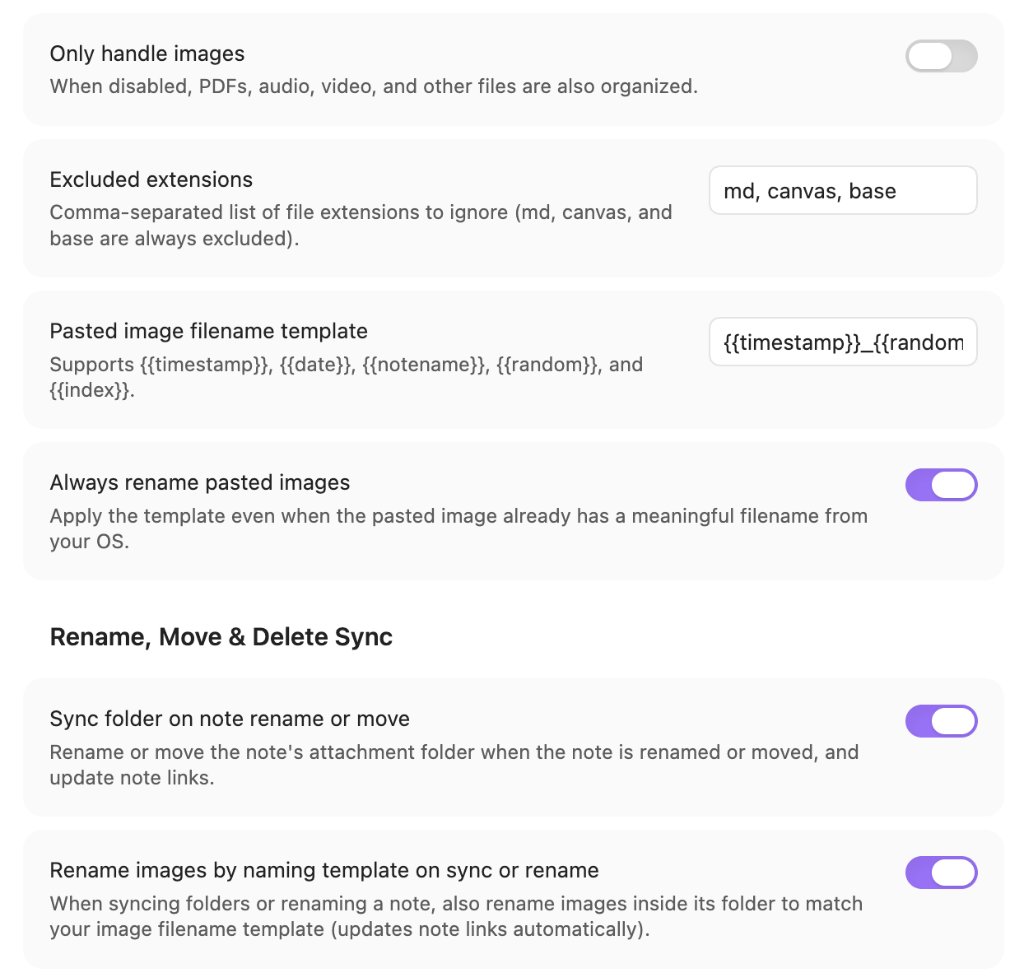
| Only handle images | Restrict capture and organize commands to images only. | false |
| Excluded extensions | Extensions to ignore (md, canvas, base are always excluded). | md, canvas, base |
| Pasted image filename template | Supports {{timestamp}}, {{date}}, {{notename}}, {{random}}, {{index}}. | {{timestamp}}_{{random}} |
| Always rename pasted images | Apply template even when pasted file already has a non-generic name. | false |
| Sync folder on note rename or move | Rename/move attachment folder alongside the note. | true |
| Rename images by naming template on sync or rename | Rename images inside the folder to match the filename template during sync/rename/organize. | false |
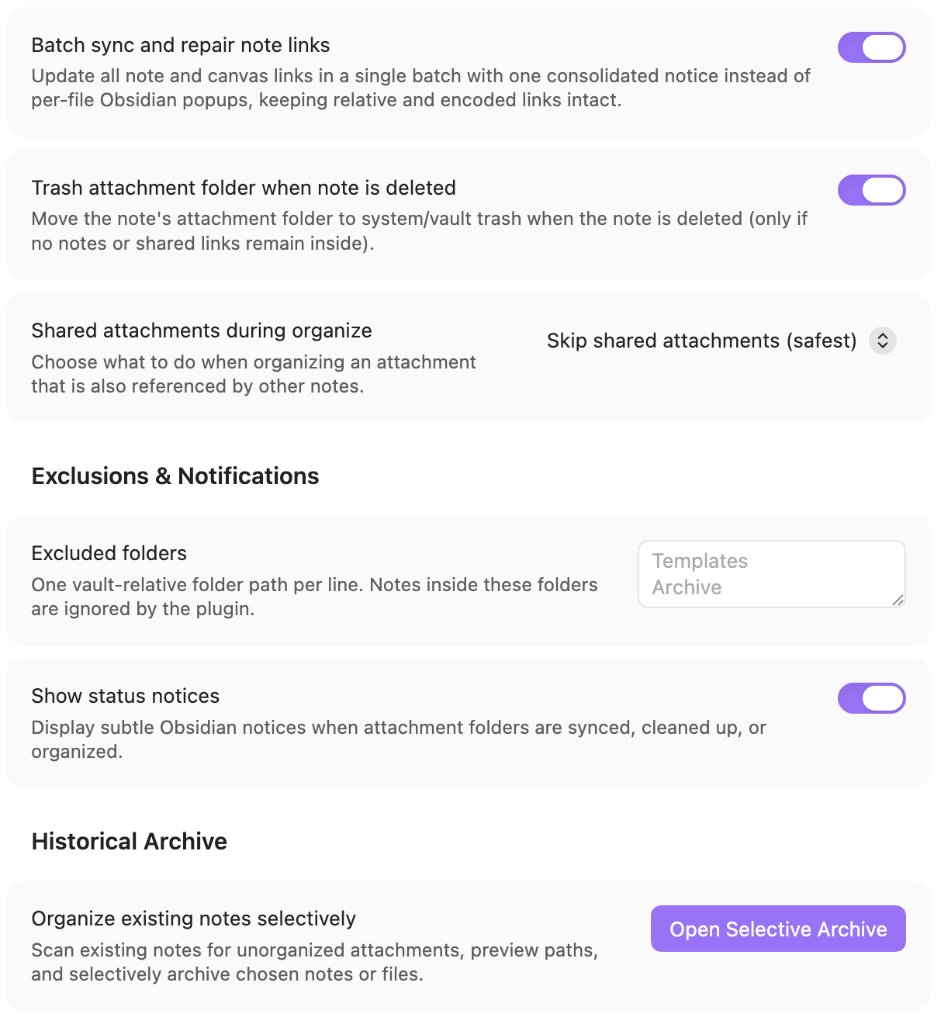
| Batch sync and repair note links | Update all .md and .canvas links silently in one batch with one summary notice. | true |
| Trash attachment folder when note is deleted | Move unreferenced attachment folder to trash on note deletion. | true |
| Shared attachments during organize | Action (skip, copy, move) when another note also links the attachment. | skip |
| Excluded folders | Vault-relative folder paths (one per line) ignored by the plugin. | (empty) |
| Show status notices | Show notices for sync, cleanup, and organize actions. | true |
| Restore default settings | Reset all plugin settings back to their default values (with confirmation). | — |
Commands & Entry Points
- Selectively organize existing notes' attachments (Command Palette, Settings button, or right-click any folder in the File Explorer): Opens the interactive Historical Archive modal to scan unorganized notes, filter by folder or keyword, inspect shared attachment badges, and selectively check which notes or individual files to archive.
- Organize current note attachments into its folder (Command Palette or right-click any
.mdnote): Scans all attachments referenced by the note and moves (or copies, depending on shared behavior) any scattered files into the note's configured attachment folder. - Organize all vault attachments into note folders: Runs vault-wide organization across all non-excluded Markdown notes in the vault (with a confirmation dialog).
Development
npm install
npm run lint       # Run ESLint (with eslint-plugin-obsidianmd)
npm run typecheck  # Run TypeScript type check
npm test           # Run Vitest unit & integration tests
npm run build      # Typecheck and bundle production main.js
npm run dev        # Watch mode during development
License
For plugin developers
Search results and similarity scores are powered by semantic analysis of your plugin's README. If your plugin isn't appearing for searches you'd expect, try updating your README to clearly describe your plugin's purpose, features, and use cases.