by theluckystrike
Set, append or remove a property on selected Bases rows with preview and undo.
Bases Multi-Row Edit
Change one property across selected rows in a Bases table. See each note's old and new value before you apply, then undo the batch from the same session.
The free tier includes all edit operations, preview, and undo for the last batch. Pro adds saved bulk actions and 20 session undo batches for $15 one time or $5 a month. Get Pro or choose the $15 one-time offer.
A project review often ends with the same update on several notes. Mark projects done, add a review tag, or clear an old owner property. Selection stays beside the values you review, without a selection property in your notes.
Features
Select rows within a Bases query
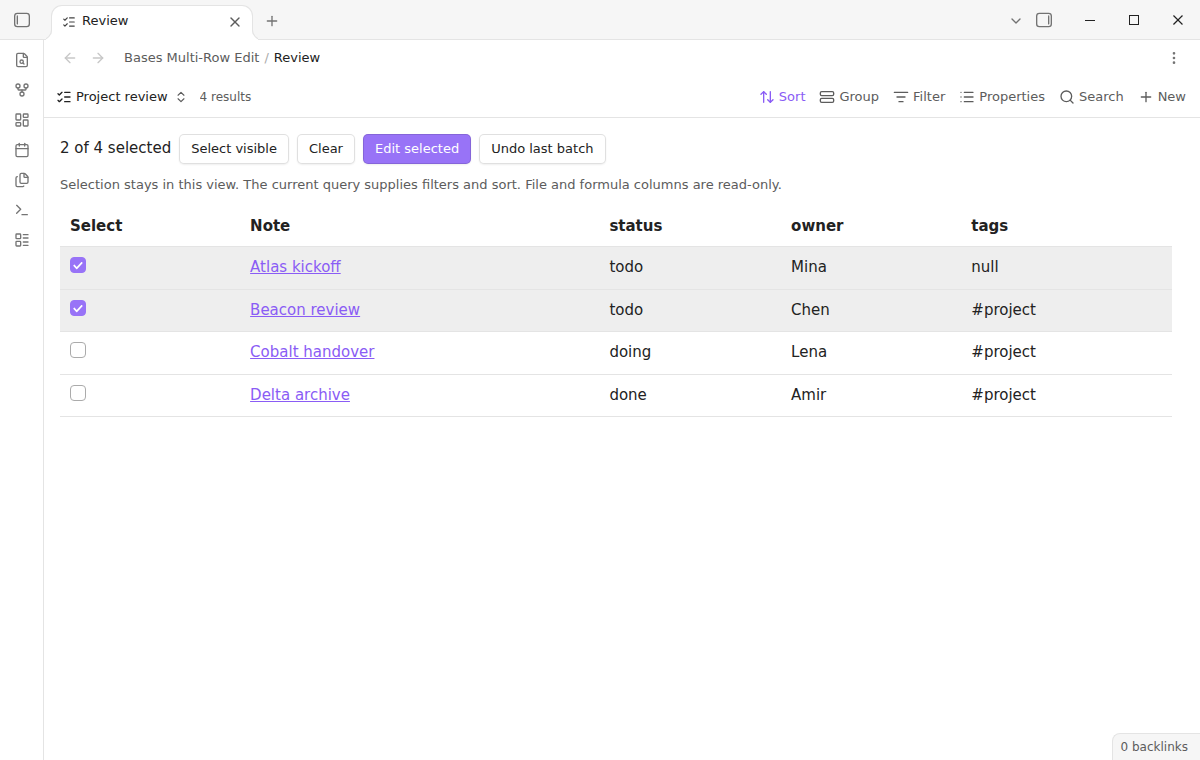
Choose the Multi-row edit view in a Base. It displays a table using the query's filters, sorting, and visible columns. Check individual rows or use Select visible, then choose Edit selected. Clear removes the current selection without writing anything to your notes.
Selection belongs to this view and lasts while the view is open. When a query update hides a row, that row leaves the selection. Opening a second Base does not carry those checkboxes into it. Only Markdown notes appear as editable rows. The editing view flattens grouped results into one list, so review the note names when you select a large set.
Preview typed property changes
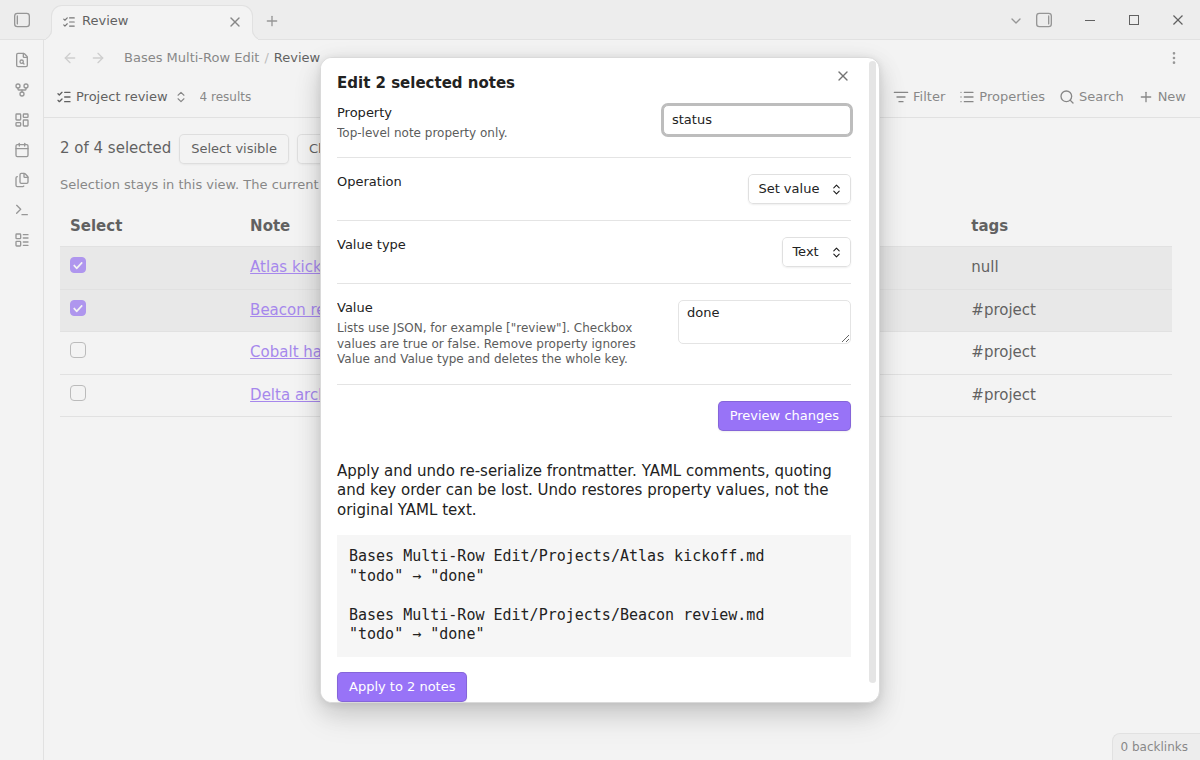
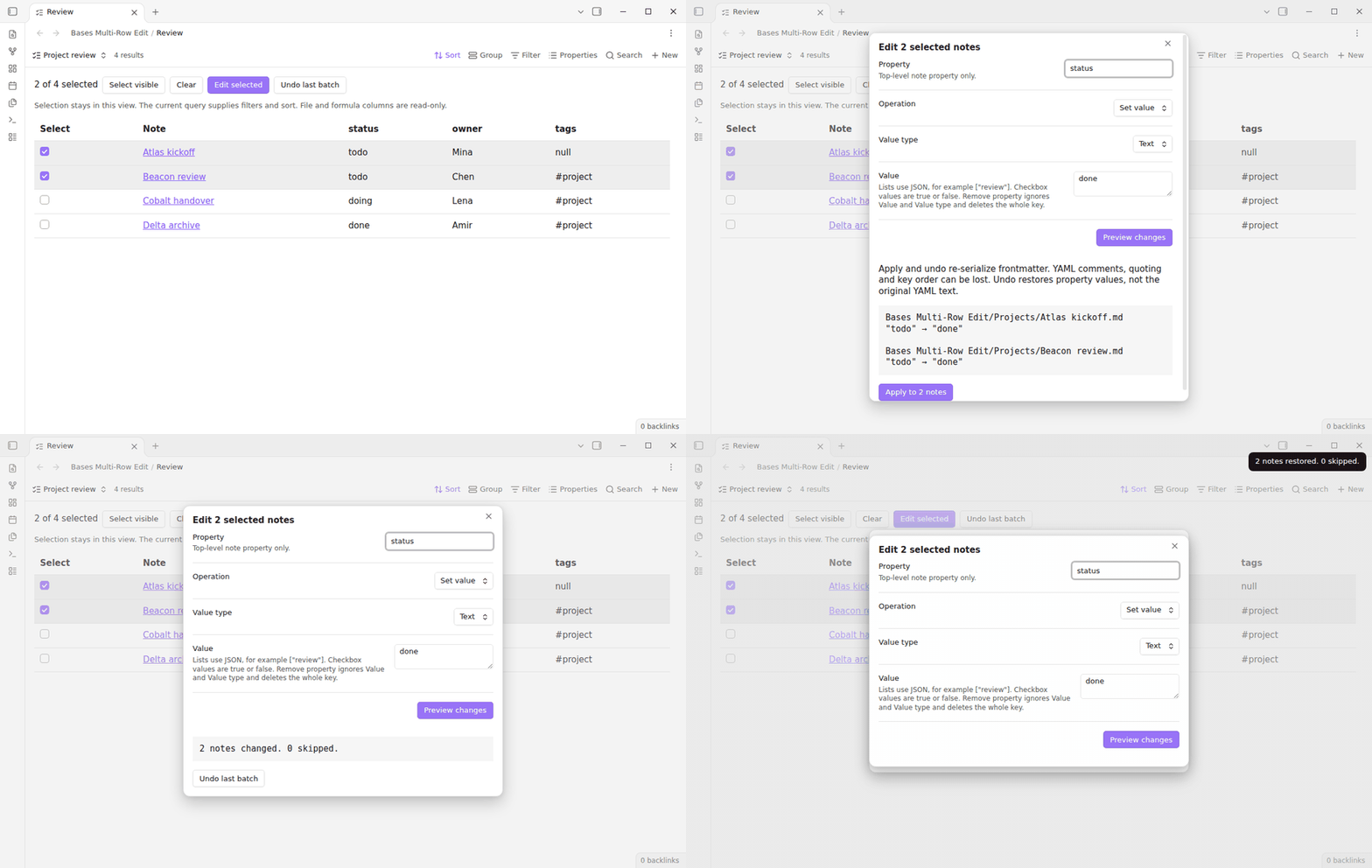
Enter a top-level note property name, select an operation and value type, and choose Preview changes. Names match without regard to case: status updates an existing Status key. Ambiguous duplicate keys are skipped. Set supports text, decimal numbers, checkboxes, and simple lists. Remove property deletes the whole key and ignores Value and Value type.
The preview lists each selected note with its old and proposed value. Missing properties show as absent. A blank text value stays a present, empty property. It is different from Remove property. Notes whose values already match are shown as unchanged and are left out of the apply count. Editing a control discards the preview, so you must review the new proposal before applying it.
Append or remove list items
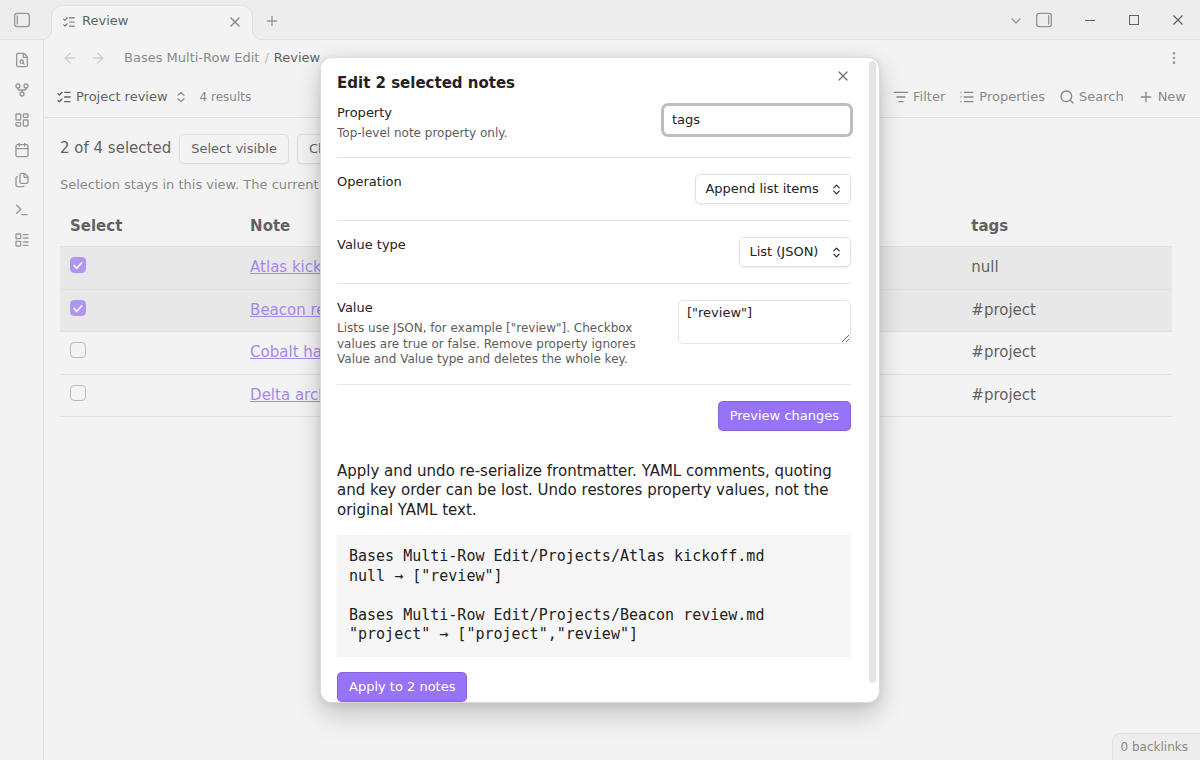
Lists use JSON syntax such as ["project", "review"]. Items can be text, finite numbers, booleans, or null. Append and remove items require list input. Empty properties become empty lists; a scalar becomes a one-item list. Append keeps existing order and duplicates, adding each new item once. Item matching is exact and case sensitive.
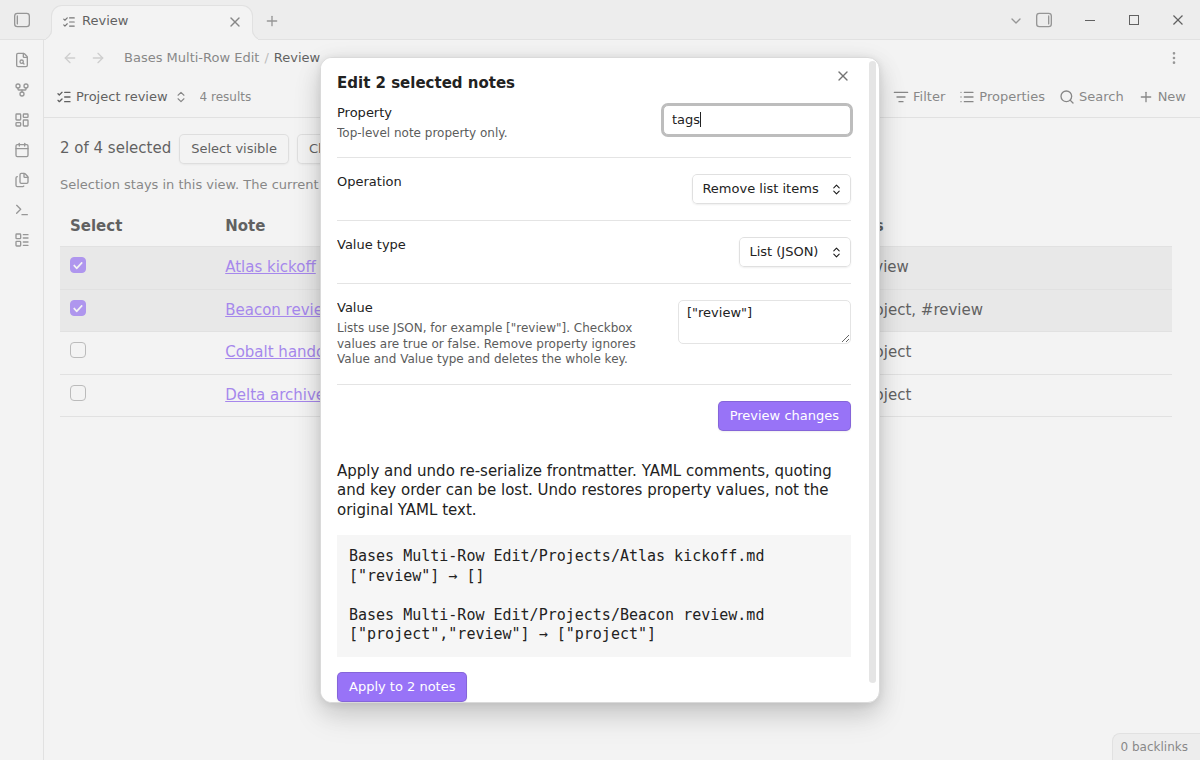
Remove list items keeps nonmatching values. Missing notes, unreadable YAML, and incompatible properties appear with a skipped reason beside the note path. Other notes remain available to apply.
Apply with conflict checks and undo
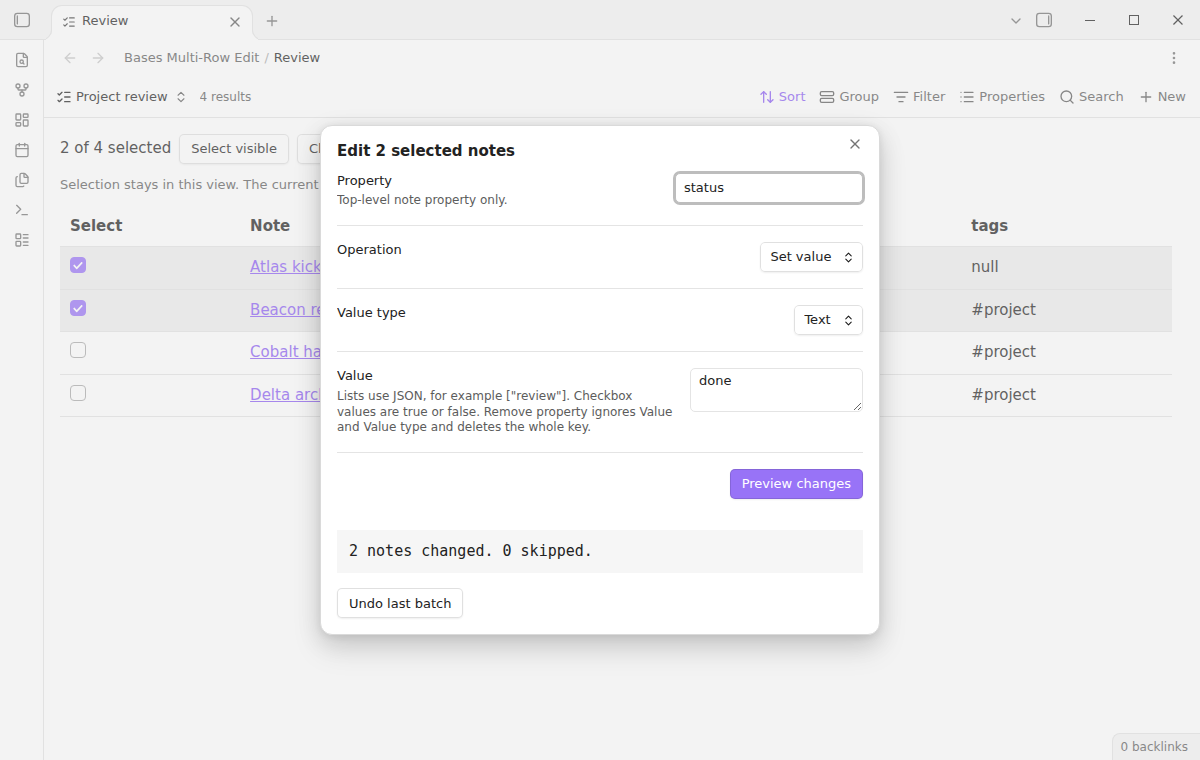
Apply checks the target property again while writing each note. If another edit changed that property after preview, the note is skipped and its path appears in the result. Other selected notes can still succeed. Each note is edited separately, so a batch can have both completed and skipped notes. Read the result before starting another batch.
Apply and undo re-serialize the whole frontmatter through Obsidian. YAML comments can be lost, and quoting, formatting, and key order can change. The preview shows this warning. Undo restores property values or absence, not the original YAML text. Note body text is preserved.
If the target property changed since apply, undo skips it. Skipped entries remain available for another attempt. Undo history stays in memory and ends when Obsidian restarts or the plugin reloads. Keep normal vault backups for longer recovery.
Save repeated actions with Pro
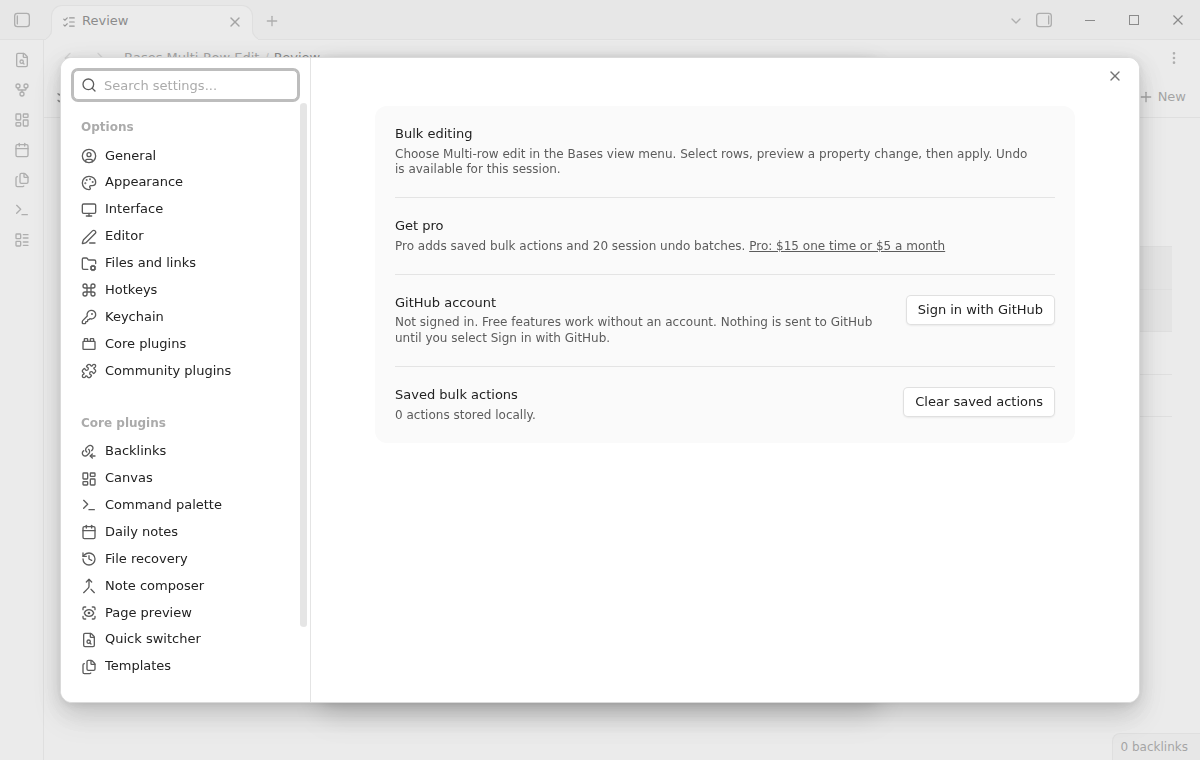
Pro adds Save action and a saved action picker to the edit dialog. An action stores the property, operation, type, and input. It never stores a row selection. Choose the notes for each run, load the action, and preview it again. Up to 50 actions are stored locally. Clear saved actions in settings removes them all.
Pro also keeps up to 20 undo batches during the current plugin session. Undo works from the newest batch backward. A batch with unresolved undo conflicts stays at the top until those entries can be restored. Saved actions persist across restarts; undo values do not. Formula-driven values are outside this version's scope.
Install
Requires Obsidian 1.13.4 or newer with the core Bases plugin enabled. When this product is listed in Community plugins, search for Bases Multi-Row Edit, install it, and enable it.
For manual installation, put main.js, manifest.json, and styles.css from a release into <vault>/.obsidian/plugins/bases-multi-edit/. Reload community plugins and enable the product. It uses core APIs and supports desktop and mobile layouts. The screenshots show desktop Obsidian.
Usage
- Open a Base and add or switch to a Multi-row edit view.
- Adjust the Base filters and visible properties to show the notes you need.
- Check the rows to change and choose Edit selected.
- Enter a property, operation, type, and value.
- Choose Preview changes and read the per-note results.
- Apply, read any skipped paths, and use Undo last batch if needed.
For example, set property status, operation Set value, type Text, and value done. To add a tag, choose property tags, Append list items, List, and ["review"]. To remove that tag later, keep the same list input and choose Remove list items.
Settings
The settings tab explains how to open the editing view, shows the optional Pro offer, and provides the shared GitHub Sponsors account controls. Sign in only if you want the paid conveniences. Clear saved actions deletes saved action definitions without changing any note.
The command palette also provides Undo the last bulk edit when a batch is available. You can assign a hotkey in Obsidian's Hotkeys settings. No hotkeys are assigned by default.
FAQ
Does this use the built-in table's selection?
It supplies its own Bases table view through the public API. Switch to Multi-row edit to use its checkboxes. It does not read private selection state from the built-in table.
Can I edit file names or formula columns?
No. Those columns are visible for context but are read-only here. The property field accepts plain top-level note property names. Nested property paths, dots, colons, and unsafe object keys are rejected.
What happens to hidden notes?
A selection uses this view's query result. Preview checks that each captured path still belongs to the current query and skips hidden notes. Preview again after changing filters in another pane.
Does removing the product remove my data?
Property edits are ordinary note frontmatter and remain usable without this product. Temporary checkboxes disappear when the view closes. Saved action definitions belong to the plugin's local data file.
Payment, account and network
The core features are free. Pro features need a GitHub Sponsors sponsorship of theluckystrike: $5 a month or more, or $15 once. A total payment of $15 meets the payment requirement for Pro without further payment. Sign-in and the checks below still apply. Your notes stay readable and editable with or without Pro.
GitHub handles the payment. Sponsor at https://github.com/sponsors/theluckystrike. You need no account for the free features. Pro needs the GitHub account that sponsors.
Until you select "Sign in with GitHub" in the settings, Bases Multi-Row Edit makes no network requests. Sign in uses the GitHub device flow. Bases Multi-Row Edit sends its public client ID and the scope read:user to https://github.com/login/device/code and shows you a code. While you enter the code at https://github.com/login/device, it asks https://github.com/login/oauth/access_token every few seconds to check the sign-in status. The scope permits profile reads only. GitHub needs this access to show the sponsorship tier. It grants no repository scope and no write access.
After sign in, Bases Multi-Row Edit sends one query to https://api.github.com/graphql. It checks if the signed-in account sponsors theluckystrike. It asks for the tier and the total payment to theluckystrike. The plugin reuses a successful check for 7 days. Failed checks can retry after 6 hours. Select Refresh to request an earlier check. It sends no note content, file names or other vault data, and it has no telemetry.
After a successful check, Pro can work offline for up to 14 days. Sign out or a negative sponsorship answer turns Pro off. The plugin stores the GitHub token through the secret storage API of Obsidian. It does not put the token in its saved settings or its local sponsorship data. The local storage of this device keeps your GitHub login, the tier and the time of the last check. Sign out clears the token. You can also revoke the access in your GitHub settings, under Applications.
Support
Visit NoteMods for product information. Report reproducible bugs in this repository's issue tracker with your Obsidian version, operation, value type, and a small anonymized example. Include skipped-path messages when reporting conflicts. Do not send account tokens or private notes.
Build from source with npm ci, npm run build, and npm test. The source and tests are licensed under MIT.
For plugin developers
Search results and similarity scores are powered by semantic analysis of your plugin's README. If your plugin isn't appearing for searches you'd expect, try updating your README to clearly describe your plugin's purpose, features, and use cases.