by Deepak Vaid
AI-powered chat with multi-device relay, agentic tools, and collaborative conversation.
Chat Lab AI
Obsidian AI is the product subtitle and branding used throughout the documentation and interface.
GitHub · Report Bug · Discussions
🤖 Collaborative AI + Human Chat for Obsidian
A persistent chat panel where AI agents and humans participate as equals — across devices, in real time. Agents can read and edit your vault through native tool calling. Bring your own API keys. Your data stays in your vault unless you explicitly send it to a configured provider, search service, or relay.
🔐 Privacy and network behavior
Obsidian AI includes no telemetry or analytics service. Network requests occur only when you use a configured feature: chat and AI memory/pruning send the selected prompt, context, and (when enabled) memory to the selected LLM provider; web search sends your query to the selected search provider; model discovery contacts the provider endpoint; and multi-device chat sends conversation messages to the relay URL you configure. Vault files are read or changed only when you select context, invoke an agent tool, or use an editing feature. API keys are stored in plugin settings and sent only to the provider or search service they configure.
Agent tools that create, modify, move, or delete vault files require approval by default. Automatic updates are disabled by default; downloaded release files are backed up before installation, but users who need cryptographic verification should install manually from a verified release.
✨ What It Does
Chat Lab: Obsidian AI adds a persistent chat panel to your Obsidian sidebar. Unlike typical chat plugins, it treats AI agents and remote humans as equal participants in the same conversation. Everyone broadcasts to everyone. Each participant decides whether and how to respond.
Key idea: You can have a chat tab with:
- Just you and an AI agent
- You + multiple AI agents
- You + remote humans (via WebSocket relay) — with or without AI agents present
- Any mix of the above
Messages are tagged with the sender's identity. You always know who said what — whether it's a local AI agent, a remote user on another device, or yourself.
The AI can also directly manipulate your vault through structured tool calls — search notes, edit content, create files, move documents, and more — all from the conversation.
🚀 Feature Highlights
| Feature | What It Does |
|---|---|
| Collaborative Chat | AI agents, remote humans, and you as equal participants |
| Multi-Agent Chat Relay | Real-time chat across devices via self-hosted WebSocket relay |
| Agentic Note Editing | 13 vault tools with approval flow — read, edit, create, move, search |
| Inline AI Editing | Context-aware suggestions with visual diff preview |
| Vault-Aware Context | @mention notes, folders, tags, active note, embed expansion |
| Web Search | DuckDuckGo, Brave, Tavily, Exa, SearXNG |
| Multi-Provider | OpenAI, Anthropic, Google, DeepSeek, OpenRouter, Azure, and custom OpenAI-compatible endpoints |
| Auto-Updater | One-click updates with stable/dev channels |
| Mobile-Responsive | Full functionality on iOS/Android |
🚀 Features
Collaborative Chat (AI + Human Peers)
The core of Chat Lab: Obsidian AI is a multi-participant chat where everyone is a first-class citizen:
- Equal-Footing Participant Model — AI agents, remote humans, and the local user all broadcast messages to each other. No special orchestrator hierarchy.
- Message Attribution — Every message shows who sent it: local user ("You"), an AI agent (with colored dot), or a remote human (with their device/user ID).
- Participant List Bar — Persistent bar below the chat header showing all active participants: selected AI agents and connected remote users, each with a colored status dot.
- Typing Indicators — See when remote users or agents are typing ("Alice is typing…" with animated dots). Auto-clears after 3 seconds.
- Multi-Agent Panel — Select which AI profiles participate via checkbox dropdown. Each agent sees the full conversation context.
- Mention Routing —
@Cloudy fetch arxivsends that request only to the agent named Cloudy. - Zen Mode — Hide all chrome, see only messages and input.
- Mobile-Responsive — Works on tablet and phone layouts.
Multi-Device Chat Relay (WebSocket)
Chat with remote humans across devices — laptop, tablet, phone — in real time:
- Real-Time Message Relay — Chat messages broadcast instantly between devices via WebSocket relay.
- Human-Only Chat — Chat with other humans without any AI agents present. Pure peer-to-peer messaging.
- Mixed Chat — Have both AI agents and remote humans in the same tab. Agents see human messages; humans see agent responses.
- Self-Hosted Relay — Run the relay on your own machine or VPS; no third-party servers.
- LAN Discovery — Auto-detect your local IP for easy same-network setup.
- Zero Persistence — Relay is stateless; no messages stored on the server.
Note: This relays chat messages between clients, not vault content. Notes are not synced — only the conversation is.
See Multi-User Chat Design for architecture details.
Agentic Note Editing (13 Tools)
The AI can directly manage your vault through structured tool calls:
| Tool | What It Does |
|---|---|
read_note | Read any note's full content |
edit_note | Overwrite a note with new content |
append_to_note | Add content to the end of a note |
create_note | Create a new note in any folder |
patch_note | Find-and-replace inside a note |
edit_section | Rewrite content under a specific heading |
search_notes | Search by filename or path |
list_notes | Browse folders with subfolder support |
get_note_metadata | File stats (size, dates, word count) |
create_folder | Create new folders |
move_note | Move or rename notes |
delete_note | Delete notes (to system trash) |
list_folders | Navigate vault structure |
Approval Flow: By default, every tool call shows a preview card in chat — you approve or reject before it executes. Toggle Auto-Apply (🤖) to skip approval for trusted workflows.
Smart Results: Tool outputs are formatted as markdown tables and lists before the AI sees them — no raw JSON dumps in your chat.
Inline AI Editing
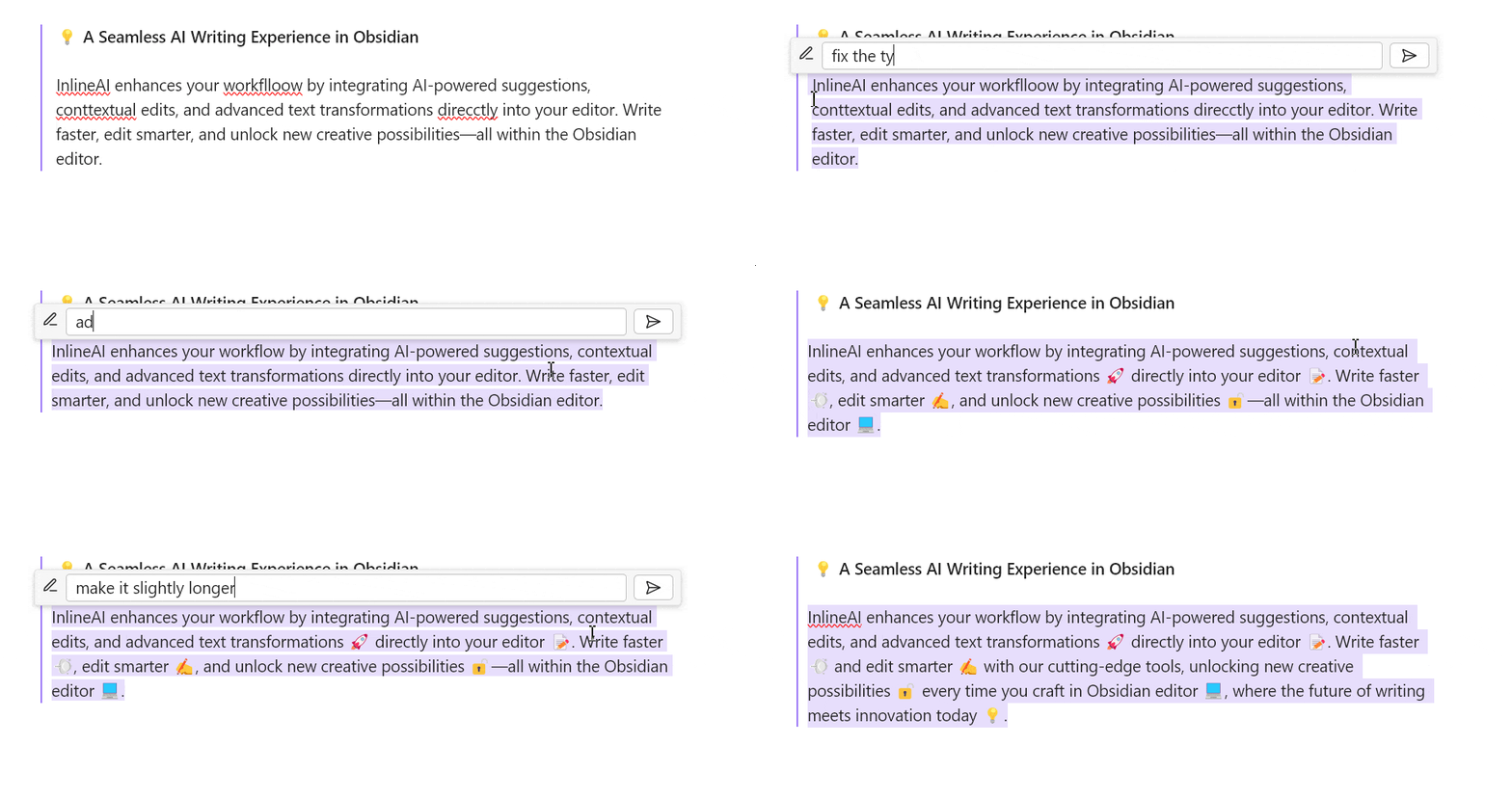
- Context-Aware Suggestions — Highlight text or place your cursor, press
Ctrl/Cmd + K, and get AI-powered transformations. - Visual Diff Preview — See exactly what changed with inline markers for additions and deletions before you commit.
- One-Click Apply / Discard — Accept changes instantly or dismiss them without touching your note.
- Custom Slash Commands — Define your own system prompts and trigger them with
/shortcuts.
Vault-Aware Context
@mentionNotes — Reference any note in chat.- Folder & Tag Context — Attach folders or tags (returns file listings, not full contents — no token bloat).
- Active Note — Include the note you're currently editing.
- Embed Expansion —
![[...]]embeds resolved recursively up to depth 2.
Web Search
Ask about recent events or facts beyond the model's training data:
- 5 Providers: DuckDuckGo (free), Brave Search API, Tavily, Exa, SearXNG (self-hosted).
- No extra setup for DuckDuckGo — works immediately.
- API keys for Brave, Tavily, Exa entered in Settings.
Multi-Provider Support
Bring your own keys. No data leaves your machine unless you choose it to.
| Provider | Models | Local / Cloud |
|---|---|---|
| OpenAI | GPT-4o, GPT-4, GPT-3.5 | Cloud |
| Anthropic | Claude 3.5 Sonnet, Claude 3 Opus | Cloud |
| Gemini 1.5 Pro, Gemini Flash | Cloud | |
| DeepSeek | DeepSeek V3, DeepSeek R1 | Cloud |
| OpenRouter | 200+ models via unified endpoint | Cloud |
| Local models | Use a custom OpenAI-compatible endpoint; official Ollama integration is deferred for 1.3.1 | Optional |
| Azure OpenAI | Enterprise GPT models | Cloud |
| Custom | Any OpenAI-compatible endpoint | Either |
- Per-Provider Profiles — Save multiple configurations and switch between them.
- Model Discovery — Fetch available models from your provider automatically.
- Mid-Session Switching — Change profile without starting a new chat.
Streaming & Quality-of-Life
- Streaming Responses — See output appear in real time.
- Token Usage Indicator — Visual feedback on context budget (green → amber → red).
- Session History — Conversations saved and restored across restarts.
- Archive & Rename — Organize past chats, auto-name sessions.
- Abort — Cancel streaming mid-generation.
- Retry — Regenerate a response with one click.
For the complete, implementation-independent capability and behavior map of the chat component, see the Chat Component Capability Map.
Auto-Updater (v1.2.5+)
Stay current without manual downloads:
- Automatic Update Checks — Plugin checks for new releases on startup (configurable interval)
- One-Click Update — Notification shows latest version, commit message, and author; click to update
- Stable / Dev Channels — Switch between release builds and latest
mainbranch - Manual Check — Button in Settings to check immediately
Debug & Diagnostics
- Diagnostics Panel — Memory usage, DOM nodes, chat sessions, total messages.
- File-Based Logger — Debug logs written to disk for troubleshooting.
- Error Boundary — Catches React render crashes, shows fallback UI.
- Build Info in Settings — Version badge, git commit hash, and branch name visible in Settings hero.
📦 Installation
Via BRAT (Recommended for Beta Users)
The fastest way to install and get automatic updates:
- Install the BRAT plugin from Community Plugins
- Open BRAT Settings → Add Beta plugin
- Paste:
https://github.com/space-cadet/obsidian-ai - Click Add Plugin — BRAT will install the latest release and auto-update
Manual Installation
- Download the latest release from GitHub Releases
- Extract
main.js,styles.css, andmanifest.json - Copy them to your vault:
.obsidian/plugins/chat-lab/ - Enable in Settings → **Community Plugins`
⚡ Quick Start
1. Open the Chat Panel
Click the 💬 icon in the left ribbon (or run "Open Chat Lab AI sidebar" from the Command Palette).
2. Configure Your Provider
Open Settings → Chat Lab: Obsidian AI → Provider Profiles.
Click Add Profile, choose your provider, and enter:
- API Key (if required)
- Model — type a name or click Fetch Models to discover
- Custom URL (for OpenAI-compatible or other custom endpoints)
3. Chat with AI Agents
- Select which AI profiles participate via the 👥 participant button
- Type a message — all selected agents see it and can respond
- Use
@AgentNameto route a message to a specific agent - Toggle Zen Mode (🧘) to hide all chrome
4. Chat with Remote Humans
- Start the relay on one device (or a server):
pnpm run relay # or node relay/relay-server.js - Note the IP — The relay logs the listening address (e.g.,
ws://192.168.1.42:8080) - Connect other devices — In each device's Settings → Sync, enter the relay URL and a room ID
- Open the chat on all devices — Messages sync in real time, with attribution showing who sent each message
You can have AI agents and remote humans in the same tab, or humans only.
5. Edit Notes from Chat
When the AI generates content you want to keep:
- Click Apply → Note to diff-merge the response into the active note
- Click Create Note to save it as a new file
- Click Append → Note to add it to the end of an existing file
Or use slash commands in your message:
/create [[Note Name]]— create a new note/edit [[Note Name]]— overwrite an existing note/append [[Note Name]]— append to an existing note
6. Agentic Tools
Ask the AI to manage your vault directly:
"Summarize my
[[Project Notes]]and create a draft inDrafts/"
The AI will:
- Read
Project Notesviaread_note - Generate a summary
- Create the draft via
create_note— pending your approval (unless Auto-Apply is on)
7. Inline Editing (Optional)
- Select text in any note (or place your cursor)
- Press
Ctrl/Cmd + K(customizable in Hotkeys) - Type your instruction — e.g. "make this more concise" or "translate to Spanish"
- Review the diff preview
- Click ✓ Accept to apply, or ✗ Discard to cancel
8. Web Search (Optional)
Open Settings → Web Search. Choose a provider (DuckDuckGo works without setup). Now you can ask:
"What happened in quantum gravity research this week?"
📱 Mobile Notes
Chat Lab: Obsidian AI works on mobile (iOS/Android), but there are platform-specific behaviors to be aware of:
Background Execution
When the Obsidian app is moved to the background, the operating system suspends its webview to preserve battery. This means:
- LLM streams pause — Any in-progress response stops streaming and may fail
- Tool calls abort — Pending vault operations (create, edit, move) will not complete
- Network requests cancel — Any API calls in flight will be interrupted
- Timers freeze — JavaScript intervals and timeouts stop
What persists: Your chat history, session state, and context items are saved to local storage aggressively. When you return to the app, the conversation resumes exactly where you left it.
Recommendation: For long-running operations (large document analysis, multi-step tool workflows), keep the Obsidian app in the foreground. Use the Abort button if you need to pause mid-stream.
Mobile-Responsive UI
The chat interface adapts to smaller screens:
- Horizontal scrolling for the action bar on narrow viewports
- Auto-expanding textarea for the input field
- Compact icon buttons to maximize message space
- Zen mode (hide all chrome) via the header toggle
🛠️ Development
# Clone
git clone https://github.com/space-cadet/obsidian-ai.git
cd obsidian-ai

# Install
pnpm install

# Dev build with hot reload
pnpm run dev

# Production build
pnpm run build

# Package release artifacts
pnpm run package

# Start the relay server
pnpm run relay
Project Structure
src/
├── agent/               # Agentic tool calling: AgentLoop, ToolExecutor, tools, types
│   ├── AgentLoop.ts     # Multi-step tool calling orchestration
│   ├── ToolExecutor.ts  # Vault operation handlers (13 tools)
│   ├── tools.ts         # Zod tool definitions
│   ├── types.ts         # StreamEvent union, ToolCall, ToolResult
│   └── Orchestrator.ts  # Participant-agnostic dispatch for multi-user chat
├── components/          # React UI (ChatApp, ChatInput, MessageBubble, PendingToolCard, etc.)
├── context/             # ContextEngine (vault context assembly, token estimation)
├── core/                # ChatEngine, useChat hook, streaming logic
├── adapters/            # LLMAdapter, ToolAdapter, RAGAdapter, PersistenceAdapter
├── modules/             # CodeMirror extensions (inline tooltip, diff, commands)
├── noteEditing/         # NoteEditingBridge (apply, append, create from chat)
├── sync/                # WebSocket sync adapter for multi-device relay
│   ├── SyncAdapter.ts   # Interface: send, receive, sendTyping, onTyping
│   └── WebSocketSyncAdapter.ts  # Relay implementation
├── views/               # Obsidian ItemView registration
├── api.ts               # Provider abstractions & streaming
├── settings.ts          # Plugin settings & configuration UI
├── default_prompts.ts   # Built-in system prompts
└── main.ts              # Plugin entry point

relay/
└── server.js            # Standalone WebSocket relay for multi-device sync
🤝 Contributing
Contributions are welcome! Please see CONTRIBUTING.md for guidelines.
- Bug Reports: Open an issue
- Feature Requests: Start a discussion
- Showcase: Share your workflows in Discussions → Showcase
Acknowledgments
This plugin was originally forked from FBarrca/obsidian-inlineAI and has been significantly extended with chat, context, agentic tools, and multi-user/agent collaborative features.
UI and design patterns inspired by Logan Yang's excellent Obsidian Copilot plugin.
License
Licensed under the GPL-3.0 license.
Made with ❤️ for the Obsidian community
For plugin developers
Search results and similarity scores are powered by semantic analysis of your plugin's README. If your plugin isn't appearing for searches you'd expect, try updating your README to clearly describe your plugin's purpose, features, and use cases.