by theluckystrike
Convert CherryTree XML documents into nested Markdown notes with links and images.
CherryTree Import
Move an unencrypted CherryTree XML document into an Obsidian vault. Preview the node tree, then make Markdown notes with folders, links, tables, code, and embedded PNG images. The basic import is free and runs locally. Pro adds source properties, parent index notes, and subtree selection through GitHub Sponsors.
The input must be a .ctd file. A SQLite .ctb document needs an XML export from CherryTree first. Keep the original document as your source copy while you check the imported notes.
Features
Preview the node tree
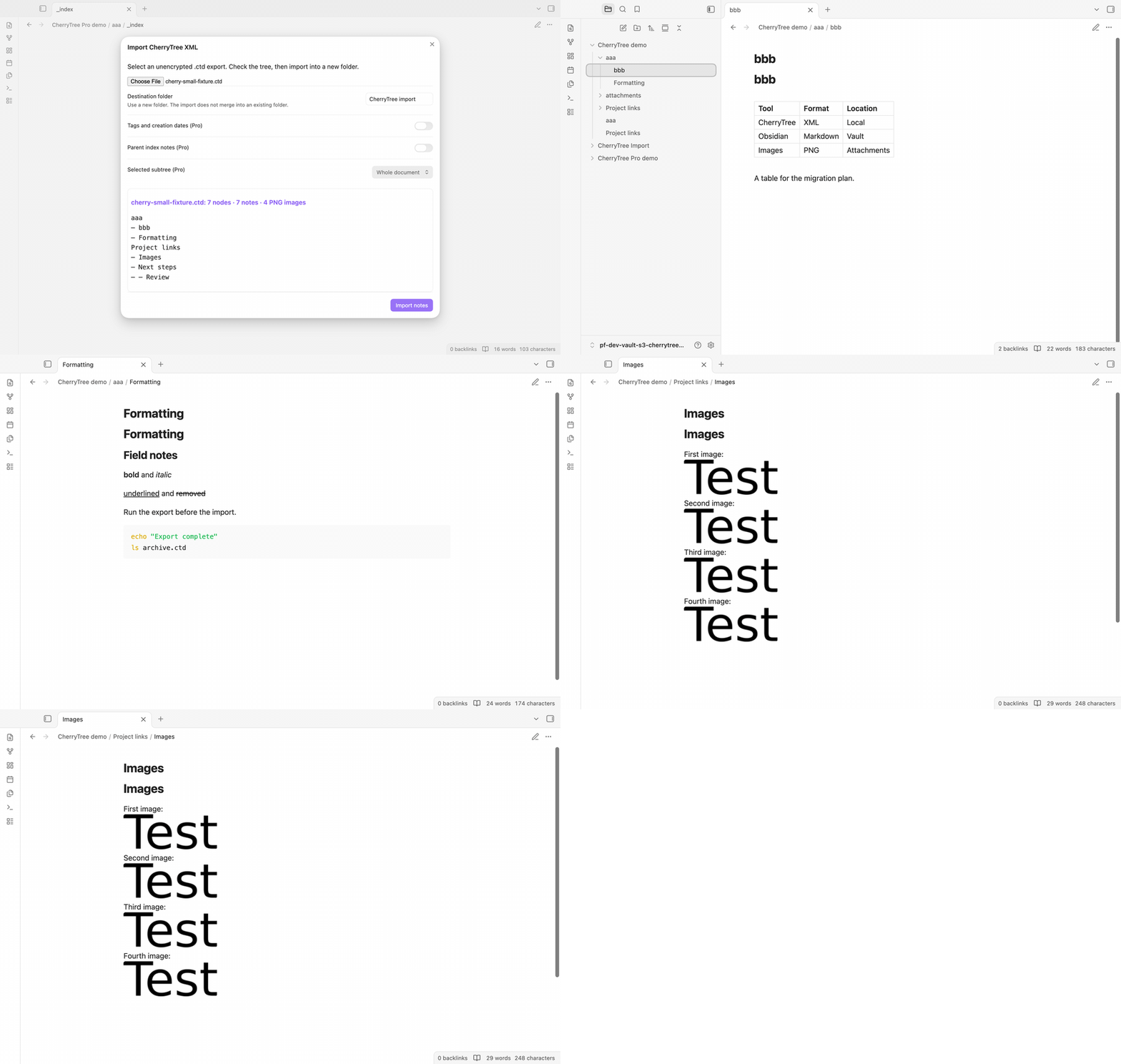
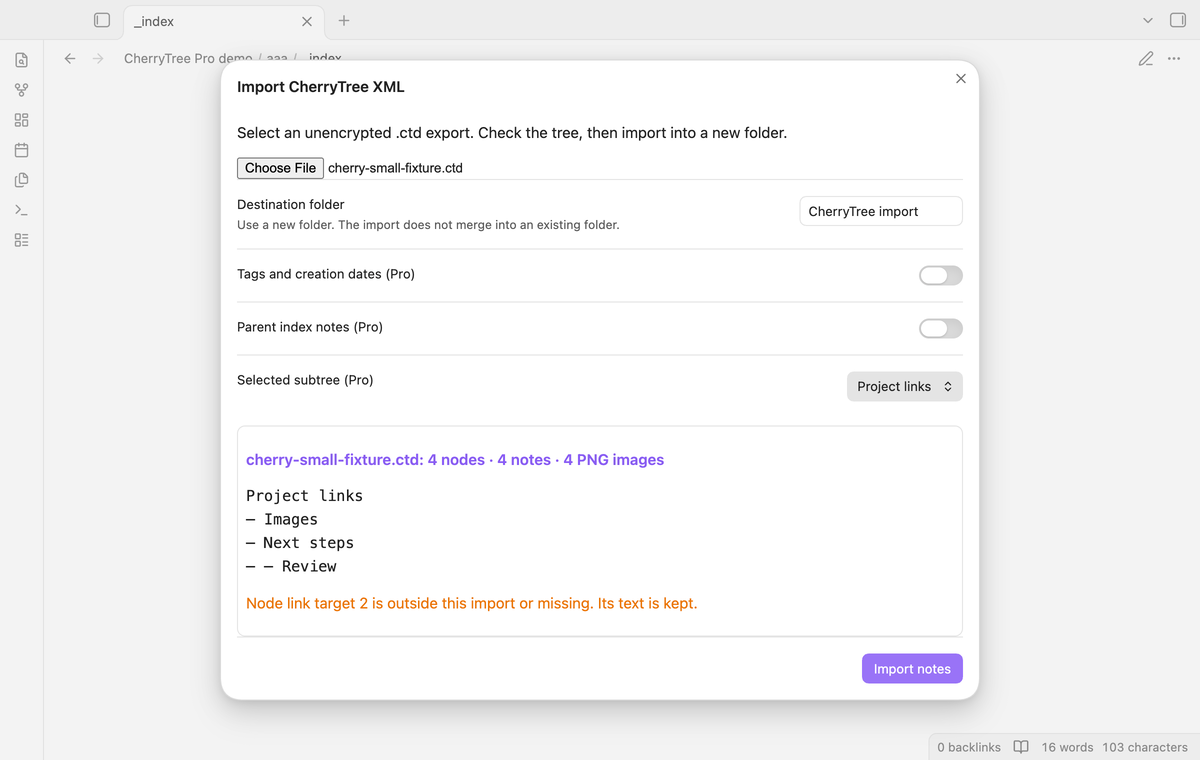
Select a local .ctd file with the import command. The dialog shows node names in tree order and counts the notes and PNG files. Read the warnings before you import. The preview can report a missing node link, an invalid image, or an attachment type that is not supported. Selecting a file prepares the preview; the Import notes button starts the vault writes.
Notes in nested folders
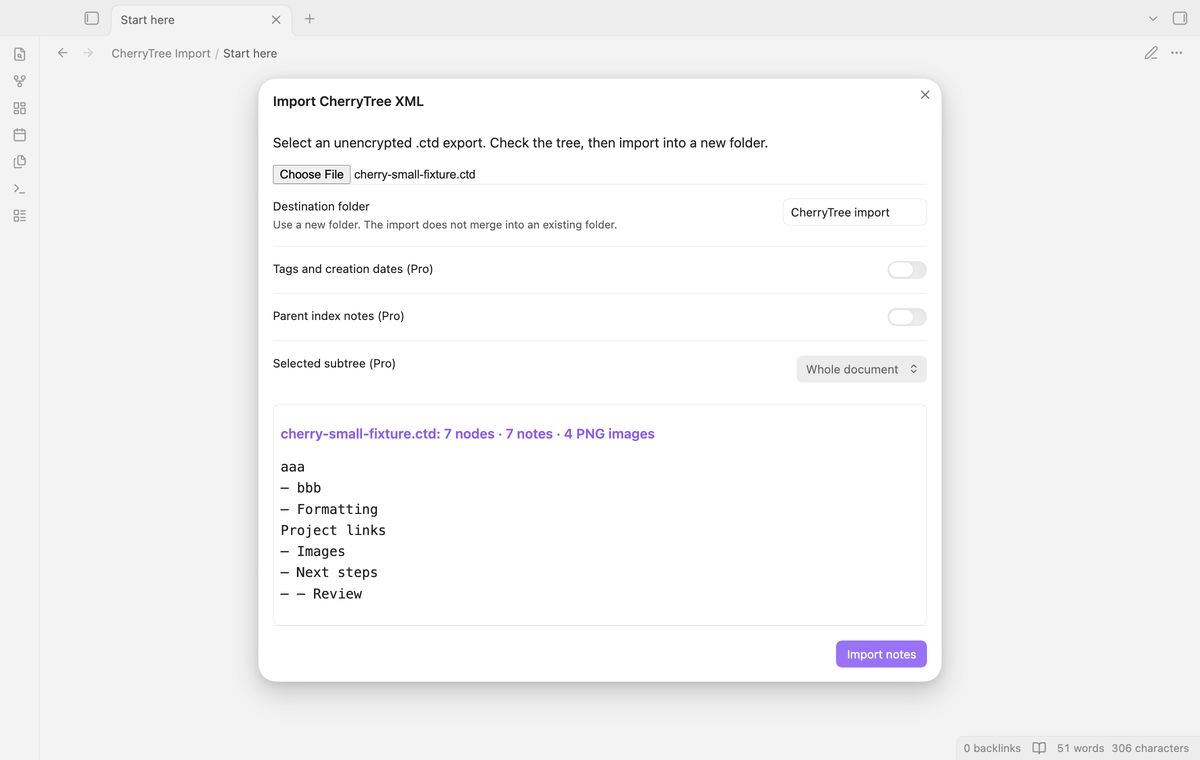
Each node becomes a note. A parent also gives its name to a folder for its children. In the sample, aaa.md is the parent note and aaa/bbb.md is its child. Safe Cyrillic names keep their letters. Forbidden filename characters become dashes, and duplicate sibling names get a number. Shared source nodes become separate notes with the shared text.
Rich text, code boxes and tables
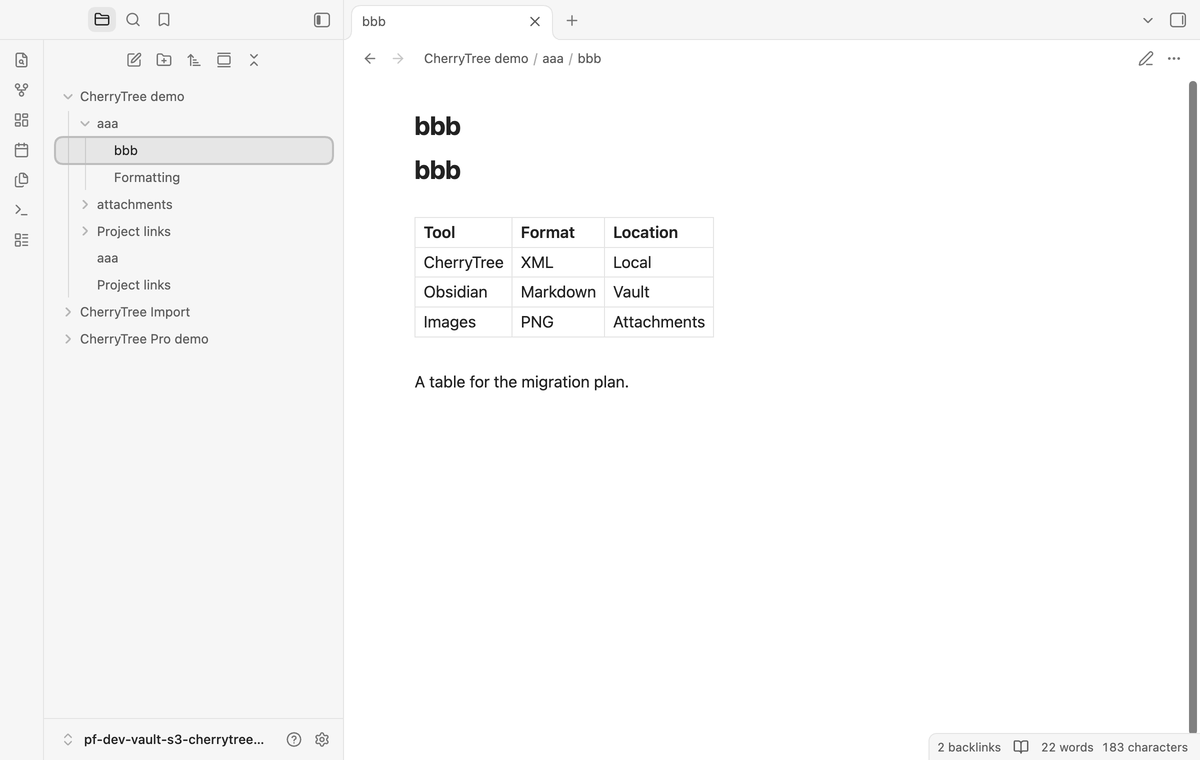
Bold, italic, and strikethrough use Markdown markers. Underline uses an HTML u element because Markdown has no underline marker. Heading scales from h1 to h6 become headings. Code boxes become fenced blocks with a language label. The last row of a CherryTree table becomes the header, followed by its data rows. Colors, fonts, and alignment are not reproduced.
Node, web and local file links
Node links use wikilinks with the imported target path and source label. Web links use Markdown links. Base64 file and folder paths become file: links; the plugin does not read those targets. A link to a missing or excluded node keeps its label and gives a warning. Web addresses must use HTTP or HTTPS to become links. CherryTree anchors are not kept. A link to an anchor opens the note that held the anchor, and the preview gives a warning.
Embedded PNG images
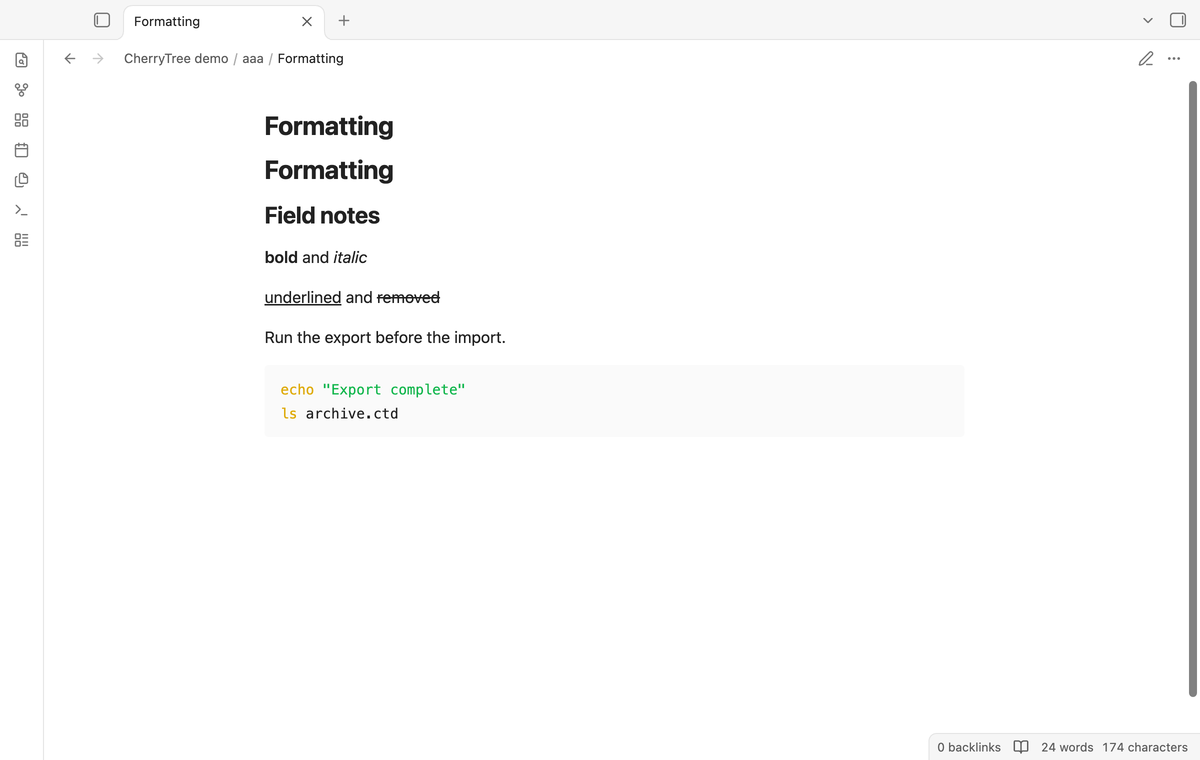
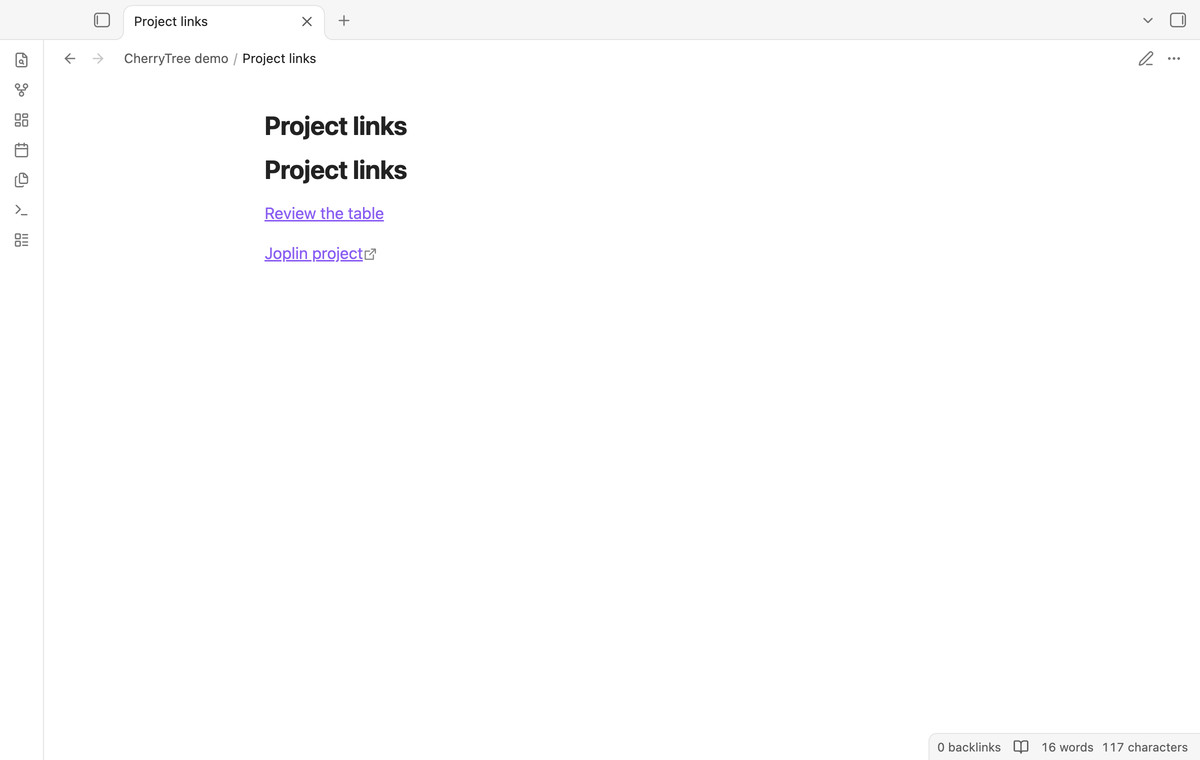
PNG objects become files in the destination's attachments folder. The note embeds those files at the source character positions. Image names contain a node id and an object number, so equal labels do not share an attachment path. PNG data with a bad signature gives a warning. LaTeX source is kept as a code block; other embedded attachment types are reported and are not saved.
Tags and creation dates (Pro)
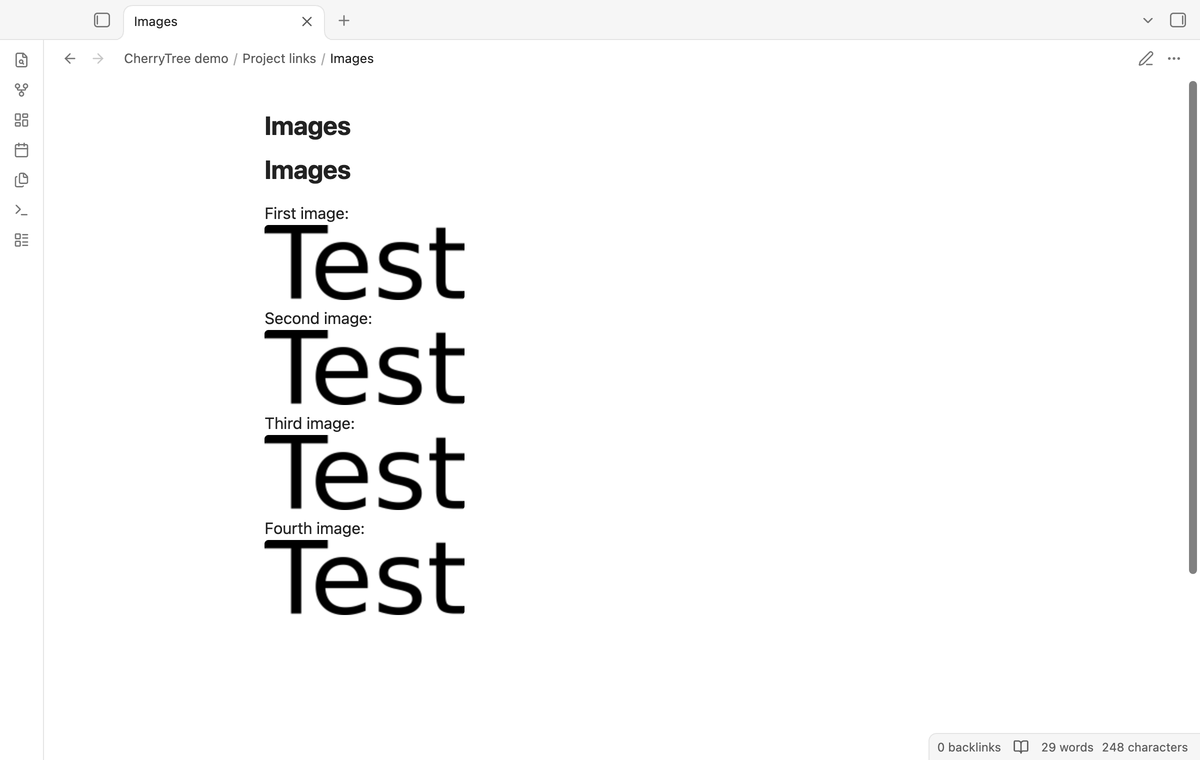
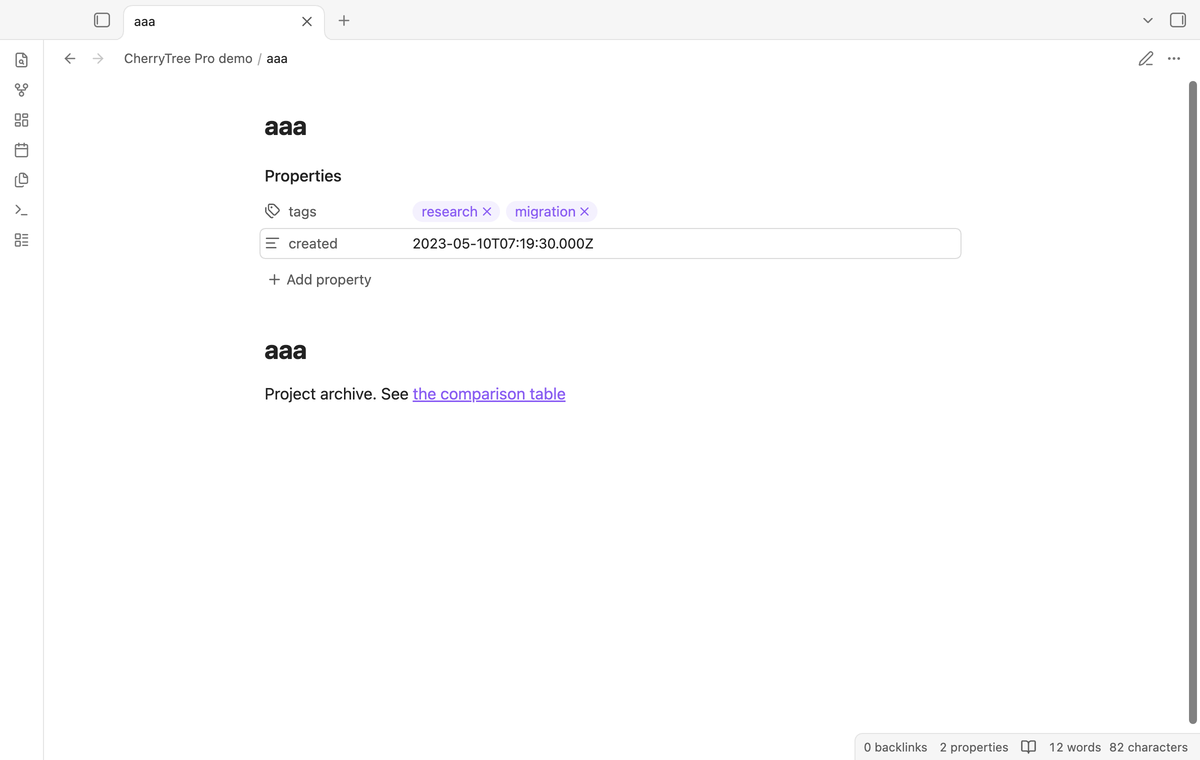
With this option enabled, node tags become frontmatter tags and a valid creation timestamp becomes a created property in UTC. Nodes without those values get no empty property block. The note body uses the same conversion as the free import.
Parent index notes (Pro)
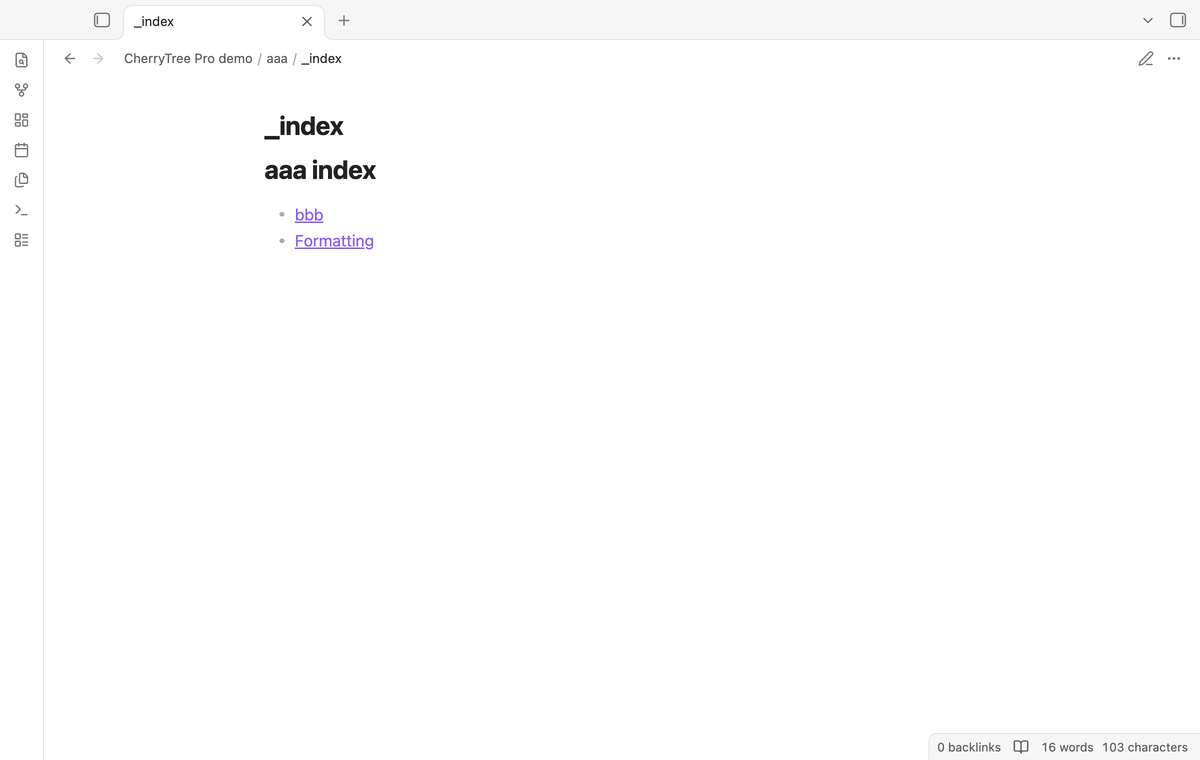
Add an _index.md note inside each imported parent folder. Its links point to the immediate child notes. The original parent note remains in the import, so its source text has its own place. A node without children does not get an index.
Selected subtree (Pro)
Choose a node in the dialog to import that node and its descendants. The folder paths keep the source ancestors, even when those ancestor notes are excluded. The preview counts change to match the selection. Use Whole document to return to the complete tree.
Install
For a manual install, copy main.js, manifest.json, and styles.css from the supplied build into .obsidian/plugins/cherrytree-import/ in your vault. Reload Obsidian and enable CherryTree Import under Community plugins. The minimum supported public app release is 1.13.4. This repository does not claim that a community listing is live.
Usage
Export the document from CherryTree as XML without a password. In Obsidian, run CherryTree Import: Import CherryTree XML from the command palette. Select the export, enter a new destination folder, and check the tree and warnings. Enable the Pro options if your account has Pro. Select Import notes, then open the result from the file explorer.
The destination must not exist. This rule prevents an import from merging into your existing notes. For another attempt, use a new folder name. If a write fails, the result can be partial. Check that folder before you retry. The source file is read and is not changed. The file picker can read an export from outside the vault to give the converter its XML input.
Settings
The Destination folder setting supplies the next dialog's default path. The dialog has separate controls for properties, parent indexes, and subtree selection. These controls are disabled while Pro is off. Sign in, refresh the sponsorship status, or sign out in the plugin's Pro section. A saved import option does not bypass the sponsorship check.
FAQ
Why does a .ctb file fail? It is a SQLite document. Export to .ctd with no password first. Encrypted files are outside the supported input format.
What limits apply? File selection allows up to 25 MB. The planner limits documents to 10,000 nodes and 100 tree levels. Documents with duplicate or missing ids, XML document types, or empty node trees are refused.
What was not tested? Physical Android and iOS devices, encrypted exports, very large production archives, and a live paid GitHub sign-in were not tested. Automated Pro checks use a fake token and a local reply. Windows and Linux app runs were not performed locally. Bookmarks, icons, search flags, font sizes, and color layouts are outside the conversion scope.
Payment, account and network
The core features are free. Pro features need a GitHub Sponsors sponsorship of theluckystrike: $5 a month or more, or $15 once. A total payment of $15 meets the payment requirement for Pro without further payment. Sign-in and the checks below still apply. Your notes stay readable and editable with or without Pro.
GitHub handles the payment. Sponsor at https://github.com/sponsors/theluckystrike. You need no account for the free features. Pro needs the GitHub account that sponsors.
Until you select "Sign in with GitHub" in the settings, CherryTree Import makes no network requests. Sign in uses the GitHub device flow. CherryTree Import sends its public client ID and the scope read:user to https://github.com/login/device/code and shows you a code. While you enter the code at https://github.com/login/device, it asks https://github.com/login/oauth/access_token every few seconds to check the sign-in status. The scope permits profile reads only. GitHub needs this access to show the sponsorship tier. It grants no repository scope and no write access.
After sign in, CherryTree Import sends one query to https://api.github.com/graphql. It checks if the signed-in account sponsors theluckystrike. It asks for the tier and the total payment to theluckystrike. The plugin reuses a successful check for 7 days. Failed checks can retry after 6 hours. Select Refresh to request an earlier check. It sends no note content, file names or other vault data, and it has no telemetry.
After a successful check, Pro can work offline for up to 14 days. Sign out or a negative sponsorship answer turns Pro off. The plugin stores the GitHub token through the secret storage API of Obsidian. It does not put the token in its saved settings or its local sponsorship data. The local storage of this device keeps your GitHub login, the tier and the time of the last check. Sign out clears the token. You can also revoke the access in your GitHub settings, under Applications.
Support
For help, contact theluckystrike through the product's GitHub page or notemods.com. Give the plugin version, app version, warning text, and a small example that you can share. Remove private note content from that example. This project uses the MIT license. The test folder records the public CherryTree sample sources and the changes made for the local fixture.
For plugin developers
Search results and similarity scores are powered by semantic analysis of your plugin's README. If your plugin isn't appearing for searches you'd expect, try updating your README to clearly describe your plugin's purpose, features, and use cases.