by theluckystrike
Convert TheBrain thoughts and links into linked Markdown notes.
TheBrain Import
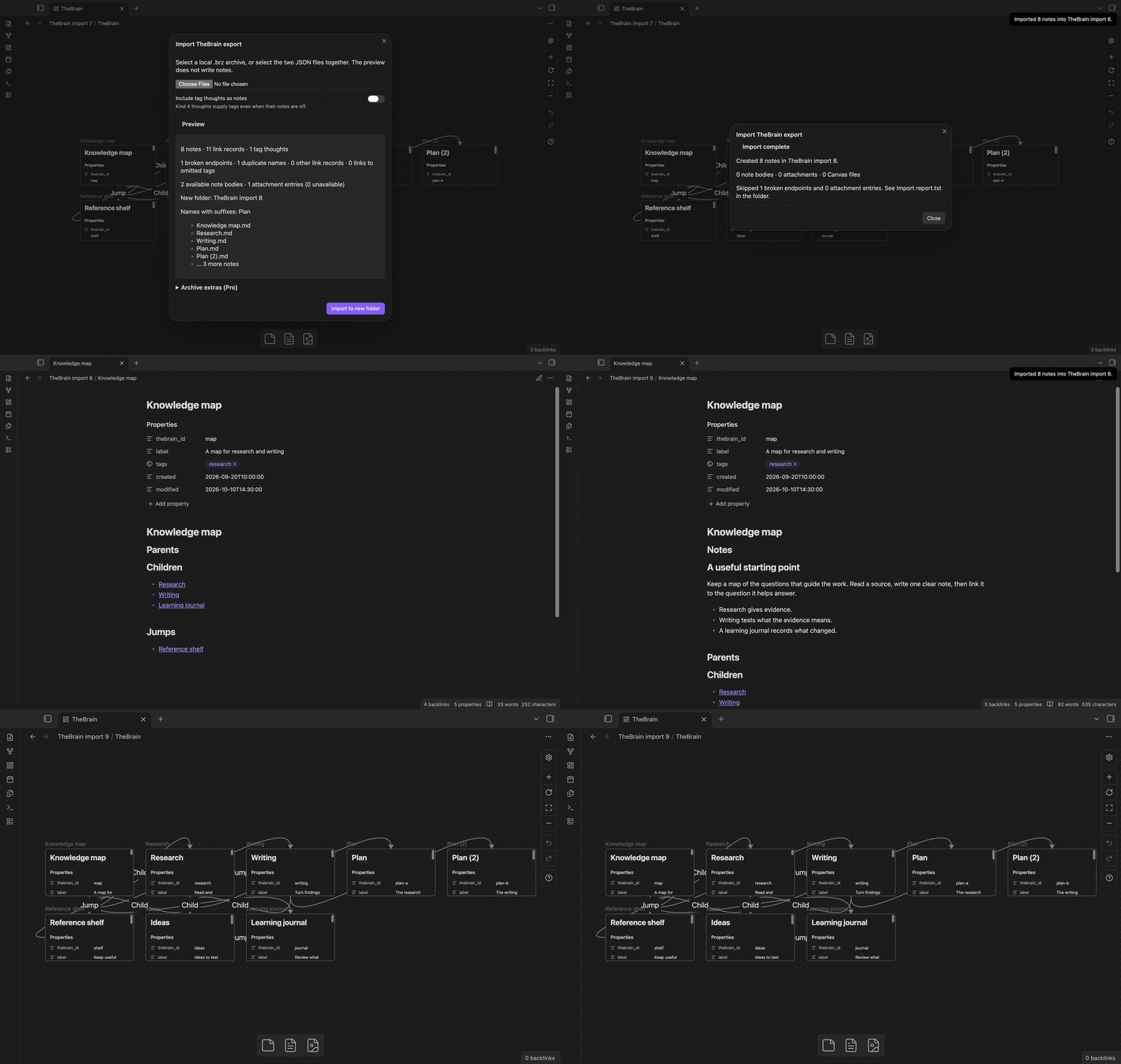
Convert TheBrain thoughts and links into linked Markdown notes. Select a local export, check the preview, then import it into a new vault folder. The note and link import is free. The optional Pro features add note bodies, attachment files and a Canvas file from the archive.
The plugin reads the files that you select through the file picker, including exports outside the vault. It does not scan folders on your device. Export content is processed locally. The plugin does not send thought names, source paths, note text or attachments to a network service.
Features
Select a local export
Choose one .brz archive, or select thoughts.json and links.json together. JSON input can be an array or one object per line. A leading UTF-8 BOM is removed. A .brz file must be a ZIP archive with the two JSON files at its root. Input files stay unchanged.
Check the preview
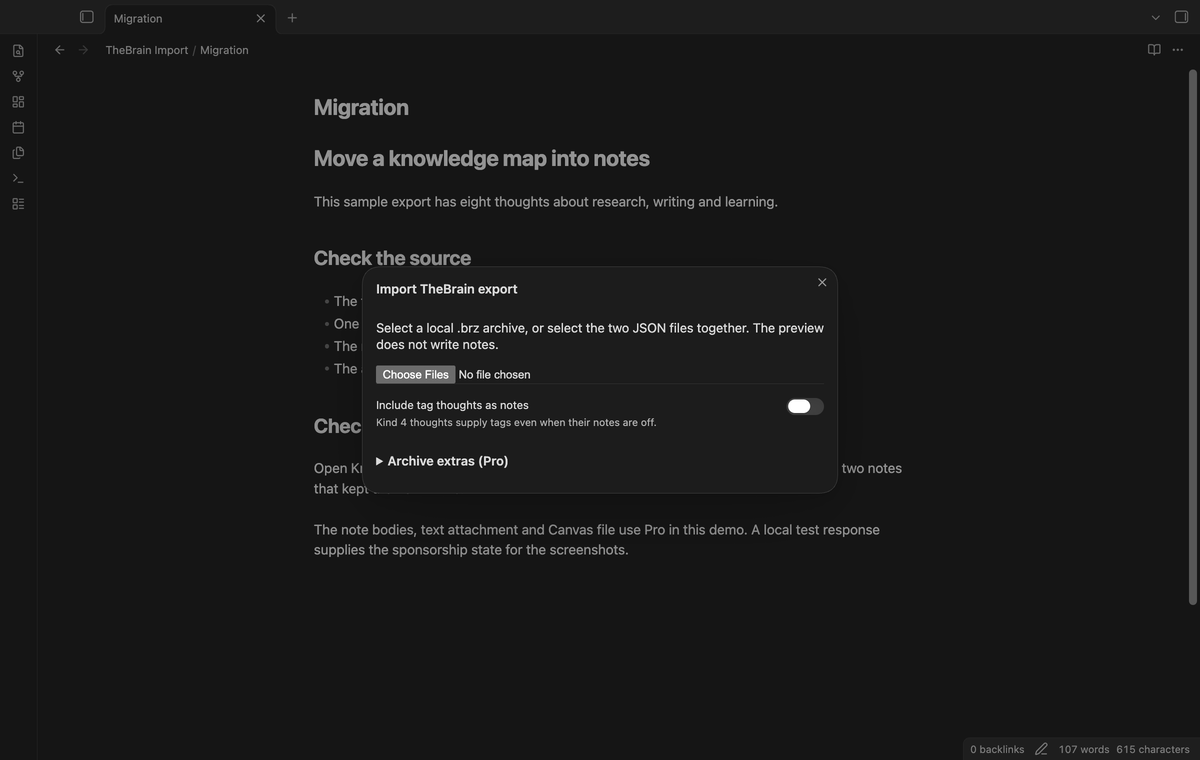
The preview shows the note count, link records, tag thoughts, duplicate names and broken endpoints. A broken endpoint is a thought ID that is absent from the export. Its link is skipped. Two absent IDs in one link count as two endpoints. Duplicate names get file suffixes. The preview lists names with suffixes and the first five output files. It also shows the new folder name before you start.
Keep thought properties
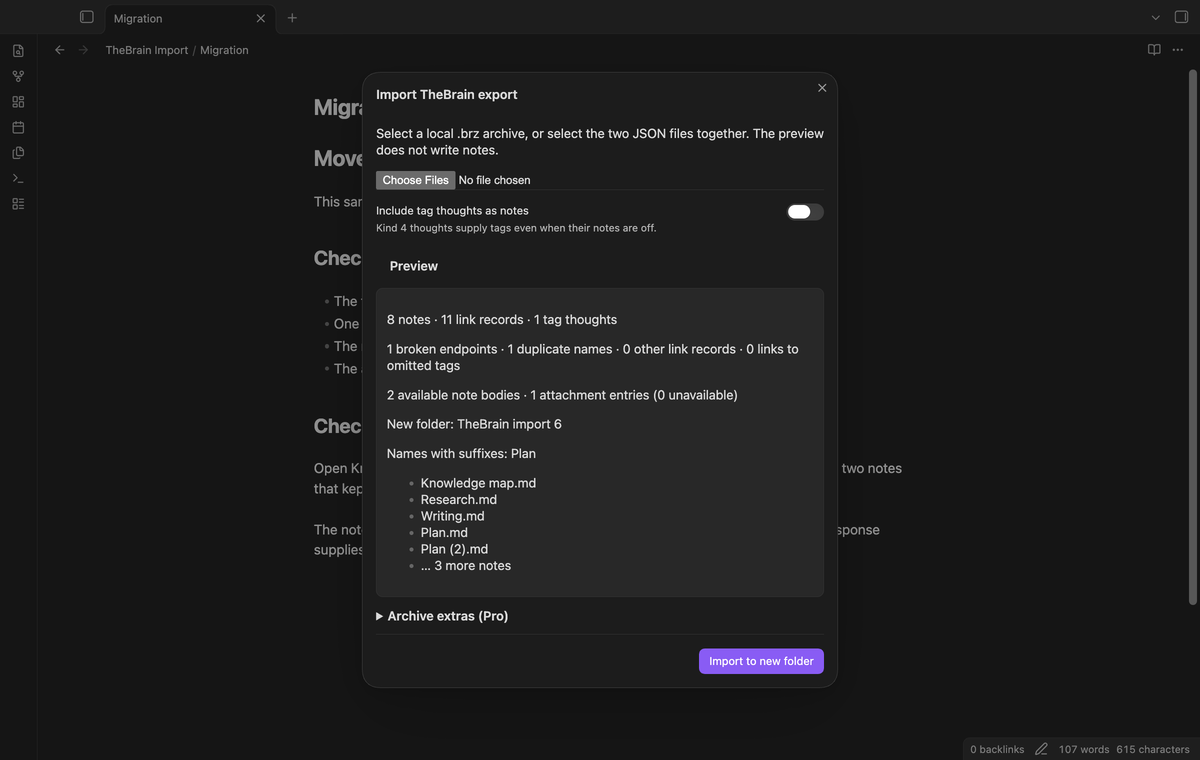
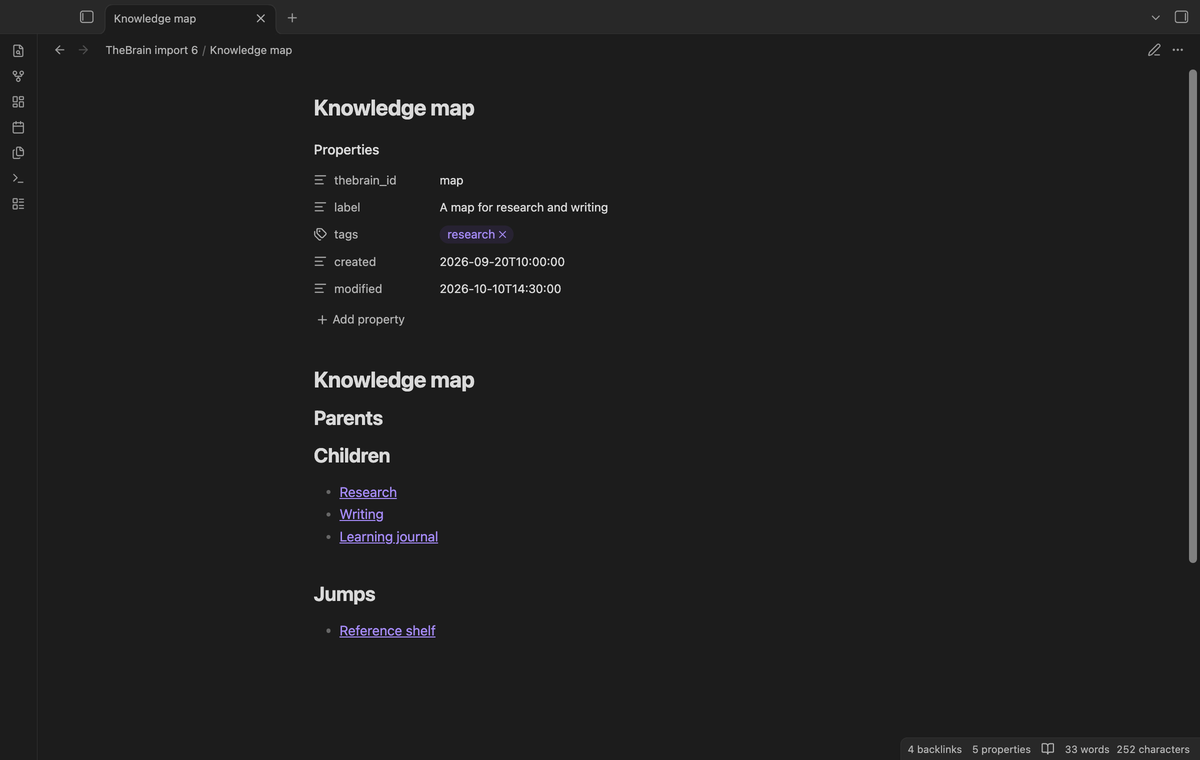
A note has thebrain_id, label, tags, created and modified frontmatter. Dates keep the source text. Missing labels or dates become empty strings. Tag IDs resolve to the names of Kind 4 thoughts. Spaces in tag names become dashes. Tag thoughts do not get their own notes unless you turn on that control. The original thought name becomes the note heading.
Follow parent child and jump links
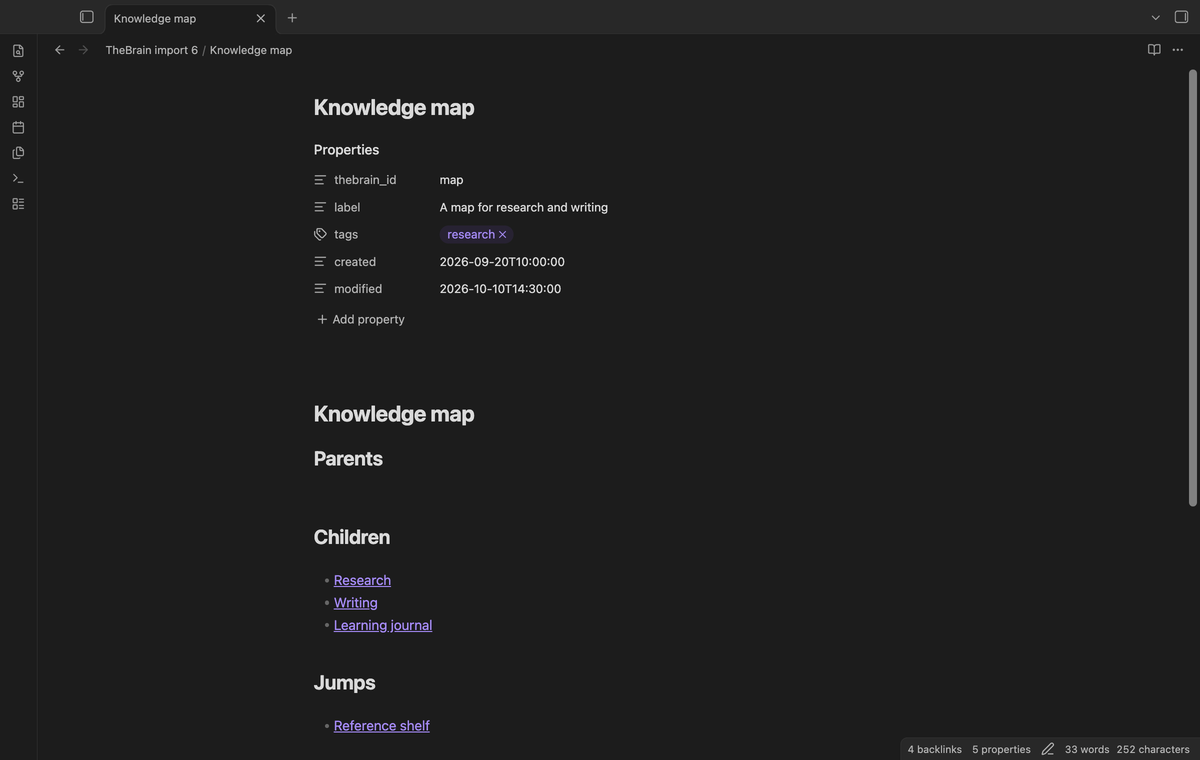
The fixed headings are Parents, Children and Jumps. Relation 1 from A to B puts B under Children in A, and A under Parents in B. Relation 3 puts a jump in both notes. Repeated relations make one line per target and heading. Cycles do not require a tree traversal. Links use the final file names and folder paths, so two thoughts called Plan can keep their own relations.
Get a new folder and count report
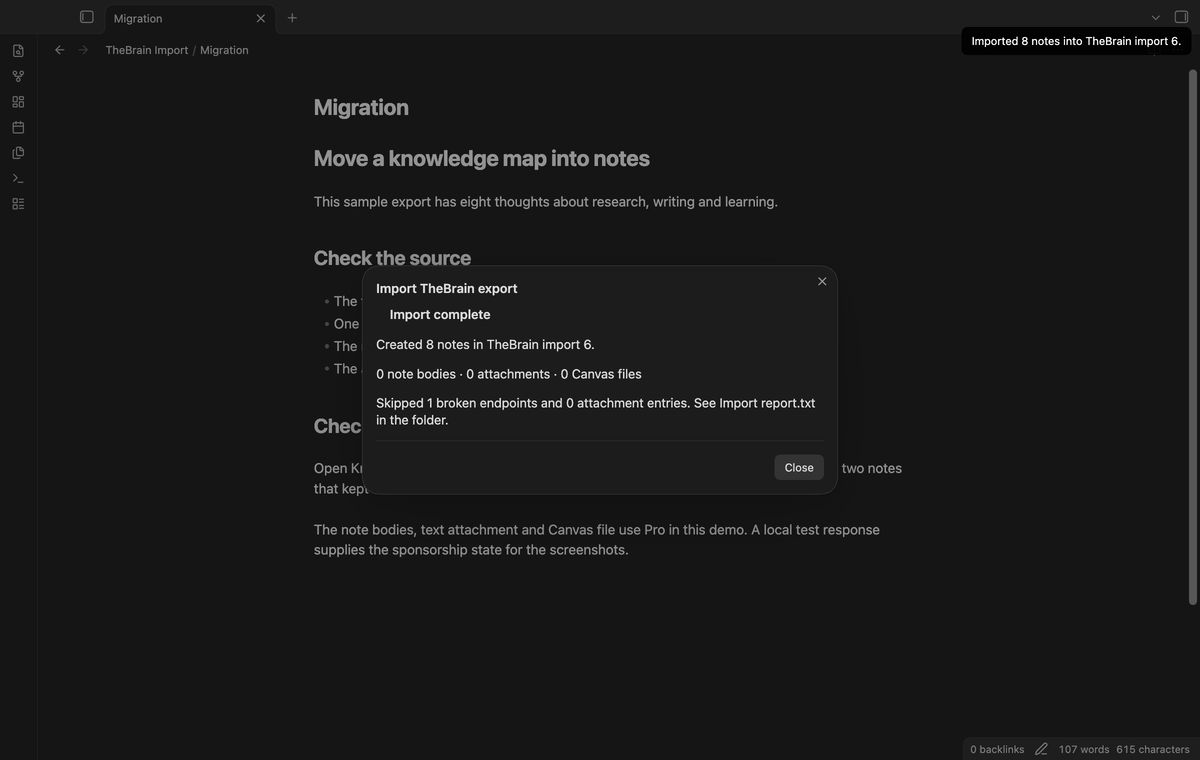
The first folder is TheBrain import. If that path exists, the next candidate is TheBrain import 2, then higher numbers. The importer creates files through the vault API. At completion, the dialog shows the note and extra counts. Import report.txt stores those counts in the new folder. A failed write shows the folder and the number of files completed. Check that folder before you retry.
Import note bodies (Pro)
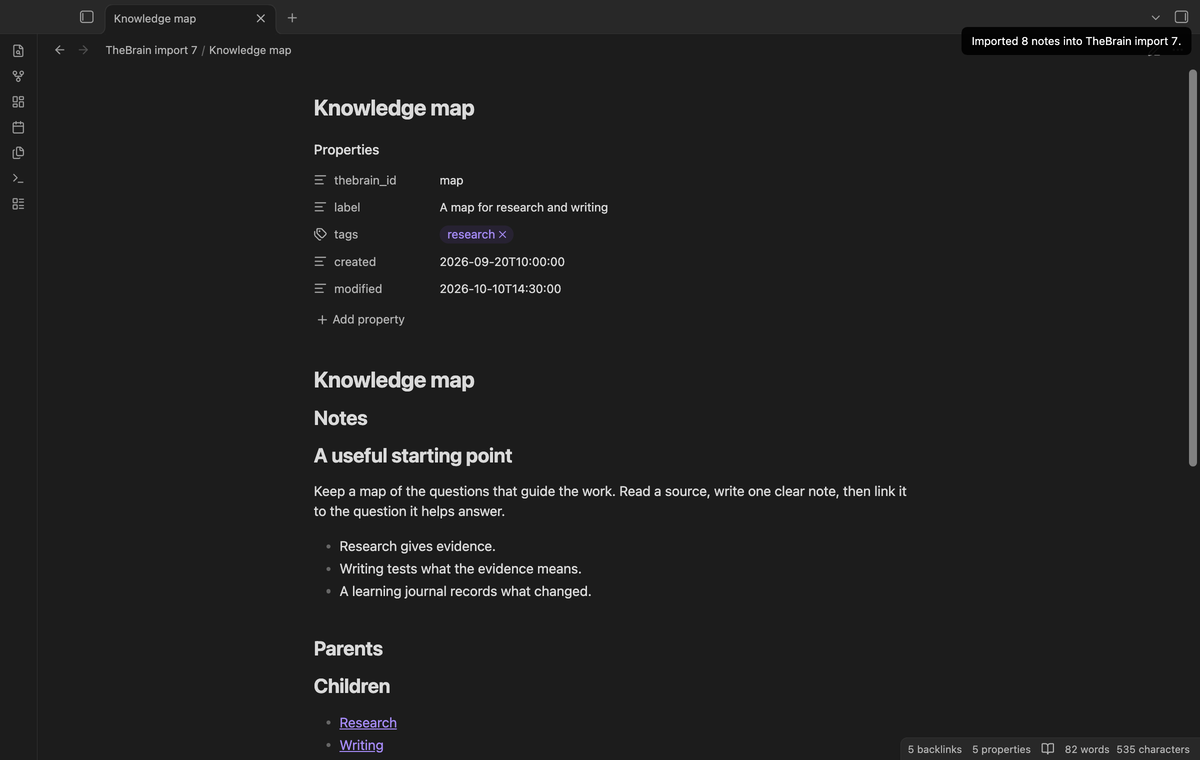
Turn on Note bodies to copy Markdown from <ThoughtId>/Notes/notes.md inside the archive. It appears under a Notes heading before the relation sections. Markdown text is preserved; relative image and attachment paths in that text are not rewritten. The preview shows how many nonempty bodies are available.
Copy attachment files (Pro)
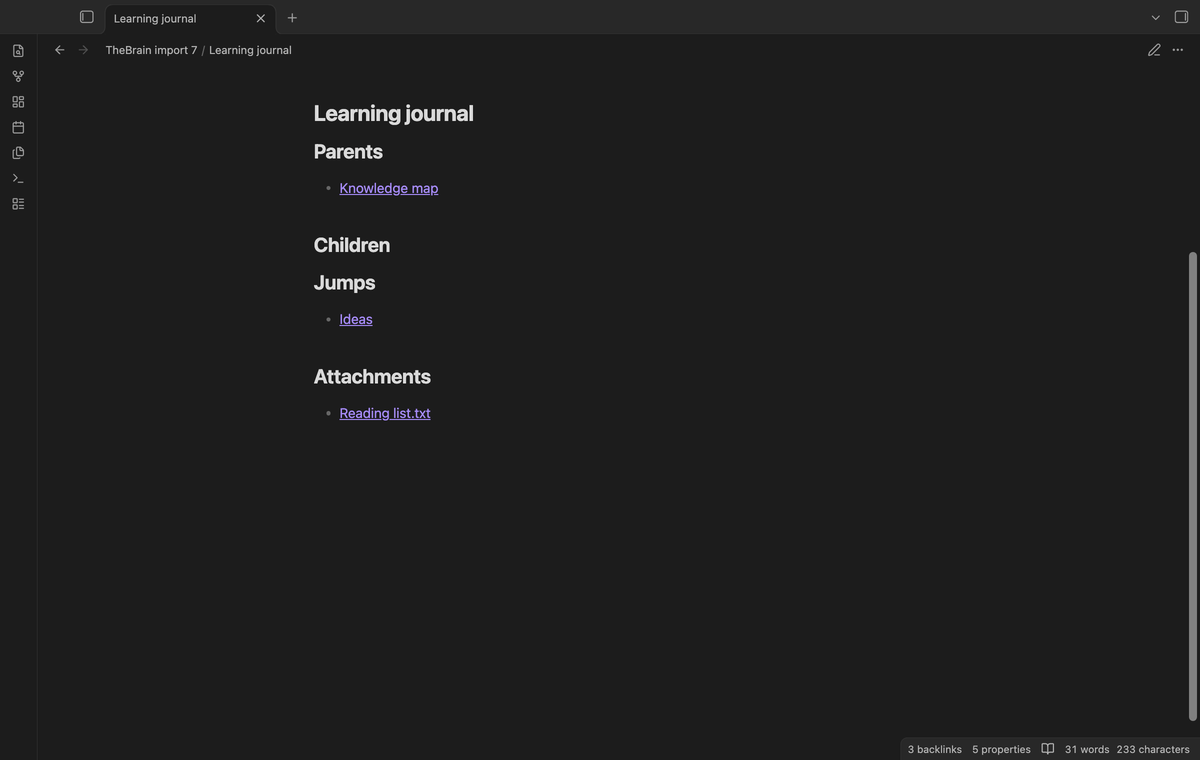
Attachment entries need a ThoughtId and a Name or FileName. A Path can name a relative archive member. Without Path, the importer tries the thought Attachments folder with the attachment Id and name. Matching files go into the new folder's Attachments subfolder. Their thought note gets attachment links. Missing entries and remote files are skipped and counted. The importer does not download remote attachments.
Create a Canvas file (Pro)
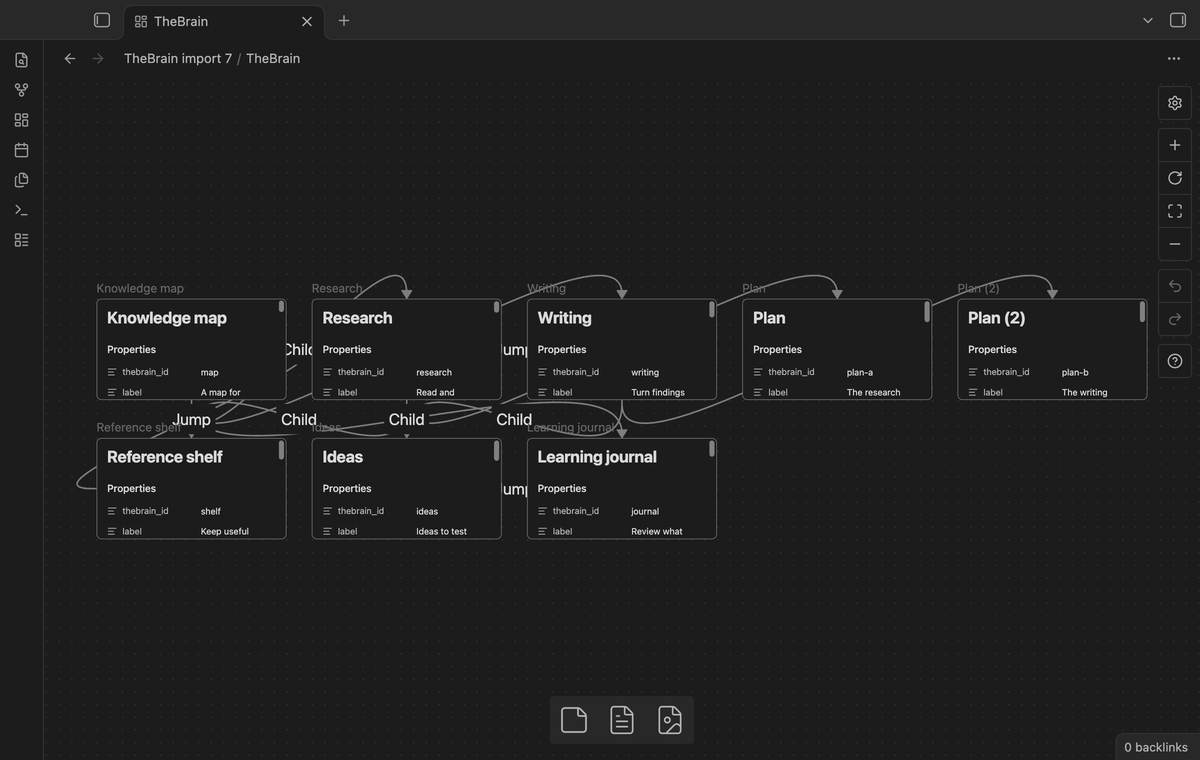
Turn on Canvas file to create TheBrain.canvas in the import folder. Notes become file nodes in a five-column grid. Child and jump relations become labeled edges. The grid uses source order; it does not reproduce TheBrain's layout. You can open the file with the core Canvas plugin and move the nodes.
Install
This source tree is a build for review. A community directory listing has not been submitted. For a manual install, build the standalone export and copy main.js, manifest.json and styles.css into <vault>/.obsidian/plugins/thebrain-import/. Enable TheBrain Import in Community plugins. The minimum version is Obsidian 1.13.4.
Usage
- Export the brain from TheBrain and keep a copy of the source files.
- Open the command palette and select "TheBrain Import: Import thoughts and links".
- Select the archive, or the two JSON files together. Check the counts and name changes.
- Choose whether tag thoughts should have notes. With Pro, expand Archive extras and choose the extra files.
- Select "Import to new folder". Read the report, then open the new notes.
A second run makes another folder. It does not update a previous import. The importer does not merge edits that you make after migration.
Settings
The plugin tab has the tag note control and the GitHub Sponsors section. The import dialog has the same tag control and three Pro toggles. A completed import saves those choices for the next run. Without Pro, the extra controls are disabled and the writer omits the extras. The free linked notes remain usable without sign-in.
FAQ
Which export versions were tested?
The tests use the public 2019 archive and JSON files from simoncos/thebrain2dot. The sample files carry Che Zhao's MIT license. The supplied JSON and archive contain the same 20 thought IDs, but one thought has different names. Each import preserves the name in its own source.
What was not tested?
A full export with bodies and attachments from a current TheBrain installation was not tested. Tests for those paths use local sample archives. The local app checks use macOS. Linux, Windows, mobile devices, large production exports and a live paid Sponsors account were not tested locally. Source rich text, icons and custom relation names are not imported. Relation codes outside 1 and 3 are counted and skipped.
What are the input limits?
Each selected file must be 50 MB or less. An archive must expand to 250 MB or less, with no entry above 50 MB and no more than 10,000 entries. Each JSON file has a limit of 10,000 records. Unsafe archive paths and duplicate thought IDs stop the preview.
Payment, account and network
The core features are free. Pro features need a GitHub Sponsors sponsorship of theluckystrike: $5 a month or more, or $15 once. A total payment of $15 meets the payment requirement for Pro without further payment. Sign-in and the checks below still apply. Your notes stay readable and editable with or without Pro.
GitHub handles the payment. Sponsor at https://github.com/sponsors/theluckystrike. You need no account for the free features. Pro needs the GitHub account that sponsors.
Until you select "Sign in with GitHub" in the settings, TheBrain Import makes no network requests. Sign in uses the GitHub device flow. TheBrain Import sends its public client ID and the scope read:user to https://github.com/login/device/code and shows you a code. While you enter the code at https://github.com/login/device, it asks https://github.com/login/oauth/access_token every few seconds to check the sign-in status. The scope permits profile reads only. GitHub needs this access to show the sponsorship tier. It grants no repository scope and no write access.
After sign in, TheBrain Import sends one query to https://api.github.com/graphql. It checks if the signed-in account sponsors theluckystrike. It asks for the tier and the total payment to theluckystrike. The plugin reuses a successful check for 7 days. Failed checks can retry after 6 hours. Select Refresh to request an earlier check. It sends no note content, file names or other vault data, and it has no telemetry.
After a successful check, Pro can work offline for up to 14 days. Sign out or a negative sponsorship answer turns Pro off. The plugin stores the GitHub token through the secret storage API of Obsidian. It does not put the token in its saved settings or its local sponsorship data. The local storage of this device keeps your GitHub login, the tier and the time of the last check. Sign out clears the token. You can also revoke the access in your GitHub settings, under Applications.
Support
The publisher is theluckystrike at notemods.com. For a bug report, include the app version, the report counts and a small export sample with private content removed. Check the limits above before reporting an unsupported export layout. Keep the original TheBrain export until you have checked the imported notes and links.
For plugin developers
Search results and similarity scores are powered by semantic analysis of your plugin's README. If your plugin isn't appearing for searches you'd expect, try updating your README to clearly describe your plugin's purpose, features, and use cases.