by Jesus
Enhance fenced code blocks with titles, copy/download actions, line numbers, and collapsible headers.
Code Block Pro
Make every fenced code block easier to read, copy, and share.
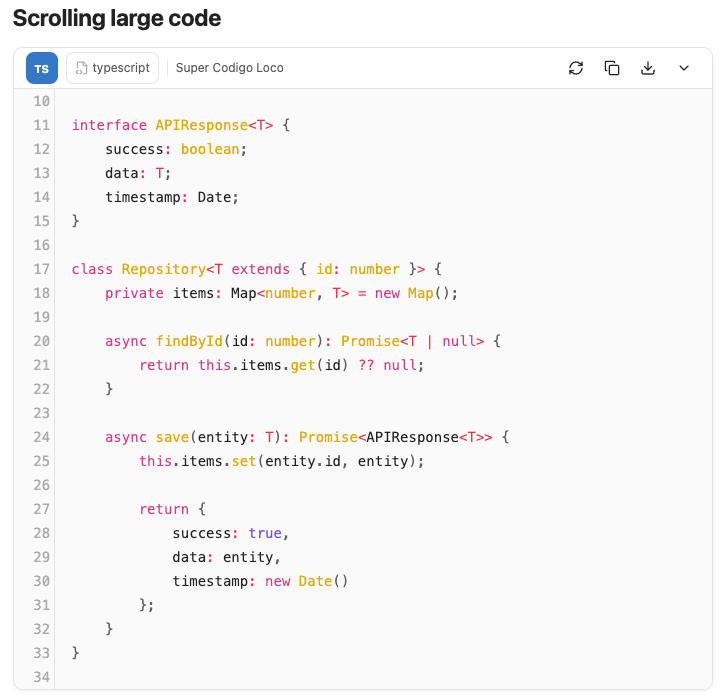
Code Block Pro adds a compact, theme-aware header to code blocks in Obsidian. Keep the language and optional block title visible, copy or download the exact code in one click, and keep long blocks readable with line numbers, scrolling, and collapse.
Download the latest release · Installation · Settings
Why Code Block Pro?
- Know what you're looking at. Language badge, icon, and an optional title taken directly from the code fence.
- Act without selecting code. Copy or download the exact code, without line numbers or fences.
- Keep long blocks under control. Line numbers, vertical scrolling, and one-click collapse.
- Stay in your workflow. Works in Reading View and Live Preview.
- Lightweight by design. No runtime dependencies, with theme-aware styling.
- Make it yours. Every control can be disabled independently, with configurable thresholds.
A closer look
Collapse long blocks
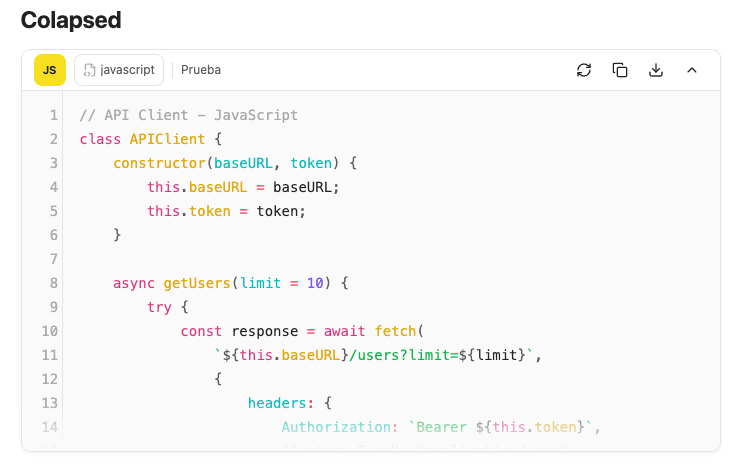
The header stays available while the body collapses to a configurable number of lines. Expand it again with the same control.
Download the exact code
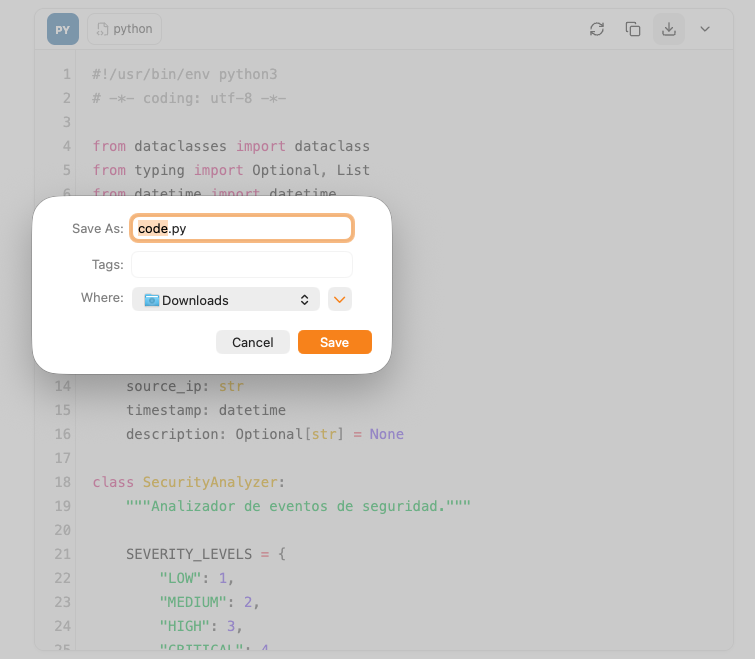
The fence language chooses the extension, such as code.py, code.ts, or
code.js. The downloaded file contains only the code: no title, line numbers,
or fences.
Tune every detail
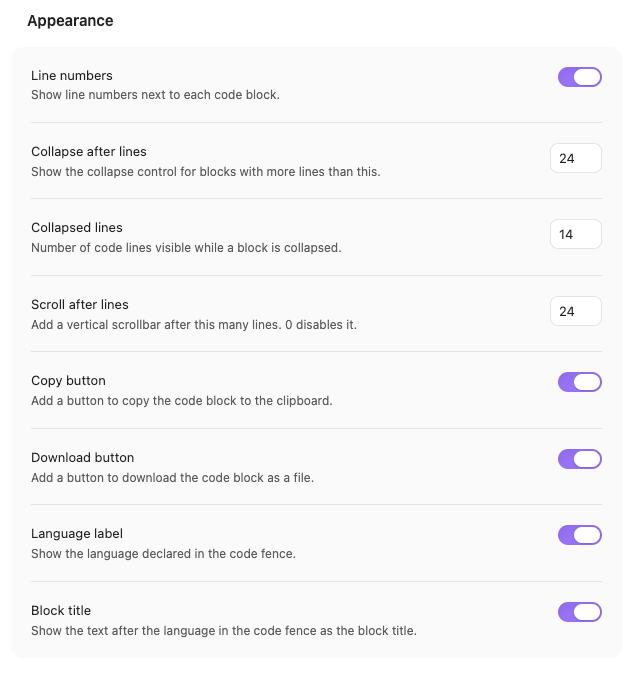
Configure line numbers, collapse and scroll thresholds, and which actions appear in the header. Copy, download, language label, block title, and line numbers can be disabled independently.
Features
- Compact header with a language badge, icon, display name, and optional block title.
- Optional block title from the text after the language in the fence, for
example
```javascript API client. - Copy icon with confirmation and screen reader feedback.
- Download button that saves the code block as
code.<language extension>. - Line numbers in Reading View and Live Preview, without changing the code or the copied text.
- Automatic line-number realignment when Obsidian reapplies a theme or CSS, plus a manual refresh control in Reading View.
- Collapsible long code blocks in Reading View, with configurable threshold and collapsed height.
- Optional vertical scrolling after a configurable number of lines in Reading View.
- Works in Reading View and Live Preview.
- Reading View supports fenced blocks inside callouts, blockquotes, and indented lists; Live Preview supports indented list fences.
- Theme-aware container, header, and controls built on Obsidian CSS variables.
- Copy, download, language label, block title, and line numbers can be disabled independently.
- Mermaid, Dataview, and DataviewJS blocks are left to their own processors.
Requires Obsidian 1.13.0 or later.
Installation
From the latest release
- Download
main.js,manifest.json, andstyles.cssfrom the latest release. - Create
<vault>/.obsidian/plugins/code-block-pro/if it does not exist. - Copy the three files into that folder.
- Reload Obsidian and enable Code Block Pro in Settings → Community plugins.
From source
-
Clone this repository into your vault's plugin folder:
cd /path/to/vault/.obsidian/plugins git clone https://github.com/jalvarado-it/obsidian-code-block-pro.git code-block-pro cd code-block-pro -
Install dependencies and build:
npm install npm run build -
Reload Obsidian and enable Code Block Pro in Settings → Community plugins.
Manual file copy
Copy main.js, manifest.json, and styles.css into
<vault>/.obsidian/plugins/code-block-pro/, then enable the plugin.
Development
npm install
npm run dev    # watch mode, rebuilds main.js on change
npm run build  # type-check and production bundle
npm run lint   # ESLint with eslint-plugin-obsidianmd
npm test       # Vitest unit tests
The build output is main.js, which is ignored by Git and attached to GitHub
releases instead.
Testing
npm test
Unit tests cover fence parsing, nested prefixes, title matching, language metadata, and settings normalization.
Local testing
Install the built plugin into a vault with symlinks, so npm run dev rebuilds
are picked up without reinstalling:
npm run build
npm run install:vault
The installer asks for the vault path. You can also pass it directly or use an environment variable:
npm run install:vault -- /path/to/vault
npm run install:vault -- /path/to/vault --copy
OBSIDIAN_VAULT=/path/to/vault npm run install:vault
Symlinks are the default. Use --copy for regular files instead (on Windows the
installer falls back to copying automatically if symlinks are unavailable).
After installing, reload Obsidian with Cmd/Ctrl+R or the Reload app without
saving command, then enable the plugin under Settings → Community plugins.
npm run deploy runs the build and then the installer.
Project structure
.
├── src/
│   ├── main.ts        # Plugin lifecycle, post-processor registration
│   ├── fence.ts       # Fence language and block title parsing
│   ├── language.ts    # Language names, icons, and ignored processors
│   ├── live-preview.ts # CodeMirror 6 extension for Live Preview
│   ├── processor.ts   # Reading view code block decoration
│   ├── toolbar.ts     # Shared header, actions, and collapse behavior
│   └── settings.ts    # Settings shape and settings tab
├── scripts/
│   └── install.mjs    # Local vault installer
├── screenshots/       # README screenshots
├── styles.css         # Scoped, theme-aware styles
├── manifest.json      # Plugin metadata
├── esbuild.config.mjs # Bundler configuration
├── version-bump.mjs   # Keeps versions.json in sync with npm version
└── versions.json      # Version to minimum app version map
Settings
| Setting | Default | Description |
|---|---|---|
| Line numbers | On | Show line numbers in a gutter. Numbered reading view blocks scroll horizontally instead of wrapping. |
| Collapse after lines | 24 | Show the collapse control for blocks with more lines than this. |
| Collapsed lines | 14 | Number of code lines visible while a block is collapsed. |
| Scroll after lines | 24 | Add a vertical scrollbar after this many lines. Defaults to the same value as Collapse after lines. 0 disables it. The effective height is at least Collapsed lines. |
| Copy button | On | Add a button to copy the code block to the clipboard. |
| Download button | On | Add a button to download the code block as a file (code.<ext>). |
| Language label | On | Show the language declared in the code fence. |
| Block title | On | Show the text after the language in the code fence as the block title. |
Releasing
- Bump the version with
npm version patch|minor|major. - Push the commit and the signed tag.
- The Release workflow builds the plugin, verifies the tag against
manifest.json, generatesSHA256SUMSand the release notes, attests the build, and creates the GitHub release withmain.js,manifest.json,styles.css, the SBOMs, and the checksums.
Locally, npm run checksums and npm run release-notes generate the same
release metadata.
Security
The plugin has no runtime npm dependencies. Obsidian and CodeMirror are provided by the host application, and stored settings are validated against a known boolean schema before use.
npm audit             # dependency vulnerabilities
npm run sbom          # CycloneDX / build and test dependencies
npm run sbom:spdx     # SPDX
npm run sbom:runtime  # runtime-only CycloneDX
The generated sbom.cdx.json, sbom.spdx.json, and sbom.runtime.cdx.json
files describe the dependency graph used to build and validate the plugin.
License
MIT © 2026 Jesus Alvarado
For plugin developers
Search results and similarity scores are powered by semantic analysis of your plugin's README. If your plugin isn't appearing for searches you'd expect, try updating your README to clearly describe your plugin's purpose, features, and use cases.