Code Suite
approvedby felixleopold
Execute code inside your notes: Shiki syntax highlighting with 65+ themes, live streaming output, inline Matplotlib and Plotly graphs, shared variables, and styled HTML and PDF export with outputs. - This plugin has not been manually reviewed by Obsidian staff.
CodeSuite
Execute code inside your notes — a notebook that lives in plain Markdown.
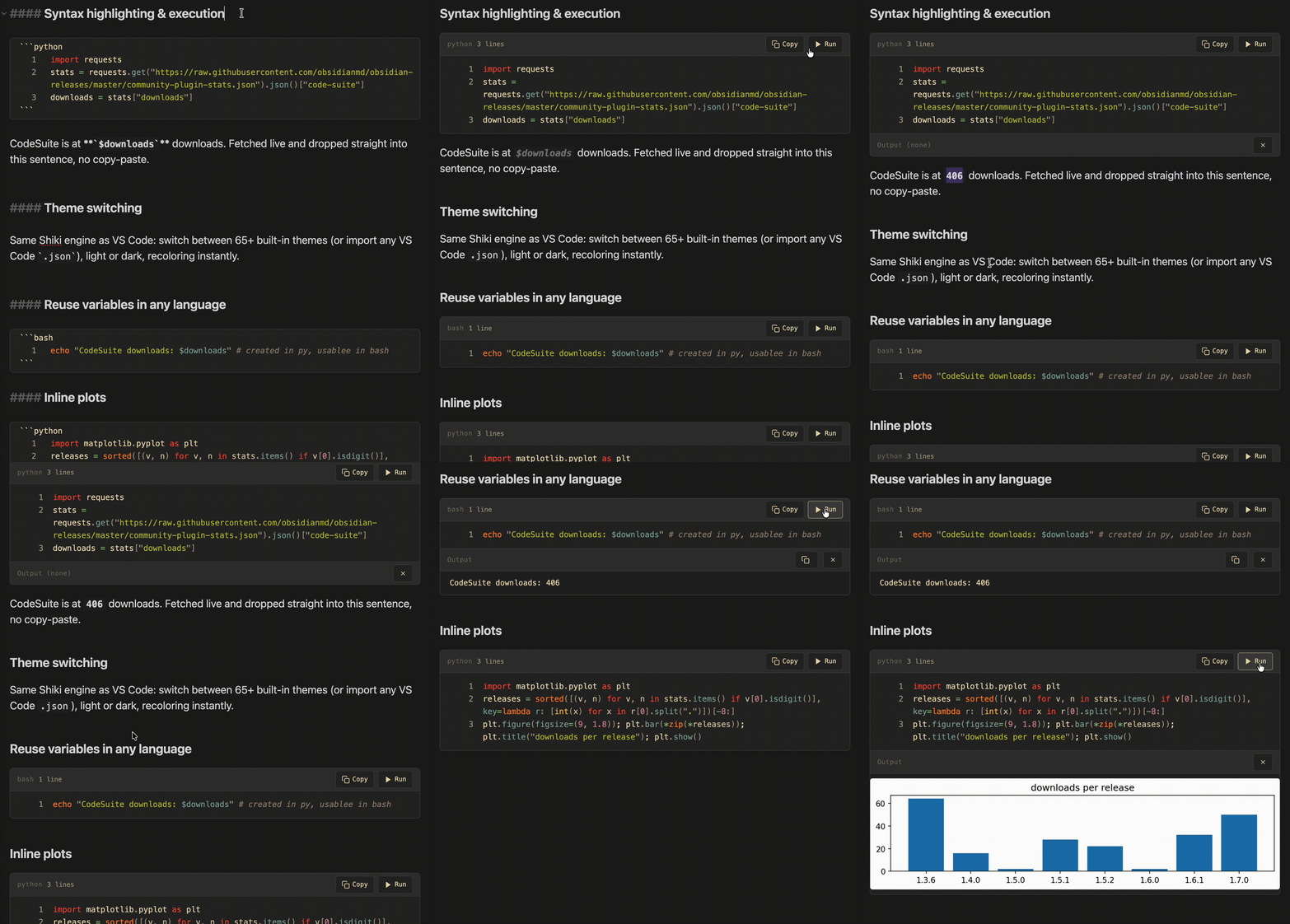
VS Code–quality syntax highlighting, live code execution with streaming output, shared variables across blocks, inline graphs, and styled HTML/PDF export — all in a plain-text .md file you can version, diff, and edit anywhere. No kernel, no .ipynb, no server.
At a glance
| Feature | What it does | |
|---|---|---|
| 🎨 | Syntax highlighting | Shiki (the VS Code engine) — 65+ themes, import any VS Code .json theme, in Reading view, Live Preview and Source mode |
| ▶️ | Live code execution | Run Python, JS/TS, Bash, Go, Ruby, PHP, and 8 more — output streams live, with interactive stdin and cancel |
| 📈 | Inline graphs | plt.show() / fig.show() render below the block — Matplotlib as images, Plotly as interactive widgets |
| 🔗 | Notebook variables | Shared state across blocks; declare note-wide vars; reference any value inline in prose with `$varname` |
| 📎 | Embedded files | ![[script.py]] becomes a collapsible, highlighted, runnable block; open vault code files in a lightweight editor |
| 🔁 | Jupyter import/export | Convert .ipynb notebooks to/from notes — round-trips multi-language blocks correctly |
| 📄 | HTML / PDF export | Export a note with its code outputs (text, images, plots) to a self-contained, theme-matched file |
🎨 Highlight
Powered by Shiki — the exact same engine VS Code uses internally.
- 65+ built-in themes — Gruvbox, Catppuccin, Dracula, Nord, Tokyo Night, One Dark Pro, Rosé Pine, Kanagawa, Everforest, Solarized, Night Owl, Synthwave '84, and many more
- Import any VS Code theme — load a
.jsonfile from vscodethemes.com or exported directly from VS Code - Auto light/dark switching — set a separate theme for each mode; CodeSuite switches when Obsidian's appearance changes
- 36+ languages with common aliases (
py,js,ts,rb, …) - Editor highlighting — full token colors in Live Preview and Source mode via a CodeMirror 6 ViewPlugin, not just in Reading view
- Full chrome in Live Preview — code blocks and
![[file.py]]embeds render with the same header, Run/Copy buttons, live output, line numbers, and collapse as Reading view. The block your cursor is in reveals its raw source for editing; every other block shows the rendered chrome, with running output preserved as you move around
Per-block formatting
Add space-separated attributes after the language on the opening fence:
```python title="data_pipeline.py" {3, 7-10} showLineNumbers static
# Highlighted code, with no Run button
```
| Attribute | Effect |
|---|---|
static | Keep syntax colors and block styling, disable Run and exclude the block from Run All |
title="My Script.py" | Show a title in the header, preserving spaces and case |
showLineNumbers / hideLineNumbers | Override the global line-number setting |
{1, 5-10} | Highlight the specified lines, numbered from 1 |
ins={3} / del={7-10} | Highlight inserted lines green or deleted lines red |
collapse | Start the block collapsed |
Boolean options accept =true or =false. ln=true / ln:false are aliases for line numbering, and fold=true / fold:false control collapse. Existing collapsed and expanded flags still work. Per-block values override the global defaults; static=false makes a block runnable when Static blocks by default is enabled, provided execution is enabled globally. Static HTML blocks also suppress live previews.
Titles and initial collapse apply in Reading View and Live Preview. Line backgrounds and numbering also appear while editing source. A diff block automatically colors + and - lines, excluding +++ / --- file headers. Explicit line ranges take precedence, with deletion over insertion over ordinary highlighting. Invalid range entries are ignored.
Ordinary inline code receives stronger styling, configurable with Enhanced inline code styling. Add a language prefix for syntax colors, for example `{python} result = df.groupby("region").sum()`. Reading View hides a recognized prefix; the editor retains it for editing and highlights single-line spans. Unknown prefixes and existing `$variable` references retain their meaning. Inline syntax highlighting controls language-aware coloring separately.
Inspired by mProjectsCode’s Shiki Highlighter, Expressive Code by Hippo, and Codeblock Customizer.
▶️ Run
Run code directly from a code block — no terminal, no switching apps.
| Language | Command | Notes |
|---|---|---|
| Python | python3 | Matplotlib & Plotly graph capture, venv support |
| MATLAB | python3 + matlabengine + MATLAB | Persistent, isolated session per note; inline PNG figures |
| JavaScript | node | Shared variables and functions across blocks |
| TypeScript | npx tsx | |
| Bash | bash | Shared variable state across blocks |
| Zsh | zsh | Shared variable state across blocks |
| Shell | sh (POSIX) | shell and sh fences both run POSIX sh; source-file startup support |
| PowerShell | pwsh | macOS/Linux/Windows when PowerShell 7+ is installed |
| Go | go run | |
| Ruby | ruby | |
| Lua | lua | |
| Perl | perl | |
| R | Rscript | |
| PHP | php | Automatically prepends <?php for snippets that omit the opening tag |
| Swift | swift |
matlab fences share a base workspace within one note and stay isolated from every other note. Configure a Python interpreter whose matlabengine package matches your installed MATLAB release; see the configuration reference.
- Live streaming — stdout and stderr appear as the process runs, not after it finishes
- Interactive stdin — an input bar appears automatically when your code calls
input()or reads from stdin - Password masking —
sudois detected automatically; the input bar masks characters for sensitive prompts - Inline graphs —
plt.show()andfig.show()are intercepted without a display server. Matplotlib figures render as static images; Plotly figures render as interactive HTML widgets (zoom, pan, hover, legend toggles). Click a plot for full-screen view; hover an image for copy/download buttons. Toggle interactivity and offline Plotly.js embedding in settings. By default plots use Matplotlib's own look — to theme every plot (e.g. to match a dark vault), set Settings → Python → Matplotlib style to a built-in style name such asdark_backgroundorseaborn-v0_8-darkgrid, or an absolute path to a.mplstylefile
More execution options — venv, PHP snippets, shells, interpreter paths
- Virtual environment support — point the Python path to a venv binary; CodeSuite sets
VIRTUAL_ENVand prependsbin/toPATHso all venv packages are available across every language block - PHP snippet mode — PHP blocks can omit the opening
<?phptag; CodeSuite adds it only to the temporary execution file - Shell startup support — Bash/Zsh can run as login shells, and Bash/Zsh/Shell blocks can source one or more startup files before your snippet runs
- Explicit interpreter paths — pin exact binaries for bash, zsh, and sh/shell under Settings → Environment; useful if Obsidian's PATH differs from your terminal's, or to point
shellblocks at a modern bash - Environment management — combine a shared
.envfile with per-vault overrides, source shell startup files, run Bash/Zsh as a login shell, or pin exact interpreter paths
🔗 Notebook mode: shared variables & Run All
Each note maintains an in-memory execution session — notebook-style shared state, scoped per note and held in memory.
MATLAB uses native persistent state: variables, imports, the current directory, path changes, and registered functions remain in that note's Engine regardless of the Shared execution context toggle. Idle Engines close after a configurable timeout to release memory. MATLAB does not participate in CodeSuite's cross-language variable bridge.
- Shared state across blocks — variables, imports, and function definitions carry over between runs (Python, JavaScript, Bash, and Zsh)
- Live cross-language variables — a shared variable changed by one block is visible to later blocks in any language, in execution order. Set
count = 42in Python and a later Bash block sees42; change it in Bash and the next Python block sees the new value. Scalars and JSON structures cross languages; rich objects (functions, DataFrames) stay within their language. See Variable typing & the execution model. - Inline
$varnamesubstitution — write`$result`anywhere in your note; it updates live in Reading view after each run - Run All — runs every executable block top-to-bottom, stopping on the first error; the view scrolls along and highlights the executing block. Skip a block with a
skipfence tag or acodesuite:skipcomment marker - Queued runs — with shared context on, clicking Run on several blocks queues them in click order; a queued block's button shows Queued (click again to cancel)
- Clear Session / Copy output — reset accumulated state or copy any successful run's output from the note header
vars blocks & code_vars: frontmatter — typed, note-scoped variables
vars blocks declare note-scoped variables once; they are injected into every run as native, correctly-typed literals:
```vars
threshold = 0.85          # float
crawl_depth = 5           # int
download_assets = True    # bool
base_url = "https://x"    # string (one layer of quotes stripped)
dataset = sales_q4.csv    # bare text is a string too
```
Types are inferred from how each value is written, so in Python crawl_depth is an int, download_assets is a bool, and base_url is a clean string.
code_vars: frontmatter declares the same variables in YAML when you prefer note metadata over a fenced block:
---
code_vars:
  threshold: 0.85
  dataset: sales_q4.csv
---
A nested mapping like this shows an "unsupported property type" warning in Obsidian's Properties panel. CodeSuite hides that warning and, by default, renders the values as a read-only CodeSuite variables list just below the Properties widget. Turn the CodeSuite variables panel setting off to hide the list too, or write code_vars as a list of key = value strings (- threshold = 0.85), which Obsidian renders natively.
A vars block in the body wins if both define the same key.
State is per-note, lives only in memory, and resets when Obsidian is closed. For the full details on variable types, :type hints, multiline strings, cross-language propagation, and the execution model, see docs/variables-and-execution.md.
📎 Embed & render
Embedded code files — embed any code file from your vault with ![[file.py]] and get a full syntax-highlighted, interactive block instead of plain text:
- Collapsible by default — header shows the filename and line count; click to expand
- Supports Run, Copy, and all execution features just like inline blocks
- Inline blocks can also be made collapsible from settings — useful for long preludes you only want to skim
Vault code files & external aliases — enable Settings → CodeSuite → Show code files in the file explorer (on by default) and Obsidian surfaces every supported code extension (.py, .js, .ts, .sh, .go, .rb, …) in the file explorer:
- Syntax-highlighted preview mode (Shiki, same theme as your code blocks)
- Switch to edit mode for a lightweight in-vault editor (2-space tab insertion, autosave)
- A Run button for any executable language with live streaming output and Cancel support
- Import code file as alias… (command palette) symlinks an external file into your vault under Imports folder (default
CodeSuiteImports/) — edits write through to the real file on disk
HTML live preview — render html blocks as live HTML in a sandboxed iframe
Render an html code block as live HTML instead of showing its source.
```html preview
<div style="padding:8px;border-radius:6px;background:#83a598;color:#1d2021">
  Rendered inline ✨
</div>
```
- Per-block flags on the fence info string:
preview(orrender) forces live preview;source(orraw/code) forces the source view - Global default — toggle Render HTML blocks in settings to preview every
htmlblock automatically - Preview/Code toggle — eligible blocks get a header pill to flip between rendered output and source
- Embedded
.htmlfiles — pass the flag in the embed alias:![[page.html|preview]]or![[page.html|source]] - Full documents —
<head>,<style>, and<script>all work; a<!DOCTYPE html>page renders as-is, a bare fragment inherits your Obsidian theme
The HTML renders in a sandboxed iframe (
sandbox="allow-scripts", no same-origin). Scripts run and styles apply, but only inside the frame — they cannot reach your vault, the rest of the app, or Obsidian's API.
Export a block to PDF (invoices, reports, certificates) — turn on PDF export for HTML blocks in settings and rendered html blocks get a PDF pill that opens a menu:
- Save as PDF… — renders just that block on an A4 page and saves it next to the note (
<note name>.pdf), ideal for archiving an invoice into its folder - Print… — opens the system print dialog for the block alone
Both honour the block's own CSS, including @media print rules, and lay it out on A4 with comfortable margins. Opt a single block in or out with a pdf (or nopdf) fence flag — pdf alone also renders the block — so you don't need the global setting on:
```html pdf
<div class="invoice">…</div>
```
Desktop only (both paths need Electron).
Data-driven documents (invoices, reports) with template — add a template flag and an html block becomes a template: it interpolates the note's frontmatter, includes a shared layout/CSS partial, and loops over a list. Keep one invoice.html partial and fill it per note — then the PDF pill exports it.
```html template pdf
{{> invoice }}
```
invoice_number: "2026-002"
client_name: "Muster GmbH"
items:
  - { description: "Wartung & Server", amount: 120 }
amount_net: 120
template_context:
  biz: "[[Business Config]]"
{{ field }}interpolates (HTML-escaped;{{{ }}}or| rawfor trusted markup);{{ amount | eur }}and| dateformat while frontmatter stays raw and Dataview-queryable{{> partial }}pulls in shared layout/CSS from your imports folder;{{#each items}}…{{/each}}loops;{{#if}}drops empty rowstemplate_context:exposes another note's frontmatter under a namespace ({{ biz.biz_iban }}) — changeBusiness Config.mdonce, every invoice updates- Opt-in — the
templateflag, or the HTML block templating setting for any{{-containing block. Off by default so framework demos that use{{ }}render literally
…or template an embedded file — keep the layout in a standalone .html file and embed it; the file is templated against the embedding note. Cleanest for one-file documents like invoices — the note holds only data and one line, no fenced block needed:
![[invoice.html|template pdf]]
The same engine, flags (template / notemplate / pdf), and global settings apply.
Full syntax reference: HTML Templating. A copy-paste starter lives in examples/invoice/.
🔁 Share: import & export
Move work between CodeSuite and the Jupyter ecosystem, or share a polished copy of a note. All four commands live in the command palette (desktop only).
Jupyter notebooks (.ipynb)
- Import Jupyter notebook (.ipynb)… — code cells become fenced code blocks in the notebook's language; markdown cells become note prose. Notebooks import unrun so you re-run blocks in CodeSuite.
- Export note to Jupyter notebook (.ipynb) — every executable block becomes a code cell; blocks in a non-dominant language carry a
metadata.vscode.languageIdtag so VS Code renders each cell in the right language and the notebook round-trips correctly on re-import. Cells export without outputs.
Styled HTML & PDF (with outputs)
- Export note to HTML (with outputs)
- Export note to PDF (with outputs) (rendered via Electron's print engine)
Both produce a self-contained file that matches what you see in Obsidian — same Shiki theme, CodeSuite styling, code outputs (text, images, plots), and native Obsidian features including callouts (theme colours, icons, and custom callout types) and LaTeX math (inline and block). Each export opens a small options dialog (last choices remembered):
- Content width (HTML + PDF) — Obsidian default, Match current view, or Full width
- Keep code blocks together (PDF) — avoid splitting a block across a page break
- Single long page (PDF) — one continuous page with no page breaks
Outputs come from the live render. Open the note in reading view and run the blocks you want shown (individually or with Run All), then export. Whatever output is on screen is captured as-is; nothing is written back into your
.md. If the note isn't in reading view, the command is unavailable.
Bake outputs into the note (for sharing) (advanced — off by default)
HTML/PDF export produces a separate file. Baking instead writes the output into the note's markdown, so it survives anywhere the raw .md is read — most importantly in shared notes (e.g. via NoteColab), where the recipient opens the note in a web viewer that has no CodeSuite to re-run your code. Without baking, a shared note shows your code but no output.
Enable it under Settings → CodeSuite → Sharing (baked outputs). Most users never need this; leaving it off changes nothing. Once on, two commands appear:
- Bake code outputs into note (for sharing) — for every code block you've run, serializes its current output into a hidden
```codesuite-outputblock placed right after it. Run your blocks first, then bake. - Clear baked outputs from note — removes every baked block and its figure files. Fully reversible.
CodeSuite renders baked blocks as normal output panels (reading view and live preview); other markdown renderers fall back to a labelled code block. Two things are handled deliberately:
- No note bloat — figures (e.g. matplotlib plots) are written as image files in a configurable folder (default
CodeSuite/baked-outputs) and referenced by name, not inlined as base64. A Inline images instead of files toggle is available if you'd rather keep the note self-contained at the cost of size. (Interactive Plotly widgets have no static image form, so they're always inlined.) - No stale media — figure filenames embed a hash of their source code, so re-baking after an edit writes fresh files and the old ones are swept automatically. The baked panel also shows a
stalebadge when the code above it has changed since the output was baked — re-run and re-bake to refresh.
Installation
Community Plugins (recommended) — Settings → Community Plugins → Browse → search CodeSuite → Install → Enable.
Manual install
- Download
main.js,manifest.json, andstyles.cssfrom the latest release - Create
<vault>/.obsidian/plugins/code-suite/ - Place the three files inside it
- Reload Obsidian and enable CodeSuite in Settings → Community Plugins
Configuration
Open Settings → CodeSuite — organized into Appearance, Execution, Languages, Files, and Advanced tabs — to configure themes, code execution, environment variables, and embedded file behaviour.
| Variables & Execution | How to run code, declare variables, use $varname, cross-language propagation, practical patterns |
| HTML Templating | Data-driven html blocks — interpolation, filters, partials, loops; the invoice/report workflow |
| Configuration Reference | Every setting, option, and environment knob |
Known limitations
Active-line highlight bleeds into code blocks (editor mode) — when the cursor is inside a code block in Live Preview or Source mode, Obsidian's active-line highlight shows through the block background. This is inherent to how Obsidian's active-line extension works.
Workaround: Enable Auto-switch theme and choose a theme whose background matches Obsidian's active-line color — the bleed becomes invisible.
Roadmap & changelog
Track progress or vote on the linked GitHub issues.
Per-block formatting and inline highlighting from #13 shipped in 1.20.0.
Recent releases
-
1.20.3: fix scroll jumps while editing code blocks beside Reading view, restore missing content after collapsing large blocks, and keep duplicate blocks independent across editor panes (#69).
-
1.20.2: restore HTML and PDF note export on Obsidian 1.13 when MathJax has not been loaded, and show a useful error when export rendering fails (#66).
-
1.20.1: keep inline-code backticks outside the styled content box and refresh Reading View code chrome immediately after fence options such as
staticchange (#65). -
1.20.0: add static blocks, per-block titles, line-number and collapse overrides, line and diff highlighting, and configurable inline code styling with
{lang}syntax colors (#62). Fix TypeScript execution when using a custom Node installation (#61). -
1.19.0: add complete JavaScript notebook context, including
vars/frontmatter input, functions and closures across blocks, and JSON-safe values shared with other languages (#54). Fix invisible carets in dark CodeSuite blocks under Obsidian's Default Light theme (#58) and preserve true line numbers through folds and long-block virtualization (#59). -
1.18.0 — add MATLAB Engine execution with per-note workspaces, native cancellation, inline figure capture, startup and restart status, configurable idle shutdown, and reduced warm-run overhead. Inline
$varreferences are now scoped to their source note, so references inside an embed resolve against the embedded note rather than the host note (#51). -
1.17.2 — follow Obsidian's semantic code font size across rendered blocks, Live Preview, Source Mode, execution output, and standalone code files, with an optional 8–24px Code Suite override that updates immediately across windows (#52).
-
1.17.1 — fix inline Matplotlib and Plotly graphs on Windows: Python's CRLF figure markers are now recognized correctly, and temporary scripts no longer shadow Python's standard-library
codemodule and trigger a Plotly/IPython circular import (#53). -
1.17.0 — add configurable code block passthrough languages under Settings → CodeSuite → Languages, letting Obsidian or another plugin render selected fenced-code blocks instead of CodeSuite. New installs pass through
base,d2, andvidby default for compatibility with Obsidian Bases, D2, and the Thumbnails plugin; existing built-in passthroughs remain unchanged (#46). -
1.16.3 — maintenance release: cleared the remaining
@typescript-eslint/no-unnecessary-type-assertionwarnings from the plugin review (#43) — removed redundantsetTimeout/loadThemecasts, turned the file-picker cast into a type annotation, and routed frontmatter narrowing through atoRecord()helper that's valid in every type environment. No functional changes. -
1.16.2 — maintenance release: cleared ~200
@typescript-eslint/no-unsafe-*warnings from the Obsidian plugin review (#43) by giving the Node built-ins (fs/path/os/child_process) self-contained type definitions instead ofas typeof import(...)casts that collapsed toanywithout@types/node. No functional changes. -
1.16.1 — bash/zsh/sh code blocks now run under WSL on Windows (#42). The temp script was passed to WSL as a Windows path (
C:\…) it couldn't resolve; it's now translated to its/mnt/c/…form. A new WSL path translation setting (Auto-detect / On / Off) lets you override the detection for Git Bash, Cygwin, or MSYS. -
1.16.0 — HTML and PDF exports now reproduce two more native Obsidian features: callouts (theme colours, icons, and custom callout types) and LaTeX math (inline and block), captured from the live note so they match your active theme in the standalone file. Fixes: embedded html-block previews no longer collapse to a 60px sliver in PDF export — the hidden print window keeps its layout timers running and waits for every preview iframe to report its true height before printing, and display equations render as a scaled, centred block instead of overflowing or being clipped.
-
1.15.0 — the settings tab is reorganized into five sections — Appearance, Execution, Languages, Files, and Advanced — navigated by a tab bar at the top instead of one long scroll (#31). Every existing setting is preserved; the tabs are keyboard-navigable (arrow keys, Home/End) and follow Obsidian's settings style guide.
-
1.14.2 — lint compliance: dropped the
!importanton the frontmatter-vars hide rule in favor of higher selector specificity, and removed leftover demo-GIF planning comments from the README. No functional changes. -
1.14.1 — the code-block Copy button no longer appends a trailing newline, so pasting a single-line command into a terminal no longer auto-executes it (#37).
-
1.14.0 — the CodeSuite variables panel (the read-only rendering of
code_vars:/template_context:below the Properties widget) is now reliable and on by default. It lives inside the note header next to Properties, so it stays put as you scroll instead of flickering, and it refreshes when the frontmatter changes. Turn it off in settings to just hide Obsidian's "unsupported property type" warning and render nothing (#34). -
1.13.0 — reading-view and export polish: every code block is now collapsible from its header (#32); nested
code_vars:/template_context:frontmatter renders in preview instead of Obsidian's "unsupported property type" warning, andcode_varsaccepts akey = valuelist form (#34); html-block previews now appear in HTML/PDF exports (#33). Fixes: re-running a block now sees upstream state instead of compounding its own output (#36), and dead output-toolbar buttons no longer show in exports (#35). -
1.12.0 — HTML templating: an
html templateblock — or an embedded.htmlfile (![[invoice.html|template pdf]]) — becomes a data-driven document.{{ frontmatter }}interpolation witheur/date/numberfilters,{{> partials }}for shared layout/CSS,{{#each}}loops,{{#if}}conditionals, andtemplate_context:notes for single-source shared data. Built for invoices/reports; pairs with the PDF pill. Opt in per block/embed with atemplateflag or globally with HTML block templating. See HTML Templating. -
1.11.0 — PDF export for HTML blocks: rendered
htmlblocks get a PDF pill to save or print just that block on an A4 page (great for invoices and reports). Opt in globally with PDF export for HTML blocks, or per block with apdf/nopdffence flag. -
1.9.3 — execution and output-panel fixes: re-running a block after Run All no longer throws a
NameError, the spurious trailing blank line in output is gone, and output-less runs collapse to a slimOutput (none)header. New: clicking Run All again while it runs cancels the pass. -
1.9.2 — README and listing overhaul: a hero demo GIF, a feature "At a glance" table, the four feature pillars (Highlight / Run / Embed / Share), and a rewritten store description. No functional changes.
-
1.9.1 — lint compliance: replaced banned
obsidianmd/ui/sentence-caserule disables with anignoreRegexallowlist, removed a CSS!importantin favor of higher selector specificity. -
1.9.0 — multi-language Jupyter export (#5): every executable block becomes a code cell; non-dominant blocks carry
metadata.vscode.languageIdso VS Code renders and round-trips them. Quality: cancellation polish, skip-badge alignment by code hash, fence-attribute isolation, Matplotlib style default corrected. -
1.8.0 — interactive Plotly widgets and click-to-expand plots (#12); Jupyter
.ipynbimport/export and styled HTML/PDF export with outputs (#5); HTML live preview in a sandboxed iframe. -
1.7.0 — full code-block chrome in Live Preview: header, Run/Copy, live output, line numbers, collapse, and
![[file.py]]embeds. -
1.6.0 — typed
vars/code_varsinjection with:typehints and multiline strings (#16), live cross-language variable propagation, experimental data tables. -
1.5.2 — soft-wrap long lines in reading view (#22), optional clear-session button (#23).
-
1.5.0 — explicit interpreter paths for bash/zsh/sh (#20),
shfence now runs POSIX sh. -
1.4.0 — PHP support, PowerShell support, shell startup files, login-shell mode, Zsh-native variable snapshotter.
-
1.3.0 — code files in the file explorer, copy-output button, collapsible inline blocks,
.envfile support,codesuite:skip,code_vars:frontmatter, in-vault code editor, import-as-alias command.
Contributing
Found a bug or have a feature request? Open an issue on GitHub. Want to contribute code? See CONTRIBUTING.md.
Credits & license
- Shiki — syntax highlighting engine (MIT)
- Obsidian — the app this plugin is built for
- CodeMirror 6 — editor framework used by Obsidian
Apache 2.0 © Felix Leopold
For plugin developers
Search results and similarity scores are powered by semantic analysis of your plugin's README. If your plugin isn't appearing for searches you'd expect, try updating your README to clearly describe your plugin's purpose, features, and use cases.