EchoInk Agent
approvedby Akin-Lvyf
EchoInk is a personal knowledge agent in your Obsidian sidebar — it chats, remembers, and keeps your vault's knowledge organized. - This plugin has not been manually reviewed by Obsidian staff.
EchoInk Agent
Manage your Obsidian knowledge while your personal agent grows to understand you better.
What's New · Features · Installation · Quick Start · Conversation Files · Privacy · 中文



EchoInk Agent is a personal knowledge agent for Obsidian. It keeps conversations going, organizes and maintains the current vault, stores useful long-term context as visible and correctable memory, and gradually develops its own way of working with you. No Codex CLI installation is required. Connect a supported model service to get started.
What's new in 2.3.0
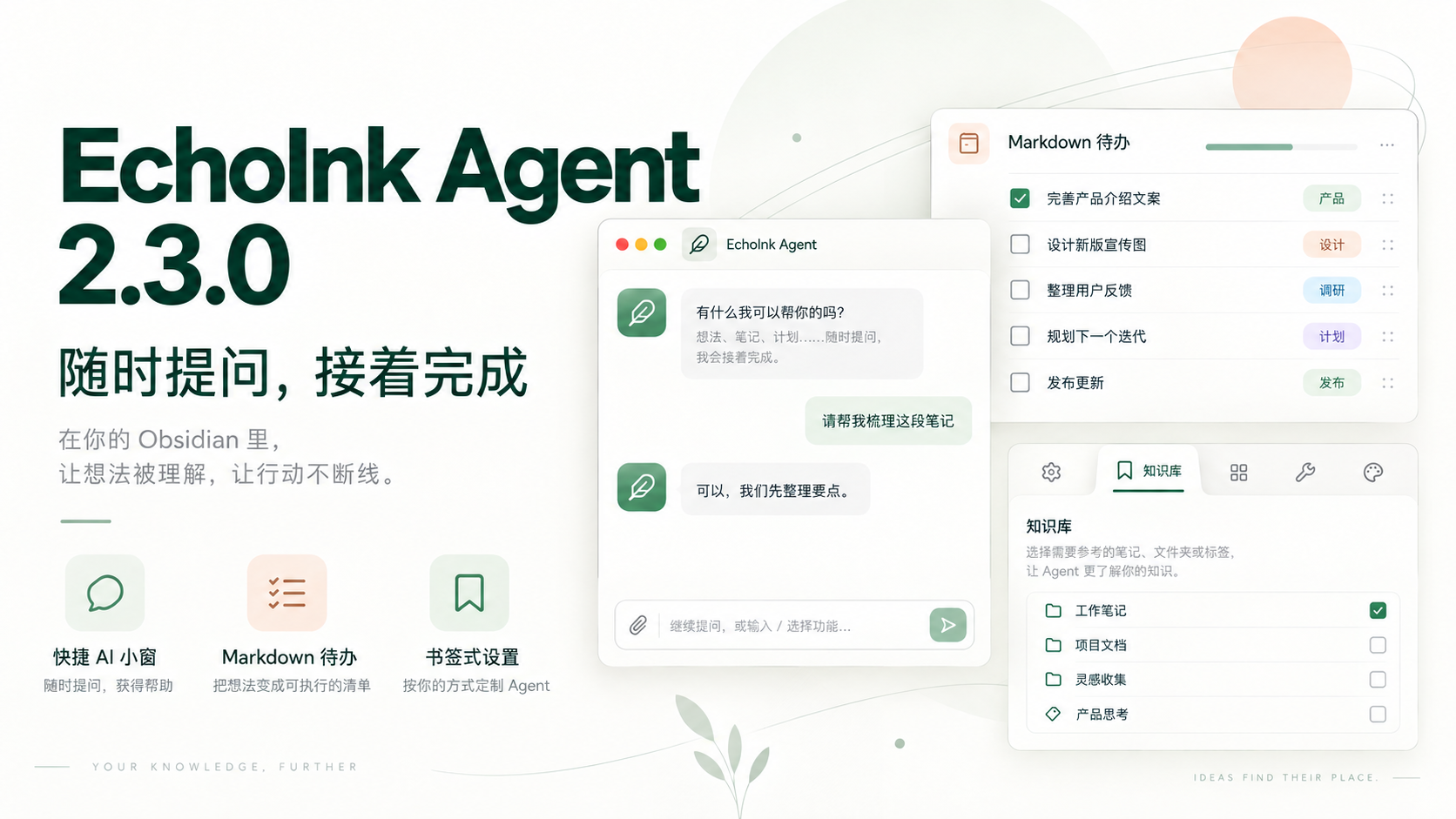
Ask when you need to, and pick up where you left off. This release adds a global quick AI window and Markdown to-dos, with clearer navigation for settings and conversations.
- Quick AI window: While Obsidian runs, open a conversation from another application with a global shortcut. Move the window freely; closing it returns the conversation to the top of the right sidebar with drafts, note references, and generation intact.
- Markdown to-dos: Manage tasks, people, dates, categories, and progress on the homepage. Content lives in
EchoInk/待办.mdand remains directly editable. - Bookmark settings: Inactive tabs show only icons; the selected tab rises and reveals its name. Layout & appearance has its own page for homepage visibility.
- Conversation turn navigator: Preview and jump to earlier turns along the right edge of a long conversation.
Enable General → Quick AI window. The default shortcut is ⌘⇧E on macOS or Ctrl+Shift+E on Windows/Linux. The quick window has been verified on macOS; Windows/Linux interaction still needs real-device verification.
Read the 2.3.0 update and usage notes. The cover is illustrative; the plugin is the source of truth for UI and data.
Features
Persistent conversations with a visible working process
- Create, rename, archive, restore, and soft-delete conversations. Reading local history does not depend on a Provider.
- Reasoning, tool activity, approval requests, task plans, file changes, and final answers share one timeline.
- Expand reasoning while it streams. Scrolling up pauses auto-follow until you return to the bottom.
- Open Plan mode from the composer's
+menu when a complex task should show its steps first. Approve or reject requested tool access inside the conversation. - Manage archived conversations under Settings → EchoInk Agent → Review → Archived conversations.
Agent identity and long-term growth
- The updated five-step guide points to the Agent profile, where General settings let you choose a style, name, and avatar. Names can be up to 24 characters; choose one of 15 built-in avatars or upload an SVG.
- Long-term memory is enabled by default. The Agent can add or update information worth keeping during ordinary conversations without requiring a repeated “remember this” instruction.
- Offline memory organization (Dreaming) runs three times per day by default and can be set from one to six. It connects related experiences and gradually updates the Agent profile, user profile, and learned working habits.
- Open Settings → EchoInk Agent → General → Long-term memory / Identity and user profile to view profiles, change the schedule, or choose another starting style. Changing the Agent's name or avatar does not reset its style or memory.
- Turning off offline organization leaves normal memory writes and recall available. Turning off long-term memory keeps the Agent's name, avatar, and base style.
Images, documents, and note context
- Paste or drag images into the composer, or use
+to add images and files. - PNG, JPEG, GIF, and WebP are supported directly. BMP, HEIC, HEIF, and SVG are converted to PNG when possible. EchoInk warns before sending when the current model cannot accept images.
- Attach PDF, DOC, DOCX, Markdown, and HTML. A turn accepts up to eight documents, 20 MiB per file and 50 MiB in total.
- Encrypted, damaged, or over-context documents are rejected instead of silently losing content. OCR for scanned PDFs is not included yet.
- Type
@to find Markdown notes in the current vault by file name, path, alias, Pinyin, or initials. - Sent images and documents remain available as openable thumbnails or file cards.
Providers and models
- Built-in entries for OpenAI Codex Beta, Qwen, Qwen Token Plan, Zhipu GLM, Kimi China, MiniMax China, DeepSeek, local Ollama, and Custom endpoints.
- OpenAI Responses, OpenAI Chat Completions, and Anthropic Messages protocols.
- Save multiple instances of the same Provider. Enable several models per instance, choose a default, discover available models, or add a Model ID manually.
- Deep-reasoning controls appear only when the selected model supports them, avoiding unsupported parameters.
- API keys for ordinary Providers and OpenAI Codex Beta sign-in credentials are stored in plugin settings for the current vault. The local Ollama entry does not require an API key by default.
Vault knowledge maintenance
/askfocuses on knowledge-base questions and shows the sources used for the turn./maintainrefines Raw notes, writes reusable knowledge to Wiki or Projects, and verifies the result by reading it back.- Maintenance binds to the current target revision. If a note changes while generation is running, EchoInk refuses to overwrite the newer content.
- Writing depends on your workspace permissions and your request.
/askand/maintaindo not grant or remove file access; ordinary chat can also save a journal when you explicitly ask. - Choose Default plan to organize existing material into Raw, or Custom plan to review and adjust note assignments first. Organization starts when you select Start initialization. Missing standard folders can also be restored without moving, deleting, or rewriting existing notes.
Visible, correctable long-term memory
- Current memory is grouped into Facts, Views, Decisions, Active, and Episodes. Each record shows its title, content, and recall context.
- The correction dialog keeps the original, your correction notes, and the corrected preview visible together. Generating a preview never changes the original; only Save creates a new version.
- Stop, close, generation failure, late output, or a revision conflict cannot overwrite the current record.
Review, Skills, and MCP
- Generate Agent or knowledge-base weekly reports on demand. Choose the previous full week or the current week to date, a destination inside the vault, and whether to open the resulting HTML.
- Manage plugin resources, Skills, and MCP connections for the current vault.
- Read-only MCP tools run through the current conversation and respect each connection's enabled and trusted settings.
- Select text in the editor and use the context menu to translate it to English with the current default Provider.
Installation
Obsidian Community Plugins
If EchoInk Agent is available in the Obsidian Community Plugins directory:
- Open Settings → Community plugins → Browse.
- Search for
EchoInk Agent. - Install and enable the plugin.
Manual installation
- Download
main.js,manifest.json, andstyles.cssfrom the 2.3.0 Release. - Create this directory inside your vault:
<vault>/.obsidian/plugins/codex-echoink/
- Place the three files in that directory.
- Restart Obsidian and enable
EchoInk Agentunder Community plugins.
Sync note:
main.jsin 2.3.0 is about 8.71 MiB, above the 5 MiB per-file limit of Obsidian Sync Standard. Local installation and Community downloads still work, but install or update EchoInk Agent separately on each device, or use a sync method that supports larger files.
Quick start
On first use, the five-step guide points to these controls. Go back, jump between steps, or dismiss it at any time:
- Select the feather icon in Obsidian's left ribbon to open the workspace and EchoInk Agent sidebar.
- Select the gear in the upper-right corner of the EchoInk sidebar to open settings.
- Connect a model service under API Provider.
- Under Knowledge, choose Default plan or Custom plan. Review custom assignments before selecting Start initialization.
- Choose the Agent's starting style, name, and avatar under General.
Create a conversation when setup is complete. Before the first ordinary chat turn, use the folder control in the composer to choose a local workspace. Use /ask for Knowledge questions and /maintain for refinement. Use the composer's + menu or @ when a turn needs images, documents, note context, or Plan mode.
Add images, documents, and notes to a conversation
| Action | Result |
|---|---|
| Paste or drag an image | Add the image to the current input |
+ → Add image | Select an image from the computer |
+ → Files and folders | Select one or more supported files; this version does not import an entire folder |
+ → Add current note | Add the Markdown note currently open in the editor |
Type @ | Find and add a Markdown note from the current vault |
+ → Plan mode | Ask a complex task to show its plan first |
Attachments belong to the current input. Remove a card before sending to cancel it. If preparation fails, the whole turn stops with a clear reason instead of sending incomplete content.
Configure Providers and models
Open Settings → EchoInk Agent → API Provider → Add model:
- For an API-key Provider, choose the service, enter its API URL and API key, discover or add models, enable the models you need, and choose a default.
- For OpenAI Codex Beta, open the Account sign-in group, choose the entry, and select Sign in with OpenAI. If the browser cannot return automatically, paste the callback URL or authorization code into the settings dialog and select Complete authorization.
- Qwen API and Qwen Token Plan are separate entries. Choose the one that matches your account.
- To disconnect OpenAI Codex Beta, select Log out in the same Provider dialog.
Knowledge maintenance
/maintain supports three scopes:
| Input | Scope |
|---|---|
/maintain | Check all maintainable Raw notes |
Select one raw/**.md note in the composer, then run /maintain | Maintain only that Raw note |
/maintain note name | Fuzzy-search Raw notes and maintain within the candidate set |
Single-note mode accepts one Raw Markdown note from the current vault. If a name query has no reliable match, EchoInk does not fall back to global maintenance. Already-refined content with no changes finishes normally without another write.
Review and memory correction
Open Settings → EchoInk Agent → Review:
- Under Generate reports, choose the date range, destination folder, and whether to open the HTML result.
- Under Archived conversations, search, restore, or soft-delete conversations. The original conversation record remains available.
- Under Memory correction, browse current records by category, generate a corrected preview, and decide whether to save it.
Upgrade notes
Upgrading from 2.1.0 or 2.0.3
- Upgrade in place without rebuilding conversations, Knowledge, or long-term memory. Saved Provider and model settings are upgraded automatically.
- 2.3.0 does not rewrite content already stored in old conversations. If an older conversation already contains repeated answers or failed turns, create a new conversation after upgrading.
- Users who completed the guide may not see it again after upgrading. To replay it, disable and re-enable EchoInk in Community plugins; the completion screen also offers Replay.
Upgrading from 1.x
- EchoInk 2.x stores Provider API keys directly. If an existing configuration contains only a retired Credential reference, enter its API key once in Provider settings.
- EchoInk 2.x does not read or migrate retired Codex, OpenCode, or Hermes conversations, or data from retired Cognitive, Reflection, and Memory formats. It does not proactively delete those files.
- Keep a vault snapshot before upgrading, following your normal backup practice.
Privacy and data
- EchoInk is desktop-only and accesses the current vault through Obsidian APIs.
- Conversation records, knowledge files, memory, and reports stay in the local vault.
- API keys, Provider configuration, and OpenAI Codex Beta sign-in credentials are stored in plugin settings for the current vault. Configure them only on trusted devices and in trusted vaults.
- A local workspace selected for a conversation can be outside the current vault. The composer's file access can be Read only, Workspace write, or Full access. Full access removes the workspace boundary and should be used only for trusted tasks. EchoInk also reads outside-vault attachments only when you explicitly select, drag, or paste them.
- Remote Providers receive the prompt, conversation, Knowledge, memory, notes, attachments, and tool results required for the current request. EchoInk does not upload the entire vault or workspace by default.
- Custom Providers and MCP connections are also subject to the policies of their services, servers, and commands. Configure only services and local commands you trust.
- EchoInk has no telemetry service of its own.
Requirements
- Obsidian Desktop 1.11.4 or later.
- Cloud Providers require their own API key or account and may charge for usage.
- Image input requires a vision-capable model.
- Obsidian Mobile is not supported.
- Node.js is required only for local development, not for normal installation.
Development
Node.js 22.19.0 or later is recommended:
npm install
npm run test
npm run typecheck
npm run build
Create a local manual-install package:
npm run package
License
EchoInk is released under the MIT License. Third-party notices are available in THIRD_PARTY_NOTICES.md.
For plugin developers
Search results and similarity scores are powered by semantic analysis of your plugin's README. If your plugin isn't appearing for searches you'd expect, try updating your README to clearly describe your plugin's purpose, features, and use cases.