Custom Note Width
approvedby 0skater0
Effortlessly change the line width of each note individually. Provides multiple ways to customize the experience, making it both efficient and user-friendly to adjust line widths.
Obsidian Custom Note Width



Control the line width of every note in Obsidian — individually, per note, or globally. A small control in the status bar gives you instant access, YAML frontmatter persists widths per note, and a new Pills mode lets you switch between presets with a single click.
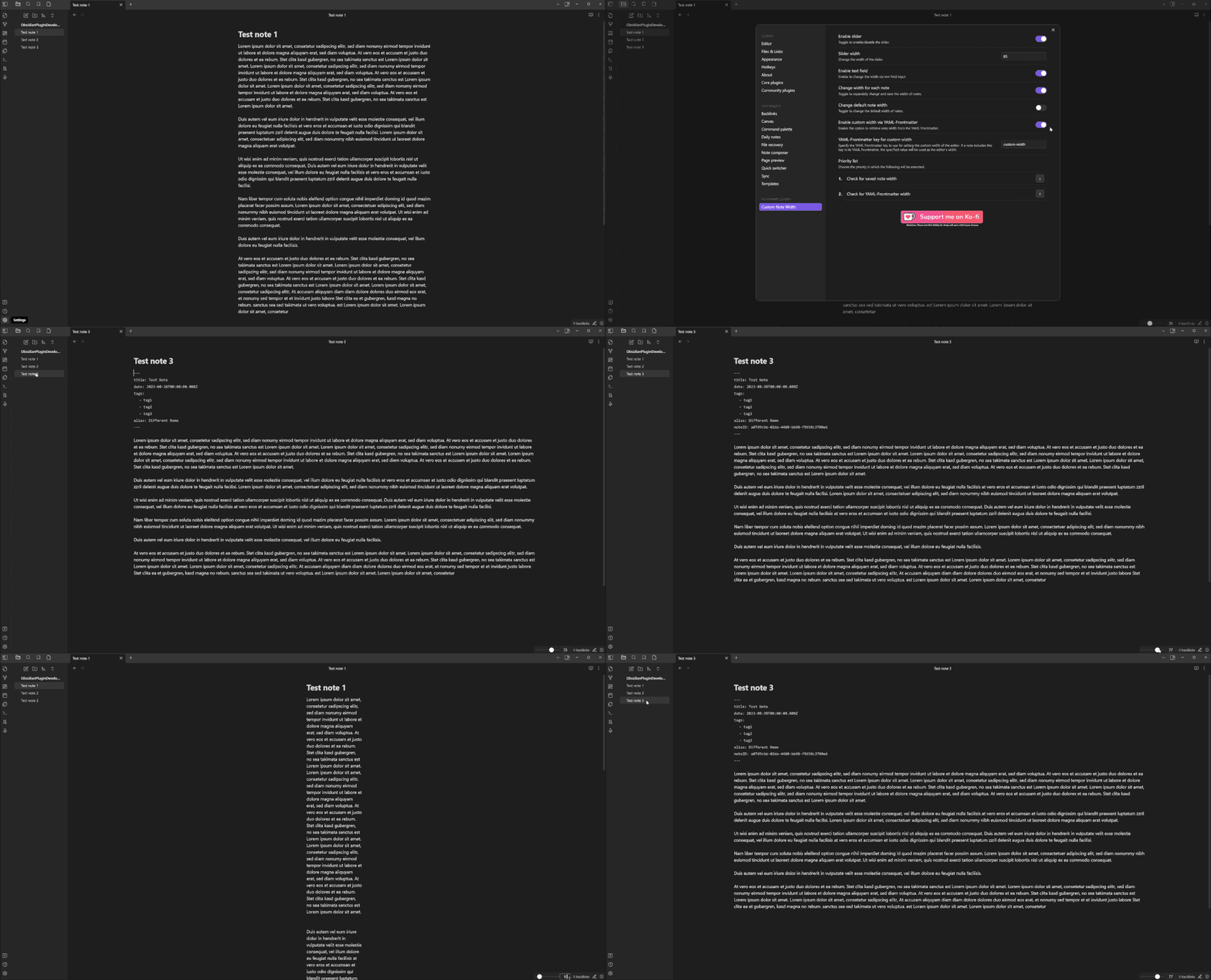
Features
- Per-note widths — stored in the note's frontmatter, kept locally on your device, or held only until the note is closed
- Status-bar controls — choose between a classic slider or Pills (three preset buttons)
- Three width units —
%,px,ch - Independent code block width — so narrow prose and wide code can coexist
- Hotkey-ready commands for every width operation
- Full English, German and Russian UI
Installation
From Community Plugins
- Open Settings → Community plugins
- Browse → search "Custom Note Width"
- Install → Enable
Manual
- Download
main.js,manifest.jsonandstyles.cssfrom the latest release - Copy them into
<vault>/.obsidian/plugins/custom-note-width/ - Restart Obsidian and enable the plugin
Requirement: Obsidian's Readable line length setting must be enabled (Settings → Editor → Readable line length).
Usage
The plugin modifies Obsidian's --file-line-width CSS variable. Control it three ways:
| Method | Best for |
|---|---|
| Status-bar control (slider or pills) | Quick adjustments while reading/editing |
YAML frontmatter (custom-width: 60) | Persisting a specific width per note |
| Commands (palette / hotkeys) | Power users, keyboard-driven workflows |
Width units
- % — relative to the editor pane (0–100)
- px — absolute pixels (100–4000)
- ch — character widths (10–200)
Switch units via the unit label next to the slider/value (slider mode) or inside a preset editor (pills mode).
Pills mode
Enable under Settings → Control mode → Pills. The status bar shows three buttons with your configured preset values. Click to apply. The button matching the currently applied width is highlighted; no button is active when the width is a custom value.
Settings
Click to see every setting
| Setting | Description | Default |
|---|---|---|
| Language | Plugin UI language (Auto / English / Deutsch) | Auto |
| Enable slider | Shows the width control in the status bar | on |
| Control mode | Slider (draggable) or Pills (three preset buttons) | Slider |
| Slider width (Slider mode) | Horizontal size of the slider in pixels | 85 |
| Pill preset 1–3 (Pills mode) | Value and unit per preset | 30% / 50% / 100% |
| Value display in status bar | Editable input, read-only text, or hidden for a slider-only status bar | Editable |
| Show unit selector in status bar (slider mode) | Show the unit dropdown (%, px, ch) next to the slider; off keeps the unit fixed | on |
| Default width unit | Unit used for the global default width | % |
| Default width | Width applied when a note has no per-note width | 50 |
| % range | Min / max for percentage unit | 0 / 100 |
| px range | Min / max for pixel unit | 100 / 4000 |
| ch range | Min / max for character unit | 10 / 200 |
| Enable per-note width | Let notes have their own width instead of the global default | on |
| Where per-note width is stored (per-note mode) | Frontmatter (in the note), Local (kept in the plugin, note untouched), or View only (kept until the note is closed) | frontmatter |
| Reset local width overrides (local mode) | Removes every per-note width you have stored locally | button |
| YAML front matter key | Frontmatter key used to store the per-note width | custom-width |
| Enable code block width | Give code blocks an independent width | off |
| Code block width unit | Unit for code block width | px |
| Code block width | Size applied to code blocks | 800 |
| Reading mode | Apply code block width in preview | on |
| Source mode | Apply code block width in source view | on |
| Live preview mode | Apply code block width in live preview | on |
Commands
All commands appear in the palette and can be bound to hotkeys under Settings → Hotkeys (filter: Custom Note Width):
| Command | Action |
|---|---|
| Change the width of the open note | Opens a modal, applies width to current note |
| Change the default note width | Opens a modal, updates the global default |
| Change the width for all notes | Opens a modal, rewrites every note's YAML width |
| Apply pill preset 1 / 2 / 3 | Applies the given preset (Pills mode only) |
Theme compatibility
Disclaimer: The plugin modifies
--file-line-width. Custom themes may override this variable; there is no guarantee the plugin works with every theme.
| Theme | Status | Obsidian Version | Notes |
|---|---|---|---|
| Default | Works | 1.12.4 | Fully functional |
| Things | Works | 1.12.4 | Fully functional |
Your theme isn't listed? Open a PR adding a row — see CONTRIBUTING.
Reporting bugs
Please include:
- Obsidian version (
Settings → General) - Plugin version (
Settings → Community plugins) - Theme name (
Settings → Appearance → Themes) - Operating system
- Console errors — open DevTools (
Ctrl+Shift+I/Cmd+Option+I), Console tab, copy anything red referencingcustom-note-width - Steps to reproduce and what you expected vs what happened
- Screenshots or screen recordings help a lot — tools like LICEcap or ShareX work well
Reports that only say "it doesn't work" can't be investigated — details make the difference.
Backups
Always keep backups of your vault. The plugin writes to YAML frontmatter; bugs are possible. Protect your data.
Contributing
See CONTRIBUTING.md for development setup, code style, and the PR process.
License
MIT — provided as-is, no warranty.
Support

For plugin developers
Search results and similarity scores are powered by semantic analysis of your plugin's README. If your plugin isn't appearing for searches you'd expect, try updating your README to clearly describe your plugin's purpose, features, and use cases.