by pattgue
Design your own card views for Bases from a visual side panel: layout, colors, fonts, images, ratings and more.
Cool Bases
Turn your Bases into cards you design yourself, from a visual side panel.
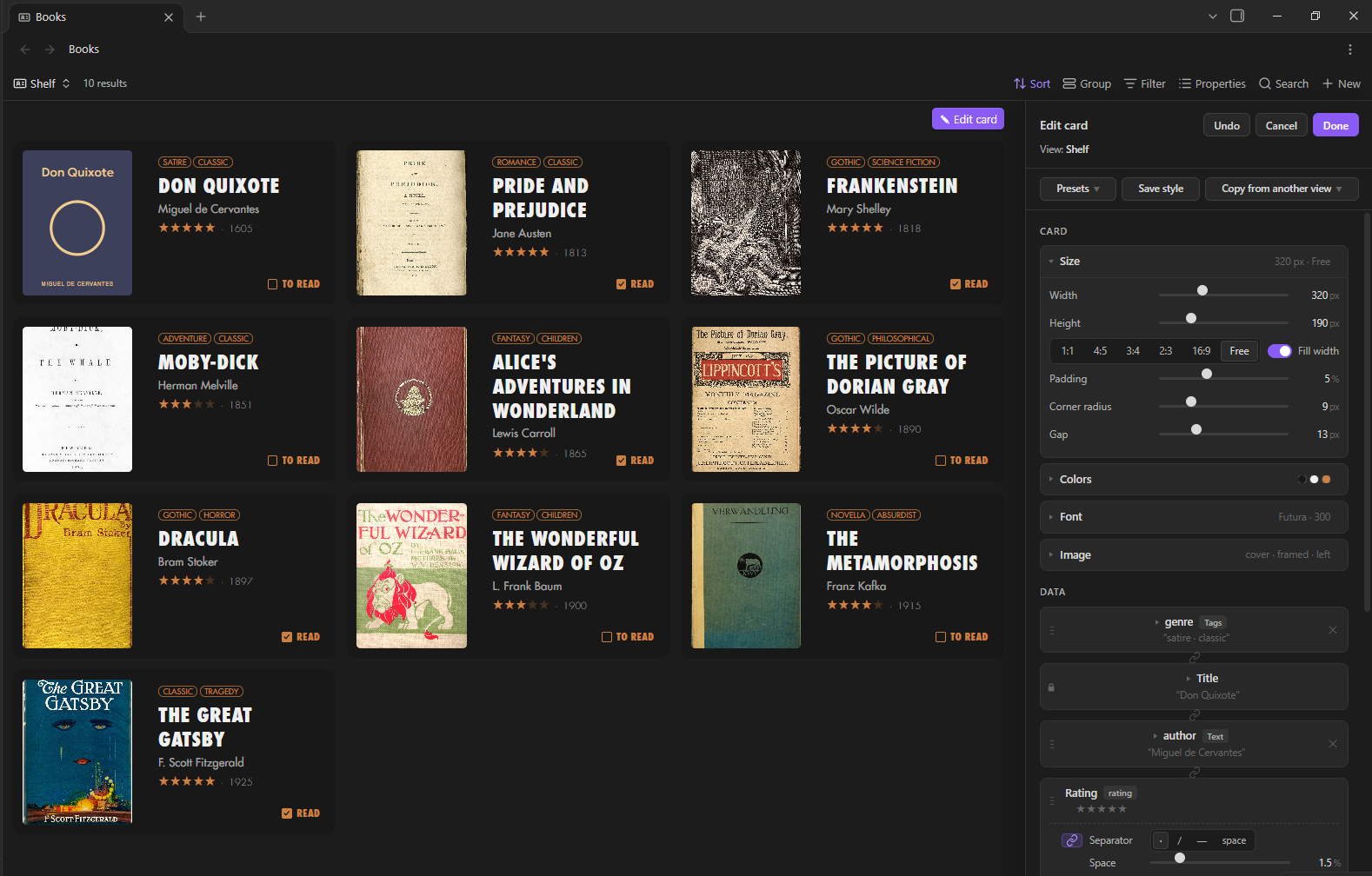
What it does
-
A new view type for Bases. Your notes show up as cards: books, films, people, places, projects… anything with properties.
-
Design the card from a panel, live. Size, colors, font, image, data and decorations. Every change shows on the cards at once. Nothing is saved until you press Done.
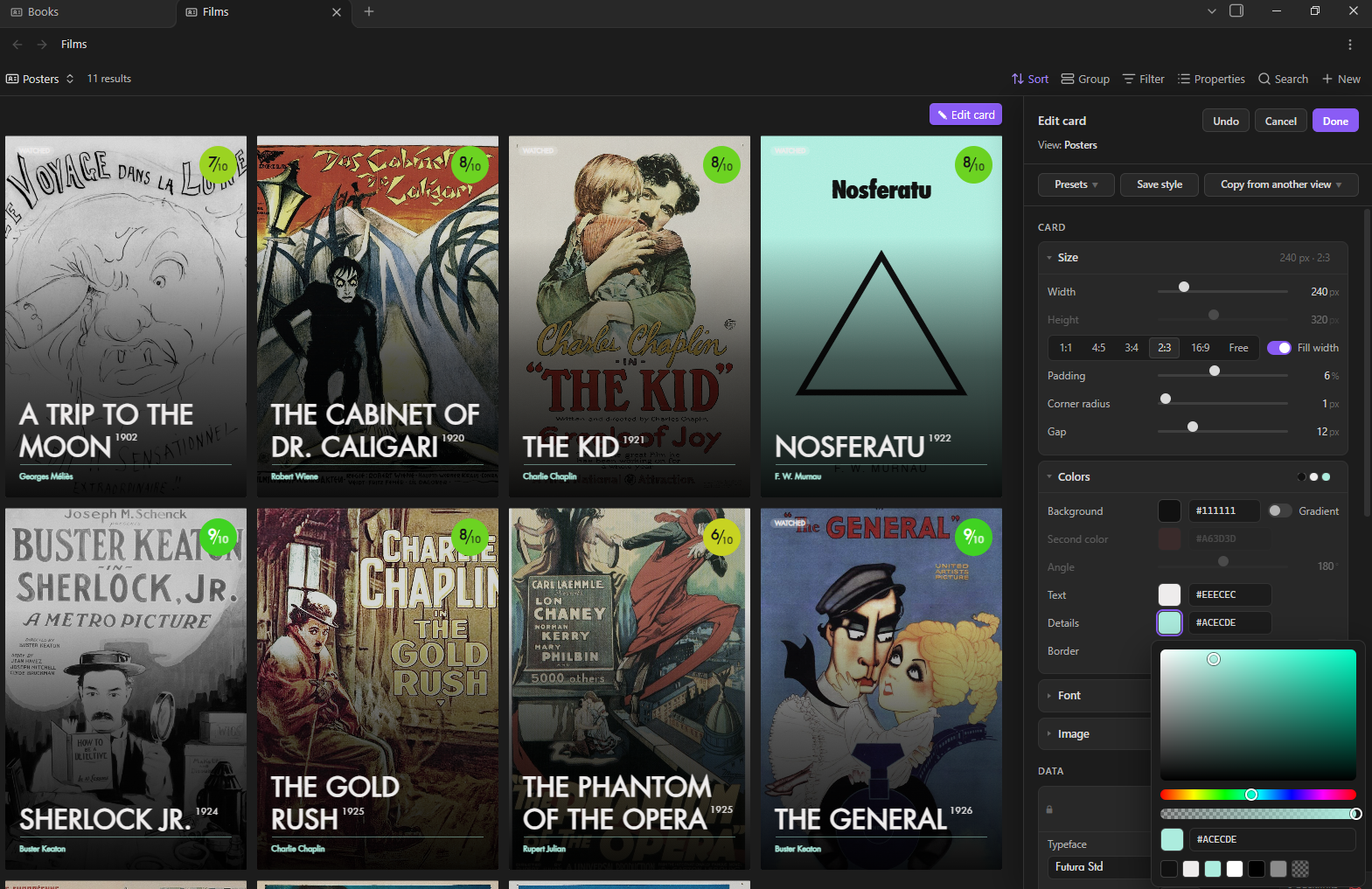
-
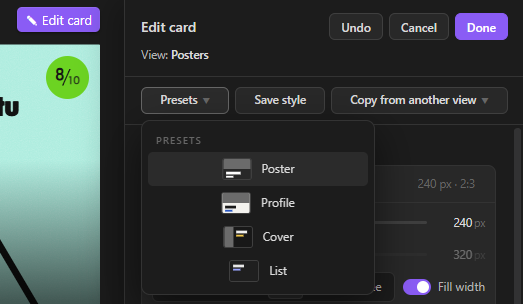
Four presets to start from. Poster, Profile, Cover and List. Save your own styles, or copy the style of any other Cool Bases view in your vault.
-
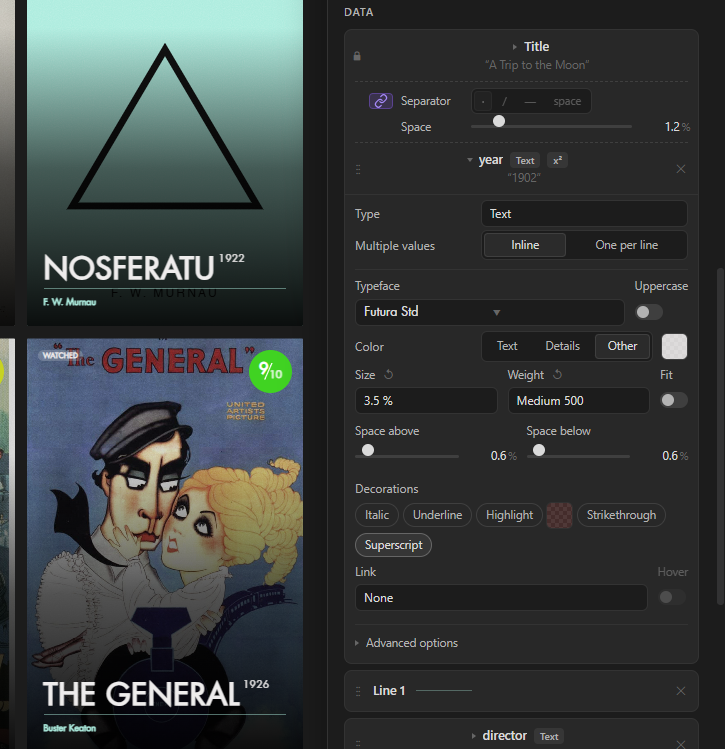
Your data, your way. Drag the properties into order, put two on the same line, turn one into a superscript, show lists as tags, links as site names, linked notes one per line.
-
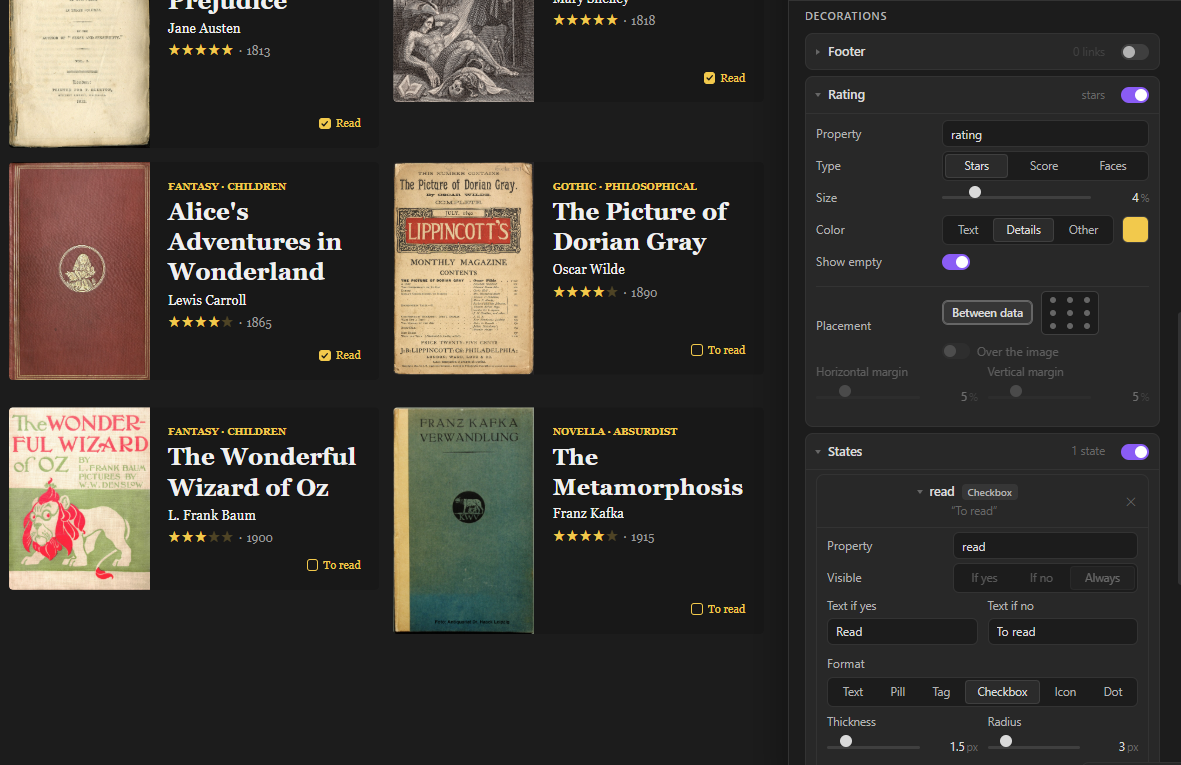
Ratings and states. Stars, scores or faces from a number or from ⭐ emoji. Yes/no properties as text, pills, tags, icons, dots… or a checkbox you can tick right on the card.
-
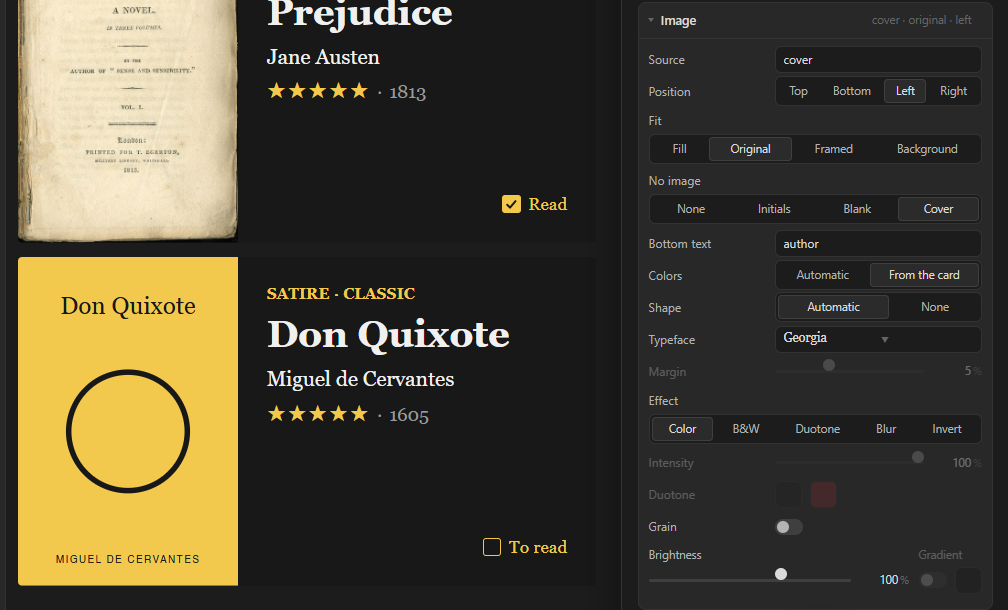
Covers for notes without an image. A simple typographic cover is drawn for them, so every card keeps the same size.
Install
From Community plugins (once it's listed): Settings → Community plugins → Browse → search for Cool Bases → Install → Enable.
With BRAT: install the BRAT plugin, choose Add beta plugin and paste pattgue/cool-bases.
By hand: download main.js, manifest.json and styles.css from the latest release and put them in .obsidian/plugins/cool-bases/ inside your vault. Restart Obsidian and enable Cool Bases in Settings → Community plugins.
Quick start
-
Turn on the Bases core plugin (Settings → Core plugins → Bases).
-
Create a base: right-click a folder → New base, or use the command Bases: Create new base.
-
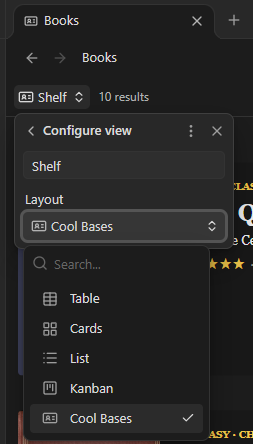
In the views menu at the top left of the base, add a view (or edit the current one) and choose Cool Bases as its layout.
-
Press ✎ Edit card (top right of the view). The panel opens on the right.
-
Change whatever you like and press Done.
The cards start with the properties you ticked in the base's Properties menu. Click a card to open its note.
Want to try it with real data first? The demo-vault folder has a small vault with books and films, already designed.
The edit panel
The panel edits the whole view: all its cards at once. Each view of each base keeps its own design, saved inside the .base file.
At the top: Undo (or Ctrl/Cmd+Z), Cancel (or Escape: leaves the view as it was) and Done (saves).
Styles
- Presets: Poster, Profile, Cover and List, plus My styles.
- Save style: keeps the current design under a name, for any view in this vault.
- Copy from another view: takes the design of another Cool Bases view (not its data).
Card
- Size: width, height or a fixed format (1:1, 4:5, 3:4, 2:3, 16:9), fill width, padding, corner radius and gap between cards.
- Colors: background (with an optional gradient), text, details (the accent color) and border.
- Font: typeface, weight, size and alignment. You can pick any font installed on your computer, or type its name.
- Image: which property holds the image, its position and fit (Fill, Original, Framed, Background), effects (B&W, duotone, blur, invert), grain, brightness and a dark gradient. No image decides what notes without an image show: nothing, their initials, a blank space or a generated Cover.
Data
- The title is always there, but you can put data above it.
- Drag the other properties into order, remove them with ✕ and add more with + Add data.
- The chain icon between two items puts them on the same line, with a separator.
- Each item has its own typeface, uppercase, color, size, weight, Fit (one line, shrinks to fit), space above and below, italic, underline, highlight, strikethrough, superscript, link and hover.
- Types: Text, Number, Smart number (a follower or listener count that links to the profile), Tags, Link and Linked notes (including the notes that link to this one).
Decorations
- Footer: a strip at the bottom of the card for links (website, social profiles…).
- Rating: stars, a score (like 8⁄10) or faces, between the data or in any of the 9 spots of the card.
- States: one for each yes/no property you want to show: text, pill, tag, checkbox, icon or dot.
- Lines: dividers you drag between the data.
- Hover: how links look under the pointer.
Custom CSS
For anything else. It only applies to this view. Useful classes: .cb-card, .cb-body, .cb-media, .cb-l (a line of data), .cb-i[data-prop="note.year"] (one item), .cb-st (a state), .cb-foot.
Tips
- Ratings with emoji. If your ratings look like
⭐⭐⭐⭐, Cool Bases counts the stars. Numbers work too (choose what they're out of). - Tick from the card. Give a yes/no property (like
read) a state with the Checkbox format: click it on the card to change the note, without opening it. - Generated covers. Image → No image → Cover. Choose the text at the bottom (the author, the director, the year…), automatic or card colors, and a shape.
- Several data on one line. Click the chain between two items:
1927 · Germany · 153 min. Ratings and states can join a line too. - Superscripts. Turn on Superscript in an item to place it small and high after the one before, like a year next to a title.
FAQ
Where is my design saved?
In the .base file, inside the view, under the coolbases key. Delete that key to go back to the default card.
Does it change my notes? Only if you tick a Checkbox state on a card: that changes the yes/no property of that note. Nothing else is written to your notes.
Can I use my own fonts? Yes: any font installed on your computer. If Obsidian can't list them, type the font's name in the typeface search. Generated covers can only use fonts installed on the system.
Does the smart number update itself? No. It shows the number stored in the note and links to the profile. Keeping the number up to date is up to you (or another plugin).
Does it connect to the internet? No. It only shows the images your notes point to.
Compatibility
- Obsidian 1.10 or later (it needs the Bases view API).
- Desktop and mobile.
Support and feedback
Found a bug or have an idea? Open an issue on GitHub. Screenshots help a lot.
License
MIT © 2026 Patt
For plugin developers
Search results and similarity scores are powered by semantic analysis of your plugin's README. If your plugin isn't appearing for searches you'd expect, try updating your README to clearly describe your plugin's purpose, features, and use cases.