by theluckystrike
Restore Craft page links from exported note identifiers.
Craft Link Repair
Craft Link Repair restores supported Craft page links from local info.json identifiers. It reads an unpacked export folder in your vault, shows the proposed links, and writes repaired copies. It also converts supported day:// links to date note links.
Use this when the Markdown text imported from Craft is readable, but its page links still open Craft. This tool does not connect to your Craft account. You supply the export files. Keep a backup of the export before you start so that you can compare a repaired copy with its source.
Features
Preview page links from identifiers
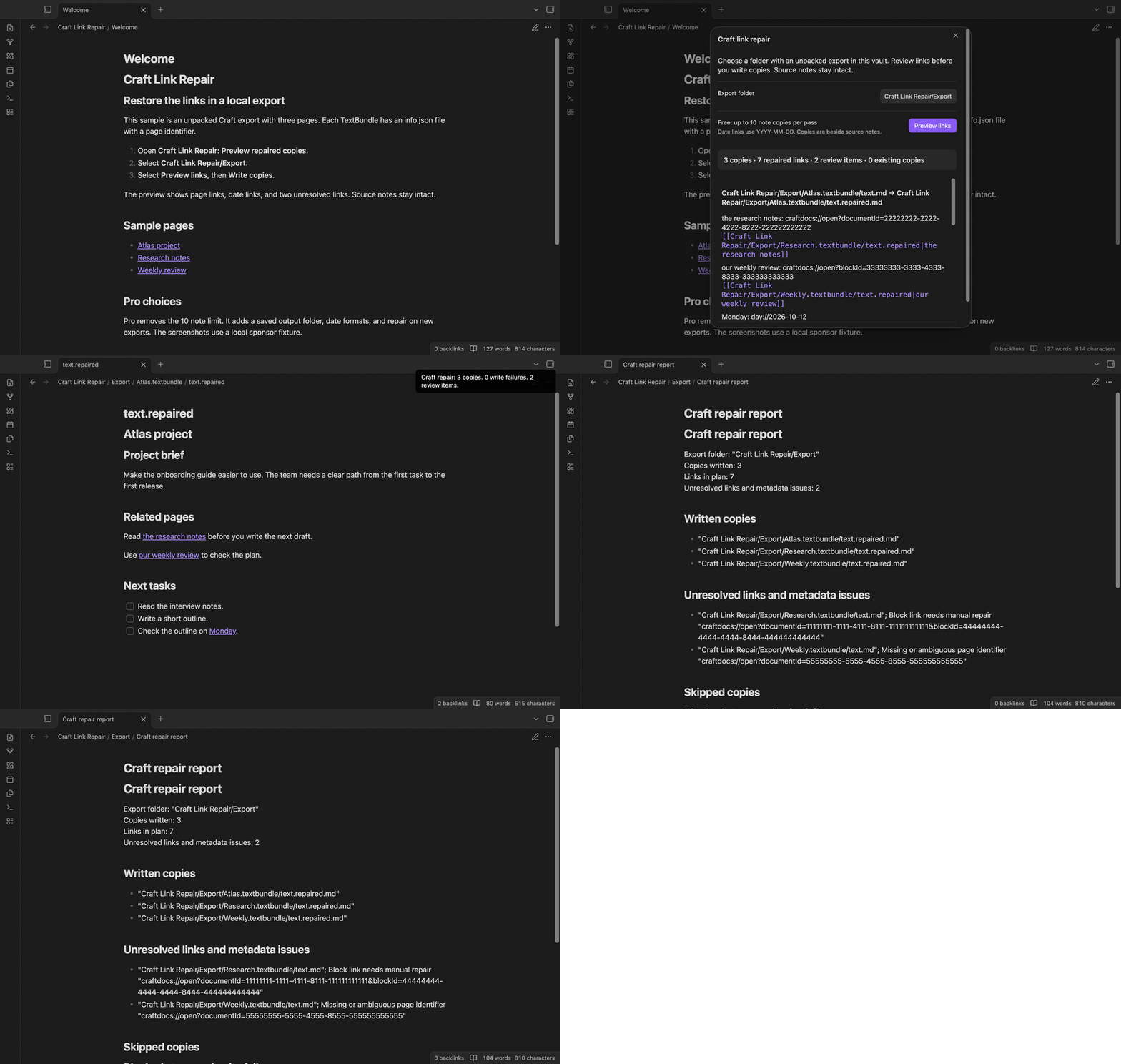
The preview reads info.json files and their Markdown siblings. It uses the identifier field to find a local page target. In a TextBundle, it selects text.md. If that file is absent, one Markdown sibling can be the target. More than one candidate produces a review item instead of a guessed page.
Supported inline links use craftdocs://open with documentId, id, or identifier. A blockId that matches a mapped page identifier is also supported. The output is a wikilink with the original link label as its alias. Duplicate identifiers stay unresolved.
Write copies beside source notes
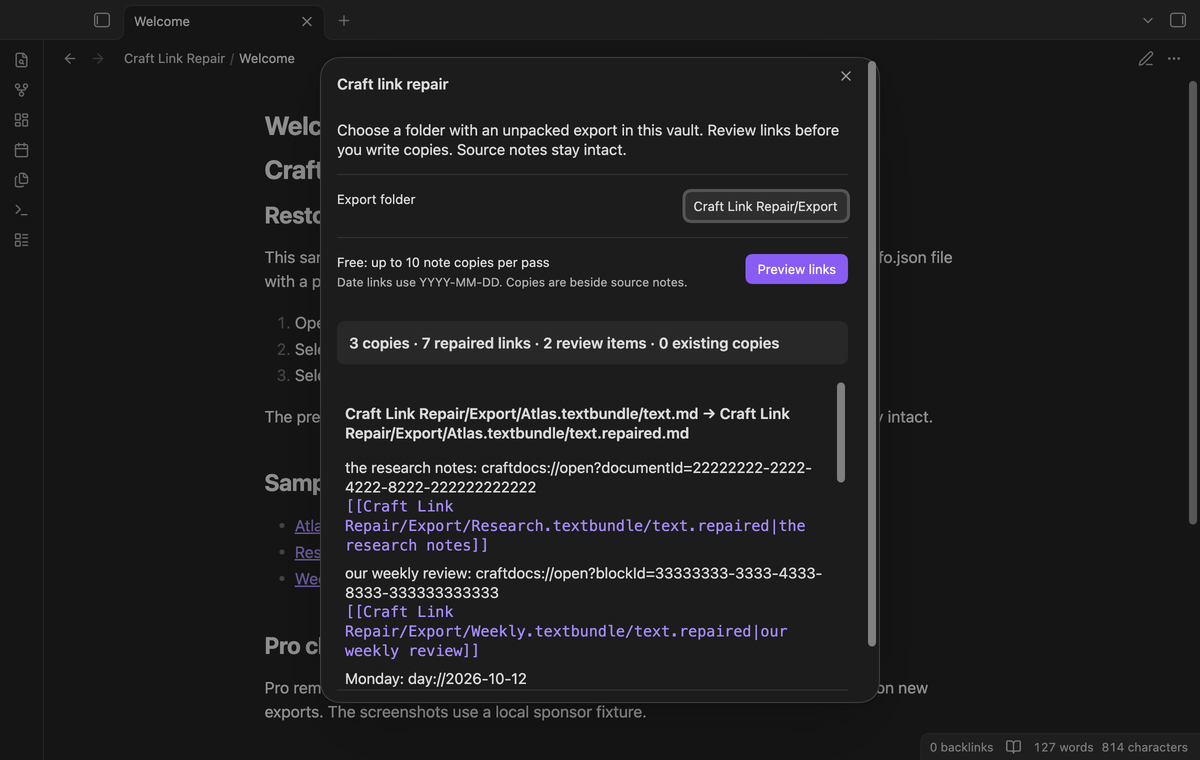
The free version writes up to 10 new Markdown copies per pass. It adds .repaired before the file extension, so text.md becomes text.repaired.md. Notes without a supported Craft link are copied too. This gives mapped pages a local target even when those pages need no link conversion.
A larger free pass stops before writing. Select a smaller export folder, or use Pro. Existing destination files cause the pass to stop. Copies recorded by a previous successful pass are skipped. The writer checks the reviewed plan again before it starts.
Convert date links
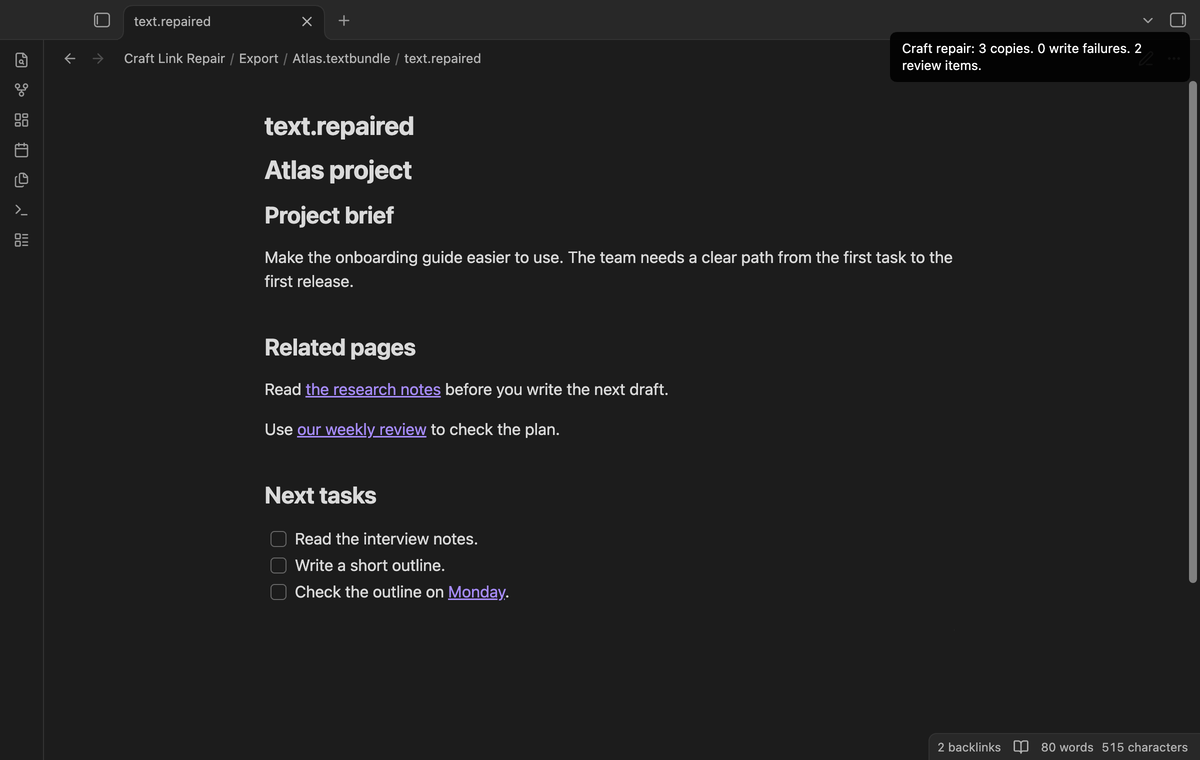
An inline day://2026-10-12 link becomes a link to the 2026-10-12 note. Its label stays in the wikilink alias. The converter checks the month length and leap year. Invalid dates remain as source URLs with a review item. It creates links, not date notes. You can create the date note after the repair pass.
Review unresolved links
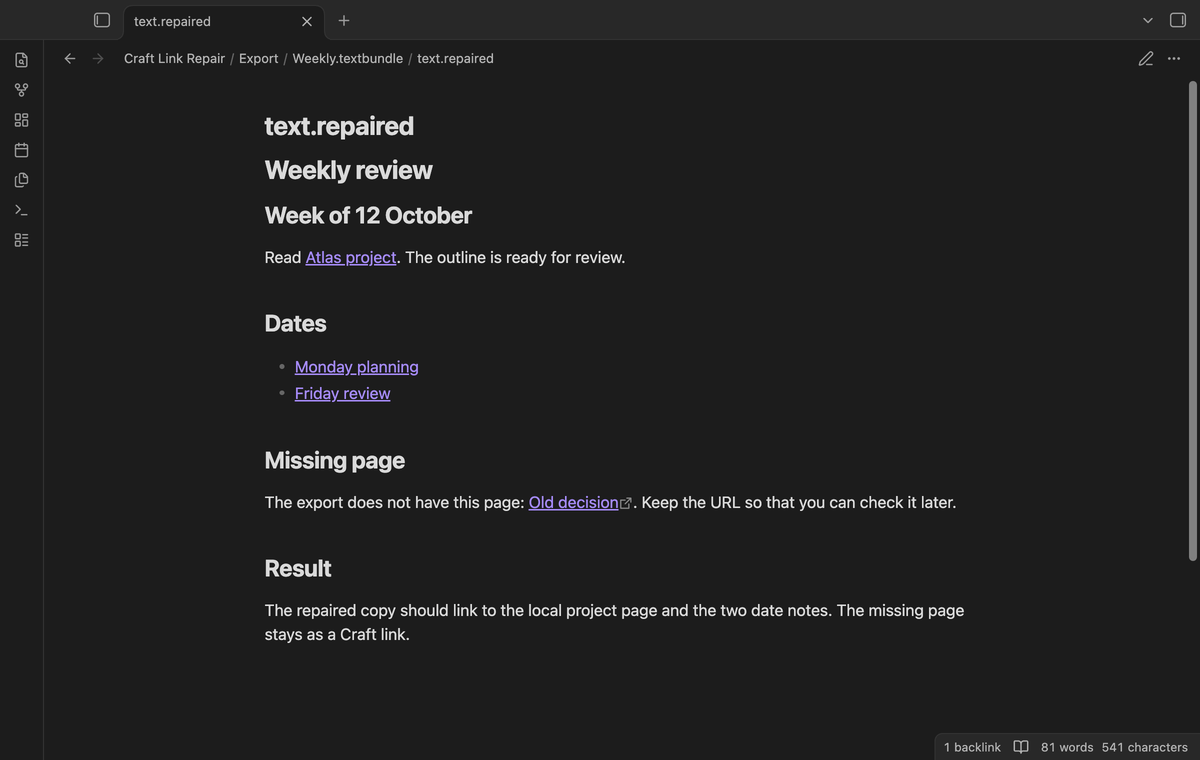
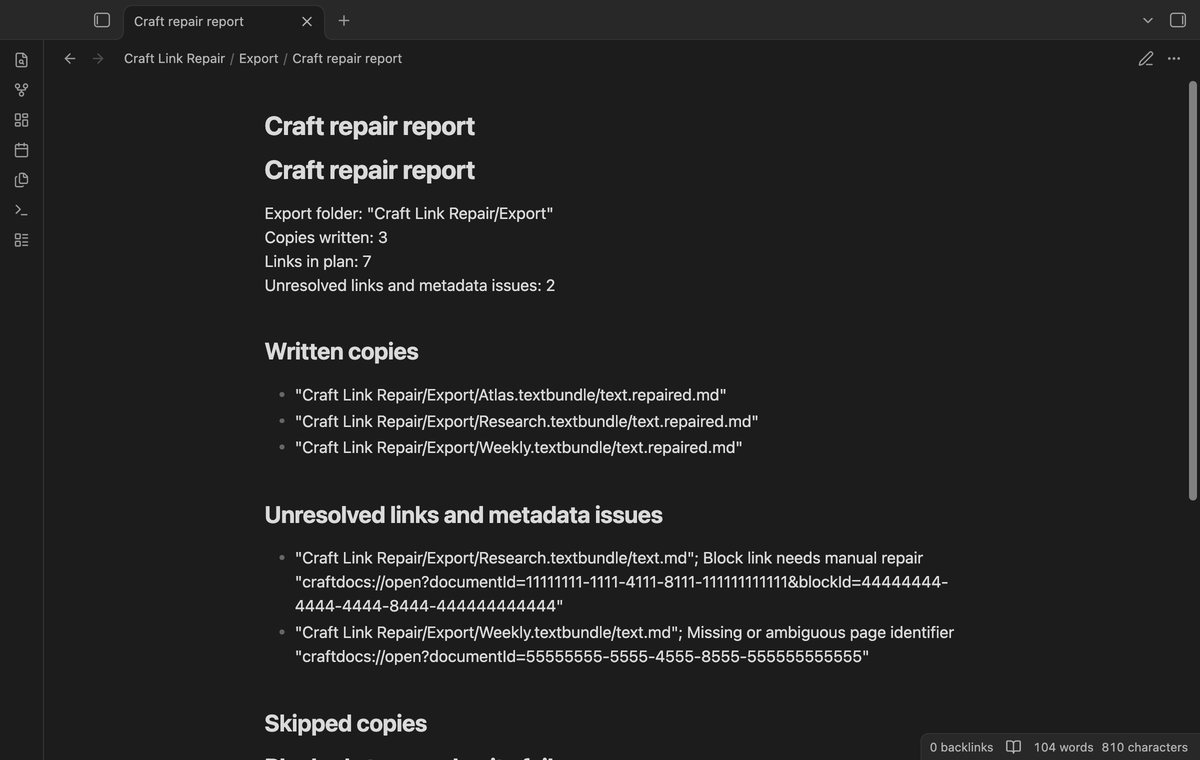
Missing page identifiers, conflicting metadata, and block targets appear in the preview. The repaired copy keeps each unresolved supported source URL. A new Markdown report in the export folder lists written copies, unresolved links, metadata issues, skipped copies, and write failures. A previous report keeps its contents; another pass gets a numbered report name.
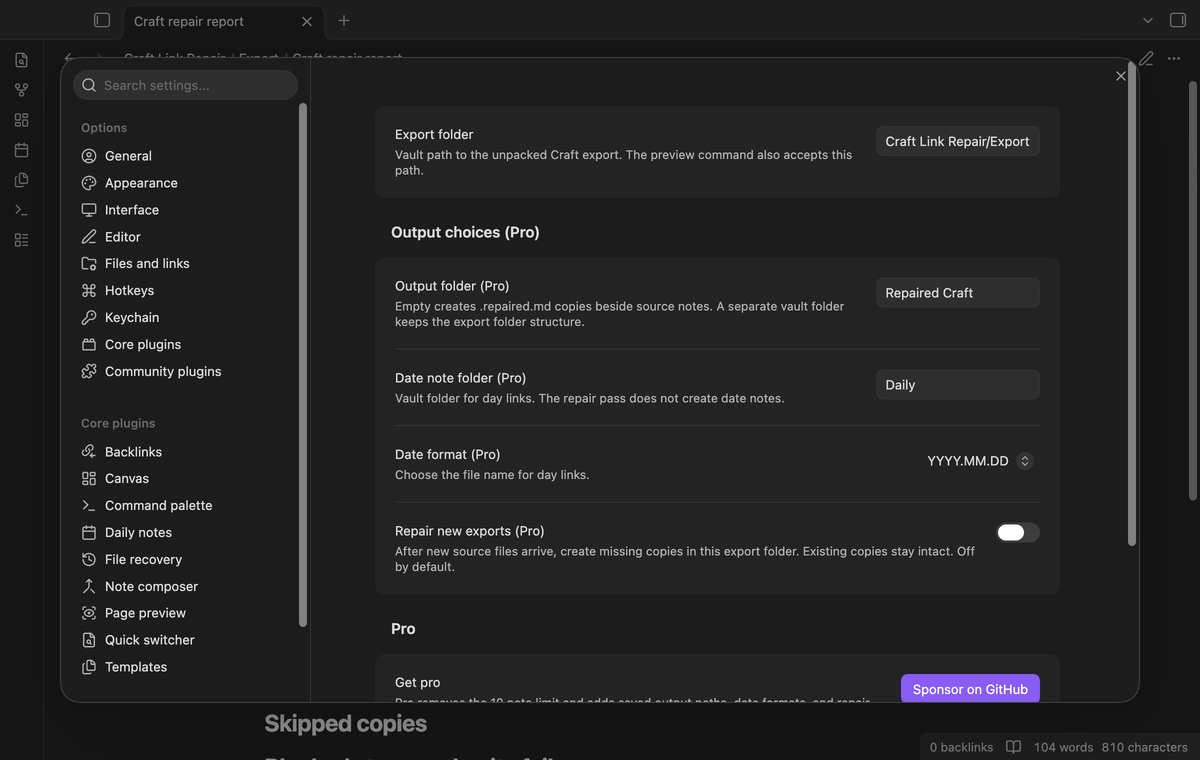
Saved output paths and date formats (Pro)
Pro removes the 10 note limit. Save a separate output folder to keep copies apart from the export. The copy tree keeps the source folder structure. Simple relative inline Markdown resource paths are rebased to their source locations; attachments stay in the export folder. Keep that folder if a copy uses its assets.
Pro also adds a date note folder and three date formats: YYYY-MM-DD, YYYY.MM.DD, and YYYY/MM/DD. When Pro is off, the saved choices stay in settings and the repair uses the free defaults.
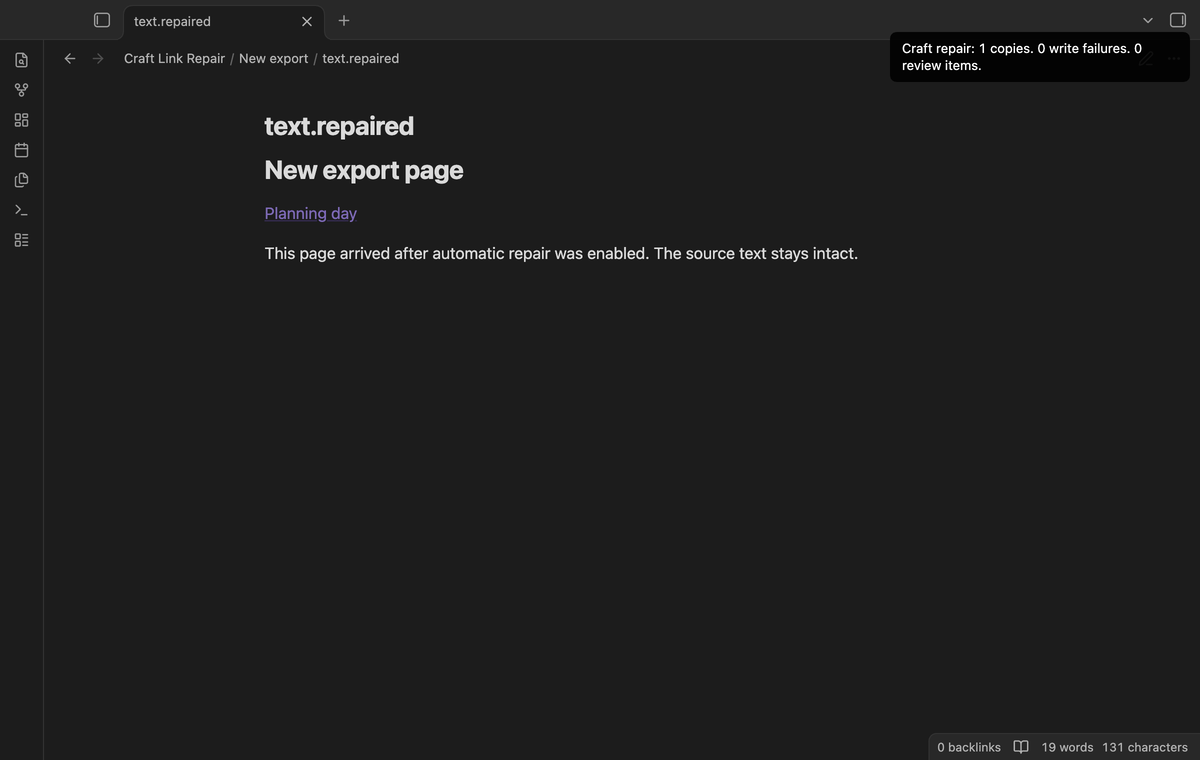
Repair when new exports arrive (Pro)
Turn on the optional automatic pass after you set the export folder. When source Markdown or metadata changes, it checks for new copies. It waits for valid sibling metadata before writing. It skips existing recorded copies and stops on destination conflicts. The report remains available for review. Turn the option off before replacing an export in parts if you want to review the complete folder first.
Install
For manual installation, copy main.js, manifest.json, and styles.css into <vault>/.obsidian/plugins/craft-link-repair/. Enable Craft Link Repair in Community plugins. This version needs Obsidian 1.13.4 or later. After the publisher lists a release in the community directory, installation through Browse can use the same name.
Usage
- Unpack the Craft export and put its folder inside your vault. Keep its Markdown,
info.json, and asset folders together. - Open the command palette and run
Craft Link Repair: Preview repaired copies. - Enter the vault folder path, then select Preview links.
- Check the output paths and review items. Select Write copies when the plan is ready.
- Open the report. Check a few repaired notes and follow their local links.
If files change between preview and write, run the preview again. To redo a recorded copy, move that copy away from its destination first. The tool creates another copy; it does not update the existing one.
Settings
The Export folder is a vault-relative path. Hidden folders, absolute paths, and parent traversal are rejected. Pro output must be separate from the export folder. This protects the source tree and prevents automatic scans from reading their own output.
Automatic repair is off by default. Saved Pro choices are inactive after sign out. The GitHub account controls provide sign in, refresh, and sign out. Screenshots use synthetic notes and a local fake sponsorship answer; they do not show a real customer account.
FAQ
What is outside this version?
Reference links, bare URLs, HTML links, Craft block targets, complex nested Markdown labels, inline links with titles, and encrypted exports are outside the supported conversion format. Code blocks, inline code, frontmatter, and closed comments are retained. The tool does not rebuild Craft cards, copy attachments, preserve export timestamps, or import an archive.
What did you not test?
Tests use synthetic export fixtures. We did not test a customer's full Craft export, mobile devices, real payments, or real GitHub device sign in. End-to-end tests run on macOS with the earliest supported public desktop release and latest. Linux execution is left to CI. The tests check file contents and UI state without theme color assertions.
Does this replace the importer?
No. Use your export or import process to put files into the vault first. This tool handles the supported local link repair step. Missing metadata cannot be recovered by matching a display label. Open an unresolved Craft URL yourself if you need to identify its source page.
Payment, account and network
The core features are free. Pro features need a GitHub Sponsors sponsorship of theluckystrike: $5 a month or more, or $15 once. A total payment of $15 meets the payment requirement for Pro without further payment. Sign-in and the checks below still apply. Your notes stay readable and editable with or without Pro.
GitHub handles the payment. Sponsor at https://github.com/sponsors/theluckystrike. You need no account for the free features. Pro needs the GitHub account that sponsors.
Until you select "Sign in with GitHub" in the settings, Craft Link Repair makes no network requests. Sign in uses the GitHub device flow. Craft Link Repair sends its public client ID and the scope read:user to https://github.com/login/device/code and shows you a code. While you enter the code at https://github.com/login/device, it asks https://github.com/login/oauth/access_token every few seconds to check the sign-in status. The scope permits profile reads only. GitHub needs this access to show the sponsorship tier. It grants no repository scope and no write access.
After sign in, Craft Link Repair sends one query to https://api.github.com/graphql. It checks if the signed-in account sponsors theluckystrike. It asks for the tier and the total payment to theluckystrike. The plugin reuses a successful check for 7 days. Failed checks can retry after 6 hours. Select Refresh to request an earlier check. It sends no note content, file names or other vault data, and it has no telemetry.
After a successful check, Pro can work offline for up to 14 days. Sign out or a negative sponsorship answer turns Pro off. The plugin stores the GitHub token through the secret storage API of Obsidian. It does not put the token in its saved settings or its local sponsorship data. The local storage of this device keeps your GitHub login, the tier and the time of the last check. Sign out clears the token. You can also revoke the access in your GitHub settings, under Applications.
Support
Report problems to the publisher, theluckystrike, at notemods.com or through the public repository issues after release. Include the app version, the error text, and a small made-up export that shows the problem. Remove private note content and account tokens before sharing an example.
For plugin developers
Search results and similarity scores are powered by semantic analysis of your plugin's README. If your plugin isn't appearing for searches you'd expect, try updating your README to clearly describe your plugin's purpose, features, and use cases.