CSV All-in-One
approvedby hangeol-chang
all about CSV.
CSV All-in-One
A plugin for creating
.csvfiles, modifying their data, saving them, and performing various CSV-related operations.
Other Language Docs
- Korean
- maybe add later...
Brief Notice & Description
This plugin is built with the assumption that you are using DataviewJS. The main purpose of this plugin is to create CSV files and add data to them.
Examples
With Obsidian Command
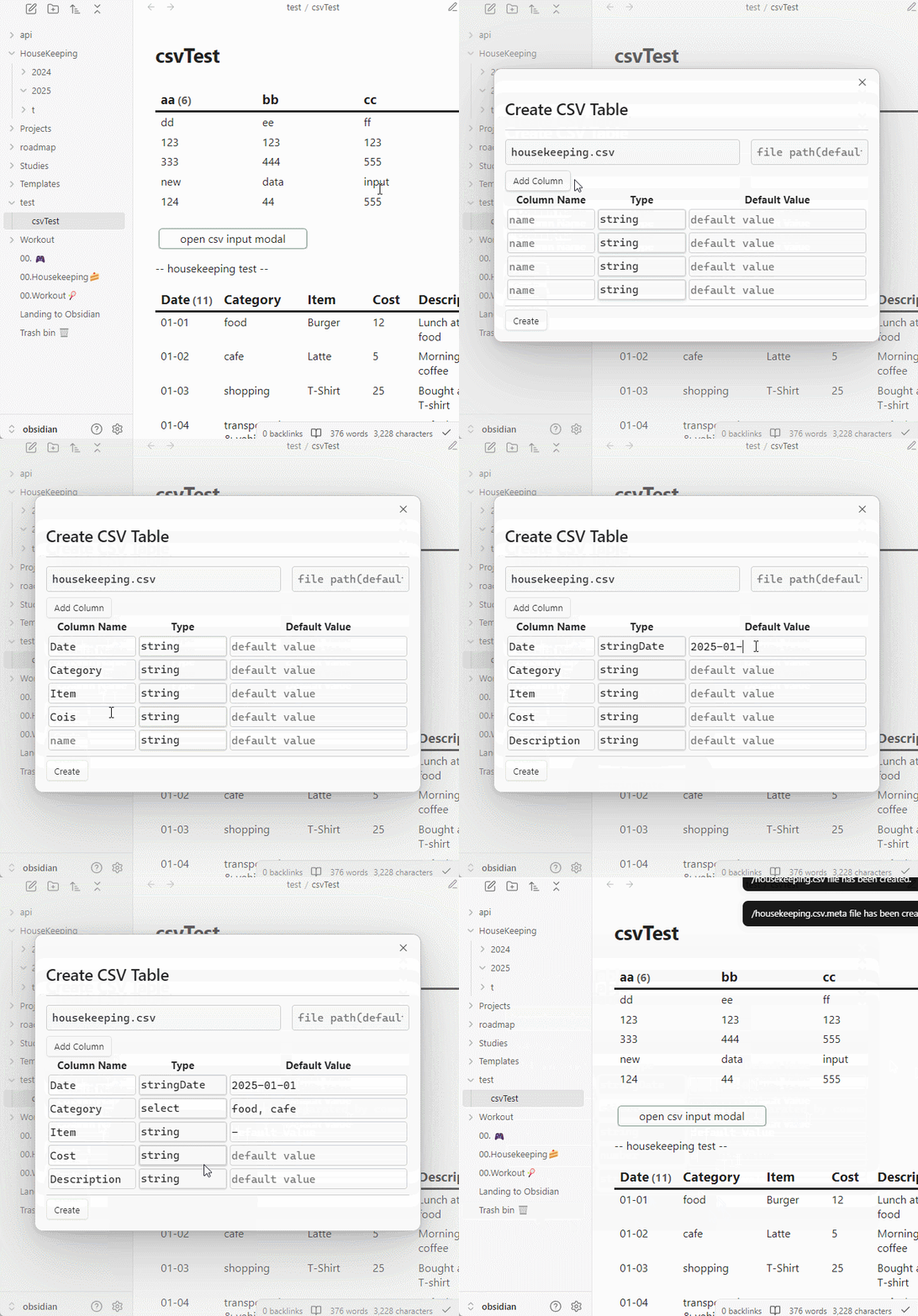
Creating a CSV File
- Ctrl + P -> search for 'Create CSV Table'
Enter the required data and click Submit as shown below:
Search CSV Files
- UI modifications are planned
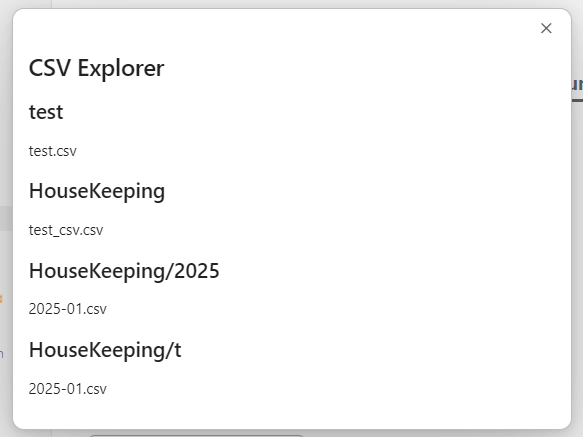
- Ctrl + P -> search for 'Open CSV Explorer'
- You can move or delete CSV files.
With DataviewJS
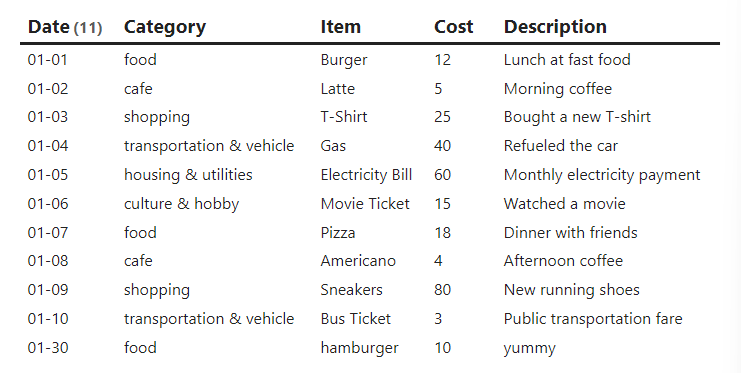
- View as table
- Source Code
const CSVPlugin = app.plugins.plugins['CSV-allinone'];

const fileName = "HouseKeeping/t/2025-01.csv";

CSVPlugin.readCSV(app, fileName).then(res => {
	let headers = []
	let defaultValues = {}
	for(const [key, value] of Object.entries(res.headers)) {
		headers.push(key)
		defaultValues[key] = ""
	}
	const columnLength = headers.length;

	let rows = []
	for(const row of res.rows) {
		const newRow = [row[0].slice(5), ...row.slice(1)]
		rows.push(newRow);
	}
	dv.table(headers, rows);
})
- Result
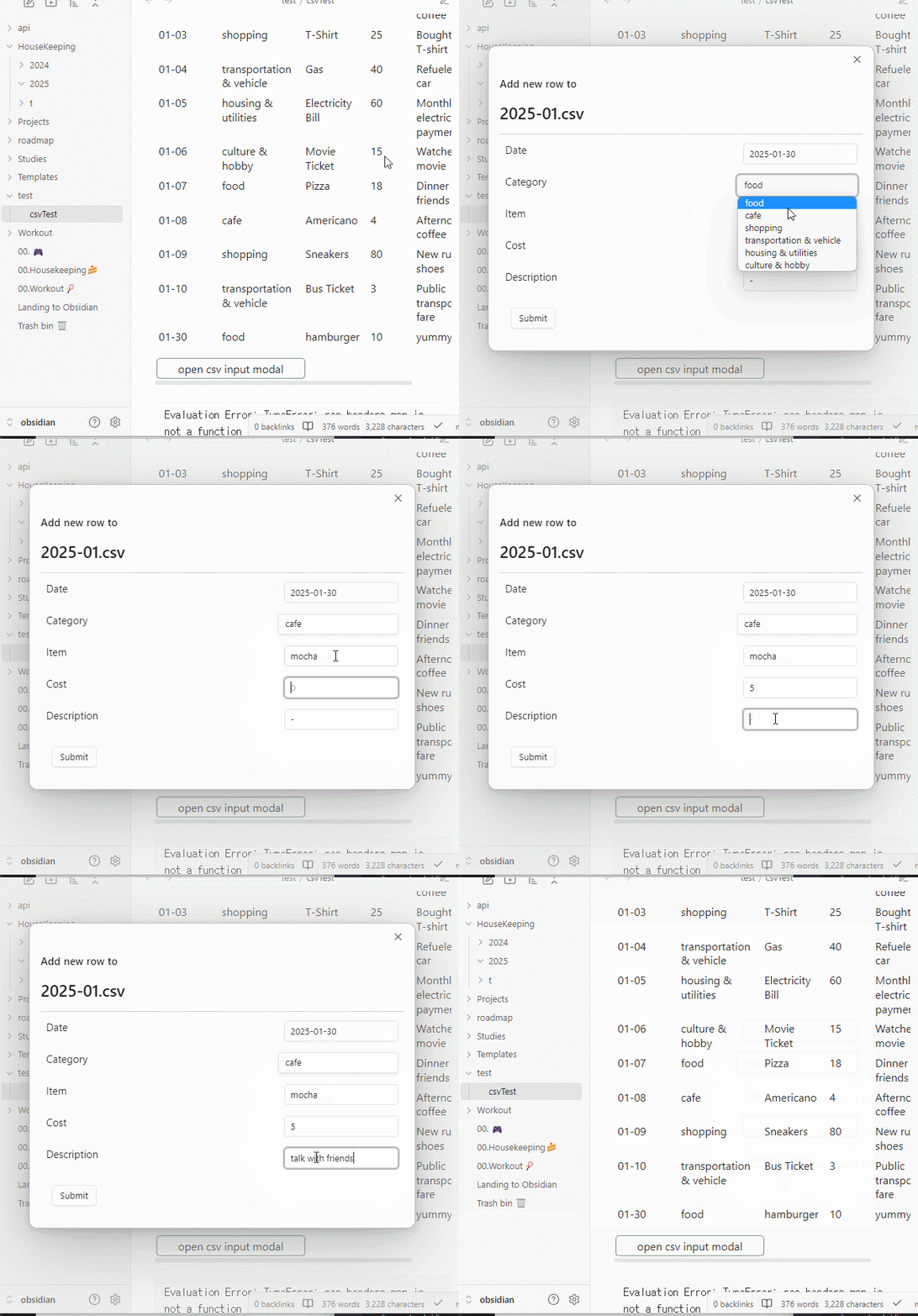
- Add new data (row)
This feature uses the Buttons plugin.
-
Feature Description
- Adds a row to a specific CSV file.
- The data is not processed once read. If real-time updates are needed, you must wait for the file to update and read it again separately.
- Default values can be entered.
-
Source Code
const CSVPlugin = app.plugins.plugins['CSV-allinone'];
const { createButton } = app.plugins.plugins["buttons"];

const fileName = "HouseKeeping/t/2025-01.csv";
const openCSVAppendModal = async(app, headers, f, defaults) => {
	 CSVPlugin.openCSVInputModal(app, headers, f, defaults)
}

CSVPlugin.readCSV(app, fileName).then(res => {
	let headers = []
	let defaultValues = {}
	for(const [key, value] of Object.entries(res.headers)) {
		headers.push(key)
		defaultValues[key] = ""
	}
	const columnLength = headers.length;

	let rows = []
	for(const row of res.rows) {
		const newRow = [row[0].slice(5), ...row.slice(1)]
		rows.push(newRow);
	}

	dv.table(headers, rows);
	// default values
	defaultValues['Date'] = moment(Date.now()).format('YYYY-MM-DD');
	defaultValues['Category'] = res.headers['Category'].options[0];
	defaultValues['Description'] = '-' ;

	dv.span(
	    createButton({
			app, el: this.container,
			args: {
				name: "open CSV input modal",
				class: ""
			},
			clickOverride: {
				click: openCSVAppendModal,
				params: [app, res.headers, fileName, defaultValues]
			}
		})
	)
})
- Result
- Add new column
- Delete existing column
With Templater
- I am not familiar with Templater, so I can't provide much detail. Apologies.
Usage/Features
APIs
Handle File
-
readCSV
- Parameters (app: App, fileName: string)
- Return: Promise<CSVTable | null>
Takes a filename and returns the corresponding CSVTable.
-
saveCSV
- Parameters (app: App, fileName: string, table: CSVTable)
- Return: void
Saves the CSVTable data into the given file.
CSVTable (class)
-- Functions available within the class will be documented here.
Header (type)
CSVRow (type)
CSVCellType (type)
How it Works
When you create a CSV file using this plugin, two files are generated: .csv and .csv.meta.
If you load an existing CSV file, a .csv.meta file is generated automatically.
The CSV file contains basic table data, while the .meta file contains information about each column's attributes.
Currently (v0.1.0), the .meta file only stores column types, but in the future, it will include additional data, such as select values or validity checks.
Contributing
Feel free to contribute however you'd like. Contributions are always welcome!
License
- MIT
For plugin developers
Search results and similarity scores are powered by semantic analysis of your plugin's README. If your plugin isn't appearing for searches you'd expect, try updating your README to clearly describe your plugin's purpose, features, and use cases.