CSV Database
pendingby jysperm
Interactive database view backed by CSV files, with rich column types, multiple views, sort & filter.
Obsidian CSV Database
An Obsidian plugin that provides an interactive database view backed by CSV files, supporting multiple column types, inline editing, and more.
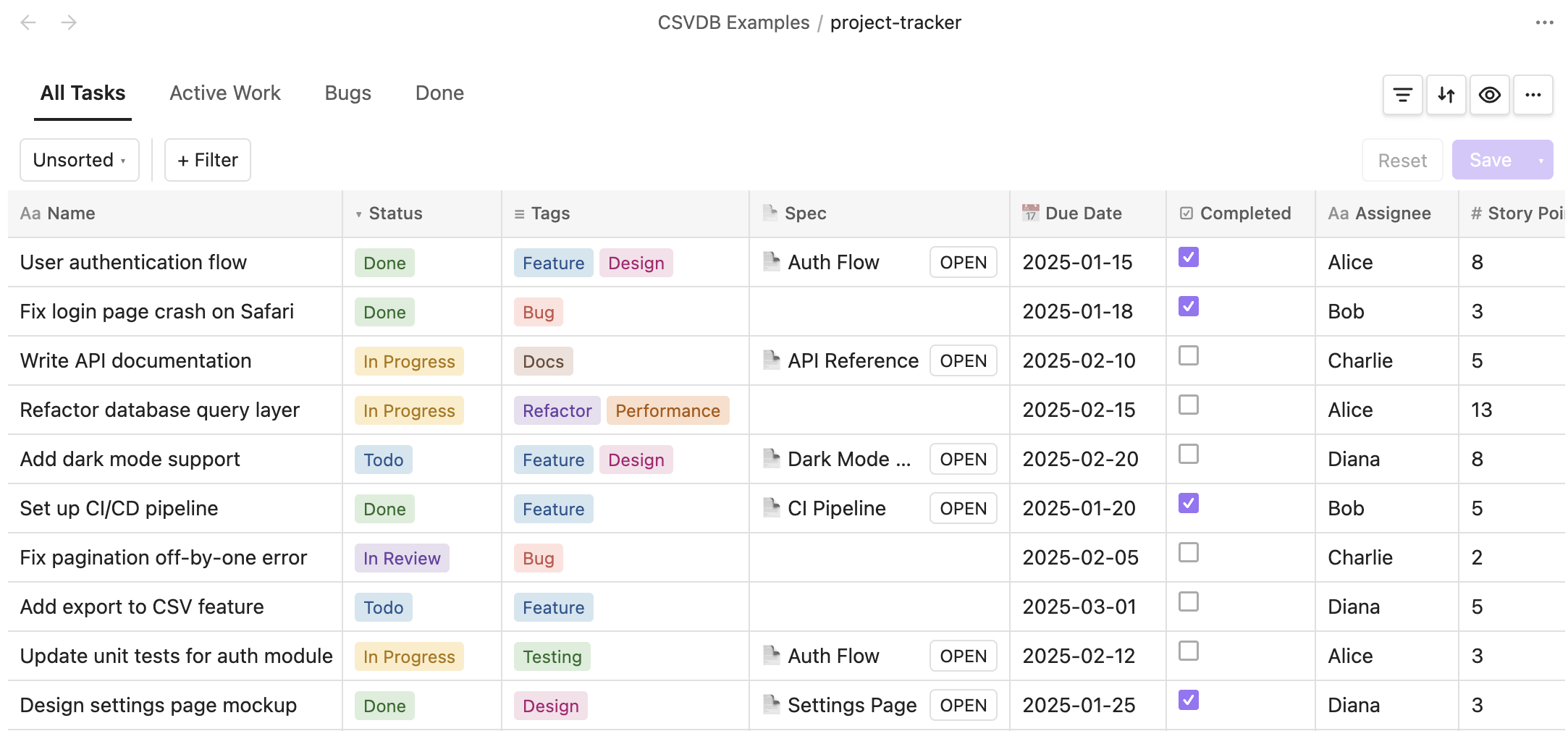
Database view with multiple column types
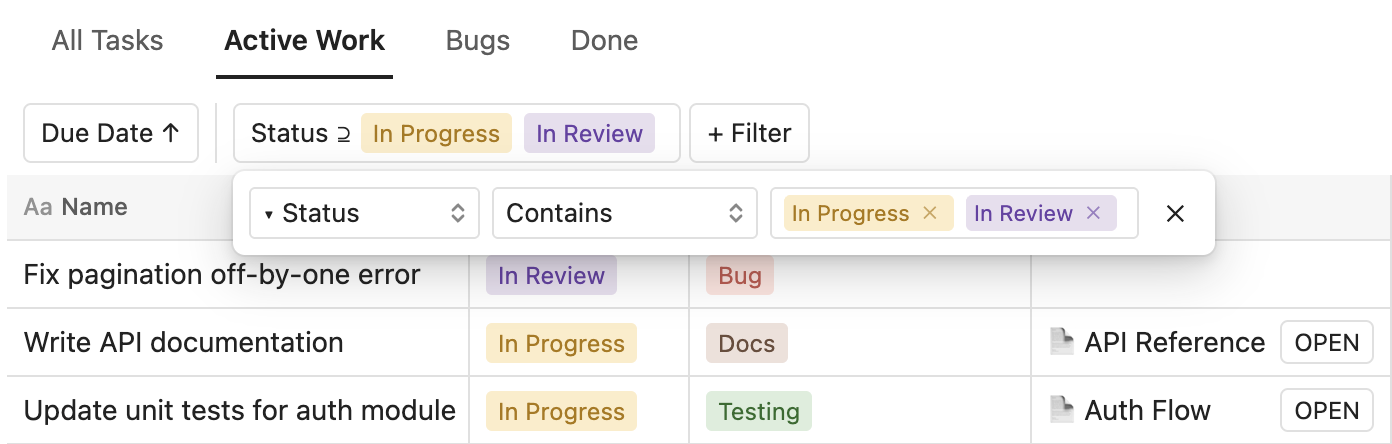
Multiple views with sort and filter
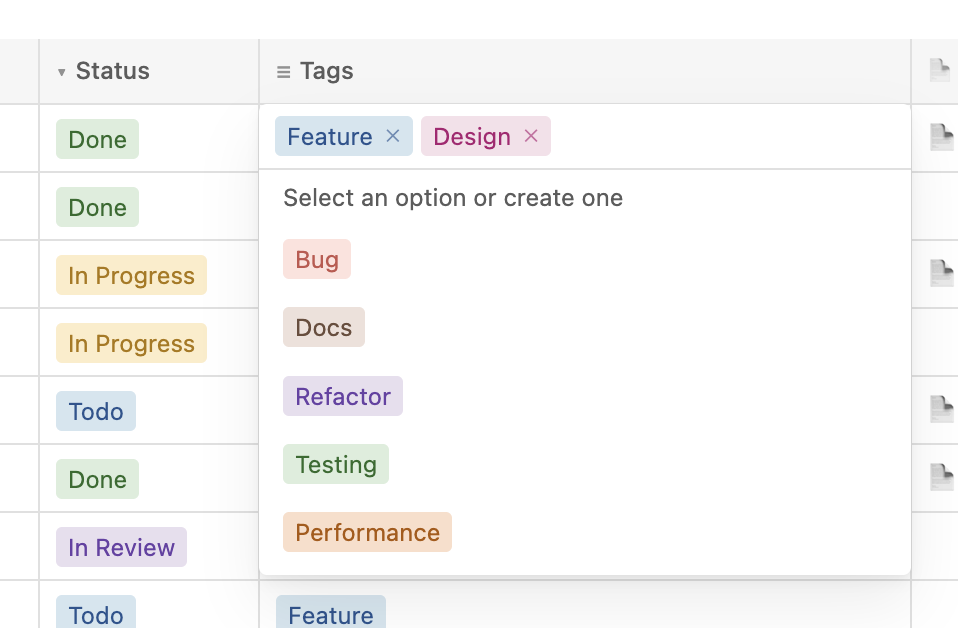
Inline editing with multi-select dropdown
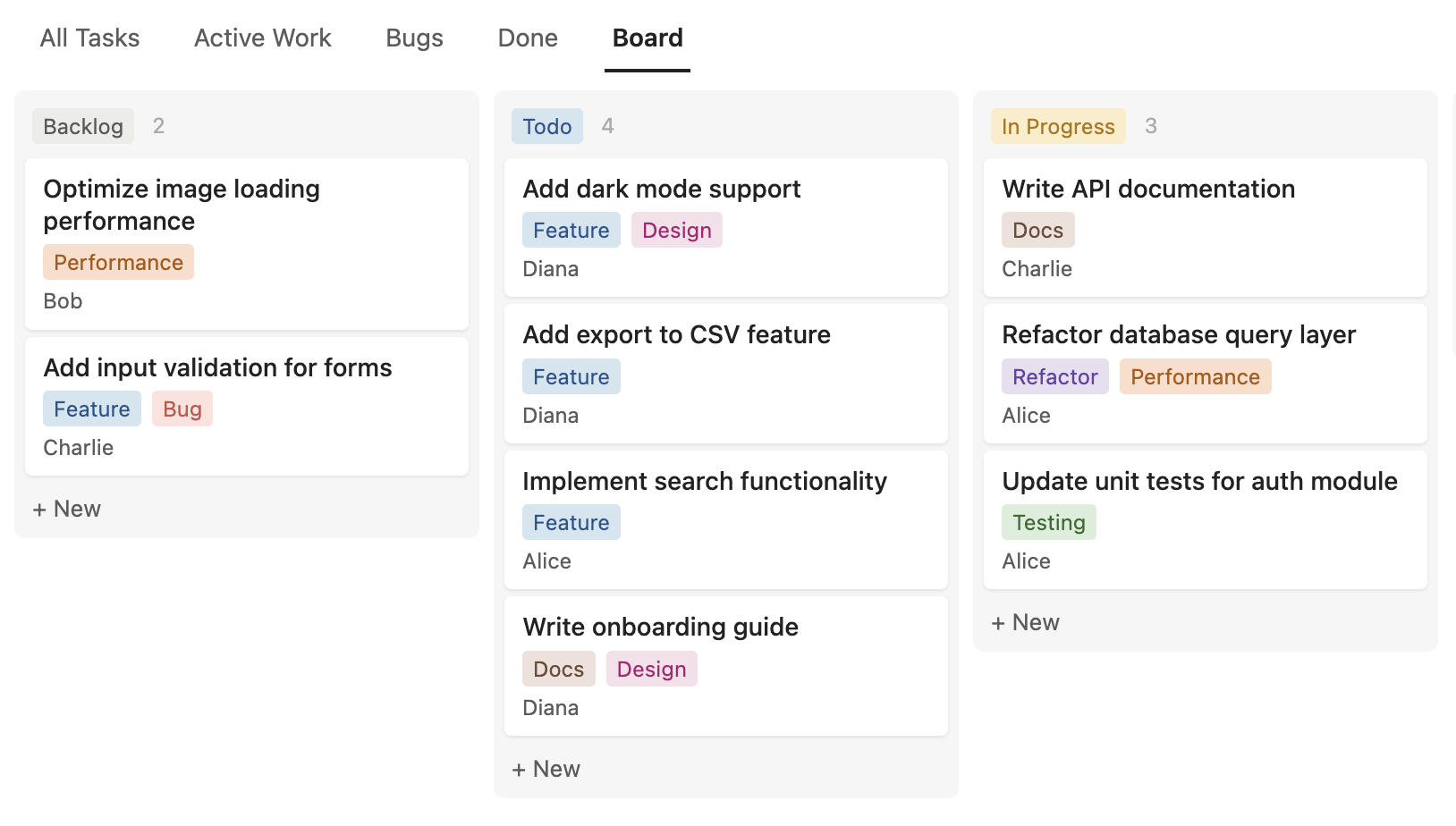
Board layout with drag-and-drop
Features
- Rich column types: text, number, date, checkbox, select, multi-select, and note (links to vault notes)
- Inline editing: click any cell to edit its value directly
- Column management: rename, change type, configure options, resize, reorder, and delete columns
- Wrap content: per-column toggle to wrap cell content to multiple lines
- Select & multi-select: color-coded tags with a dropdown picker
- Multiple views: create named views, each with its own sort, filter, and column visibility settings
- Board layout: kanban-style board view grouped by a select column, with drag-and-drop between columns
- Sort & filter: sort by multiple columns, filter with contains / does not contain / is empty / is not empty operators
- Auto-save: all changes are saved back to the CSV file immediately
Installation
This plugin has not yet been approved in the Obsidian community plugin directory (review in progress).
- Open Settings → Community Plugins → Browse
- Search for CSV Database
- Click Install, then Enable
You need to install it via BRAT:
- Install the BRAT plugin from Settings → Community Plugins → Browse
- Open BRAT settings, click Add Beta Plugin
- Enter
jysperm/obsidian-csv-databaseand click Add Plugin - Enable CSV Database in Settings → Community Plugins
Usage
- Use the command palette (
Ctrl/Cmd + P) and run Create new database to create a.csvdbfile - Add columns using the + button in the header row
- Add rows using the + New button at the bottom
The .csvdb file is a standard CSV file with column metadata encoded in the header row. It remains human-readable and can be opened with any text editor or spreadsheet application.
Development
npm ci
npm run dev    # watch mode
npm run build  # production build
To test locally, create a symlink from your vault's plugin directory to the project root:
ln -s /path/to/obsidian-csv-database /path/to/vault/.obsidian/plugins/csv-database
License
The majority of this code was written by Claude Code (Opus), but all code has been thoroughly reviewed and tested by a human. I don't really care about licensing, but Obsidian's "Submission requirements for plugins" requires me to pick one, so: MIT.
For plugin developers
Search results and similarity scores are powered by semantic analysis of your plugin's README. If your plugin isn't appearing for searches you'd expect, try updating your README to clearly describe your plugin's purpose, features, and use cases.