by 30jannik06
Simple tally counters in the sidebar — like a lap counter, for anything you want to track.
Custom Counter
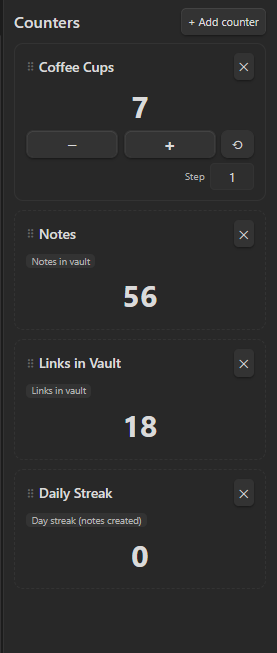
Simple tally counters in the right sidebar — like the lap counters runners used to click at the track. Add as many as you want, each with its own name, count, and step size.
Docs & download: https://30jannik06.github.io/Obsidian-Counter/
Install (manual / dev)
npm installnpm run build(ornpm run devfor watch mode)- Make sure this folder sits at
<vault>/.obsidian/plugins/custom-counter/ - Reload Obsidian, enable "Custom Counter" in Settings → Community plugins
Use
- Ribbon icon or command "Open counters panel" opens the sidebar view.
- "+ Add counter" creates a new one — give it a name.
- Click the name to rename, ✕ to delete.
- Big + / − buttons change the count by the step size (default 1); set a custom step per counter.
- ⟲ resets a counter to 0.
Everything is saved automatically to the plugin's data file.
Automatic counters
Instead of manual, pick "Automatic" when adding a counter to track a live vault stat instead: notes in vault, total links, tags used, attachments, or a day-streak of note creation. These update themselves when the vault changes — no clicking needed.
Reordering
Drag a card by its ⠿ handle to reorder counters.
Releasing a new version
- Bump
versioninpackage.json, then runnpm run version(updatesmanifest.jsonandversions.jsonto match, viaversion-bump.mjs). - Commit, then tag the commit with the version number (e.g.
git tag 1.1.0 && git push --tags). - The
.github/workflows/release.ymlworkflow builds the plugin and publishes a GitHub release withmain.js,manifest.json, andstyles.cssattached — ready for manual install or BRAT.
For plugin developers
Search results and similarity scores are powered by semantic analysis of your plugin's README. If your plugin isn't appearing for searches you'd expect, try updating your README to clearly describe your plugin's purpose, features, and use cases.