Simple Journal
approvedby Utku Aytaç
A continuous journal for Obsidian. One entry is one Markdown note, a day holds as many as you wrote, and you edit them all inline in a single timeline. - This plugin has not been manually reviewed by Obsidian staff.
Simple Journal
An Obsidian plugin for entry-based journaling.
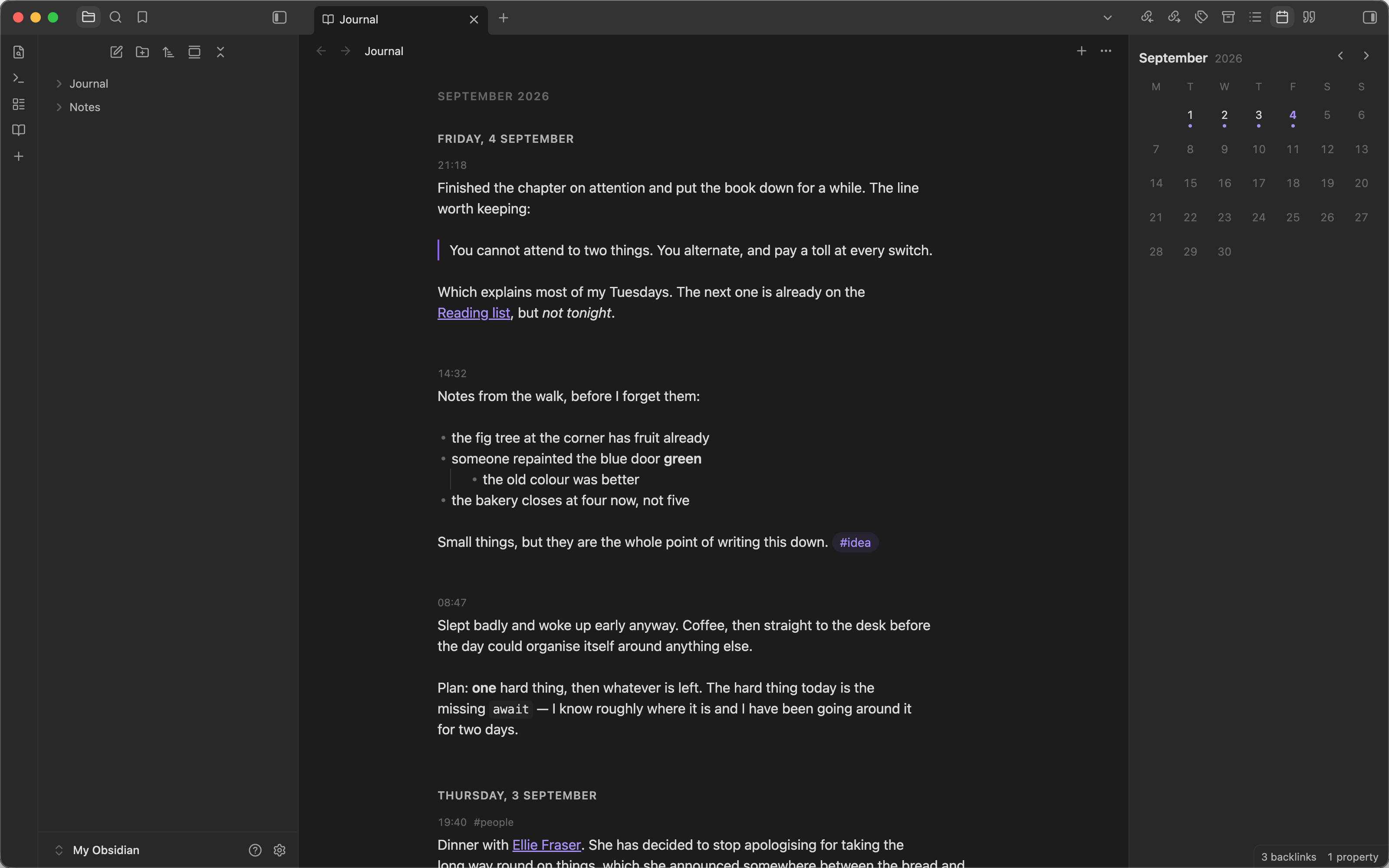
One journal entry is one Markdown file. A day holds as many entries as you wrote that day. The plugin shows them all in a single continuous timeline, newest first, directly editable — so you think about writing, not about files.
What it does
- No titles. Entries are identified by their timestamp. Nothing asks you for a name, a folder, or a date.
- Newest first. Days run newest to oldest, and so do the entries inside each day.
- Directly editable. Every entry in the loaded timeline is a live,
full-fidelity Obsidian editor —
[[link autocomplete, live preview, and editor commands all work — not a click-to-edit placeholder. Entries far outside the viewport fall back to static rendering and remount as you scroll back to them. - Ordinary Markdown. Every entry is a normal note in your vault. Links, tags, properties, search, backlinks, graph, Bases, Dataview, and other plugins all work.
- Filterable by tag. Narrow the timeline to one tag when you want to read a single thread back — still newest first, still continuous. Nothing is hidden permanently: the filter names itself at the top of the timeline and is gone the moment you clear it or restart.
- Searchable by what you wrote. Find an entry by the words in it, in your own language — Turkish casing included. Open the one you were looking for, or narrow the timeline to everything you wrote about it.
- Readable from the other side. Link a note from an entry and that note can show the entries themselves, with their text — not a column of timestamps, which is all a backlinks pane can make of titleless files.
- Reacts to changes made elsewhere. Edit an entry from another pane,
rename it, delete it, or change its
createdproperty — the timeline updates to match. - Local only. No network requests, no telemetry, no account. Your journal never leaves your vault.
Storage
Journal/
└── 2026/
    └── 08/
        ├── 2026-08-12-09-34-21.md
        ├── 2026-08-12-14-17-03.md
        └── 2026-08-12-22-41-52.md
Each file carries a single created property and your text. No heading is
added. Two entries created in the same second get a numeric suffix
(-2, -3, ...) rather than overwriting each other.
The folders are your choice. Entry folders in the settings offers three
shapes:
Year and month   Journal/2026/08/2026-08-12-09-34-21.md
Year             Journal/2026/2026-08-12-09-34-21.md
No subfolders    Journal/2026-08-12-09-34-21.md
Changing it decides where the next entry goes. Entries you already have are not moved — the timeline reads them wherever they are, so a journal holding more than one shape works fine.
Picking a new shape then offers to bring the rest over, and you can say no; the same offer is available any time as the Reorganize journal folders command. Either way it tells you how many entries will move before it moves any, never touches what is inside them, never overwrites a file, and leaves alone anything you filed into a folder of your own or named yourself. Emptied year and month folders go to your trash rather than being deleted.
Commands
| Command | What it does |
|---|---|
Open journal | Opens the timeline (also available from the ribbon icon) |
New journal entry | Returns to today and focuses a fresh entry |
Go to today | Scrolls the timeline back to the top |
Open calendar | Reveals the calendar in the sidebar |
Filter journal by tag | Narrows the timeline to one tag |
Search journal | Finds an entry by the words in it |
Reorganize journal folders | Moves existing entries into the folder shape you chose |
Open journal mentions | Reveals the mentions panel in the sidebar |
Insert journal mentions block | Writes a mentions block at the cursor |
obsidian://simple-journal-new starts a new entry too, so a phone
home-screen shortcut can capture a thought in one tap.
An entry is not written to disk until you actually type something in a fresh composer — an empty composer that never receives text leaves no file behind.
Calendar
A compact month calendar sits in the right sidebar, placed there automatically. Days that hold entries are marked with a dot; today is emphasised. Only marked days are clickable — an empty square does nothing, because being thrown months back by an accidental tap is worse than nothing happening.
Clicking a day anchors the timeline to it: that day and everything older. It anchors rather than filters, so the journal stays one continuous timeline that you can keep scrolling into the past.
Tags
Tag an entry the way you tag anything else in Obsidian — type #something as
you write, or put tags: in its properties. The plugin never writes a tag for
you and never rewrites one you wrote.
A tag written in the properties would otherwise be invisible here, because the timeline deliberately hides the properties panel, so those appear as a small chip beside the entry's time. A tag typed into the text does not get a chip: it already shows as Obsidian's own clickable pill, and showing it twice would just be noise.
Filter journal by tag narrows the timeline to a single tag — from the command,
or by clicking one of those chips. The filtered tag is named at the top of the
timeline with a ✕ beside it; Esc clears it too. It filters rather than
anchors, because a tag is not a point in time: "this tag and older" would mean
nothing. It does compose with the calendar, though, so you can read one tag
from a given day backwards.
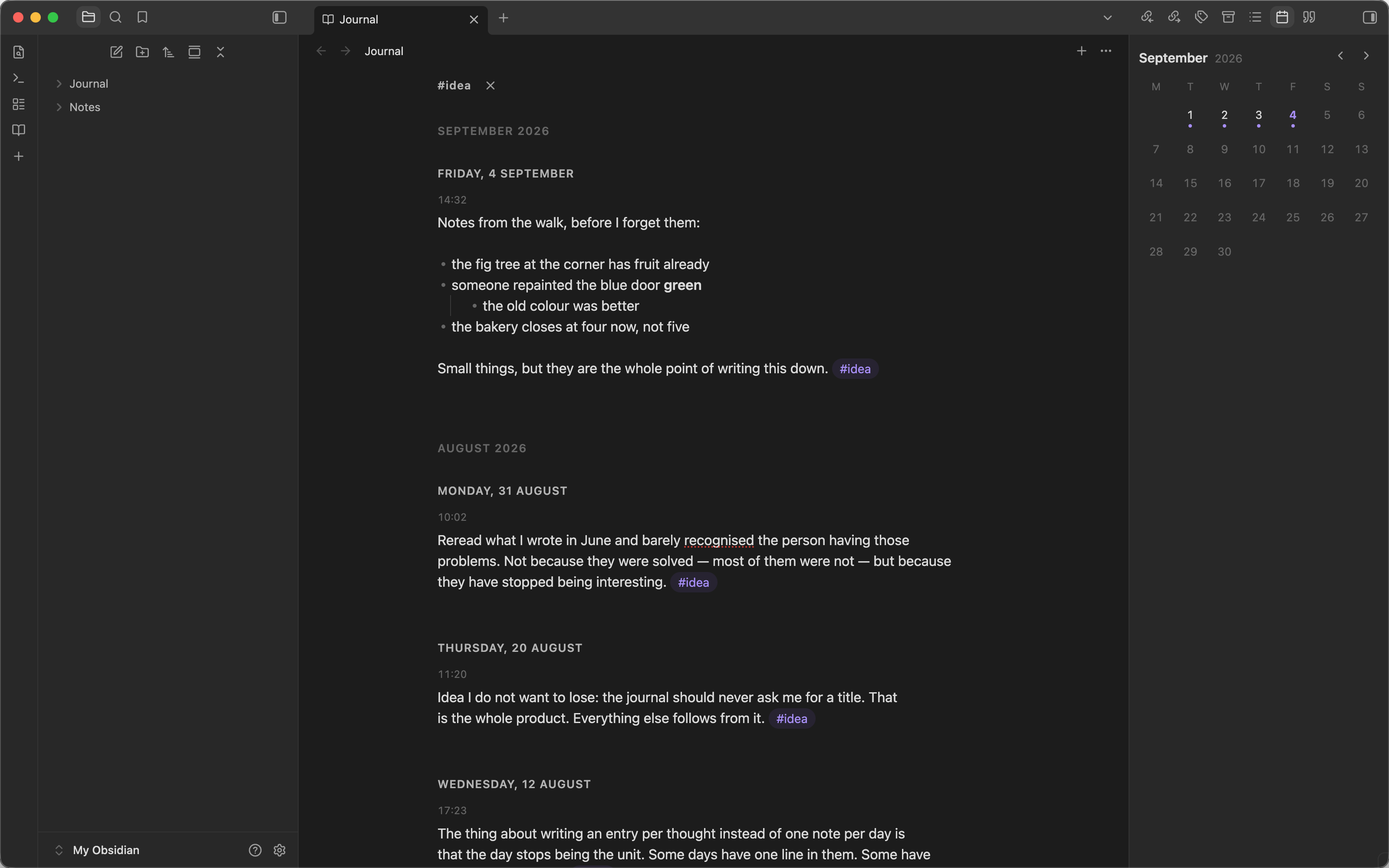
Matching is exact and case-insensitive: filtering by #work does not pull in
#work/project, which is listed separately when you pick a tag.
The filter is never saved. Restart Obsidian and the journal comes back whole — a filter restored at startup would hide most of your journal with no visible reason.
Search
Search journal answers two questions with one list: take me to that entry,
and show me everything I wrote about this.
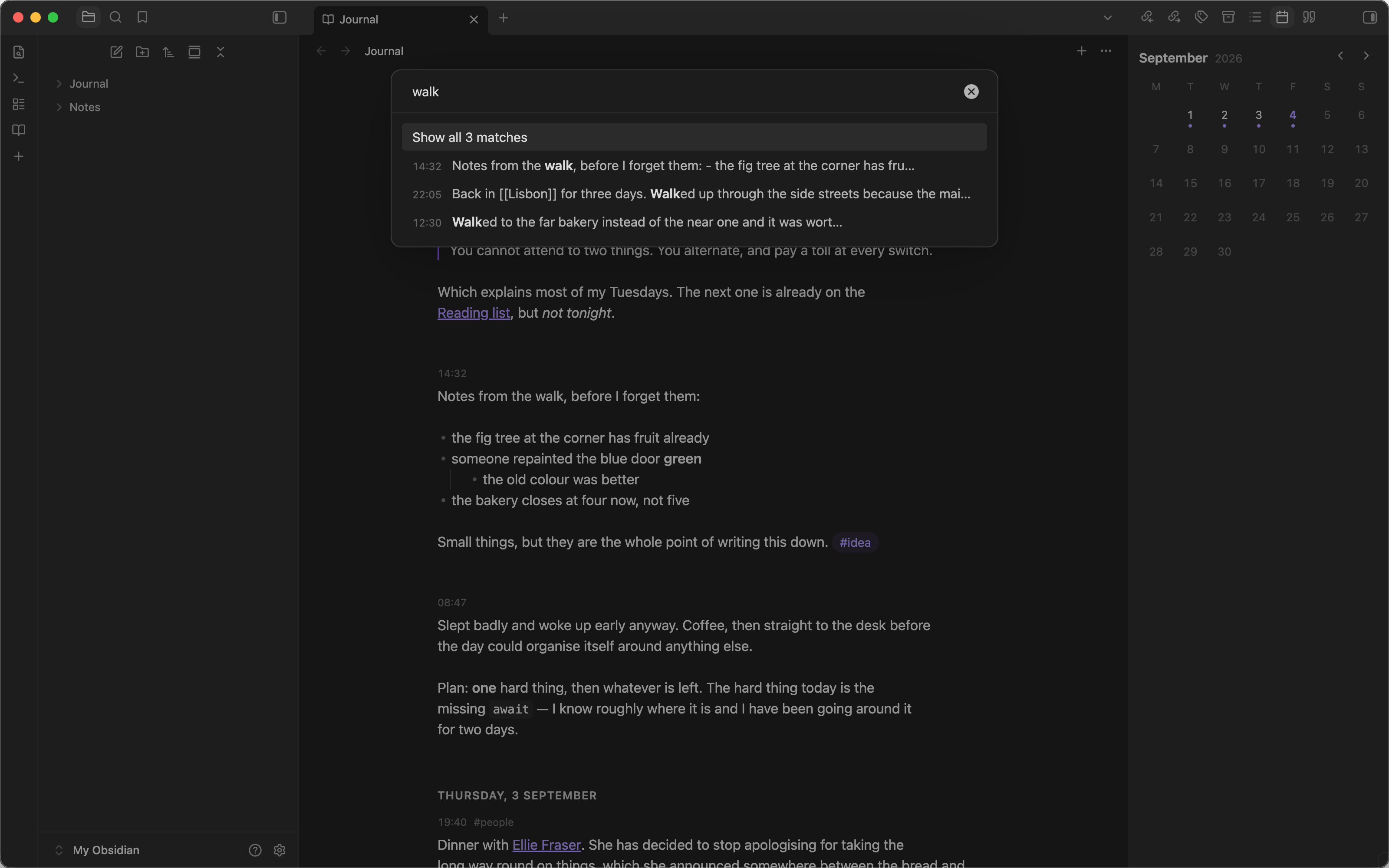
Type, and matching entries appear with their time and the words around the match. Then either:
- pick one entry — its note opens in a new tab, and the journal you were reading is left exactly as it was; or
- pick "Show all" — the timeline narrows to every entry that matched, named
at the top with a
✕beside it, the same way the tag filter is.
It searches what you wrote: the text of your entries, not their properties and
not their filenames. Every term has to appear, in any order, and there is no
query syntax — no quotes, no OR, no exclusion. Obsidian's own search still
answers the wider questions exactly as it did.
Casing works in both languages. istanbul finds İstanbul, ışık finds
IŞIK, and i am finds I am happy — on every platform, with no dependence
on your system locale. All four of İ I ı i count as one letter here, so a
search never misses a word over the dot on an i. The cost runs the other way:
ısı also finds isi. An extra row is easier to read past than a missing one
is to notice.
Accents are not folded, so acik does not find açık — this folds case, not
accents. Filtering by tag is unaffected: that stays exact.
A text filter is never saved, exactly like the tag one — restart Obsidian, or write a new entry, and the journal comes back whole. Only one filter is active at a time: searching replaces a tag filter, and filtering by tag replaces a search.
Mentions
Link a note from an entry — [[Ellie Fraser]] — and that note can show
you the entries themselves, with their text, newest first, the way the timeline
shows them.
Obsidian's own backlinks pane can't do this, through no fault of its own: it lists a backlink by filename, and these filenames are bare timestamps. Twenty entries about the same person come out as twenty near-identical rows.
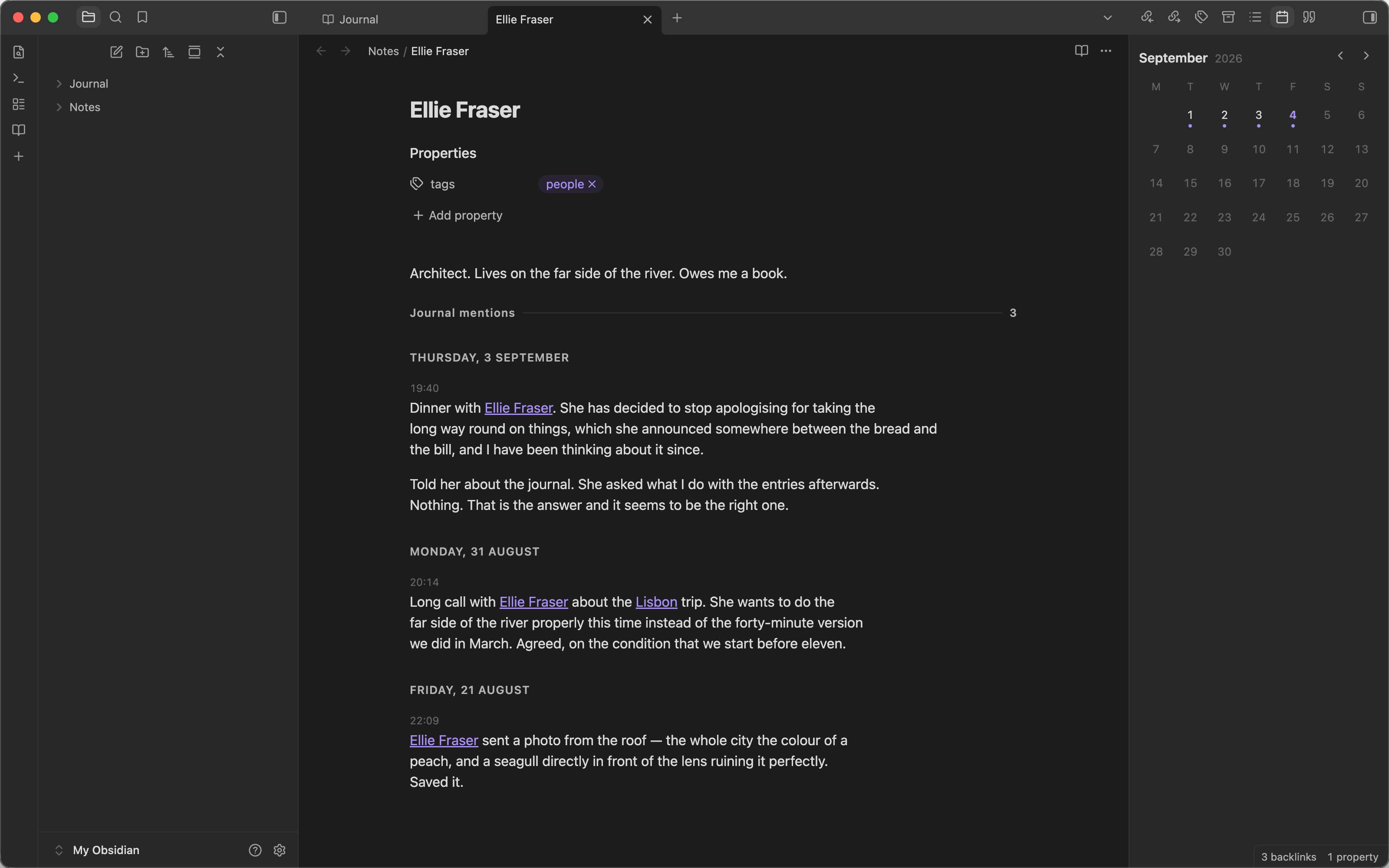
A mention is a real link. A link in the body, an embedded ![[note]], an
aliased [[note|Ellie]], and a link in the properties (people: "[[Ellie Fraser]]") all count equally, because Obsidian treats them as the same
thing. Two things do not count: a link to a note that doesn't exist yet, and
your typing someone's name as plain text. Only journal entries are ever
listed — this is not a second backlinks pane for your whole vault.
Put the panel inside a note by writing a block:
```simple-journal
```
Insert journal mentions block writes that at the cursor for you. An empty block means "entries that mention this note". To ask about a different note, give it one line:
```simple-journal
note: [[Some Other Note]]
```
Anything else in the block is ignored rather than treated as an error.
If you would rather not write a block at all, there are two settings below that give you the same panel without one: in the sidebar, following whatever note you are reading, or automatically at the bottom of every note something mentions. Open journal mentions opens the sidebar panel whether or not that setting is on.
The panel is read-only: entries render fully — links, embeds, tags, formatting — but you don't edit them there. Click an entry's time and the journal opens, anchored to that entry's day, which is where editing belongs. Five entries show at first; Show more adds twenty at a time.
Entry actions
Hover an entry (or long-press it on mobile) to reveal its actions menu: open the source note, copy a link to the entry, change its time, or delete it. Deletion goes through Obsidian's own trash/delete-confirmation flow, so it respects your vault's configured trash behaviour.
Change entry time exists because the timestamp is what places an entry in
the timeline, and the timeline deliberately hides the properties panel — so a
wrong timestamp would otherwise have no remedy from where you are reading. It
rewrites only the created property, leaving every other property you have
added exactly as it was, and renames the file to match when the file still
follows the plugin's own naming convention.
Settings
Journal folder — the vault folder that holds journal entries. Defaults to
Journal, and is created automatically when the first entry is written.
Entry folders — where new entries are filed inside it: by year and month (the default), by year, or not at all. Picking a shape offers to move the entries you already have, and you can decline; see Storage above.
Show mentions under notes — off by default. Adds the mentions panel to the bottom of a note automatically, after its text, scrolling with it, without your having to write a block. A note nothing mentions shows nothing at all, and journal entries never get one — the timeline already is the journal. Click its header to fold the panel down to that one line and the count; click again to bring the entries back. Folded or not, it stays that way for every note until you change it. The panel in the sidebar and the one you write as a block don't fold: you opened those on purpose.
Mentions sidebar — off by default. Keeps a mentions panel in the sidebar that follows whichever note you are reading. This governs whether the panel is placed there for you; Open journal mentions opens it either way.
Both take effect immediately — no reload — and turning either off takes its panel away again.
Platforms
Works on both desktop and mobile — the same timeline and the same code paths, with larger touch targets, an earlier incremental-loading threshold, and a lower cap on simultaneously mounted editors on mobile.
The timeline is built from Obsidian's own CSS variables, so it follows whatever theme you use. Every screenshot here is the same frame captured in light and in dark; where this file is rendered with theme support, you are being shown whichever matches your own.
A note on the editor
Obsidian exposes no public API for an editable editor embedded in a custom
view. To give entries the full Obsidian editing experience — not an
approximation — this plugin uses an internal mechanism
(app.embedRegistry.embedByExtension), isolated behind an EntryEditor
interface in a single file, src/views/ObsidianEmbedEditor.ts.
This is a deliberate, narrow exception to an otherwise strict "no undocumented internals" rule. Two things make it safe:
- Feature detection with fallback. The internal API is probed once at
plugin load. If it's unavailable, the plugin falls back to a plain
<textarea>editor and shows a one-time notice — the journal keeps working either way, and no journal data is ever put at risk. - One-file confinement. All internal API usage lives behind the
EntryEditorinterface in that one file, so a future Obsidian change, or a future public API, is a one-file change to adapt to.
See docs/editor-embed-api.md for the empirical contract this was built
against.
Development
npm install
npm run dev       # watch build
npm test          # unit tests
npm run test:tz   # unit tests under a non-local timezone (America/New_York)
npm run build     # typecheck + production build
npm run sync copies the built plugin into a vault's plugins folder for
manual testing (OBSIDIAN_VAULT="/path/to/vault" npm run sync).
See docs/manual-testing.md and docs/manual-testing-editor.md for the
checks that need a real Obsidian instance rather than the unit test suite.
License
MIT
For plugin developers
Search results and similarity scores are powered by semantic analysis of your plugin's README. If your plugin isn't appearing for searches you'd expect, try updating your README to clearly describe your plugin's purpose, features, and use cases.