Date Helpers
approvedby patrice-bour
Insert dates without leaving the line: a keyboard-first picker, an inline popup that reads natural language in six languages, format presets you can extend, and daily note links. - This plugin has not been manually reviewed by Obsidian staff.
Date Helpers



An Obsidian plugin for effortlessly managing the dates that interrupt your writing. This plugin facilitates the insertion of dates you count on your fingers, look up in a calendar, or wrap in wikilink brackets by hand. It brings a date picker, format presets (eleven of them to start with, plus the ones you write yourself) and daily note links. The picker and the suggestion popup open on a trigger you type, without leaving the line.
You are mid-sentence and a date gets in the way: next monday — which date is that, again?
Type @next monday, press Enter, and the date lands in the format you chose, as text or as a link to that day's note.
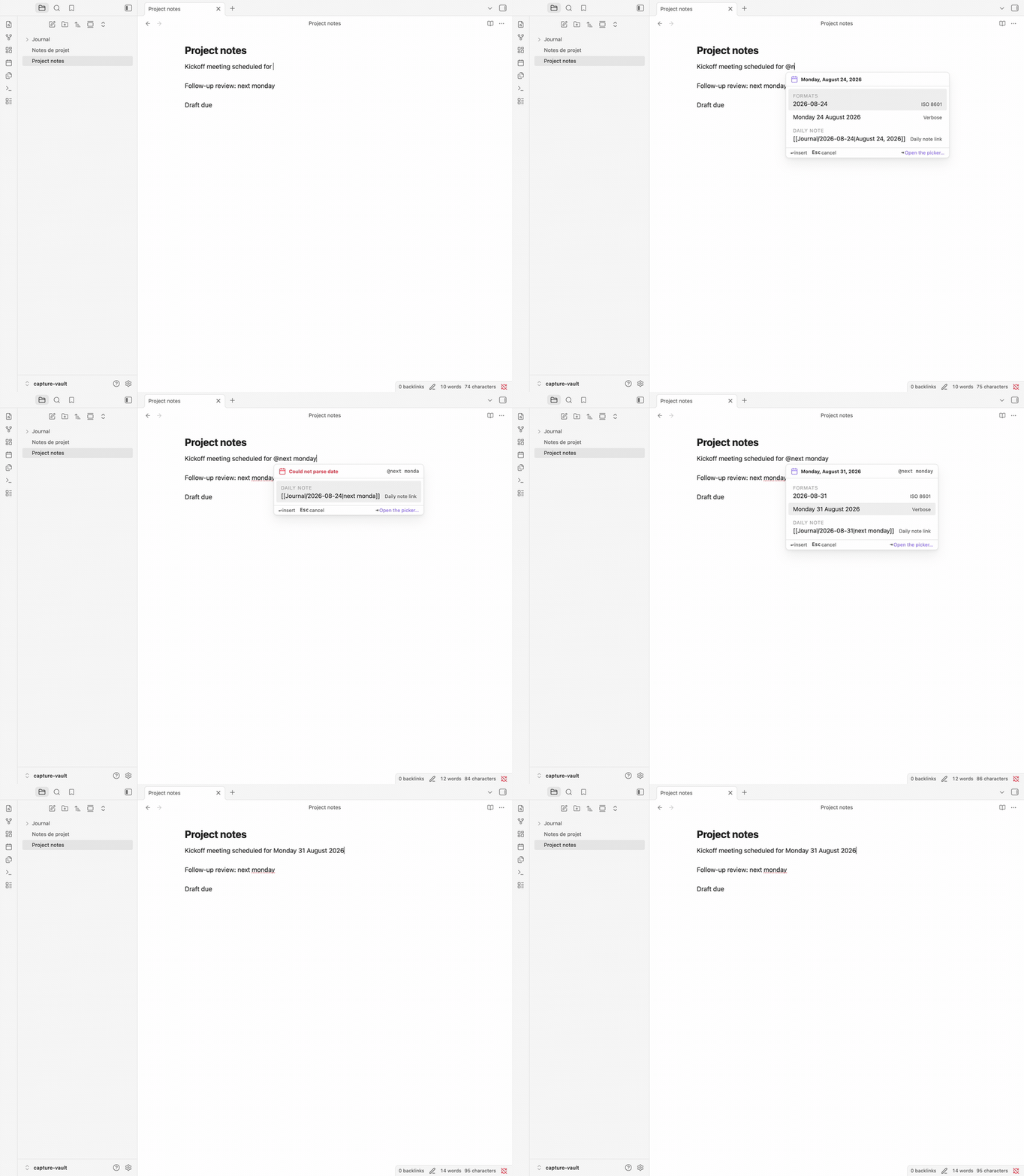 Typing
 @next monday: the popup reparses on every keystroke; pick the format you want, and Enter replaces the whole expression.
Writing [[Journal/2026-08-17|kickoff meeting]] by hand, pipe and all, is the other chore. Select your words, type @@, pick a day. Your words become the link's alias, in a field you can edit before inserting.
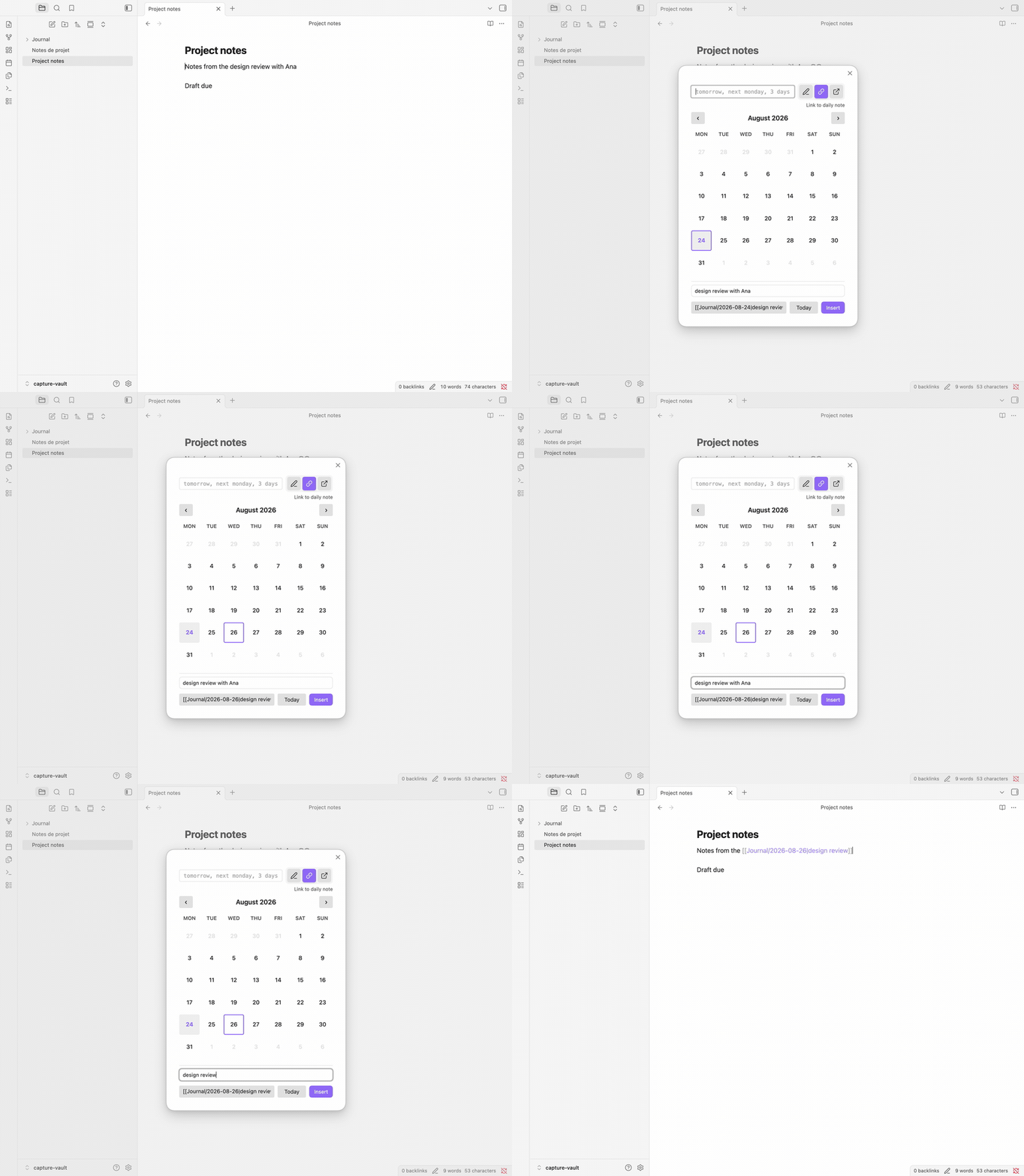 Selecting your words, typing
 @@, then trimming the alias before confirming: the link carries the text you edited, brackets and pipe included.
New to Obsidian?
A daily note is the one-note-per-day journal of a core plugin, and a wikilink like
[[2026-08-17|kickoff meeting]]is a link that shows an alias (kickoff meeting) instead of its target (2026-08-17). Date Helpers writes both for you.
Installation
Date Helpers needs Obsidian 1.13.0 or later.
- Open Settings → Community Plugins → Browse, search for
Date Helpers, install and enable. - Open any note and type
@next monday. The popup lists what it can insert;Enterreplaces the whole expression with the date,Escdismisses. - Prefer a calendar? Type
@@for the full picker.
BRAT and manual installation are covered in the User Guide.
What Date Helpers takes over
Four chores, all without leaving the keyboard:
- the mental calendar — type
next mondayin any of six languages and get the date, computed for you - the format — that date rendered in the preset you choose,
2026-08-17orAugust 17, 2026, or in a format you wrote yourself - the link syntax — your own words kept as a daily note link's alias, brackets and pipe written for you
- the lookup — a date picker, on the default
@@trigger or from the command palette, for the days you would rather see than name
The full picker
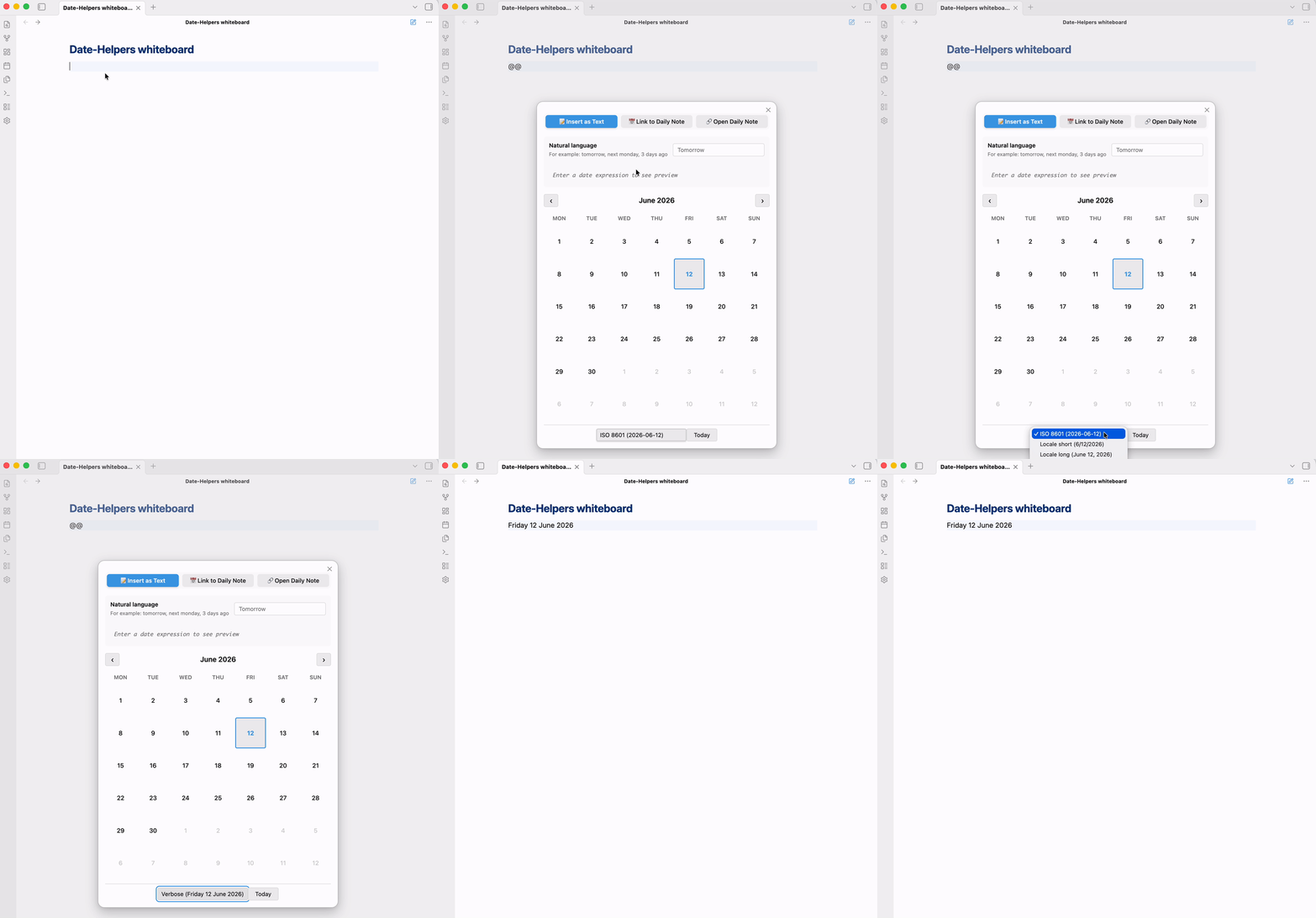 Typing
 @@ opens the picker; pick another format if you want, then confirm — the trigger becomes the date.
Some days you would rather point at than phrase. @@ — a trigger set by default — opens the picker: an expression field, three icon buttons that choose what confirming does, a calendar, and a format selector.
The three actions:
- Insert as text —
2026-08-17, orAugust 17, 2026, whichever preset you pick - Link to daily note —
[[Journal/2026-08-17|August 17, 2026]] - Open daily note — the daily note itself, opened, and created first if you enabled that
On Link to daily note, once there are words to carry — a selection, or what you typed in the expression field — the footer adds an editable alias field: the words the link will show stay yours to rewrite until you confirm.
Triggers are yours to shape: each one declares whether it opens the picker or the popup, so a one-character ; can open the picker and a three-character //d the popup.
No trigger fires in the middle of a word, so any.pattern@ stays an email address while @ is a trigger.
There is also one command per format preset — Insert date: ISO 8601, for instance — which inserts straight away without opening anything. One caveat: these commands follow the picker's last action, so right after Link to daily note they write a wikilink, not plain text — until the picker stands on Insert as text again.
The User Guide walks through each workflow, capture by capture.
Type @ and keep typing — the inline popup
@ — the other trigger set by default — opens a suggestion popup, and everything after it is reparsed on every keystroke, spaces included, so @next monday at 2pm works. The popup groups what it can insert: the formats you picked for it (ISO 8601 and Locale long out of the box), and a link to that day's daily note.
Enter inserts. Esc dismisses. Tab opens the picker, and so does the footer's Open the picker… action. One undo restores what you typed, however long it was.
When nothing parses, the popup still offers the daily note link and the picker — your words become the link's alias rather than being discarded.
Adding triggers and choosing what the popup lists: Trigger characters in the guide.
Your selection becomes the alias
Select kickoff meeting, type the @ trigger, then pick a preset or keep typing a natural-language date. The popup offers a wikilink that points at the daily note of that date and carries your selected words as its alias.
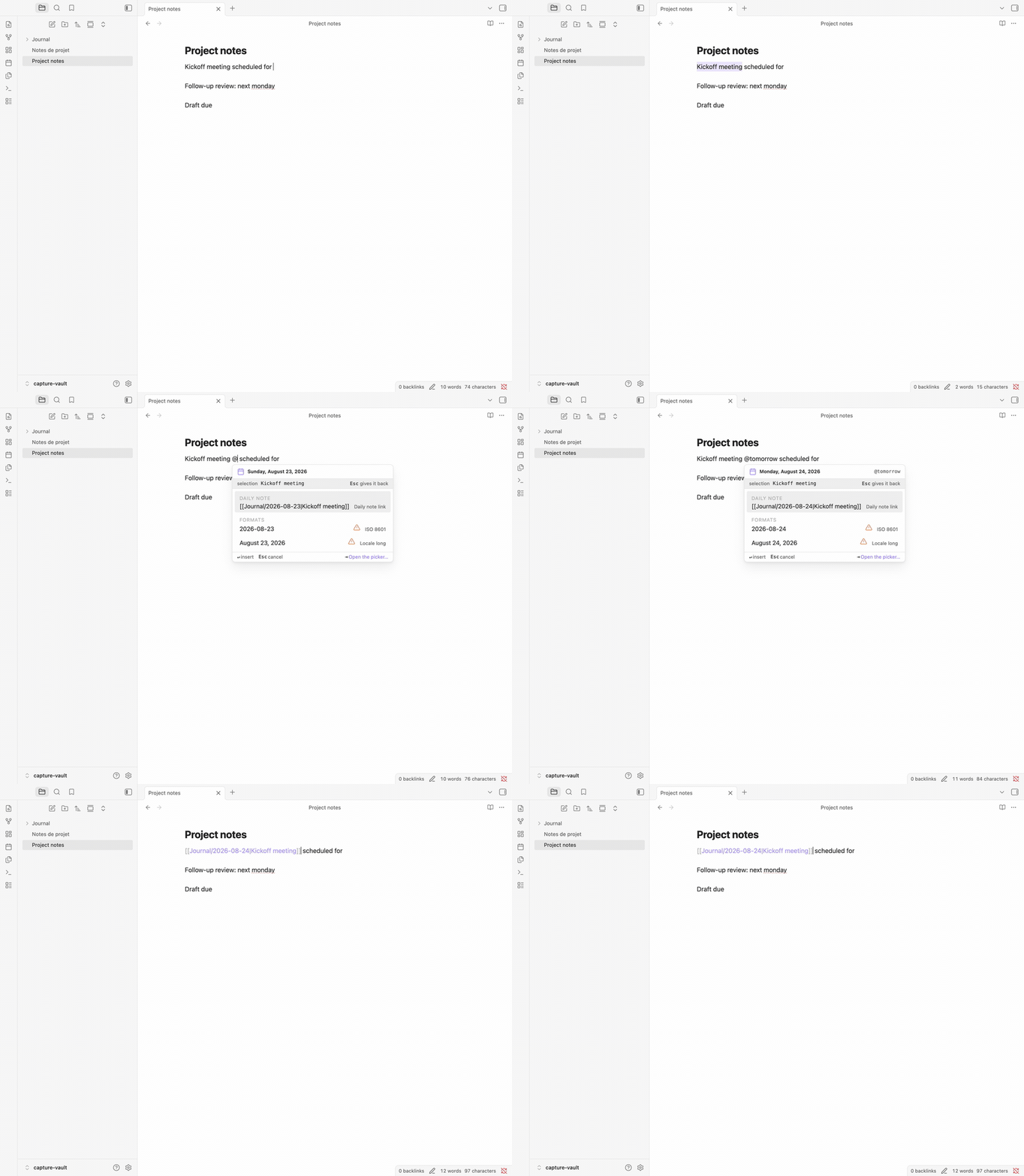 Selecting words, typing the
 @ trigger, adjusting the date if you need to, then confirming: the selection stays as the link's alias.
The command Insert daily note link… does the same over a selection: confirm a day (e.g. 2026-08-17), and the selection is replaced by [[2026-08-17|kickoff meeting]].
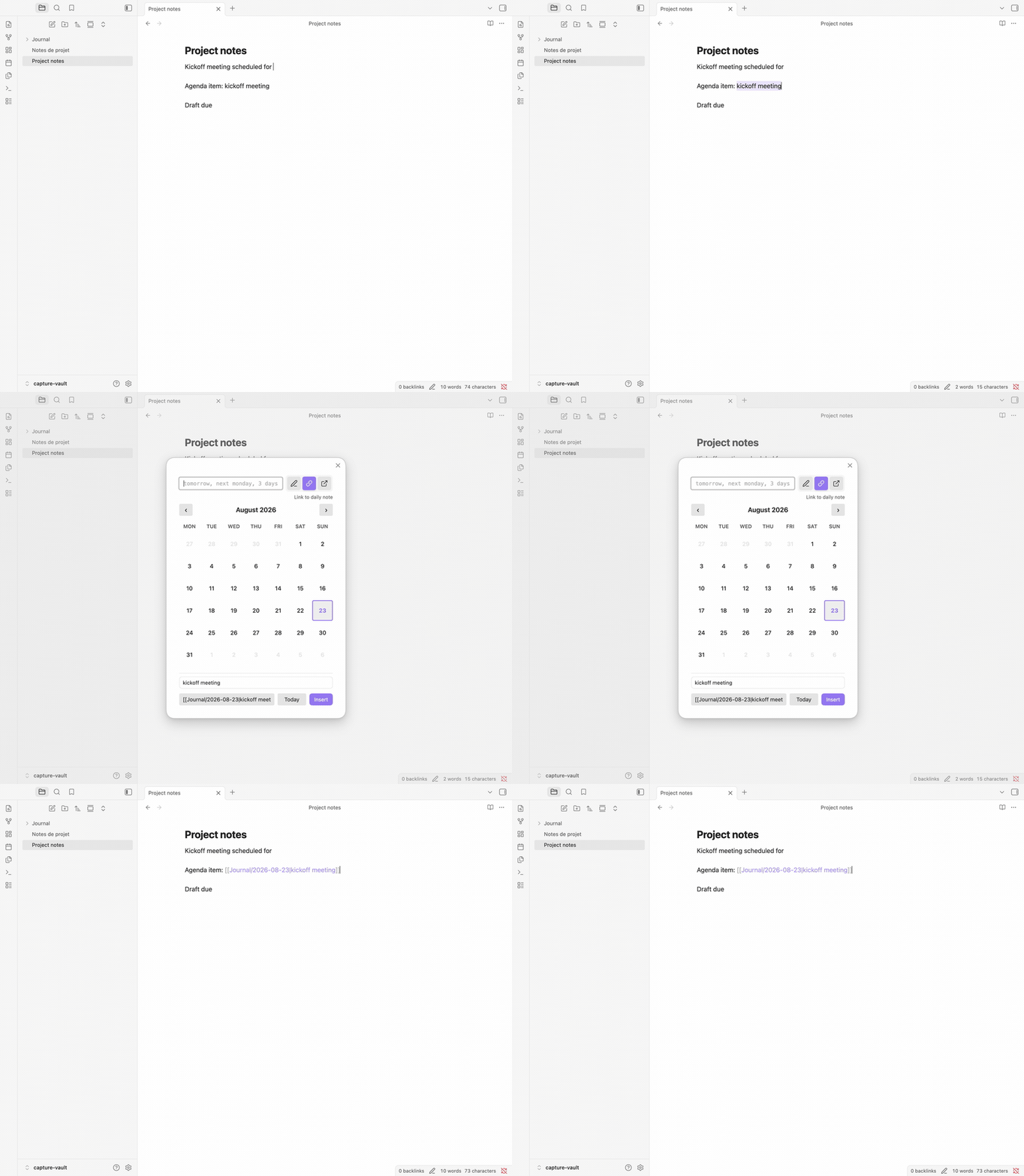 Selecting "kickoff meeting" and confirming a day produces a wikilink aliased with those words.
The swap is one edit: cancelling leaves the note untouched, and a single undo brings your text back.
A selection that reads as a date also names the day the link points at. Type another date yourself and that one wins.
A meeting name, a heading, a half-written thought: text you wrote for humans works here, not only text shaped like a date.
Step by step, variants included: Turn a selection into a link in the guide.
Six languages, read as you type
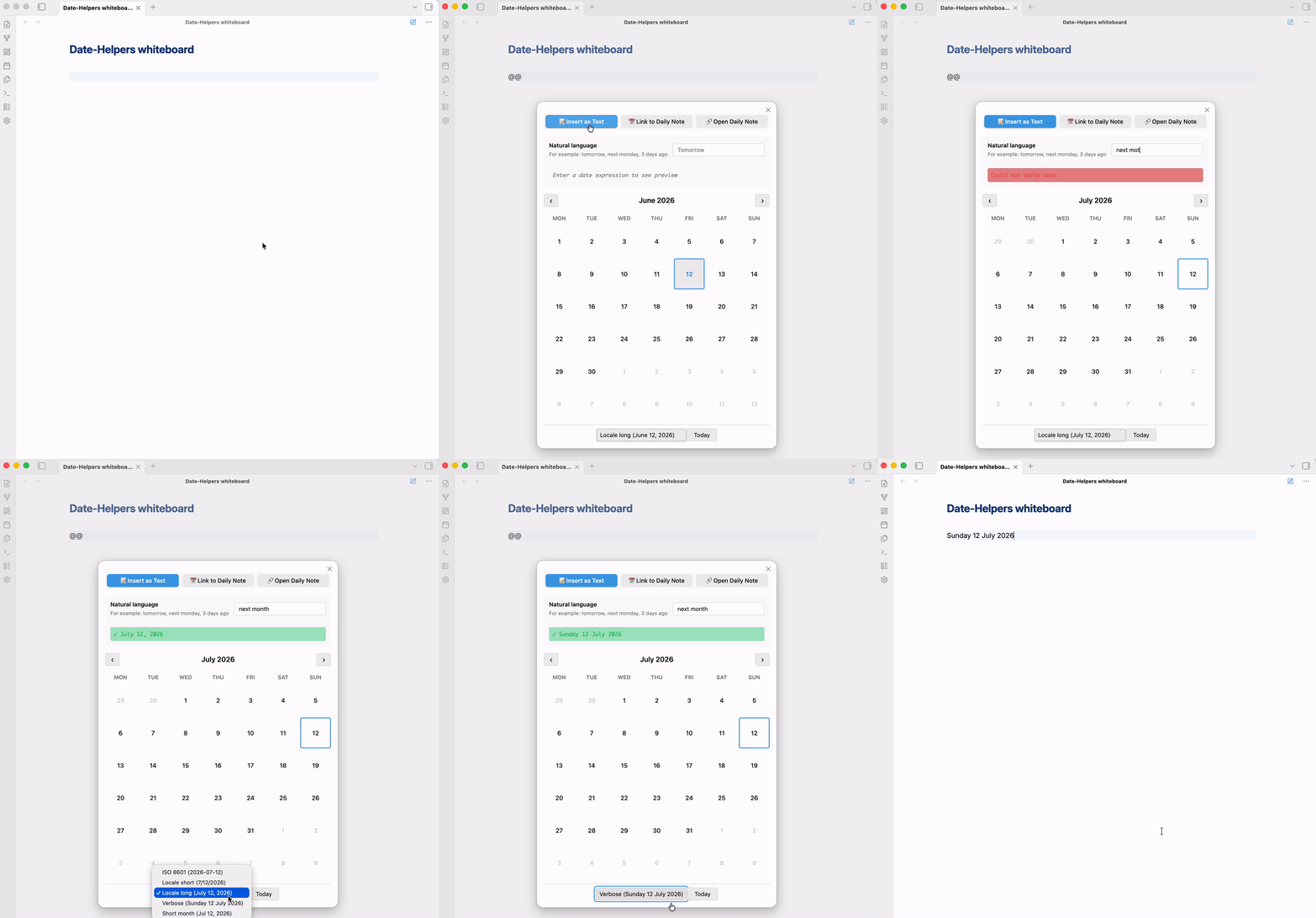 Typing "next month" updates the preview and moves the calendar.
next thursday, dans 3 semaines, übermorgen — the point is that you stop converting them in your head. Relative expressions, weekdays and times are parsed in English, French, German, Japanese, Portuguese and Dutch: @demain à 14h and @nächsten Montag um 14 Uhr work just like @next monday at 2pm. The parsing comes from chrono-node.
The six do not cover the same ground. English, French and German are read in full; Portuguese, Japanese and Dutch each have a gap. Portuguese and Japanese ignore the next/last modifier and do not read in N days: sexta-feira passada gives you whichever Friday is nearest — which may not be the one you meant. Dutch reads over 3 dagen but not its compound day names: overmorgen and eergisteren stay unparsed.
Where a language has a gap, prefer the calendar.
Auto-detect language extends your locale to the other five — your locale's language is always tried first — which matters when a vault mixes languages.
Text the plugin cannot parse is never discarded: it becomes the alias of a daily note link. Check which day that link points at, though — with nothing readable to go on, it falls back to today.
The plugin's own interface — settings tab, picker and popup — speaks English and French; the four other languages are read, not yet spoken:
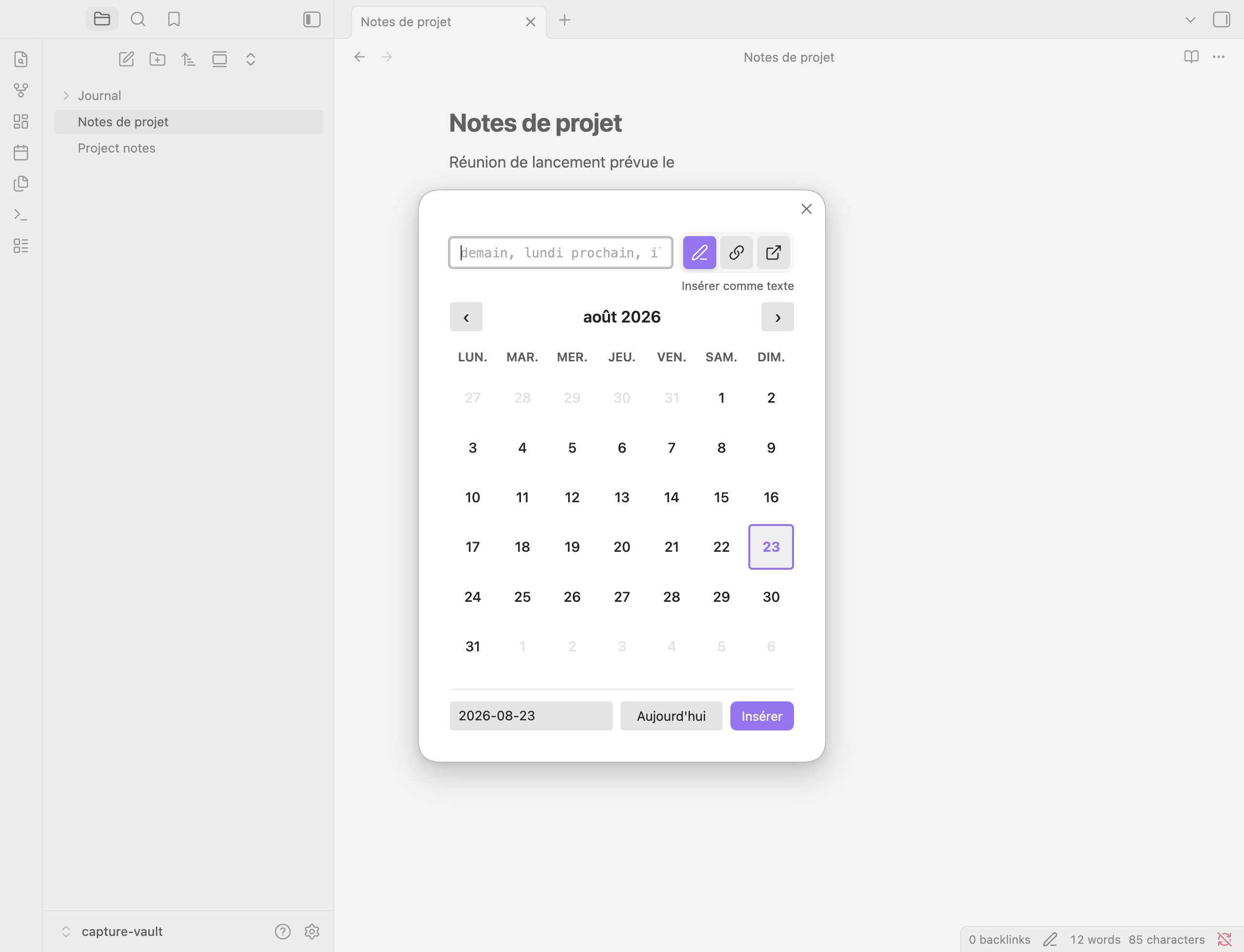 The picker in French: the status row, calendar and footer follow the Locale setting.
The User Guide has examples for each language.
Eleven formats, plus the ones you write
The date lands in the shape you chose. Eleven presets ship with the plugin — five for a date, three for a time, three for both — from ISO to locale-aware to fully spelled out. Month names, weekday names and component order follow your locale, through Luxon. The User Guide lists every one with a rendered example.
When none of them writes what you want, write it. The + on the preset list asks for a name, a kind and a format string, which you write the way Daily Notes and Templater write theirs. A line under the field renders today's date as you type, and a token the plugin cannot place is named back to you, so you can try another.
Your format comes back respelled, and nothing is wrong. Write DD/MM/YYYY, save, and the row reads dd/MM/yyyy: the plugin stores every format in Luxon's syntax. Same format, other spelling — both write 31/08/2026.
What your format does next follows the kind you gave it — a date format joins the picker's format selector, a date or datetime format can be pinned to the popup, and every format gets a command of its own.
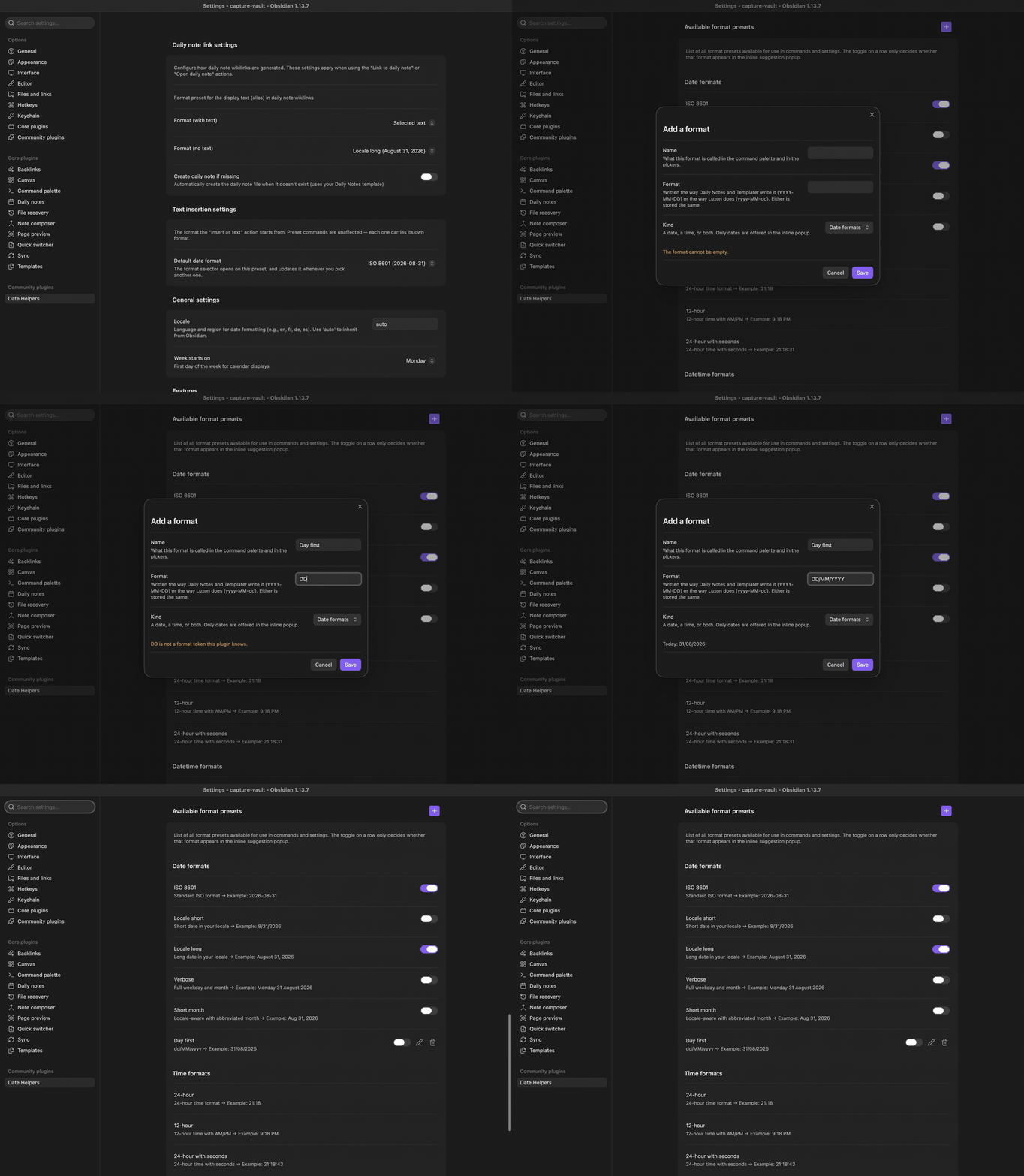 A name — Day first — a format written the way Daily Notes writes it, and the preview reads it back as you type; the saved format then sits in the list beside the eleven that ship, respelled
 dd/MM/yyyy.
The first day of the week is a setting of its own, and the format you pick in the picker is the one it offers you next time — each preset command keeps its own.
Writing your own format, in the guide, goes through the syntax token by token.
Keyboard first
Wondering what you can rebind here? Three answers, one rule each.
Two triggers are set for you: @@ opens the picker, @ opens the popup. Both can be changed, removed or joined by others in the settings.
No hotkey is set for you — Obsidian's community plugin policy leaves that choice to you. The plugin arrives polite and empty-handed: assign your own to any of its commands in Settings → Hotkeys.
The calendar keys are fixed — arrows to move by day or week, PageUp/PageDown for months, t for today, Enter to confirm, among others. None is configurable; the full key matrix is in the guide. The navigation keys give way to the natural-language field once it holds text: they edit your words instead of moving the calendar. t steps aside earlier — as soon as the field has focus, text or no text — because today and tomorrow start with it.
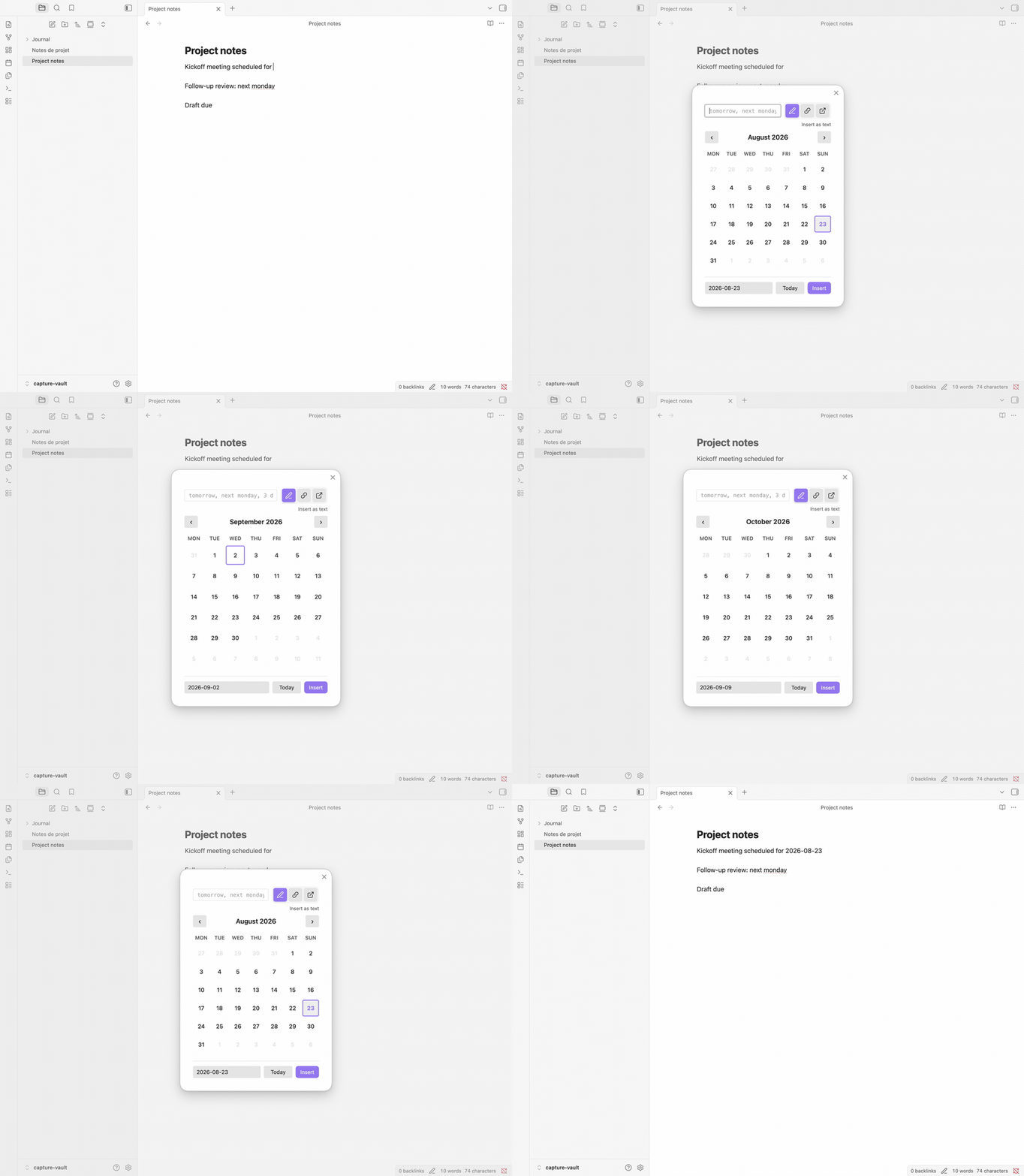 Arrows move the day,
 PageDown changes month, t returns to today, Enter confirms.
Settings
Open Settings → Date Helpers. Six groups cover the daily note link, text insertion, locale and first day of week, the feature switches, your trigger characters, and the format presets — each date and datetime preset carrying its Show in the inline suggestion popup toggle. Most are reachable from Obsidian's settings search; the settings reference documents each one.
Four settings need the plugin to reload before they take effect: the triggers, the set of presets, the locale, and Enable date picker, when you switch it on. Nothing is lost in the meantime — a Reload to apply warning appears at the top of the tab and names what to do. The guide's When a change needs a reload takes the four one by one.
Privacy and permissions
- No network, no telemetry — parsing (chrono-node) and formatting (Luxon) run locally; the plugin makes no network connections and collects nothing.
- What it writes — the note you are working in, at your cursor or over your selection; its own settings (
data.jsonin its plugin folder); and, when you asked for a daily note, that note — missing parent folders included. - Where the daily-note path comes from — the core Daily Notes plugin, so the links it inserts resolve like the ones you write by hand.
The security policy states this scope and how to report anything that contradicts it.
Documentation
- User Guide — workflows, the full command and key reference, every setting
- Integrations — the core Daily Notes plugin, which Date Helpers relies on for the path and format of every daily note link
- Troubleshooting & FAQ — when a trigger stays quiet or an expression won't parse
- Prior art — what the
@trigger owes to Natural Language Dates by Argenos - Architecture Overview — technical design for contributors
Changelog
See CHANGELOG.md for version history and what changed between releases.
Support
- Issues: GitHub Issues
- Discussions: GitHub Discussions
- Community Portal: date-helpers on community.obsidian.md
Contributing
See CONTRIBUTING.md for development setup and guidelines, and the Code of Conduct.
License
For plugin developers
Search results and similarity scores are powered by semantic analysis of your plugin's README. If your plugin isn't appearing for searches you'd expect, try updating your README to clearly describe your plugin's purpose, features, and use cases.