Quick Date Picker
approvedby LDD
Quickly summon a mini calendar by typing @ (or your custom trigger) in documents to pick dates and choose output formats on the fly. Also supports relative date shortcuts like @+3d. - This plugin has not been manually reviewed by Obsidian staff.
Quick Date Picker
Quickly insert dates in Obsidian by typing @ (or your custom trigger character) to summon a mini calendar, pick a date, and insert with one click.
Features
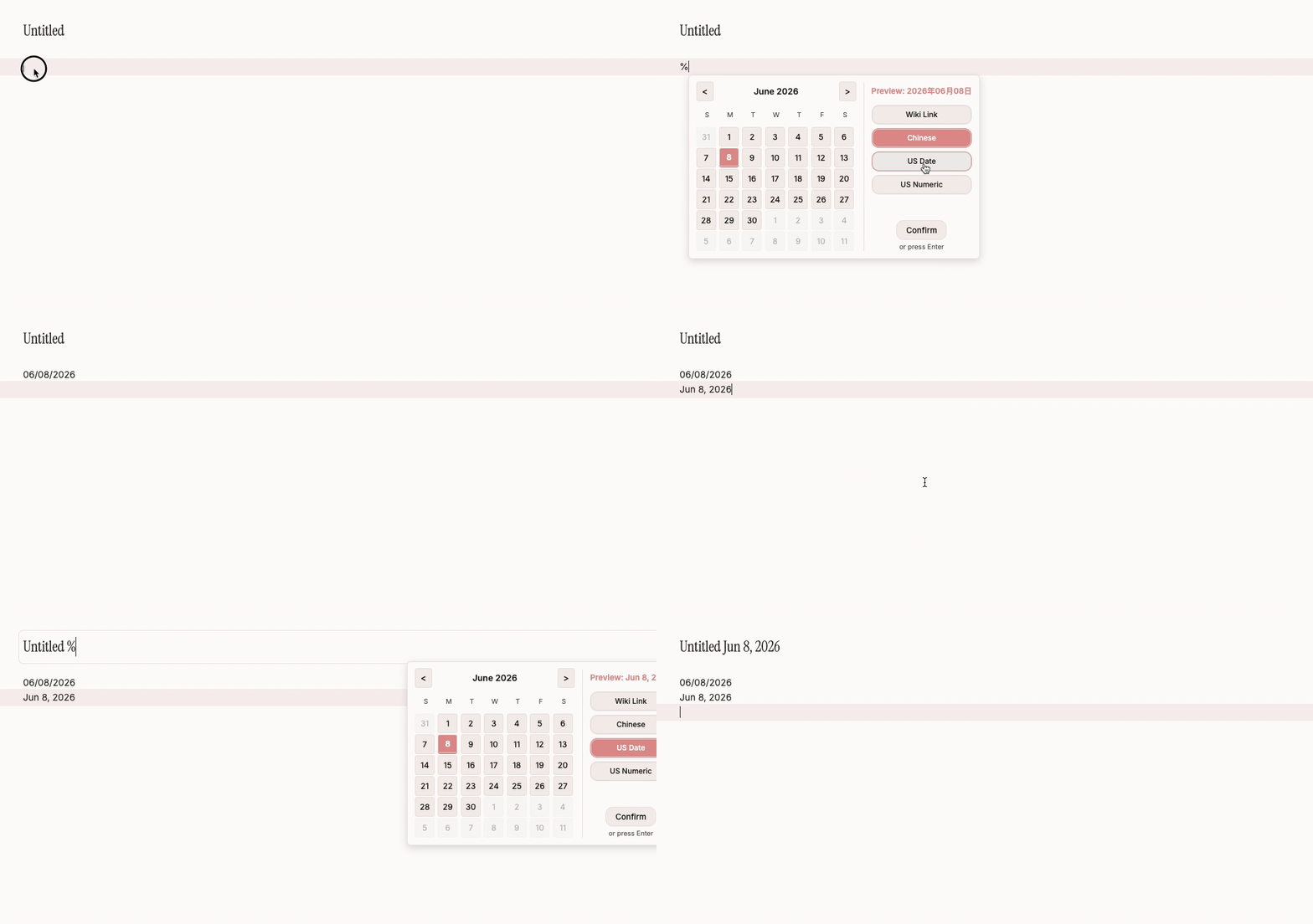
- Mini Calendar Popup: A calendar pops up in real-time after typing the trigger character. Supports both mouse selection and keyboard navigation.
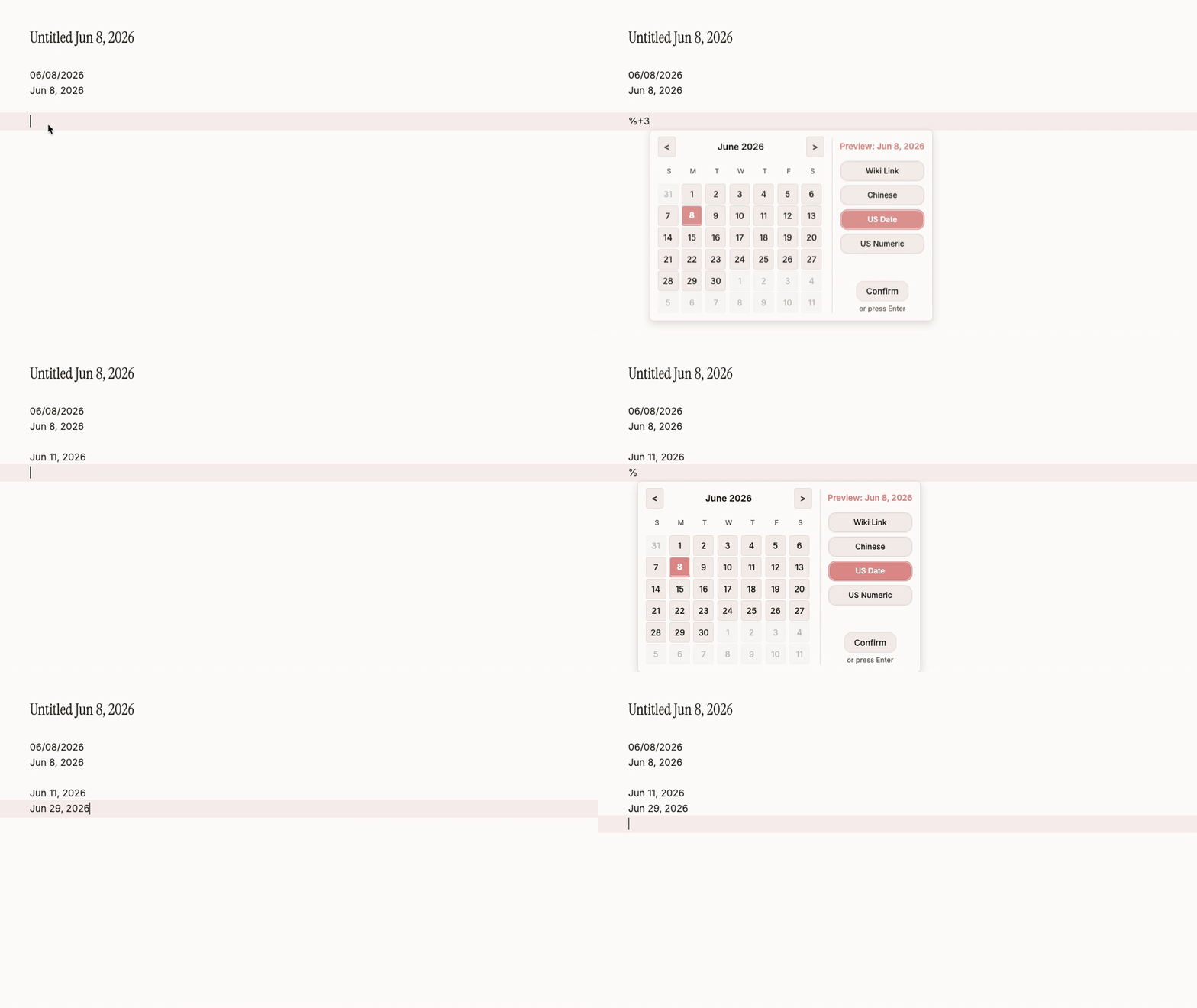
- Relative Date Shortcuts: Supports quick syntax like
@+3d,-1w,2mwithout opening the calendar. - Multiple Output Formats: Built-in formats (Standard, Wiki Link, Chinese, Compact, etc.) with customizable prefix/suffix.
- Instant Format Switching: Frequently-used format buttons appear at the bottom of the mini calendar popup, allowing quick format switching without opening Settings.
- Title Bar Support: Use the date picker in note titles (file names) as well.
- Multi-language UI: Setting panel and calendar popup automatically adapt to Obsidian's interface language (Chinese / English).
Demo
Calendar Popup
Relative Date Shortcuts
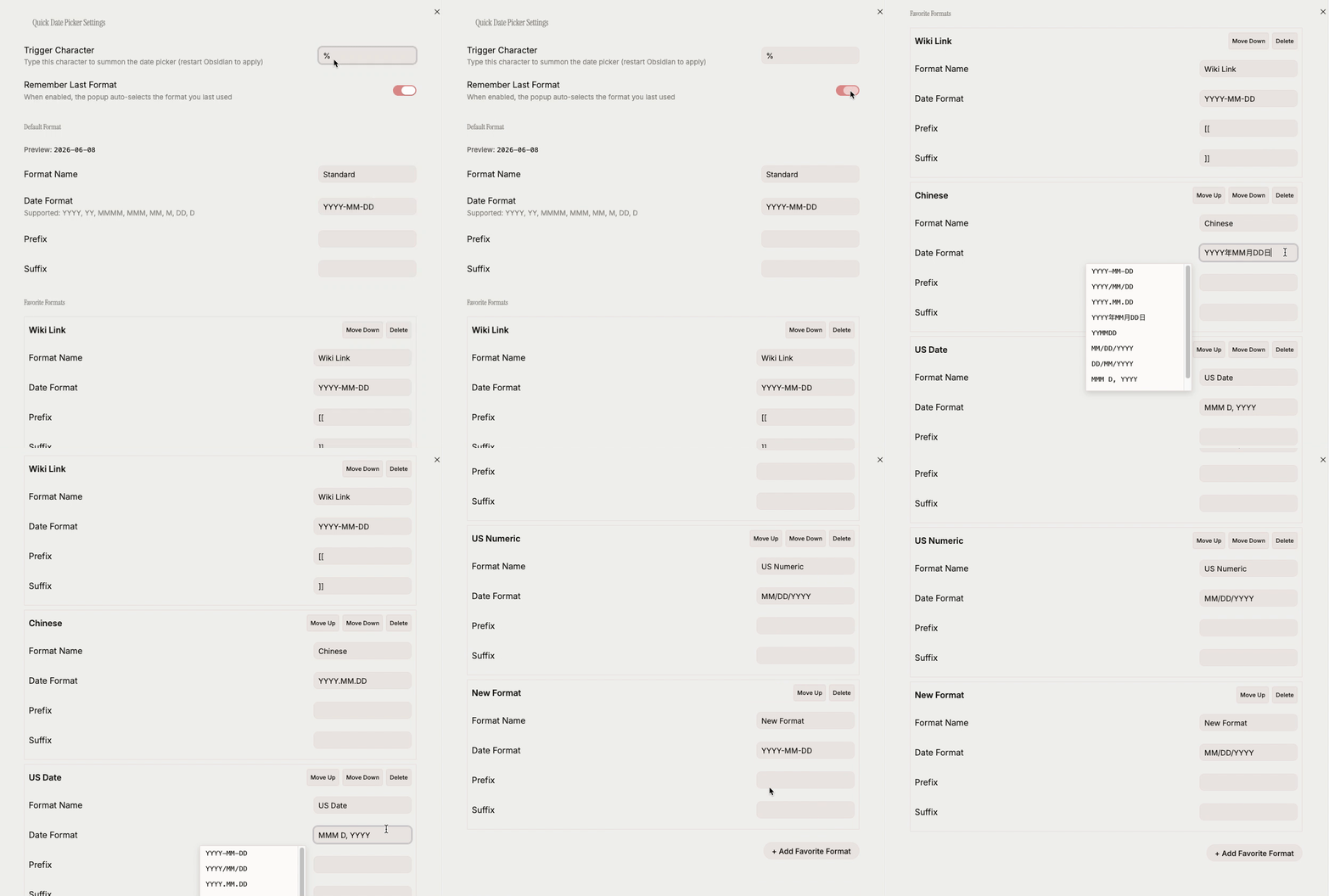
Settings Panel
Installation
From Obsidian Community Plugin Marketplace (Recommended)
- Open Obsidian, go to Settings → Community Plugins
- Turn off Safe Mode if it is still on
- Click Browse, search for "Quick Date Picker"
- Click Install, then Enable
Manual Installation
- Download the latest
main.js,manifest.json, andstyles.cssfrom Releases - Place the files into your vault's
.obsidian/plugins/quick-date-picker/directory - Restart Obsidian and enable the plugin in Settings
Usage
In Document Body
- Type
@(or your configured trigger character) in the editor - The mini calendar pops up. Choose a date via:
- Mouse: Click a date cell, then click Confirm or a format button
- Keyboard: Arrow keys to move, Enter to confirm, Escape to close
- Relative date: Type
+3d,-1w,2m,-1y, etc. to auto-convert to the corresponding date
- The formatted date text is inserted at the cursor position
In Note Title
- Click the note title to enter edit mode
- Type the trigger character to summon the calendar
- Select a date to auto-replace the trigger text
Relative Date Syntax
| Input | Meaning |
|---|---|
+3d | 3 days later |
-1w | 1 week ago |
2m | 2 months later |
-1y | 1 year ago |
Unit reference: d=day, w=week, m=month, y=year. + can be omitted.
Settings
Go to Settings → Community Plugins → Quick Date Picker to configure:
- Trigger Character: Customize the character that summons the calendar (default
@) - Remember Last Format: When enabled, the popup auto-selects the format you last used
- Default Format: Set the default date output format
- Favorite Formats: Add, remove, and reorder frequently-used format templates
Format Template Syntax
Supported date tokens:
| Token | Description | Example |
|---|---|---|
YYYY | Four-digit year | 2026 |
YY | Two-digit year | 26 |
MMMM | Full month name (English) | June |
MMM | Short month name (English) | Jun |
MM | Two-digit month | 05 |
M | One-digit month | 5 |
DD | Two-digit day | 23 |
D | One-digit day | 23 |
Prefix/Suffix example: prefix [[ + YYYY-MM-DD + suffix ]] = [[2026-05-23]]
Compatibility
- Obsidian Desktop: supported
- Obsidian Mobile: supported
- Minimum Obsidian version: v0.15.0
Development
# Install dependencies
npm install

# Development mode (watch for changes)
npm run dev

# Build production bundle
npm run build

# Run tests
npm test
Support
If you encounter any issues or have feature suggestions, please open an issue on GitHub Issues.
License
For plugin developers
Search results and similarity scores are powered by semantic analysis of your plugin's README. If your plugin isn't appearing for searches you'd expect, try updating your README to clearly describe your plugin's purpose, features, and use cases.