Kalendae
approvedby unpreditable
Change an existing date in your note by picking it from a calendar, instead of retyping it. - This plugin has not been manually reviewed by Obsidian staff.
Kalendae
Change an existing date in your note with a date picker, instead of retyping it. Insert new ones the same way.
Kalendae — the first day of the Roman month, when a priest called out the dates for the month ahead.
Using it
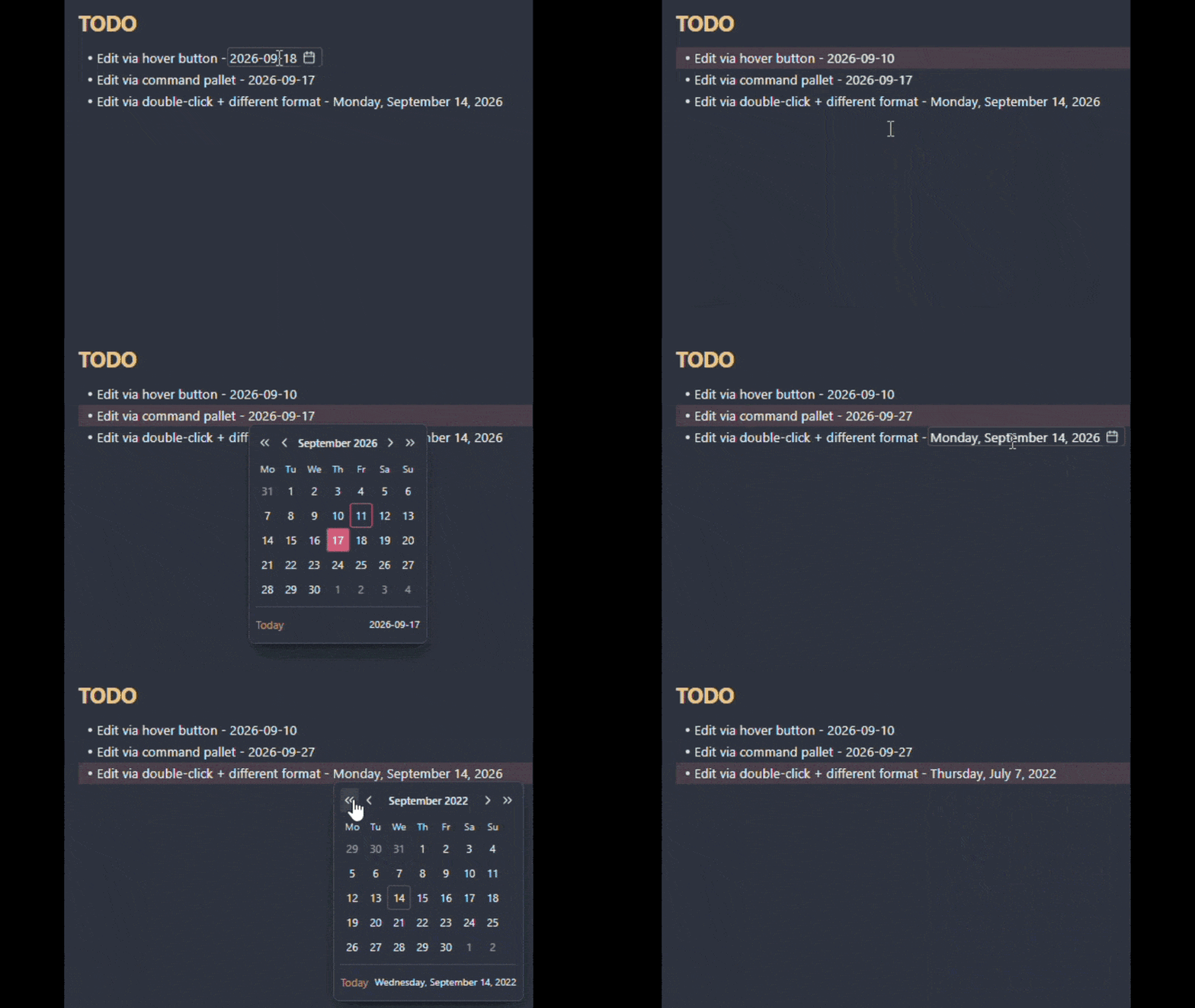
Kalendae recognises the dates in your notes. Four ways to open the calendar on one:
- Hover the date and click the calendar icon that appears beside it.
- Double-click the date.
- Click a Tasks plugin emoji in front of the date: ➕ 🛫 ⏳ 📅 ✅ ❌. Those dates show no icon of their own, and the emoji works whether or not you have the Tasks plugin installed.
- Put the cursor on the date and run Kalendae: Pick a date from the command palette.
Pick a day on the calendar, and Kalendae will rewrite the date in the original format.
Run the same Kalendae: Pick a date command when the cursor is not on a date, and the day you pick is inserted at the cursor. The inserted date uses the first format in your list.
Quick dates
The calendar has a Today button, and you can put up to four shortcuts beside it: Tomorrow, End of this month, Next Monday, or one you write yourself. Eighteen come ready to pick from, and a shortcut can count either from today or from the date you are editing.
Set them up under Settings → Kalendae → Quick dates.
Date formats
Kalendae supports 10 built-in date formats, and you can create your own.
The default format is YYYY-MM-DD. Configure your formats under Settings → Kalendae → Date formats.
Custom format
Write a custom format, using the moment.js tokens that Obsidian relies on under the hood:
| Part | Tokens | |
|---|---|---|
| Year | YY YYYY | required |
| Month | M MM MMM MMMM | required |
| Day | D DD Do | required |
| Day of the week | d dd ddd dddd | optional |
Anything in the pattern that isn't an ASCII letter (a dash, a dot, a comma, parentheses, non-English letters) is matched as is and kept in the output. Square brackets [ and ] are the exception and can't be used.
Where it looks
Define where the hover icon, the Tasks emoji and the double-click find dates:
Settings → Kalendae → Sections to scan:
| Section | Description | Risk | Default |
|---|---|---|---|
| Body text | Regular paragraphs, lists, bold, italics, etc. | Safe | Always On |
| Headings | Section heading, e.g. # 2026-09-10 | Can break references to this section | On |
| Frontmatter | Markdown file frontmatter | Obsidian has its own date picker for properties | Off |
| Inline code | Code inside text surrounded by ` | Safe | Off |
| Code blocks | Code sections surrounded by ``` | Safe | Off |
| Wikilinks | Links to other notes | Can point to a note that doesn't exist | Off |
The Kalendae: Pick a date command edits and inserts dates in every section, regardless of these settings.
Scope
Works in Source mode and Live Preview. Reading mode is not supported, by design.
Languages
English, Deutsch, Español, Eesti, Français, 日本語, 한국어, Lietuvių, Latviešu, Português, Русский, Українська and 中文. Kalendae follows the language Obsidian is set to.
Corrections and contributions to other languages are welcome!
Troubleshooting
If the date is not recognised, check these:
- The format doesn't match any enabled ones in the settings
- The section is not scanned, e.g. code block
- A letter or digit touches it, e.g.
v2026-09-10 - The date is invalid, e.g.
2026-02-30
Development
npm install
npm run dev     # watch mode
npm run build   # typecheck + lint + production bundle
npm test
Symlink this folder into <vault>/.obsidian/plugins/kalendae/ and install
Hot Reload to get changes without restarting Obsidian.
See CONTRIBUTING.md for bug reports, feature requests, and translations.
License
For plugin developers
Search results and similarity scores are powered by semantic analysis of your plugin's README. If your plugin isn't appearing for searches you'd expect, try updating your README to clearly describe your plugin's purpose, features, and use cases.