by theluckystrike
Convert local Daylio version 15 backups into journal notes with moods, activities, and photos.
Daylio Backup Import
Convert a local Daylio backup from Android into journal notes. Each entry becomes one note with its text, date, local time, mood and activities. Photos go into the vault. The import reads the local file and needs no Daylio account.
The plugin reads schema version 15 of the .daylio format and checks the file before it writes to the vault. The screenshots use a synthetic backup with two entries and one photo.
Features
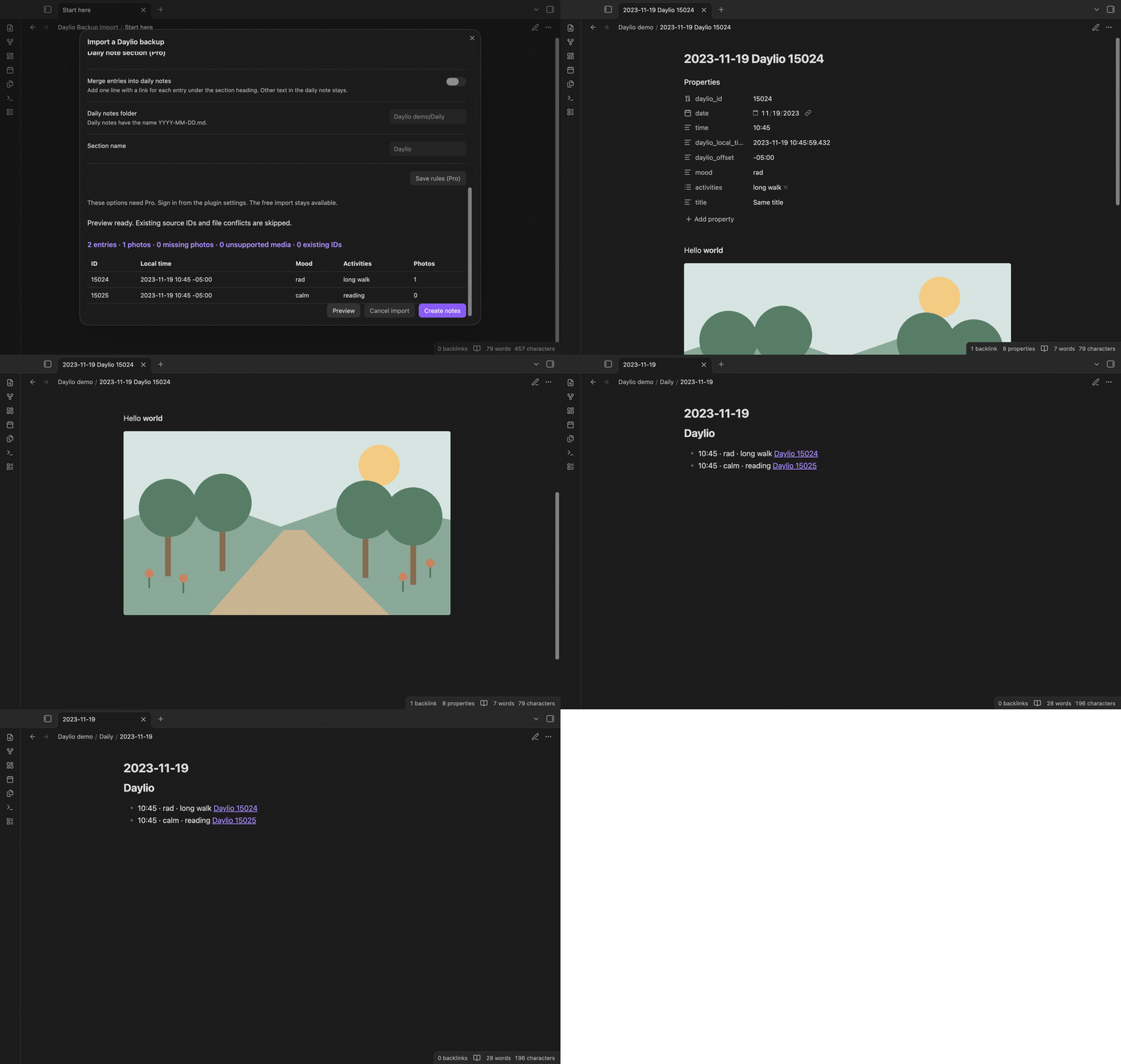
Preview entry counts before you import
Select a .daylio file in the import window. The plugin shows the number of entries, photos, missing photos, unsupported media and source IDs that the target folder has already. A table shows the first eight entries with their ID, local time, mood, activities and photo count.
Expand the lists under the table to see missing photos, unsupported media, file conflicts and source warnings, such as an activity ID that the backup does not define.
One note for each source ID
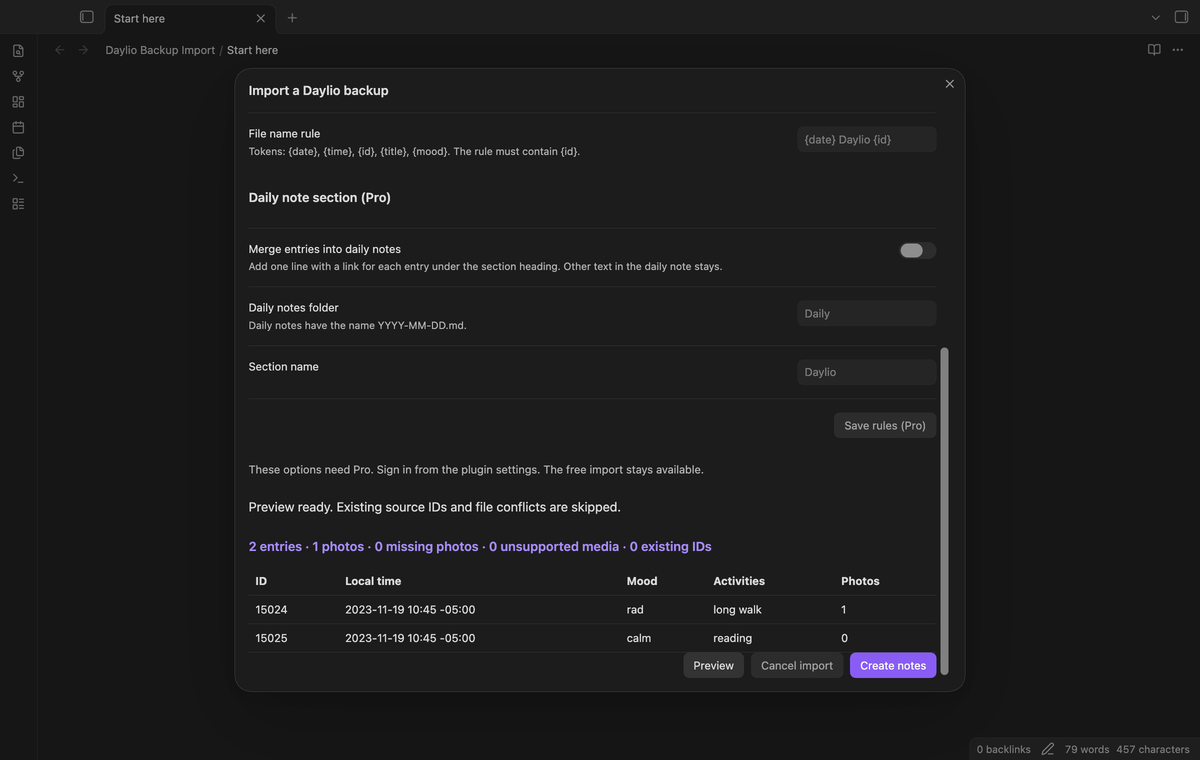
The default file name is {date} Daylio {id}.md, for example 2023-11-19 Daylio 15024.md. The source ID is in the name, so two entries with the same title and the same time get two notes.
Each note has these properties: daylio_id, date, time, daylio_local_time, daylio_offset, mood, activities and, when the entry has one, title. The local time comes from the UTC time and the offset in the backup.
Mood names come from the custom mood list. A mood without a custom name gets a Daylio default name: rad, good, meh, bad or awful. Activity names come from the tag list. Note text with HTML goes through the Obsidian htmlToMarkdown function, so <strong>world</strong> becomes **world**. Plain Unicode text keeps its characters. The converter removes leading and trailing spaces and Markdown image links. Scripts, images and frames in HTML note text are removed.
Photos with local image links
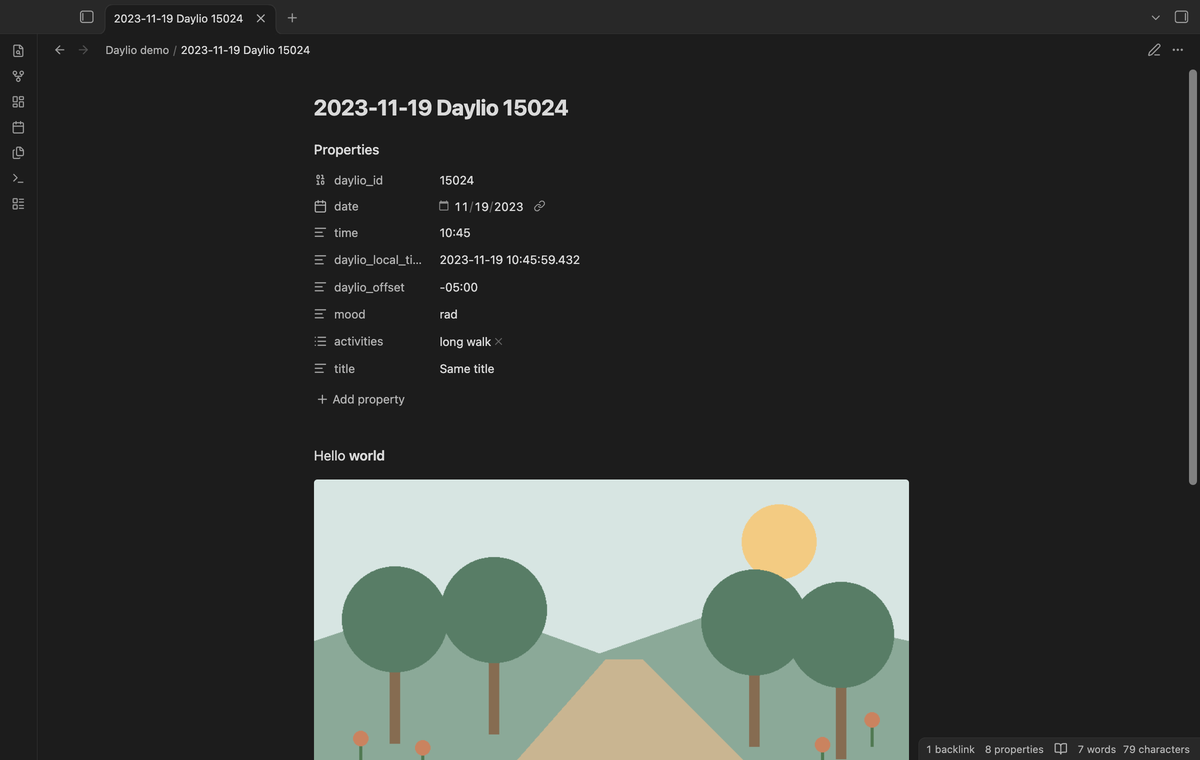
The plugin finds each referenced photo under assets/ in the archive by its checksum. It copies the file to <import folder>/attachments/daylio-<checksum>.<ext> and adds an image embed to the note. The file type comes from the first bytes of the file. The photo import tests use a PNG. Display of other image formats was not tested.
When the archive does not contain a referenced photo, the note keeps its text and gets no image embed. The preview and the result list the missing photo. Audio and other asset types are reported as unsupported media and are not copied.
Daily note section (Pro)
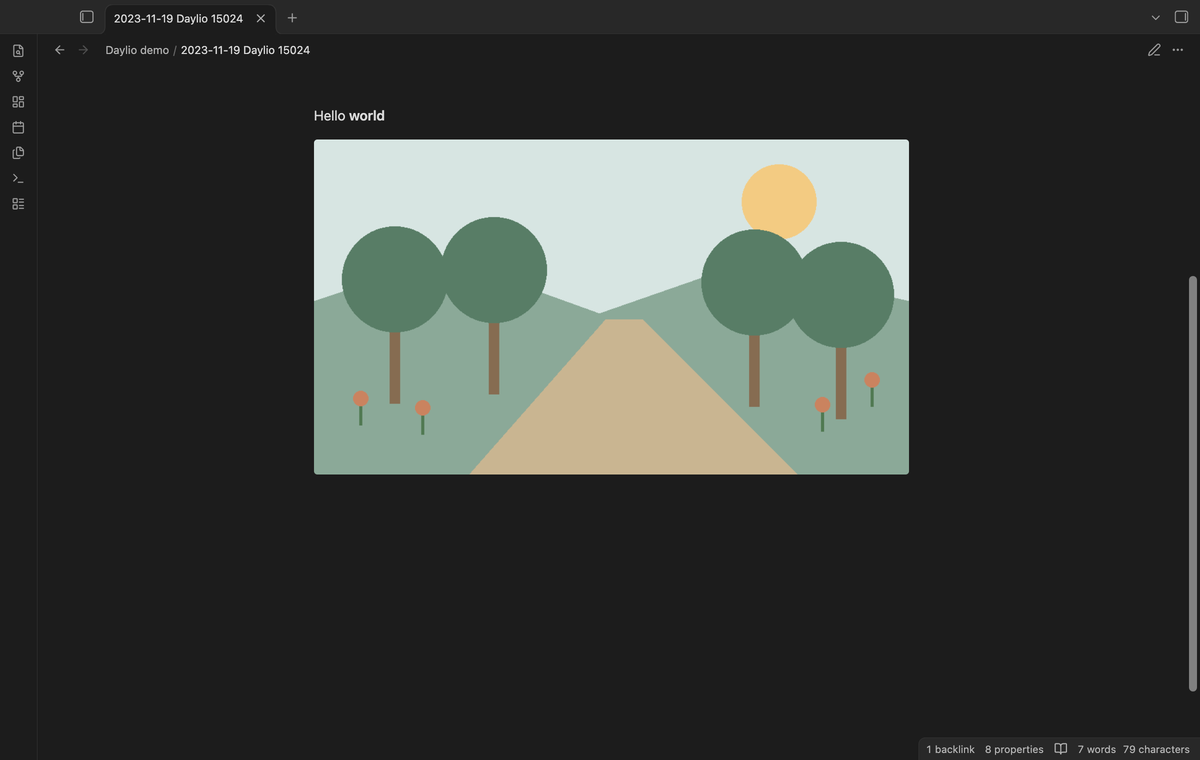
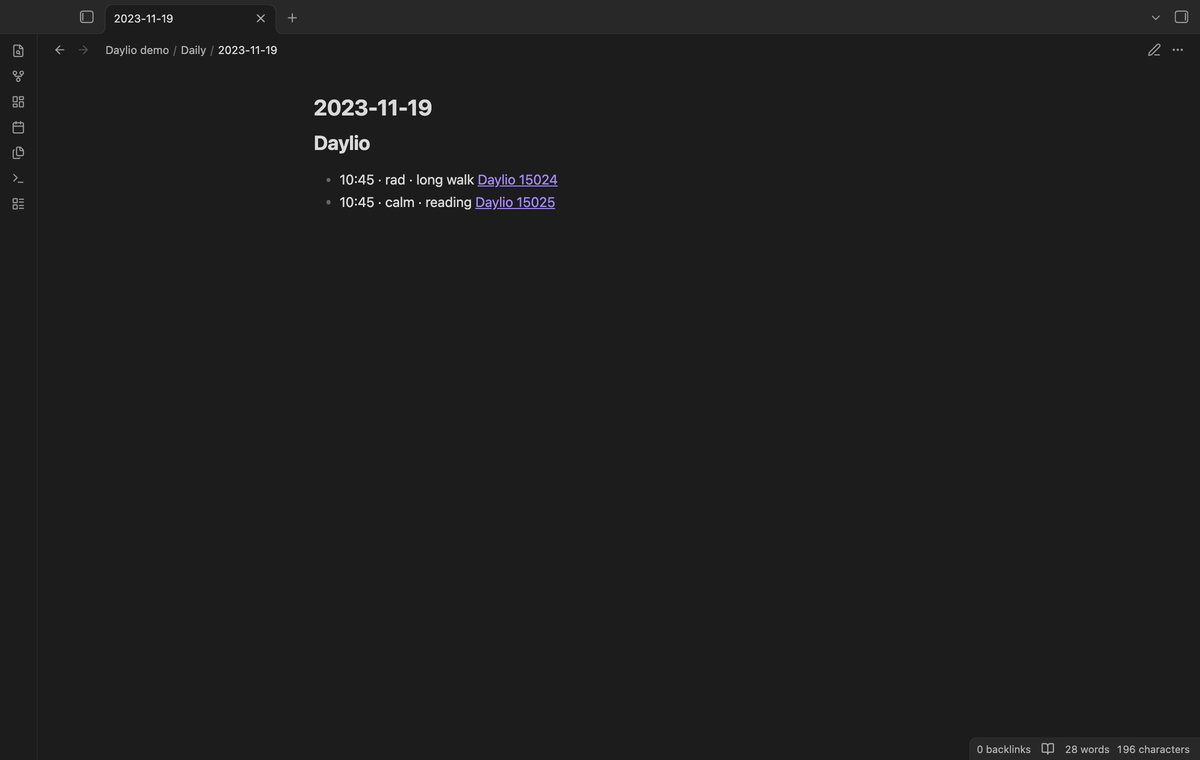
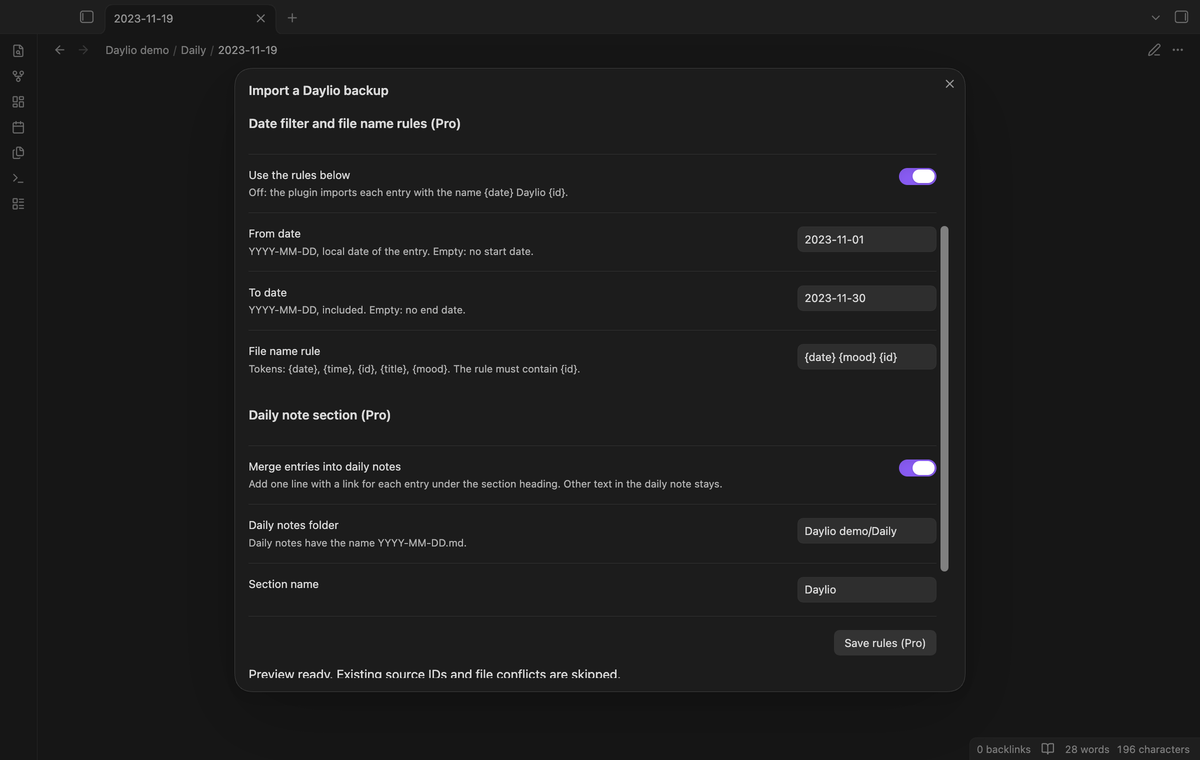
Turn on "Merge entries into daily notes" in the import window. Set the daily notes folder and a section name. For each imported entry, the plugin adds one list line under that heading in <daily folder>/YYYY-MM-DD.md. The line has the time, the mood, the activities and a link to the entry note. It ends with a block ID such as ^daylio-15024.
The plugin adds a missing heading at the end of the note and creates a missing daily note. Other text in the daily note stays. A second import finds the block IDs and adds no duplicate lines.
Date filters and file name rules (Pro)
Set a from date and a to date to import only entries in that range. The dates are local dates of the entries, and both ends are included. Set a file name rule with the tokens {date}, {time}, {id}, {title} and {mood}. The rule must contain {id}. If the name exceeds 180 UTF-8 bytes, the plugin cuts the name and adds the source ID at the end. If two output paths still match, the preview stops before a write. Select "Save rules (Pro)" to keep the filter, the rule and the daily note options for the next import.
Install
Copy main.js, manifest.json and styles.css from a release into <vault>/.obsidian/plugins/daylio-backup-import/. Enable the plugin in Community plugins. Obsidian 1.13.4 or later is necessary.
Usage
- In Daylio on Android, make a backup to a local file and copy the
.dayliofile to the device that runs Obsidian. - Run the command
Daylio Backup Import: Import a Daylio backup. - Select the
.dayliofile. Check the import folder, the counts and the lists. - If you change the folder or a Pro option, select Preview again.
- Select Create notes. The result line shows the counts of notes, skipped entries, photos, daily lines and errors.
- Open a note and check its properties and its photo.
To stop a long import, select Cancel import. The plugin stops after the current batch of 10 entries. The notes and photos written before the stop stay in the vault, and the result line tells you the counts.
A second import into the same folder skips the source IDs that notes in that folder have in their daylio_id property. It copies no photo for a skipped entry and changes no existing note. A different file at a target path skips that entry as a conflict.
Settings
The settings tab sets the default import folder, Daylio, and has the GitHub Sponsors sign in for Pro. The import window has the folder for one import and the Pro options. A completed import saves its folder for the next import.
FAQ
Which backups does the plugin reject?
The plugin rejects a file above 20 MiB, and an archive that declares more than 100 MiB of expanded data. It rejects a schema version other than 15. It rejects archive members with a parent step such as ../outside.md, an absolute path, a drive letter or a backslash, and duplicate member names. It also rejects encrypted, split and ZIP64 archives, and a backup with duplicate entry IDs. These checks run before the plugin writes to the vault.
What about iOS backups?
The plugin reads the Android layout. We did not test an iOS backup.
What happens if a write fails?
The result line counts the errors and the preview area lists them. Notes and photos written before the error stay in the vault. Correct the problem and run the import again. It skips the source IDs that it finds.
What did you test?
Unit tests use a synthetic version 15 backup that the tests make with the field names of the public format. They run against an in-memory vault. They cover file conflicts, write errors, cancel between batches and the Pro checks. The desktop end-to-end test checks plugin reload, payload conversion, the file input, note and photo creation, repeated import, schema rejection and the Pro daily section.
We did not test a real Daylio backup, a backup from a recent Daylio version, an iOS backup, a phone or tablet, a large archive on a phone, HEIC display, a live payment or a live GitHub sign in. The source code uses no Node or Electron API, but this is not a result of a device test.
Payment, account and network
The core features are free. Pro features need a GitHub Sponsors sponsorship of theluckystrike: $5 a month or more, or $15 once. A total payment of $15 meets the payment requirement for Pro without further payment. Sign-in and the checks below still apply. Your notes stay readable and editable with or without Pro.
GitHub handles the payment. Sponsor at https://github.com/sponsors/theluckystrike. You need no account for the free features. Pro needs the GitHub account that sponsors.
Until you select "Sign in with GitHub" in the settings, Daylio Backup Import makes no network requests. Sign in uses the GitHub device flow. Daylio Backup Import sends its public client ID and the scope read:user to https://github.com/login/device/code and shows you a code. While you enter the code at https://github.com/login/device, it asks https://github.com/login/oauth/access_token every few seconds to check the sign-in status. The scope permits profile reads only. GitHub needs this access to show the sponsorship tier. It grants no repository scope and no write access.
After sign in, Daylio Backup Import sends one query to https://api.github.com/graphql. It checks if the signed-in account sponsors theluckystrike. It asks for the tier and the total payment to theluckystrike. The plugin reuses a successful check for 7 days. Failed checks can retry after 6 hours. Select Refresh to request an earlier check. It sends no note content, file names or other vault data, and it has no telemetry.
After a successful check, Pro can work offline for up to 14 days. Sign out or a negative sponsorship answer turns Pro off. The plugin stores the GitHub token through the secret storage API of Obsidian. It does not put the token in its saved settings or its local sponsorship data. The local storage of this device keeps your GitHub login, the tier and the time of the last check. Sign out clears the token. You can also revoke the access in your GitHub settings, under Applications.
Support
Report a problem in the repository issues with the Obsidian version, the Daylio app version and the error text. Do not attach a private backup. Keep the original backup until you have checked the imported notes. Publisher: theluckystrike, notemods.com.
For plugin developers
Search results and similarity scores are powered by semantic analysis of your plugin's README. If your plugin isn't appearing for searches you'd expect, try updating your README to clearly describe your plugin's purpose, features, and use cases.