by theluckystrike
Convert local RedNotebook backups into dated notes with text and category entries.
RedNotebook Backup Import
Move a local RedNotebook journal into dated Markdown notes. Select a backup ZIP, check the preview, then create one note for each day that has text or categories. The import reads the ZIP on your device. It does not need a RedNotebook account or a network connection.
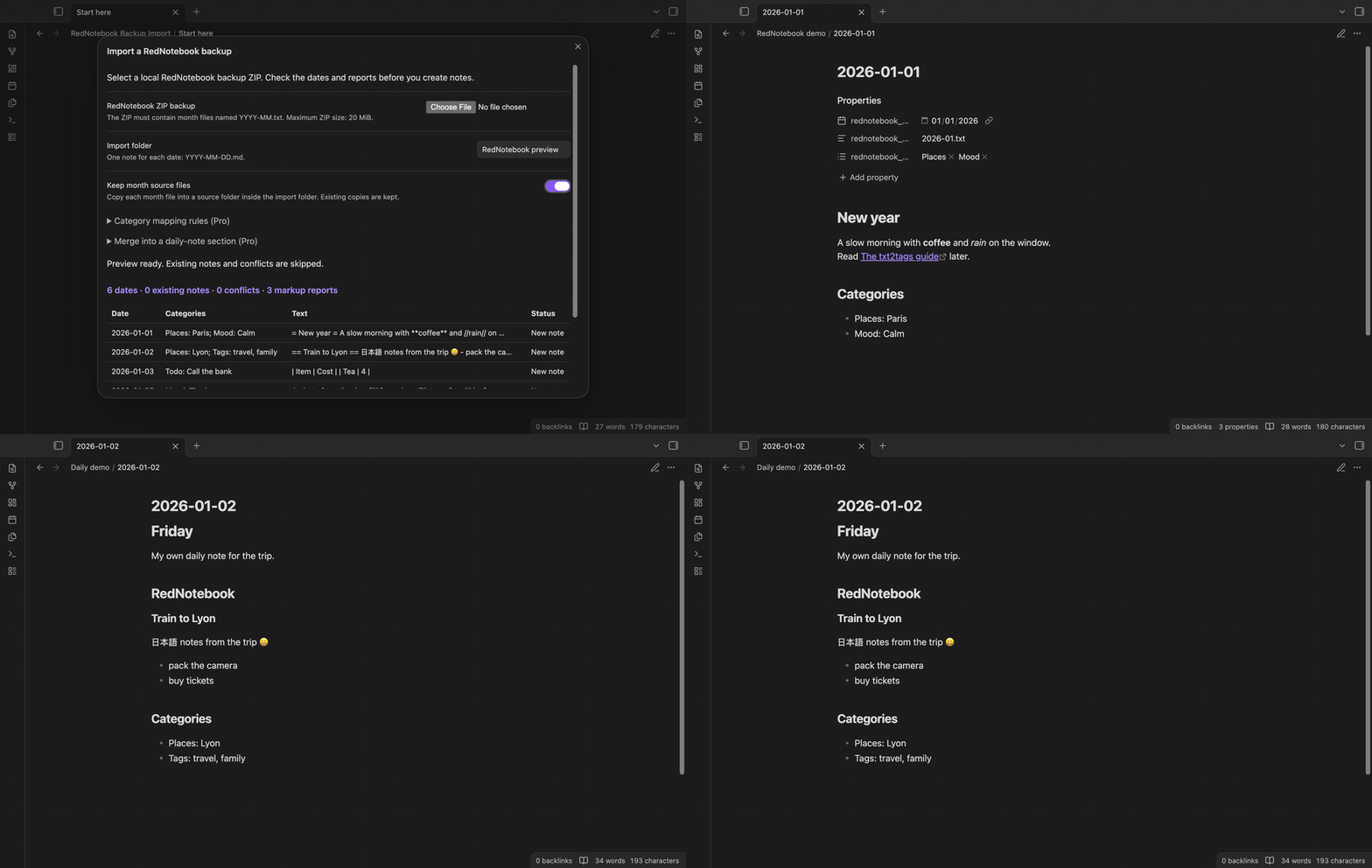
RedNotebook keeps one YAML file for each month, named like 2026-01.txt. The plugin converts basic txt2tags markup to Markdown and keeps the category entries. The screenshots use a synthetic backup with six days in two months.
Features
Preview dates from the month files
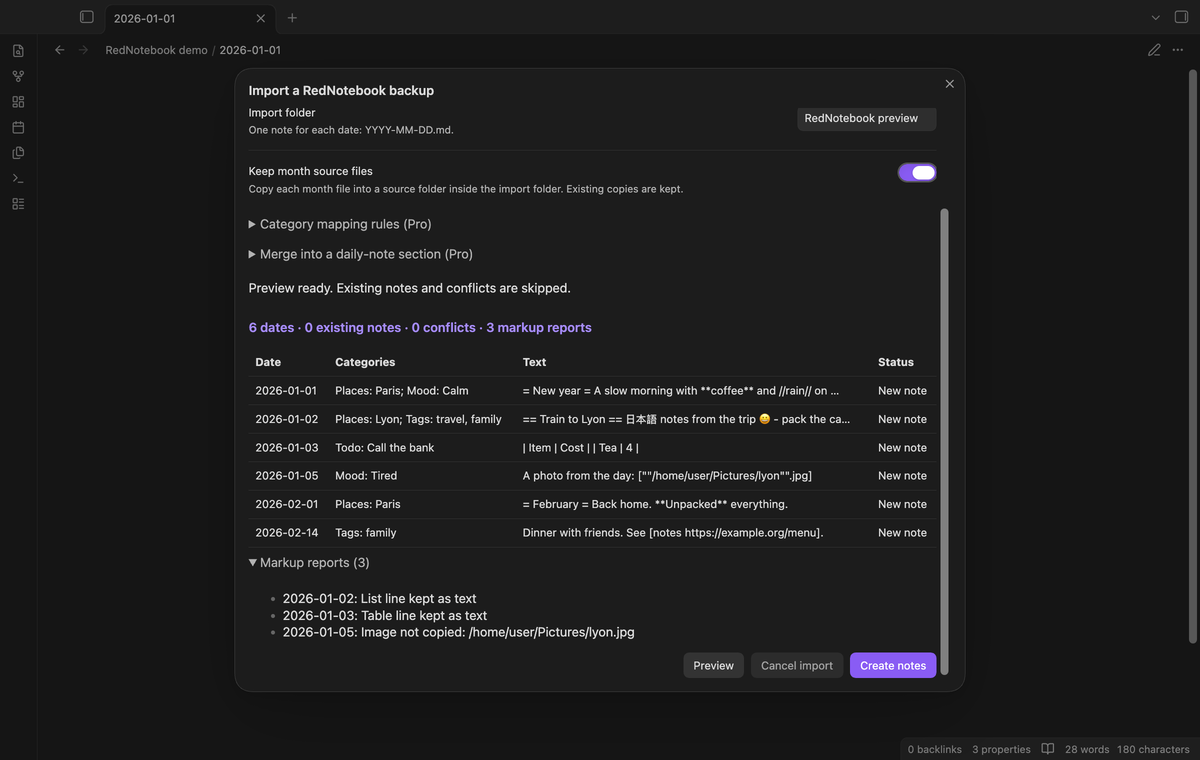
Select the ZIP and the preview shows the number of dates, existing notes, conflicts and markup reports. Its table shows the first ten dates. Expand a list to see existing notes, conflicts, empty dates and other ZIP files that the plugin did not read.
The plugin checks the whole backup before it writes. An invalid day such as day 32, a Python object tag, or an unsafe ZIP path stops the import with an error, and no note is created.
One note for each day
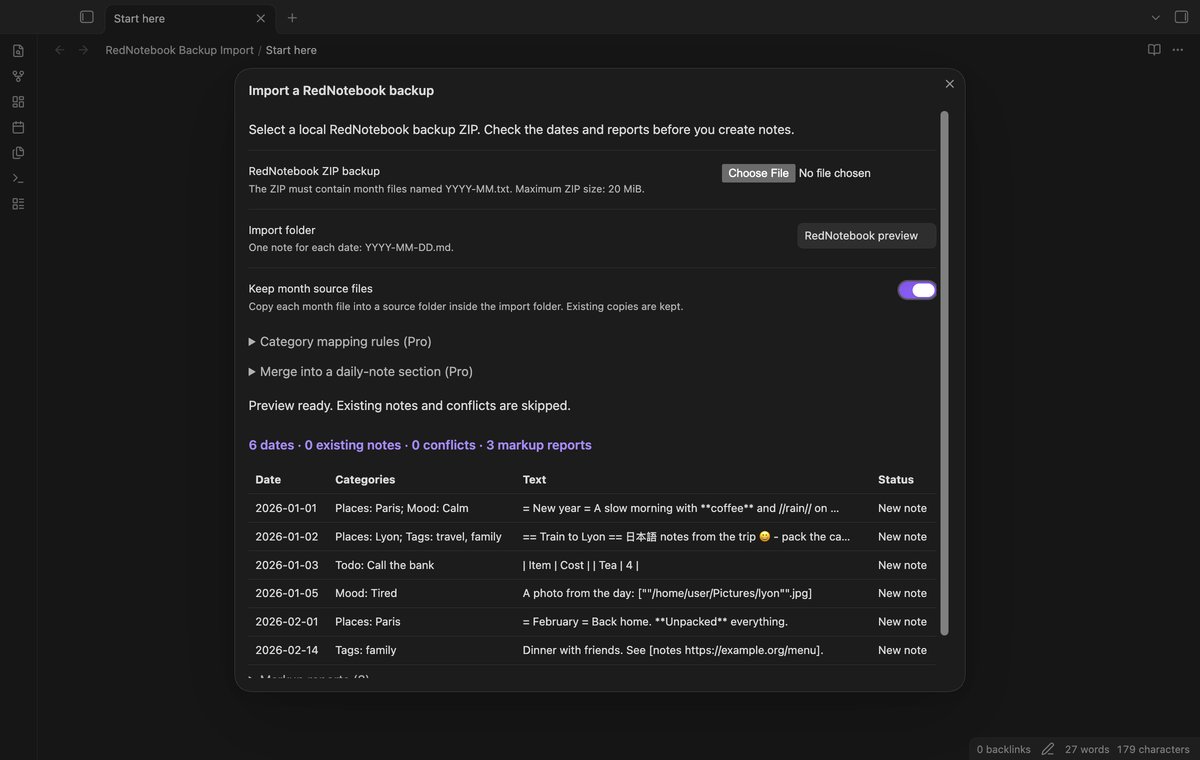
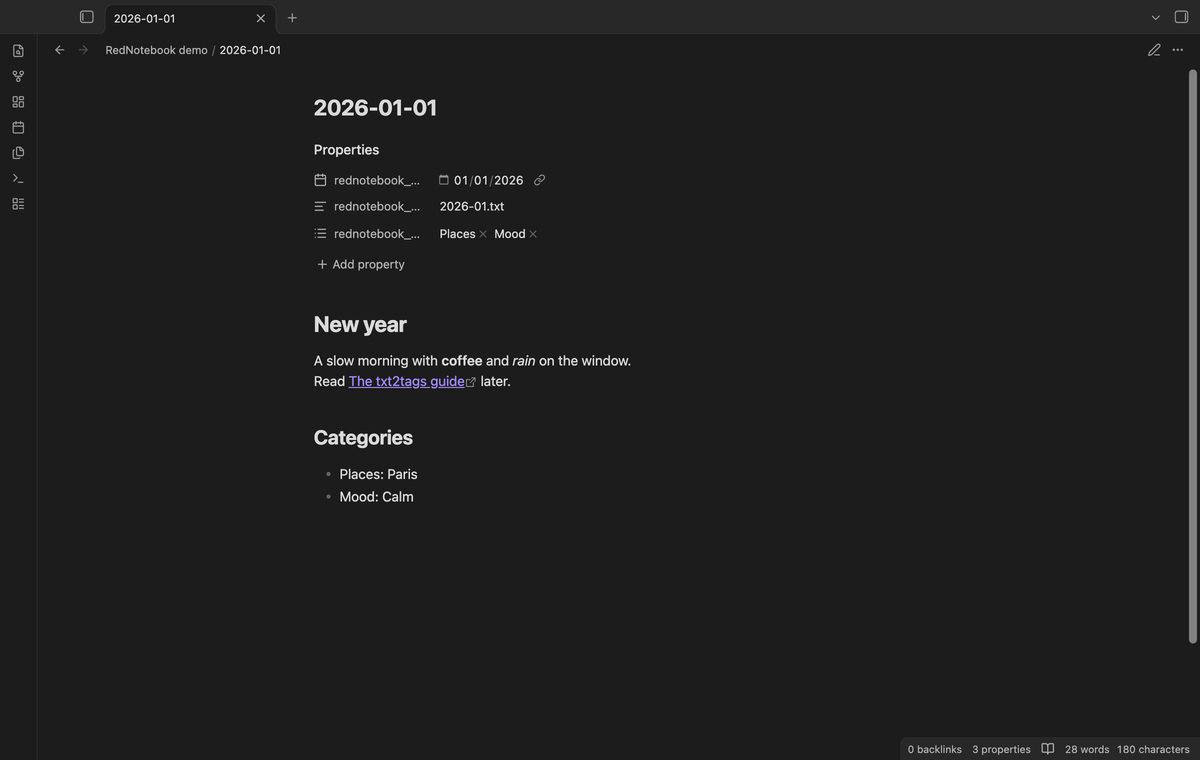
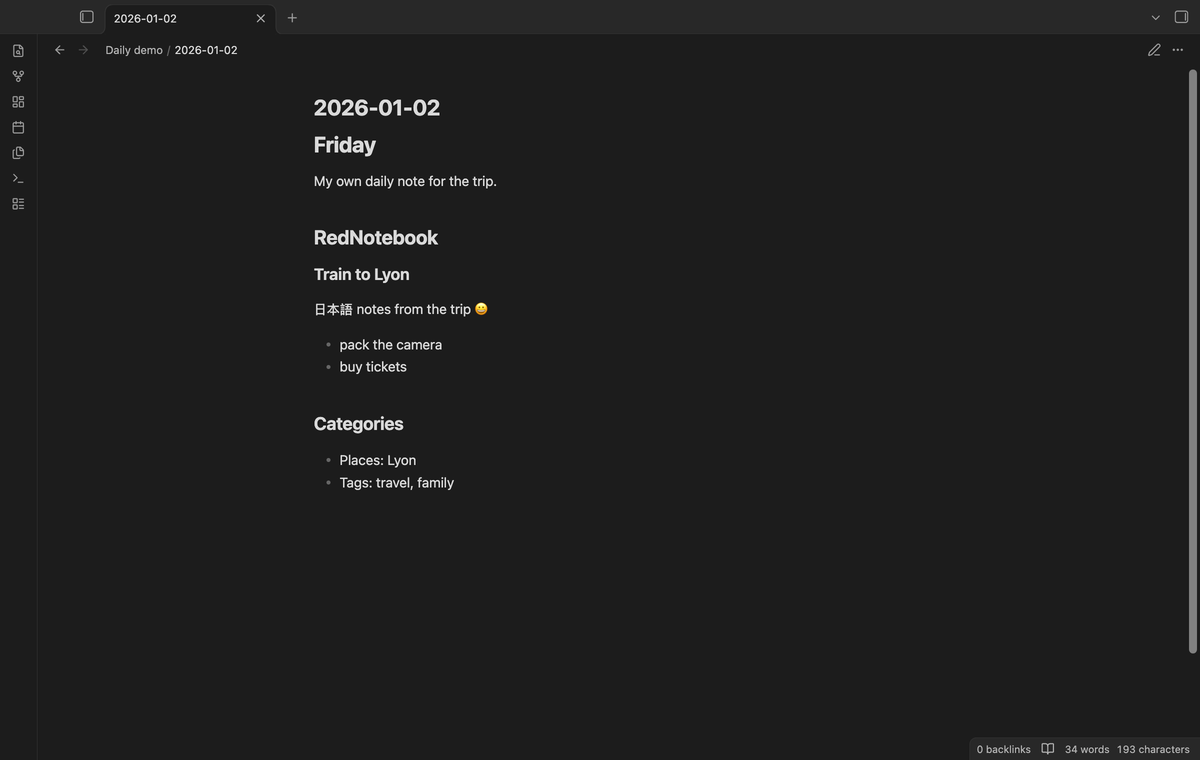
Each day with text or categories becomes YYYY-MM-DD.md in the import folder. Unicode text, including CJK characters and emoji, stays as in the source. The note gets the properties rednotebook_date, rednotebook_source and, when the day has categories, rednotebook_categories.
Category names and values go into a Categories list at the end of the note, for example - Places: Paris. The plugin keeps the names and values as RedNotebook wrote them.
Basic txt2tags conversion with a report
These txt2tags forms become Markdown:
= Title =to# Title, and deeper levels up to===== Title =====.**bold**stays bold, and//italic//becomes*italic*.[Label https://example.org]becomes[Label](https://example.org). A double slash inside a web address is not changed to italic.
The preview reports lists, tables, underline, strikethrough, monospace, raw and tagged text, comment lines and verbatim blocks. Their source markers stay in the Markdown file. Obsidian can render some of these markers as Markdown. Numbered headings become plain headings without their number, and the report names that change.
Image markup such as [""/home/user/Pictures/cat"".jpg] stays as text. The report and a note callout say that the image file was not copied. The plugin reads month files only. It does not copy image files from the ZIP or from your device.
Existing notes stay. A note path that exists is skipped and not changed. A second import of the same backup creates no notes. If two month files in the ZIP have the same month, for example 2026-01.txt and data/2026-01.txt, the plugin reports a conflict and skips the dates of that month.
The plugin copies each month file into RedNotebook source/ inside the import folder, so you keep the original YAML next to the notes. A copy that exists is kept. You can turn this off in the import window or in the settings.
Category mapping rules (Pro)
Open the Category mapping rules section in the import window. It shows fields for up to 50 categories in name order. Type a property name, for example place for Places, then select Save rules. With Pro, the next import copies the values of that category into the property as a list. A rule to tags changes spaces to hyphens and adds _ before a tag that has only digits.
The category list in the note body stays. Property names start with a letter and use letters, digits, _ or -. The three rednotebook_ properties are reserved.
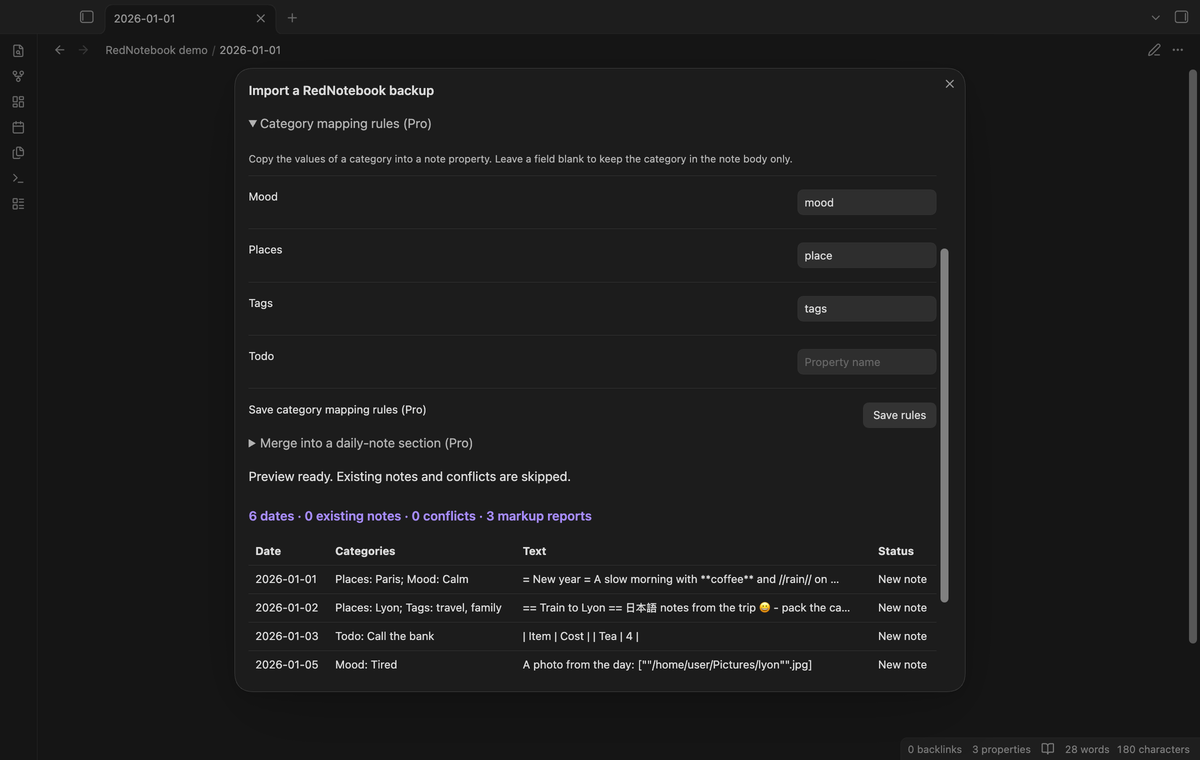
Merge into a daily-note section (Pro)
Set the import folder to your daily notes folder. The preview then lists the dates that have a note already. Open the merge section, turn on Merge selected dates, type a section name and select the dates. The import adds the converted day under ## <section name> at the end of each selected note. Headings from the day move down two levels, so they stay inside that section. A note that has that heading already is not changed, and the result lists it. Dates that you do not select are skipped as usual.
The merge uses the fixed YYYY-MM-DD.md file name. It does not read the settings of the Daily notes core plugin.
Install
For manual installation, copy main.js, manifest.json and styles.css from a release into <vault>/.obsidian/plugins/rednotebook-backup-import/. Enable the plugin in Community plugins. Obsidian 1.13.4 or later is required.
Usage
- In RedNotebook, make a backup ZIP and keep a copy.
- Run the command
RedNotebook Backup Import: Import a RedNotebook backup. - Select the ZIP. Check the import folder, the counts and the reports.
- Change the folder if necessary, then select Preview again.
- Select Create notes. During a large import, select Cancel import to stop after the current batch of 10 notes.
- Read the result line. It gives the counts of created, skipped and merged notes, source files and errors.
Settings
The settings tab has the default import folder, the switch for the month source copies and the GitHub Sponsors controls. The import window can change the folder and the source copy switch for one import. A completed import saves the folder for the next run. Saved category rules and the last merge section name are in the plugin's local settings file.
FAQ
Which backups does it read?
A ZIP of up to 20 MiB with month files named YYYY-MM.txt, at the root or in a folder. The expanded data is limited to 100 MiB, with up to 5000 ZIP members. Encrypted ZIP files, ZIP64 and split archives are rejected. Month files must be UTF-8 text.
Why was my backup rejected?
The error gives the problem and, for a month file error, its file name. Common causes are an invalid date, a Python object tag, a YAML alias, a duplicate day key or an unsafe path in the ZIP. The legacy !!python/unicode text tag is accepted. The plugin rejects the whole backup in these error cases, so the vault does not get a partial import of bad data.
What happens if a write fails or I cancel?
The result counts the files that were already created and lists each error. Created notes stay in the vault. Select Preview again: existing notes are skipped on the next import.
What did you test?
Unit tests use synthetic ZIP and YAML fixtures and an in-memory vault. They cover the acceptance cases, 32 golden vectors, conflicts, cancellation between batches, simulated write errors and the Pro guards. The desktop end-to-end tests pass on Obsidian 1.13.4 and 1.14.4. They check the file picker, note creation, source copies, repeat imports, category rules, a Pro merge and an invalid day.
Mobile devices, backups made by RedNotebook, private journals, old YAML forms, live payment and live GitHub sign-in were not tested. The fixtures and sponsorship answers are synthetic.
Payment, account and network
The core features are free. Pro features need a GitHub Sponsors sponsorship of theluckystrike: $5 a month or more, or $15 once. A total payment of $15 meets the payment requirement for Pro without further payment. Sign-in and the checks below still apply. Your notes stay readable and editable with or without Pro.
GitHub handles the payment. Sponsor at https://github.com/sponsors/theluckystrike. You need no account for the free features. Pro needs the GitHub account that sponsors.
Until you select "Sign in with GitHub" in the settings, RedNotebook Backup Import makes no network requests. Sign in uses the GitHub device flow. RedNotebook Backup Import sends its public client ID and the scope read:user to https://github.com/login/device/code and shows you a code. While you enter the code at https://github.com/login/device, it asks https://github.com/login/oauth/access_token every few seconds to check the sign-in status. The scope permits profile reads only. GitHub needs this access to show the sponsorship tier. It grants no repository scope and no write access.
After sign in, RedNotebook Backup Import sends one query to https://api.github.com/graphql. It checks if the signed-in account sponsors theluckystrike. It asks for the tier and the total payment to theluckystrike. The plugin reuses a successful check for 7 days. Failed checks can retry after 6 hours. Select Refresh to request an earlier check. It sends no note content, file names or other vault data, and it has no telemetry.
After a successful check, Pro can work offline for up to 14 days. Sign out or a negative sponsorship answer turns Pro off. The plugin stores the GitHub token through the secret storage API of Obsidian. It does not put the token in its saved settings or its local sponsorship data. The local storage of this device keeps your GitHub login, the tier and the time of the last check. Sign out clears the token. You can also revoke the access in your GitHub settings, under Applications.
Support
Report a problem in the repository issues with the Obsidian version and the error text. Attach a synthetic month file that shows the problem. Remove personal journal text before you share a file. Keep the original backup until you have checked the notes. Publisher: theluckystrike, notemods.com.
For plugin developers
Search results and similarity scores are powered by semantic analysis of your plugin's README. If your plugin isn't appearing for searches you'd expect, try updating your README to clearly describe your plugin's purpose, features, and use cases.