DayTasks
approvedby MHElnour
A lightweight, day-first task manager for your daily notes. - This plugin has not been manually reviewed by Obsidian staff.
DayTasks
A lightweight, day-first task manager for your Obsidian daily notes.
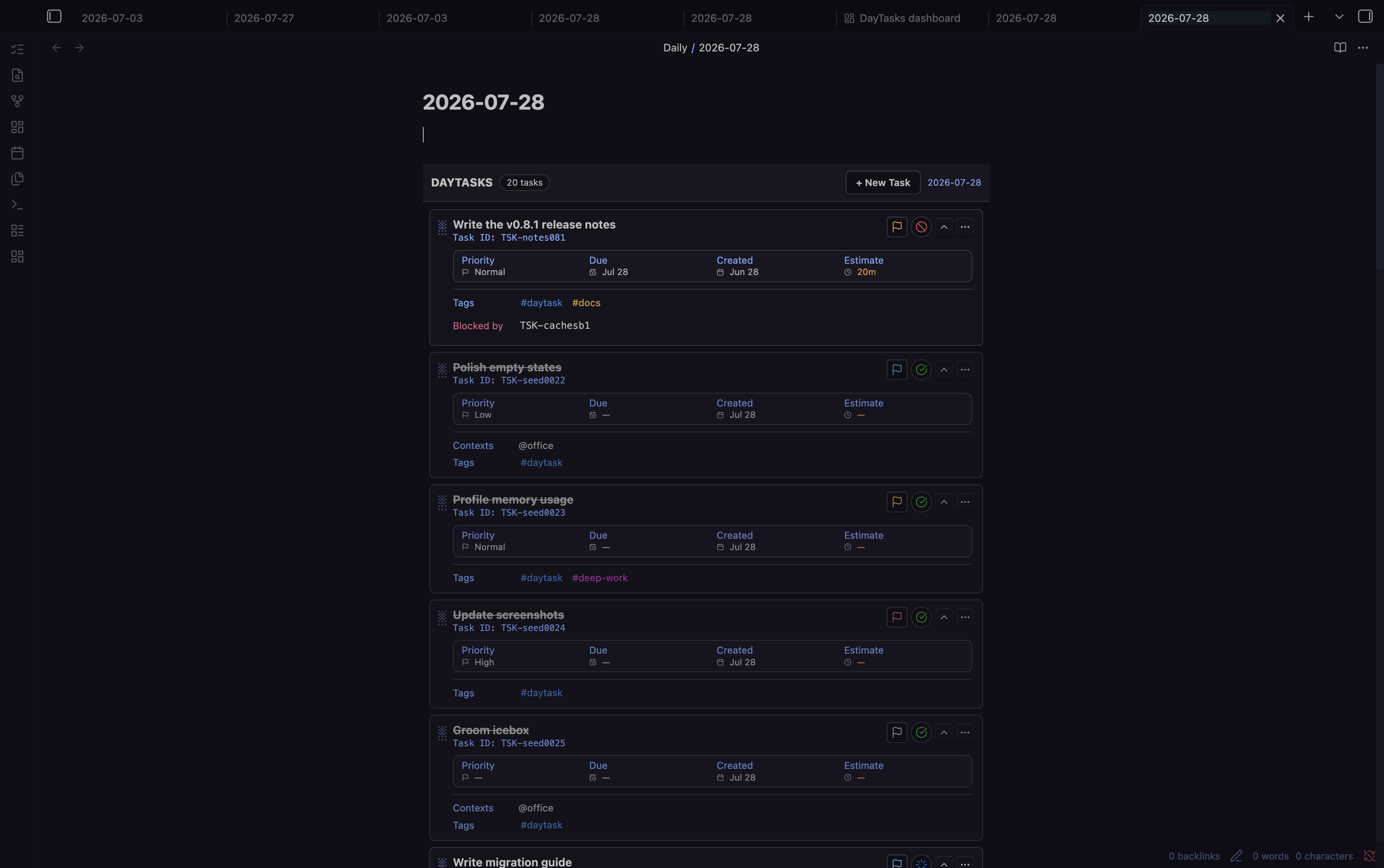
DayTasks is for people who plan from daily notes and want more structure than plain Markdown checkboxes. It renders task cards inside your daily notes, keeps the canonical task data in local Obsidian plugin storage, and gives you a dashboard and a Task List view for reviewing work across days.
Your daily note stays yours: DayTasks does not write a managed ## Tasks
section into the note body. When a task needs more context, you can create an
optional Markdown detail note; DayTasks manages the task frontmatter and leaves
the note body to you.
Features
- Daily-note widget for Live Preview, reading mode, split panes, and popped-out windows.
- Dashboard — a command center with your completion streak, a 365-day activity heatmap, honest progress stats, priority callouts, and actionable Today / Due soon / Overdue lists with one-click complete and reschedule.
- Task cards with status, priority, scheduled date, due date, tags, contexts, project links, estimates, descriptions, and manual ordering.
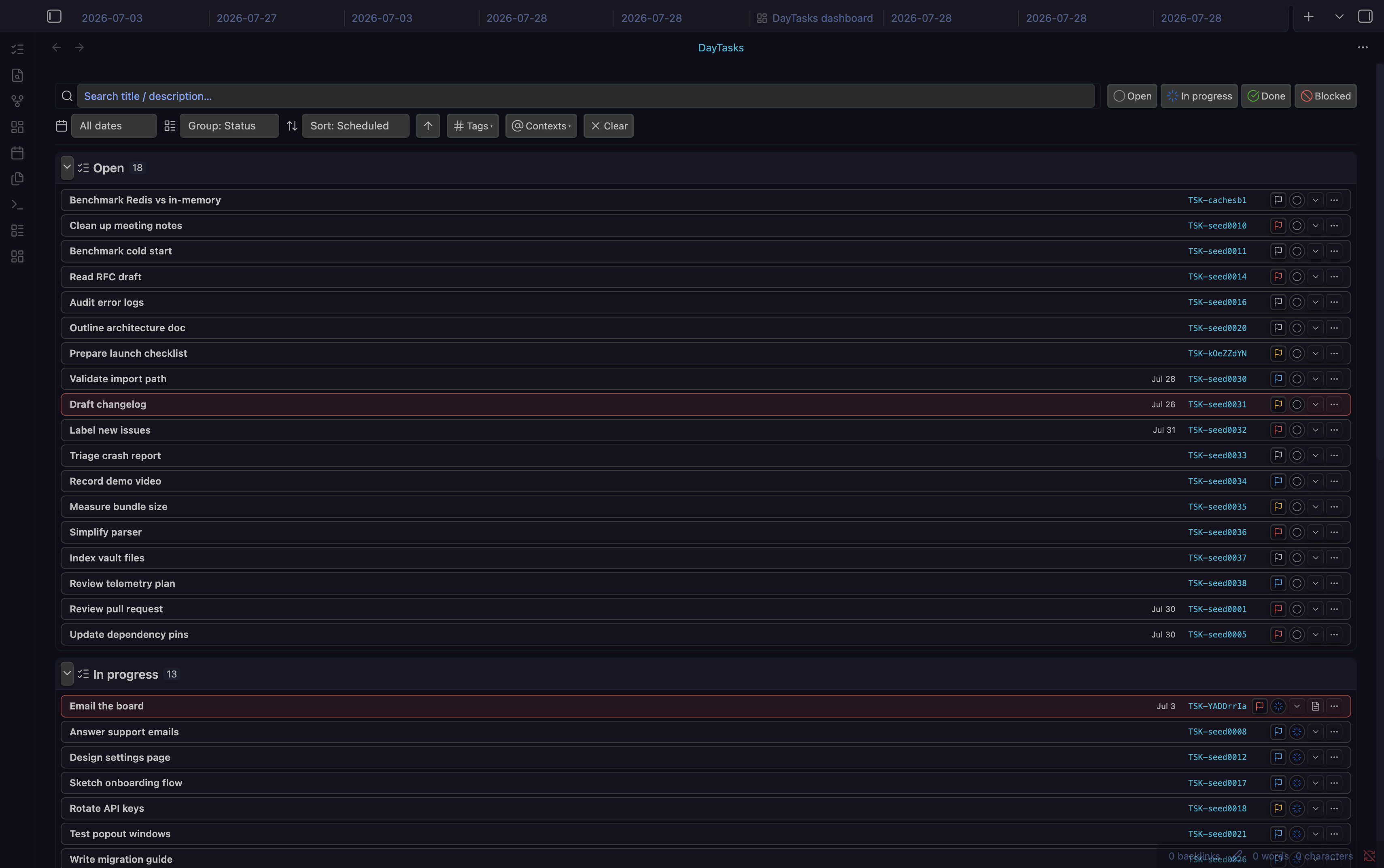
- Task List view for all tasks across days, with filtering, grouping, sorting, text search, and persisted view state.
- Inline capture to turn a note line into a scheduled task from an in-editor button or a command.
- Subtasks as real task records, not checklist text, with nested cards and parent progress.
- Dependencies with blocked-status behavior and cycle prevention.
- Optional detail notes with managed task frontmatter and user-owned Markdown bodies.
- Configurable statuses, priorities, and defaults — the dashboard and all views use your exact configured status set, labels, and colors.
- Theme-aware and accessible UI using Obsidian theme variables, keyboard focus states, and named icon controls.
Dashboard
Open the dashboard from the ribbon icon or the Open dashboard command. It is
built to answer two questions the moment it opens: how am I doing and what
needs me now.
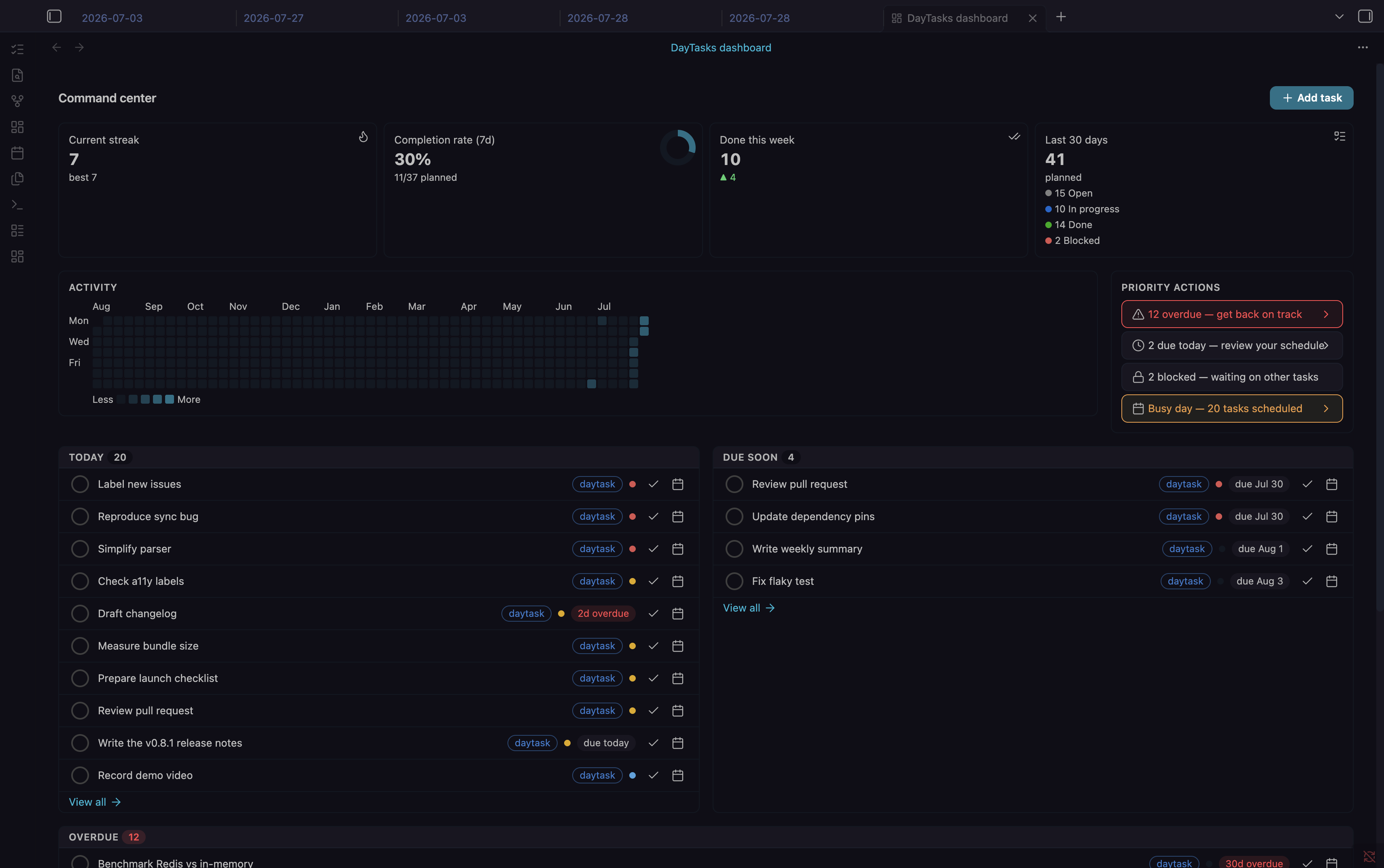
- Current streak — strictly consecutive days with at least one completed task. A day with no completions resets it; an unfinished today doesn't.
- Completion rate (7d) — of the tasks scheduled in the last 7 days, the share completed, with a trend vs the prior week and a progress ring.
- Done this week — completions since Monday, with a delta vs last week.
- Last 30 days — every task scheduled in the window, counted by its current status using your own configured statuses and colors. Honest counts, not flattering ratios.
- Activity heatmap — a GitHub-style year of your completions. Hover or tap a day for its per-status breakdown.
- Priority actions — computed callouts for overdue work, tasks due today, blocked tasks, and busy days, each one click from the list it describes.
- Today / Due soon / Overdue — compact actionable rows: complete with one click, or reschedule to today, tomorrow, next week, or a picked date. Rescheduling keeps deadlines consistent automatically.
- The view rolls over at midnight on its own, so a dashboard left open always shows the current day.
Task List
The Task List shows every task across days in one place, filterable by status, date, tag, context, project, and search text — grouped, sorted, and persisted the way you left it.
Creating And Editing Tasks
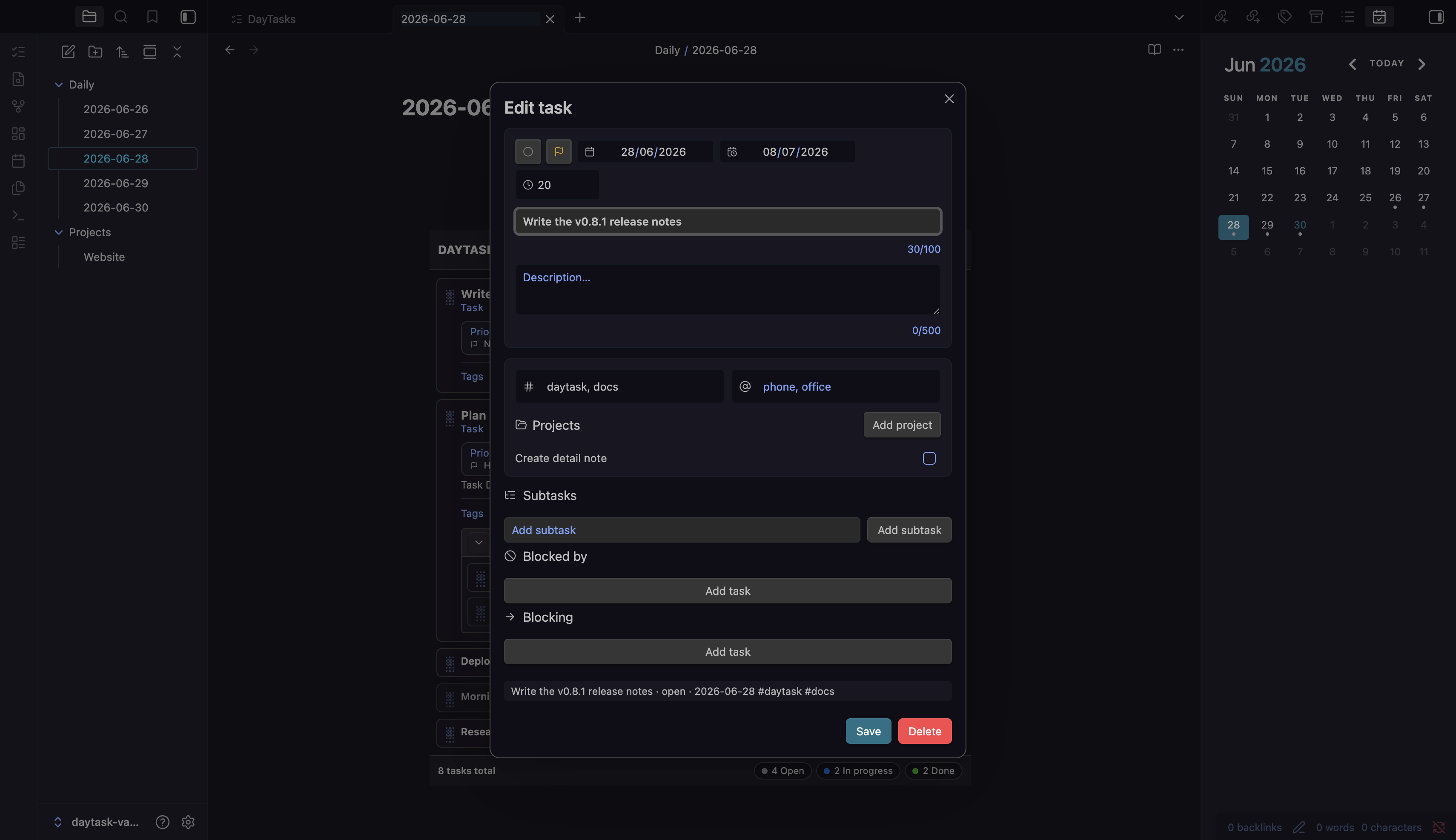
Create and edit tasks from one dialog with scheduling, priority, due date, estimate, tags, contexts, project links, subtasks, dependencies, and detail note options.
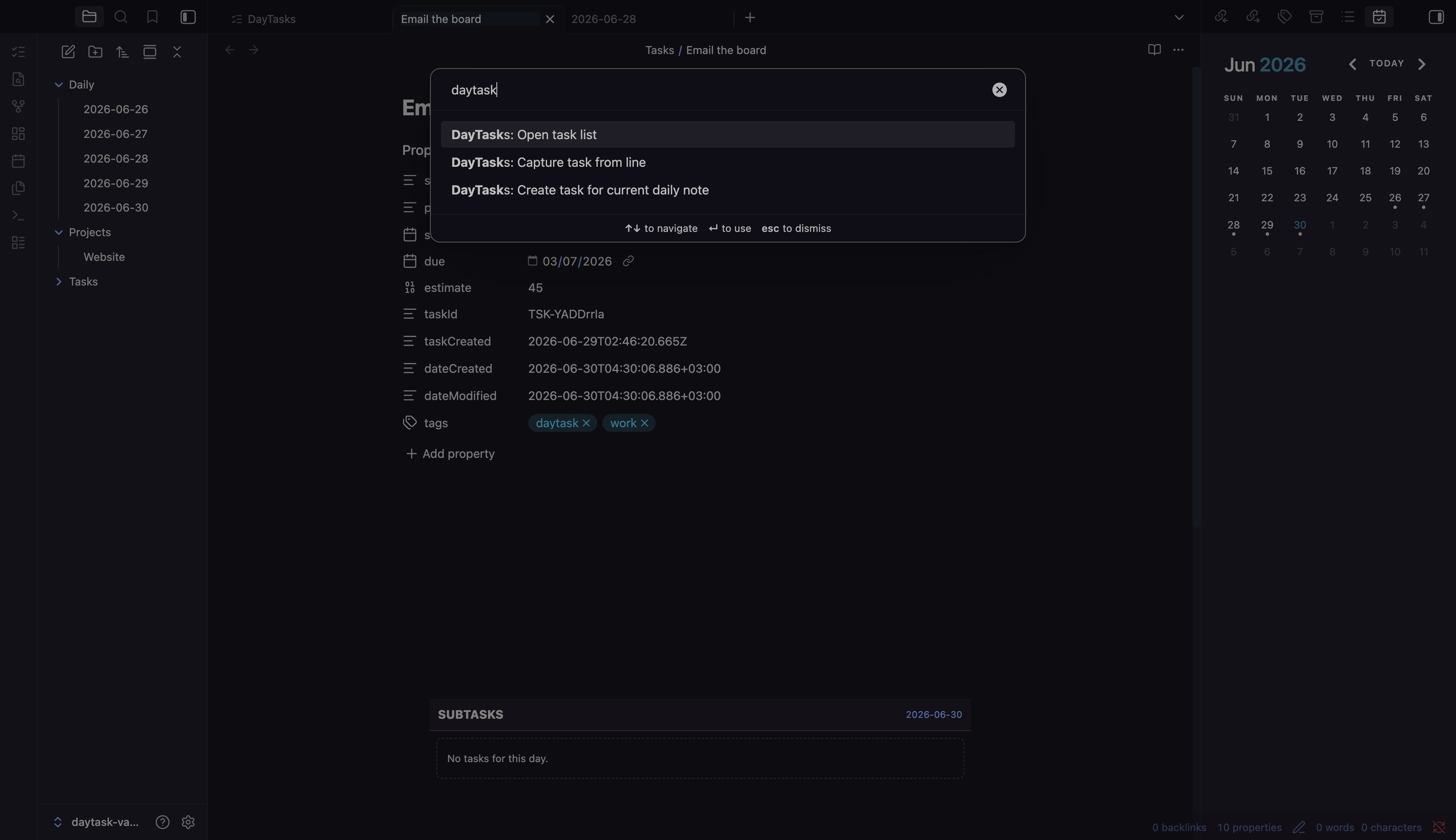
Commands let you open the dashboard or Task List, or create a task for the current daily note, straight from the command palette.
Inline Capture
Turn a note line into a scheduled task without opening a dialog.
- Put the cursor on a Markdown task line (
- [ ]) and click the capture button that appears at the end of the line, or runCapture task from linefrom the command palette on the current line (or a multi-line selection). - The line is parsed, replaced with the task title followed by its new task id, and becomes a real DayTasks task. Multi-line selections use the lines after the first as the task description.
Put these tokens anywhere in the line:
#tagadds a tag.@contextadds a context.+projector+[[Project note]]links a project.!prioritysets the priority, for example!high. This is marker-only: a bare word like "high" stays in the title.- An estimate:
45m,2h, or1h30m. A unit is required; a bare number stays in the title. scheduled:<date>sets the scheduled day, for examplescheduled:fridayorscheduled:2026-07-05.due:,by:, ordeadline:followed by a date set a deadline only.
Dates come only from scheduled:/due: markers, so ordinary prose is never
mistaken for a date. With no scheduled: marker, the task lands on the note's
daily date if it is a daily note, otherwise today.
For example, capturing this line:
- [ ] Email the board #work !high scheduled:friday 45m
creates a high-priority task tagged work, scheduled for the upcoming Friday,
with a 45-minute estimate, and rewrites the line to Email the board plus the
new task id.
Detail Notes
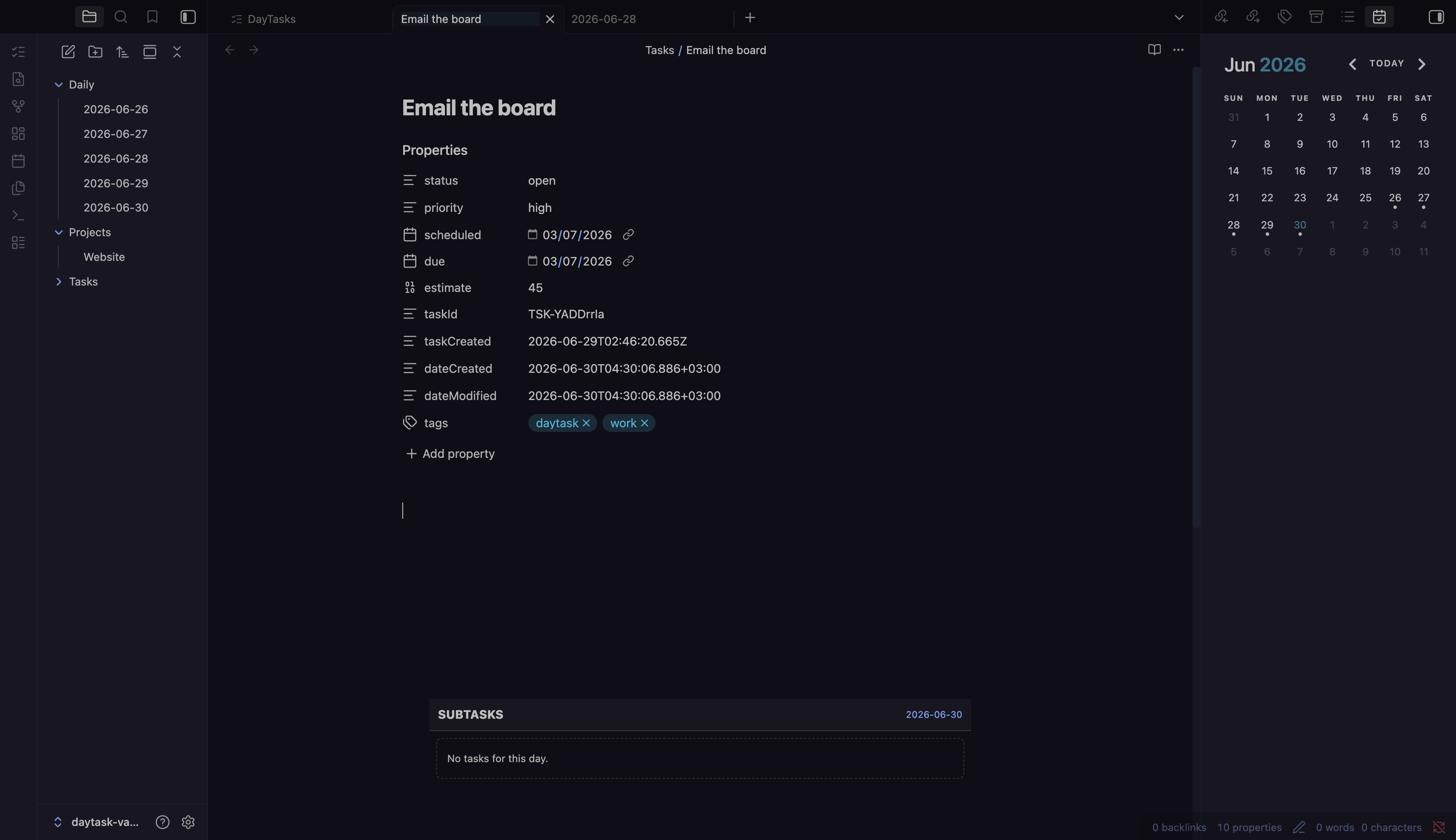
Detail notes give a task a normal Markdown note. DayTasks manages the task frontmatter and injects an interactive subtasks widget; the note body remains yours.
Settings
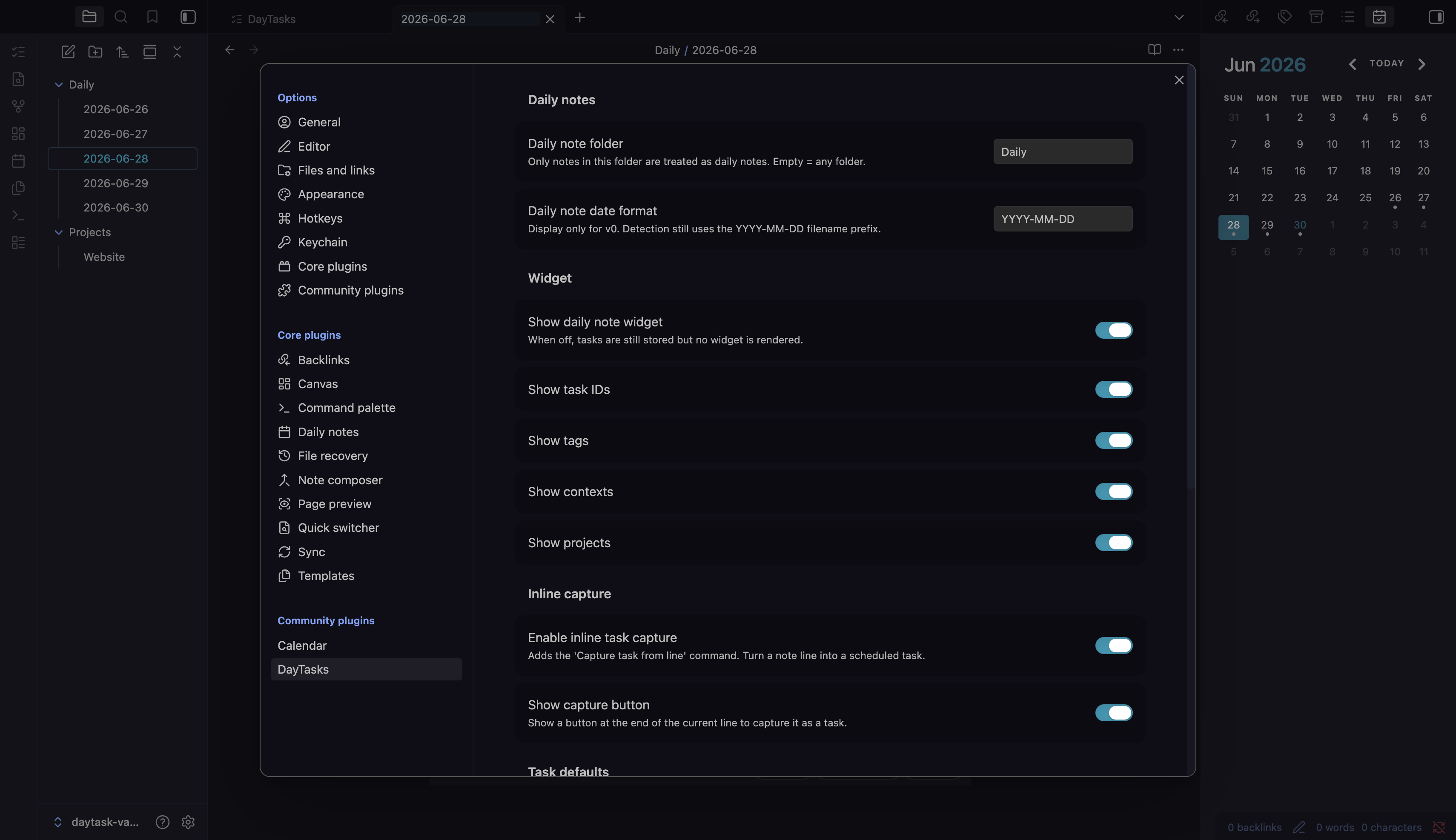
Settings control daily-note detection, card metadata, task defaults, inline capture, the dashboard's due-soon window, and detail-note behavior. On Obsidian 1.13+, every DayTasks setting is findable from the settings search box.
Install
DayTasks is available from Obsidian Community Plugins.
- Open
Settings -> Community pluginsin Obsidian. - Select
Browseand search forDayTasks. - Install DayTasks, then enable it.
Requirements:
- Obsidian
1.8.0or newer. - Desktop Obsidian. DayTasks is currently marked
isDesktopOnly. - English UI.
To install manually from GitHub, download manifest.json, main.js, and
styles.css from the latest release,
then copy them into:
<vault>/.obsidian/plugins/daytasks/
Quick Start
- Open a daily note whose filename starts with
YYYY-MM-DD, such as2026-06-25.md. - Create a task from the widget at the bottom of the daily note, or run
Create task for current daily notefrom the command palette. - Capture inline: on a
- [ ]line in any note, click the capture button at the end of the line, or runCapture task from line(see Inline Capture). - Use the task card to complete, edit, reorder, collapse, cycle status, cycle priority, or create a detail note.
- Open the dashboard from the ribbon or the
Open dashboardcommand for your streak, stats, and everything that needs attention today. - Open the Task List view from the ribbon icon or the
Open task listcommand to review tasks across days. - Configure defaults in
Settings -> Community plugins -> DayTasks.
Data And Privacy
DayTasks is local-first. It stores task records through Obsidian plugin storage and writes optional detail notes inside your vault when you ask it to create them.
DayTasks does not send task data to a server, does not implement sync, and does not write managed task lists into daily-note bodies. Optional detail notes are normal Markdown files; DayTasks manages task frontmatter and preserves the note body plus non-managed frontmatter keys.
See Core concepts and Privacy for details.
Current Scope
DayTasks is intentionally focused on the desktop Obsidian daily-note workflow. Sync, mobile, and multilingual work are not part of the current release scope; a local API and a browser extension are out of scope.
Documentation
Contributor and development documentation lives in docs/development.
Support
- Bug or feature request? Open an issue.
- Question, idea, or setup discussion? Start a discussion.
When reporting a bug, include your DayTasks version, Obsidian version, steps to
reproduce, and any console errors. Open the developer console with
Ctrl/Cmd+Shift+I, reproduce the issue, and copy any DayTasks errors.
License
For plugin developers
Search results and similarity scores are powered by semantic analysis of your plugin's README. If your plugin isn't appearing for searches you'd expect, try updating your README to clearly describe your plugin's purpose, features, and use cases.