Document Comments
approvedby Kyle McDonald
Notion-style margin comments stored inline in your markdown, so agents and other tools can read them too. - This plugin has not been manually reviewed by Obsidian staff.
Document Comments
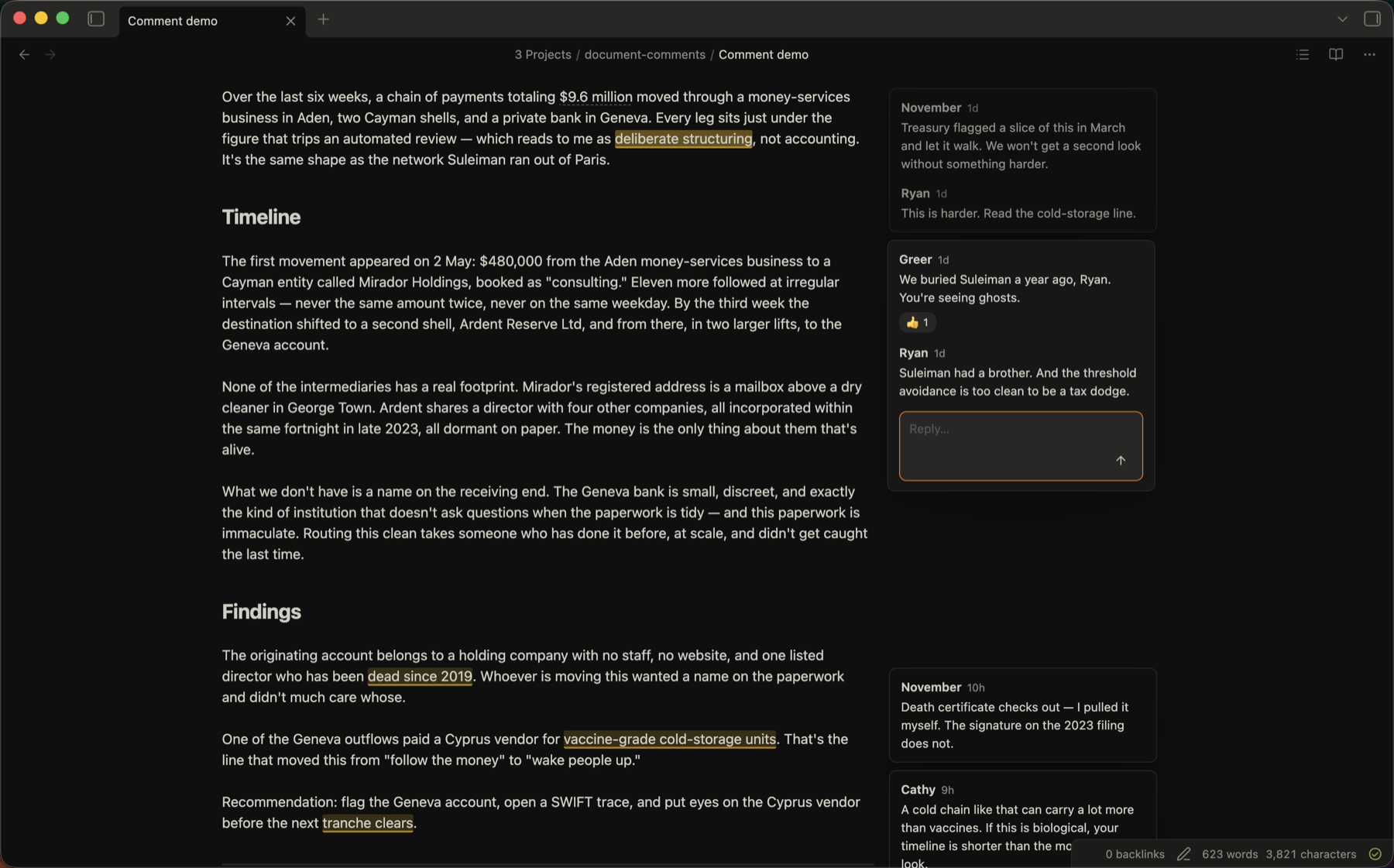
Document Comments adds inline comments to Obsidian notes. It shows each comment as a card beside the text on desktop.
The plugin stores each comment inside its Markdown file as an HTML comment. Other editors, version control tools, and agents can read the comment.
Install Document Comments from the Obsidian community plugin directory.
Features
Comments and storage
- Store comments inside Markdown files without a separate database.
- Add comments to prose, inline code, tables, and selected lines in fenced code blocks.
- Save an empty comment and highlight its selected text.
- Reply, resolve, reopen, edit, delete, or react to a comment.
- Write Markdown in comments, including links, lists, bold text, and code spans.
- Use the same notes on desktop and mobile.
Views and controls
- Show comment cards in Live Preview, Source view, and Reading view.
- Open long comments in the sidebar.
- Filter the sidebar by open, resolved, or all comments.
- Hide all comments or hide resolved comments.
Comment format
The plugin uses an anchor pair and a comment block:
We should <!--c:k3f9-->ship on Friday<!--/c:k3f9--> regardless of the QA timeline.
<!--co:k3f9 by:kyle at:2026-06-17T10:00:00.000Z status:open quote:"ship on Friday"
kyle (2026-06-17T10:00:00.000Z): I thought we agreed Thursday?
sam (2026-06-17T10:05:00.000Z): Thursday is better for QA.
-->
The <!--c:ID--> and <!--/c:ID--> markers identify the selected text. The matching <!--co:ID ...--> block stores the comment thread.
Reactions to the first comment use a line such as +👍 kyle. Reactions to replies include the reply's zero-based thread index, such as +@1 👀 sam for the first reply.
Markdown renderers hide these HTML comments. Tools that read the source file can find each comment and its selected text.
Comments on fenced code blocks use the same format. The comment block also stores the selected line range and exact code text.
An empty comment uses the same markers. Its comment block has no thread lines:
We should <!--c:h7k2-->ship on Friday<!--/c:h7k2--> regardless of the QA timeline.
<!--co:h7k2 by:kyle at:2026-06-17T10:00:00.000Z status:open quote:"ship on Friday"
-->
Install
Document Comments requires Obsidian 1.7.2 or newer. It supports desktop and mobile.
Community plugins
Use the Document Comments plugin page, or install it from Obsidian:
- Open Settings → Community plugins.
- Select Browse.
- Search for Document Comments.
- Select Install.
- Select Enable.
BRAT
Use BRAT to install a pre-release build:
- Install BRAT from Community plugins.
- Enable BRAT.
- Run BRAT: Add a beta plugin for testing.
- Enter
kylemcd/obsidian-document-comments. - Enable Document Comments in Community plugins.
BRAT installs the latest GitHub release and checks for updates.
Manual install
- Download
main.js,manifest.json, andstyles.cssfrom the latest release. - Copy the files to
<your-vault>/.obsidian/plugins/document-comments/. - Restart or reload Obsidian.
- Enable Document Comments in Community plugins.
Create the document-comments directory if it does not exist.
Build from source
git clone https://github.com/kylemcd/obsidian-document-comments
cd obsidian-document-comments
npm install
npm run build
Copy or link main.js, manifest.json, and styles.css to <your-vault>/.obsidian/plugins/document-comments/.
Then enable Document Comments in Community plugins.
Use the plugin
Add a comment in an editing view
- Select text or one or more lines in a fenced code block.
- Run Add comment from the command palette or your configured editor menu.
- Write the comment in the margin composer.
- Press Enter to save the comment.
Press Shift+Enter to add a line break. On mobile, use the dialog to save the comment.
Add an empty comment
Document Comments disables empty comments by default.
- Open Settings → Document Comments.
- Enable Allow empty comments.
- Select text and run Add comment.
- Leave the comment field empty.
- Press Enter on desktop, or select Empty comment on mobile.
The plugin highlights the selected text and shows a comment card. The card shows Empty until you add text.
Select Empty to add the first comment text. Use the card menu to delete the empty comment.
You can also select all the highlighted text and run Add comment again. Write text to add the first comment. Submit the empty field to delete it.
When Allow empty comments is off, an empty field closes without a change. Existing empty comments remain available. You can add text or delete them.
Add the command to the right-click menu
The optional Commander plugin can add commands to the editor menu.
Install Commander
- Install Commander.
- Enable Commander.
Configure the editor menu
- Open Settings → Commander.
- Select Editor Menu.
- Select Add command.
- Search for
Document Comments: Add comment. - Select the command.
- Choose an icon.
The command now appears at the bottom of the editor right-click menu. Select text before you use it.
Add a comment in Reading view
- Select text in the active note.
- Run Add comment in reading view.
- Write the comment.
- Save the comment.
The Reading view command cannot add comments to embedded content.
Manage a comment
Select a card to open its reply field. Hover over an entry to show its reaction, resolve, edit, and delete controls.
Use the Open comments sidebar command or ribbon icon to show all comments in the active note.
Use Toggle comments to show or hide all cards and highlights. Use Toggle resolved comments to show or hide resolved comments.
Set the author
Open Settings → Document Comments. Set Author to the name that the plugin adds to new comments.
The plugin uses me when the Author setting is empty.
Set highlight colors
Enable Use author colors in Settings → Document Comments to reveal the Highlight colors section and see every person whose name appears in a comment thread. The setting is off by default, and the color section stays hidden while it is off. Use Obsidian's color picker to choose a custom color. The same color identifies each person in document highlights and beside their comments and replies. Turn the setting off to restore the original yellow document highlights and render names with the normal theme color without deleting any saved assignments.
Document Comments does not scan the vault for authors while Use author colors is off. Enabling it starts a local scan and assigns colors to existing comment authors; saved mappings apply immediately, and newly discovered authors appear as the scan completes. It uses a 12-color Radix palette without repeating a color until every palette color is in use. Generated and custom assignments are stored locally in the plugin's data.json; they do not change the Markdown comment format and do not need to be shared with collaborators.
Document Comments locally scans Markdown files for its comment markers to build the author-color list. Note contents never leave the device, and only author names and color assignments are stored in plugin data.
Resolved highlights keep the creator's color as a dashed underline. Creators whose highlights are no longer present remain listed under Not currently found, so their color returns if their comments reappear.
Use the trash-can button beside a person to remove their assignment. Deleted mappings are not automatically recreated; those people use the normal theme color and appear under Uncolored, where Assign color creates a new automatically generated color.
Desktop and mobile behavior
Desktop views show cards in a margin beside the note. The cards align with their selected text and avoid overlaps.
Mobile views show the highlights without a margin. Use the sidebar to read and manage comments.
Mobile uses a dialog for new comments. The stored comment format stays the same on all devices.
Agent support
This repository includes an agent skill for the Document Comments format:
skills/document-comments/
The skill explains how to read and edit comments without damaging their markers. It also includes a validation script:
python3 skills/document-comments/scripts/validate_comments.py path/to/file.md
Privacy
The plugin does not use the network, telemetry, or accounts. It stores all comment data in the note.
Roadmap
Use the Document Comments project to see the roadmap, current work, and planned work.
Known limitations
- Reading view comments work best with plain text inside one paragraph.
- Reading view cannot add a comment to text inside an embed.
- Avoid overlapping comment anchors because comments on the same words can be difficult to manage.
- The sidebar shows an orphaned comment when no matching selected text remains.
- Live Preview table highlights require browser support for CSS Custom Highlight.
Development
npm install
npm run dev
npm run build
npm run check
npm test
npm run devwatches the source files and rebuildsmain.js.npm run buildchecks types and creates a production bundle.npm run checkchecks formatting, lint rules, types, and tests.npm testruns the test suite.
Release
Update manifest.json, package.json, versions.json, and CHANGELOG.md before a release.
Push a tag that exactly matches the version in manifest.json:
git tag 0.1.11
git push origin 0.1.11
The release workflow builds the plugin and publishes the GitHub release. It also creates attestations for the release files.
Verify a downloaded file with this command:
gh attestation verify main.js --repo kylemcd/obsidian-document-comments
License
Document Comments uses the MIT License. See LICENSE.
For plugin developers
Search results and similarity scores are powered by semantic analysis of your plugin's README. If your plugin isn't appearing for searches you'd expect, try updating your README to clearly describe your plugin's purpose, features, and use cases.