by Max Dokukin
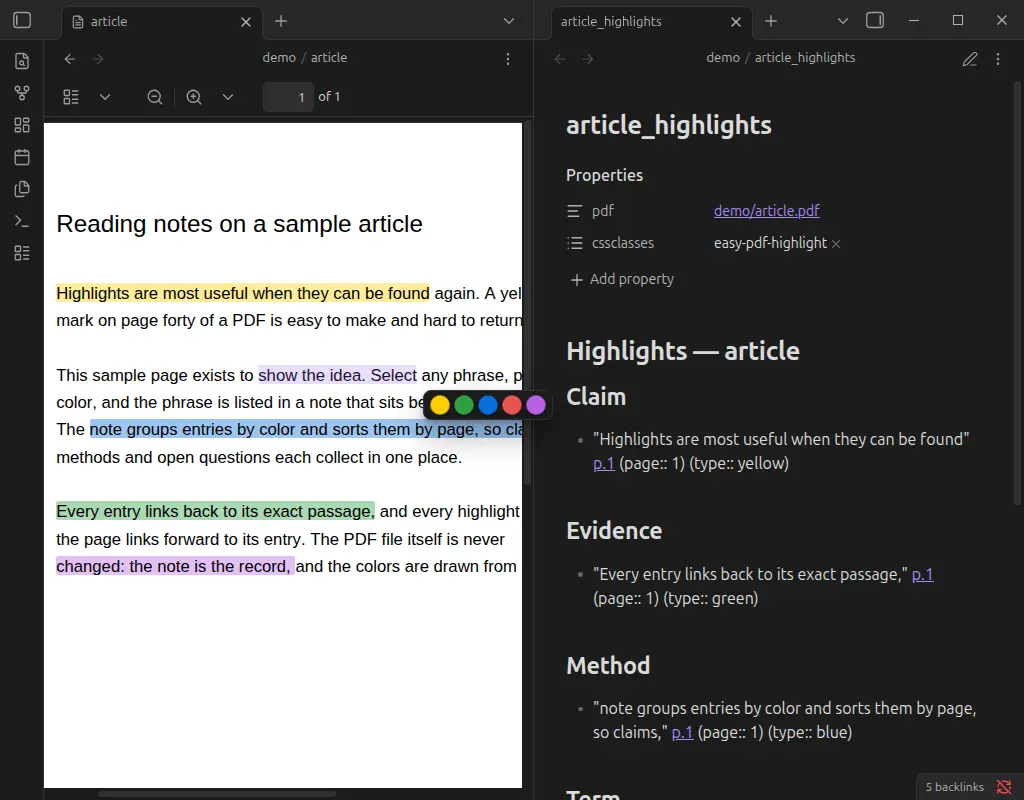
Select text in a PDF and click a color. Highlights are listed in a note next to the PDF, grouped by color and sorted by page, and drawn on the PDF without modifying the file.
Easy PDF Highlight
Select text in a PDF, click a color. That's the whole workflow.
- The passage is listed in a note next to the PDF, grouped by color and sorted by page.
- The passage is shown highlighted on the PDF.
- The two are linked both ways: the note entry opens the PDF at the exact passage; clicking a highlight in the PDF opens its entry in the note.
- The PDF file is never modified. The note is the record; the colors are drawn from it.
Use
- Open a PDF and select some text. A small palette appears at the end of the selection.
- Click a color. Done — the highlight is drawn, and an entry is added to
<pdf name>_highlights.mdin the same folder (created the first time). - Click a highlight in the PDF for a menu: open its entry in the note, change its color, delete it.
Deleting an entry's line in the note removes the highlight from the PDF. Indented lines you write under an entry are your notes on it; they stay attached when the note is re-sorted.
Each color is also a command (Highlight selection: Yellow, …), so you can bind hotkeys.
What an entry looks like
## Yellow
- "Highlights are most useful when they can be found" [[article.pdf#page=1&selection=2,0,2,50|p.1]] (page:: 1) (type:: yellow) %%hl:0.117,0.359,0.61,0.021%% ^h1-k3jf
    my own note about this passage
- The link is a standard PDF link: it opens the PDF at that page and flashes the passage, even with this plugin disabled.
(page:: …)and(type:: …)are Dataview inline fields, so highlights can be queried across the vault (FLATTEN file.lists AS L WHERE L.type = "yellow"). Dataview is not required.%%hl:…%%is where the highlight sits on the page (one rectangle per text line, as fractions of the page). It is a comment, hidden in reading view. Don't edit it by hand.^h1-k3jfis a block id: cite one exact highlight from any note with![[article_highlights#^h1-k3jf]].
Settings
| Setting | Default | |
|---|---|---|
| Colors | Yellow, Green, Blue, Red, Purple | Add, remove, reorder, recolor, relabel. Order = palette order = group order in the note. Give them meaning if you like: Claim, Method, Evidence, Question. |
| Snap selection to whole words | on | A selection that starts or ends inside a word is extended to the whole word. |
| Create highlights note | on | Off: no note is created; highlights are kept in the plugin's data and still drawn on the PDF. A note that already exists is still used. Turning it back on writes the stored highlights out to notes. |
| Note name | {{filename}}_highlights | {{filename}} is the PDF's name without extension. The note always sits next to the PDF. |
| Template file | — | Optional note to start new highlight notes from. Placeholders: {{filename}}, {{pdf.name}}, {{pdf.path}}, {{folder.name}}, {{folder.path}}. |
Each color has a fixed type id (shown under its label) which is what entries store, so renaming a label never disconnects existing highlights — the headings in the note simply follow on the next change. Removing a color keeps its highlights: they are drawn in grey and grouped last.
Install
Until it is in the community directory:
- BRAT: add
maxdokukin/easy-pdf-highlightas a beta plugin. - Manual: download
main.js,manifest.jsonandstyles.cssfrom the latest release into<vault>/.obsidian/plugins/easy-pdf-highlight/, then enable it under Settings → Community plugins.
Good to know
- Highlights are visible inside Obsidian only. Nothing is written into the PDF, so other PDF readers show a clean file. In exchange the PDF stays byte-identical to its source and can't be corrupted.
- Highlights are positioned by page number and location on the page. Replacing a PDF with a different edition of the document will misplace them.
- A selection that runs past the end of a page is clamped to that page.
- Desktop only for now: the palette is opened by a mouse selection.
- It relies on the PDF viewer's page and text-layer elements (
.page,.textLayer). Positions come from the browser's own selection geometry rather than PDF.js internals, which has kept it stable, but a large change to the built-in viewer could require an update.
Development
Plain JavaScript, no build step: main.js is the source and the release artifact.
npm test— unit tests for parsing, grouping/sorting, word snapping, settings logic.test/e2e/— end-to-end test that drives a real, isolated Obsidian instance with real mouse input over the DevTools protocol. Seetest/e2e/README.md.- Release: bump
versioninmanifest.jsonandpackage.json, add it toversions.json, push a tag equal to the version (novprefix). The workflow tests and publishes the three files. - Listing in the in-app plugin browser:
./register.shchecks everything the directory's automated review looks at and opens the submission page. SeeSUBMISSION.md.
License
MIT
For plugin developers
Search results and similarity scores are powered by semantic analysis of your plugin's README. If your plugin isn't appearing for searches you'd expect, try updating your README to clearly describe your plugin's purpose, features, and use cases.