by Eren Can
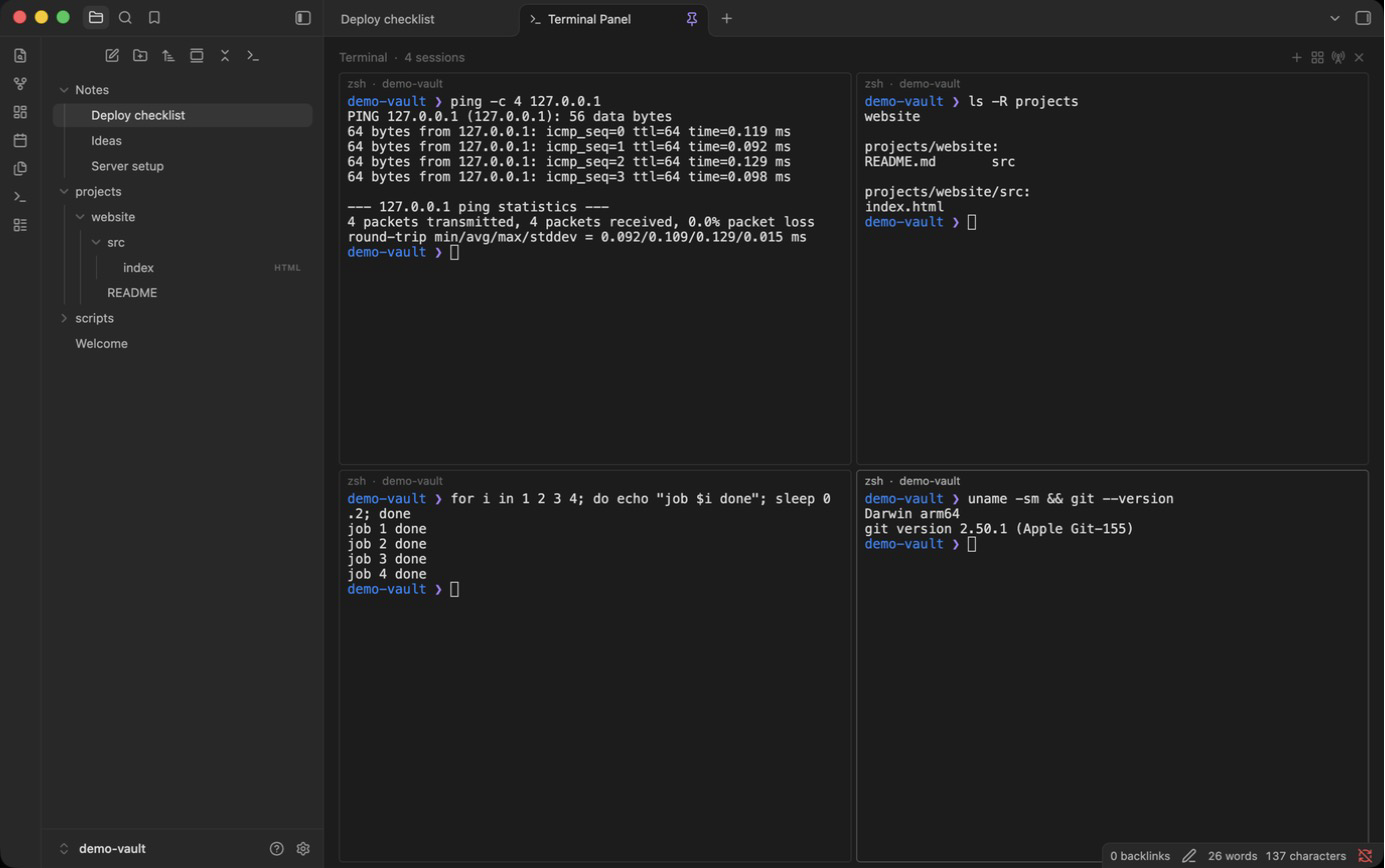
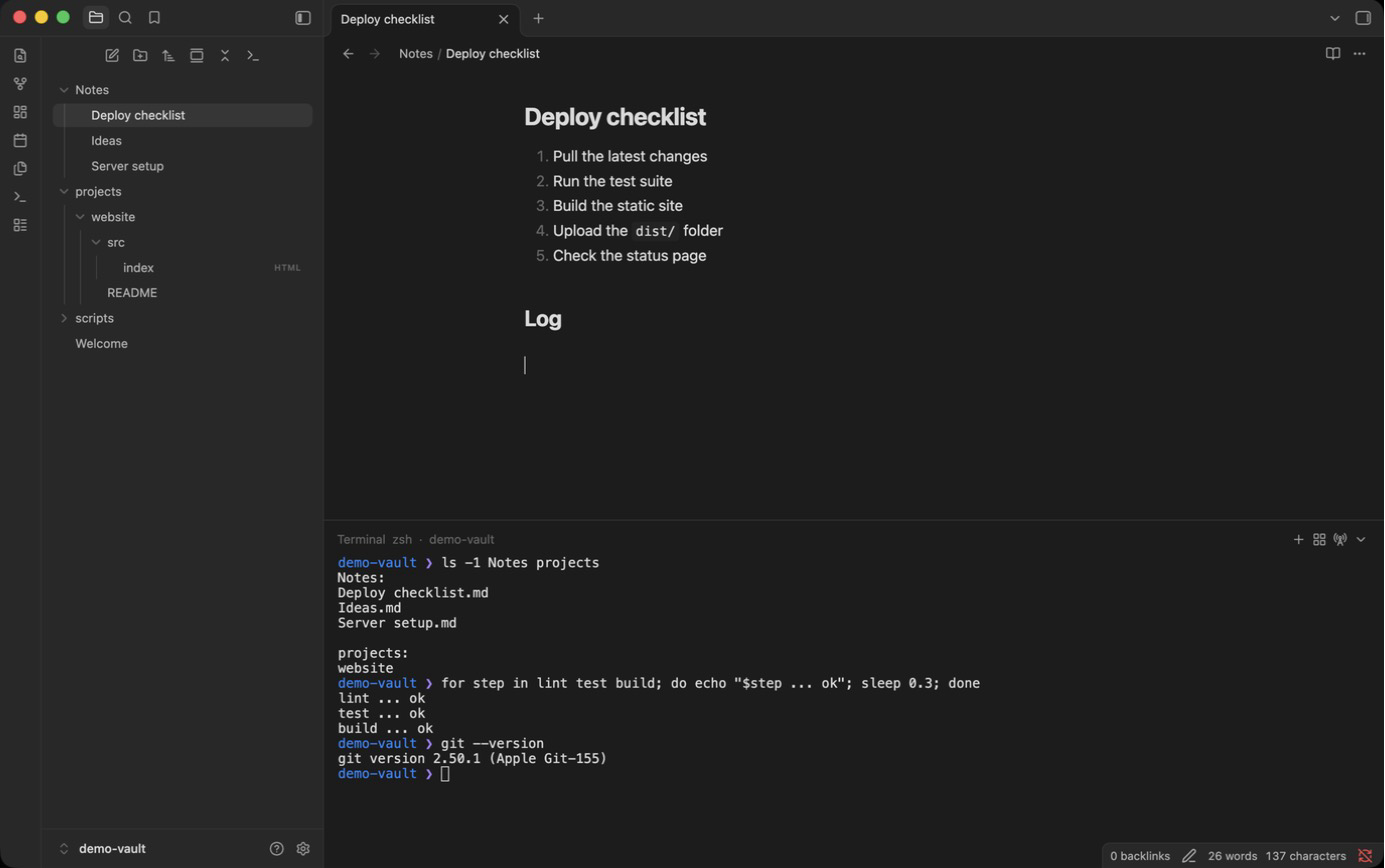
A terminal inside Obsidian, with split panes and command output to notes.
ecu-terminal
A standalone terminal for Obsidian desktop on macOS, Windows and Linux, built on xterm.js and node-pty. No other plugins required.
Features
- Docked terminal at the bottom or right of the workspace, shown or hidden with one command
(bind it to
Cmd/Ctrl+J). Hiding does not kill the shell. - Terminal panel: a full-size pinned tab used only as a terminal screen. Open it by right-clicking the terminal icon in the file explorer's toolbar, or from the command palette.
- Split grid (MobaXterm style): add terminals to a grid. Auto grid, side-by-side or stacked layouts. Drag the gutters to resize, double-click a gutter to equalize.
- MultiExec: type into all panes at once.
- Close one, close others, close all. Asks first if a command is still running.
- Long-command notifications: when a command runs longer than a set time, you get a notice, or a system notification if Obsidian is not focused. Exact for zsh, bash and PowerShell (shell integration via OSC 133), prompt-based heuristic for other shells and inside SSH.
- Capture to note: insert the last command and its output, or the current selection, into the active note as a formatted block.
- Open terminal here from the file menu (folders and files) and the editor menu. New terminals start in the vault folder, the note's folder or a custom directory.
- Search, clear, copy on select, clickable links.
- The session buffer is kept across restarts.
- Recent commands are remembered for ecu-newtab (see Command history).
- Colors follow the active Obsidian theme.
- Settings tab: position and size, shell, start folder, font, cursor, scrollback, notifications, and more.
Platforms
| OS | Architectures | Default shell | Status |
|---|---|---|---|
| macOS | Apple Silicon, Intel | $SHELL (zsh) | Tested |
| Windows 10 1809+ / 11 | x64, arm64 | PowerShell 7 if installed, else Windows PowerShell | Not tested yet |
| Linux | x64 (glibc 2.28+), arm64 (glibc 2.34+) | $SHELL (usually bash) | Not tested yet |
Any other shell can be set in the settings. If you run Windows or Linux, issue reports are very welcome.
On Linux, the Flatpak and Snap builds of Obsidian run in a sandbox, so the terminal sees the sandbox, not your full system. The AppImage or .deb build behaves like a normal terminal.
Install
Desktop only.
- From the latest release,
download
main.js,manifest.jsonandstyles.cssinto<your vault>/.obsidian/plugins/ecu-terminal/. - In Obsidian, open Settings > Community plugins, turn off Restricted mode if needed, and enable ecu-terminal.
- Run ecu-terminal: Show / hide terminal from the command palette. Give it a hotkey under
Settings > Hotkeys if you like (
Cmd/Ctrl+Jworks well); the plugin sets none by default.
Terminal engine (one-time download)
The shell runs through node-pty, a native module that
differs per operating system and can't be shipped through the plugin directory. The first time
you open a terminal, the plugin asks before downloading the engine for your platform
(about 25 KB on macOS/Linux, 600 KB on Windows) from this repository's
node-pty-1.1.0 release.
The file is checked against a SHA-256 hash built into the plugin before it is unpacked into the
plugin folder. This is the only network request the plugin makes.
The archives are made from the official node-pty 1.1.0 npm package (macOS, Windows) and
@lydell/node-pty-linux-* 1.1.0 (Linux) by scripts/pack-node-pty.sh.
Keyboard shortcuts
On Windows and Linux, plain Ctrl keys inside a terminal go to the shell (Ctrl+C, Ctrl+R,
Ctrl+W, Ctrl+J…), so the terminal's own shortcuts use Ctrl+Shift. While a terminal has
focus, the only Obsidian hotkeys that still work are the ones you assigned to Show / hide
terminal, Move terminal and the command palette; the plugin adds no hotkeys of its own.
| macOS | Windows / Linux | Action |
|---|---|---|
Cmd+D | Ctrl+Shift+D | New terminal in the grid |
Option+Cmd+Arrow | Alt+Arrow | Move focus to the neighboring pane |
Cmd+C / Cmd+V | Ctrl+Shift+C / Ctrl+Shift+V | Copy / paste (on Windows also Ctrl+V, and Ctrl+C with a selection) |
Cmd+F | Ctrl+Shift+F | Search in the terminal |
Cmd+K | Ctrl+Shift+K | Clear the terminal |
Cmd+P | Your command palette hotkey (Ctrl+P by default) | Command palette while a terminal has focus |
Ctrl+D / exit | Ctrl+D / exit | Close the current terminal |
Every action is also available in the command palette and in the terminal's right-click menu.
If you'd rather keep Ctrl+P for the shell's history, give the command palette another hotkey.
Command history
The last 40 commands you run (with the folder and SSH host) are stored in the plugin's
data.json, which lives in your vault and syncs with it. ecu-newtab
shows them as "Recent commands". Commands that look like they carry a secret are never saved:
anything mentioning a password, passphrase, token, API key or secret value, mysql -p…,
redis-cli -a, sshpass -p, docker login -p, curl -u user:pass, Authorization: headers,
URLs with user:pass@, known token formats (ghp_, github_pat_, sk-, xoxb-, AKIA…,
glpat-…), vault login, and assignments like DB_PASS= or PRIVATE_KEY=. Stored entries
are filtered again on every start. Turn off Settings > ecu-terminal > Remember recent
commands to stop saving and clear the list, or use Clear command history.
Language
The interface is available in English and Turkish. By default it follows Obsidian's language; you can pick one under Settings > ecu-terminal > Language.
Building from source
npm install
npm run build          # writes main.js and styles.css
npm run pack-node-pty  # writes the engine archives and SHA256SUMS to dist/
License
MIT, see LICENSE. Bundled into main.js: xterm.js
6.0.0 and its addons (MIT). Downloaded on first use: node-pty
1.1.0 (MIT); the Linux binaries come from @lydell/node-pty,
prebuilt from the same node-pty release.
For plugin developers
Search results and similarity scores are powered by semantic analysis of your plugin's README. If your plugin isn't appearing for searches you'd expect, try updating your README to clearly describe your plugin's purpose, features, and use cases.