Eisenhower Matrix Blocks
approvedby angus kung
Embed independent, editable Eisenhower Matrix task boards in Markdown notes, with Chinese and English interfaces. - This plugin has not been manually reviewed by Obsidian staff.
English | 简体中文
Eisenhower Matrix Blocks for Obsidian


Eisenhower matrices that live inside your Obsidian notes.
Insert an independent four-quadrant task board anywhere in Markdown, complete tasks in place, and keep a filterable history.
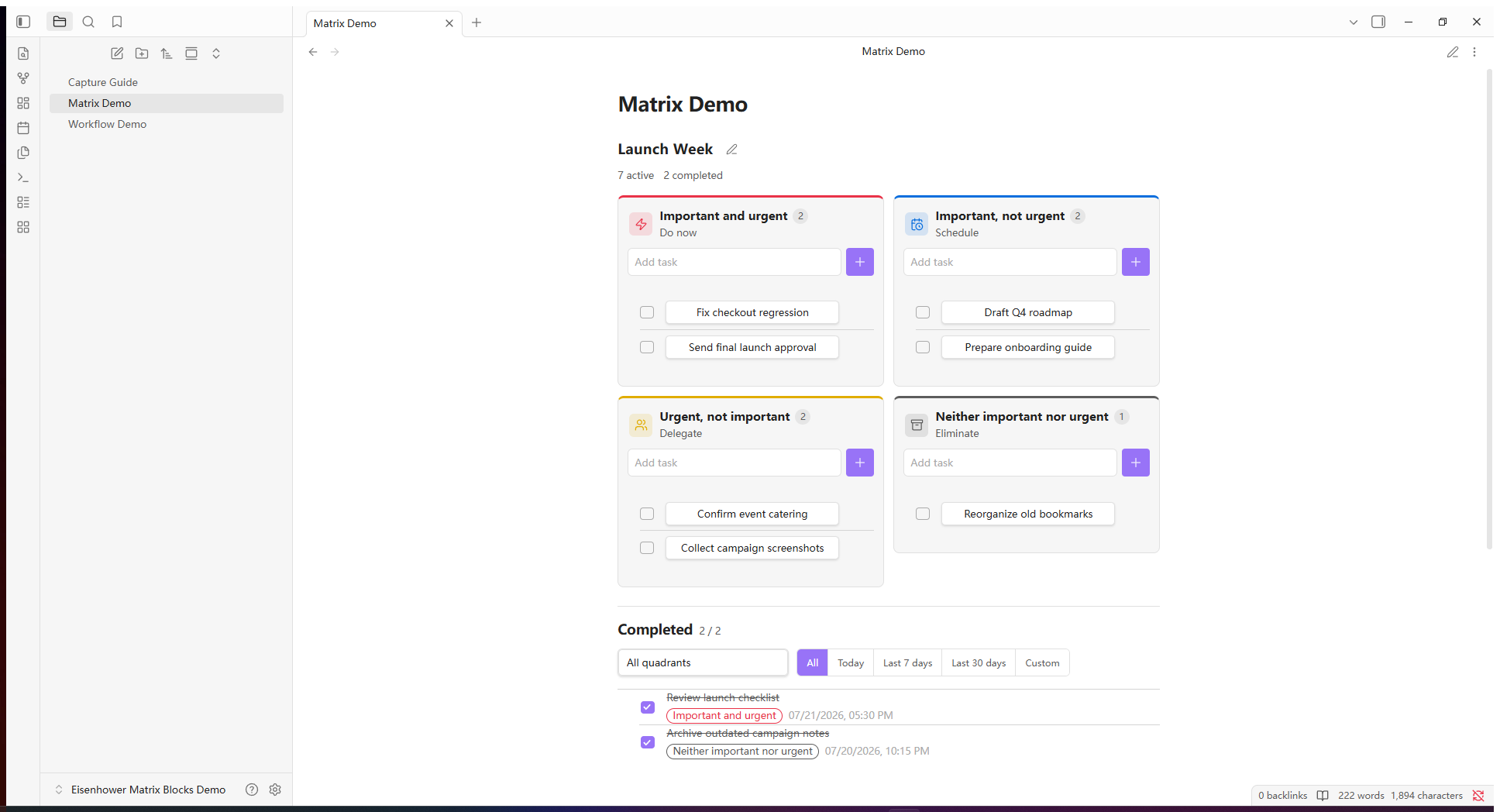
- Local to every note: each matrix owns its tasks and completed history, and a note can contain more than one matrix.
- Markdown-backed: tasks, quadrants, ordering, and completion times travel with the note through Obsidian Sync, Remotely Save, or Git.
- A complete workflow: add, edit, move, complete, restore, delete, and filter tasks without leaving the matrix.
The matrix is inserted at the editor cursor and remains part of the note.
Quick start
- Install the plugin and enable Eisenhower Matrix Blocks in Obsidian.
- Open an editable Markdown note and place the cursor where the matrix should appear.
- Click the grid icon in the left ribbon, or run Eisenhower Matrix Blocks: Insert matrix at cursor from the command palette.
- Use Live Preview or Reading view to work with the rendered matrix.
Each insertion creates a separate matrix. Run the command again when you want another matrix in the same note.
Installation
Community Plugins
- Open Settings → Community plugins in Obsidian.
- Select Browse and search for Eisenhower Matrix Blocks.
- Select Install, then Enable.
Manual installation
- Download
main.js,manifest.json, andstyles.cssfrom the latest release. - Create
<Vault>/.obsidian/plugins/eisenhower-matrix-blocks/. - Copy the three files into that folder.
- Reload Obsidian and enable Eisenhower Matrix Blocks.
Boards belong to notes
Each matrix belongs to the note that contains it:
- A project note can own its own matrix and completion history.
- The same note can contain multiple independent matrices.
- Copying a matrix block copies the data; deleting the block deletes that matrix.
- Every operation updates only the selected matrix block and preserves surrounding prose, frontmatter, callouts, code, and sibling matrices.
- The plugin makes no network requests and collects no telemetry.
Core workflow
| Workflow | Behavior |
|---|---|
| Add | Add a task directly to any quadrant. Growing inputs keep long text visible, and new tasks appear at the top. |
| Edit | Click a task title to edit it in a growing text field without opening another view. |
| Move and order | Drag tasks between quadrants or above and below one another. Touch and pen use the drag handle; the task menu remains available on every device. |
| Complete | Check a task to move it into the unified completed list with an exact completion timestamp. |
| Restore | Uncheck a completed task to return it to its source quadrant. |
| Filter | Filter completed tasks by source quadrant and by today, 7 days, 30 days, or a custom date range. |
| Manage space | Collapse the whole matrix to a count summary, or limit the completed list to a scrollable region. |
| Rename | Give every embedded matrix its own title; Matrix is the default. |
| Customize quadrants | Edit each quadrant title and subtitle independently, or restore its language-aware defaults. |
Markdown-backed by design
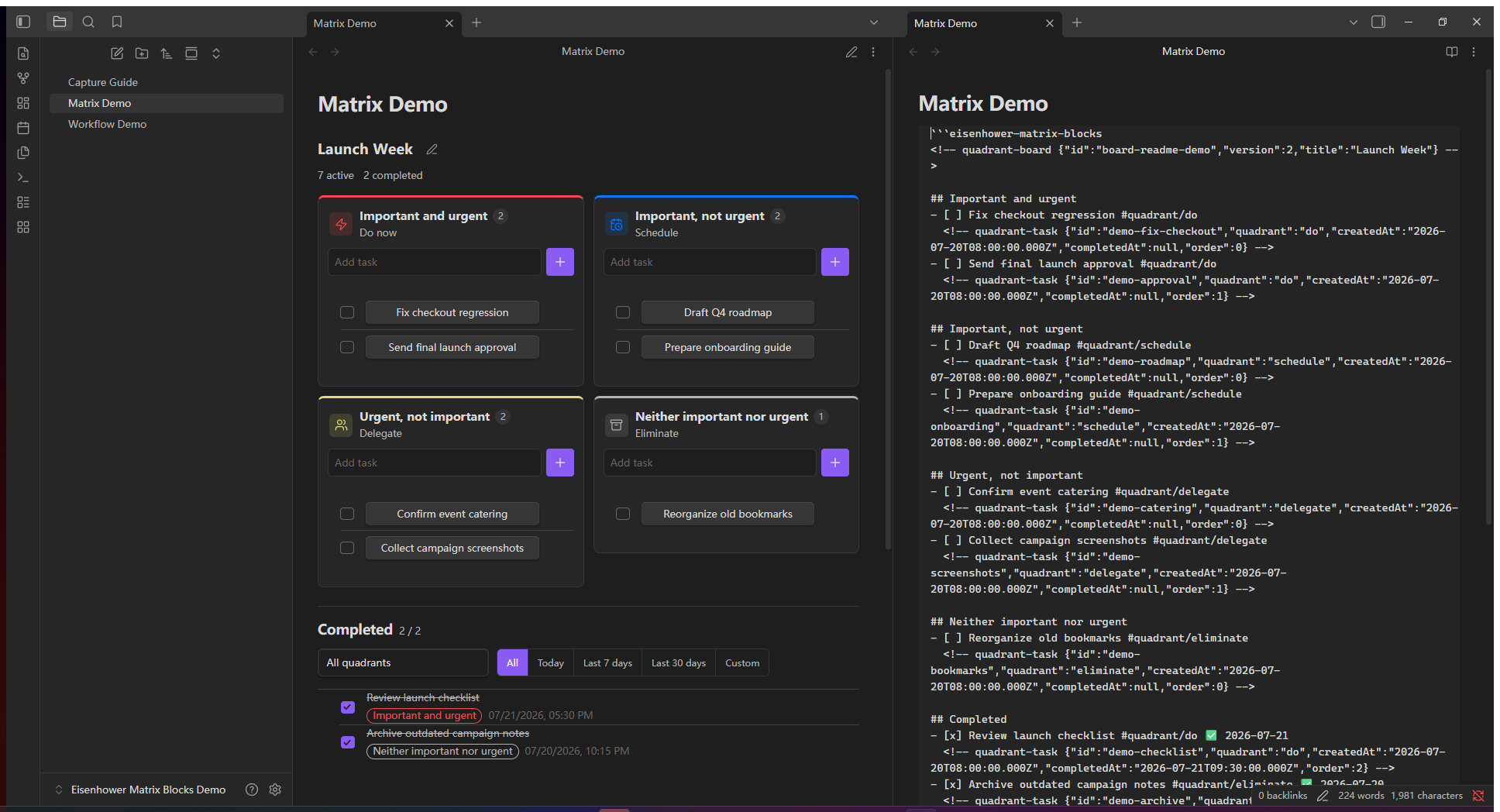
The note contains the complete board state in an eisenhower-matrix-blocks code block:
```eisenhower-matrix-blocks
<!-- quadrant-board {"id":"board-example","version":2,"title":"Launch Week"} -->

## Important and urgent
- [ ] Fix checkout regression #quadrant/do
  <!-- quadrant-task {"id":"task-example","quadrant":"do","createdAt":"2026-07-20T08:00:00.000Z","completedAt":null,"order":0} -->

## Important, not urgent

## Urgent, not important

## Neither important nor urgent

## Completed
```
The English headings inside the source are stable storage markers. The rendered interface follows the Chinese or English language selected in plugin settings.
Hidden Markdown comments preserve custom quadrant labels, source quadrants, ordering, creation times, and completion times. Use the insertion command and matrix controls to keep this data valid.
Storage and sync
All data for a matrix is stored in its Markdown block.
- Obsidian Sync, Remotely Save, and Git can sync matrices as ordinary note content.
- Multiple offline edits still follow the conflict behavior of the selected sync provider.
- Deleting a matrix code block deletes that matrix, so note history and backups remain important.
Interface language is stored separately from matrix data. Changing it does not rewrite notes and may need to be configured on each device, depending on your sync settings.
Mobile and languages
The matrix uses a responsive layout on Obsidian Mobile. Drag from a task's handle to move it while edge auto-scroll keeps long quadrants and notes reachable. Task menus still let you move tasks between quadrants or raise and lower them without a drag gesture.
Open Settings → Eisenhower Matrix Blocks → Interface language and choose Follow Obsidian (the default), 中文, or English. The change applies immediately to headings, menus, filters, controls, dates, commands, and notices without rewriting matrix blocks.
Use the pencil button in a quadrant header to edit its title and subtitle. Custom labels are note content, so they stay unchanged when the interface language changes; restoring defaults makes that quadrant follow the interface language again.
Frequently asked questions
Can I put more than one matrix in a note?
Yes. Run the insertion command again whenever you need another matrix.
Will my tasks sync between devices?
Matrix data lives in the note, so it follows the note through your sync provider. Plugin settings such as interface language are separate and depend on whether that provider syncs Obsidian configuration files.
Can I edit the Markdown manually?
The format is readable, but the insertion command and matrix controls are recommended because they maintain task metadata. If a matrix block is incomplete or malformed, fix its source before continuing.
Does it work without an internet connection?
Yes. The plugin runs locally and makes no network requests.
Contributing
Bug reports and feature requests are welcome. Please use fictional or sanitized examples and never upload a complete personal vault.
See CONTRIBUTING.md for the development setup, compatibility requirements, privacy rules, and verification checklist.
npm ci
npm run verify
License
For plugin developers
Search results and similarity scores are powered by semantic analysis of your plugin's README. If your plugin isn't appearing for searches you'd expect, try updating your README to clearly describe your plugin's purpose, features, and use cases.