Enex Card
approvedby Kerekes Stefan
Visual notes board: parse Evernote .enex exports (the same files Embeds+ previews inline) into one Obsidian canvas card per note, with images, tags, colors and notebook groups. - This plugin has not been manually reviewed by Obsidian staff.
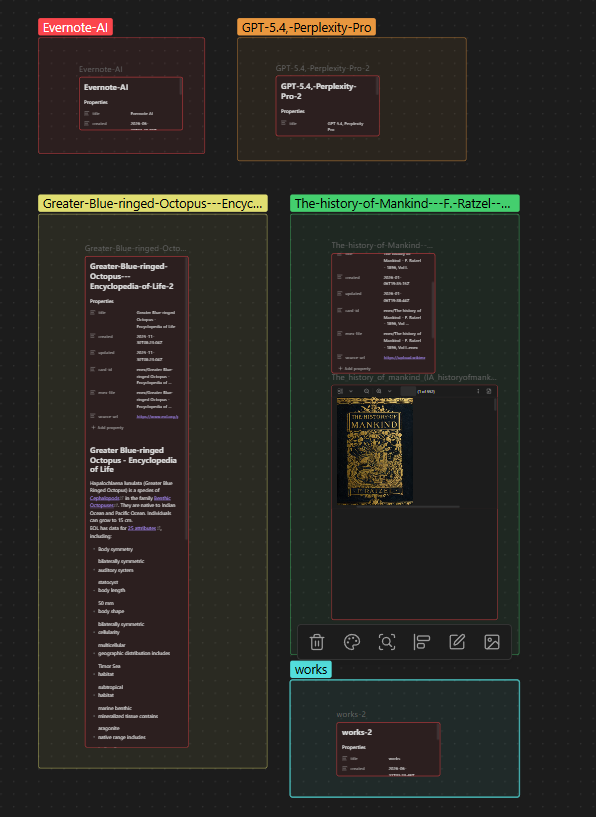
Enex Card — Evernote ENEX → Obsidian Canvas visual notes
Turns Evernote .enex exports into a visual notes board on the
Obsidian canvas: one card per note, grouped per ENEX file, with images,
tags, dates and optional notebook-colored groups.
It is designed to work alongside the Embeds+ plugin:
| Embeds+ | Enex Card | |
|---|---|---|
| What it does | renders an .enex file inline (original styling) | lays out every note of an .enex file as cards on a canvas |
| View | one ENEX file at a time, one note per export | whole notebook at a glance, one card per note |
| Editable | read-only view | generated notes are normal Markdown |
Keep your original .enex files anywhere in the vault. Use Embeds+ when you
need the exact Evernote rendering; use Enex Card to get a spatial, glanceable
board you can rearrange like sticky notes.
Screenshots
Features
- ENEX parsing — multi-note exports, tags, created/updated dates, authors,
source URLs, and every
<resource>attachment. - ENML → Markdown — headings, bold/italic/strikethrough, links, bullet and
numbered lists, quotes, tables, code, Evernote tasks (
<en-todo>→- [ ]), images,en-cryptplaceholders and more. - Attachments extracted into a per-notebook
attachments/folder. File names embed 8 hex chars of the content MD5, so identical images are shared and generic names likephoto.jpgnever collide. - Canvas board — every note becomes a
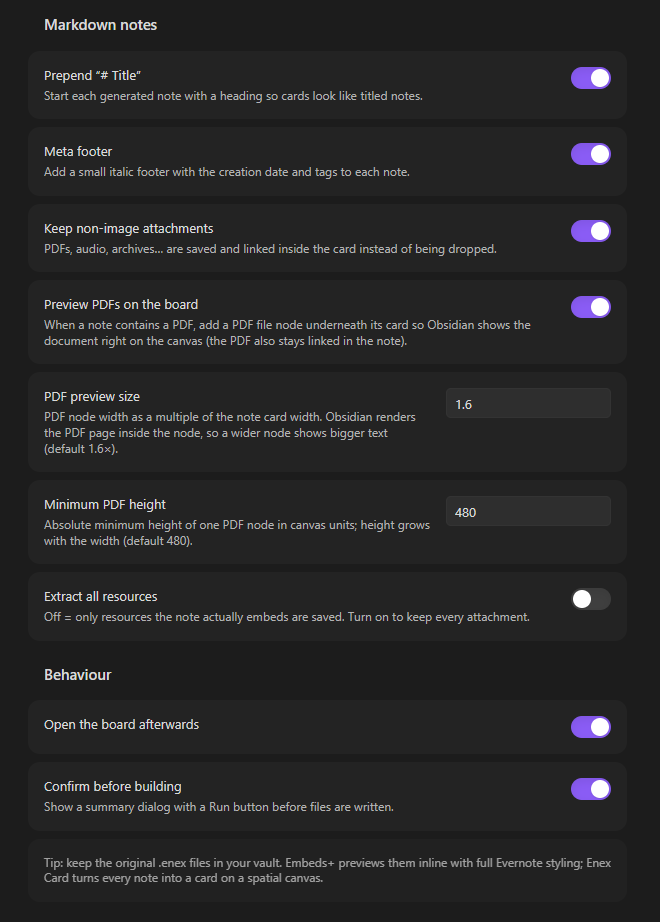
filenode on a.canvasboard, wrapped in a group per ENEX file. Card color is assigned by palette cycle or by the note's first Evernote tag. - PDF previews — when an ENEX note carries a PDF resource, the PDF is extracted and placed as its own PDF file node under the note card. The node is sized 1.6× the note card width (an A4-ish page ratio), so the page content is actually readable; tweak it under Settings → PDF preview size / Minimum PDF height.
- Four commands
- Build visual board from an ENEX file… — one file → one board.
- Build one visual board from every ENEX in a folder… — merge many files (e.g. one ENEX per note) into a single board, a group per file.
- Add ENEX file to an existing board… — pick a board, then an ENEX file; its notebook group is appended below the current content.
- Add all ENEX in a folder to an existing board… — same, for a whole
folder of
.enexfiles at once.
- Additive boards — “add to board” is idempotent: notes are regenerated, groups that are already on the board are refreshed instead of duplicated, and brand-new groups are laid out under whatever you already placed there (including groups you moved around by hand).
- Idempotent — re-running a conversion updates your own generated notes
(detected via a
card-idfrontmatter key) and refreshes the canvas, without touching notes you didn't generate. - Works on mobile (
isDesktopOnly: false) — needs nothing but DOMParser, which is available in the Obsidian renderer on every platform.
What gets created
Given MyNotebook.enex inside your vault, with default settings:
Evernote Visuals/
├── MyNotebook/
│   ├── Note title.md                 ← one markdown note per Evernote note
│   ├── Another note.md
│   └── attachments/
│       ├── diagram-2cd8bde4.png      ← images & attachments (hash-suffixed)
│       └── invoice-0f5a21b3.pdf      ← PDFs become preview nodes on the board
└── MyNotebook.canvas                 ← the visual board
Each generated note starts with a small YAML frontmatter
(title, created, updated, tags, card-id, enex-file, …) followed by
a # Title heading and the converted content, so the canvas card shows a
titled, dated, tagged note.
Installation
From a release / manually
- Copy this folder into your vault's plugin directory:
<your vault>/.obsidian/plugins/enex-card/(create the folder if needed). The folder must contain at leastmain.js,manifest.jsonandstyles.css. - Restart Obsidian (or reload) and enable Enex Card under Settings → Community plugins.
- Put your
.enexexport(s) somewhere in the vault and run one of the two commands from the command palette (or use the ribbon icon).
From source
npm install
npm run build    # type-check + bundle → main.js
npm test         # unit smoke tests for the pure core (parser/markdown/layout)
Usage tips
- Double-click a card to open the generated note in the editor; drag cards around, resize them, connect them — the canvas is a normal Obsidian canvas.
- PDFs: exported notes that contain PDFs get a PDF preview node under their card. The preview is drawn at 1.6× the note card's width — if it still feels small, raise Settings → PDF preview size (2–3× makes pages clearly readable), or lower it if you want compact boards. Note that Obsidian's canvas PDF viewer keeps its own internal page zoom, so node geometry is what governs how large the preview looks.
- Growing one board over time: instead of a new canvas per ENEX, build one board first, then use Add ENEX file/folder to an existing board… every time you drop in a new export. Groups you already added are refreshed, not duplicated — if the note count of an existing ENEX changed, rebuild that file's group with the Build visual board command instead.
- Colors:
Card color → By first Evernote taggives each tag a stable canvas color so notes of the same topic are easy to spot. - Long notes: card height is estimated from the content
(
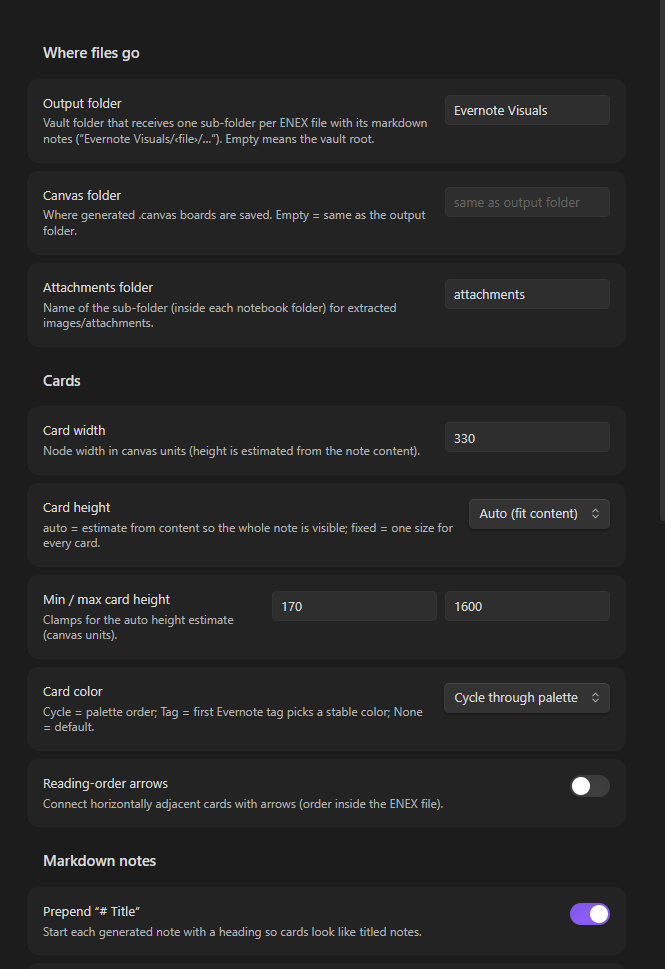
automode). If a card clips, make it taller by dragging, or raiseMax card height, or switch toFixed height. - Reading order: enable Reading-order arrows to draw arrows between horizontally adjacent cards in ENEX order.
- Boards live with your notes by default (same folder as the output
folder). Change
Canvas folderto put them elsewhere. - Cleaning up: delete the generated output folder and
.canvasfiles at any time — your.enexsources are never modified.
Known limits
- This converts ENEX content to Markdown, so pixel-perfect Evernote styling is not preserved — that is what Embeds+ inline previews are for.
- Exotic ENML (nested tables inside lists, some web-clip structures) degrades gracefully to plain text.
- Only
.enexfiles stored in the vault are listed.
License
MIT © 2026 Kerekes Stefan — see LICENSE.
For plugin developers
Search results and similarity scores are powered by semantic analysis of your plugin's README. If your plugin isn't appearing for searches you'd expect, try updating your README to clearly describe your plugin's purpose, features, and use cases.