Eve Apple Tree Thinking System
approvedby Evelyn Chan
Grow your notes into a living 3D tree of light - a thinking tool, not a filing cabinet. Each folder becomes a tree; notes are leaves placed by field and time; links are the rhizome; flowers are ah-ha moments; apples are outputs. - This plugin has not been manually reviewed by Obsidian staff.
🍎 Eve Apple Tree Thinking System — Obsidian Plugin
Grow your notes into a living 3D "tree of light." A thinking tool, not a filing cabinet.
Eve's Apple Tree is a thinking system with AI. This plugin is one half of it: it renders your notes as a calm, warm-white tree of light you can fly around in 3D. The other half is Eve's tree team (AI companion kit): a gardener you think out loud with, a challenger that pushes back from the outside, and an observer that learns how you think. The plugin ships no AI of its own. You download the team from the GitHub repo and the two run as one package.
Eve's tree team tends the tree with you. It proposes leaves and trunk connections; you decide what to keep. It never creates your ah-ha moments or your outputs, and it writes nothing to your vault without your approval.
The one key to know: the tree draws only notes that carry tree frontmatter, three small lines at the top of a note. No frontmatter, no dot. The user manual walks all three start paths (new to Obsidian · fresh vault · your existing vault) step by step.
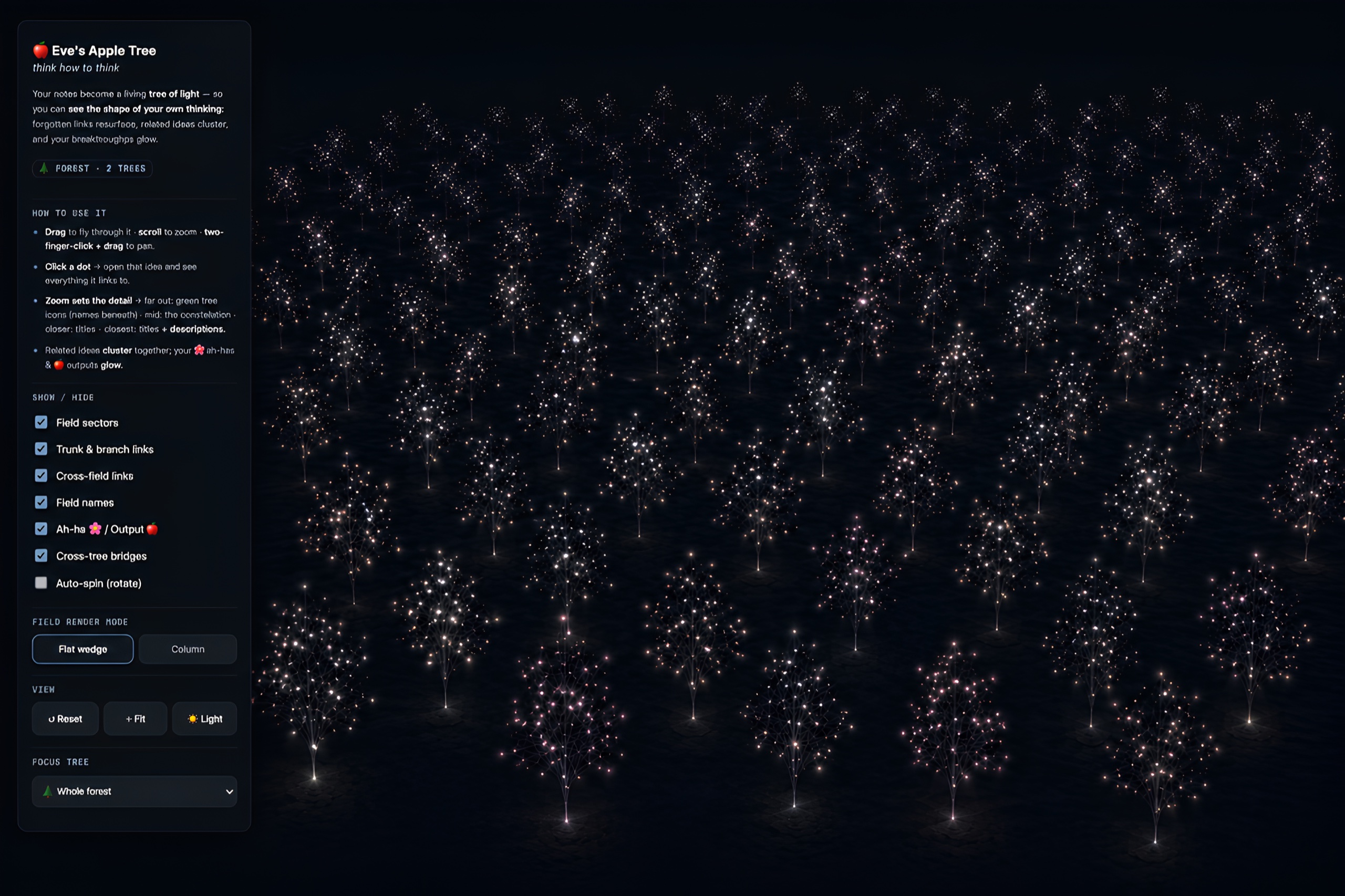
A thinking forest. Every tree is one topic; every light is one idea.
Get started: zero to an AI-tended tree
The fastest path is one download that has everything wired together already.
- Get the repo. Download or clone github.com/BrandtheBrand/eve-apple-tree (green Code button → Download ZIP), then unzip it.
- Open the starter vault. In Obsidian, choose Open folder as vault and pick
eve-thinking-system/starter-vault/. The plugin is preinstalled, Eve's tree team is wired in, and a small example tree (My First Tree) is already inside, so you never face an empty screen. - Turn on the tree. Open Settings → Community plugins, turn community plugins on if Obsidian asks, and confirm Eve Apple Tree Thinking System is enabled. Open the command palette (
Cmd/Ctrl + P), type "tree", and run the open-tree command. My First Tree stands up in 3D. - Wake the team. Open the same folder with Claude Code and say "Gardener, let's think." The gardener greets you and offers a short voice-calibration exercise so it titles ideas the way you would, not in generic AI voice. (No Claude Code? Paste the vault's
CLAUDE.mdinto any capable AI as its system prompt.) - Plant a thought. Say something you're chewing on. The gardener turns it into a clean leaf, proposes a link or a trunk connection, and hands you a question from a lens you skipped. You choose what to keep. When you say "oh!", it offers to save that as a flower; you bloom it, it never does.
- Watch it grow. Rebuild the tree from the panel and your dot is there. Come back tomorrow with another. The team proposes, you decide, and the tree grows taller over time and wider across fields.
Prefer to work by hand? The tree renders straight from plain YAML frontmatter, so you can write every dot yourself and never involve an AI. The frontmatter schema is below.
What you're looking at
Notes become leaves, placed by field (the lens you were thinking through) and time (height). Links are the rhizome. Breakthroughs are flowers; the things you make are apples; topics you haven't opened yet are seeds, floating in a pool on the ground rather than on the tree. Zoom in and titles surface, then descriptions; zoom out and the whole tree becomes a translucent green silhouette.
One folder = one tree. Put each topic in its own top-level folder and your vault becomes a forest of independent trees standing side by side.
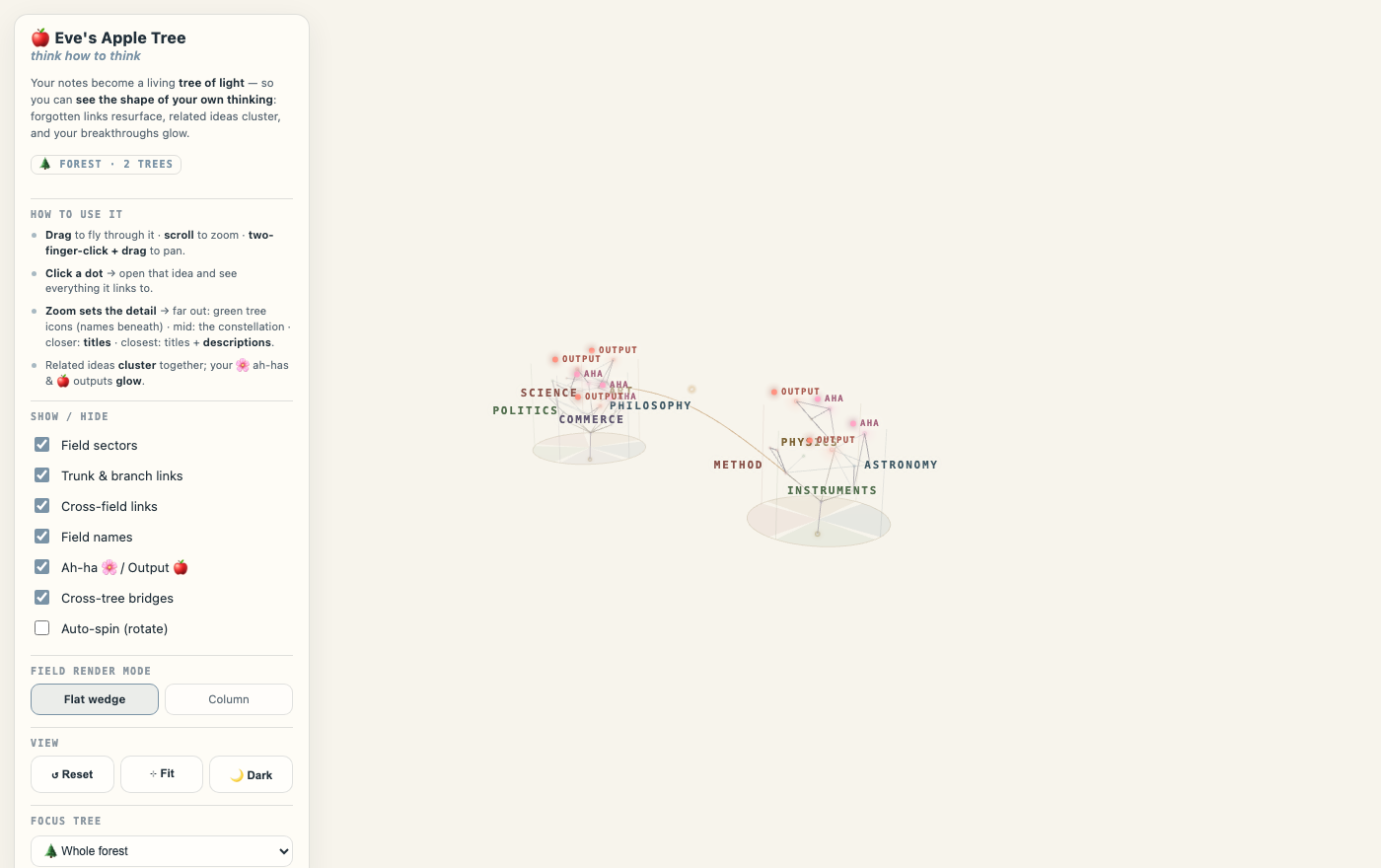
Light mode. One folder = one tree; several folders read as a forest, connected only by explicit bridge notes.
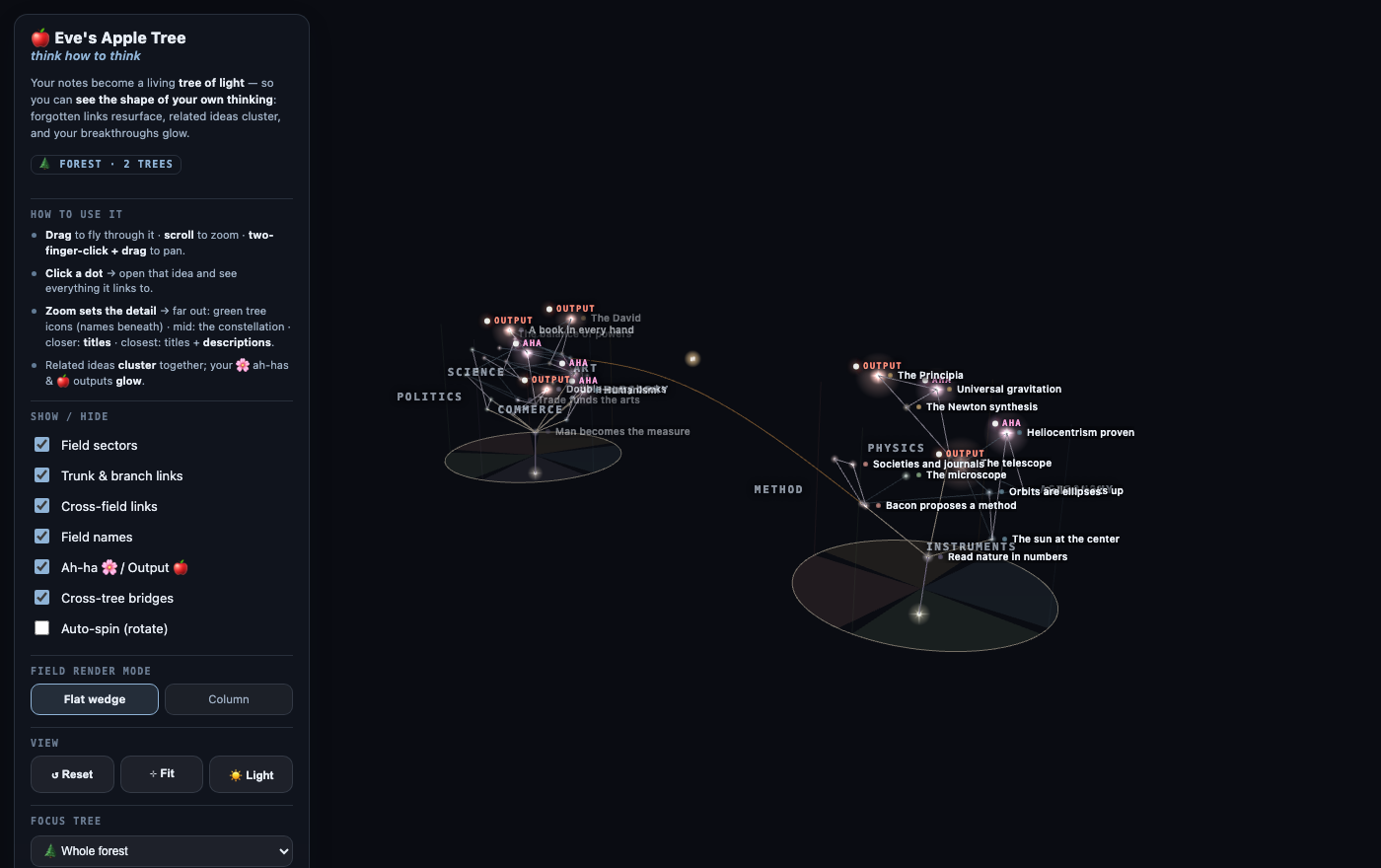
Zoom sets the detail. Fly closer and titles surface; closer still and descriptions appear.
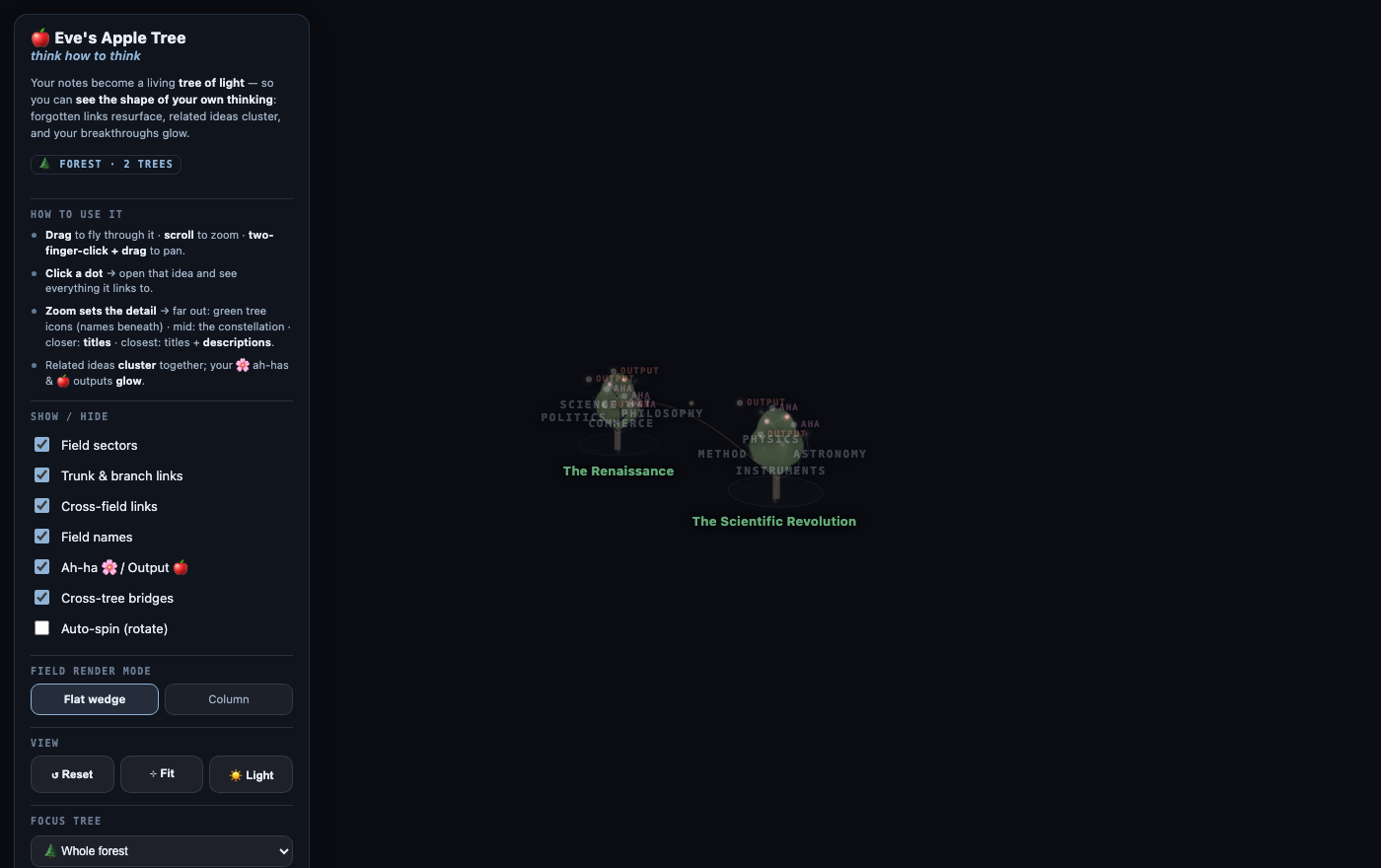
Zoom all the way out and every tree crossfades into a green tree silhouette with its name beneath.
Features
- 🌳 3D "tree of light" view (three.js) in a locked warm-white observatory aesthetic. Runs fully offline; three.js is bundled, no network calls.
- 🌲 Forest — each top-level folder is its own independent tree (own fields, own trunk, own place in the scene). Zoom out and each tree crossfades into a translucent green tree silhouette; several folders read as a forest. A Focus tree selector flies you to any one tree or back to the whole forest.
- 🗺️ A forest that arranges itself, until you'd rather it didn't — trees you've never moved take cells on a checker grid that widens ring by ring as the forest grows, rather than stretching into a row where every extra tree shrinks all the icons. Trees joined by a bridge are placed on the same patch of ground. Drag a tree anywhere and it stays there; drop it on another tree and the two swap.
- 🧲 Link-aware clustering — dots in the same field that link to each other pull together into clusters, while unrelated dots sit apart (toggle in settings).
- 🔭 Zoom scale — four stops down the right edge: 🌲 whole forest · 🌳🌳🌳 a few trees · 🌳 one tree · 🍃 close on a leaf. It shows where you are and flies you there when clicked; a stop your vault can't express is dimmed rather than dead. Detail follows the stops — icons and tree names far out, titles at one tree, descriptions up close.
- 🌫️ Two field modes: flat ground wedges, or translucent vertical columns per field.
- 🌰 Seeds and the seed pool — a topic you haven't opened yet is a
seed: it waits as a green, lit dot in a wide matte pool on the ground instead of claiming a place on the tree. Seeds with afieldpool at that tree's foot; the rest gather in one shared pool at the middle of the forest. Point at a seed and it names itself; move away and the name is gone. - 🌸 Flower / 🍎 Apple markers — locate ah-ha moments and outputs at a glance; a bloomed/fruited tree even shows 🌸/🍎 on its zoom-out silhouette.
- 🌙 Dark mode — follows Obsidian's light/dark theme automatically; the dots become glowing "diamonds" on black. A 🌙/☀️ button in the panel overrides.
- ✨ Every dot glows — a soft halo tinted to each dot's own colour, with ah-has and outputs glowing brightest, tuned separately for light and dark themes. A Light shine slider sweeps the glow from subtle to strong as you watch. Dark mode is where it shows best.
- 👁 Stakeholder views, on the dot — a note can carry a
## Stakeholder viewssection (different "chairs" and their takes). Its card shows both halves: the chairs that have spoken on that idea, and the ones that have not — a chair that never speaks is a perspective you haven't taken. The cast is the owning tree's, so one tree's chairs never show up on another's. - 🌉 Cross-tree bridges — connect two trees only through a "bridge" note that explains the link (never an automatic cross-tree line).
- 🖱️ Click a dot for its card — title, description, field, any stakeholder views, and its links to and from other notes, with an Open note ↗ button that opens the note in a new tab. Bridge nodes open the same way and show their explanation. Close the card with ✕, Esc, or a click on the background.
- ✋ Hand-placeable dots — drag any leaf, ah-ha 🌸, or output 🍎 to arrange it; the position saves automatically and comes back after a rebuild or an app restart. A dot stays inside its own field wedge, so the picture can never misrepresent a note's field; to move a dot into another field, change the note's
fieldproperty. Root and trunk dots are fixed anchors. ↩︎ Undo my dot moves (double-click to confirm) returns everything to auto-layout. - 🎛️ Control-panel upgrades — the panel minimizes to a small pill; a Text size slider scales every label live; a Zoom-out icon selector sets the far-zoom silhouette shape (Round, Conifer, or Apple, an apple-tree crown with its fruit baked in).
- 🙈 Folders to keep off the tree — a setting for folders that stay in your vault, searchable and copyable, but never become dots: template packs, archives, reference material you keep nearby but aren't thinking about.
- ♿ Respects
prefers-reduced-motion(auto-spin, when you enable it manually, is exempt by design). Desktop-only (heavy WebGL).
How it works — frontmatter drives the tree
Each note carries small YAML frontmatter:
---
tree_type: leaf          # root | trunk | leaf | flower | apple | seed
field: Researcher        # the lens/sector (omit for root & trunk)
time: 2026-06-26         # ISO date or number → height (old low, new high)
title: What counts as evidence   # optional; defaults to the file name
---
- Folder → tree. Every note in the same top-level folder belongs to one tree. Name the folder whatever you want the tree called (e.g.
The Renaissance). field→ an angular sector. Any field names you use become sectors automatically.time→ height. Older notes sit lower; the tree grows upward. Use EITHER real dates OR plain numbers (tiers) consistently within one folder. Mixing the two skews heights, since numbers read as days-since-1970.[[wikilinks]]in the body → edges. Links to trunk/root read as structure; links across fields read as faint rhizome, the lateral connections that matter most.- Stakeholder views (optional): add a
## Stakeholder viewssection with- **Chair:** their takelines, or aviews:frontmatter array. - Bridge note (optional): a note with
bridge_from: <folder>+bridge_to: <folder>(+ optionalbridge_from_note/bridge_to_note,title,explain) draws the one allowed connection between two trees; click it to open the bridge note. - Partial frontmatter is handled gracefully: a note that carries some tree keys but not others defaults to
leaf, an "Unfiled" field, and its creation date. With Only show notes with tree frontmatter on (the default), a note carrying no tree keys at all is hidden until you tag it or switch that setting off.
Use ⟳ Reload my notes in the panel after adding or editing notes (live auto-refresh is on the roadmap).
Settings
- Only show notes with tree frontmatter — on by default. The tree renders only notes that carry
tree_type/field/time/flowerfrontmatter, so a mixed vault stays clean and fast. Turn it off to render every note in the vault (whole-vault mode). If a fresh vault shows an empty view, this is why: tag a note (see above) or switch this off. - Forest mode (one folder = one tree) — on by default; off renders the whole vault as a single tree.
- Cluster linked dots — on by default; the link-aware clustering above. Skipped automatically for trees over 500 notes to keep Obsidian responsive.
Installing by hand
The starter vault above already has the plugin inside it. To add the plugin to a vault of your own:
From a release (recommended)
- Download
main.js,manifest.json, andstyles.cssfrom the latest release. - Copy them into
<your-vault>/.obsidian/plugins/eve-apple-tree/. - Settings → Community plugins, enable Eve Apple Tree Thinking System.
- Open the tree from the sprout ribbon icon or the command palette → "Open the tree of light."
Add Eve's tree team to a vault you already have
Installed the plugin from Community Plugins (or by hand) and want the AI half in your own vault, without opening a new one?
- Download the
eve-tree-teamzip from the latest release. - Copy everything inside
eve-tree-team/into your vault's root folder, including the hidden.claude/folder. Already have aCLAUDE.md? Merge by hand instead of overwriting. - Open the vault folder in Claude Code and say "gardener, let's think."
The zip also carries a templates/ folder (root, trunk, leaf, flower, apple, seed, field, bridge) for growing the tree fully by hand.
From source
cd plugin
npm install
npm run build      # produces main.js (tsc type-check + esbuild bundle)
# copy main.js + manifest.json + styles.css into the plugin folder above
npm run dev watches and rebuilds while you work.
To add Eve's tree team to your own vault (rather than using the starter vault), follow eve-thinking-system/agents/README.md.
Controls
- Drag = orbit · scroll = zoom (toward the cursor) · two-finger-click + drag = pan.
- Reset view / Recenter & fit buttons in the panel.
- 🌙/☀️ button — toggle dark mode manually (otherwise follows your Obsidian theme).
- Zoom in to reveal titles, then descriptions; zoom out for the green forest.
- Click a dot to open its card (title, description, field, stakeholder views, links); Open note ↗ opens the note in a new tab. Close with ✕, Esc, or a background click.
- Drag a dot to place it by hand inside its field wedge; the position saves automatically. ↩︎ Undo my dot moves (double-click) restores auto-layout.
- Panel toggles: field sectors, structural/rhizome links, field names, flower/apple markers, cross-tree bridges, auto-spin, and Flat wedge ↔ Column. Sliders for Text size and Light shine, a Zoom-out icon shape selector (Round / Conifer / Apple), and a minimize button that collapses the panel to a pill. A four-stop zoom scale (whole forest / a few trees / one tree / close on a leaf) sits on the right edge: it shows where you are and flies you there when clicked.
Roadmap
- Live refresh on
metadataCachechanges (no manual rebuild). - Instanced dots with culling for very large vaults.
- Per-vault custom palettes.
License
MIT — see LICENSE.
For plugin developers
Search results and similarity scores are powered by semantic analysis of your plugin's README. If your plugin isn't appearing for searches you'd expect, try updating your README to clearly describe your plugin's purpose, features, and use cases.