by Caleb Smith
Worldbuilding timelines with custom calendars, nested eras, story threads and linked notes.
Evra Timelines for Obsidian
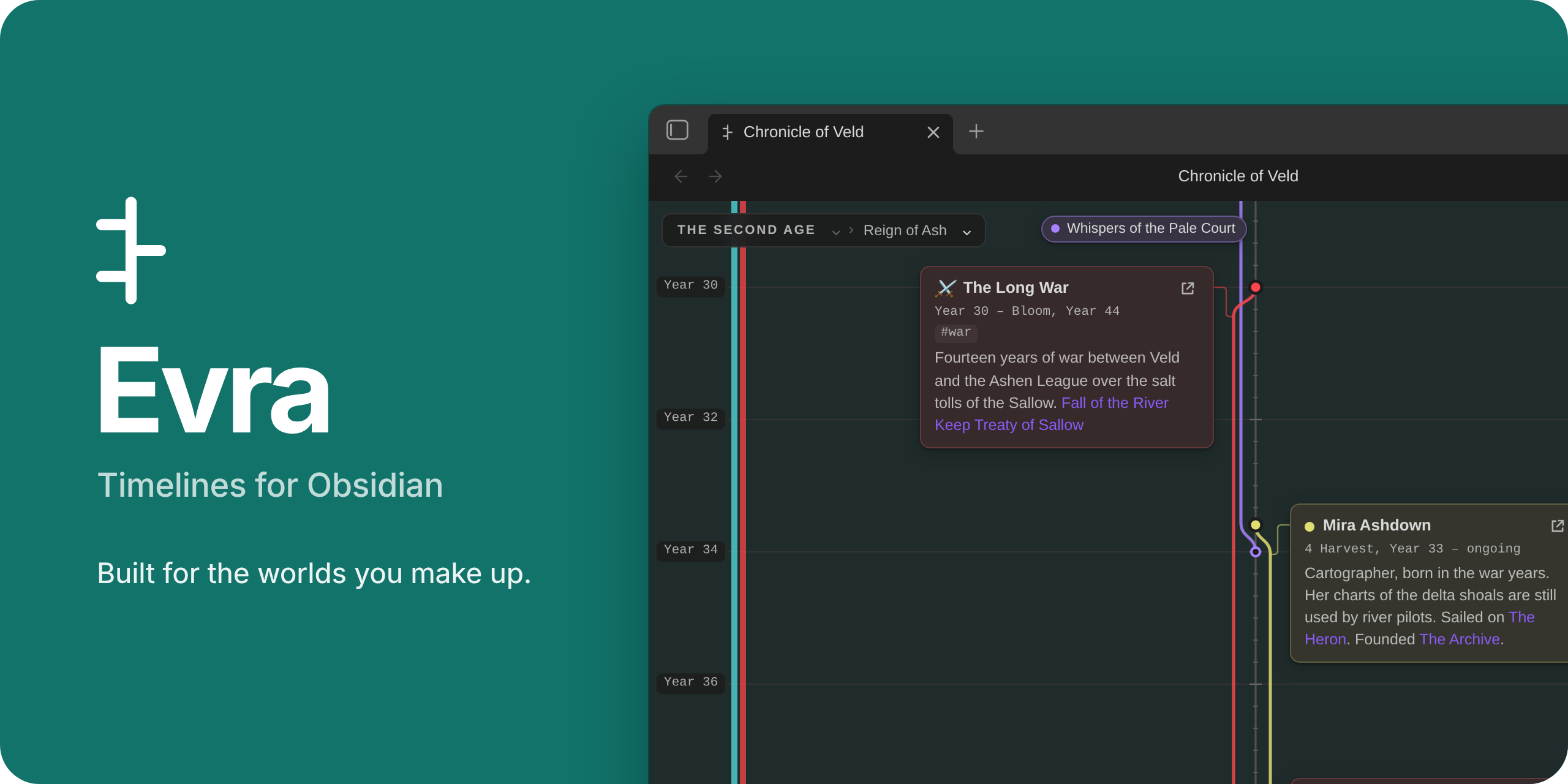
Your own calendar · eras nested as deep as you like · stories as threads · cards linked to your notes
Most timeline tools assume our calendar and our kind of history. Evra is built for the ones you make up:
- a calendar with thirteen moons and a festival week;
- ages that contain reigns that contain wars;
- a history that runs to three thousand years and two thousand events.
Each timeline is its own .evra file in your vault, and its cards can link to the notes you already have.
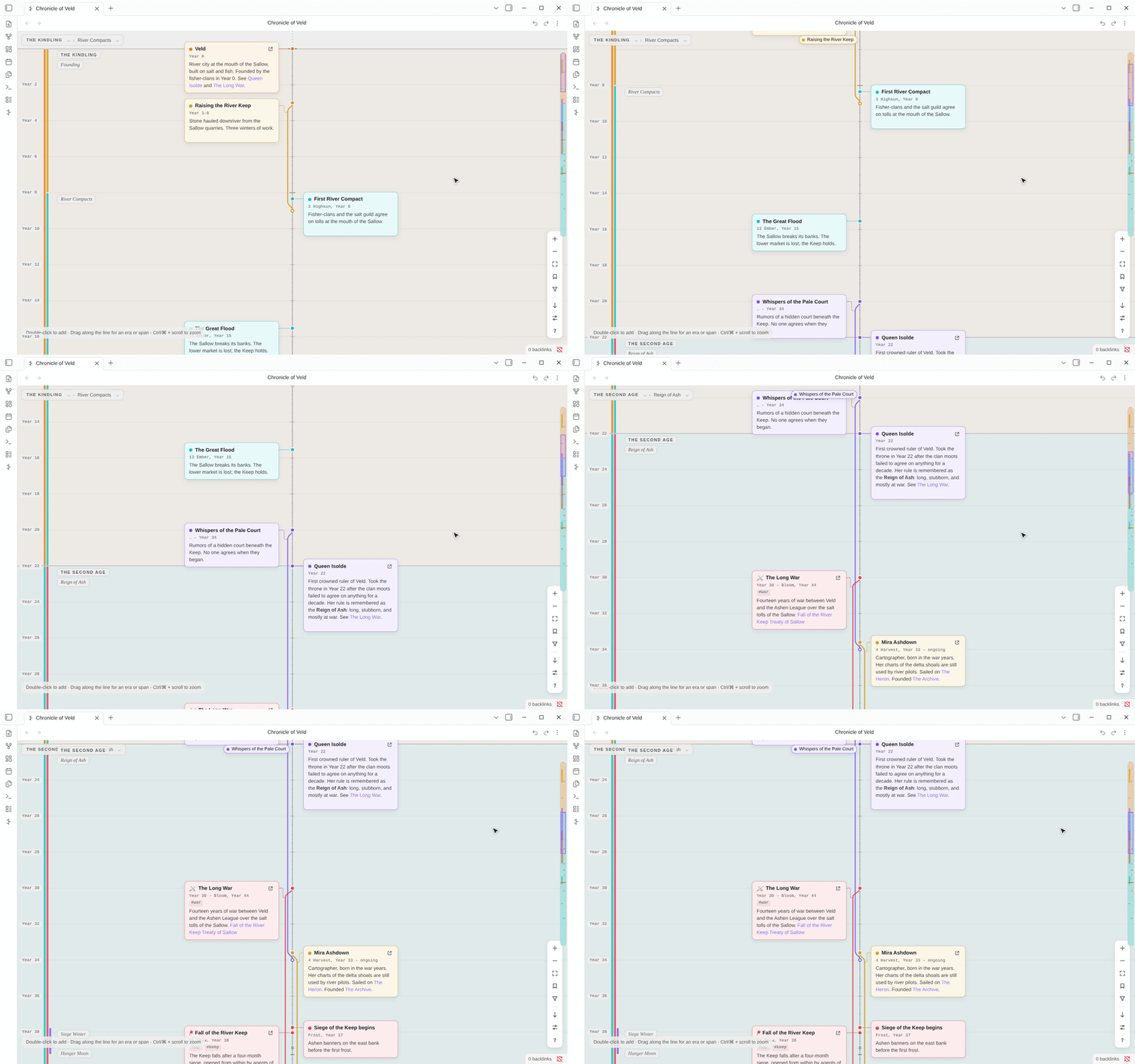
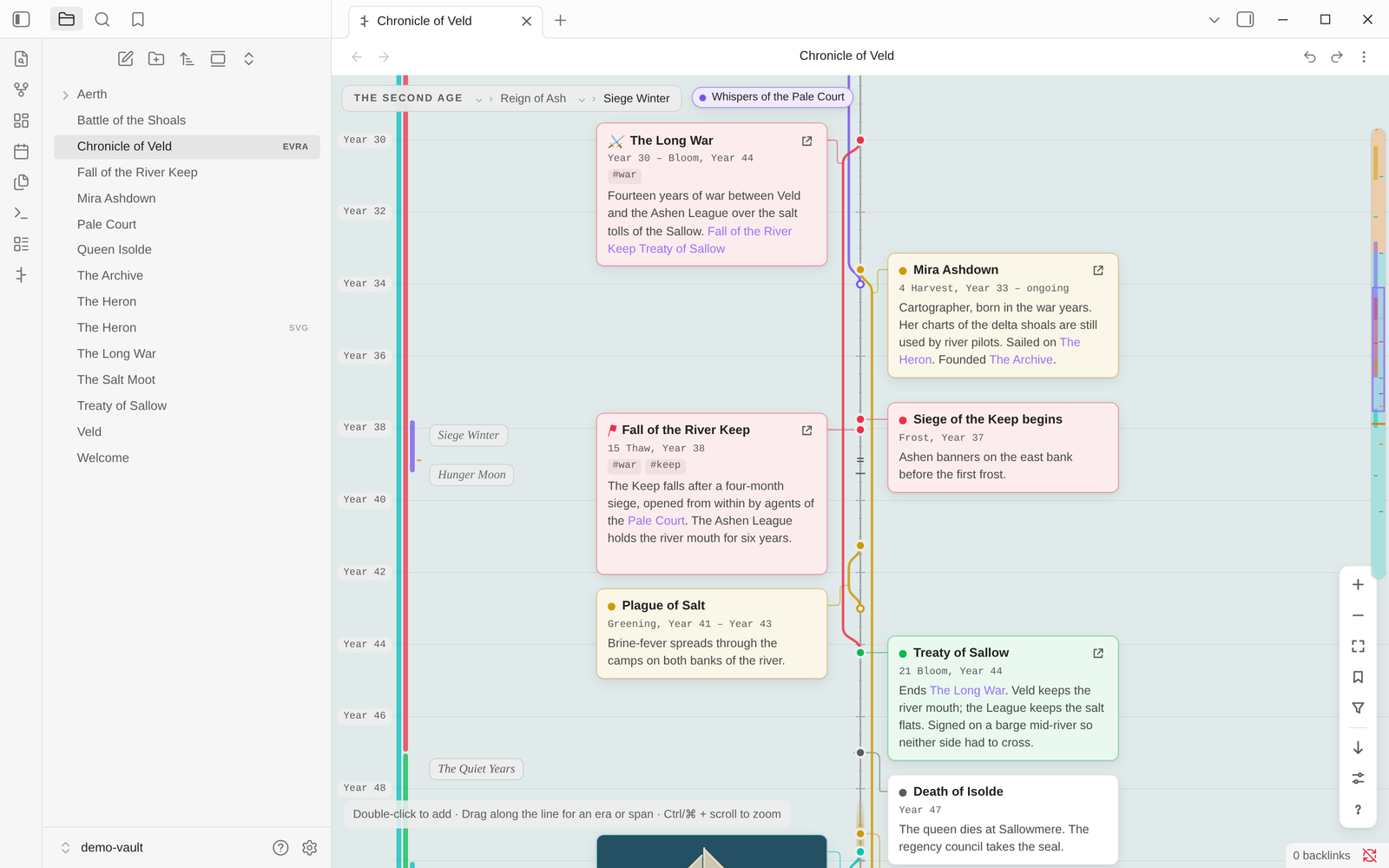 | 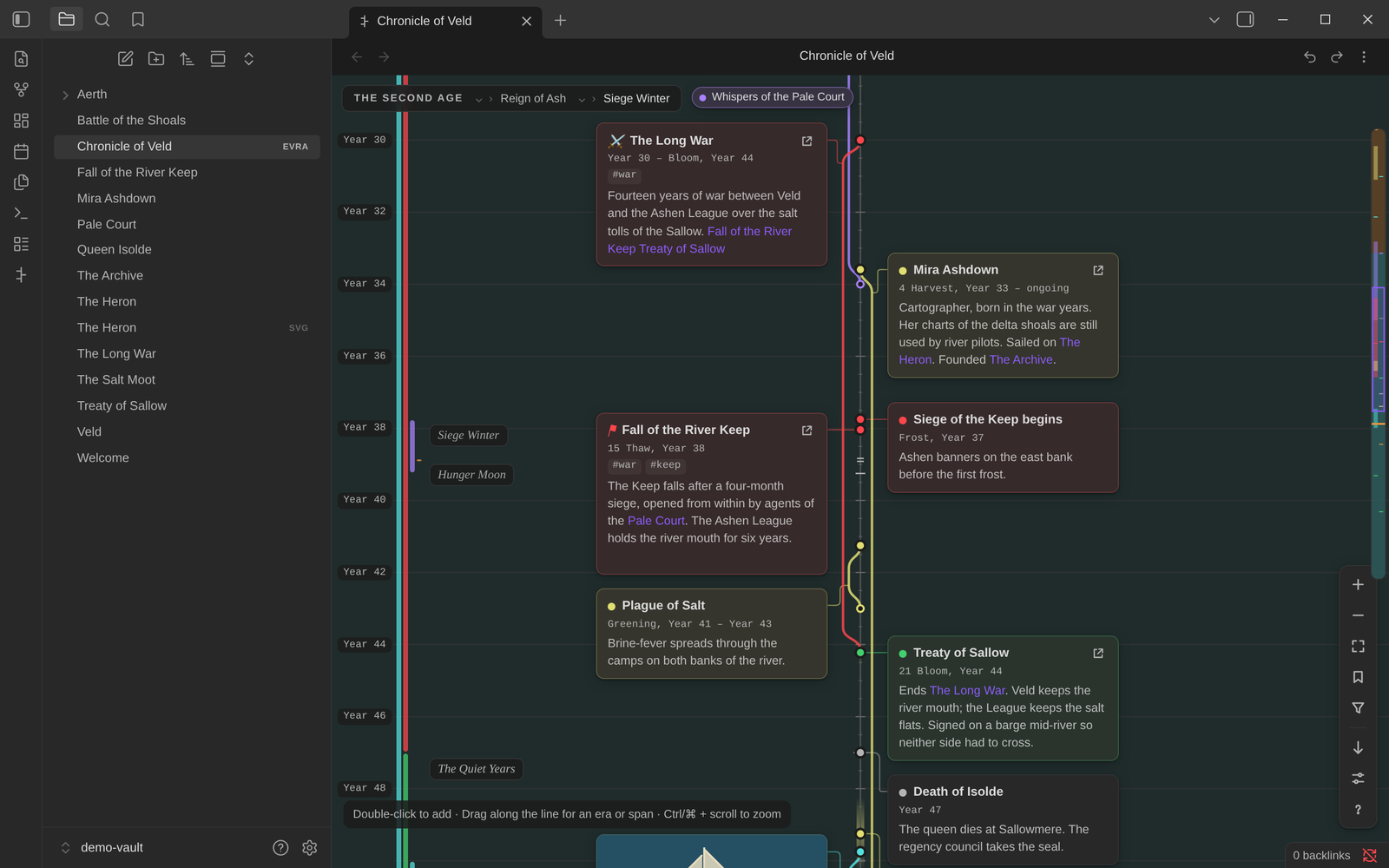 |
| Light theme | Dark theme |
Installation
Evra needs Obsidian 1.6 or later, on a computer, a phone or a tablet.
Install it from Obsidian's community plugin directory: open Settings → Community plugins → Browse, search for Evra Timelines, then choose Install and Enable.
More in Installation.
Getting started
- Click the Evra button in the ribbon, or run Evra Timelines: New timeline from the command palette. You can also right-click a folder and choose New timeline.
- Double-click beside the line to add an event.
- Drag along the line to create an era.
Want to see a finished one first? Run Evra Timelines: Open the sample timeline. It opens The Chronicle of Veld, a small world with eras, spans, lifespans and linked notes.
The walkthrough goes on from here, and the manual covers everything.
A tour
Add events in seconds
Double-click beside the line and start typing: a title, then Enter, then a description. Pressing Enter in the description saves the card and starts the next one, so you can write a history in one go. Each card lands on the nearest year, on the side you clicked.
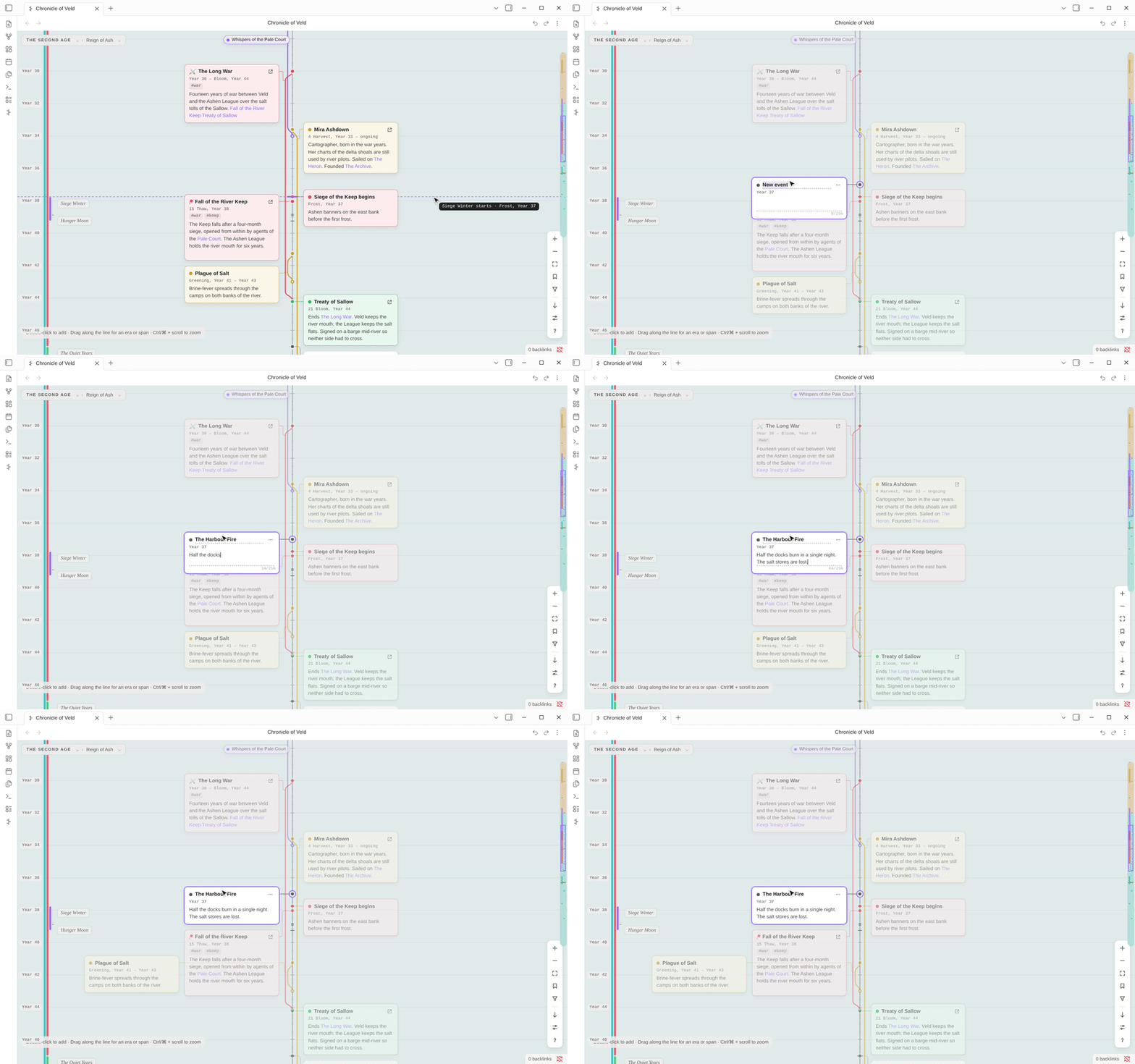
- Cards size themselves to their text; a card with no description shrinks to its title and date.
- Cards stack snugly instead of shrinking. When a crowded stretch overflows, the timeline scrolls sideways.
- A year with many events on one side collapses into a group card while you're zoomed out.
Drag to change dates
Drag a card to move it through time; it snaps to the marks on the ruler. Drag it across the line to switch sides. Drag a moment's dot along the line to turn it into a span.
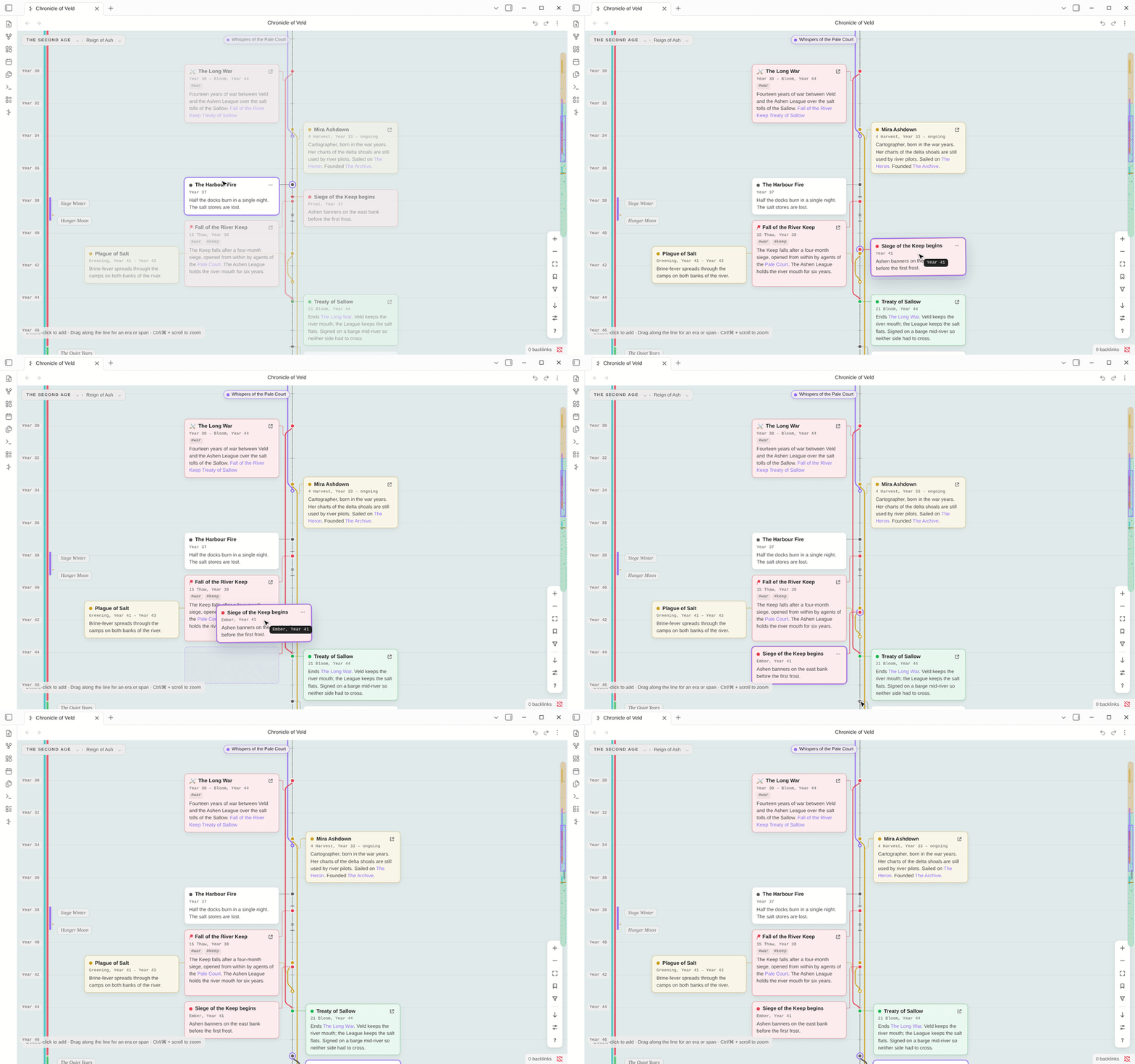
Hold Alt to move by single days. Shift-click or Shift-drag to select several cards and move them together. Everything can be undone.
Eras inside eras
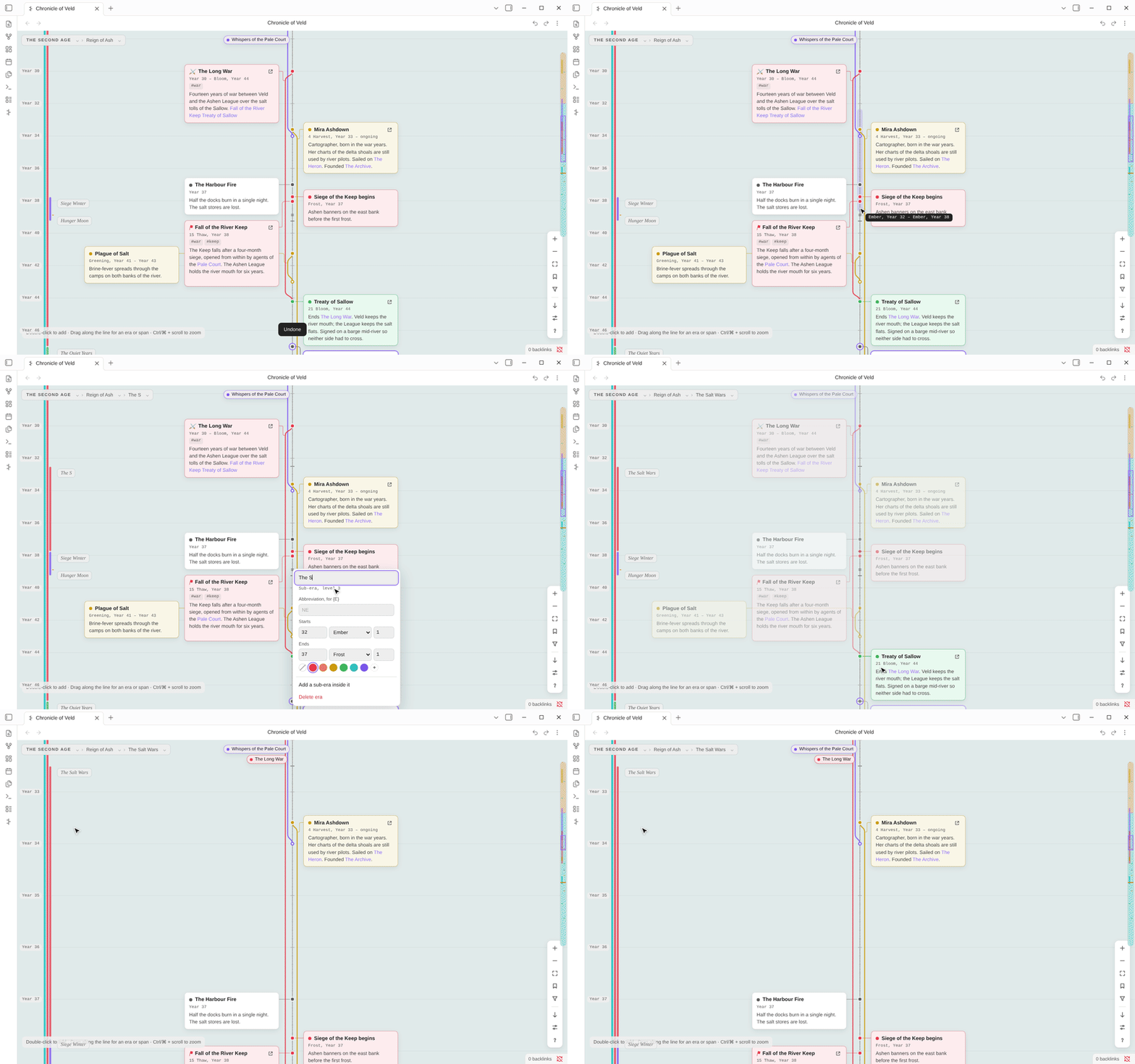
Drag along the line to mark a stretch of time, then choose New era. If that stretch falls inside another era, it becomes a sub-era. Eras nest to any depth: ages, reigns, wars, sieges. You see them as:
- soft bands behind the timeline;
- colored bars beside the year ruler;
- labels at every level;
- a breadcrumb at the top of the view.
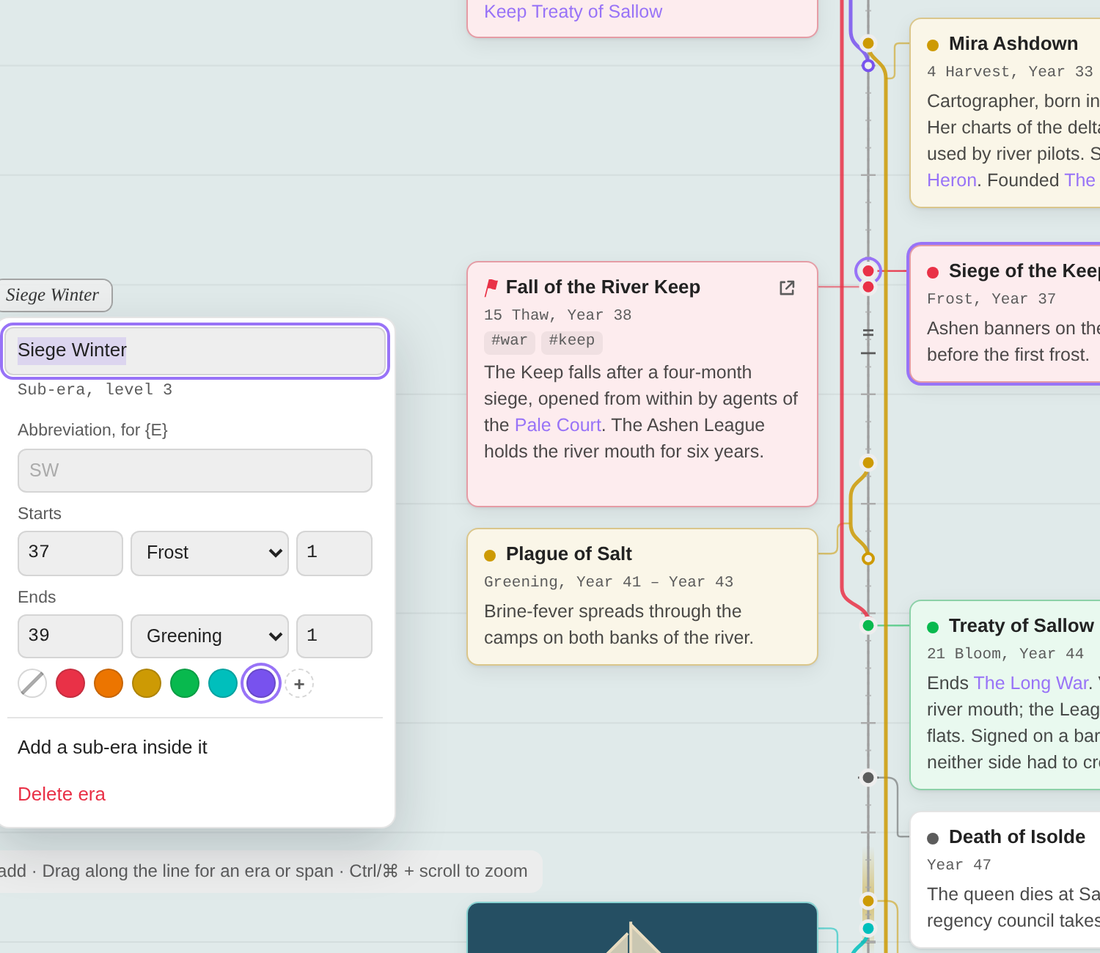 |
The era editor sets:
It can also add a sub-era inside it. Resize an era by dragging its edge from anywhere across the timeline. Neighbouring eras move with it, or hold Alt to split a shared edge. Right-click any era to fit it to the screen. Click a name in the breadcrumb to do the same. |
Any calendar you can imagine
Every timeline has its own calendar:
- months of any length, reordered by dragging;
- festival days that sit between months;
- leap-day rules like "every 4 years, except every 100, unless every 400";
- named weekdays, and your own unit names ("cycle" instead of "year");
- years counted from the start of each era;
- a second calendar shown alongside the first.
You can start from a preset, or import a calendar from Calendarium or Fantasy-Calendar.
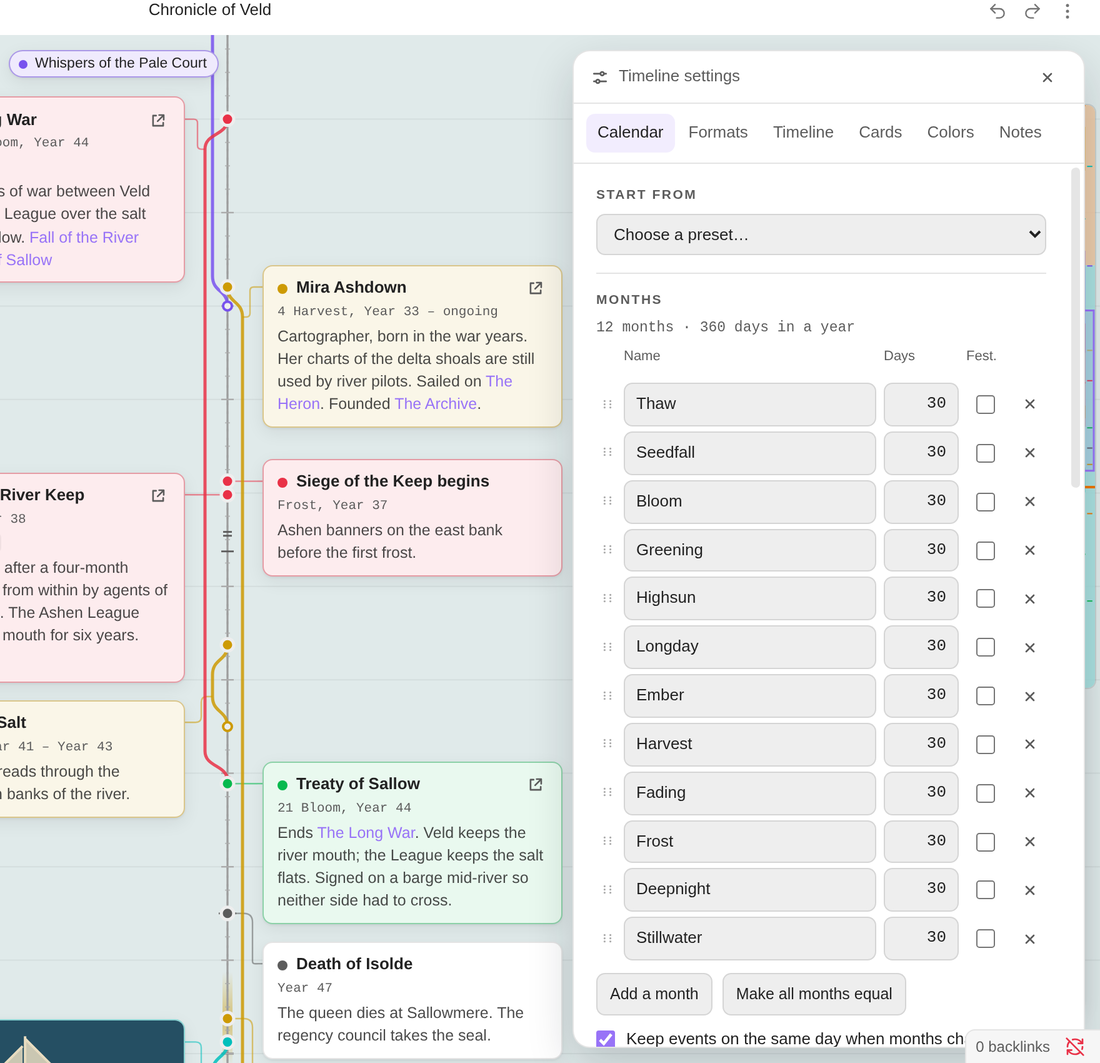 | 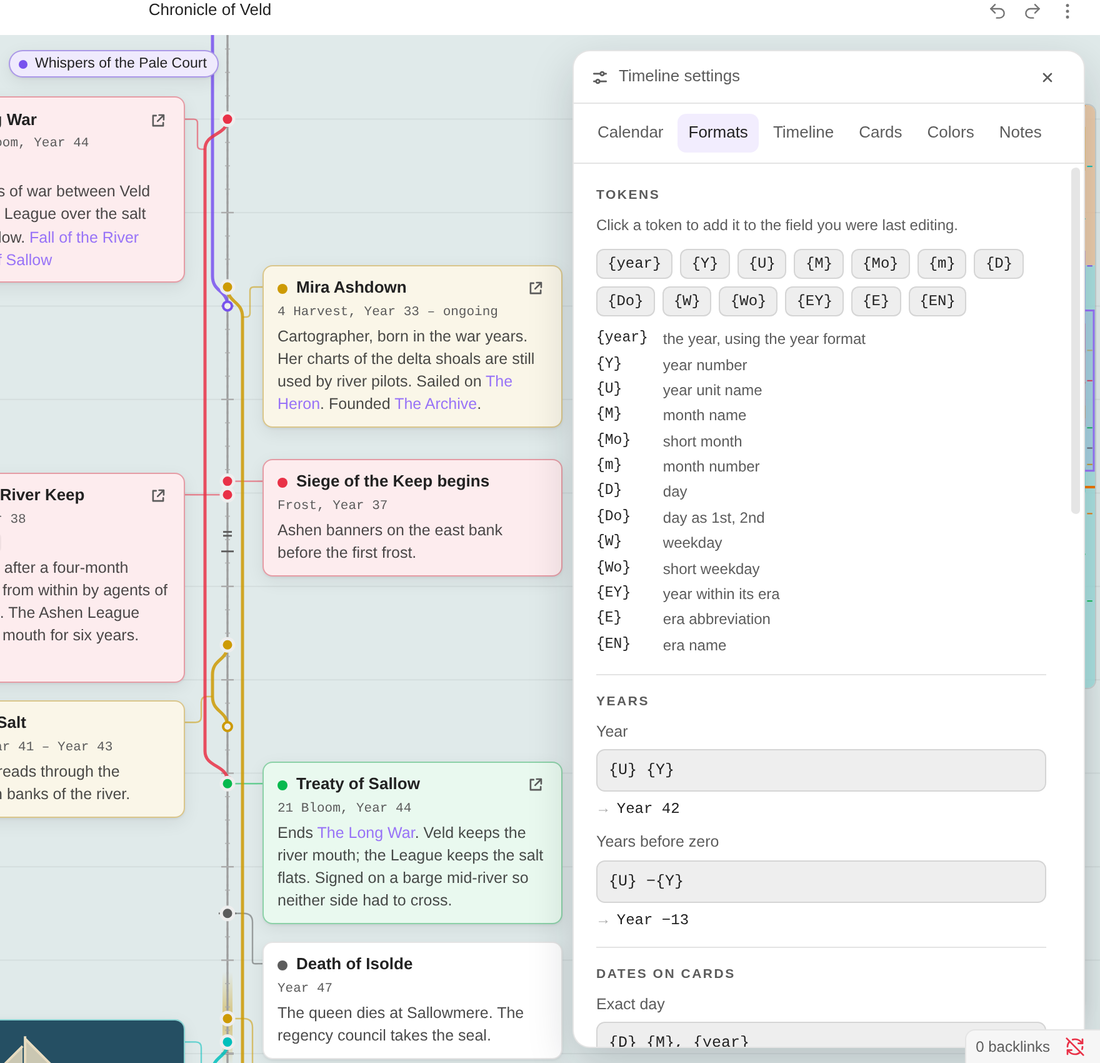 |
| Months, leap days, weekdays, numbering | Every date label is a template you can edit, with a live preview |
Every date label comes from a template you can edit: {D} {M}, {year}, {Do} of {M}, {EY} {E}, weekdays with {W}, and more. See Date formats.
Stories as threads
A span, such as a war, a voyage or a reign, leaves the line at its start, runs beside it, and rejoins it at its end. Its card can sit anywhere along its thread. While you scroll through the middle of a long span, its name stays pinned to the edge of the view.
| 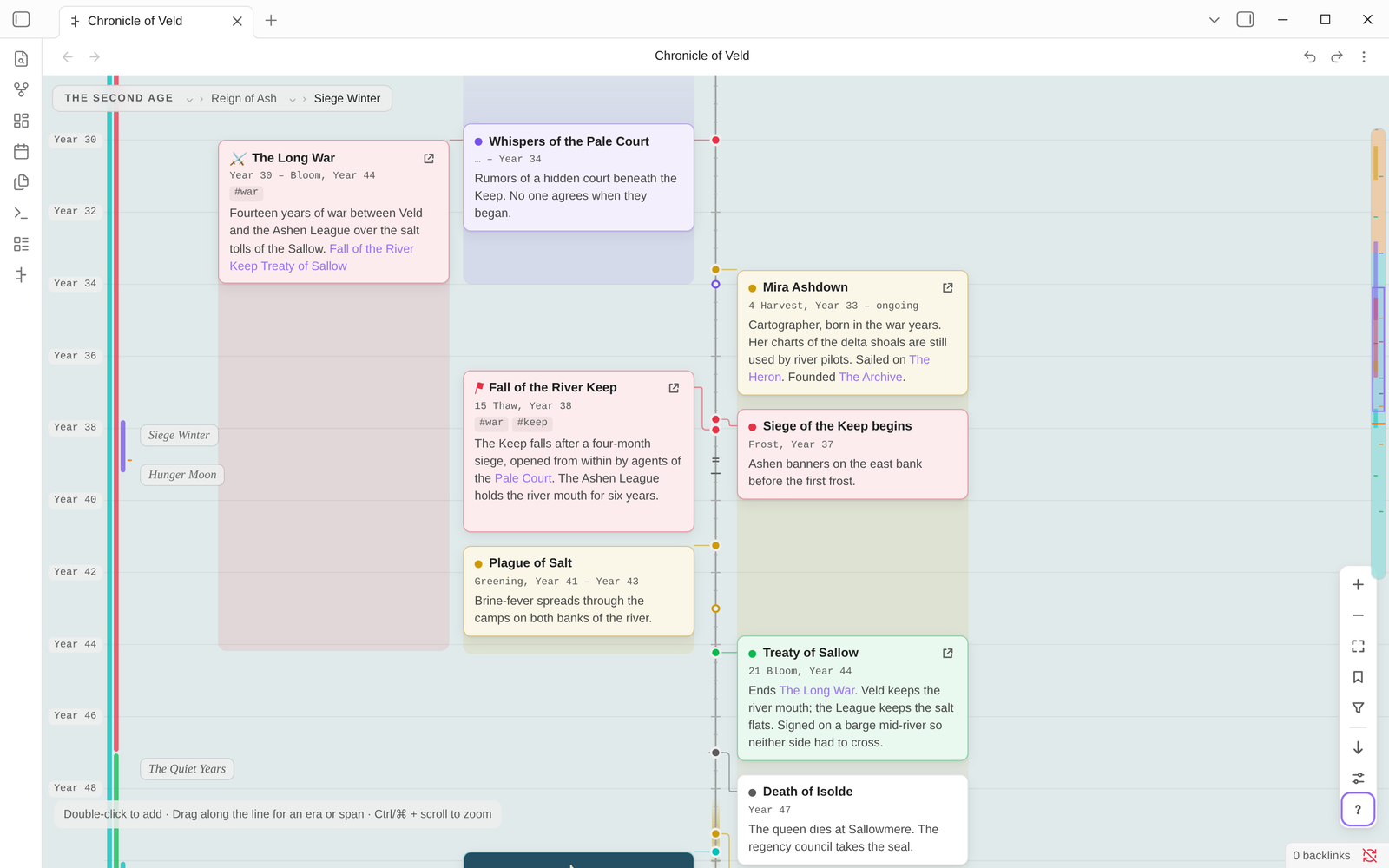 |
| Threads (the default) | Blocks |
Spans can have an unknown start or be ongoing. Mark a span as someone's life, and every card that mentions that person shows their age at the time.
Cards that know your notes
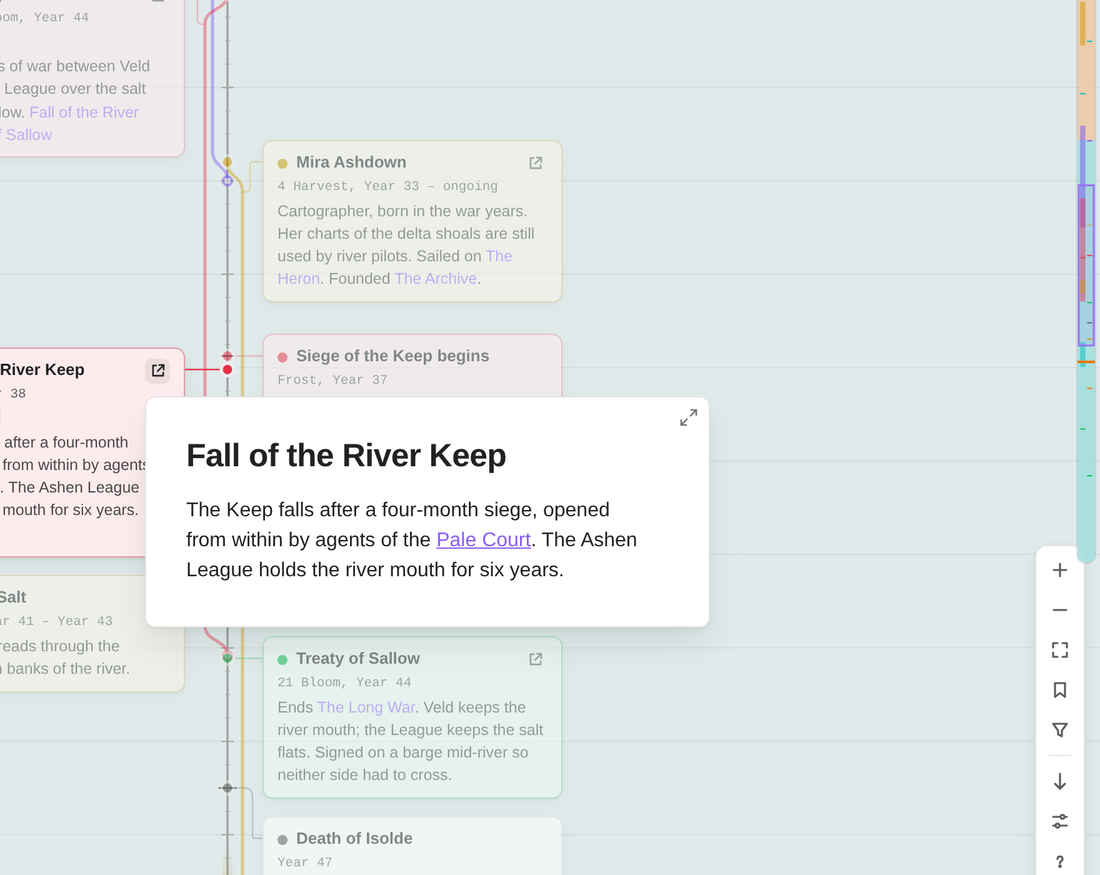
Drag a note from the file explorer onto the timeline and it becomes a card. The card shows the note's opening lines and its cover image. Hover the card's link button for Obsidian's own page preview. Rename or move the note and the card follows.
Note sync is optional and off by default. When it's on, Evra writes each card's date, year, month and era into its note's properties, and keeps them current as you move things. It works the other way too: edit the year in a note, and its card moves. You choose which properties to sync and what they're called. Only notes the timeline links to are ever changed.
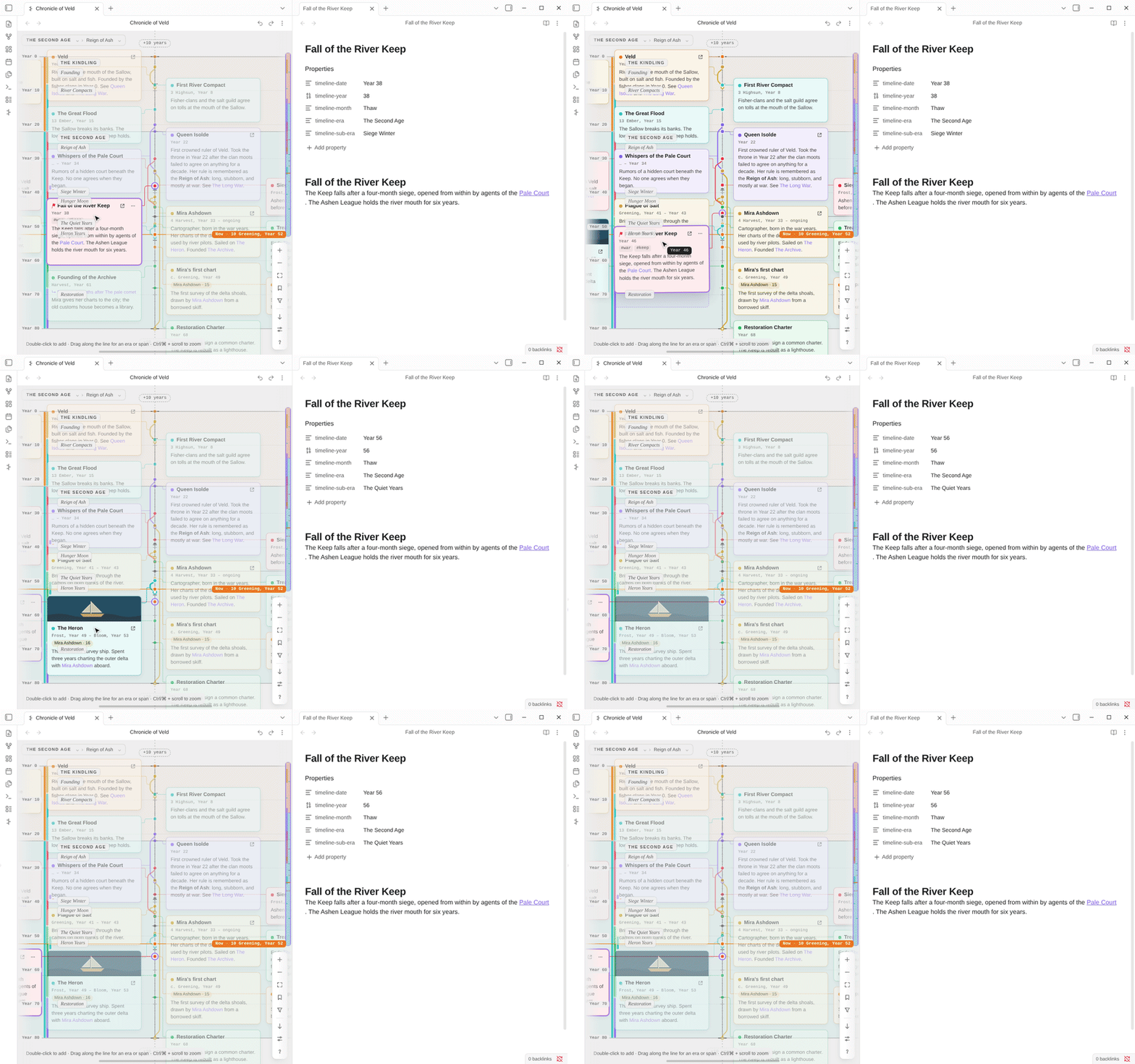
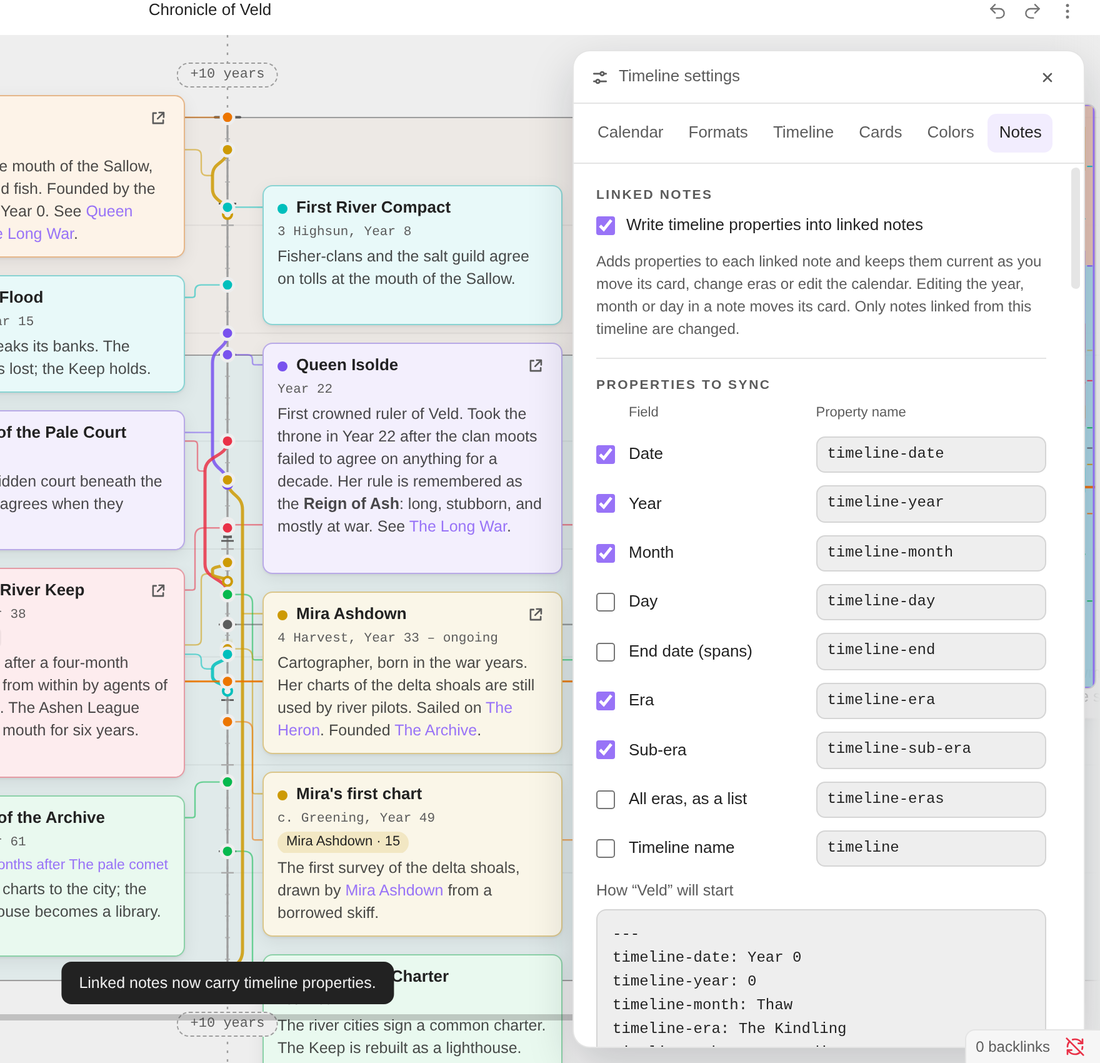 |
|
Timelines inside notes
Put part of a timeline in any note with an evra code block: a whole timeline, one era, a range of years, or one tag. Click an event in it to jump to that card.
```evra
timeline: Chronicle of Veld
era: Reign of Ash
```
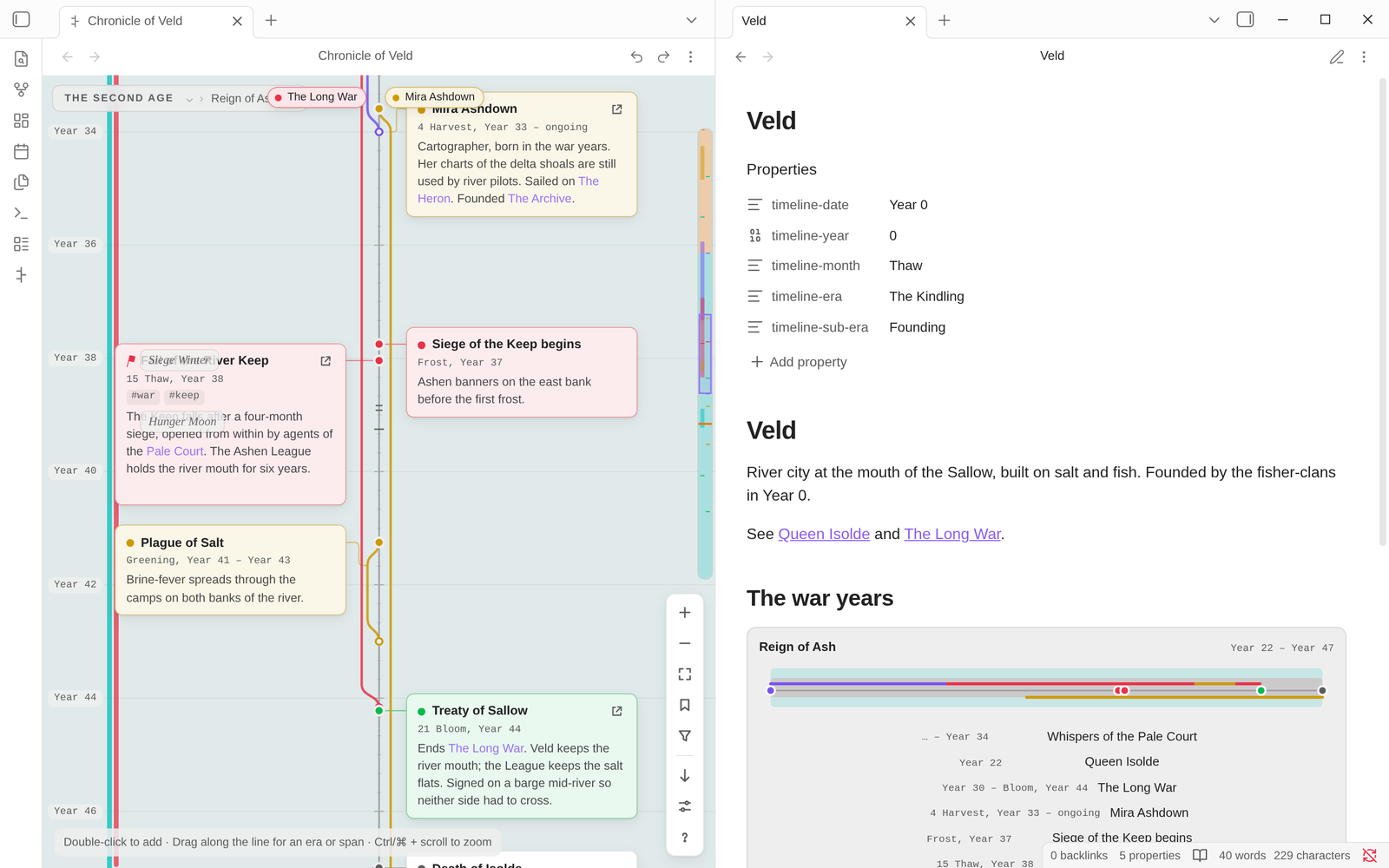
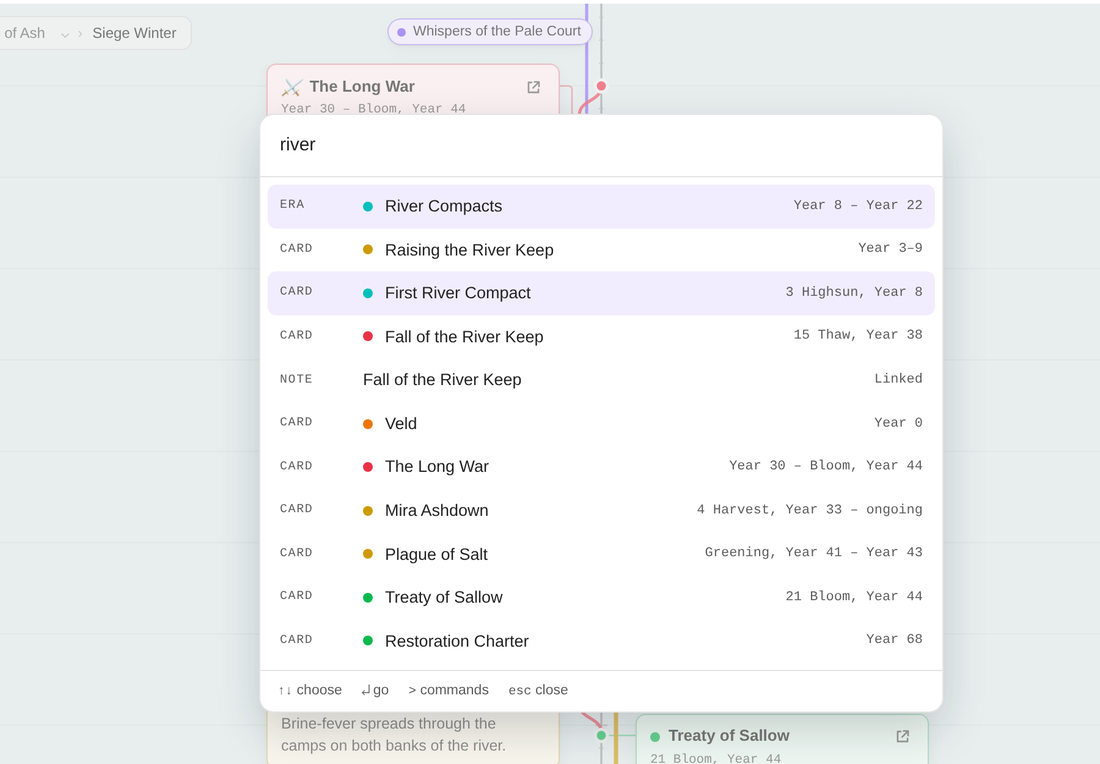
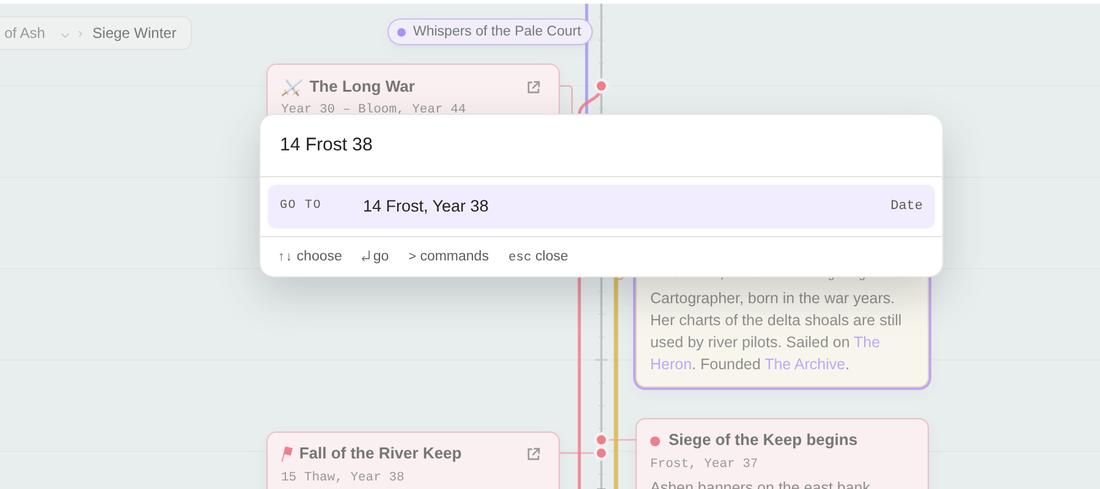
Find anything, jump anywhere
Press Ctrl/⌘ K and type:
- a card, era or note to find it (names that start with what you typed come first);
- a date, such as
412,Frost 412or14 Frost, Year 412, to jump straight there; >first, to run any timeline command.
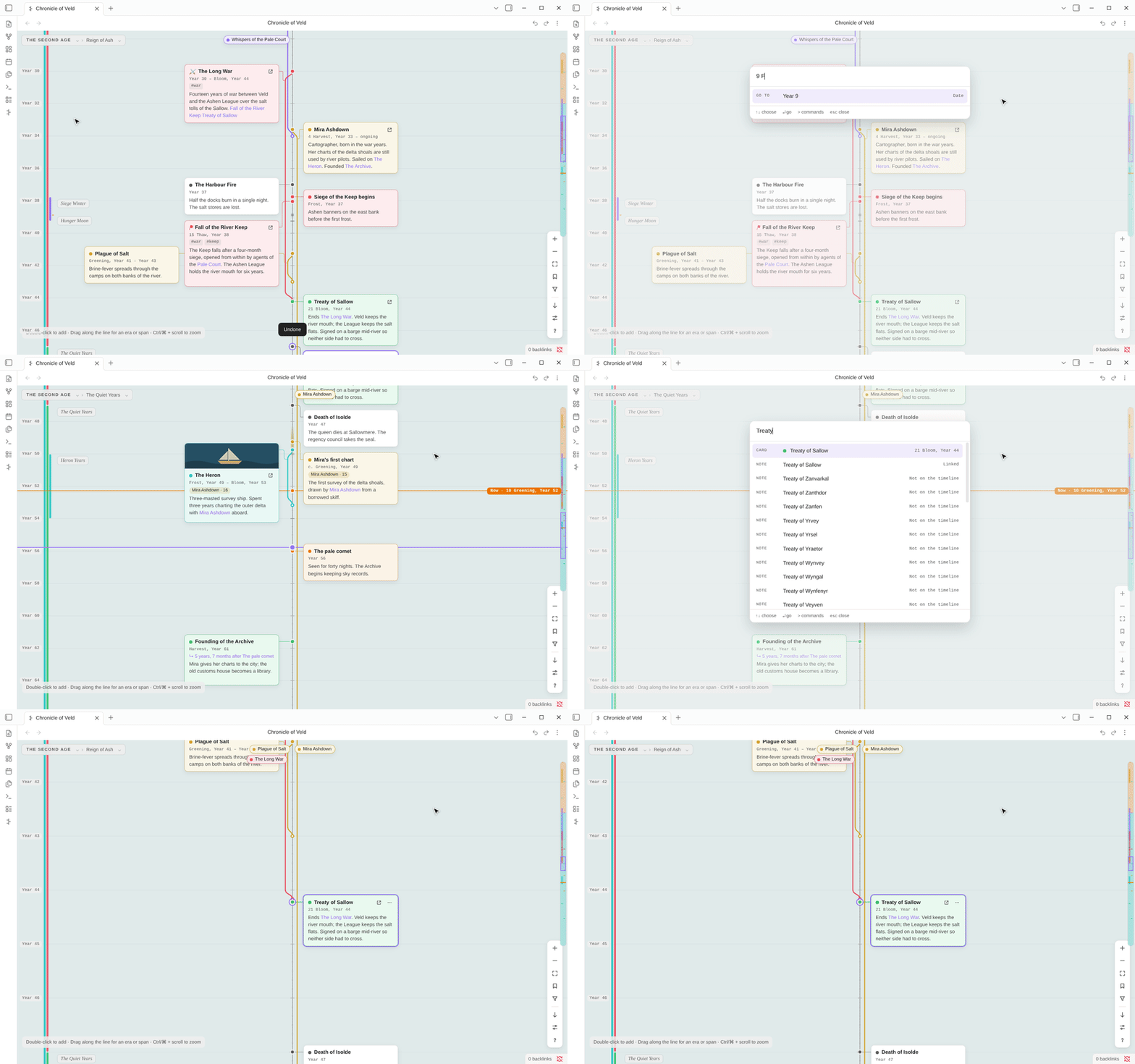
 |  |
Filters, tags and card options
The filter narrows the timeline by text, color, tag, era, side, or whether a card links to a note. Everything else either fades or hides. A card's ⋯ menu gives you:
- colors, icons and tags;
- approximate dates ("c. Year 49");
- pinning to another card ("3 years after the comet"), so it moves when that card moves;
- the people involved, whose ages then show on the card;
- linking to a note, or turning the card into one.
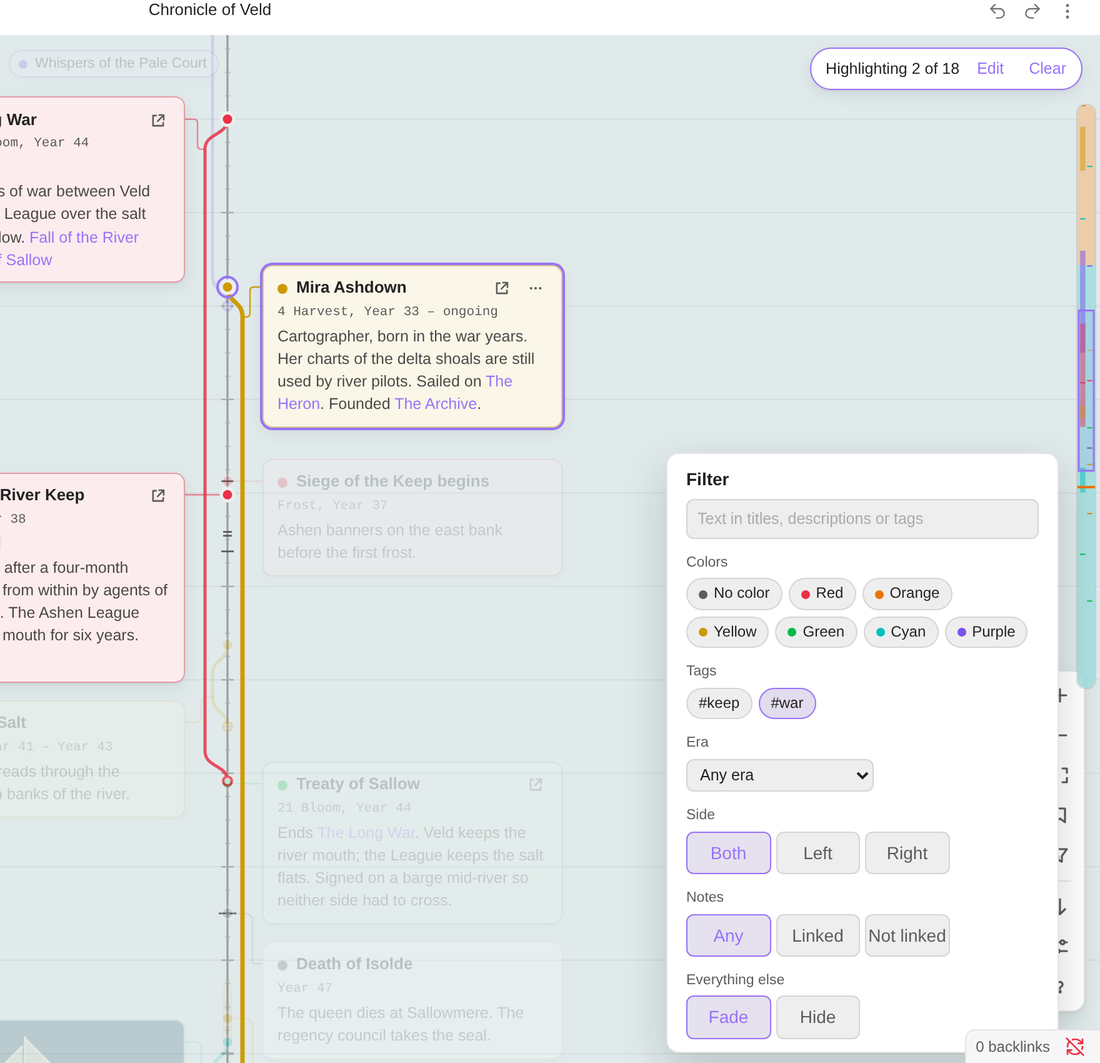 | 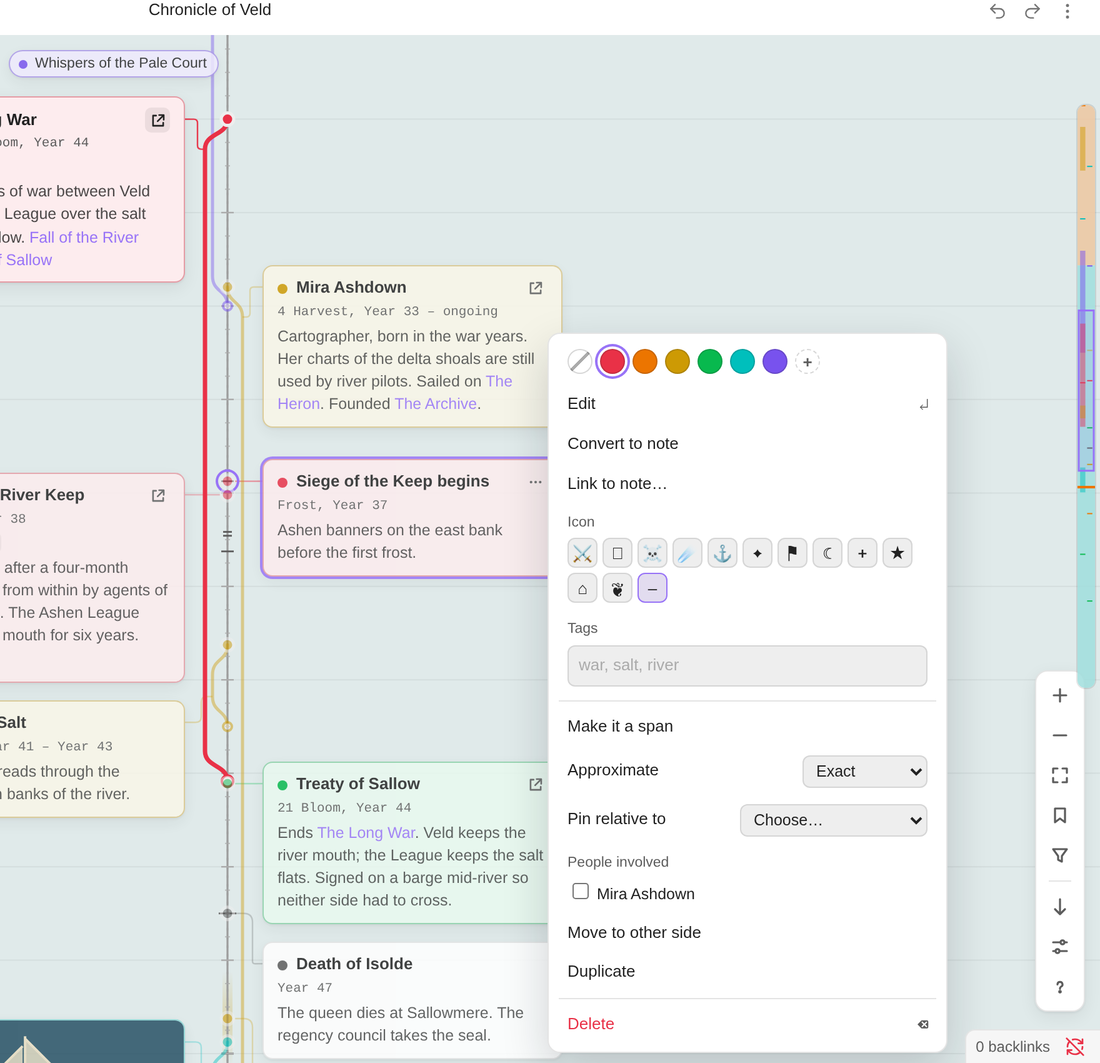 |
| Filter by tag, color, era, side or linked notes | Card options |
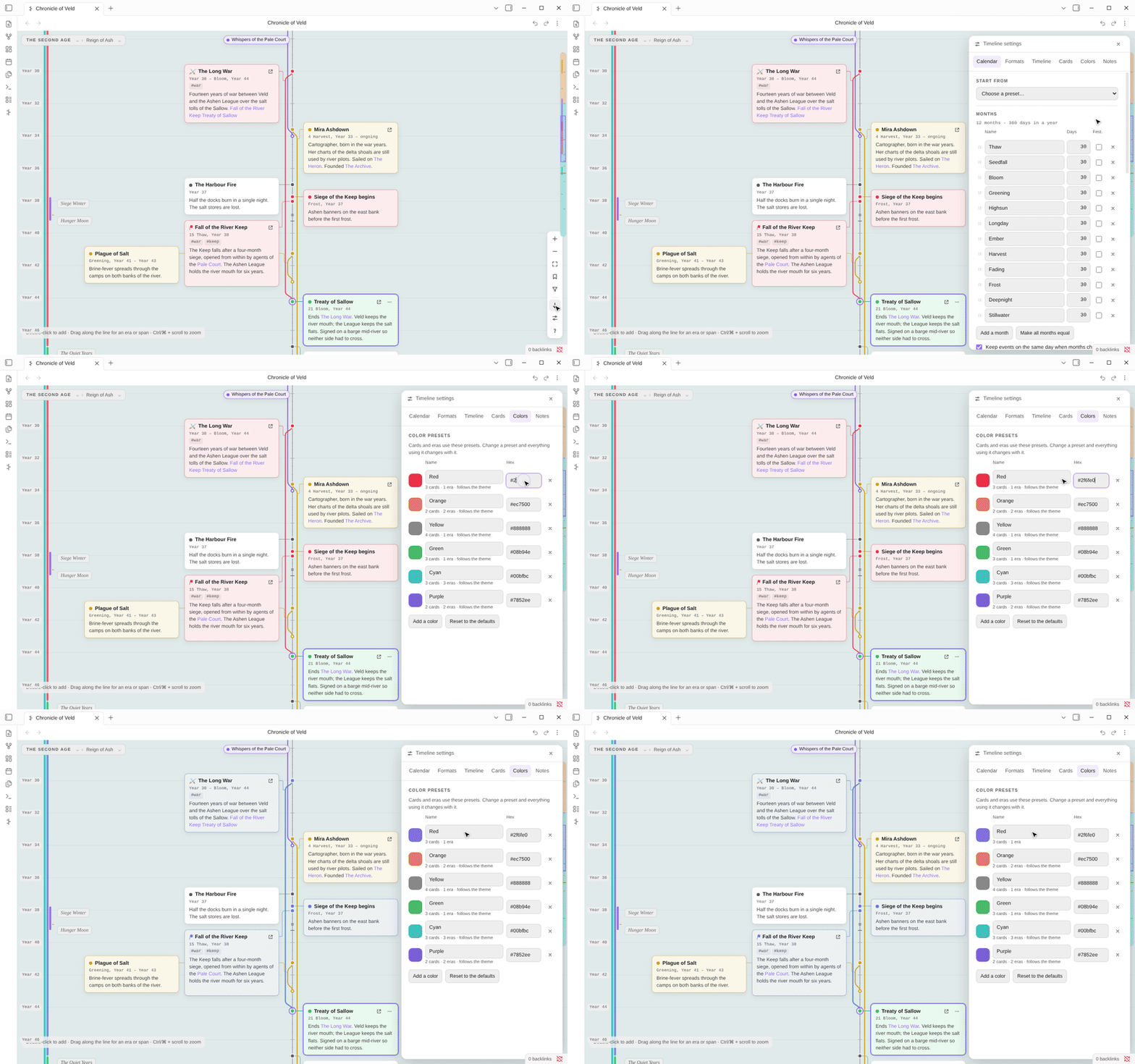
Colors that stay consistent
Cards and eras use color presets. Change a preset, and everything that uses it changes too. The six built-in colors follow your Obsidian theme until you give them a color of your own.
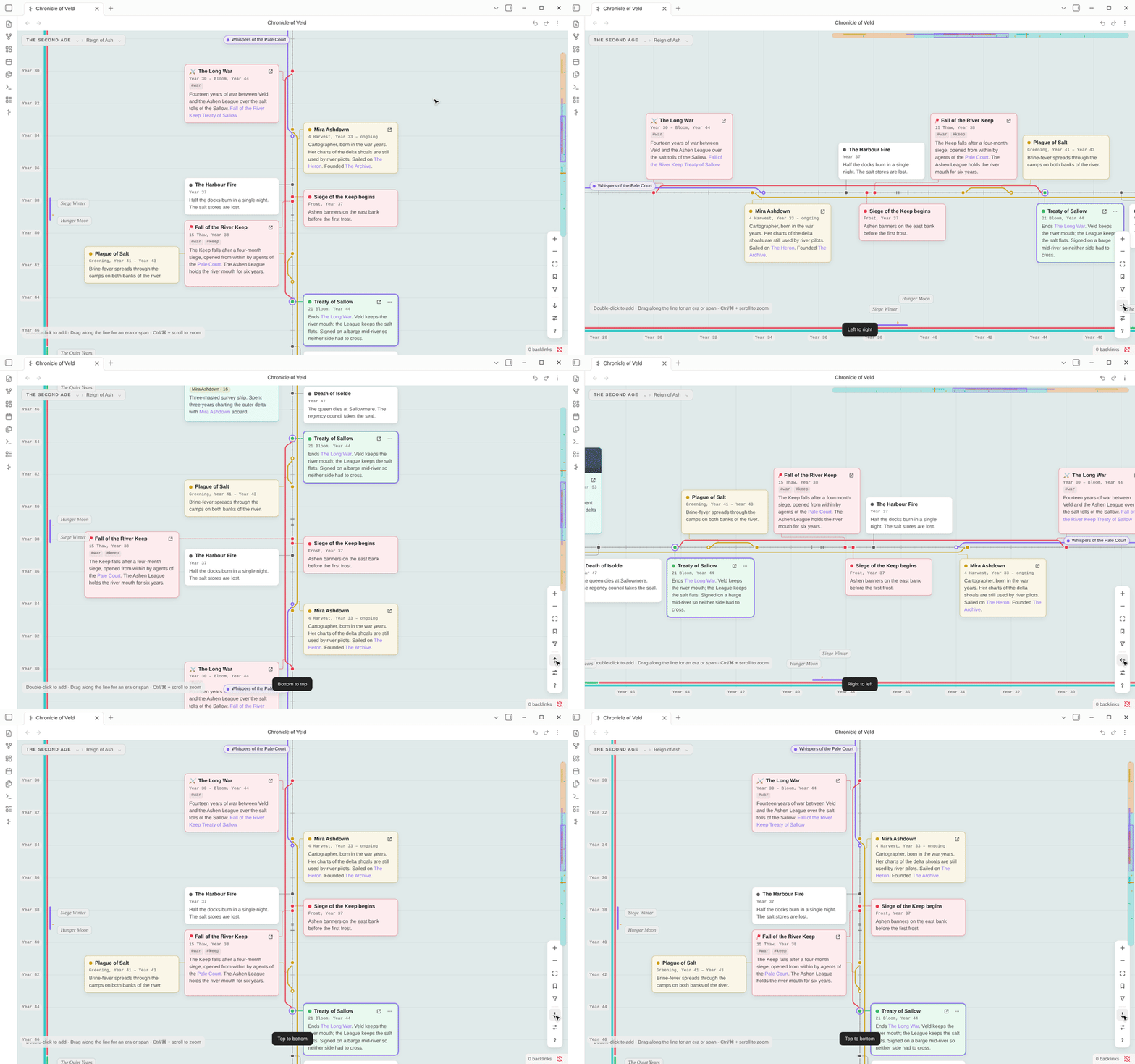
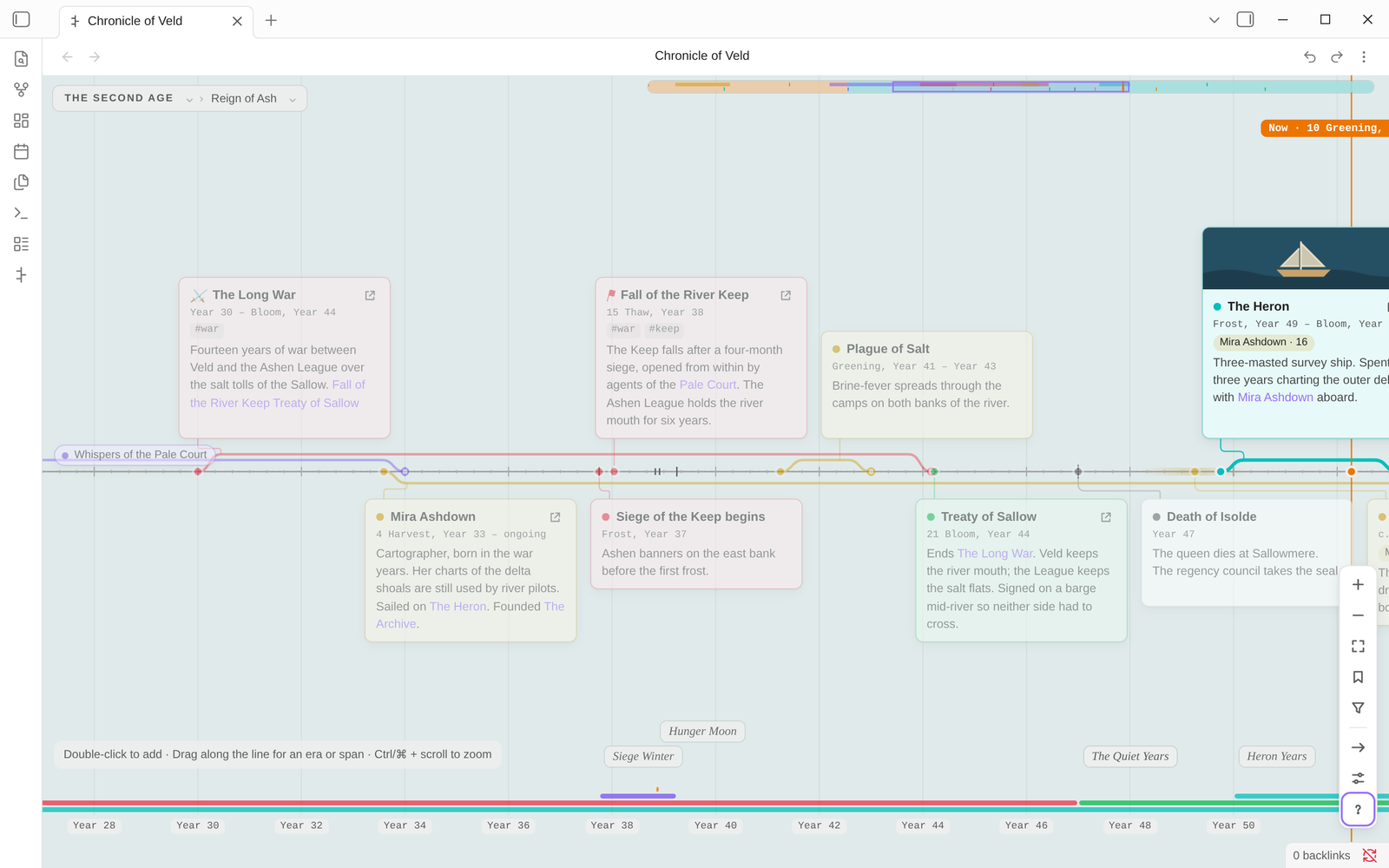
Any direction
Top to bottom, bottom to top, left to right or right to left. One click switches, and the view keeps the same stretch of time on screen.
Built for big worlds
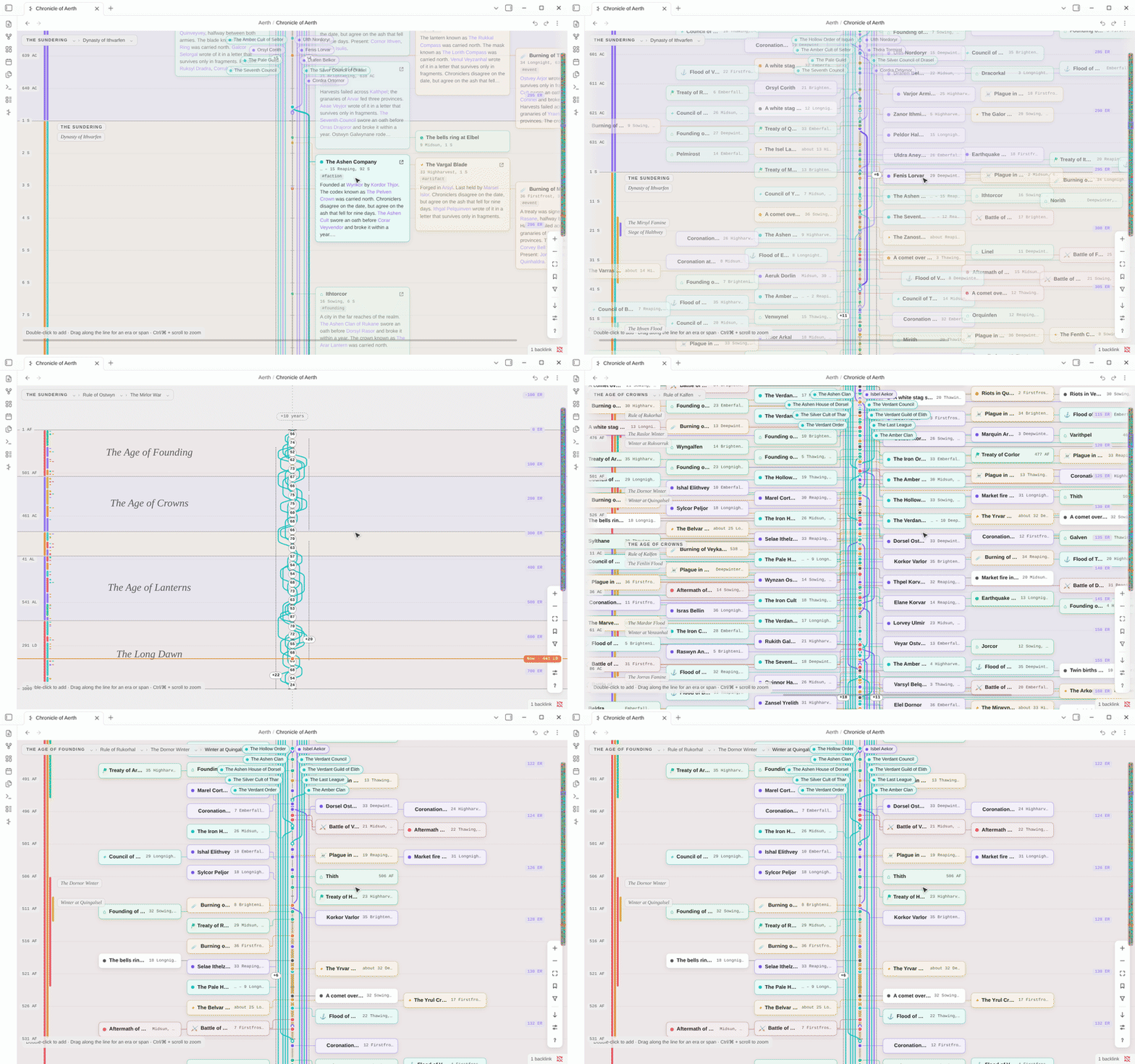
Evra's repository can generate Aerth, a test world (npm run big-world): 2,700 notes, 1,900 cards and 91 eras nested four deep, across 3,000 years. As you zoom out:
- full cards become compact one-line cards (hover one to see it at full size);
- compact cards become dots;
- close dots merge into numbered clusters.
Scrolling and zooming stay smooth throughout.
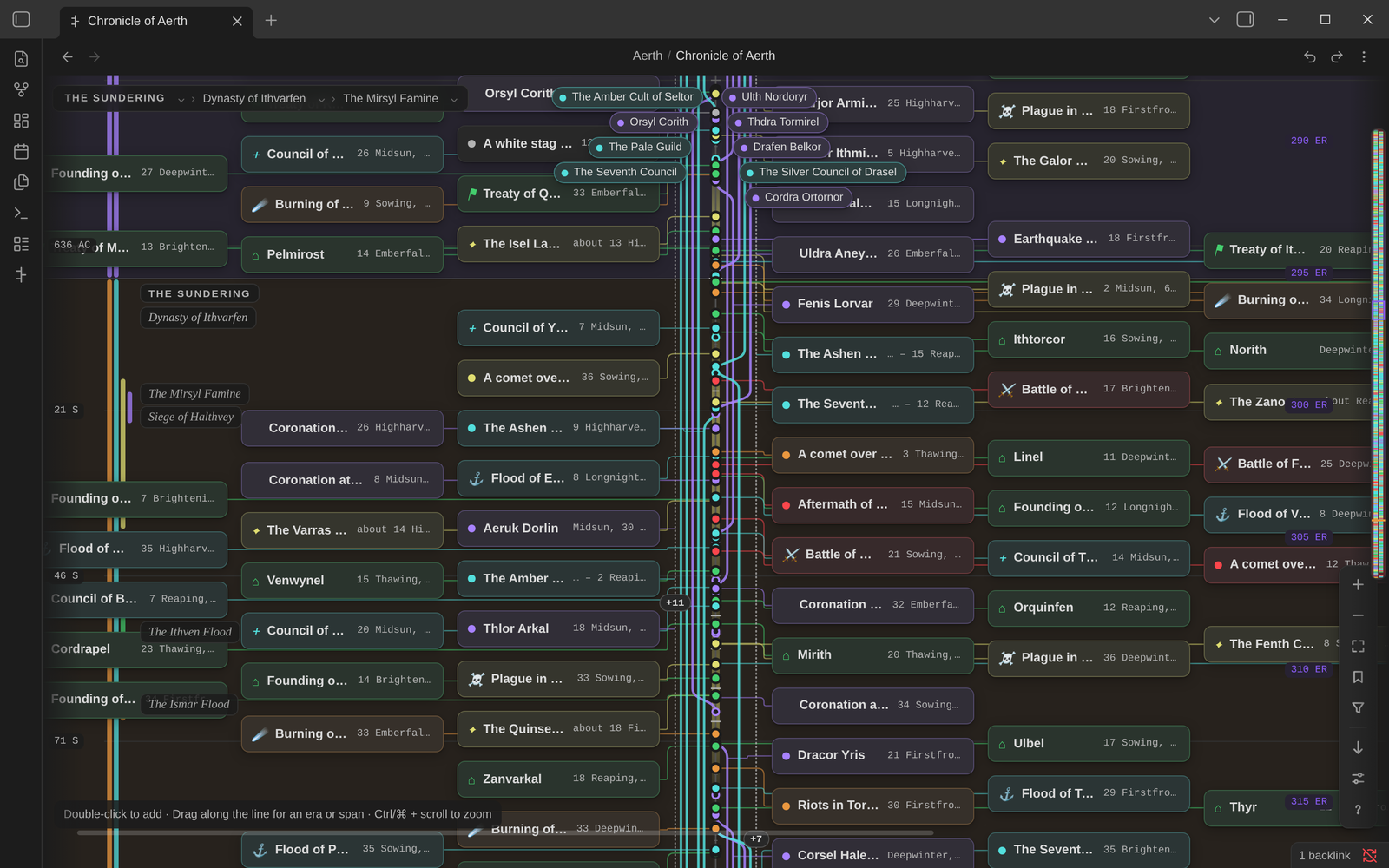 | 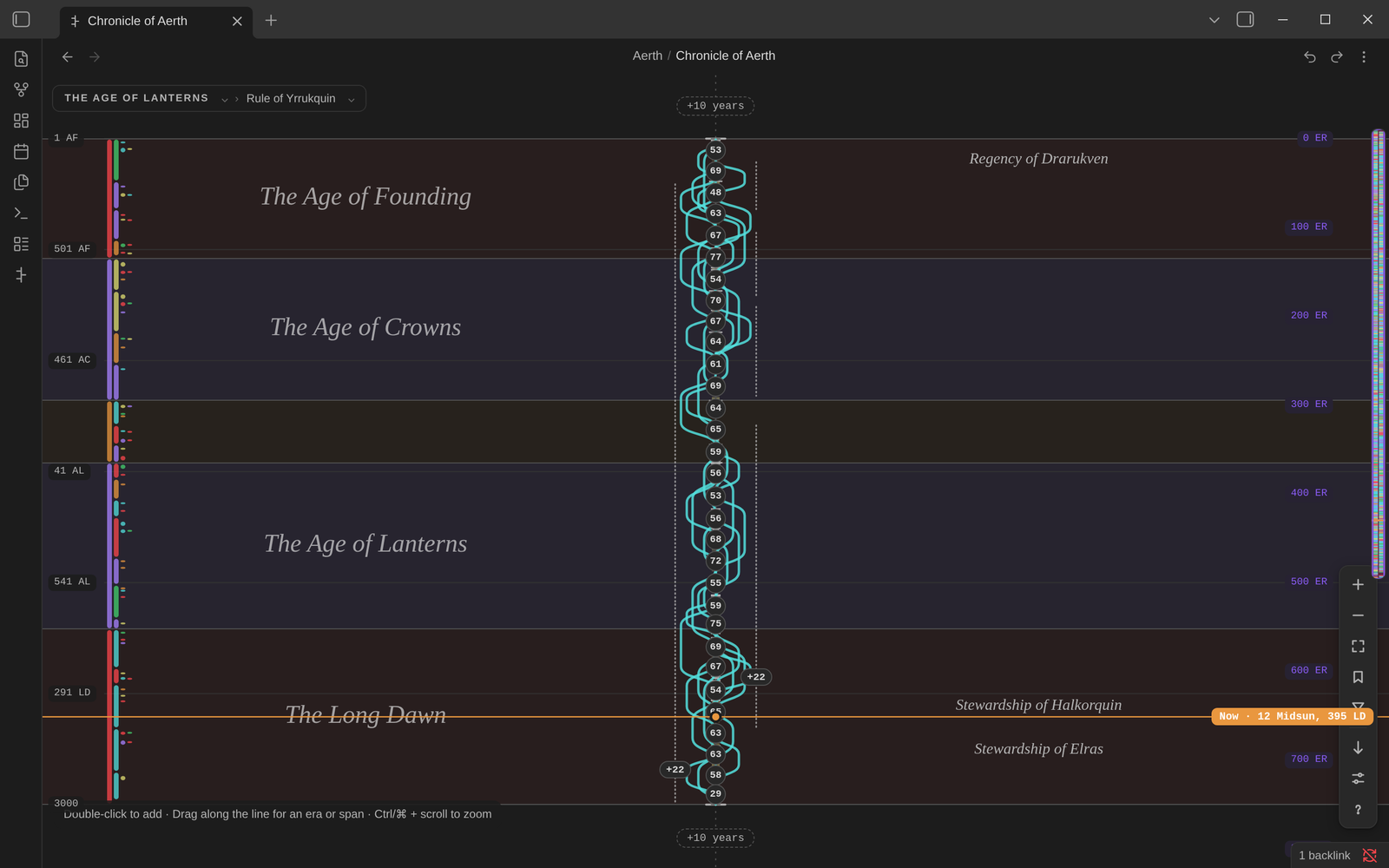 |
| A century, in compact cards | Three thousand years at a glance |
Made for the keyboard, too
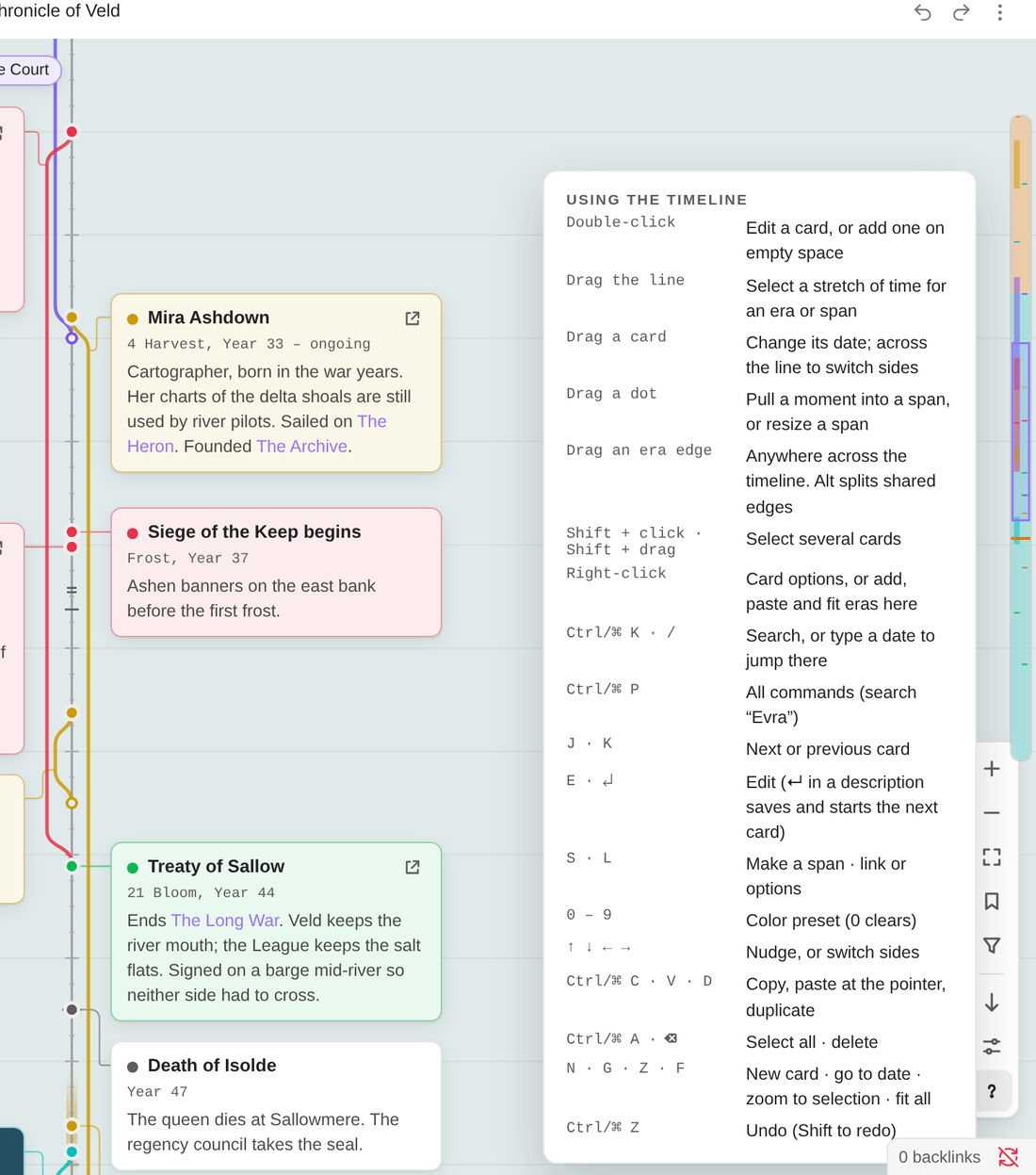 |
Every timeline command is also in Obsidian's command palette. None of them have default hotkeys, so you can set your own. |
Everything else
- A "now" marker for where your story is up to, with an option to fade everything after it.
- Saved views: bookmark a stretch of time and come back to it in one click.
- A minimap of the whole range, which you can click or drag to move around.
- Export as a Markdown table or an outline by era, to the clipboard or a new note.
- Defaults for new timelines: save a calendar, formats and colors once, and every new timeline starts with them.
- Copy and paste cards, keeping their spacing; paste lands at the pointer.
- Themes: Evra takes its colors and fonts from your Obsidian theme, in light and dark.
- Touch: pinch to zoom, and press and hold for the menu. On narrow screens, vertical timelines put every card on one side of the line so none are cut off.
Limitations
- Sub-timelines aren't built yet. Linking timelines into a tree, and branching one for an alternate history, is what comes next: see the roadmap.
- Obsidian Sync carries
.evrafiles only with Sync all other types turned on. Tools that copy every file (iCloud, Syncthing, Dropbox, git) carry them without any setting. - Undo covers the timeline, not your notes. What note sync wrote into a note is undone in that note.
- Filters belong to the view you're looking at and aren't saved in the file. Saved views keep a stretch of time.
The full list is in Known limitations.
Privacy and your files
-
Offline: Evra works entirely offline. It makes no network requests of its own and collects nothing. (A card's cover image can be a web address you give it; Obsidian loads that like any image in a note.)
-
Which files it looks at: Evra lists the files in your vault, on your device only, to:
- find your timelines (for embeds, and to update closed timelines when a linked note is renamed);
- suggest notes when you link a card, or look for dated notes when you ask it to create cards from them.
It reads a note's properties and opening lines only for notes a timeline links to, or that you are choosing from.
-
Clipboard: Evra only writes to the clipboard, when you copy cards or export a table, an outline or an embed. It never reads the clipboard; pasting cards uses Evra's own copy buffer.
-
Your timelines: each one is a readable JSON file (
.evra) in your vault. Evra changes it when you edit that timeline, or when a note it links to is renamed, so the link keeps working. -
Your notes: Evra changes a note in two cases only: when you turn on note sync for a timeline that links to it, or when you ask Evra to create a note.
Documentation
| Manual | Everything Evra does, a page per topic |
| Getting started | From an empty timeline to a small history |
| User guide | Cards, spans, eras, selecting, searching, filters, export |
| Calendars · Date formats | Months, leap years, festival days, era years, and every label template |
| Linked notes and note sync · Timelines in notes | Cards that follow your notes, and the evra code block |
| Keyboard, mouse and commands · Settings | Reference |
| Troubleshooting · Known limitations | When something isn't as you expect |
| Roadmap · Changelog | What's planned, and what changed |
| Development · File format | For contributors, and for anyone reading a .evra file |
| Issues | Report a problem or ask for something |
Contributing
Bug reports, ideas and pull requests are welcome. See Development to build Evra, run the tests, and generate the large example world. Before opening a pull request, run npm run check.
License
MIT © Caleb Smith
For plugin developers
Search results and similarity scores are powered by semantic analysis of your plugin's README. If your plugin isn't appearing for searches you'd expect, try updating your README to clearly describe your plugin's purpose, features, and use cases.