by dzoukr
Edit XMind-style mind maps inside Excalidraw drawings with keyboard shortcuts.
Excalidraw Mind Map
Obsidian plugin that adds XMind-style mind map editing to Excalidraw drawings. Requires the Excalidraw plugin.
Usage
Open a drawing and click New mind map in the floating panel, or run the command "Insert new mind map".
| Key | Action |
|---|---|
| Tab / Insert | Add child |
| Enter | Add sibling below |
| Shift+Enter | Add sibling above |
| Delete / Backspace | Delete the selected topics with their subtopics (the central topic deletes the whole map, if enabled in settings) |
| Ctrl+C / Ctrl+X | Copy or cut the selected topics as a Markdown bullet list |
| Ctrl+V | Paste a Markdown outline or text as subtopics of the selected topic |
| F2 / Space | Edit text |
| Arrow keys | Move selection (right/left = child/parent, mirrored on the left side) |
| Alt+Up / Alt+Down | Move the topic up or down among its siblings |
| Alt+Left / Alt+Right | Promote or demote the topic (toward or away from the central topic, mirrored on the left side) |
| Ctrl+/ (Cmd+/ on Mac) | Collapse or expand the topic |
Key Features
⌨️ Keyboard-first editing
Build a whole map without touching the mouse, with the shortcuts you know from XMind. Add children and siblings, edit text, delete branches, move between topics and reorder them. While editing, Enter commits the text and Tab commits it and adds a child.
📐 Automatic layout
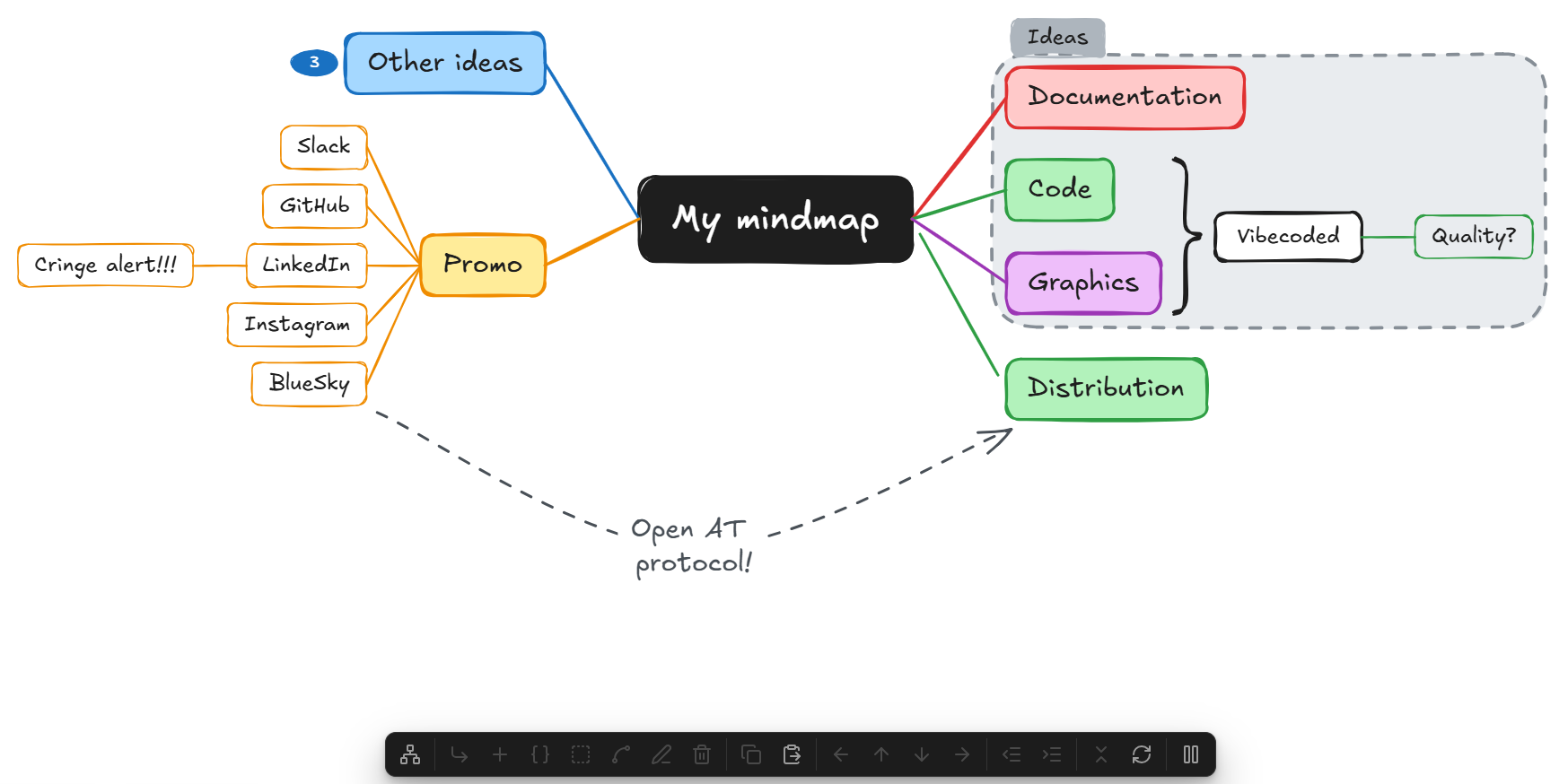
The two-sided map re-arranges itself after every change. Drag a topic anywhere: it keeps its new place and its subtopics follow. The layout menu in the panel refreshes the layout, resets it to the automatic positions, or resets the whole map with Reset all.
🧩 Summaries, boundaries and relationships
Select sibling topics to add a summary, a topic behind a brace that spans them. Or add a boundary, a dashed frame with a title around them. A relationship is a curved, labeled arrow between any two topics, even in different maps, and it stays attached when the topics move.
🪗 Collapse and expand
Ctrl+/ collapses a topic with everything below it. A badge shows how many topics are hidden, and clicking it expands the topic again. On the central topic, it collapses or expands all main topics at once.
↔️ Promote and demote
Alt+arrow moves a topic, with its subtopics, one level up or down. A topic that becomes a main topic takes the next branch color, and one that moves under another branch takes that branch's color.
📝 Markdown outlines
Ctrl+C copies the selected topics as a Markdown bullet list, ready to paste into a note. Ctrl+V pastes bullet lists, numbered lists or headings back as subtopics of the selected topic. A command builds a whole new map from the outline in the clipboard.
🔗 Links to notes
Type [[ in a topic to open Excalidraw's link suggester for notes, headings, blocks and tags. Ctrl+click the topic to open the note. Links are kept when topics are copied as Markdown and pasted back.
🎨 Your colors
Pick the colors of the central topic, branches, summaries, boundaries and relationships in the settings. Reset all restyles existing maps with them.
📱 Works on mobile
A floating panel at the bottom of the drawing offers every action. On phones and tablets you can build maps without a keyboard.
✏️ Still plain Excalidraw
Maps are ordinary Excalidraw elements, so every Excalidraw tool still works on them. Every operation is a single undo step. Pause the plugin from the panel when you want Excalidraw's own shortcuts back.
Configuration
All options are in Settings → Excalidraw Mind Map.
| Setting | Default | Description |
|---|---|---|
| Show control panel on desktop | On | Shows the floating panel on desktop. On phones and tablets it is always shown. |
| Allow deleting the central topic | Off | Lets Delete remove the central topic, which deletes the whole map: every topic and connector. |
| Arrows instead of lines | Off | Connectors end in an arrowhead pointing to the subtopic. |
Colors are on their own page in the settings, for:
- the central topic: text, border and background
- the topic text of main topics and subtopics
- summaries: text, border and brace, background
- boundaries: dashed line, background, title text, title background
- relationships: line and arrowhead, label text
- branches: line and border, and main topic background. Main topics take the branch colors in turn. Branch colors can be added, removed and reordered, and Reset colors to defaults restores the original palette.
Color and arrow changes apply to topics and connectors created afterwards. To apply them to an existing map, use Reset all from the panel's layout menu or the command palette.
Development
npm install
npm run dev     # watch build, copies into test-vault/.obsidian/plugins/excalidraw-mindmap
npm run build   # type-check + production build
npm test        # layout unit tests
npm run lint    # ESLint with Obsidian's plugin rules
To install into a vault manually, copy main.js, manifest.json and styles.css from the latest release into <vault>/.obsidian/plugins/excalidraw-mindmap/.
License
For plugin developers
Search results and similarity scores are powered by semantic analysis of your plugin's README. If your plugin isn't appearing for searches you'd expect, try updating your README to clearly describe your plugin's purpose, features, and use cases.